Category Archives: How to Fix

Clion MinGW super fast configuration OpenGL development environment

I configured CLion after configuring the VS environment with reference to this blog, so some of the content in this blog is the same as this blog.
reference link
you want to know the differences between OpenGL libraries, you can also refer to the link above.
Required components

    ClionMinGW compiler GLFW download address
Some instructions
GLFW I configuration using 64 – bit version, so don’t determine the 32-bit version can use the
download GLAD I directly handling the details of the reference wrote in the blog:
GLAD has an online service (that is, download address), directly under down can use (compiled) and sets the Language (Language) to the C/C + +, the API option, select OpenGL version 3.3 + (version 3.3 is a programmable pipeline, and also can work normally but newer versions). Then set the Profile to Core and make sure the Generate a Loader option is selected. Ignore the Extensions for now (for now). When you have selected everything, click the Generate button to Generate the library files
Specific operation
Copy the glad. C
Copy the downloaded glad.c into the project directory
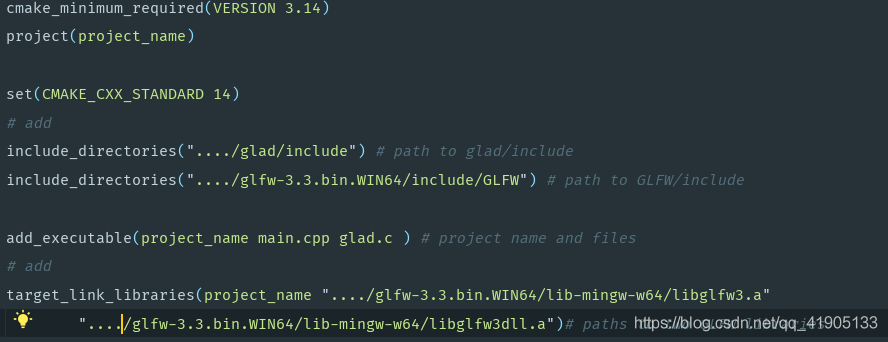
Modify CMakeLists. TXT
You only need to change 4 lines

    add glad.c to add_executable (line 6, no blank line) add header directory (line 4,5) link library file (line 7)
Path to store their files to the corresponding path line

GLFW the include directory can write “/ GLFW – 3.3. Bin. WIN64/include/GLFW” or “/ GLFW – 3.3. Bin. WIN64/include/”, just as the difference between when writing the code the include path is a little change, the former direct # include” glfw3. H “which is # include” GLFW/glfw3. H”
Hopefully’re done
with Cmake management code can actually such configuration

Mac clion configuring opencv environment

Start by installing OpenCV4.0.1 with Homebrew

$ brew install opencv

If Open3.4.5 is installed

brew install opencv@3

** If you need –with OpenGL ** you need to [download] to [email protected] and change the compilation configuration.
brew install ./[email protected]
Update if you find any updates;
Then configure it in the CLion project cmMakelists.txt as follows:

cmake_minimum_required(VERSION 3.9)
project(untitled1)

set(CMAKE_CXX_STANDARD 11)

#find_library(OpenCV)
find_package(OpenCV)

include_directories(${OpenCV_INCLUDE_DIRS})
set(CMAKE_CXX_STANDARD 11)

add_executable(untitled1 main.cpp)

target_link_libraries(untitled1 ${OpenCV_LIBS})

Then you can write main.cpp to verify that:

#include <iostream>
#include <opencv2/opencv.hpp>

using namespace std;
using namespace cv;

int main() {
    Mat srcImage = imread("your_img_path.jpg");
    if (!srcImage.data) {
        std::cout << "Image not loaded";
        return -1;
    }
    imshow("[img]", srcImage);
    waitKey(0);
    return 0;
}

You can display the photo, but if you can’t find the photo, change the path to the absolute path.
the original: https://blog.csdn.net/u010319740/article/details/79012810

Configure OpenGL development environment (vs2015)

Configuring the OpenGL development environment (VS2015)
There are a lot of configuration VS + OpenGL tutorials online, for the configuration of the super treasure of the good and bad are mixed, mainly the official website did not give a good compiled library, many need to compile their own, so for beginners, it is difficult to configure successfully.
 
The following is a blog post that explains the configuration process and the rationale behind it
http://www.it165.net/pro/html/201504/38164.html
 
For beginners, everyone wants to be able to run the example given in the super bible. Here I directly give several twists and turns, all kinds of files generated after compilation, according to the following configuration can be run in VS2015 super treasure in the example, to achieve development.
 
I. Required allocation of resources

Resource download: http://download.csdn.net/download/ax_hacker/10107105
The zip package contains two folders, CJBD5_CODE and OpenGL. The former contains the sample program, and the latter is the three files required for configuration.
 
Include
Lib
Dll
 

How do I configure the development environment, as I explained in a previous blog post
http://blog.csdn.net/ax_hacker/article/details/78140003
The following is the configuration process for OpenGL.
 
1, Copy the files in the DLL folder to C:\Windows\ Syswow64 and C:\Windows\System32
 
2. Create an empty project, add a source file, and configure the project properties
 
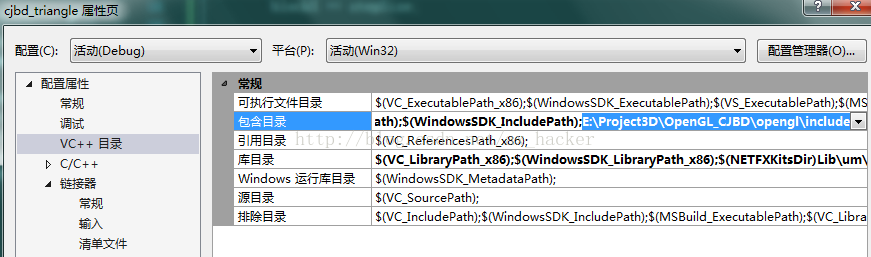
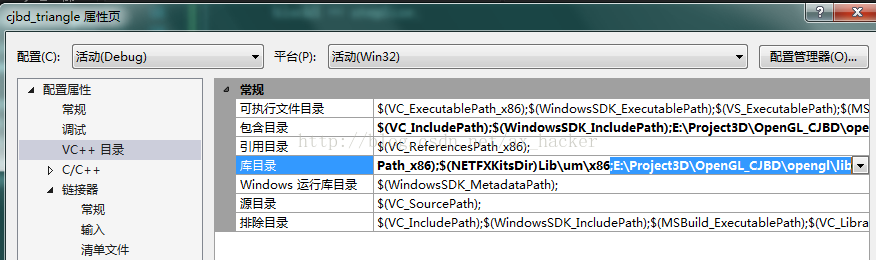
1) Put the include from the previous folder under the include directory

 
2) lib in the library directory

 
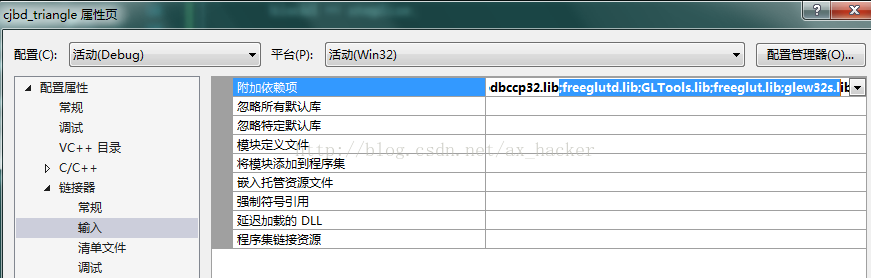
3) Linker ->; Input – & gt; Additional dependencies freeglutd.lib; GLTools.lib; freeglut.lib; glew32s.lib

The simplest way to configure OpenGL development environment with vs2015

This method I think is the simplest!
Before I wrote this, I did a lot of research online on what to do with GLUT, GLEW, FreeGLUT, and what files to add to the site. Now I can tell you that VS2015 is so powerful that none of these operations are needed! VS has a tool called NuGet, which is a package manager for.NET. NuGet allows developers to create, share, and use libraries. We use OpenGL, which should be called libraries using OpenGL.
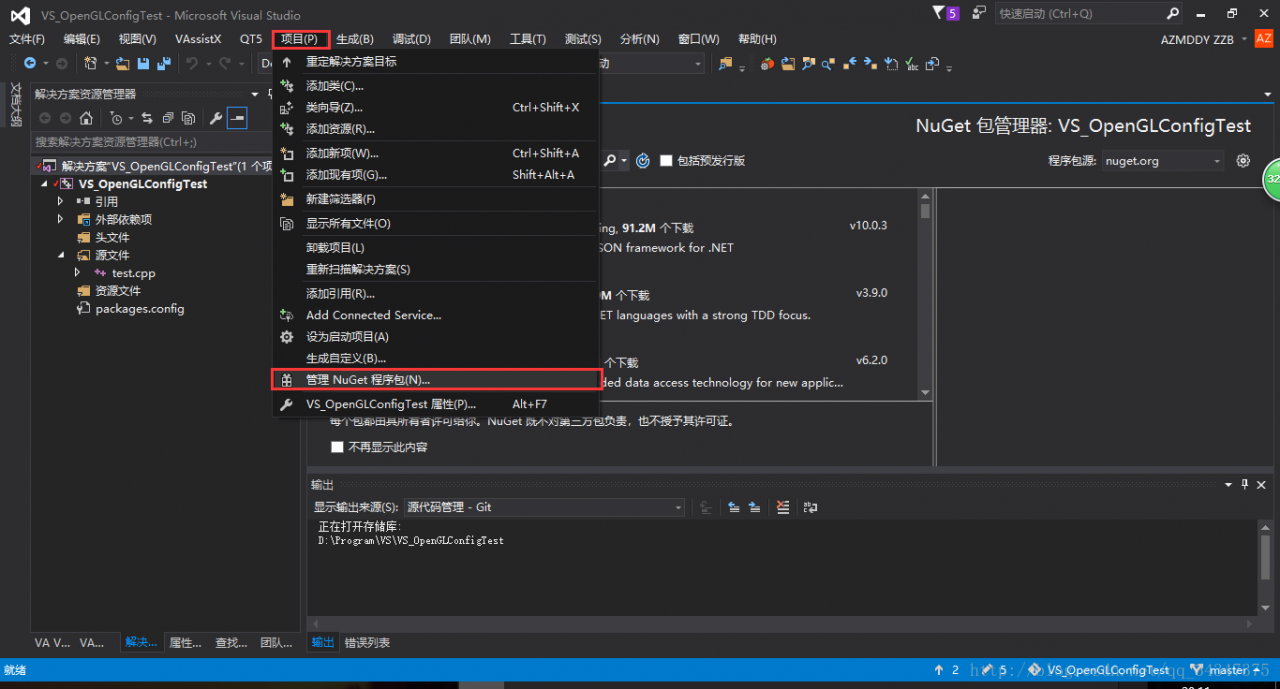
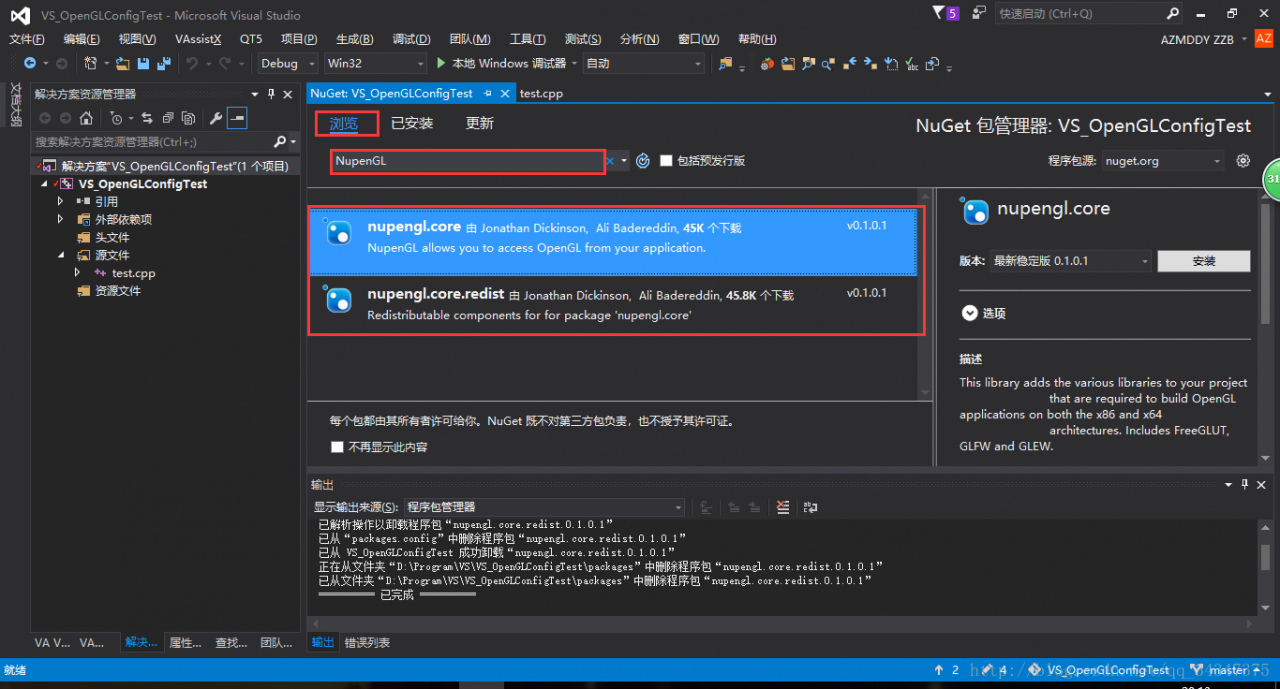
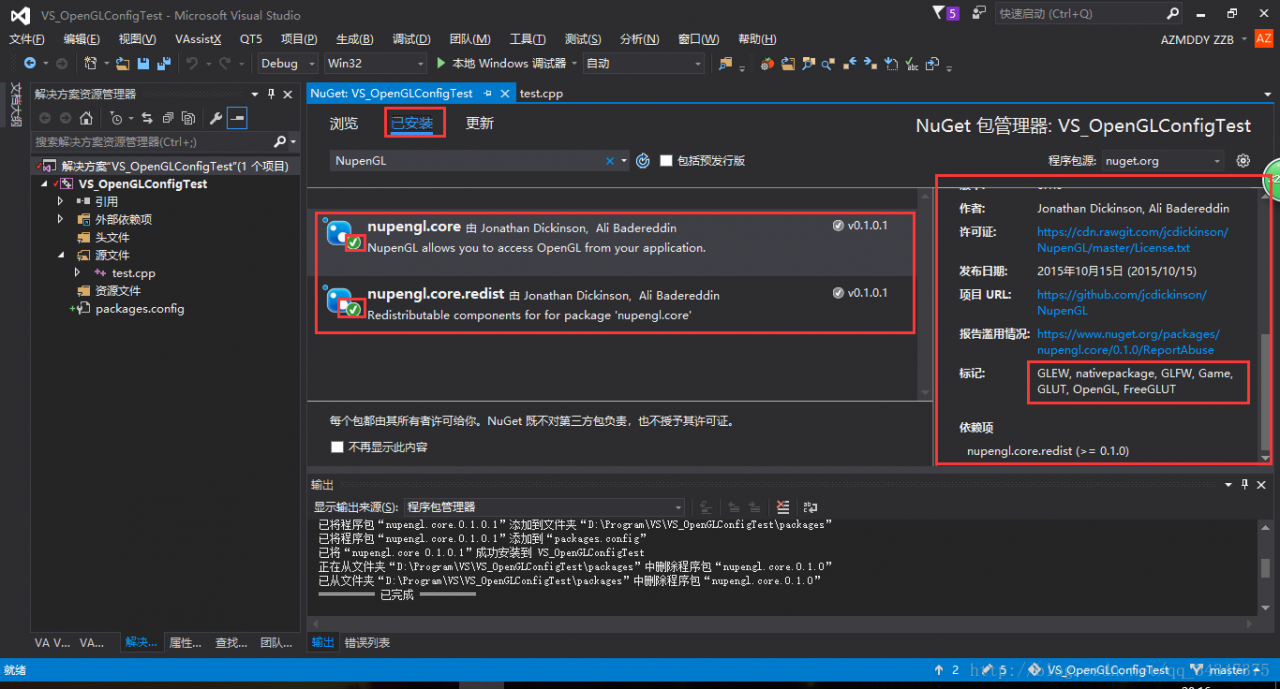
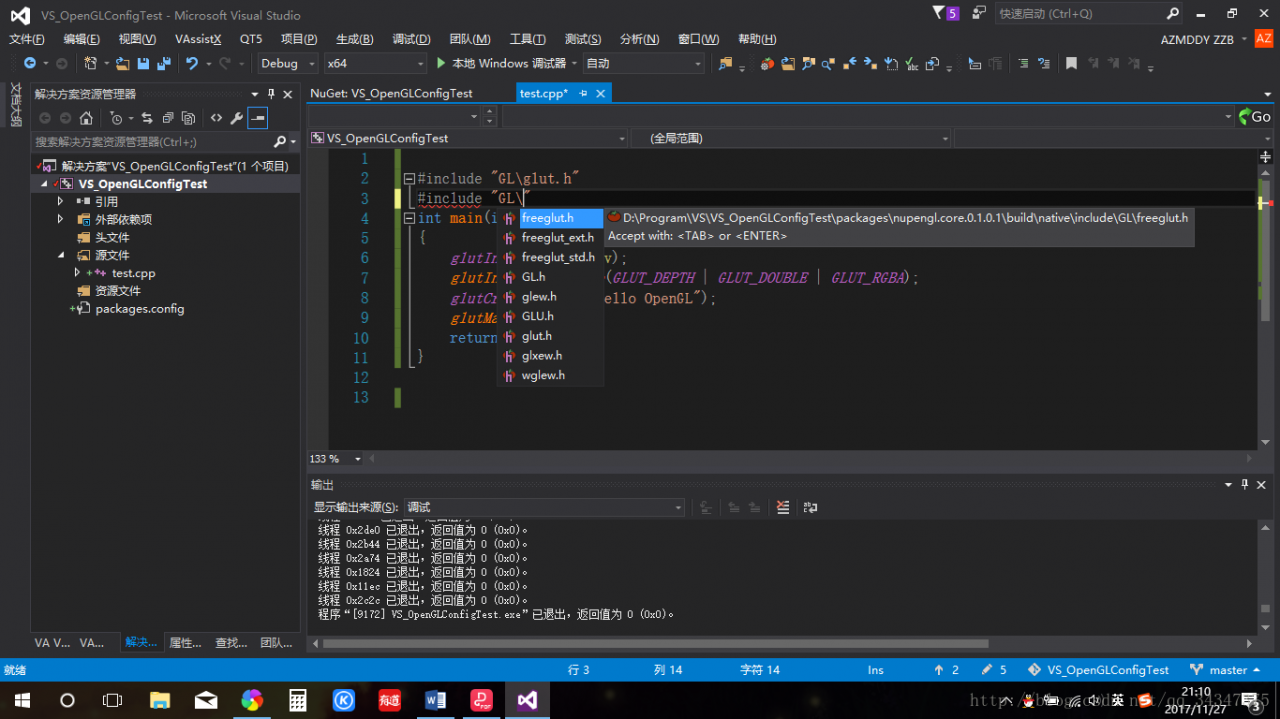
VS2015 steps to configure OpenGL. First, you need to have a project, and then add the OpenGL library to your project by clicking Project ->; Manage NuGet package, and then in a TAB, click on the “browse” input “NupenGL” into the search box, search will appear two libraries, we should both to our engineering to installation, after the success of the installation, you can find them in the installed base, in the right of the child window, you can learn about the installation of the library information.


It is not particularly easy to install GLUT, FreeGLUT, and GLEW libraries in just a few simple steps.
>
>
>
>
>
>
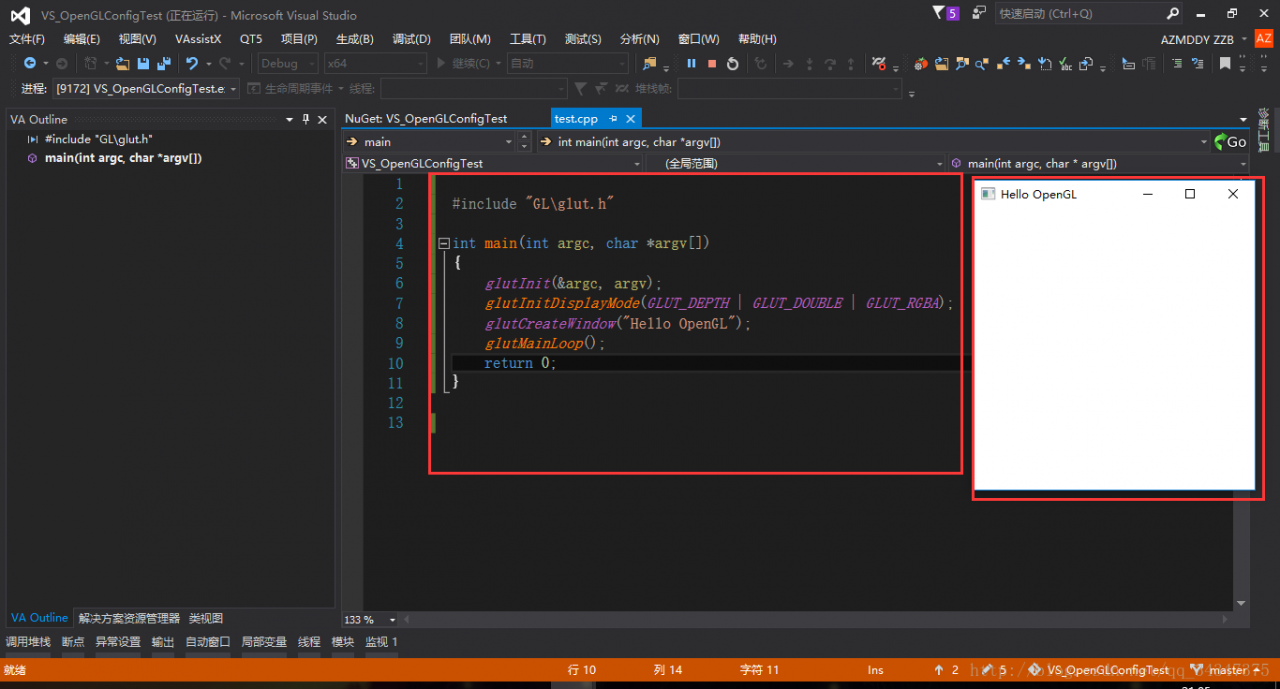
> I won’t post the source code.

You look at the picture below, is it time to put your heart at ease?

But again simple things, some people will still appear all kinds of problems. First of all, every time you create a new OpenGL project, you have to install a library. Some people hate this tedious, but I can’t help it. It won’t take you half a minute to install these two libraries, and you don’t have to do that on other computers. Also, turn off the 360, it’s so annoying!

Vs2015 + PCL. 1.8.1 (win10) environment configuration

This weekend did nothing, from Friday night to install the PCL library, the whole is really want to cry, again and again, every time there are dozens of even hundreds of new problems, obviously in accordance with the previous install version 1.8.0 method, I do not know what is wrong. Then on Saturday night to give up to go back to sleep, do not know what they have done, suddenly good, even before 1.8.0 encountered VTK can not use the problem is also solved, happiness comes too TTTTTTTTTTT suddenly !!!!!!!!!
I have also looked at the installation tutorials of many blogs, although they are all similar, but who can guarantee that there may be a place that does not fit and cause problems. Suffice it to say, the way to get yourself installed successfully is the right way. Here is a record of my final successful installation process, for your reference.
Install pcl1.8.1
First, download the pcl1.8.1 installation package for installation, the installation package can be found on the Internet.
Here attached my links: https://pan.baidu.com/s/1-dPRLZ1a8Ktemo2EGXU-Sw extraction code: 66 rb. I have 64 bits here. Here 32-bit or 64-bit depends on how many bits your VS compiler has, not the operating system.
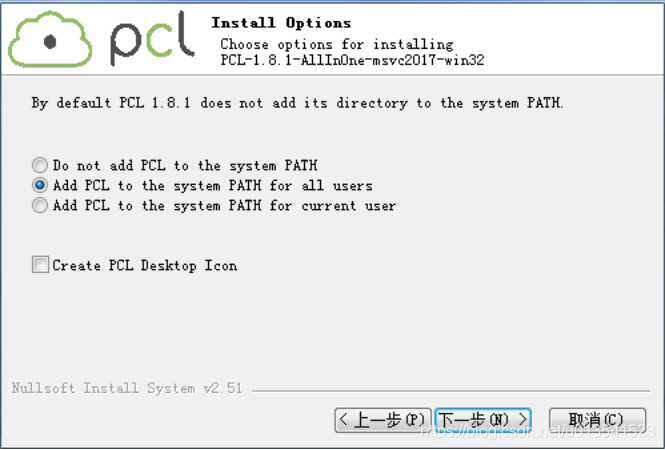
I am selecting the second option, automatically generating system variables, modifying the installation directory, and customizing the installation in C:\pcl1.8.1.


Vs2015 OpenGL environment configuration

VS2015 OpenGL environment configuration
1. Download the required library (e.g. glad, glew, GLFW) and compile the binary file.

(1) Glad: https://glad.dav1d.de/. After entering, the Settings are as follows:

Language: c/c + +
Gl: version3.3
profile:core
Generate can be downloaded.
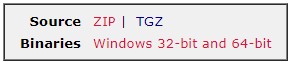
(2) glfw:https://www.glfw.org/download.html

The choice of 32-bit or 64-bit binaries depends on the system. I downloaded the 64-bit version and can also be used when debugging x86 (32) programs.
(3) the glew:http://glew.sourceforge.net/

Download the binaries.
My current configuration only uses Glad and GLFW, it should be similar for GLEW configuration.
2. Configure the environment
(1) Header file configuration
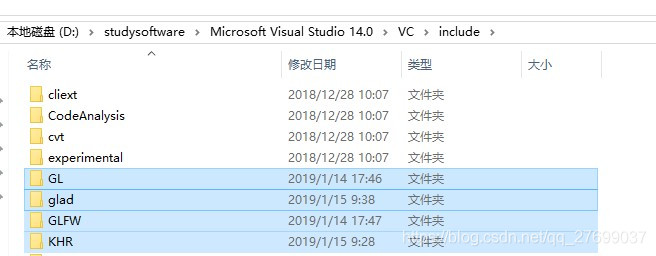
VC/Include: : : : : : : : : : : : : : : : : : : : : : : : : : : : : : : : : : : : : : : : : : : : : : : : : : : : : : : : : : : : : : : : : : : : : : : : : : : : : : : : : : : : : : : : : : : : : : : : : : :

Glew /Include: VC/Include
There are two directories in the Glad folder Include: Glad and KHR, which are respectively copied under VC/Include;
Same thing with GLFW.
(2) lib file configuration
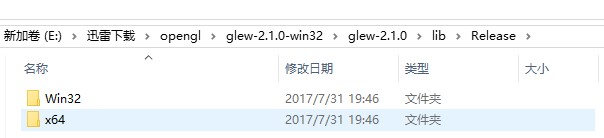
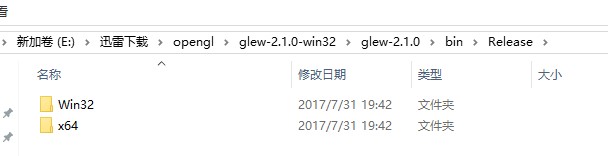
The glew lib Release folder contains two directories: Win32 and x64

Win32 lib files in VC/lib directory, x64 files in VC/lib/amd64 files.
This actually tells us that the compilation environment of glew is under Release, so if we use this library in the future, it is better to use Release debugging.
In addition, there is a bin file under glew. For VC, the bin directory is also divided into 32 bits and 64 bits. The default is 32 bits.

Put the Win32 files under bin into VC/bin, x64 into amd64.
Select the corresponding VS version lib file in the GLFW folder, I used VS2015, corresponding to lib-vc2015.

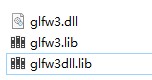
VC/bin/amd64: VC/bin/amd64: VC/bin/amd64: VC/bin/amd64 , glfw3.lib and glfw3dll.lib are placed under VC/lib and VC/lib/ AMD respectively.
3. The debugging
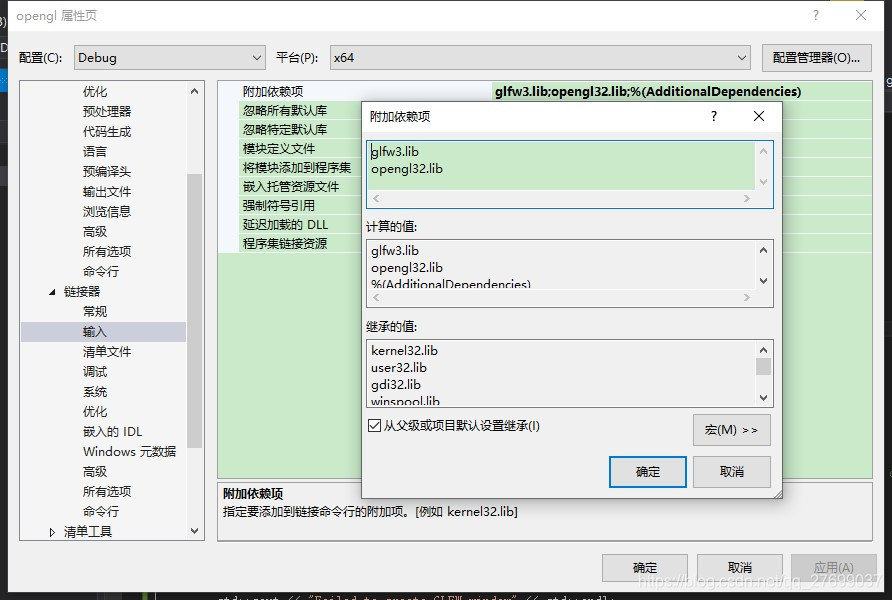
Create a new empty project and configure the lib file based on the project properties (32-bit/64-bit). (glfw3. Lib
Opengl32. Lib).

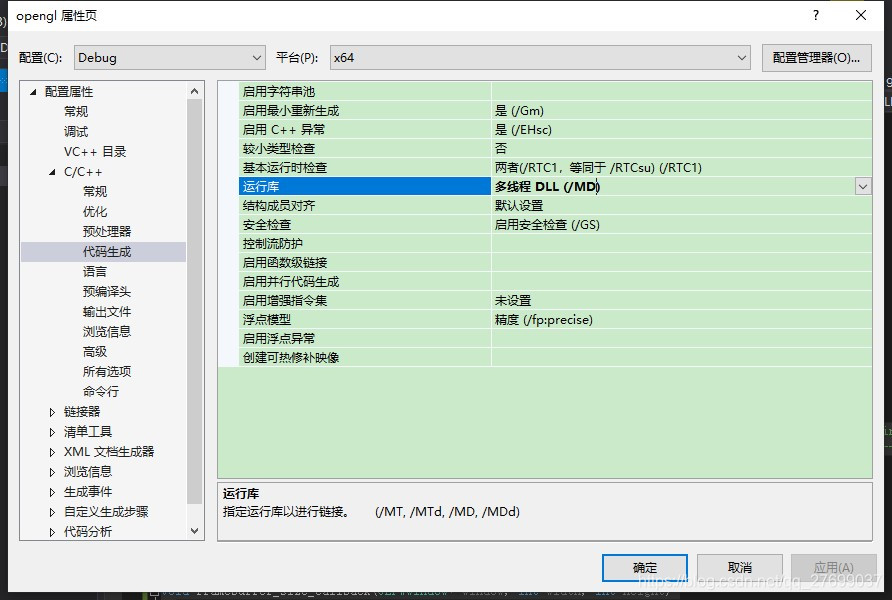
Change code generation to a multithreaded DLL (/MD).

Then, add the source file in the glad directory to the project, create a new source file, and write the following code:
#include < glad/glad.h>
#include < GLFW/glfw3.h>
 
#include < iostream>
 
void framebuffer_size_callback(GLFWwindow* window, int width, int height);
void processInput(GLFWwindow *window);
 
// settings
const unsigned int SCR_WIDTH = 800;
const unsigned int SCR_HEIGHT = 600;
 
int main()
{
// GLFW: Initialize and configure
    // ——————————
GlfwInit ();
GlfwWindowHint (GLFW_CONTEXT_VERSION_MAJOR, 3);
GlfwWindowHint (GLFW_CONTEXT_VERSION_MINOR, 3);
GlfwWindowHint (GLFW_OPENGL_PROFILE GLFW_OPENGL_CORE_PROFILE);
 
#ifdef __APPLE__
GlfwWindowHint (GLFW_OPENGL_FORWARD_COMPAT GL_TRUE); // uncomment this statement to fix compilation on OS X
#endif
 
//GLFW window creation
                                                         // ——————–
GlfwWindow * window = glfwCreateWindow(SCR_WIDTH, SCR_HEIGHT, “LearnOpenGL”, NULL, NULL);
If (window = = NULL)
{
STD: : cout & lt; < “Failed to create GLFW window” < < std::endl;
GlfwTerminate ();
The return – 1;
}
GlfwMakeContextCurrent (Windows);
GlfwSetFramebufferSizeCallback (window, framebuffer_size_callback);
 
// Glad: Load all OpenGL function Pointers
    // —————————————
If (! gladLoadGLLoader((GLADloadproc)glfwGetProcAddress))
{
STD: : cout & lt; < “Failed to initialize GLAD” < < std::endl;
The return – 1;
}
 
//render loop
    // ———–
While (! glfwWindowShouldClose(window))
{
//input
        // —–
ProcessInput (Windows);
 
//render
        // ——
GlClearColor (0.2 f, f, 0.3 0.3 f, 1.0 f);
GlClear (GL_COLOR_BUFFER_BIT);
 
// GLFW: swap buffers and poll IO events (keys pressed/released, mouse moved etc.)
        // ——————————————————————————-
GlfwSwapBuffers (Windows);
GlfwPollEvents ();
}
 
// GLFW: terminate, clearing all allocated GLFW resources.
    // ——————————————————————
GlfwTerminate ();
Return 0;
}
 
// process all input: query GLFW whether relevant keys are pressed/released this frame and react accordingly
// ———————————————————————————————————
void processInput(GLFWwindow *window)
{
If (glfwgetKey (window, GLFW_KEY_ESCAPE) == GLFW_PRESS)
GlfwSetWindowShouldClose (Windows, true);
}
 
// glfw: whenever the window size changed (by OS or user resize) this callback function executes
// ———————————————————————————————
void framebuffer_size_callback(GLFWwindow* window, int width, int height)
{
// make sure the viewport matches the new window dimensions; note that width and
// The height will be significantly larger than specified on Retina displays.
GlViewport (0, 0, width, height);
}
4. The pit
If you are creating an x86 or x64 project, add glfw3.lib and opengl32.lib to the attached dependencies.
Second, for x86 projects, the VC library directory is VC/lib, so put the lib files in that directory. For x64 programs, the VC default library directory is VC/lib/ AMD, so if you want to debug under x64, also need to put the lib file in this directory, otherwise will appear can not find glfw3.lib file.
In particular, for debugging under X64 Debug, change the code generation for project properties to multithreaded DLLs (/MD).
In the process of configuration, I encountered a lot of problems, according to the above operation configuration, should avoid these chos.

On the configuration of OpenGL Red Book eighth edition environment in vs2013

I just started learning OpenGL, bought a copy of OpenGL Red Book 8,
The first example has been studied for a while and is finally ready to run. I wonder if there are any children’s shoes that have the same problem as me.
Here’s how I configured it:
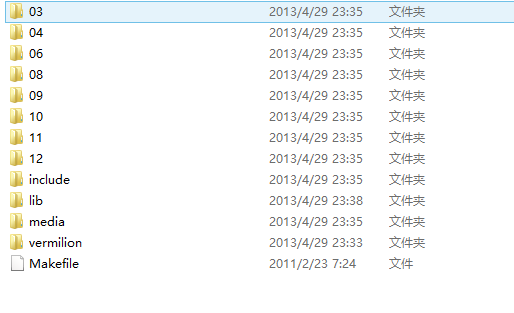
First go to http://www.opengl-redbook.com/ and download the source code of the Little Red Book. Unzip it to get this

Then open VS2013 and create an empty Win32 console project.
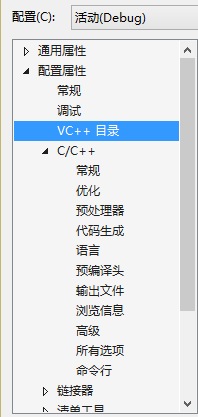
Then right-click on the project properties and click on the VC ++ directory

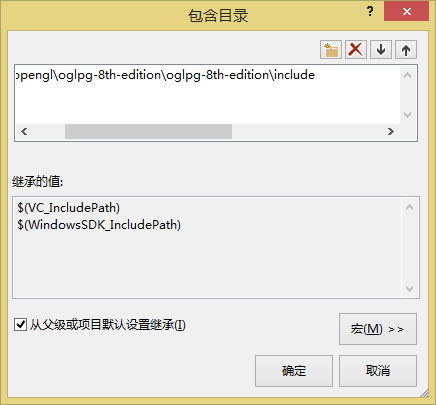
Include directory – Edit and add the include folder in the Red Book source directory

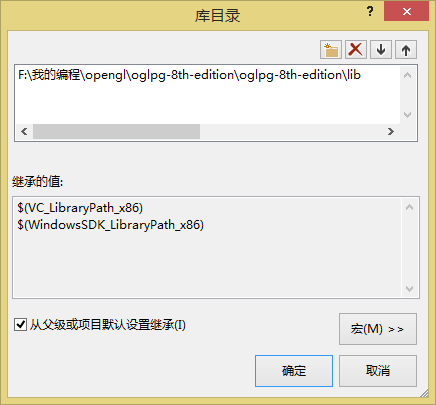
Library directory – Edit and add the lib folder
in the Red Book source directory

Add and source files to the project, and paste the code from the first example of the Little Red Book

///
//
// triangles.cpp
//
///
#include <iostream>
using namespace std;
#include "vgl.h"
#include "LoadShaders.h"
enum VAO_IDs { Triangles, NumVAOs };
enum Buffer_IDs { ArrayBuffer, NumBuffers };
enum Attrib_IDs { vPosition = 0 };
GLuint VAOs[NumVAOs];
GLuint Buffers[NumBuffers];
const GLuint NumVertices = 6;
//---------------------------------------------------------------------
//
// init
//
void init(void)
{
	glGenVertexArrays(NumVAOs, VAOs);
	glBindVertexArray(VAOs[Triangles]);
	GLfloat vertices[NumVertices][2] = {
		{ -0.90, -0.90 }, // Triangle 1
		{ 0.85, -0.90 },
		{ -0.90, 0.85 },
		{ 0.90, -0.85 }, // Triangle 2
		{ 0.90, 0.90 },
		{ -0.85, 0.90 }
	};
	glGenBuffers(NumBuffers, Buffers);
	glBindBuffer(GL_ARRAY_BUFFER, Buffers[ArrayBuffer]);
	glBufferData(GL_ARRAY_BUFFER, sizeof(vertices),
		vertices, GL_STATIC_DRAW);
	ShaderInfo shaders[] = {
		{ GL_VERTEX_SHADER, "triangles.vert" },
		{ GL_FRAGMENT_SHADER, "triangles.frag" },
		{ GL_NONE, NULL }
	};
	GLuint program = LoadShaders(shaders);
	glUseProgram(program);
	glVertexAttribPointer(vPosition, 2, GL_FLOAT,
		GL_FALSE, 0, BUFFER_OFFSET(0));
	glEnableVertexAttribArray(vPosition);
}
//---------------------------------------------------------------------
//
// display
//
void display(void)
{
	glClear(GL_COLOR_BUFFER_BIT);
	glBindVertexArray(VAOs[Triangles]);
	glDrawArrays(GL_TRIANGLES, 0, NumVertices);
	glFlush();
}

//---------------------------------------------------------------------
//
// main
//
int main(int argc, char** argv)
{
	glutInit(&argc, argv);
	glutInitDisplayMode(GLUT_RGBA);
	glutInitWindowSize(512, 512);
	glutInitContextVersion(4, 3);
	glutInitContextProfile(GLUT_CORE_PROFILE);
	glutCreateWindow(argv[0]);
	if (glewInit()) {
		cerr << "Unable to initialize GLEW ... exiting" << endl;
		exit(EXIT_FAILURE);
	}
	init();
	glutDisplayFunc(display);
	glutMainLoop();
}

compile once found not through, will quote cannot resolve external command error,

This is because loadShaders.cpp could not be found
In the Little Red Book source directory there is a lib folder with LoadShaders
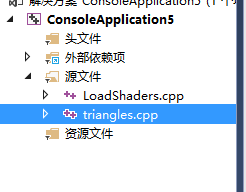
Right-click on the project’s source file to add an existing item

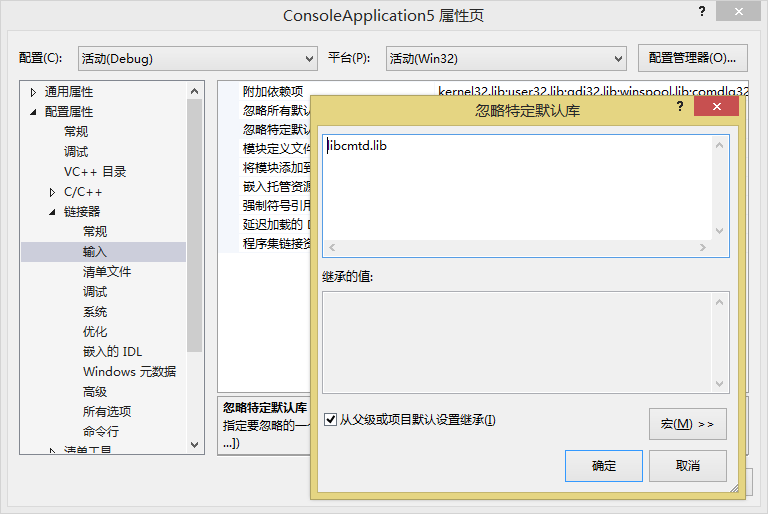
The libcmtd.lib library is in conflict with other libraries, so we can ignore it
Right-click on the project — Properties — Linker — Enter and add it in Ignore the specific default library

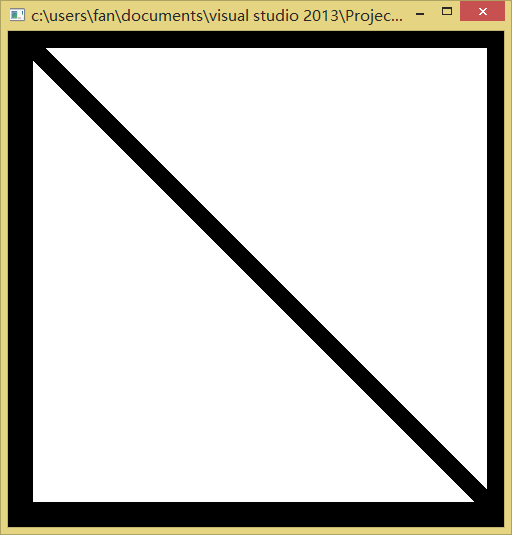
Now in the compilation once found can pass out

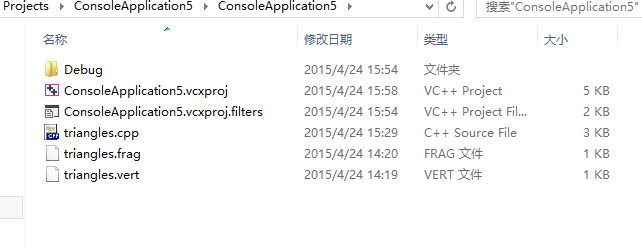
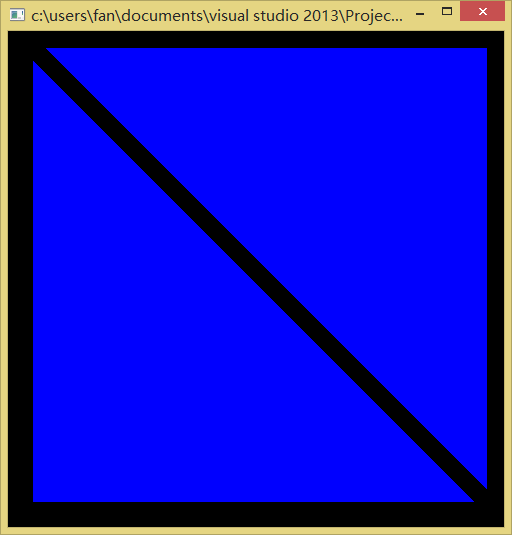
But it’s a white triangle, not a blue triangle, and you need to create two new texts in the project directory
Renamed Triangles. Vert and Triangles. Frag

The code is as follows:

triangles.vert

#version 430 core
layout(location = 0) in vec4 vPosition;
void
main()
{
	gl_Position = vPosition;
}

triangles.frag

#version 430 core
out vec4 fColor;
void
main()
{
	fColor = vec4(0.0, 0.0, 1.0, 1.0);
}

>
>

Configuration and use of qt5.9.6 and vs2015

To do the interface but MFC is really, so decisive try Qt to achieve interface, Qt5.9.6 +VS2015+ OpenCV2.4.13
Software used: QT5.9.6
VS2015
Reference address: Qt5.7 + VS2015 environment structures, https://blog.csdn.net/liang19890820/article/details/53931813
VS2015 called QT small routines: https://blog.csdn.net/horizons_kong/article/details/53006047
Qt Creator and v + Qt some small notable difference at https://blog.csdn.net/qq295456059/article/details/52781726
1. Download and install VS2015 and QT5.9.6
Enter VS2015 official download page, download VS2015 Community Edition – Visual Studio Community.
When installing, remember to check the VC++ option of the programming language option, other directly default, as shown in the figure below, otherwise Qt may not detect the compiler, I have encountered this problem, I will record it later.
           
QT5.9.6 Download and install
Enter the official download page of Qt, I downloaded 5.9.6, you can choose the version, it is recommended to choose a newer version, I downloaded Qt – Opensource-Windows-x86-5.9.6. exe, click download can be.
Then install, default next step, but pay attention to the installation component selection, as shown in the figure below, MinGW and msvc2015-64bit(self-adjusting selection) be sure to check.
The other steps are the default next step. After installation, go to the Start screen and open Qt Creater.
2. Configure Qt Creator
Open Qt Creator, and the interface looks like this
To realize the mutual invocation of VS and Qt, you also need to configure Qt Creator. Click Tools ->; Options – & gt; Build and Run –
You need to configure the compiler, debugger, and so on. If C++ has been checked, the compiler will automatically detect VS2015. If you have not checked the “Visual C++” option when installing VS2015, the compiler will automatically detect VS2015.
Note: it doesn’t matter if it can’t be detected, do not uninstall and reinstall. You can modify it according to the following figure.
Enter the control panel ->; Programs and features, find Microsoft Visual Studio Community 2015 Updates, right-click and select “Change”.
Then check VC++ again as mentioned before. At this point, you can be surprised to find a compiler
Click on the Build Suite in the following image. You can see the warning symbol displayed in front of the build suite that is automatically detected. The debugger section shows “None”, indicating that the debugger has not been configured.
      
3. Configure the debugger
The debugger is not available by default, but again, it is necessary to download the Windbg manually. The debugger download address: https://www.microsoft.com/zh-cn/p/windbg-preview/9pgjgd53tn86?rtc=1
Then install can be, install the following tick, the default installation
As long as you can implement the following image, detect the Debugger in the Debugger is automatically detected
4. Configuration VS
To implement VS call Qt, you need to install the related plug-in, as shown in the figure below.
Select: online, search the keyword “Qt”, and relevant plug-ins will appear, as shown in the figure below. Select to download:
When you’re done, you’ll find Qt VS Tools in the menu bar
 
5. Configuration of QT
Select: Qt VS Tools ->; Qt Options, configuring Qt 5.7. Click “Add” button, Path select D:\ QT \ QT5.7.1 \5.7\ MSVC2015_64, then click “OK” to save.
Note: Unable to find a Qt build! Will appear when creating a Qt project if Qt is not configured. error
The following figure
 
Here, VS2015 + QT5.9.6 configuration is completed, the next blog, write how to use QT in VS interface
— — — — — — — — — — — — — — — — — — — — —
the author: students with excellent grades home occupy
source: CSDN
the original: https://blog.csdn.net/guanzhen3657/article/details/81486116
copyright statement: this article original articles for bloggers, reproduced please attach link to blog!

OpenGL class library and environment configuration under win10 and vs2015

Quote:
The OpenGL Super Bibliography (Fifth Edition) and the OpenGL Programming Guide (Eighth Edition) are two practical OpenGL learning books. The difference is that the former has more examples and is easier to follow step by step, while the latter focuses on the API, so it’s best to read the former first.  
OpenGL class library configuration has been troubled by many beginners, I browse the configuration methods of various reference articles, found that in VS2015 configuration encountered many problems, after a few days of groping finally solved.
This article mainly refer to https://www.cnblogs.com/zpcdbky/p/6724772.html
http://blog.csdn.net/brillianteagle/article/details/51623208
http://www.it165.net/pro/html/201504/38164.html
Thanks to the contributions of the authors.
In this paper, all the resources have been packaged well, download address: http://download.csdn.net/download/shs1992shs/10142198
I. GLEW configuration
Glew’s official website: http://glew.sourceforge.net/
glew making official homepage: https://github.com/nigels-com/glew
glew is a cross-platform OpenGL extensions library, supporting multiple operating system, the url has to provide the latest version of glew.

1. Download Source and Binaries respectively, where the Binaries version is the compiled glew file and the Source is the Source.
2. Find the VS2015 installation directory, if it is installed in C disk, most is similar to C: Program Files(x86)\Microsoft Visual Studio 15.0 such path (the next is Microsoft Visual Studio 14.0), can also be in other disk directory; For the convenience of expression, the following will be explained according to the directory “D:\ Software Installation \VS2015”.
3. Locate the C++ header directory, such as “D:\ software installation \VS2015\VC\include”, and create a new GL folder under the include directory (if there is none).
4. Page 1 Binaries glew – 2.1.0/include/GL folder 4 header files are copied to 3 GL in the folder.
5. Copy glew32.dll from Binaries version to D:\ software installation \VS2015\VC\bin.
6. Copy the Binaries version of glew-2.1.0\lib\Release\Win32 to the directory D:\ software installation \VS2015\VC\lib.
Note that it is not necessary to copy the DLL file to C:\Windows\System32 or C:\Windows\SysWOW64.
At this point, glew is configured.

FreeGLUT configuration

1. GLEW obtains the latest version of OpenGL API. The FreeGLUT is used to replace the GLUT library. So, the glew and freeGLUT libraries are configured to completely replace the glu and GLUT libraries, and the latest version of the API is available for Shader programming.

f
The latest stable version of ReeGLUT is 3.0, which can be downloaded at:
http://freeglut.sourceforge.net/

Open the page and see the following section:

Download the Prepackaged version of MSVC and click the red button to get to the next page

Click on the red box to download the file named FreeGlut-MSVC-3.0.0-2.MP.zip

2.
“FreeGlut-MSVC-3.0.0-2.MP.zip” to extract the FreeGlut-MSVC-3.0.0-2.MP.zip folder.
There are four header files in the FreeGLUT /include/GL directory. Copy the three header files except GLUT. H to the D:\ software installation \VS2015\VC\include\GL directory.

Copy the FreeGlut. DLL file from FreeGlut. bin to D:\ software installation \VS2015\VC\bin.

4. Copy the FreeGlut. lib file to D:\ software installation \VS2015\VC\lib.

At this point, the FreeGLUT is configured.

Third, GLUT configuration

The GLUT library is old and hasn’t been updated since 2000, and many of them can be downloaded online or packaged with the resource bundles I uploaded.

Glut.h, Glut.dll, Glut32.dll, Glut.lib, Glut32.lib. Glut.h, Glut.dll, Glut32.dll, Glut.lib, Glut32.lib

2. Copy Glut. h to D:\ software installation \VS2015\VC\include\GL.

3. Copy ULT. DLL, GLUT32.DLL to D:\ software installation \VS2015\VC\bin.

4. Copy Glut. lib and Glut32. lib to D:\ VS2015\VC\lib.

At this point, GLUT is configured.

Note: When using the OpenGL Super Bibliotheca example, you need to add #pragma comment(lib,”gltools.lib”) to the beginning of the program. Used to connect to gltools.lib.

Four, GLTools configuration

The GLTools library is provided by the author of the OpenGL Super Bibliome. It is cumbersome to configure. I can use the files packaged in my resource pack, or I can compile them myself.

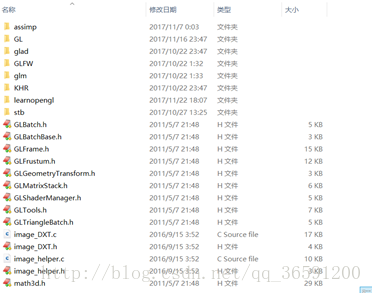
1. Copy all 11 header files from the gltools\include directory to the D:\ software installation \VS2015\VC\include directory (note the include directory, not the GL subdirectory).

2. Copy gltools.lib to D:\ software installation \VS2015\VC\lib.
> At this point, GLTools is configured.
> At this point, OpenGL is configured.

Self-compilation method:

Unzip the resource bundle and get the gltools folder. This folder has two folders, include and SRC, in its directory. Since GLTools compilations depend on glew, you can see that GLTools \include\GL is a version of the glew header, and GLTools \ SRC has the glew.c source.  

Since you have already used the latest version of glew-2.1.0, you need to replace all the header files in the gltools\include\GL directory and select
with
Glew-2.1.0 version glew.c source file replaces glew.c in gltools\ SRC. (The Source version of glew-2.1.0\ SRC \glew.c as mentioned earlier).

Note 1: GLTools in the resource pack is all packaged and does not need to be changed. Readers who need to update the resource pack should follow the above method.

Note 2: when using the OpenGL super treasure dian example, found that transformation pipeline header file GLGeometryTransform. H compile error, a large number of can’t find the identifier, so the revised, if readers encounter such problems, in the resource bundle of gltools within a folder GLGeometryTransform – fix GLGeometryTransform. H header file to replace to D: \ software \ VS2015 VC \ \ the include directory, can be normal use.

Generate gltools. Lib

1. Copy all 11 header files from the gltools\include directory to the D:\ software installation \VS2015\VC\include directory (note the include directory, not the GL subdirectory).

2.
Start VS2015 and create a Win32 application called GLTools.
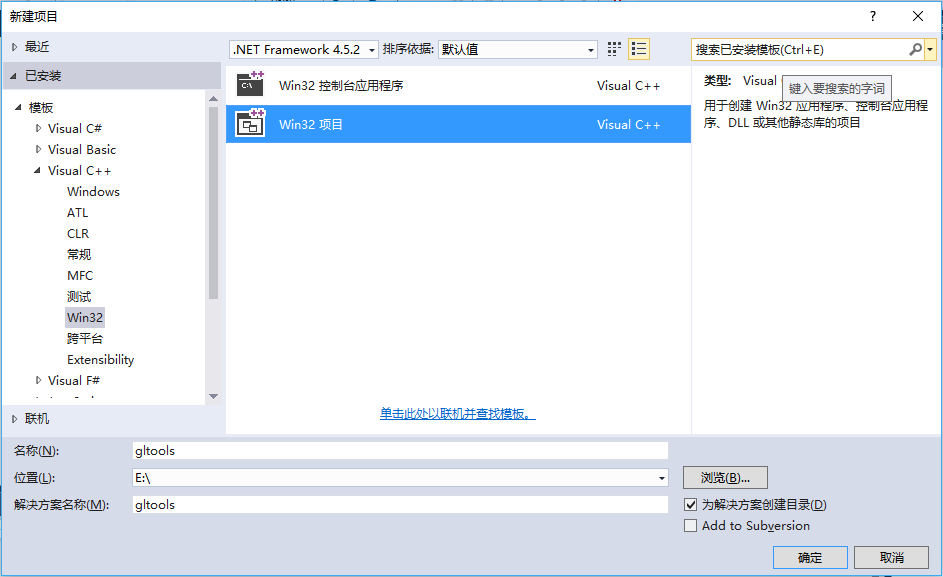
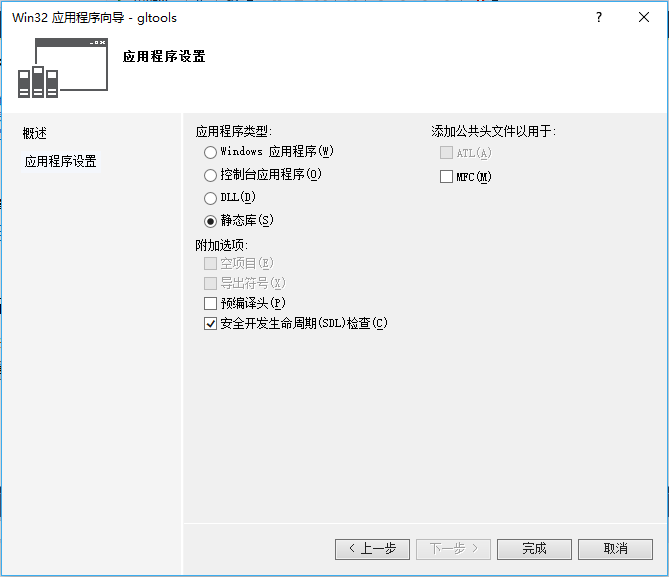
3. Select “Static Library” and uncheck the “Precompiled Header” box.
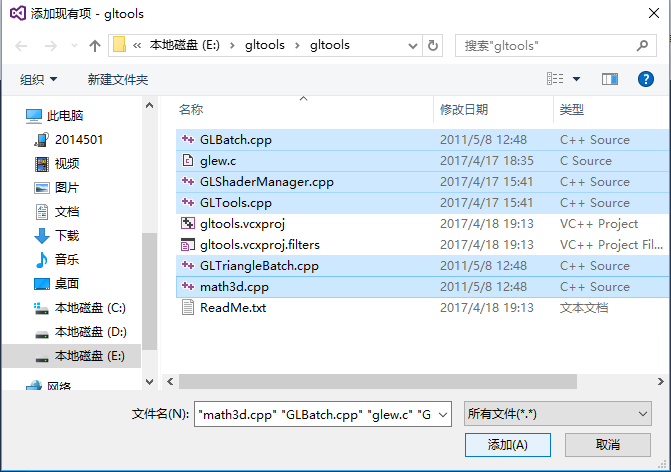
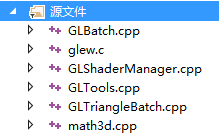
4. Copy the six files in the gltools\ SRC directory to the project directory you just created (for example, E: gltools\gltools).
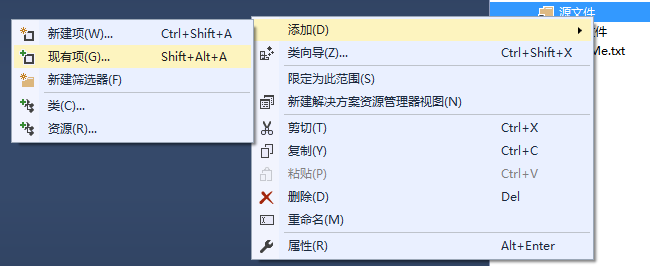
5. Right-click ‘Source File’ –>; “Add”, & gt; “Existing Items”, add 6 of the 4 files to the project.
C/C++ > C/C++ > C/C++ > Add _CRT_SECURE_NO_WARNINGS to the preprocessor definition to the right of the preprocessor,
Otherwise, the function will be warned that it is not safe to use and will not compile successfully.

7. To generate – & gt; Generate gltools
I have seen a compilation in Release mode and a compilation in Debug mode in different articles, so far I can’t see the specific difference, just to be safe, I can compile in both modes.
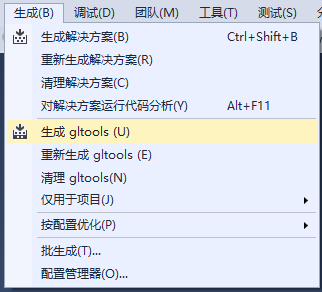
There were a bunch of “DLL link inconsistencies” warnings on the compile, but the compilation was successful.

8. The generated gltools.lib files can be found in the E: gltools\Debug directory and the E: gltools\Release directory respectively. To copy the gltools.lib file from the Release file, refer to the lib file placement format of FreeGLUT. You can copy the gltools.lib file from the Release file to the D:\ software installation \VS2015\VC\lib directory.

At this point, you are done.
A series of problems in configuring OpenGL development environment in vs2015

Since Windows 7, the OpenGL header file has been changed to the Windows SDK, so you can’t use it if you don’t install it.
more funny is, under the win10 vs2015 recompense Windows SDK installation failure, the typical pit themselves.
> VS05 and VC6 OpenGL headers are directly included in the development environment directory.

Okay, let’s get started.
: \Program Files (x86)\Windows Kits\8.1\Include\um\ GL C> Program Files (x86)\Windows Kits\8.1\Include\um\ GL
The downloaded from https://www.opengl.org/resources/libraries/glut/ glutdlls37beta. Zip , and will be. H in the directory. At the same time will glut32. Lib, glut. Lib respectively on the
C: \ Program Files \ Windows (x86) Kits \ 8.1 \ lib \ winv6.3 \ um \ x86 , C: \ Program Files \ Windows (x86) Kits \ 8.1 \ lib \ winv6.3 \ um \ x64 directory.
As for the DLL, as long as you have the graphics driver installed correctly, you can ignore it (if not, put it in the system directory or the directory where the current executable is located).
note: the above list I found from the vs2015 project configuration, there is a $(WindowsSDK_IncludePath) of environment variables, you can find winsdk related parameters from the inside.
So you can compile OpenGL programs normally.
If you need to rely on OpenGL extensions provided by a particular vendor, you will need to go to the vendor's website to download the development kit separately, such as Intel, Nvidia, AMD, IBM, etc.
The original address
Today debug OpenGl source program, compiled through, but a running tips, computer lost glut32. DLL files, not depressed, search under the Internet provide most of the practice are more, copying the file to download this file to C: \ WINDOWS \ system in 32, but did so after found that still doesn't work, after a long afternoon, suddenly realized that may be about my new WINDOWS 7 system, but also for loading is 64 - bit, then, Try to copy this glut32.dll to your SysWOW64 folder in C:\ Windows, and it will all be OK. Here's a special note to remind everyone who installed Windows 7 and VC ++ 6.0 to pay attention to it.
PS: When you first start to contact OpenGL, you will inevitably encounter some problems, these problems may have nothing to do with the program, just some compile environment Settings and the installation of header files, special sorting, as follows:
PS
(1) Copy gult32.dll, Glut. DLL to Windows system system32(if Windows 7 is a 64-bit operating system, it is in C:\ Windows SysWOW64 file)
(2) Copy gult32.lib, Glut. lib to VC lib directory
(3) Copy ULT. H to include\GL of VC
The original address
Introduction to OpenGL

Vs2015 configuring OpenGL (glfw Library)

Recently to use OpenGL, in VS2015 configuration cost a lot of effort, now will be my results directly contribute to everyone, hope to need to configure OpenGL under VS2015 readers save some trouble.
Documents to prepare
Baidu cloud link: https://pan.baidu.com/s/1qZbcLtU password: f58o
PS: The tutorial gives you a 32-bit library. Baidu Cloud Resource is the 64-bit runtime I compiled later. The configuration process is similar to
Download the relevant header files

Download or compile the relevant library files
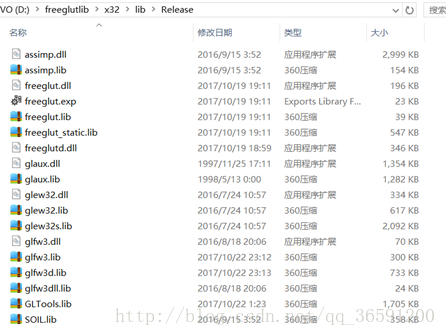
Here I used the library files compiled by Win32, that is, the Release of x86 platform, including the lib static library and the dynamic DLL library;

File storage
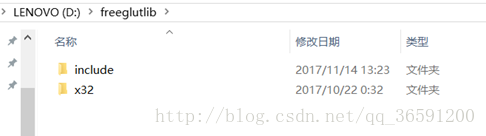
Put all the header and library files in one folder (I put them in the D:/freeglutlib folder);

Part program
1. Open VS2015, create a new Win32 console program, set the compilation environment as x86 or Win32, Release version;

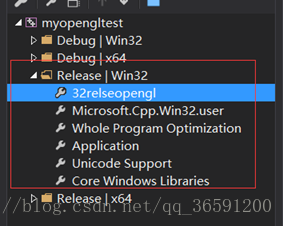
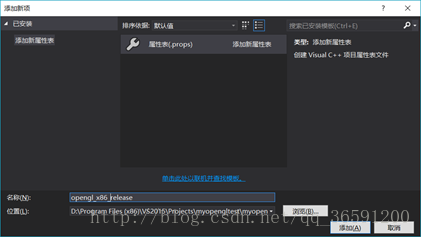
2. Find the property manager and create a new property sheet under the corresponding compilation environment;

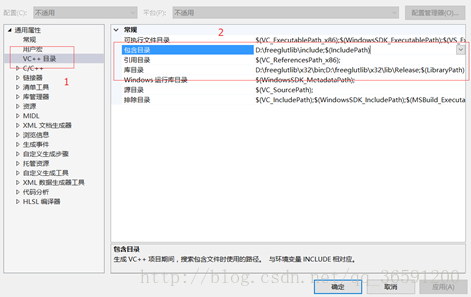
3. Select the VC++ directory ->; Include directory, library directory, just saved the header file and library file corresponding folder to add in


4, Compiler ->; Input – & gt; Attach a dependency, and type the DLL names of all the external libraries used

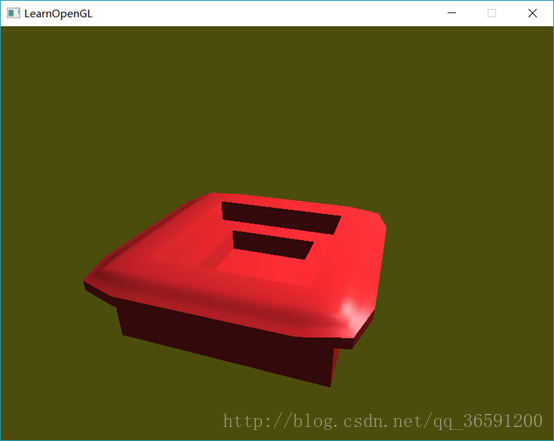
5. Add code in main file to test

DirectX encountered “unresolved external symbol” when compiling on vs2015__ The solution and reason of “vsnwprintf”

Note: The following error was encountered while compiling DirectX provided sample on VS2015

LNK2001 __vsnwprintf SimpleSample11 C:\Program Files (x86)\Microsoft DirectX SDK (June 2010)\Samples\C++\Direct3D11\SimpleSample11\ DxErr. Lib (dxErr.obj)

Some of the information found on the Internet is summarized as follows
The solution
Add the following compile preprocessor instruction to the source file that reported the error

#pragma comment(lib, "legacy_stdio_definitions.lib")

Error reason
The VS2015 design changed many of the original libraries to inline, and inline functions are not visible to DLLs or LIBs, so there is no library file to link to, so we have to add a special library file to link to the library functions, namely legacy_stdio_defines.lib. There are many Windows 8 SDKs that rely on these methods that have been inlined in the new runtime, and so far it seems that using legacy_stdio_defines.lib can remedy most of the problems left over from this change. According to Microsoft, they will update the Windows SDK in the final VS2015 release to resolve this issue.
Refer to the address

    (VS 2015 CTP 5 C++) _vsnwprintf_s and other functions are not exported in appcrt140.dll, breaking linkage of static libraries C++: Unresolved external symbol _sprintf and _sscanf in Visual Studio 2015missing (stdio) identifiers with external linkage