Category Archives: How to Fix

Pangolin installation record

1. git clone
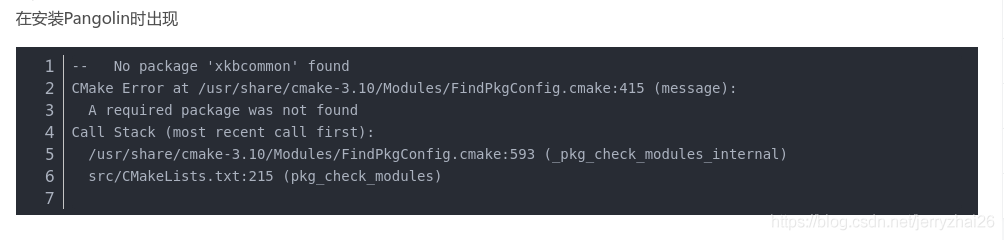
2. Install dependencies

The solution is
sudo apt-get install libxkbcommon-x11-dev
3. The compilation
   

cd Pangolin
mkdir build
cd build
cmake ..
cmake --build .

Pangolin: I tried to reinstall Pangolin because the pictures I drew with Pangolin kept flashing, so I used Locate to find the SO shared library. After deleting Pangolin, I reinstalled Pangolin. After compiling, I had to make install Pangolin to successfully generate SO files. However, after reloading the drawing is still flashing, I don’t know why. If anyone knows, I’d appreciate it if you could leave me a message
 

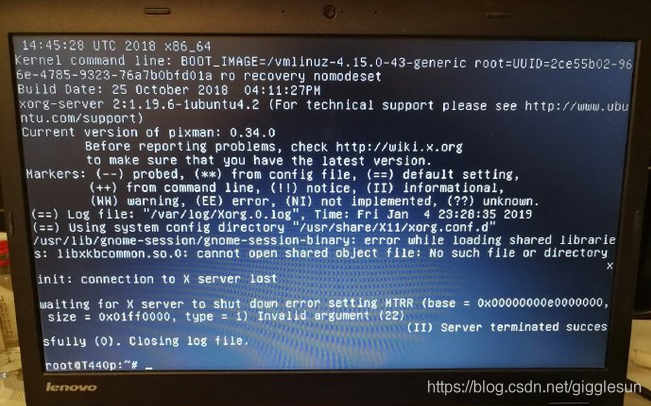
Remember once to solve the problem that Ubuntu 18.04 can’t enter GUI

Recently, I tried to use a relatively easy Markdown software vnote. As its release version seems to be hosted on AWS, it is very inconvenient to download in China. Although the download address of Baidu network disk is provided, Baidu network disk client cannot be used on Linux system, so we try to build AppImage with code. Found a code directory. Travis_linux. Sh scripts that looked like a used to generate the appimage, then try to run the script, then the nightmare begins.
Linux after restart the system has been unable to enter the graphical user interface, has been stuck in “started the GNOME Display manager”, but there is no other specific useful information, and only under the recovery mode through Google search solution,
The usual way to do this is to reinstall gdm3 or lightdm and select gdm3 or lightdm as the desktop. Normally this would work, but mine never did.
Try looking at the.travis_linux.sh files, make uninstall them one by one, reboot them, and still not get to the graphical interface. Here is the installation package for one of the worst offenders, but unfortunately it was not found at first.

Wget http://xkbcommon.org/download/libxkbcommon-0.5.0.tar.xz
the tar xf libxkbcommon – 0.5.0. Tar. Xz
CD libxkbcommon – 0.5.0
./configure — prefix =/usr – libdir =/usr/lib/x86_64 – Linux – gnu -disable-x11
make -j$(nproc) & & sudo make install

start c1 session of gnome =false
/usr/bin/gnome-session: Unable to find libxkbcommon.so.0

d /usr/bin/gnome-session/libxkbcommon.so.

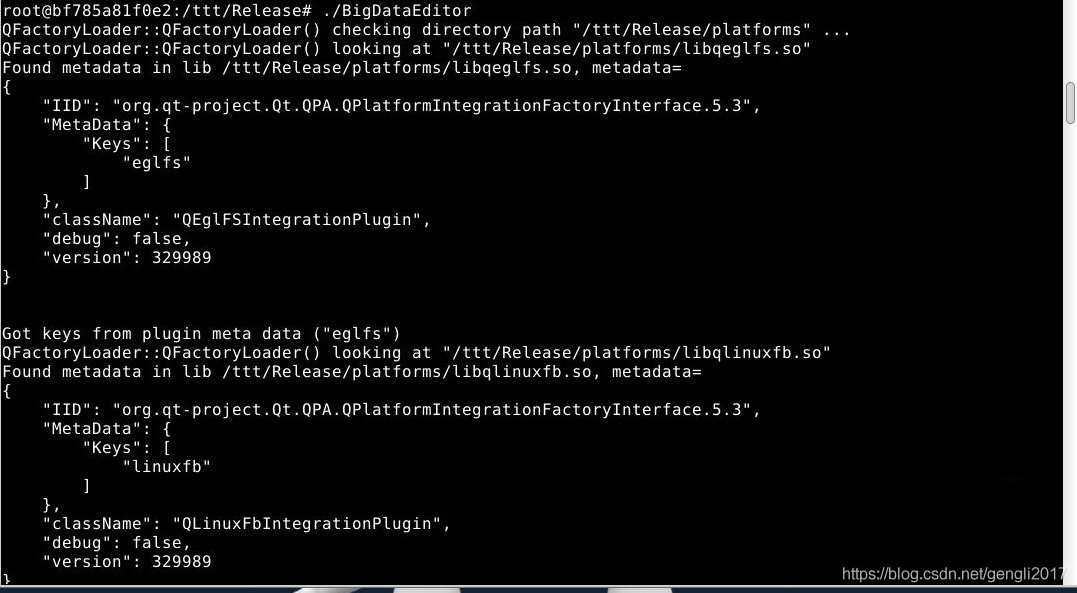
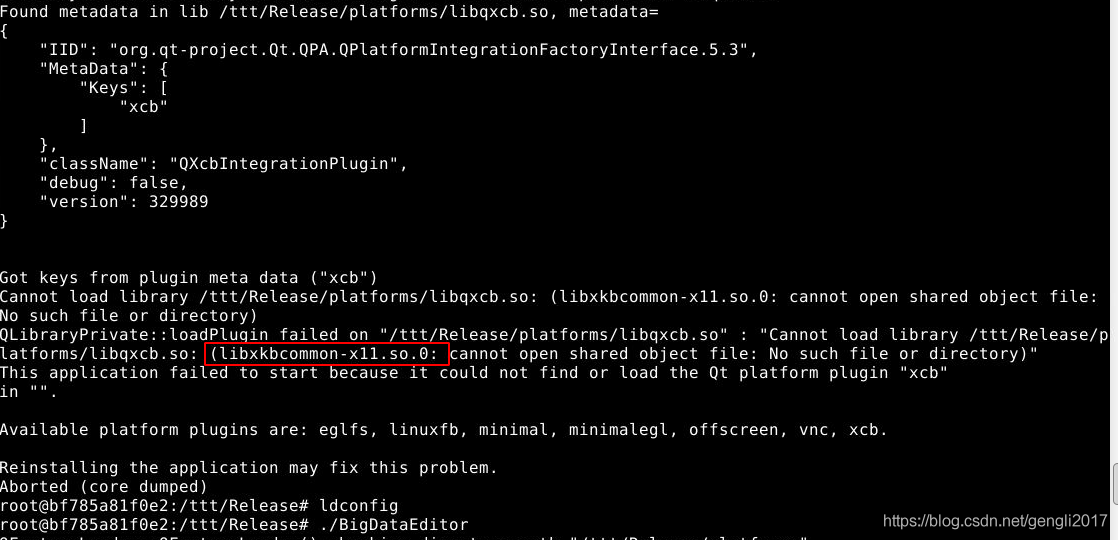
This application failed to start because it could not find or load the QT platform

This application failed to start because it could not find or load the Qt Platform Plugin “XCB” in “”. It took a while, but I finally got it.
the cause of the error is some Qt5 libraries are not included in the application of the packaging, if can find rely on libraries, and to make the library is included in the application of the search path, which is both for outbound, also applications need to know where is your library.
Assuming that the original running Qt is a host, their own written Qt application transplanted to the second host.


code> />ld.so. conf
br> aha>br> <>>
>>

Solutions to the problem of unable to locate package

When installing Ubuntu12.04, the VMware Player will be installed.
Unable to locate package error: Unable to locate package error: Unable to locate package

sudo apt-get update

The reason should be that the software source has not been updated, so it can not find the package. I suspect this problem is also likely to occur after the software source is changed.


Linux novice: unable to locate package error solution

The original address: http://www.cppblog.com/colorful/archive/2012/04/29/173122.html

Unable to locate package: Unable to locate package: Unable to locate package: Unable to locate package: Unable to locate package: Unable to locate package

    letuknowit@ubuntu:~$sudo apt-get install mysql-server mysql-client [sudo] password for letuknowit: Reading package lists…

      letuknowit@ubuntu:~$sudo apt-get install mysql-client [sudo] password for letuknowit: Reading package lists… Done Building Dependency Tree Reading State Information… Done E: Unable to locate package mysql-server E: Unable to locate package mysql-client letuknowit@ubuntu:~$

    I found the problem was that I changed the source of the software before executing sudo apt-get install, but I forgot to update it, so I executed the following command:

      sudo apt-get update

    Sudo apt-get install sudo apt-get install sudo apt-get install Unable to locate packet Unable to locate packet

    Attached is another article:
    The original address: http://blog.chinaunix.net/uid-22002627-id-3475650.html
    Encounter this problem after find this thread is turned around When use apt – get update package often appear error Unable to locate the package update, especially in the ubuntu server, the solution is: to update the apt – get # sudo apt – get the update after the execution, problem solved. #sudo apt-get install mysql-client
    #sudo apt-get install mysql-client
    #sudo apt-get install mysql-client

Problems and solutions in using Linux

Kali change terminal interface and font Settings at https://jingyan.baidu.com/article/046a7b3ef79d51f9c27fa99a.html
Kali the introduction of various tools
https://www.cnblogs.com/lsdb/p/6682545.html
Ubuntu set up Chinese system font:
https://jingyan.baidu.com/article/ab0b563049696cc15afa7d19.html
The metasploitable virtual machine’s user name and password are default to msfadmin
The user name of the virtual machine image file that can be run directly is root, and the password is generally toor by default
Ubuntu ifconfig card set tip can’t find the solution to command:
https://blog.csdn.net/qq_41741971/article/details/82960104
Ubuntu five open a terminal way:
https://jingyan.baidu.com/article/48206aea84b183216ad6b3ec.html
The minimum install centos cannot pass the ifconfig query the IP address of the solution:
https://www.cnblogs.com/jackforever/articles/9228638.html
The installation and use the putty tutorial:
https://www.jb51.net/softjc/573674.html

Linux common problems and Solutions

>Linux FAQs and solutions, continuous updates…
> bbb>/ font>>>>>>>

./mnist_caffe: error while loading shared libraries: libarmnn.so: cannot open shared object file: No such file ordirectory

libarmnn.socode>./mnist_caffecode>libarmnn.so . actually libarmnn. So is already compiled file, the directory is /home/lg/armnnSDK armnn .
home /lg/armnnSDK/armnn
<>ode>sudo />/ ldconfig
<>de>/home/lg/armnnSDK/armnn sudo /sbin/ldconfig However, this is generally not done for self-compiled files, and self-compiled libraries generally use method two configuration path. export LD_LIBRARY_PATH=/home/lg/armnnSDK/armnn:$LD_LIBRARY_PATH LD_LIBRARY_PATH=/home/lg/armnnSDK/armnn:$LD_LIBRARY_PATH if this only takes effect at the current terminal.
2. Check the static library which contained in o file
ar - TV libXXX. A
3. View the static library or o what functions contained in
objdump - tT libXXX. A or objdump - tT libXXX. O
4. How to survive the static library
ar - RCS libXXX. A A.o B.o
with A.o and B.o with the following method to generate, specify the GCC -c is generated by the o file:
GCC - c - O3 A.c - i./, GCC - c - O3 biggest - i./
5. Statistical number of files and folders
in the current directory file number: the ls -l | grep "^ -" | wc -l
in the current directory. O number at the end of the file: ls -l *. O | grep "^ -" | wc -l
the current number of directories and subdirectories file: ls - lR | grep "^ -" | wc -l
in the current directory folder contains the number of folders: ls -l | grep "^ d | wc -l
number of the current folder and subfolders contained in the folder ls - lR | grep" ^ d | wc -l
6. Linux system (Linux server and Linux device, IPC, etc.) mount Windows directory
cifs mount
for embedded development tend to the source code on Windows, Compile on Linux, if you mount the Windows directory under Linux will greatly improve the development efficiency.
for IPC, serial logins IPC, into the root directory of the IPC /, in the mount point choices /MNT or /TMP , may also be other directory.
mount -t the IP address of the cifs// Windows/on Windows to the Shared folder name/MNT/hardpoints name -o username = XXX, password = XXX
for example, set up a folder in Windows' D set the win - MNT , and then set up a Shared, assuming that the IP address of the Windows is 10.182.13.58 , Mount way is:
mount -t cifs// 10.182.13.58/win - MNT/MNT -o username = garylau, password = mypasswd
for Linux system other equipment is also similar, creating good to mount the directory under Linux (mount point), Windows directory can be mounted to the Linux hardpoints.
delete mount: umount,/MNT
sometimes need to hardpoints under Linux has the authority to read not only must have the write permissions, this instruction need to add the dir_mode = 7, 77, file_mode = 0777 , namely:
mount -t the IP address of the cifs// Windows/on Windows to the Shared folder name/MNT/hardpoints name -o username = XXX, password = XXX, dir_mode = 0777, file_mode = 0777
if the mount times the following error, is due to the NFS (Network File System, a Network File System server) has multiple versions, V2, V3, V4, and all versions run at the same time, so you need to specify the version number when mounting. mount -t cifs //Windows IP address /Windows to share folder name/MNT/mount point name -o username=XXX, password=XXX, vers=2.1

mount error(121): Remote I/O error
Refer to the mount.cifs(8) manual page (e.g. man mount.cifs)

> Download nfs1219.exe, use this software to share the directory to Linux under Windows as NFS format, and then use the instruction unt -t nfs-o nolock windowsIP:/ Windows/under disk/path MNT / t>unt. D :\win-mnt \ nfs-o nolock 10.182.13.58:/ D /win-mnt / \>-o nolock 10.182.13.58:/ D /win-mnt /
7. Find the current in all the files in the directory containing a string
find./| xargs grep - ri "VGGNetBody"
if you want to list only the file name is combined with the -l
find./| xargs grep - ri "VGGNetBody - l"
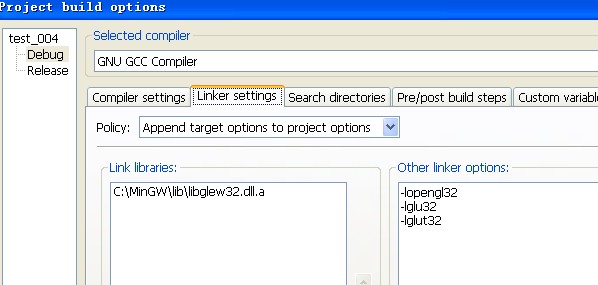
8. #include < include < #include < #include < math.h> While the function in the add the header files, but will still be submitted to the at compile time undefined reference to SQRT mistake, at this point in the compilation instructions add - lm, reference here.
br> >
ery Linux system has three options to clear the cache without interrupting any processes or services.
PageCache
code> s>; echo 1 >/proc/sys/vm/drop_caches
remove directory entry and inode
sync; echo 2 >/proc/sys/vm/drop_caches
page caching, directory entries and inode
sync; echo 3 > /proc/sys/vm/drop_caches
10. View Linux system bits

a. getconf LONG_BIT
b. uname -a
c. uname -r
d. cat /proc/version

>
/ font>>
>>>
a. indicate the search path, such as VPATH = SRC include or VPATH %. The CPP SRC , VPATH %. H include , etc.
b. Indicates the final target, such as l: run;>
c. j = main.o factorial.o hello.o;>
d. Generate intermediate target, such as o: %.
e. ear c> :; clean :> Rm *.o run, etc.
filenames
kefile filenames can be represented by wildcards. The wildcards available are: *?> ,[...] . However, these wildcards are not used anywhere in a makefile. Wildcards can be used in one of two ways: a. This can be used in the target, dependency of a rule. Make automatically matches makefiles when it reads them (wildcard expansion). B. Can appear in the command of the rule. Wildcard processing is done when this command is executed in the shell.
You cannot use wildcards directly in any context other than these two cases. wildcard

Common problems and solutions under Linux

Common problems and solutions under Linux

. What are tar,.tar.gz,.bz2,.tar.bz2,.bz,.gz files and how do I unlock them?
They are both file (compressed) packages. Tar.gz: package and compress: tar CVF *.tar dirName: tar XVF *.tar
.tar.gz: package and compress: tar CZVF *.tar.gz
2: unpack: bzip2-d *.bz2
.b>unpack: bzip2-d *.bz
.bz: unpack: bzip2-d *.bz
.gz: unpac> Gzip-d *.gz


rh8 There is a graphical interface under the software File-roller to do this. Also can use unzip *. Zip unzip file, unrar *. Rar solution
open RAR file, but the general system does not come with unrar, to download the Internet.

br>

>
a. Create a directory like mkdir a
. Mount the iso file: mount -o loop XXXX.

Delete all files in the directory including subdirectories
-rf directory names

cat /proc/ cpuinfo-CPU (i.e. vendor, Mhz, flags like MMX)
t /proc/interrupts – interrupt
c> proc/ioports – device IO port
cat/p>/ meminfo-memory (i.e. mem used, free, i.e. mem used, free, Swap the size)
the cat/proc/partitions – all equipment all partitions
the cat/proc/pci – pci devices information
the cat/proc/swaps – all the swap partition information
the cat/proc/version – Linux version number Equivalent to the uname -r
uname -a – see system information such as the kernel

RPM -qpl aaa. RPM
RPM -qpl aaa
Gz
tar XVFZ example.tar.gz
tar XVFZ example.tgz
t>vf example.tar
unzip e>le.zip

> Gaim 0.58:

www.linuxsir.org/gaim/gaim-0.58-2.i386.rpm download QQ plug-in for gcc2.9 version

www.linuxsir.org/gaim/libqq-0.0.3-ft-0.58-gcc296.so.gz will download file into the/temp directory, then delete the existing Gaim system, namely, type the command in a terminal emulator: RPM -e Gaim.
Start the installation
en the terminal emulator and continue to install Gaim version 0.58, that is:
c>temp (go to the temp directory)
RPM -iv>im -0.58-2.i386. RPM (install software)
When the inst>tion is successful, you can create the Gaim icon on the GNome or KDE desktop.
To continue installing the QQ plugin, type the command:
nzip libq-0.0.3-ft-0.58 -gcc296.so.gz (unzip the file)
c>bq-0.0.3-ft-0.58 -gcc296.so /usr/lib/gaim (copy the plugin to the gaim library directory)
Softwar>ttings
Login screen> will appear when you first start Gaim version 0.85. Select “Plugins” first, and click “Load” in the “Plugins” dialog box. Load
libmsn.so and libq-0.0.3-FT-0.58-gcc296.so files respectively, and close them after confirmation. Then choose “all accounts”, in the presence of
account in the editor to click “add”, when the modify account page, we can enter your QQ or MSN number,
the login name fill in QQ number or MSN email, password to fill in the corresponding QQ or MSN password, Alias to fill in their nicknames, protocol selection
corresponding QQ or MSN, other Settings by default. When all Settings are completed, you can log in and use.
http://wangzhihng.blog.163.com/blog/static/350999420061030105134290/

Install And Configure Nagios on Ubuntu 14.04 LTS

Nagios is an open source software that can be used for network and infrastructure monitoring. Nagios will monitor servers, switches, applications and services. It alerts the System Administrator when something goes wrong and also alerts back when the issues has been rectified.
Using Nagios you can:
Monitor your entire IT infrastructure. Identify problems before they occur. Know immediately when problems arise. Share availability data with stakeholders. hypothetical questionDetect security breaches. Plan and budget for IT upgrades. Reduce downtime and business losses.
Scenario
In this tutorial i am going to use two systems as mentioned below.
Nagios server:

Operating system : Ubuntu 14.04 LTS Server
IP Address       : 192.168.1.250/24

Nagios client:

Operating System : Ubuntu 14.04 Desktop
IP Address       : 192.168.1.100/24

Prerequisites
Make sure your server have installed with fully working LAMP stack. If not, follow the below link to install LAMP server On Ubuntu 14.04 and earlier versions.
Install LAMP Server On Ubuntu 14.04
Install Nagios
Install nagios and nagios plugin using the following command:

sudo apt-get install nagios3 nagios-nrpe-plugin

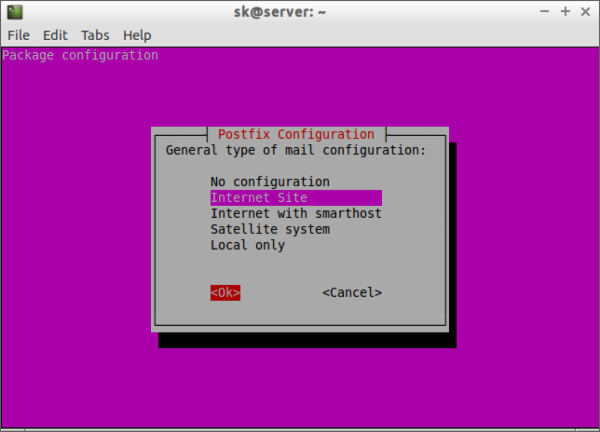
During installation, you’ll have to answer some simple questions. First, you’ll be asked to configure your mail server to get alerts from your nagios server.
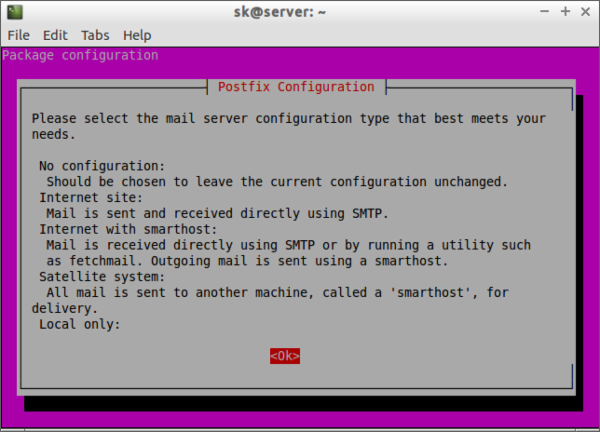
Select the type of mail configuration:
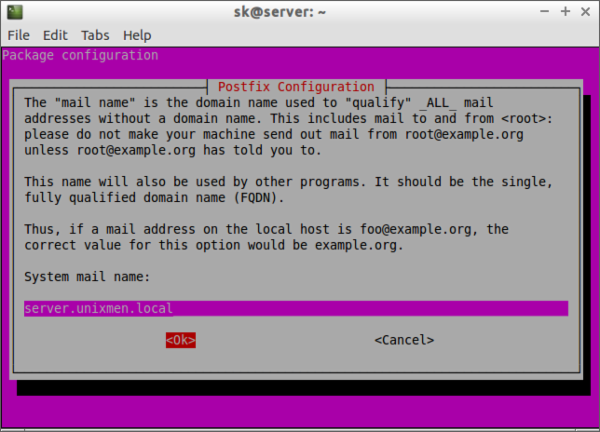
Enter the system mail name. It will be automatically selected by the installer. If not, enter it manually.
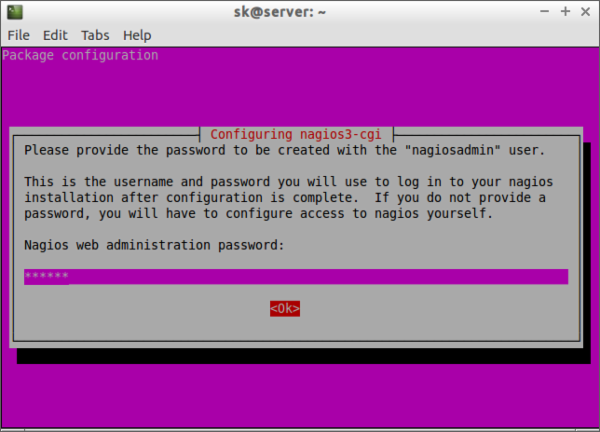
Enter the “nagiosadmin” password.
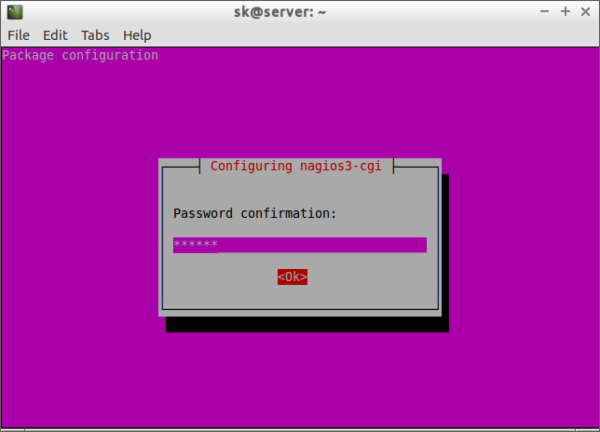
Re-enter the nagiosadmin password.
Configure Nagios
After nagios and nagios plugins installation, assign the permissions of www-data directory to nagios user, and set executable permission to the /var/lib/nagios3/ directory.

sudo usermod -a -G nagios www-data
sudo chmod -R +x /var/lib/nagios3/

By default, Nagios won’t check for external commands, just to be on the cautious side.   If you want to be able to use the CGI command interface, you will have to enable this.
To do that, edit file /etc/nagios3/nagios.cfg ,

sudo nano /etc/nagios3/nagios.cfg

Find the line,

check_external_commands=0

And change it to:

check_external_commands=1

Save and close the file. Restart nagios service.

sudo /etc/init.d/nagios3 restart

Access Nagios Web console
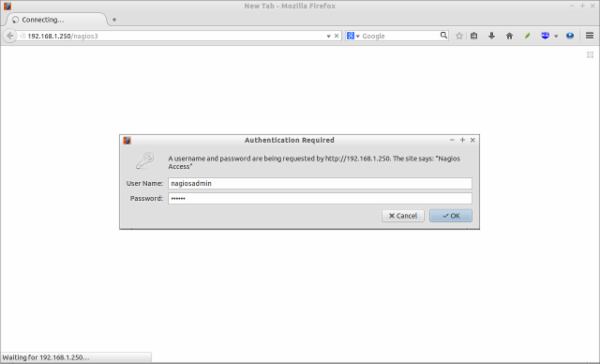
Open up the web browser and point it to http://ip-address/nagios3 . You’ll be asked to enter the username and password. Enter username as nagiosadmin and the password that you’ve created earlier.
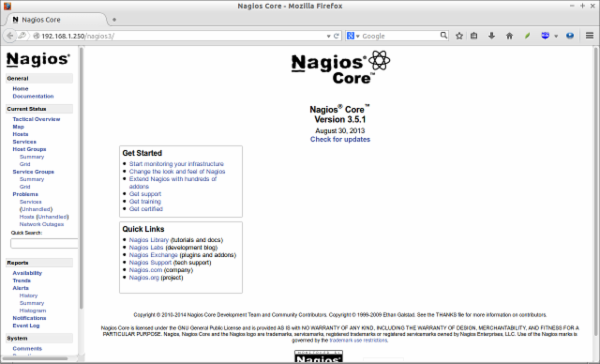
This is how my Nagios web console looked.
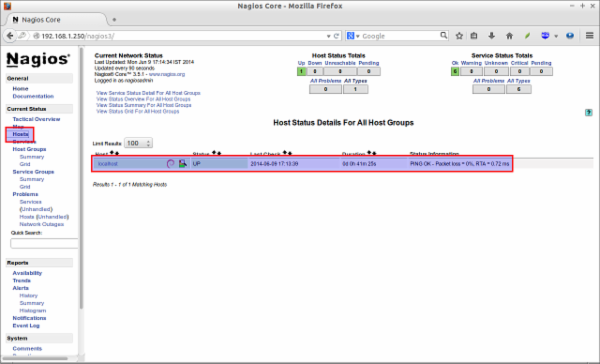
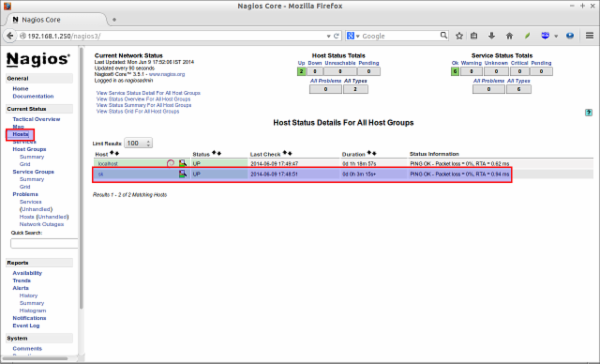
Click on the Hosts section on the left pane to list of hosts being monitored.
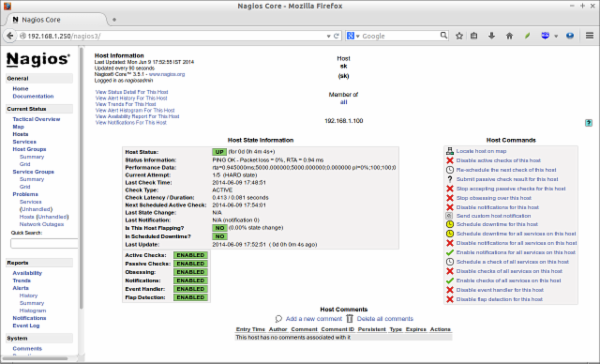
If you want to see the complete details of a monitoring hosts, click on the respective monitoring hosts in the above window.
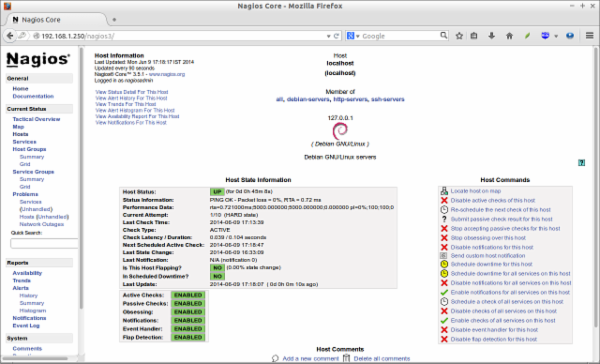
As you see in the above picture, the localhost(Nagios server) itself only is being monitored by default. We have to add the clients to monitor them now.
Add Monitoring targets
Now let us add some clients to monitor by Nagios server. To do that we have to install nrpe and nagios-plugins packages in our monitoring targets.

sudo apt-get install nagios-nrpe-server nagios-plugins

Configure Monitoring targets
Edit /etc/nagios/nrpe.cfg file,

sudo nano /etc/nagios/nrpe.cfg

Add your Nagios server ip address:

[...]
allowed_hosts=127.0.0.1 192.168.1.100
[...]

Start/Restart nrpe service as shown below.

sudo /etc/init.d/nagios-nrpe-server restart

Now, go back to your Nagios server to add the clients to be monitored through nagios server. By default, Debian based systems uses a configuration directory called /etc/nagios3/conf. d/ where nagios3-common, other packages and the local admin can dump or link all object configuration files into.
In the object configuration files, you can define hosts, host groups, contacts, contact groups, services, etc. You can split your object definitions across several config files if you wish, or keep them all in a single config file.
Ex:

cfg_file=/etc/nagios3/objects/commands.cfg
cfg_file=/etc/nagios3/objects/contacts.cfg
cfg_file=/etc/nagios3/objects/timeperiods.cfg
cfg_file=/etc/nagios3/objects/templates.cfg

Also, You can tell Nagios to process all config files (with a .cfg extension) in a particular directory by using the cfg_dir directive.
In this tutorial, I will tell Nagios to process client config files in a particular directory.
Edit /etc/nagios3/nagios.cfg file,

sudo nano /etc/nagios3/nagios.cfg

and uncomment the following line.

[...]
cfg_dir=/etc/nagios3/servers

Create a directory called servers under  /etc/nagios3/ location.

sudo mkdir /etc/nagios3/servers

Create config file to the client to be monitored. In my case, I want to monitor my Ubuntu desktop which has IP address 192.168.1.100 , and hostname as sk .

sudo nano /etc/nagios3/servers/clients.cfg

Add the following lines:

define host{

use                             generic-host

host_name                       sk

alias                           sk

address                         192.168.1.100

max_check_attempts              5

check_period                    24x7

notification_interval           30

notification_period             24x7

}

Save and close the file.
Here, sk is my Ubuntu 14.04 client host name, and 192.168.1.100 is the IP address of my client.
Restart nagios service.

sudo /etc/init.d/nagios3 restart

Now, open the nagios web console again in the browser and navigate to “Hosts” section in the left pane. You should see the newly added client will be visible there. Click on the host to see if there is anything wrong or alerts. Please note that you have to wait 90 seconds after any changes in your nagios server.
Click on the monitoring target, you’ll get the detailed output:
Like this way, you can define more clients by creating a separate config files /etc/nagios3/servers directory for each client.
Define services
We have defined the monitoring host before. Now let us add some services of the monitoring host. For example, to monitor the ssh service, add the following lines shown in red colour in the /etc/nagios3/servers/clients.cfg file.

sudo nano /etc/nagios3/servers/clients.cfg

Add the lines shown in red color:

define host{

use                             generic-host

host_name                       sk

alias                           sk

address                         192.168.1.100

max_check_attempts              5

check_period                    24x7

notification_interval           30

notification_period             24x7

}
define service {
        use                             generic-service
        host_name                       sk
        service_description             SSH
        check_command                   check_ssh
        notifications_enabled           0
        }

Save and close the file. Restart Nagios.

sudo /etc/init.d/nagios3 restart

Now log in to Nagios web console and check for the added services. Navigate to Services section, you should see the ssh service will be available there.
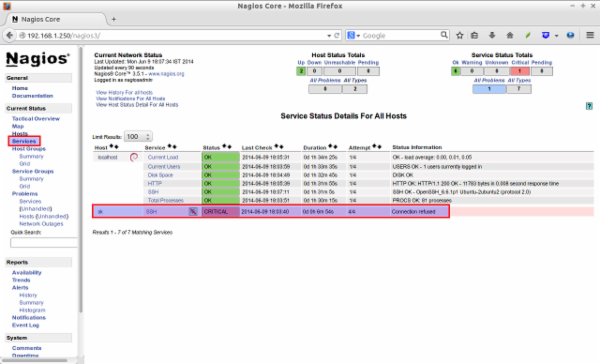
To know more about object definitions such as Host definitions, service definitions, contact definitions and more please do visit here . This page will describe you the description and format of all nagios object definitions.
That’s it. Happy Monitoring with Nagios!
Reference Links:
Nagios Homepage
Ubuntu 16.04 Chinese installation tutorial (Graphic), Ubuntu 16.04

Ubuntu 16.04 Chinese version installation tutorial (text and text), Ubuntu 16.04
Ubuntu16.041 installation, enter the live CD
1) desktop setup disk download address: http://releases.ubuntu.com/16.04/, you can use hard disk boot, can also be carved into cd-rom start
enter after looking for blue links click download, such as ubuntu 16.04 – the desktop – amd64. Iso, i386 version can be downloaded 32 bit CPU, including; Desktop is the desktop version, Server is the server version, Torrent is the torrent download;

USTC source http://mirrors.ustc.edu.cn/ubuntu-releases/16.04/ ali cloud open source image station http://mirrors.aliyun.com/ubuntu-releases/16.04/
open source image of lanzhou university station http://mirror.lzu.edu.cn/ubuntu-releases/16.04/
Beijing institute of technology http://mirror.bit.edu.cn/ubuntu-releases/16.04/ http://mirrors.zju.edu.cn/ubuntu-releases/16.04/

zhejiang university
2) using CD/U disk/hard disk boot after a moment, the system automatically run, wait patiently for a system boot to the desktop;

)

3)

3)

3)

3)

3)

3)


4) For hard disk installation, click the circle button in the upper left corner, and then input the letter TER in the text box next to it. Then click the terminal icon below.
If Chinese comes out, click the “middle” on the input bar to change to “ying”, and drag it to one side.

5) Enter the command sudo umount-l /isodevice and press the enter key. If there is no prompt, it is successful. Close the terminal.

6) Click the network icon in the upper right corner, and click to remove the check box in front of “Enable network” to disconnect the network;

1) Double click the “Install Ubuntu16.04 LTS” icon on the desktop and a “Welcome” panel appears. Check that “Chinese (Simplified)” is selected in the left column. If not, select it on the left and then click the “Continue” button in the lower right corner.

2) The second step is to check the preparation, require sufficient disk space, do not connect to the network, generally do not check the update and third-party software, directly click the “continue” button;

3) The next step is to ask which partition to install on, select “Other Options” at the bottom, and click “Continue” button;

If you want to create and convert partitions, you can refer to Lesson 7, 13, 15, 16, and 19 above. Here is an Ext4 partition installed on previous 12.10.

5) Click to select the partition that you plan to install. It can be determined according to the partition type and size, and then click “Change…” below. Button;

6) In the dialog box, set the format for partition Ext4, check “Format”, click on the right of “mount point”, select “/”, and click “OK”
Note that formatting will delete all files on this partition, please backup important data in advance;  

7) Click “OK” to prompt continue, go back to the partition panel, check that the partition is edited, if there is /home partition, according to the original Settings, generally do not check “Forformat”, just clean up the configuration file in advance

Below are the options for installing the GRUB bootloader, no changes are required for the UEFI installation, see: UEFI Win7/8/Ubuntu Hard Drive Install Ubuntu, for traditional MBR installation, you can choose to install on/on the partition, and then boot Ubuntu with Windows, see: Easybcd Install Ubuntu on Win7/8 Hard Drive

8) After checking, click “Install Now”. If the prompt does not have swap space, click “Continue”. This partition is used for sleeping.
9) Then go out to ask about the region and click “Continue”. The time difference may arise when modifying the region, so the installation has already begun.

10) Next is the keyboard layout, generally “Chinese”, directly click “Forward” to continue;

11) Next is to set their own user name (lowercase letters) and password, from the top to the bottom of the input, then click “continue”;

12) Then continue the installation process, you can have a look at the system introduction;

) Wait patiently for completion, then a dialog box will appear, click “Restart Now” to complete the installation, press the power button to call out the shutdown dialog box;

14) If it is a CD installation, wait for the prompt to remove the CD, and then press Enter to restart the computer, the installation is complete;

) After reboot, stop at a login interface, click on your user name, enter the password and press Enter to enter the system;

2) After entering the desktop, an “Incomplete Language Support” prompt dialog box will appear. If it is not closed, drag it to the side for later use. (If it is closed, then click the gear “System Settings – Language Support” on the left.)

3) First connect to the Internet, find a network icon next to the keyboard in the upper right corner of the screen, aim to click the left button, and select “Edit Connection”;

4) For ADSL dial-up broadband connection, click “Add” on the right side of the dialog box, then click “Ethernet” in the middle of the dialog box, select DSL, and then click New;


5) In the dialog box, enter the ADSL broadband user name in the user name, the password below, enter the broadband password,
and then click the first “general” label, check the top “automatic connection when available”, click the “keep” button in the lower right corner;

After closing the dialog box, wait for a moment to indicate successful networking.

You can also reboot your computer, or use sudo pppoeconf from the command line.

br>

6) If you want to>ect to the LAN, in the dialog box that comes out, select “Wired Connection1” inside, and click the “Edit” button on the right;

7) in the dialog box, select the IPV4 Settings TAB, in the way below choose “manual”, “add” button at the bottom of the order,
in the text box, in turn, enter the IP address, subnet mask, gateway, and then press enter to determine, DNS server address in the DNS below input,
check and point “save” button in the lower-right corner of the window, in the certification, input your password;

Go back to the original dialog box click “close”, wait a while you can surf the Internet, you can also restart the computer;

br> 8>fter connecting to the network, click “System Settings” button in the left quick start bar, and click “Software and Update” icon in the window that comes out;

9) Under the software source panel, click the drop-down list of “Servers in China” and select “Other Sites”;

10) In the list of servers, choose 163 or CN99, and then click the “Select Server” button in the lower right corner to return;

11) After closing the window, come out to authenticate, enter your login password and click “Authorization”. If it comes out to update the prompt, click “Reload” and wait for completion.

More set the source of the related introduction, please refer to: http://teliute.org/linux/Ubsetup/lesson9/lesson9.html

4, update system 1) back to the beginning of “incomplete language support” dialog box, point “to perform this action now”, if can’t find the point of the upper right corner of the gear icon in the system Settings – language support;

2) Click the “Update” button if it shows “No language information available” panel;

3) Then comes out a dialog box for cache update, wait patiently for completion, click “details” to check the progress;

4) Then, in the dialog box “Language support is not fully installed”, click “Install” to install the language package;

5) After the language pack installation is completed, click the Close button to close the dialog box. The default input method for 16.04 installation is FCITX. Click the upper right corner of the gear and select “Log out” or restart the system to use it.

Original: https://blog.csdn.net/weixin_40539892/article/details/79494922