Category Archives: How to Fix

Python – writing visual interface (Python + pycharm + pyqt)

Recently began to learn Python, but only to see the theory, a few lines of code, think it is not interesting, I want to use Python to write a visual interface. Then I searched relevant materials and found PyQt. As I had just seen Qt a while ago and had a good impression on Qt, I thought using PyQt should be a more pleasant choice.
1, the preface
The version of PyQt should be the same as the version of Python. The version of PyQt I use here is PyQT5-5.6-GPL-Py3.5-QT5.6.0-x64.exe. For details, please search directly. Since this version requires the V3.5 version of Python, you need to install Python3.5 first and then PyQt. To make it easier to write code, you install PyCharm (version: PyCharm-Community-2017.3.2.exe). PyCharm +Python3.5+ PyQT5.6 is a Python visual programming tool that allows you to install and download Python Charm, Python3.5 and PyQT5.6. Visual programming in Python based on the latest version of PyChart 2018.3+Python3.7+ PyQT5.11 will also be introduced at the end of this article.
2, start
1) Open PyCharm and configure the relevant Settings
Open the PyCharm interface as follows:
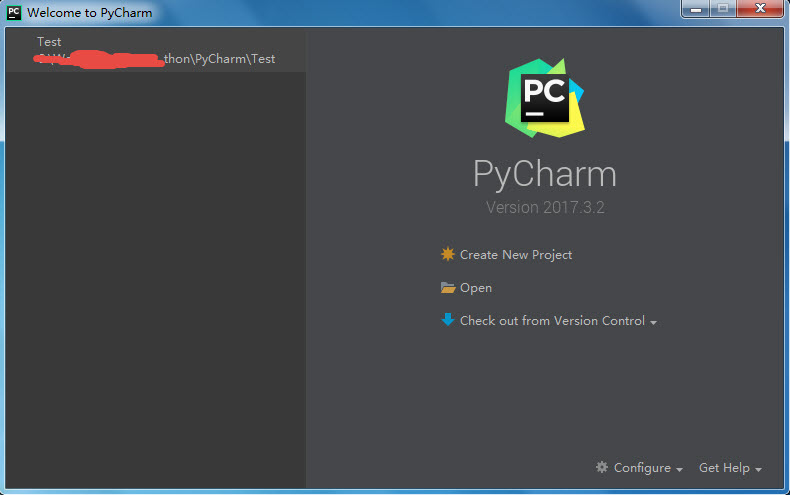
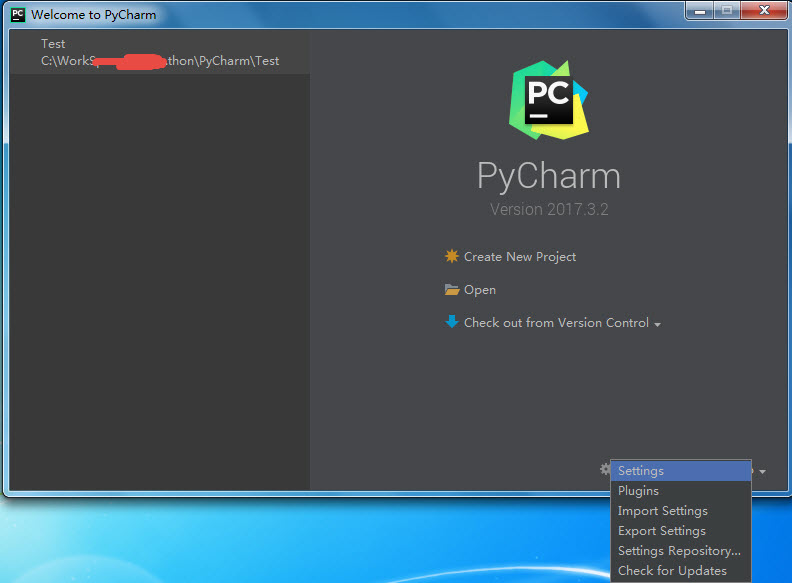
Click the “Configure” drop-down button at the bottom right of the screen and select “Settings”, as shown below:
Open the following setting interface:
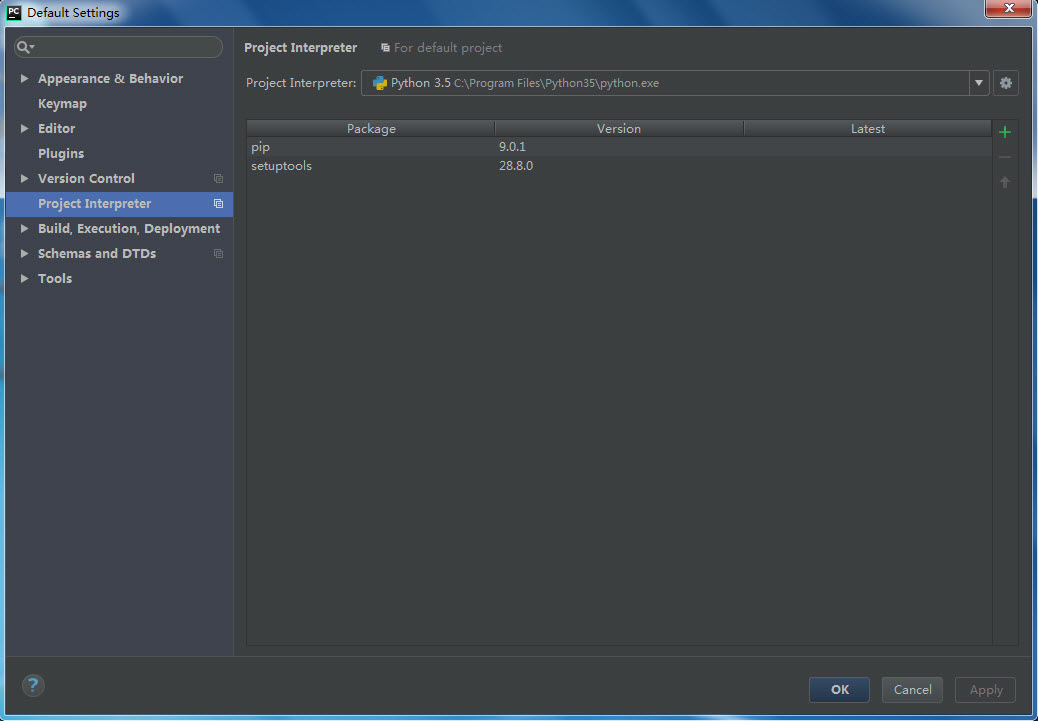
As shown above, select the Python version installed on this machine from the “Project Interpreter” graphics card. Normally, it will automatically recognize the Python version installed on this machine, as shown in Figure 3.5;
After the configuration is completed, click “OK” to return to the Start screen.
Select “Create New Project “, select the Project path and Project name, then click “Create”, and the following interface will pop up:
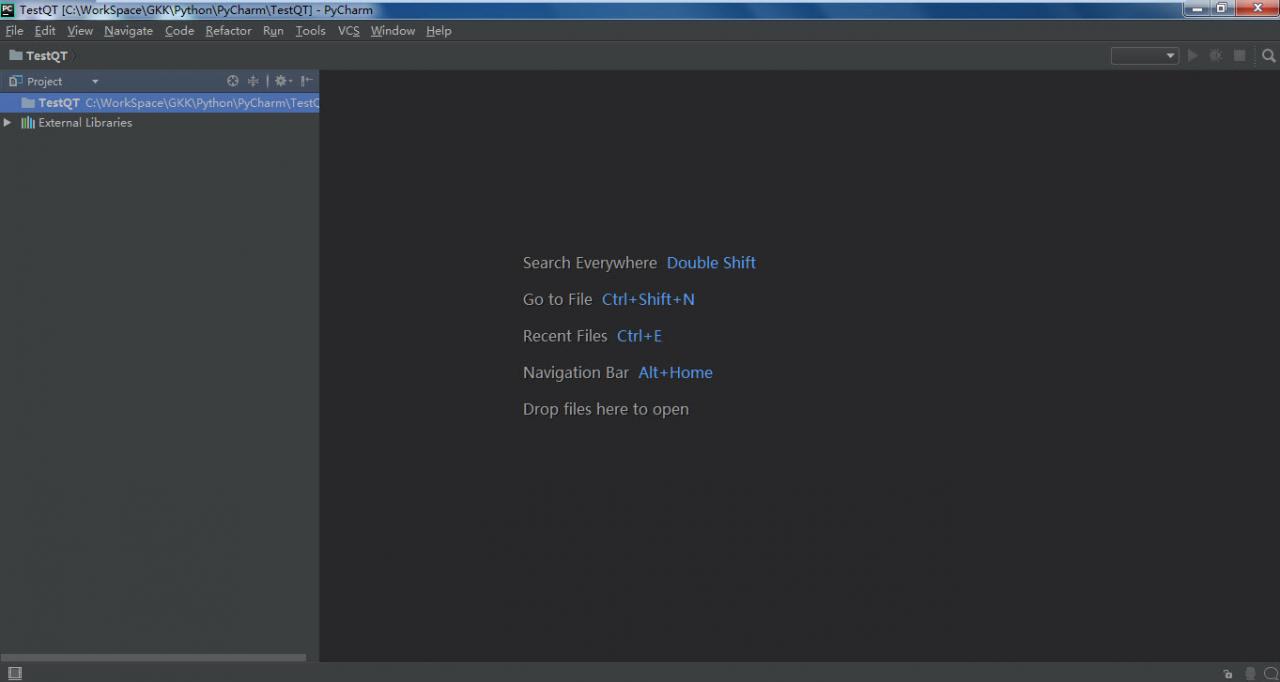
At this point, the working environment is ready;
3, write,
1) First, create a.py file, tentatively named pyqt.py
Next, the file you need to import PyQt is as follows:

import sys
from PyQt5.QtWidgets import QWidget, QApplication

Note that if the prompt fails to find the corresponding file, make sure the PyQT5 installation path is in the environment variable!
Then add the main function first:

if __name__ == "__main__":
    app = QApplication(sys.argv)
    sys.exit(app.exec_())

The next step is to add interface-related functions:

#class Example
class Example(QWidget):
    def __init__(self):
        super(Example, self).__init__()
        self.InitUI()

    def InitUI(self):
        self.btn = QPushButton("Dialog", self)
        self.btn.move(20, 20)
        self.btn.clicked.connect(self.ShowDialog)

        self.le = QLineEdit(self)
        self.le.move(130, 22)

        self.setWindowTitle("Input Dialog")
        self.show()

    def ShowDialog(self):
        text,ok = QInputDialog.getText(self, "Input Dialog", "Enter your name:")
        if ok:
            self.le.setText(str(text))

As shown in the code above, in Python, the interface is mainly generated by the class. In the class, you can generate the interface, create the control, create the control’s response function, connect the control and the control’s response function.
The function __init__(self) can be understood as the constructor of this class, where the initialization of the interface is performed.
The function initUI (self) is mainly used to generate interface controls;
When the class is created, you simply call the class in the main function. This is as follows:

if __name__ == "__main__":
    app = QApplication(sys.argv)
    ex = Example()
    sys.exit(app.exec_())

In the above code, a button (BTN), an edit box (le) and a button response function (showDialog) are mainly added in the interface, in which a standard input window is opened in the showDialog response function, and the value entered in the standard input window is displayed in the edit box (le).
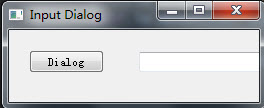
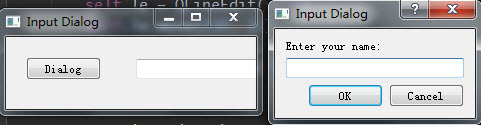
Results:
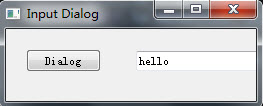
4, extension,
In the following, I made a more complex example, mainly to simulate the solution of exchange rate. The interface is mainly shown as follows:
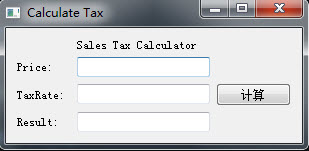
It mainly involves button, edit box, Label, layout, etc.
This is written in the same file as the first example, and can be downloaded by following the link:
http://download.csdn.net/download/bailang_zhizun/10249579
5. The latest version configuration method
Configure the visual programming environment with the latest versions of Python, PyQt, and PyCharm.
First install Python3.7, then install PyChart 2018.3, configure the Python interpreter to the local directory of Python3.7, and then install PyQT5.11.
Install PyQt5.11 is in the form of PIP + wheel files installed, download url: https://pypi.org/project/PyQt5/#files
About the installation of the PIP please refer to https://blog.csdn.net/bailang_zhizun/article/details/84563095
Put the downloaded pyqt5-5.11.3-5.11.2-cp35.cp36.cp37.cp38-none-win_amd64.whl file in the appropriate location.
Open CMD and enter the installation command as follows:

Enter and the PIP will automatically install the file:
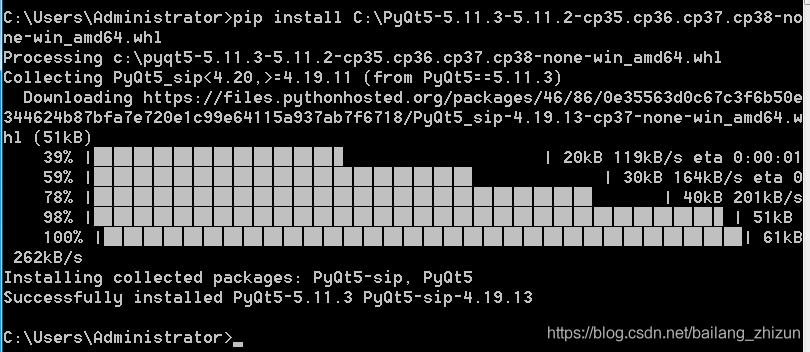
At this point, PyQT5.11 is installed successfully.
You can test it with the code above.
6. Install PyQT5 in Python 2.7 under Ubuntu
These are all documented installments of PyQT5 on Windows + Python 3. According to the official website of pyqt5, pyqt5 is only available for python3, but not for python2.7, so you can install pyqt5 online. Here is how to install pyqt5 in Ubuntu+python2.7:
Open a terminal in Ubuntu and type:

$sudo apt-get install python-pyqt5

After the installation is completed, you can directly import PyQt5 on the code editing page, and it is available for personal testing.
In addition, it seems that the above method can also be used to install PyQT5 in Ubuntu + Python 3 environment, also through the command installation:

$sudo apt-get install python3-pyqt5

It’s untested, but it should work.
 

Building OpenGL environment

1. Introduction of OpenGL
OpenGL is a programming interface for creating real-time 3D images.
OpenGL is a professional graphical programming interface that defines a cross-language, cross-platform programming interface specification. It is used for three – dimensional images (two – dimensional also), is a powerful, easy to call the underlying graphics library.
The development of the OpenGL
OpenGL was originally Iris GL developed by SGI for its graphics workstation. OpenGL came into being in order to solve the shortcoming of poor portability. While Microsoft’s DirectX is leading the home market overall, OpenGL is the dominant player in professional high-end graphics. Direct3D currently doesn’t support high-end graphics devices and professional applications, where OpenGL dominates. OpenGL is favored by developers for its independent, platform-independent 3D graphics development library in game development. For more information, you can go to the official website and check out OpenGL’s official website.
Version of the course
In July 1992, SGI released the 1.0 version of OpenGL, and then jointly developed the Windows NT version of OpenGL with Microsoft, so that some of the large 3D graphics processing software that must run on the high-grade graphics workstation can also be used on the microcomputer.
1995 version 1.1 of OpenGL came out, improved printer support, included OpenGL calls in enhanced metafiles, new features for vertex arrays, improved transfer speeds for vertex positions, normals, colors, color indices, texture coordinates, polygonal edge markers, introduced new texture features, and more.
July 28, 2003, SGI and ARB release OpenGL 1.5, including the OpenGL ARB’s official extension specification drawing Language, “OpenGL Shading Language”. New features include: vertex Buffer Object, Shadow function, covert query, non-power texture, etc.
In August 2004, OpenGL2.0 version was released ~OpenGL 2.0 standard is not the original SGI, but gradually occupy the active position in the ARB 3DLabs. OpenGL2.0 supports OpenGL Shading Language, new shader extension features, and many other enhancements.
In early August 2008, the Khronos Working Group announced the OpenGL 3.0 Graphics Interface Specification at SIGGRAPH 2008. The GLSL1.30 Shader language and other new features will once again point the way to the future development of open 3D interfaces.
In March 2009, the updated version of the new specification OpenGL 3.1 was released. OpenGL 3.1 simplifies the entire API model system on the basis of the 3.0 version, which can greatly improve the efficiency of software development.
In August 2009, the Khronos team released OpenGL 3.2, which improved performance, visual quality, geometric processing speed, and made Direct3D programs easier to port to OpenGL.
OpenGL 4.1 and OpenGL Shading Language 4.10 were released on July 26, 2010. OpenGL4.1 improves interoperability for vision-intensive OpenCL™ applications and continues to accelerate computing profile for core support and compatibility with the first release of OpenGL 3.2, enabling developers to use a simplified API or retain backward compatibility with existing OpenGL code, depending on their market needs.
Khronos released details of the new OpenGL 4.2 standard at SIGGRAPH 2011 in Vancouver on August 9, 2011, adding some new support features to APIs that support existing hardware.
After the continuous improvement and update of predecessors, OpenGL has been updated to OpenGL 4.6 (2017-07-30) OpenGL Shading Language 4.60 (2017-07-23).
OpenGL builds environments on top of Xcode
1. Installation process
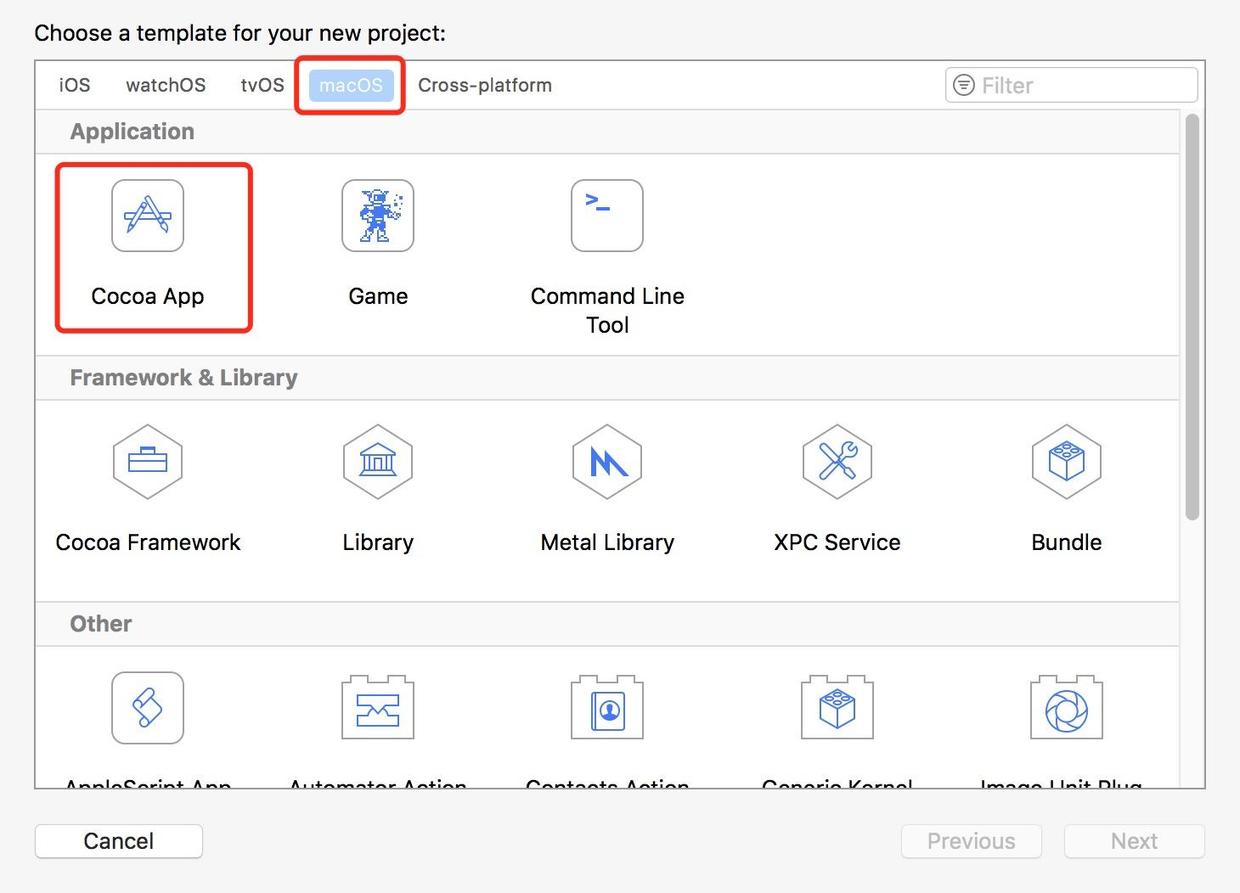
1. Open Xcode (install Xcode 9.1)->; macOS -> Cocoa App


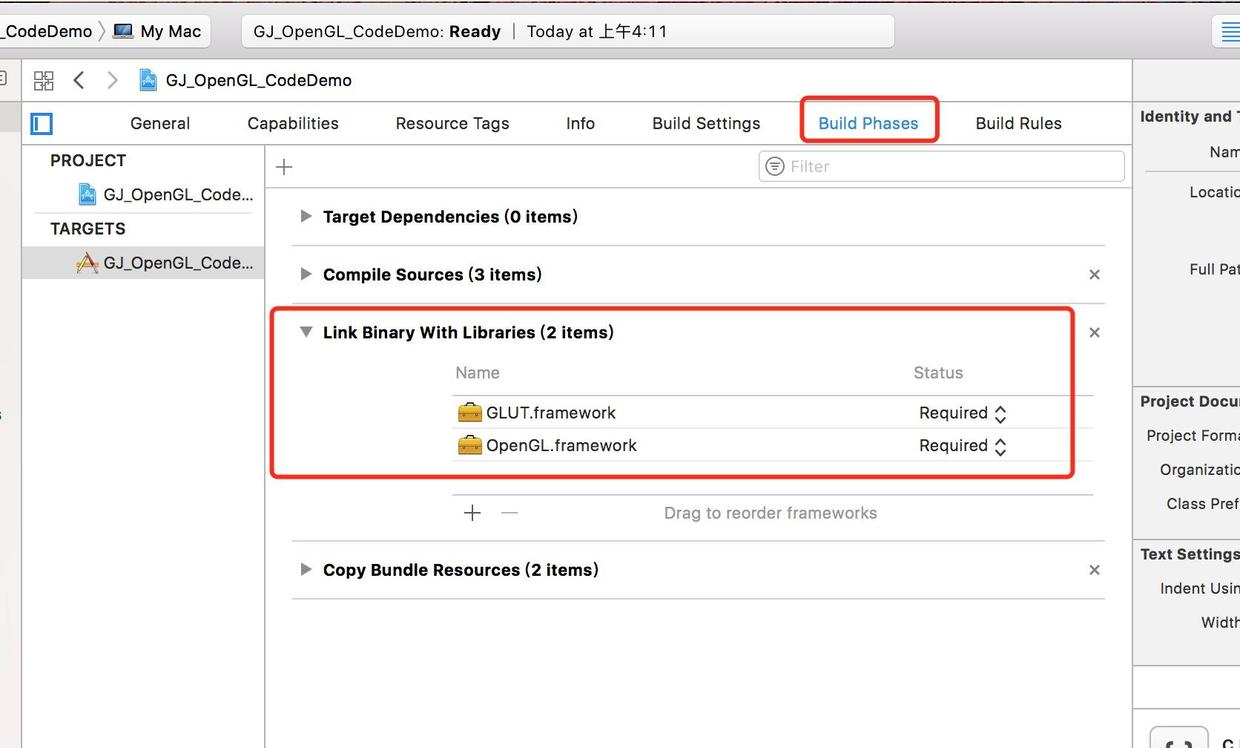
2. Add OpenGL. Framework Glut. Framework System Library.


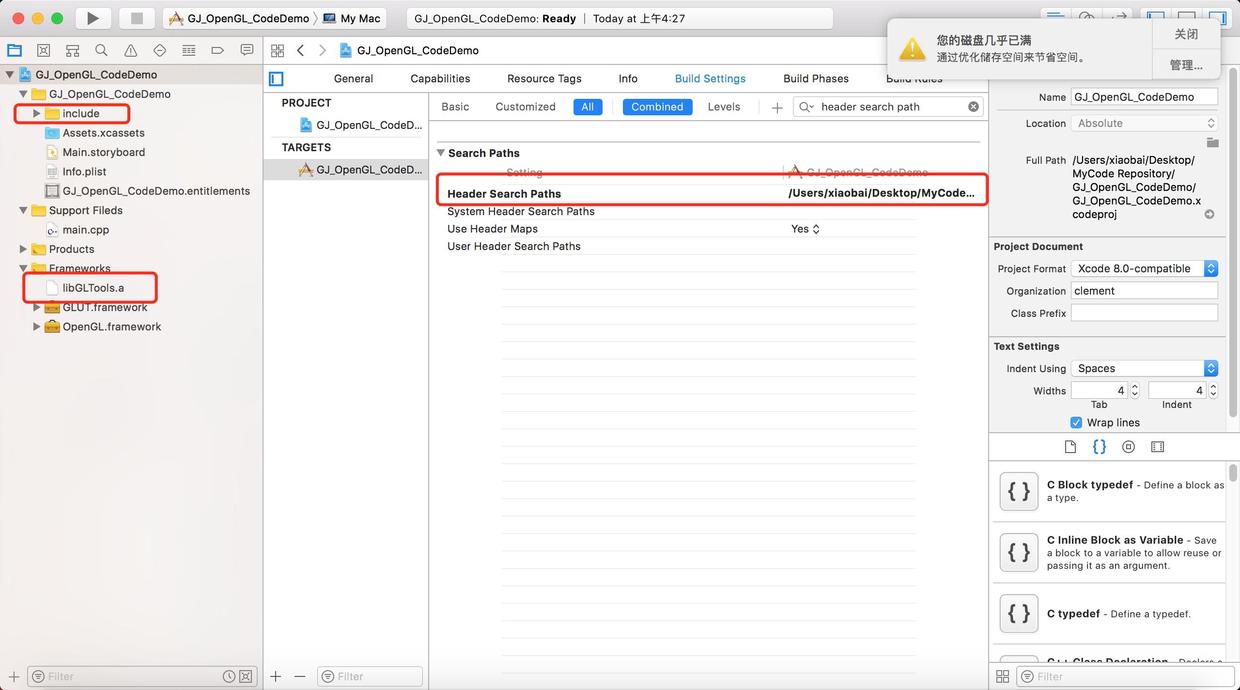
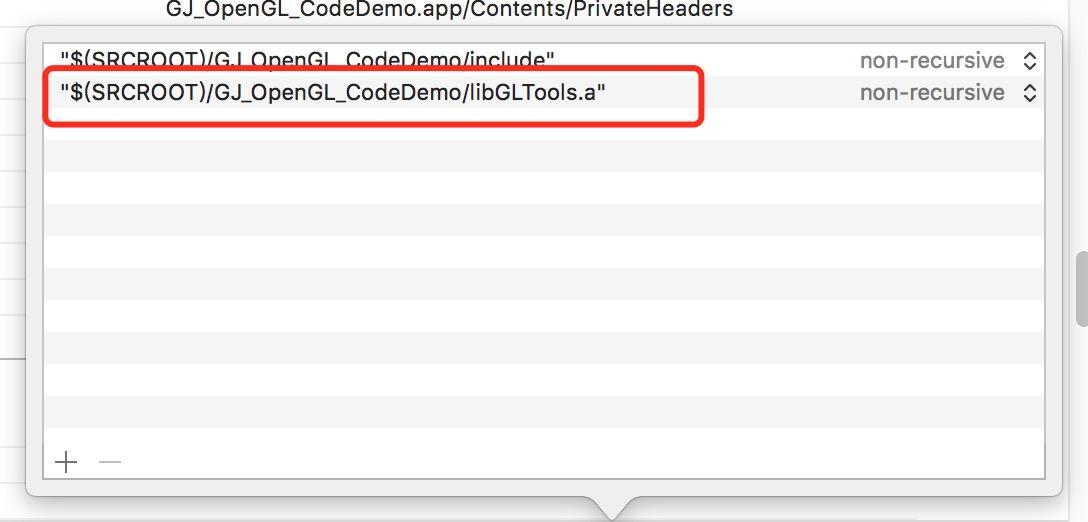
3. Add the include file and libgltool. a file. And in BuildSettings – & gt; Header -> Search -> Add the path to the.a file in the Paths.


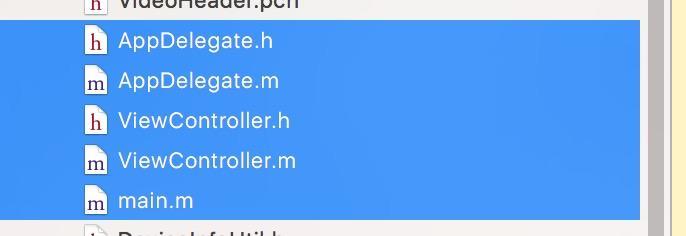
M View Controller. H. M Main. M Delete the file AppDelegate.H. M ViewController. Replace the main entry. So all of this will have to be removed and replaced with the main function interface we’re going to use.


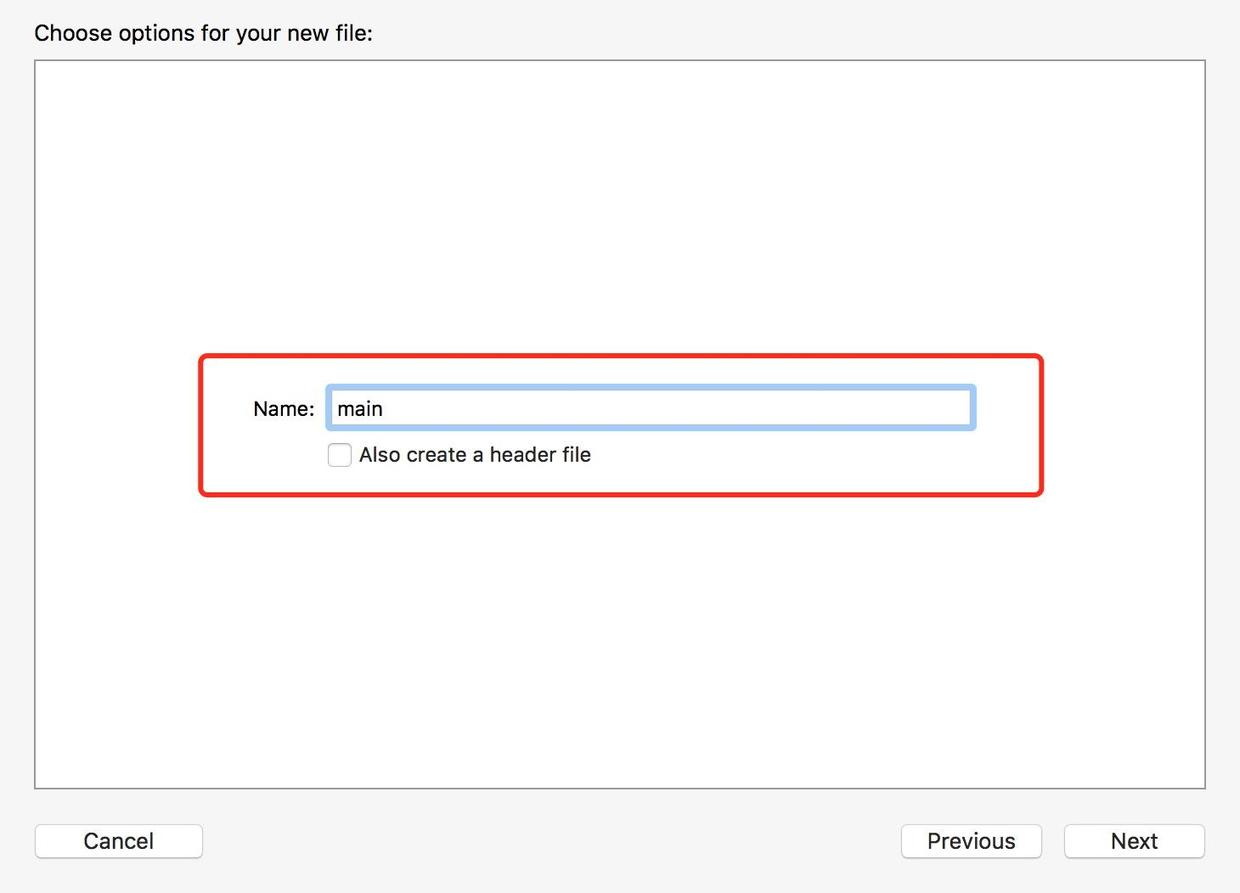
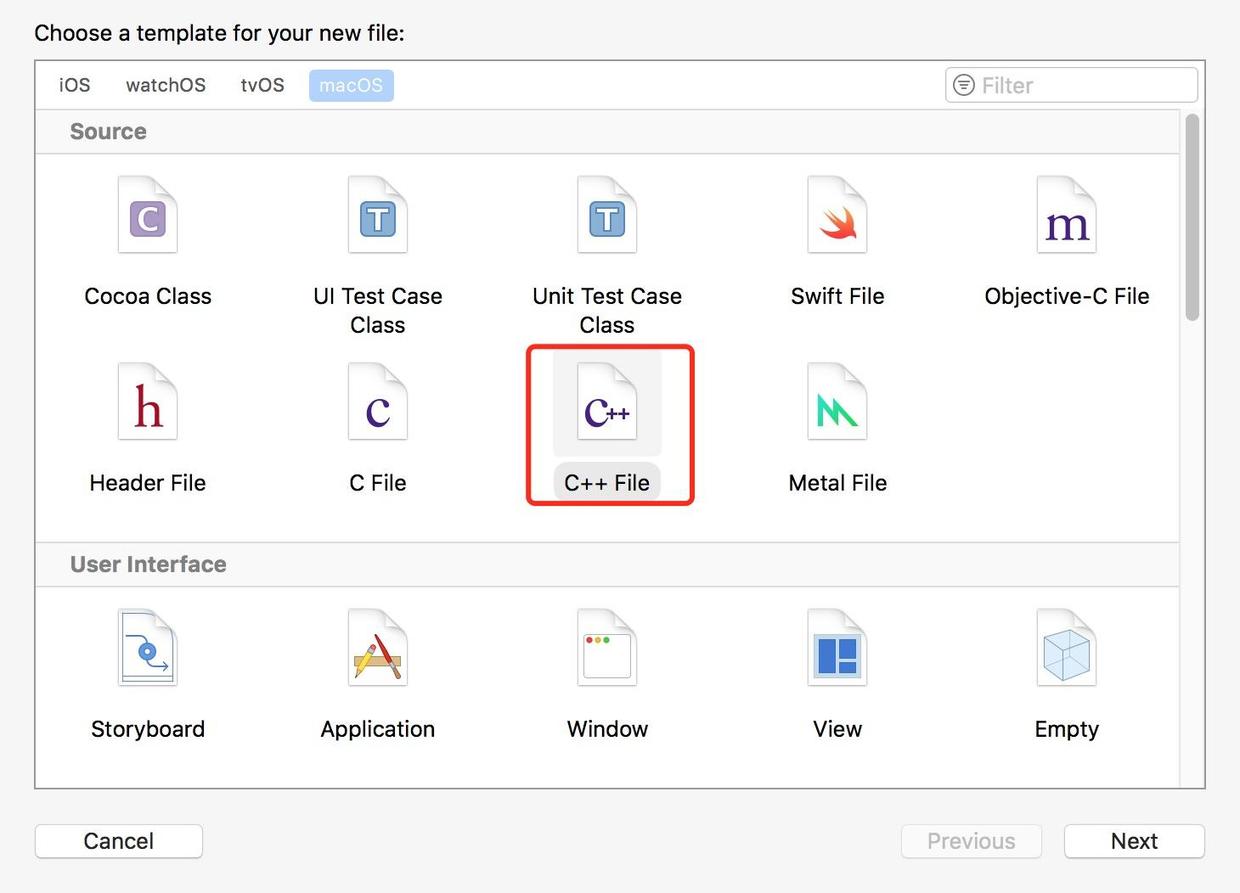
5. Create a replacement mian function, create a C ++ file, and tick off.h.


6. Copy the following code in the main function.

#include “GLTools.h”
#include < glut/glut.h>
#include “GLShaderManager.h”
GLBatch triangleBatch;
GLShaderManager shaderManager;
/** The new width and height received when the window size is changed. 0,0 is the coordinate at the bottom left corner of the window, w, h represents pixels */
void ChangeSize(int w,int h)
{
GlViewport (0, 0, w, h);
}
/** A one-time setup for the program */
void SetupRC()
{
// Set the back color
GlClearColor (0.0 f, f, 0.0 1.0 f, 1.0 f);
// Initialize the shader manager
shaderManager.InitializeStockShaders();
// Set triangles where the array VVERT contains x,y, and Cartesian coordinate pairs for all 3 vertices.
GLfloat vVerts[] = {
0.5 f, f 0.0, 0.0, f
0.5 f, f 0.0, 0.0 f,
0.0 f, f 0.5, 0.0 f,
}
// batch processing
triangleBatch.Begin(GL_TRIANGLES,3);
triangleBatch.CopyVertexData3f(vVerts);
triangleBatch.End();
}
// Start rendering
void RenderScene(void)
{
Clear one or a set of specific buffers
glClear(GL_COLOR_BUFFER_BIT|GL_DEPTH_BUFFER_BIT|GL_STENCIL_BUFFER_BIT);
// Set a set of floating-point numbers to represent red
GLfloat vRed [] = {0.0 1.0 f, f, f 0.0, 1.0} f;
// Pass to the storage shader, the GLT_SHADER_IDENTITY shader, which simply renders the geometry on the screen using the specified color in default Cartesian coordinates
shaderManager.UseStockShader(GLT_SHADER_IDENTITY,vRed);
// Submit the shader
triangleBatch.Draw();
// will render in the background buffer and then swap to the foreground at the end
glutSwapBuffers();
}
int main(int argc,char* argv[])
{
// Set the current working directory for Mac OS X
gltSetWorkingDirectory(argv[0]);
// Initialize the GLUT library
glutInit(& argc, argv);
/* Initialize a double-buffered window where the GLUT_DOUBLE, GLUT_RGBA, GLUT_DEPTH, and GLUT_STENCIL markers refer to double-buffered window, RGBA color mode, depth test, and template buffer */
glutInitDisplayMode(GLUT_DOUBLE|GLUT_RGBA|GLUT_DEPTH|GLUT_STENCIL);
// Glut window size, title window
GlutInitWindowSize (800600);
glutCreateWindow(“Triangle”);
// Register the callback function
glutReshapeFunc(ChangeSize);
// There were no problems with the initialization of the driver.
GLenum err = glewInit();
if(GLEW_OK ! = err) {
fprintf(stderr,”glew error:%s\n”,glewGetErrorString(err));
return 1;
}
//call SetupRC
SetupRC();
glutMainLoop();
return 0;
}

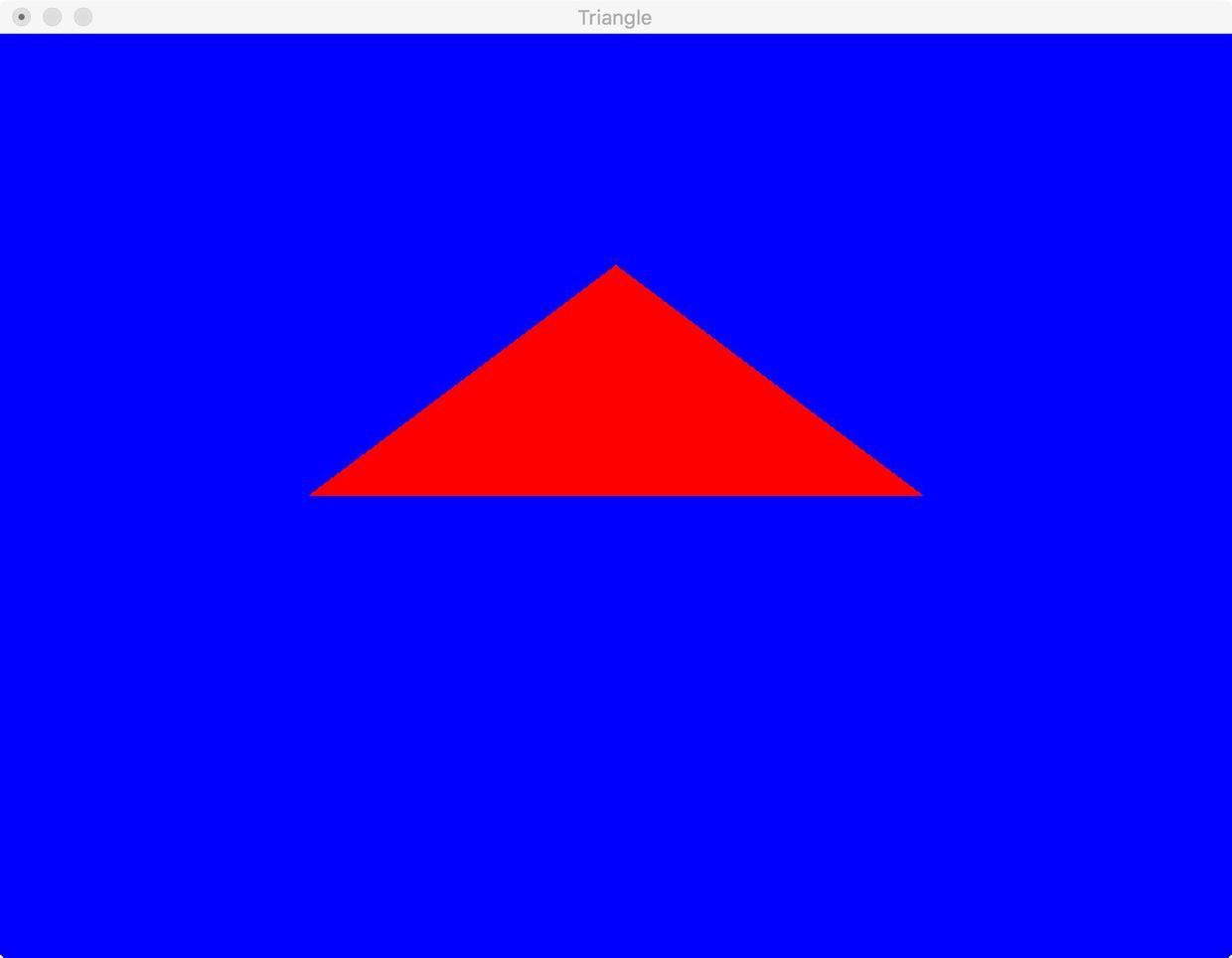
7. Run the program to appear the following interface that you have succeeded.


2. Error handling
There may be some mistakes in the above process. Here are some of the problems encountered by me and the solutions.
1. Error in header file
Because we’re pulling the file in, and by default the file is imported in framework form so we’re going to put <; > Change to "", you can directly click Fix according to the system prompts.


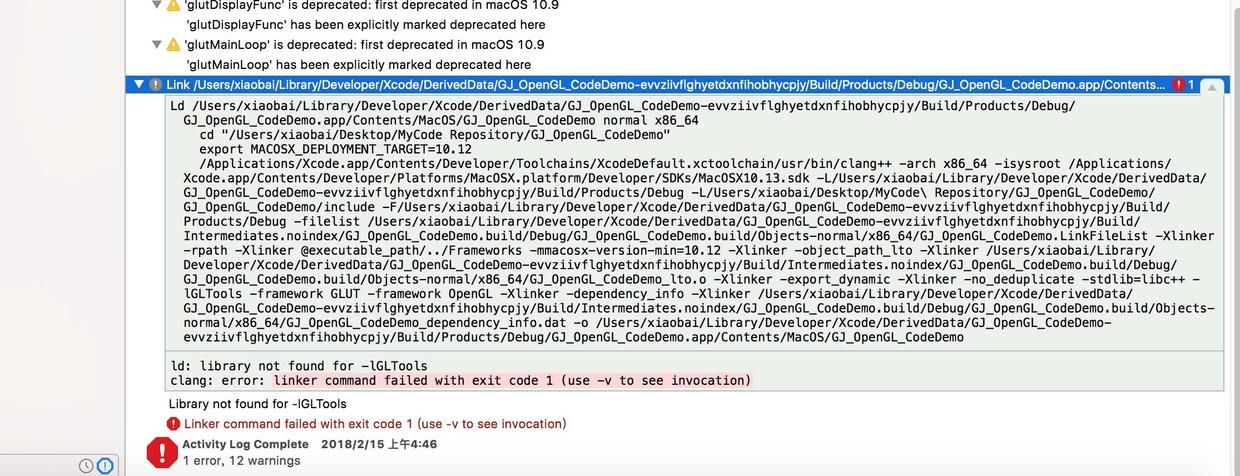
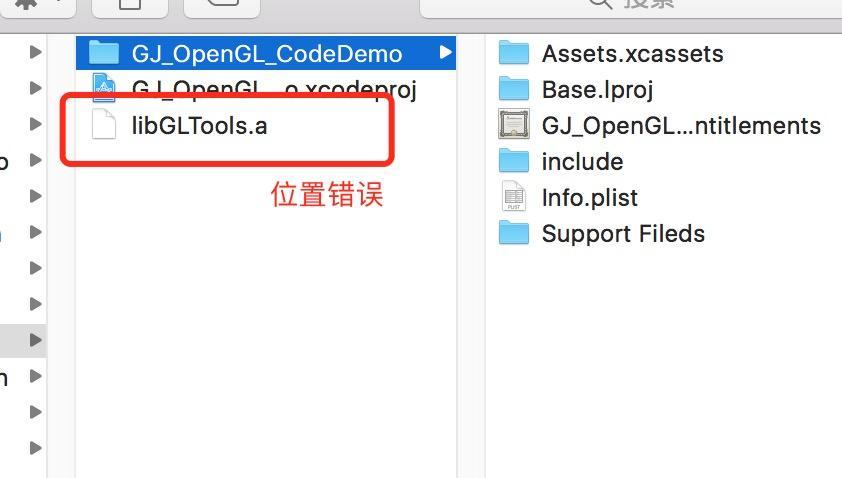
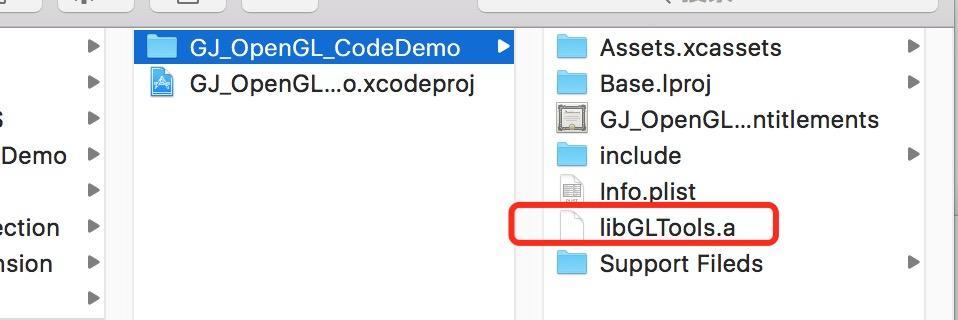
2. File path error. File A cannot be found.
BuildSettings ->; Path error introduced in Hearder Search Path. The.a file should be placed under the project file. The project name must be followed by the.a name in the import path. Here is a very good simple book similar to the error handling method of the article recommended for you to click my jump. The following error may have been caused by dragging the file in and then changing the file location.


Finally attach himself successful Demo a https://github.com/ClementGu/GJ_OpenGL_ConfigDemo, if you need resources can be downloaded to the OpenGL’s official website.

OpenGL environment configuration


1. Download 3 libraries:
GLEW, GLM, SDL2
2. Configure the Visual Studio environment variables include directory (include header), library path (lib), executable directory (DLL) in the project configuration.
Specific addition can refer to
Linker –> input –> additional dependencies, add lib file name:
glew32.lib
glew32s.lib
SDL2.lib
SDL2main.lib
SDL2test.lib
OpenGL32.lib

The solution of configuring OpenGL in vs2017

I’ve just tried to mesh the sphere using OpenGL in the last two days. The solution to configure OpenGL in VS2017 is as follows:
Running is the link of https://blog.csdn.net/xdg_blog/article/details/52864872 code, the following need library file is also for this code, need to add other library method.
 
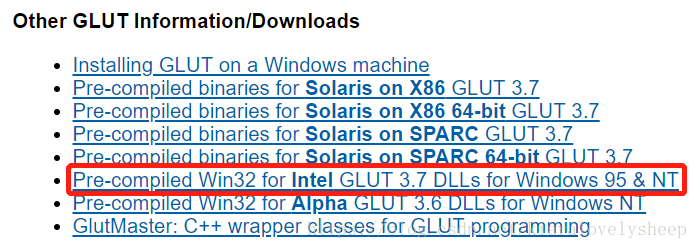
1. Download glut in the website, website link: https://www.opengl.org/resources/libraries/glut/.

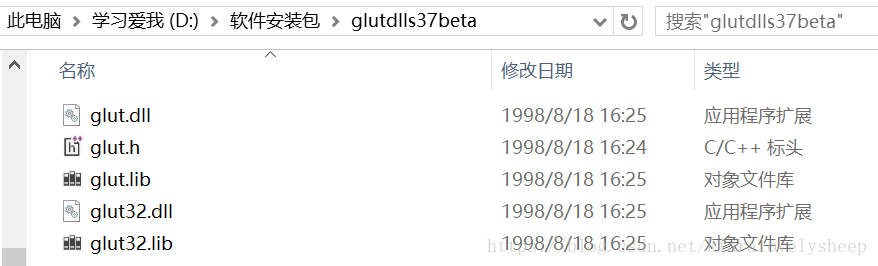
2. The downloaded file is as follows:

A. Put the two lib files Glut.lib and Glut32.lib into the directory:
D:\Program Files (x86)\Microsoft Visual Studio\2017\Community\VC\Tools\MSVC\14.15.26726\ Lib \x86
B. Put Glut. DLL and Glut32.dll into a directory: C:\Windows\syswow64
Under 64-bit Windows: 64-bit EXE and DLL are in the directory C :\ Windows \ System32, and 32-bit EXE and DLL are in the directory C :\ Windows \ SYSWOW64. So note that registering a 32-bit OCX or DLL on a Win64-bit system requires copying the 32-bit OCX or DLL to the C :\ Windows \syswow64\ directory. C :\ Windows \ SYSWOW64 \ REGSVR32 XXXXXXXX. OCX or DLL.)
C. In the directory: D:\Program Files (x86)\Microsoft Visual Studio\2017\Community\VC\Tools\MSVC\14.15.26726\ Include, create a new folder GL and put the header file in GL folder.
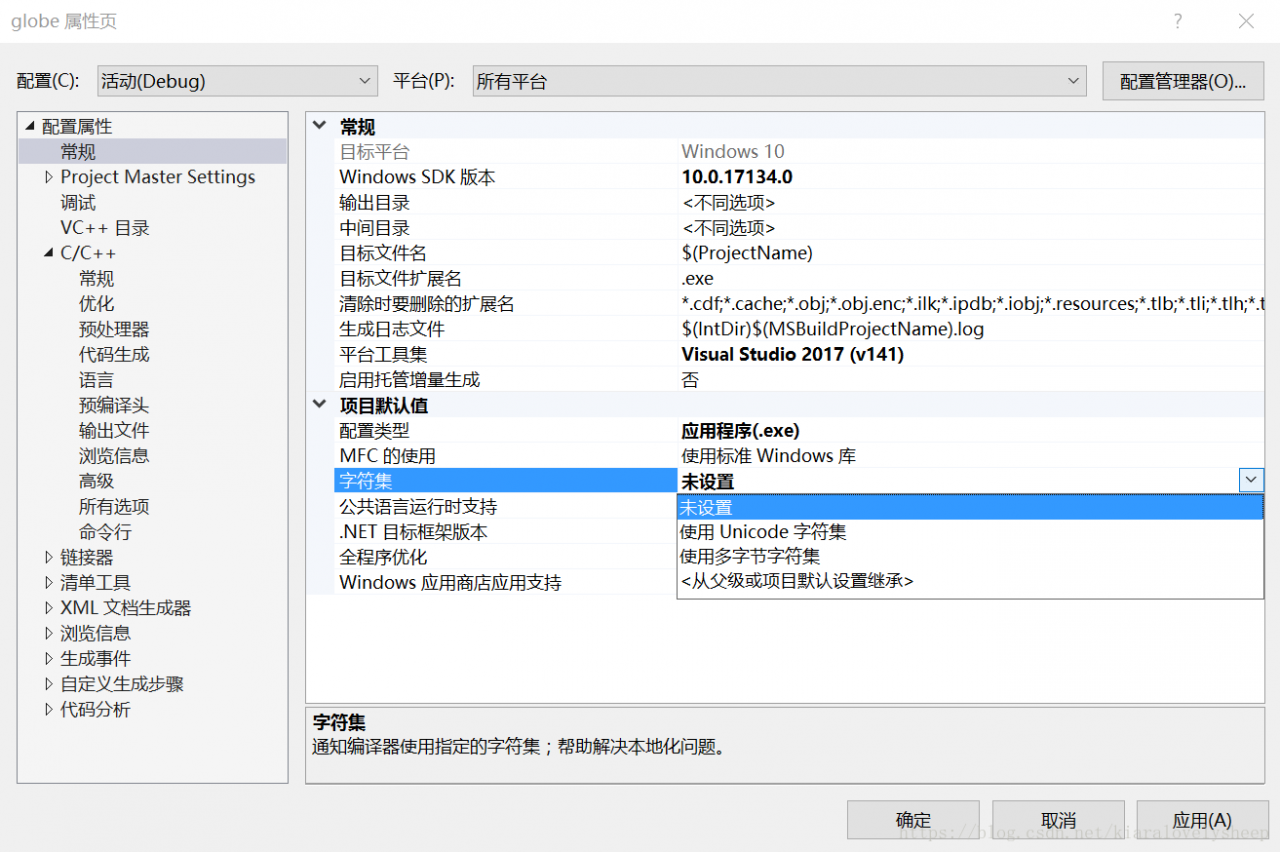
3. In VS2017, the configuration is as follows. First create a new C ++ project, then open the toolbar: Project ->; Properties:
A. general – & gt; Character set – & gt; Is not set

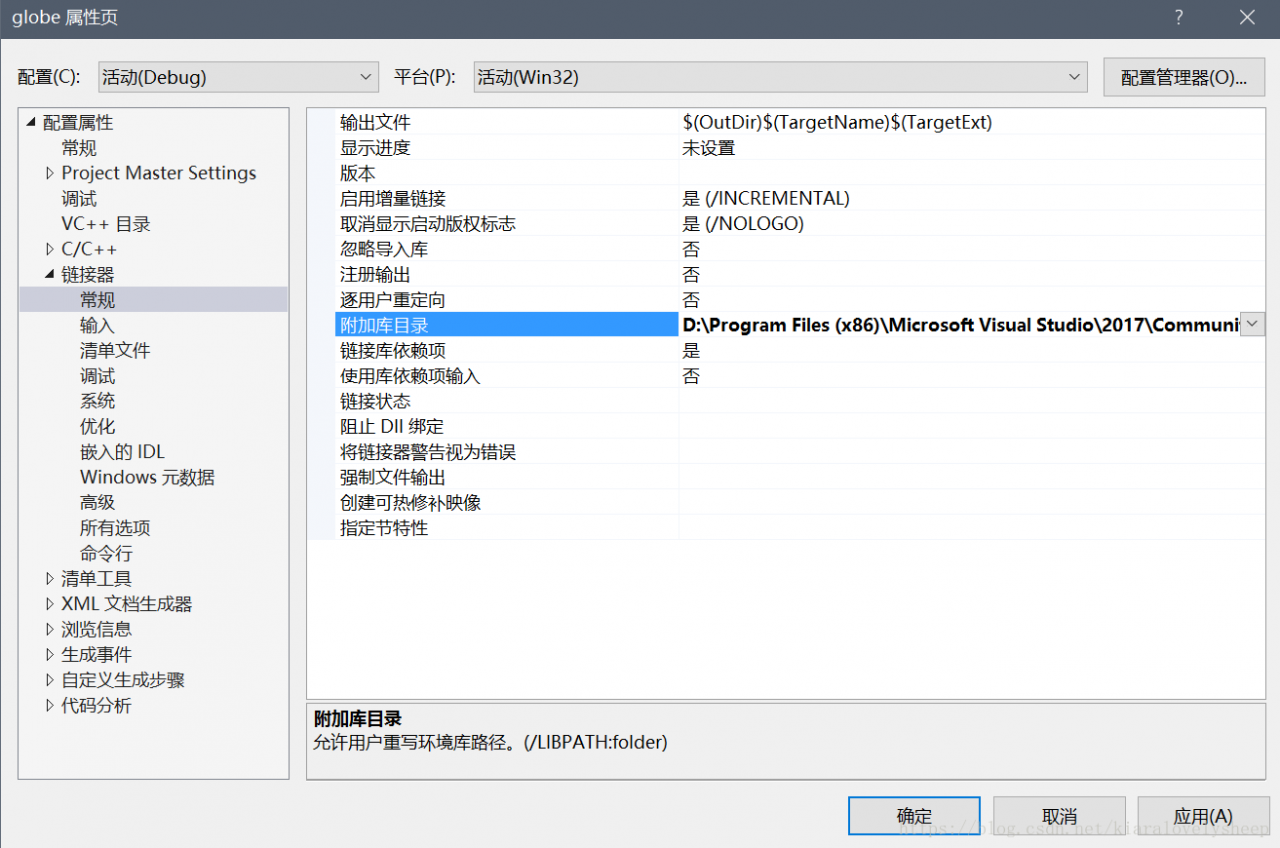
B. Linker ->; Conventional – & gt; Add the library directory, add OpenGL library file directory and its own library file directory. Write the path where the two lib files are placed.
D:\Program Files (x86)\Microsoft Visual Studio\2017\Community\VC\Tools\MSVC\14.15.26726\ Lib
D:\Program Files (x86)\Microsoft Visual Studio\2017\Community\VC\Tools\MSVC\14.15.26726\ Lib \x86

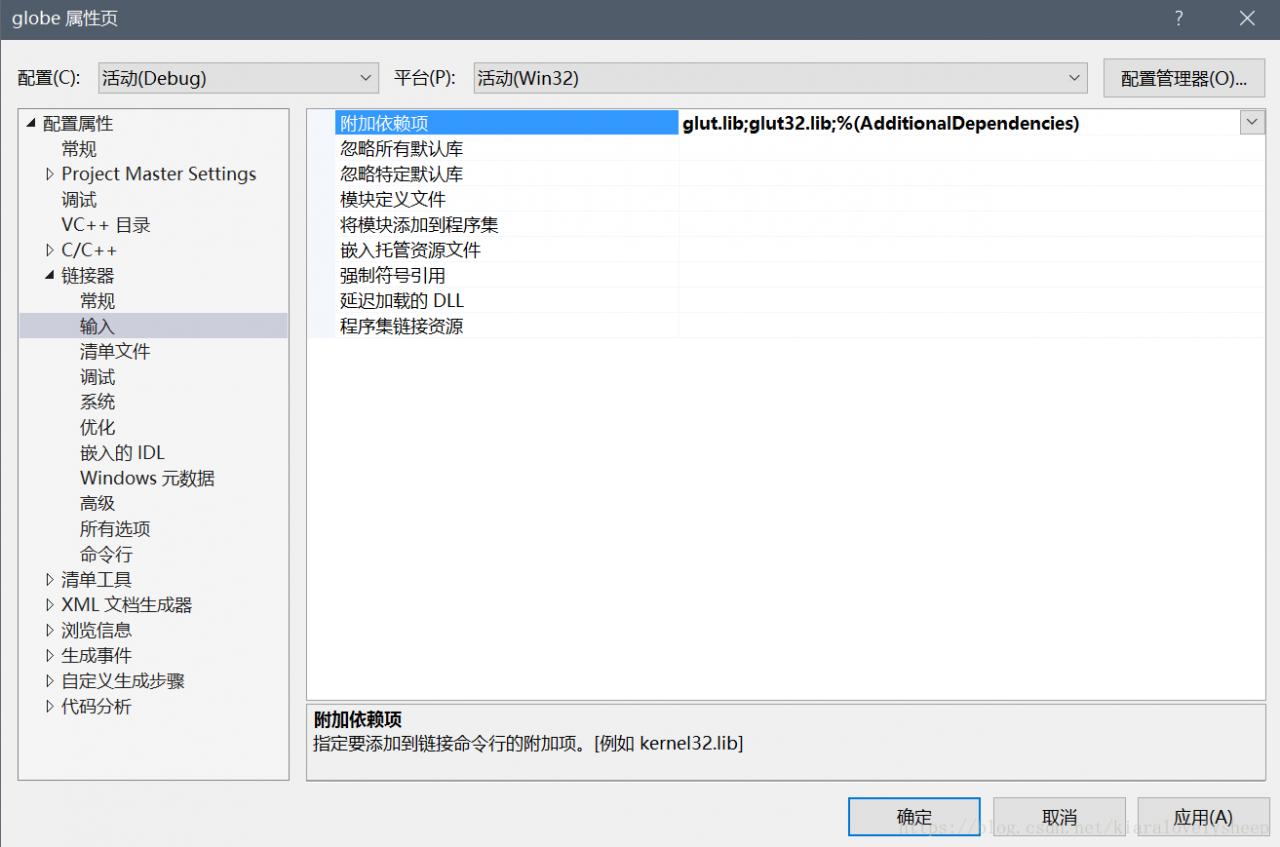
C. Linker ->; Input – & gt; Attach dependencies. Add the individual lib files from OpenGL (Glut.lib and Glut32.lib are the only ones added here), separated by English keyboard semicolons.

Note: There are other ways on the web to set: linker ->; System – & gt; Subsystem – & gt; SUBSYSYTEM: WINDOWS. But I’ve tried setting this to not work, so just leave it unset by default. (Although I don’t know why ~
Finally all the way down to determine the configuration of good ~

OpenGL development environment configuration [vs2017] + common problems

The article detailed configuration:
the reference 1: OpenGL development environment configuration (Windows) – Visual Studio 2017 + GLFW + GLAD detailed graphic tutorials
reference 2: OpenGL + VS2017 environment configuration reference 3:
[OpenGL] configuration GLFW
configuration process are detailed in this article, I mainly to mention a few configuration in the pit

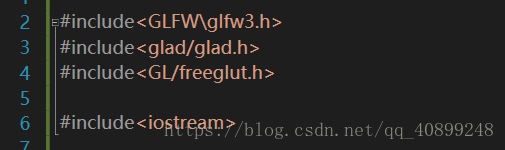
    create an empty project. If you create a new Windows console application, the program will automatically include the pch.h header. You must consult include "pch.h" o>me other precompiled header at the beginning of the source file. E0035 # error instructions: OpenGL header already included, remove this include, glad already provides it there are two solutions:
    2.1 leave out the third line glad. H header file, the header file
    define conflict
    2.2 this method is more brutal, I saw from the Internet: In the glad. H file commented error: OpenGL header already included, remove this include, glad already provides it GL_COLOR_BUFFER_BIT defined variables is not found, such as:
    the solution: The iostream. H file in header file at the end of the

[graphics] exceptions in downloading and installing OpenGL in vs2017

1, Put DLL file: C:\Windows\ SYSWOW64
Or C: \ Windows \ windows32
2, lib and h: C:\Program Files (x86)\Microsoft Visual Studio\2017\Enterprise\VC\Tools\MSVC\
The lib is placed in the lib folder.
H is placed in the GL folder in Include, which needs to be created.
Download address: https://files-cdn.cnblogs.com/files/inku/opengl%E6%96%87%E4%BB%B6.zip
= = = = = = = = = = = =
Find VC\Tools\MSVC\. Where it’s not bold, it’s different for everyone. Enterprise is the VS version.
Lib: C:\Program Files (x86)\Microsoft Visual Studio\2017\Enterprise\VC\Tools\MSVC\14.16.27023\ Lib \x86
H: C:\Program Files (x86)\Microsoft Visual Studio\2017\Enterprise\VC\Tools\MSVC\14.16.27023\ Include \ GL
= = = = = = = = = = = =
Possible exceptions:
1. Unable to find glut32.dll. Use another path for step 1.
2. Unable to find GL \ Glut. h, create new GL file.
3. Notice the selection of Debug in VS.


Reproduced in: https://www.cnblogs.com/inku/p/10159867.html

The solution of OpenGL not displaying normally in win7 system

These days I want to have a look at OpenGL, according to the online introduction to use the GLUT plug-in on Windows 7 VS2008. After the GLUT plug-in is installed, the program will compile, but at run time, the GLUT window will either be white or stuck, not properly.
I thought Windows 7 was incompatible with the GLUT plugin. Inadvertently see in online (http://bbs.tgbus.com/thread-1707009-1-1.html) said today may be the graphics driver (I is amd hd 8570 m). So, with 360 hardware master detection, the original their graphics card driver is too old. After updating the video card driver, it still can’t display normally. In right click on the desktop, select “configuration can exchange CARDS”, appear amd graphics Settings, left corner of the window we recommend: swappable display card global Settings, a battery case and insert the power supply two Settings, choose to “maximize performance” (or choose according to need) can normal use openGL glut plugin.
If you have any questions, you can ask me in the thread

Some small problems in using vs2017

Remove the precompiled header
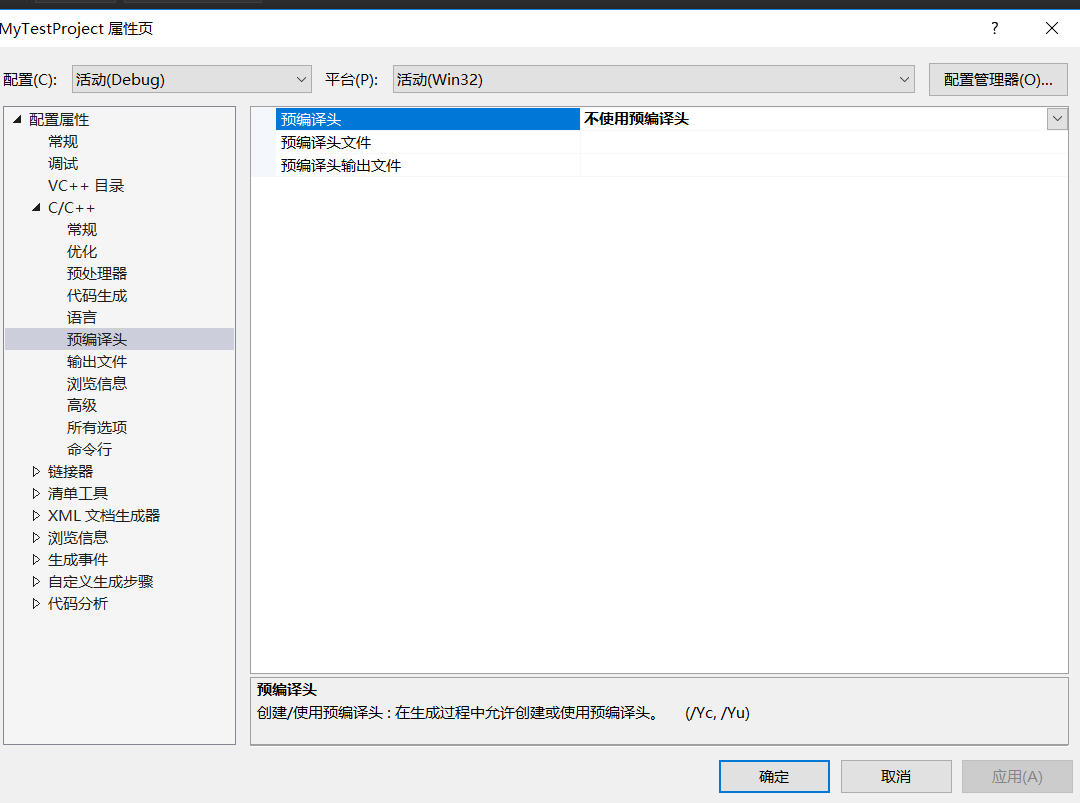
H, stdafx.h, stdafx.h, stdafx.h, stdafx.h, stdafx.h, stdafx.h, stdafx.h, stdafx.h, stdafx.h As a newbie, I didn’t need these precompiled headers for a while, so I wanted to get rid of them.
Right-click item ->; Property – & gt; C/C++-> Precompiled headers, as shown below, and then select not to use precompiled headers.

Set the C++ standard
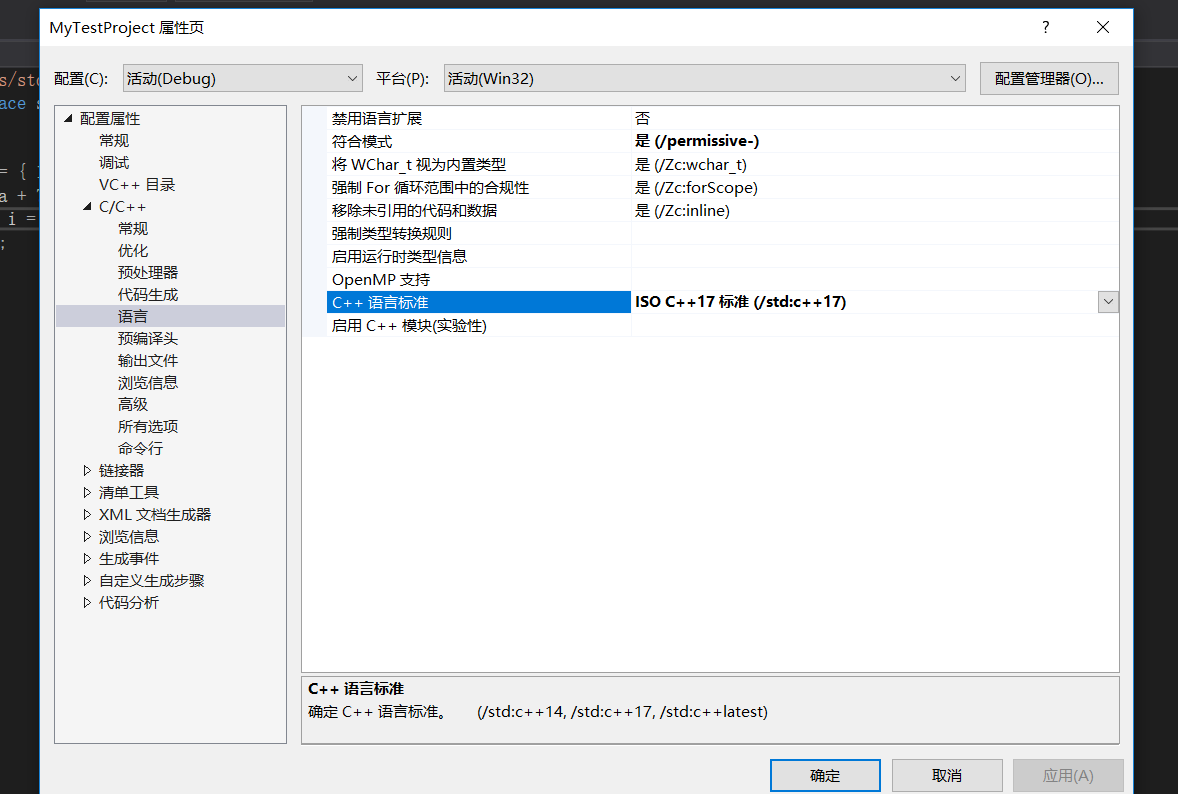
When writing C++ in VS2017, you want to set the C++ standard. Set it to C++14 or C++17.
Right-click item ->; Property – & gt; C/C++-> Language, as shown in the figure below, in the C++ language standard to select the desired C++ version.

3. Use lt; bits/stdc++.h> The header file
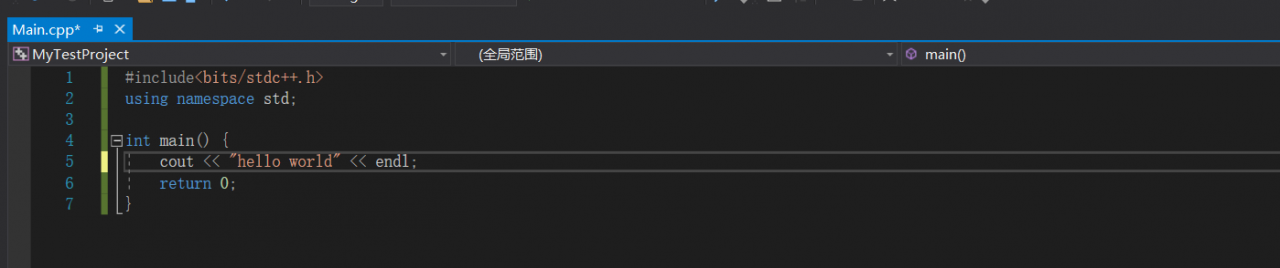
#include< #include< bits/stdc++.h> I’m too lazy to start a file. Then, found that VS2017 using this header file will report error prompts can not be found, so the Internet to find a way.
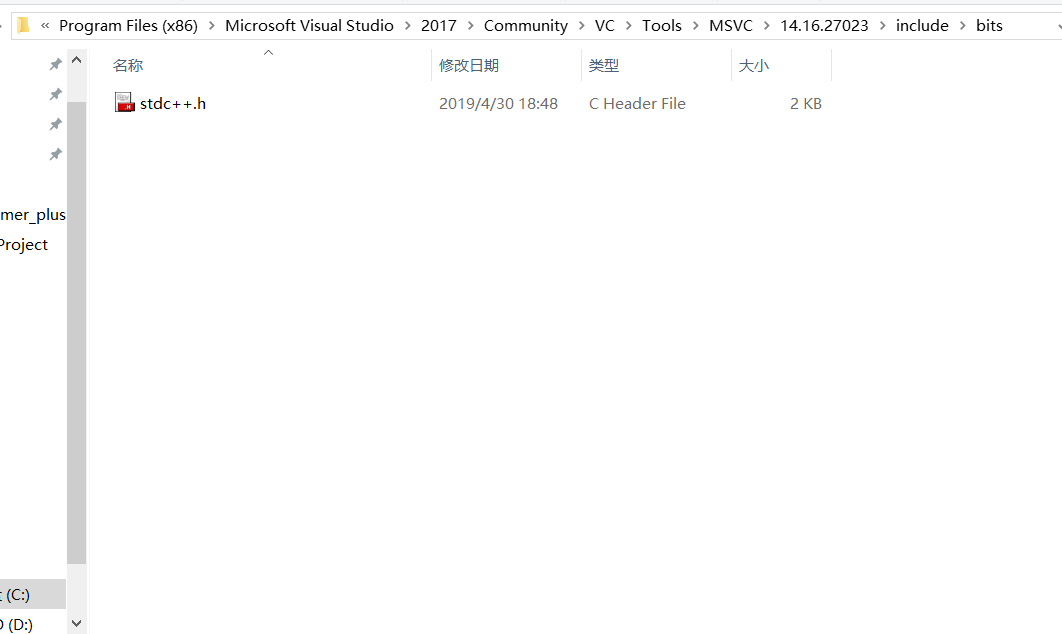
Since VS2017 is not available, we will add it ourselves, find the VS2017 installation directory, and then find the include file, my file path is this:
C:\Program Files (x86)\Microsoft Visual Studio\2017\Community\VC\Tools\MSVC\14.16.27023\ Include
Then create your own bits folder, then go to the bits folder, create the file stdc++. H, and add the following:

// 17.4.1.2 Headers

// C
#ifndef _GLIBCXX_NO_ASSERT
#include <cassert>
#endif
#include <cctype>
#include <cerrno>
#include <cfloat>
#include <ciso646>
#include <climits>
#include <clocale>
#include <cmath>
#include <csetjmp>
#include <csignal>
#include <cstdarg>
#include <cstddef>
#include <cstdio>
#include <cstdlib>
#include <cstring>
#include <ctime>

#if __cplusplus >= 201103L
#include <ccomplex>
#include <cfenv>
#include <cinttypes>
#include <cstdalign>
#include <cstdbool>
#include <cstdint>
#include <ctgmath>
#include <cwchar>
#include <cwctype>
#endif

// C++
#include <algorithm>
#include <bitset>
#include <complex>
#include <deque>
#include <exception>
#include <fstream>
#include <functional>
#include <iomanip>
#include <ios>
#include <iosfwd>
#include <iostream>
#include <istream>
#include <iterator>
#include <limits>
#include <list>
#include <locale>
#include <map>
#include <memory>
#include <new>
#include <numeric>
#include <ostream>
#include <queue>
#include <set>
#include <sstream>
#include <stack>
#include <stdexcept>
#include <streambuf>
#include <string>
#include <typeinfo>
#include <utility>
#include <valarray>
#include <vector>

#if __cplusplus >= 201103L
#include <array>
#include <atomic>
#include <chrono>
#include <condition_variable>
#include <forward_list>
#include <future>
#include <initializer_list>
#include <mutex>
#include <random>
#include <ratio>
#include <regex>
#include <scoped_allocator>
#include <system_error>
#include <thread>
#include <tuple>
#include <typeindex>
#include <type_traits>
#include <unordered_map>
#include <unordered_set>
#endif


Once the addition is complete, we will be able to use the #include< as normal. bits/stdc++.h> .

Reproduced in: https://www.cnblogs.com/fu3638/p/10801251.html

The reason of OpenGL configuration error in VS

When working with OpenGL, I encountered a number of errors:
The glut32.lib library cannot be opened.
2. Openg. DLL file missing
And so on.
After my debugging, I found two possible reasons. Please pay attention when debugging, it may be caused by these two reasons.
1.VS has two development platforms, X64 and Win32, I found that there are problems on X64 platform, first, there is no such error on Win32 platform, I guess it is because OpenGL is 32-bit.
I don’t know if OpenGL 64 is going to work, but I didn’t verify it, but you can verify it.
2. If there is an error in question 2, it may be that the lib library file in connector input is incorrect. I have tested it, and if it is changed to glu32.lib and glut32.lib, the error can be eliminated!
This is the problem I encountered in writing OpenGL, to give you a debugging idea.

Problems in configuring OpenGL

glut32.lib does not reference
vironment :vs2013
c> & VC++ directory ->; C/C++> C/C++> C/C++> Additional include directories to add it again inside VS complains.
Conclusion :VS is really bad for property configuration... emmmmm

Vc2010 configuring OpenGL environment

Glut32.Lib Glut32.dll and Glut.h Glut.h Glut.h Glut.h Glut.h Glut.h Glut.h Glut.h Glut.h Glut.h Glut.h Glut.h Glut.h Glut.h Glut.h
2, the glut. H in the C:/Program Files/Microsoft SDKs/Windows/AA/Include/gl v7.0 directory; GLUT32. lib: C:/Program Files /Microsoft SDKS /Windows/ V7.0a/lib Glut32.dll is placed in the C:/WINDOWS/system32 directory
3. Create a new empty project in VS2010 and select Win32 Console Project
 
4. Add a.cpp file to the project with the following contents:
# include “stdafx. H”
#include< gl/glut.h>
 
Void myDisplay (void)
{
GlClear (GL_COLOR_BUFFER_BIT);
GlRectf (0.5-0.5 f to 0.5 f, f, 0.5 f);
GlFlush ();
}
Int _tmain(int argc, _TCHAR* argv[])
{
GlutInitDisplayMode (GLUT_RGB | GLUT_SINGLE);
GlutInitWindowPosition (100, 100);
GlutInitWindowSize (400, 400);
GlutCreateWindow (” the first OpenGL program “);
GlutDisplayFunc (& amp; myDisplay);
GlutMainLoop ();
Return 0;
}
5. Set the IDE environment: project->; new Property-> Configuration propertites-> linker-> Input-> Additional dependencies
OpenGL32. lib GLUT32. lib, apply, confirm.
 
 
6. F5, Start Debugging, you should see a window with a white square in the middle.

QT encountered in CentOS installation( qt.qpa.plugin : Could not load the Qt platform plugin “xcb” )

I don’t believe it. How hard is it to install Qt on Linux?I reinstalled the system several times and got drunk. Here are the problems I encountered:
Round1:
After installation, execute the QTCreator prompt:
Linux qt “qt.qpa.plugin: Could not load the Qt platform plugin “xcb” ”

sudo gedit ~/.bashrc

export QT_DEBUG_PLUGINS=1
export LD_LIBRARY_PATH=/opt/Qt5.13.1/5.13.1/gcc_64/lib:$LD_LIBRARY_PATH
export LD_LIBRARY_PATH=/opt/Qt5.13.1/Tools/QtCreator/lib:$LD_LIBRARY_PATH

The last two sentences are from the link library path added to the search path, do not know whether to work.
Emphasized in fact the first sentence here, and after the configuration items, QtCreator will output a lot of information, so we can be targeted, step by step to solve the problem/
the changes to take effect

sudo source  ~/.bashrc

round2:
Execute the QtCreator program again from the command line, and output a bunch of log information. Skip to the end to find a prompt:
always load the library/opt/Qt5.13.1/Tools/QtCreator/lib/Qt/plugins/platforms/libqxcb. So: (libxkbcommon – x11. So. 0: unable to open the Shared object file: Don’t have that file or directory)
QLibraryPrivate: : loadPlugin failed on “/ opt/Qt5.13.1/Tools/QtCreator/lib/Qt/plugins/platforms/libqxcb. So” : “Always load the library/opt/Qt5.13.1/Tools/QtCreator/lib/Qt/plugins/platforms/libqxcb. So: (libxkbcommon – x11. So. 0: unable to open the Shared object file: no files or directories)”

obviously failure load of dynamic link library, first check whether there is the file exists, then look at whether the dependent libraries are able to find success:

ldd  /opt/Qt5.13.1/Tools/QtCreator/lib/Qt/plugins/platforms/libqxcb.so

Libxkbcommon is not available, you need to install the library, use yum to install:

yum -y install libxkbcommon-x11-devel

Round 3 lacks DBUS
If you continue, there is still an error. If you skip to the last line, there is still an error
/ opt/Qt5.13.1/Tools/QtCreator/bin/QtCreator: relocation error:/opt/Qt5.13.1/Tools/QtCreator/lib/Qt/plugins/platforms /.. /.. /lib/ libqt5dbus.so.5: Symbol dbus_message_set_allow_interactive_authorization, version LIBDBUS_1_3 not defined in file libbus-1.so.3 with link time reference

yum -y install dbus-devel

round4
Continue with the following error
Opt/Qt5.13.1/Tools/QtCreator/bin/QtCreator: symbol lookup error:/opt/Qt5.13.1/Tools/QtCreator/lib/Qt/plugins/platforms /.. /.. /lib/ libqt5xcbqpa.so.5: undefined Symbol: FT_GET_FONT_FORMAT

yum -y install freetype-devel

Export QT_DEBUG_PLUGINS=1. You may not have the same problem as me, but with the output, you can solve it step by step.