Tag Archives: python

PIP installation error: error: Microsoft Visual c++ 14.0 is required perfect solution

In the process of using Python development, it is often necessary to install various modules, but in the process of installation, various errors are often encountered. For example, error: error: Microsoft Visual C++ 14.0 is required. This error is due to the lack of C++ compiler components.
There are two solutions to this error
One is to directly download the corresponding WHEEL file for installation and provide three download addresses:
Tsinghua download (domestic site, faster) : https://pypi.tuna.tsinghua.edu.cn/simple/pip/
The official download: https://pypi.org/project/face-recognition/1.0.0/#files
Python package: https://www.lfd.uci.edu/~gohlke/pythonlibs/
Another solution is to install the missing component.
For the second solution, I believe most people will download a Visual Studio 201X and install it, as I did before. However, installing a VS takes up a lot of space, not to say the key, but it is still unusable after installation, which is really annoying.
After a variety of search, later found that you can directly install the official C++ runtime can be a perfect solution, leave an address: Microsoft Visual C++ Build Tools 2015
 
Double-click to run after downloading and install using default Settings. After the installation is complete, proceed to PIP Install XXX to indicate a successful installation.

 
Welcome to my personal blog: The Road to Machine Learning
Memory error in Python numpy matrix

Python calls NP to store the data. All of a sudden there were no prompts, and the MemoryError stopped.
Some people on the Internet say
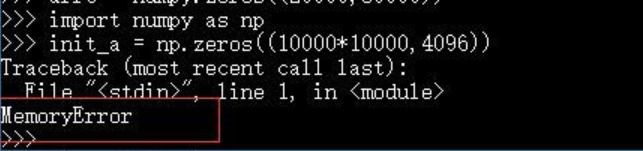
The matrix created by NumPY in Python is of limited size and cannot be created with tens of thousands of rows or columns, as shown in the following error

If you think about my code, it’s similar. I store 40,000 pictures at one time, maybe a little too much, so I make it a little smaller, and I don’t make any mistakes.


Take advice from others:
When dealing with big data in Python, the 16GB of memory started to report MemoryError before a quarter of the memory was used. Later, I learned that 32bit Python would report this error after using more than 2 gb of memory, but there were no other prompt messages. Decide to switch to 64bit Python.
originally installed 32bit Python because the official numpy and scipy versions only supported 32bit. Later, an unofficial version was found: http://www.lfd.uci.edu/~gohlke/ Python /#numpy
wheel file was installed: Fatal error in launcher: Python33\python.exe “” C:\Program Files (x86)\ python.exe” “C:\Program Files (x86)\ pipi.exe”
Find a solution on http://stackoverflow.com/questions/24627525/fatal-error-in-launcher-unable-to-create-process-using-c-program-files-x86:
python -m PIP install XXX


Python is prone to memory errors when dealing with large data sets, that is, running out of memory.
1. The original python data type takes up a lot of space, and does not have too many choices, the default is generally like 24 bytes, but in fact sometimes it does not need to be so big or so high precision, at this time you can use Float32, Float16 and so on in NumPY, in short, choose enough according to your own needs, this is several times of memory savings.
2. Python’s garbage collection mechanism is relatively lazy. Sometimes, variables in a for loop will not be collected when they are used up, and space will be opened up again in the next reinitialization.
3. In the case of sparse data, such as a large number of one Hot features in the training set, the dense data will be turned into sparse storage. Refer to the SPARSE module in SCIPY, where several data structures supporting sparse storage can be called directly. But notice that a centralized data structure requires at least two or three times the space in a dense data store. That means sparse arrays would take up even more space if they are half or less sparse. It only works if a lot of the data is sparse.
4. In essence, it is about checking whether there is something wrong with the way you organize your data, such as whether it can be one hot in each batch. In other words, don’t store all the things you need or don’t need in memory at one time.
— — — — — — — — — — — — — — — — — — — — —

the original: https://blog.csdn.net/yimingsilence/article/details/79717768
Reference: https://jingyan.baidu.com/article/a65957f434970a24e67f9be6.html
https://zhidao.baidu.com/question/2058013252876894707.html
Recommend interested can look at: https://blog.csdn.net/weixin_39750084/article/details/81501395

Python error: permissionerror: [errno 13] permission denied solution details

Error message
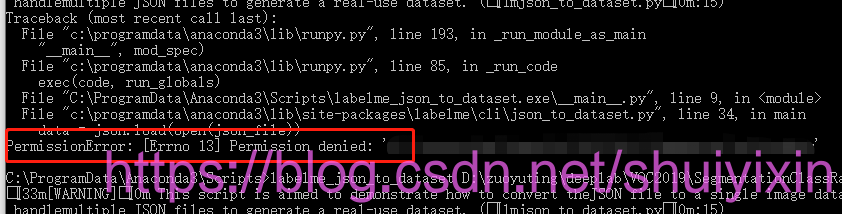
During the process of using Python to make a data set, the following error was reported:

The reason for the error
The error translates as:

Permission error: [Errno 13] permission denied:

The error occurs when the file cannot be opened. It can occur when the file cannot be found, is occupied, has no access, or is opened not to a file but to a directory.
The solution
The solution is as follows:

1. Check whether the file under the corresponding path exists and is occupied. If the file does not exist, just find the corresponding file; If the file exists and is occupied, the occupying program is temporarily closed.
2. Modify the permissions of CMD to run as administrator.
3. Check if the folder is open.


Error importing keras in jupyter Notebook: modulenotfounderror: no module named ‘keras’ solution

For the first time using Jupyter encountered some problems, a simple record.
I use anaconda comes with jupyter notebook, directly in the terminal input

jupyter notebook

The page just pops up. Or you can install it with PIP.
default is open C disk directory, if you want to open C disk outside the path, you can open the required directory in the terminal, then open jupyter notebook, or directly after the command to add a path, such as:

jupyter notebook D:\xxx\xxx

Can.
When I was running the code, I encountered a ModuleNotFoundError: No module named ‘Keras’.
the solution is as follows:
1, enter the configured virtual environment in the terminal

activate keras

2. Execute the following command:

conda install nb_conda

3, after installation, then start the Jupyter Notebook, it is OK.
need to restart jupyter notebook after every environment update, as I do.
Reference: 1, https://zhuanlan.zhihu.com/p/29564719

2
3, https://www.bbsmax.com/A/A7zgNovPd4/, https://stackoverflow.com/questions/38221181/no-module-named-tensorflow-in-jupyter

No matching distribution found for tensorflow

My Python version is installed with Anaconda version 3.7, while the 3.7 Version of Python is not installed with PIP Install TensorFlow – GPU could not install TensorFlow, possibly because of incompatibility?
Solutions:
Uninstall Anaconda, install a 3.6 or lower Version of Anaconda, and then PIP Install Tensorflow-GPU.
It was updated December 17, 2018
I found this error today not because of the Anaconda version, but because I downloaded a 32-bit Version of Anaconda, but my Linux system is 64-bit…
I’m not in a good mood today, um…

Error loading pscopg2 module: no module named pscopg2

When using Django to connect to a postgresql database, use python manager.py migrate to create a database.
django. Core. Exceptions. ImproperlyConfigured: Error loading psycopg2 module: No module named 'psycopg2' solution:
apt install psycopg2 if it fails, don't care if apt install libpq-dev or apt install postgresql-server-dev-x.y must be installed successfully, one of them PIP install psycopg2 must be installed successfully. Finally, remember to set an access password for the database set in your setting. Py , otherwise an error will be reported. You can set the access password by referring to the relevant commands here.

Python memoryerror (initializing a large matrix)

Encountered this problem is to initialize a large matrix:

import numpy as np
init_a = np.zeros((10000*10000,4096))

Direct initialization like this prompts a MemoryError.
Looking up the data, it finds that the default dtype=float64; therefore, after modifying the data type as float16, the error is avoided. Although the accuracy is lost, the code runs successfully:

init_a =  np.zeros((10000*10000,4096),dtype='float16')

If there is a better solution, please advise ~

Problem solving: Pandas: keyerror: [ ] not in index

After data cleaning with packages like Numpy and Pandas, the corresponding columns in dataframe will be fed into models such as neural network or SVM as features or labels for model training. During this process, errors as shown in the question are likely to be encountered, such as:

X=data[features]
Y=data['6A']

The error was reported as follows:

was modified as follows:

X=data.iloc[:,1:21

Solve selenium error — unknown error: devtoolsactivport file doesn’t exist

This post is posted on my personal blog: Selenium Error Reporting – Unknown Error DevToolsActivePort File doesn’t exist — Zhang0Peter’s personal blog


There was a problem launching Chrome with selenium on Linux in the morning:
error:

Traceback (most recent call last):
  File "get2.py", line 62, in <module>
    browser = webdriver.Chrome()
  File "/root/.pyenv/versions/anaconda3-5.1.0/lib/python3.6/site-packages/selenium/webdriver/chrome/webdriver.py", line 75, in __init__
    desired_capabilities=desired_capabilities)
  File "/root/.pyenv/versions/anaconda3-5.1.0/lib/python3.6/site-packages/selenium/webdriver/remote/webdriver.py", line 154, in __init__
    self.start_session(desired_capabilities, browser_profile)
  File "/root/.pyenv/versions/anaconda3-5.1.0/lib/python3.6/site-packages/selenium/webdriver/remote/webdriver.py", line 243, in start_session
    response = self.execute(Command.NEW_SESSION, parameters)
  File "/root/.pyenv/versions/anaconda3-5.1.0/lib/python3.6/site-packages/selenium/webdriver/remote/webdriver.py", line 311, in execute
    self.error_handler.check_response(response)
  File "/root/.pyenv/versions/anaconda3-5.1.0/lib/python3.6/site-packages/selenium/webdriver/remote/errorhandler.py", line 237, in check_response
    raise exception_class(message, screen, stacktrace)
selenium.common.exceptions.WebDriverException: Message: unknown error: Chrome failed to start: exited abnormally
  (unknown error: DevToolsActivePort file doesn't exist)
  (The process started from chrome location /usr/bin/google-chrome is no longer running, so ChromeDriver is assuming that Chrome has crashed.)
  (Driver info: chromedriver=2.43.600233 (523efee95e3d68b8719b3a1c83051aa63aa6b10d),platform=Linux 4.9.0-6-amd64 x86_64)

Solution:
plus code:

from selenium.webdriver.chrome.options import Options
chrome_options = Options()
chrome_options.add_argument('--no-sandbox')
chrome_options.add_argument('--disable-dev-shm-usage')
chrome_options.add_argument('--headless')
browser = webdriver.Chrome(chrome_options=chrome_options)

“– no-sandbox” parameter is to let Chrome run
“– headless” parameter is not to open the graphical interface
can add these parameters to get a better experience

chrome_options.add_argument('blink-settings=imagesEnabled=false')
chrome_options.add_argument('--disable-gpu')

Solving syntax error: unexpected character after line continuation character

SyntaxError: Unexpected Character After Line Continuation Character error occurred in the.py file executing on Windows command line.
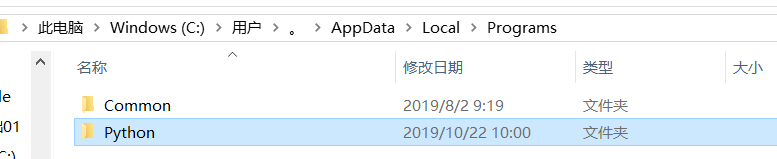
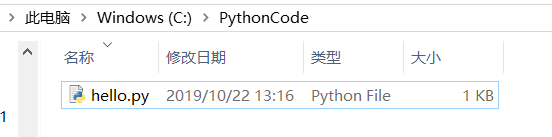
The python installation path is
:


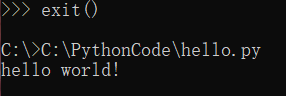
. The reason for this error is that python does not exit the interpreter, but instead executes in the interpreter environment. Py file.
Note: the.py file can only be executed in command line mode. If you do not exit, you are in interactive mode, where you enter a line of code and execute it. It is good to test a statement.
Type exit() to exit, and drag the.py file into the command line window to see the results (successful).

Solution to ebios read error: error 0x31 when installing snow leopard on virtual machine

2019 Unicorn enterprise heavily recruited Python engineer standard & GT; > >

EBIOS read error :error 0x31 error solution

EBIOS read error :error 0x31

Open the virtual machine’s Settings-> For Hardware, go to the CD/DVD(IDE) device, or go to the CD icon in the VM window status bar, click Settings, and replace the Dardarwin. Iso with the DMG image of the MAC system. Tick the boxes “Connected” or “Connect”. After completion, press the letter C to boot the installation DISC and enter the system installation interface after completion. Done!

Reproduced in: https://my.oschina.net/caiyuan/blog/165623