A while ago, in order to solve the problem of not saving the brightness of the boot, the laptop mode management system was installed
But recently, I happened to find that the mouse can’t be used after the power is off. Because I have no time and seldom use the notebook in battery mode, I never care about it.
If you are free today, try the online method. Solve this problem. The method is as follows
First, input lsusb in the terminal, and the display is as follows:
$lsusb
Bus 001 Device 001: ID 1d6b:0002 Linux Foundation 2.0 root hub
Bus 002 Device 001: ID 1d6b:0002 Linux Foundation 2.0 root hub
Bus 001 Device 002: ID 8087:0024 Intel Corp. Integrated Rate Matching Hub
Bus 002 Device 002: ID 8087:0024 Intel Corp. Integrated Rate Matching Hub
Bus 001 Device 003: ID 058f:a014 Alcor Micro Corp.
Bus 001 Device 004: ID 0bda:0139 Realtek Semiconductor Corp.
Bus 002 Device 003: ID 093a:2521 Pixart Imaging, Inc.
Bus 002 Device 004: ID 1a2c:0002
If you find multiple devices. But I don’t know which is the USB mouse. Don’t worry. I don’t know. Then look down.
Enter the following command:
0
lsusb -xvIt shows a lot of detailed information. What can we do.
Can’t you read it?
Of course not. We export the result with the following command.
lsusb -xv > ~/mouse.txtAnd then do it
gedit ~/mouse.txt
We went to the “mouse” editor, and we went up there. Just look for the ID of the mouse.
Bus 002 device 003: ID 093A: 2521 pixart imaging, Inc.
this is what I found. Remember 093A: 2521
Then open the configuration with the following command.
sudo gedit /etc/laptop-mode/conf.d/usb-autosuspend.confSearch again for “autosuspend”_ USBID_ BLACKLIST=”
I found it. Under my picture

In the double quotation marks at the end of the second line of yellow, fill in the ID of the mouse. That’s 093a:2521
. Is the mouse still working normally after saving and unplugging?
PS: my current computer is ubuntu12.04
reference resources: http://forum.ubuntu.org.cn/viewtopic.php?t=391117


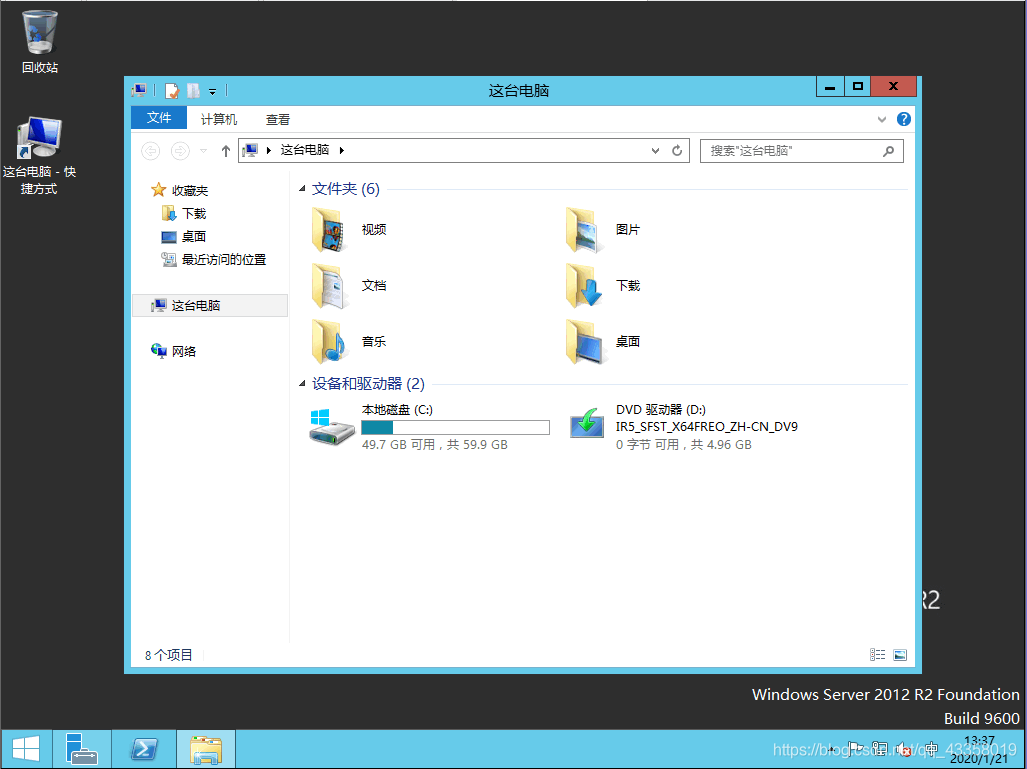 , open the server manager, click “add roles or functions”
 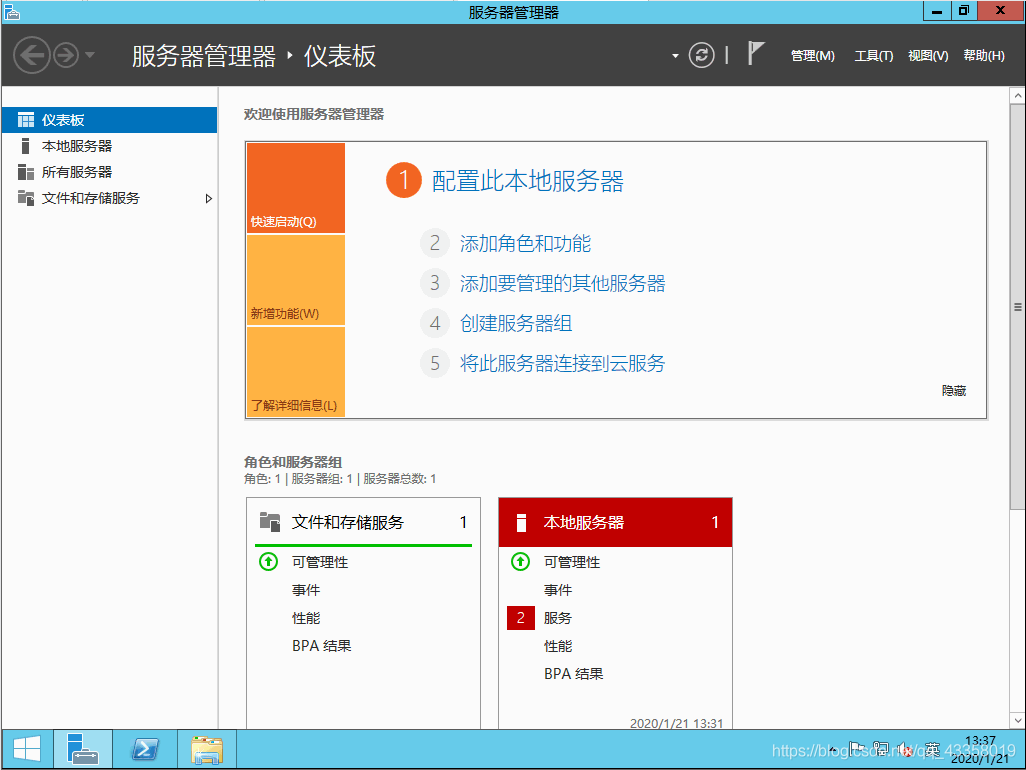 next
next 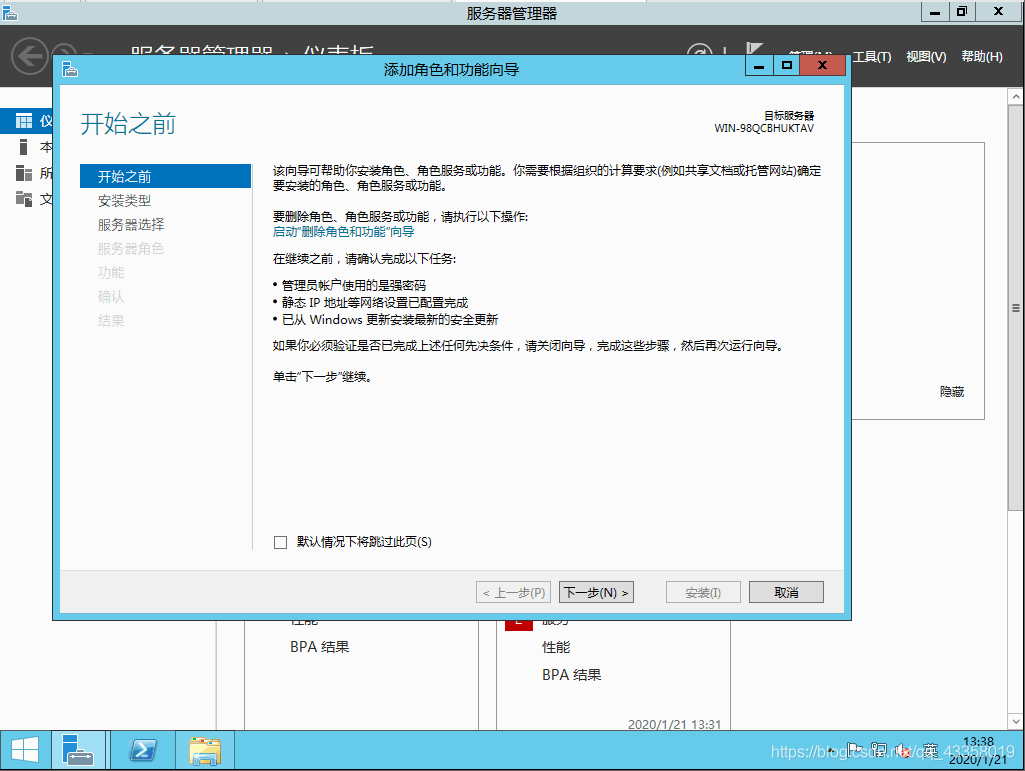 next
next 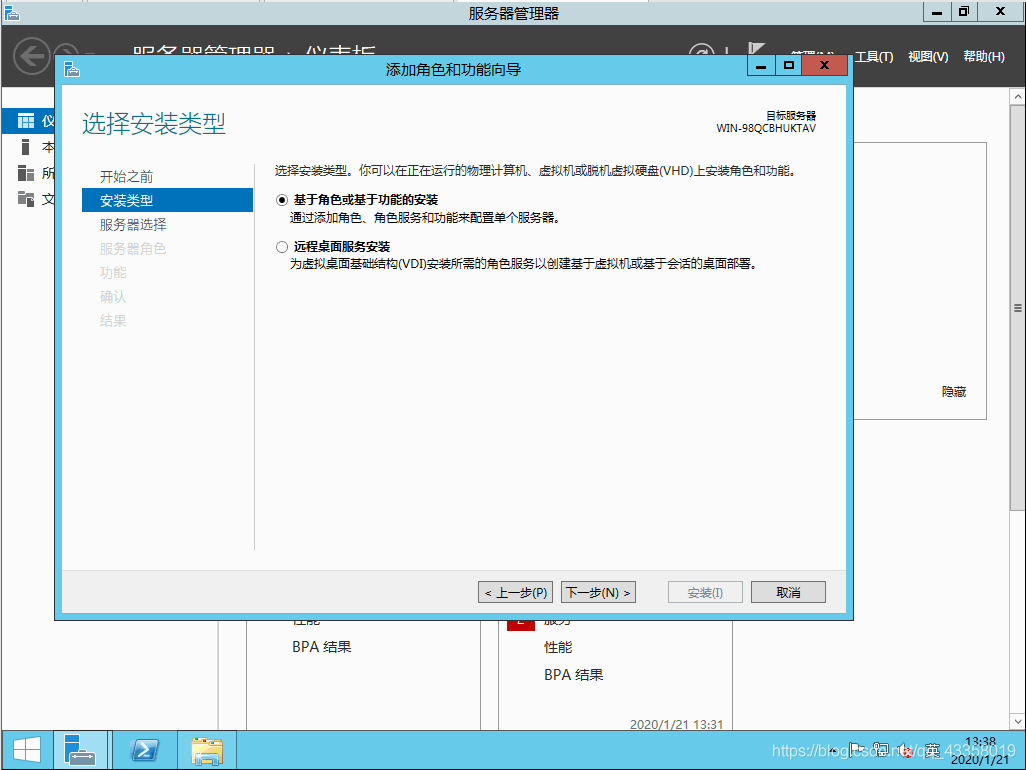 next
next 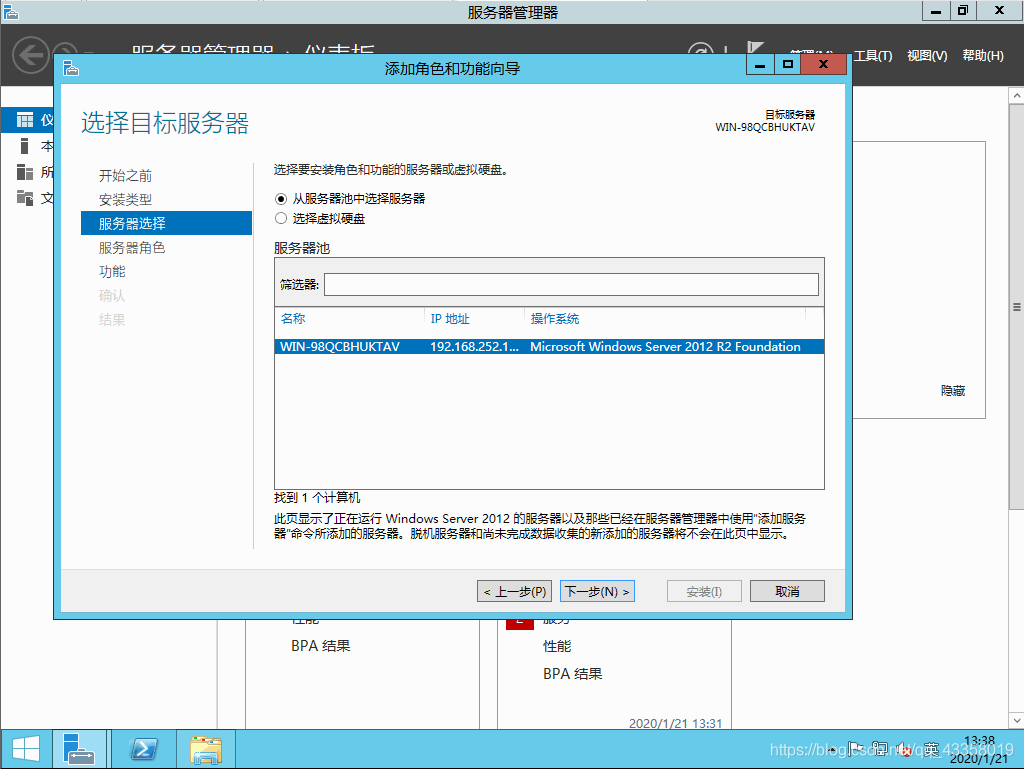 do not need to operate here, directly next
 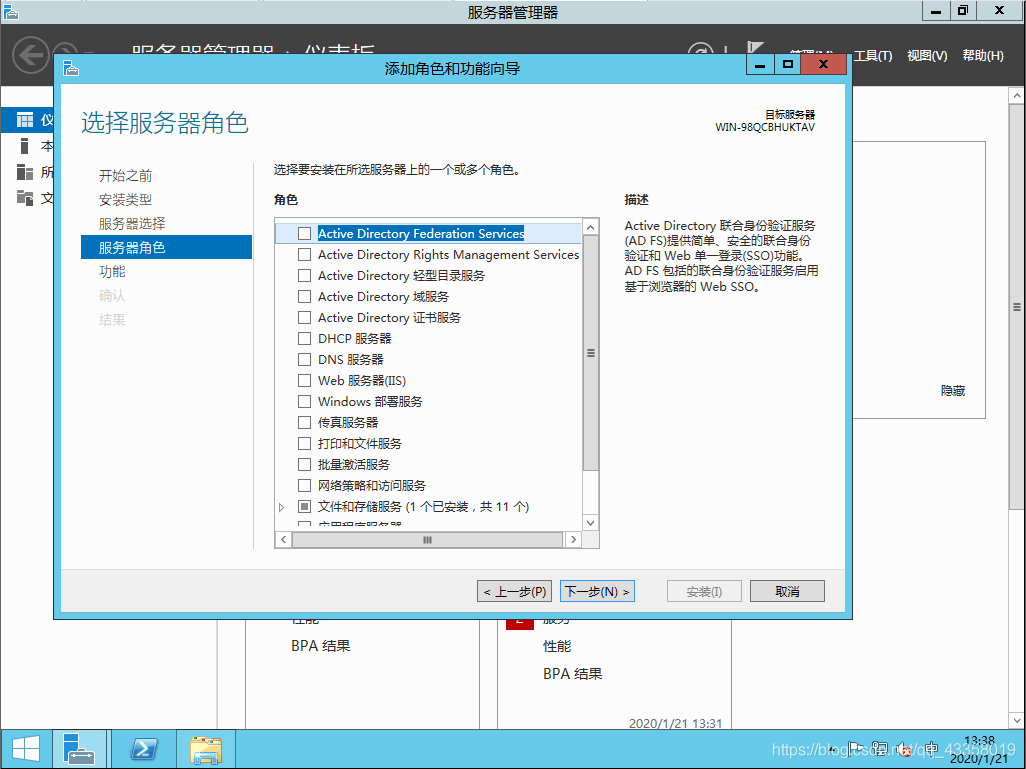 check Framework 3.5 here, and then next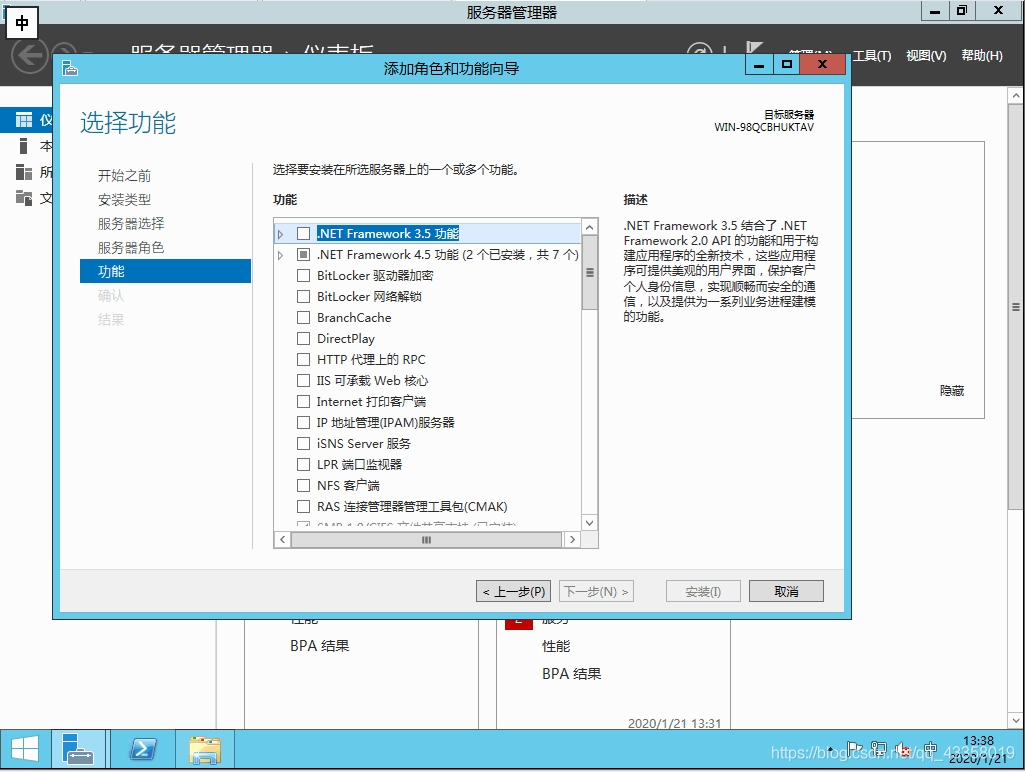
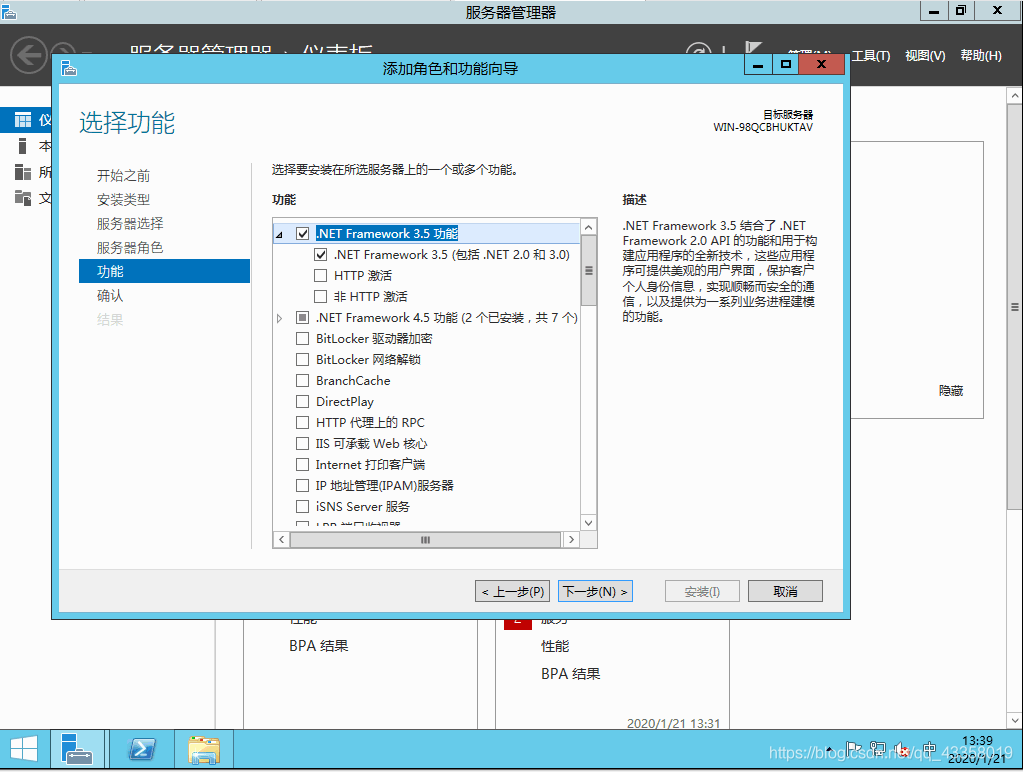 click specify alternate source path option
 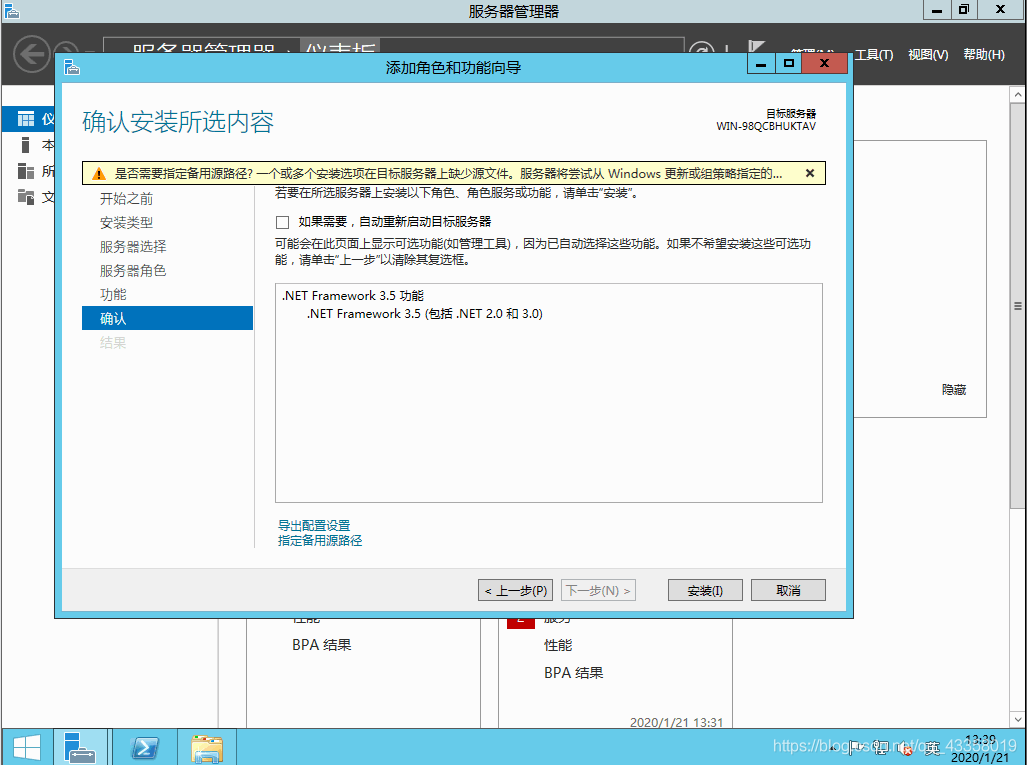 A289885427 here you need to fill in the alternate source path
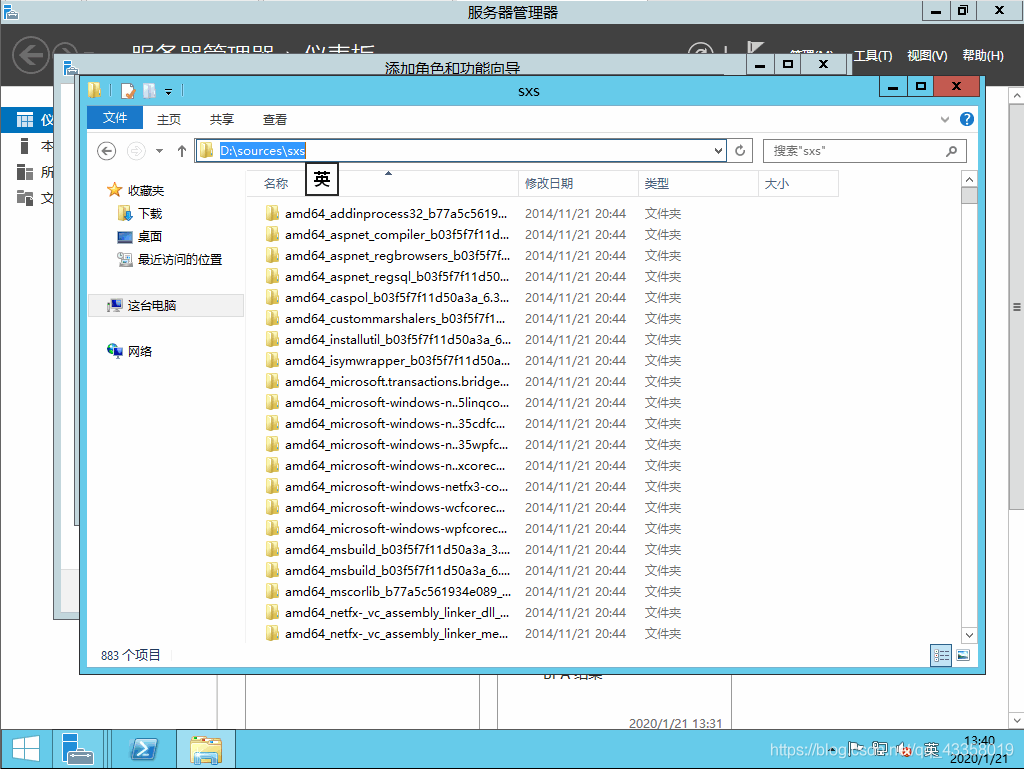
 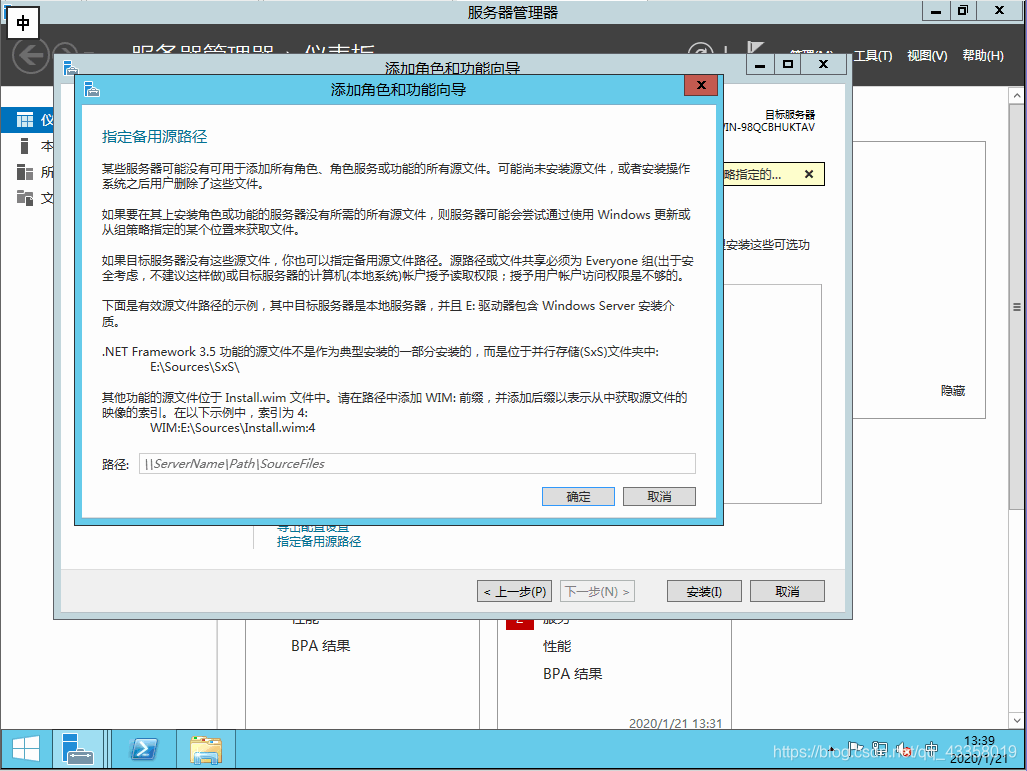 open the mounted system image, enter the specified location, copy the path
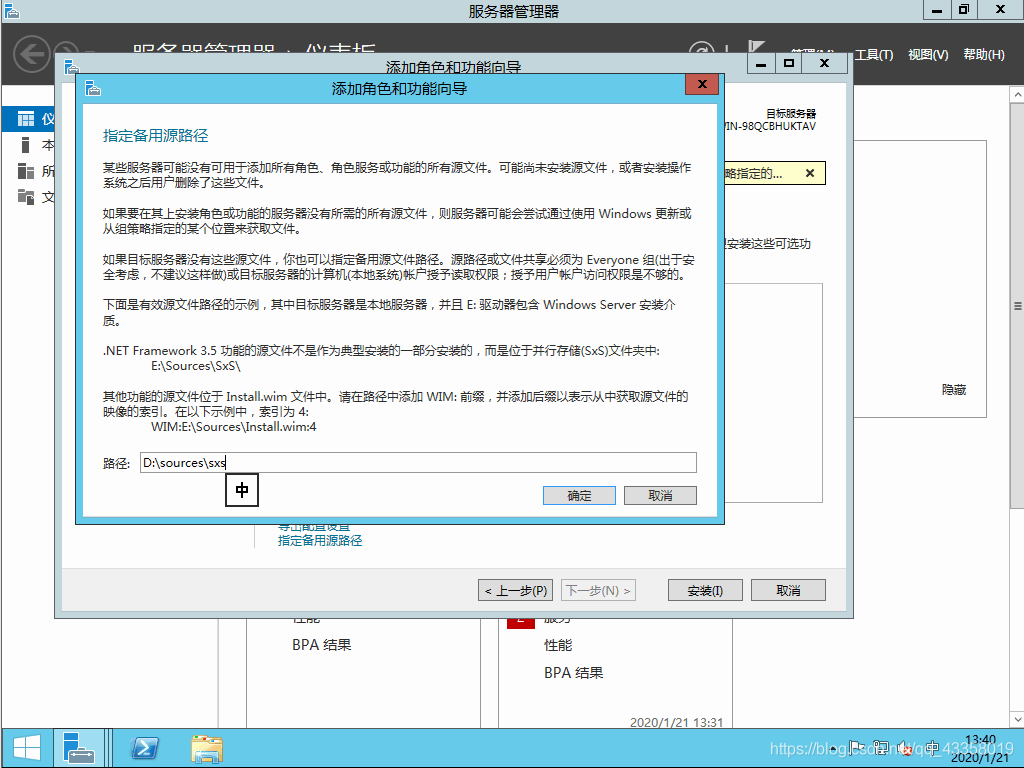
  fill in the alternate source path, confirm, and then click Install
  to start the installation, wait for the installation to complete
 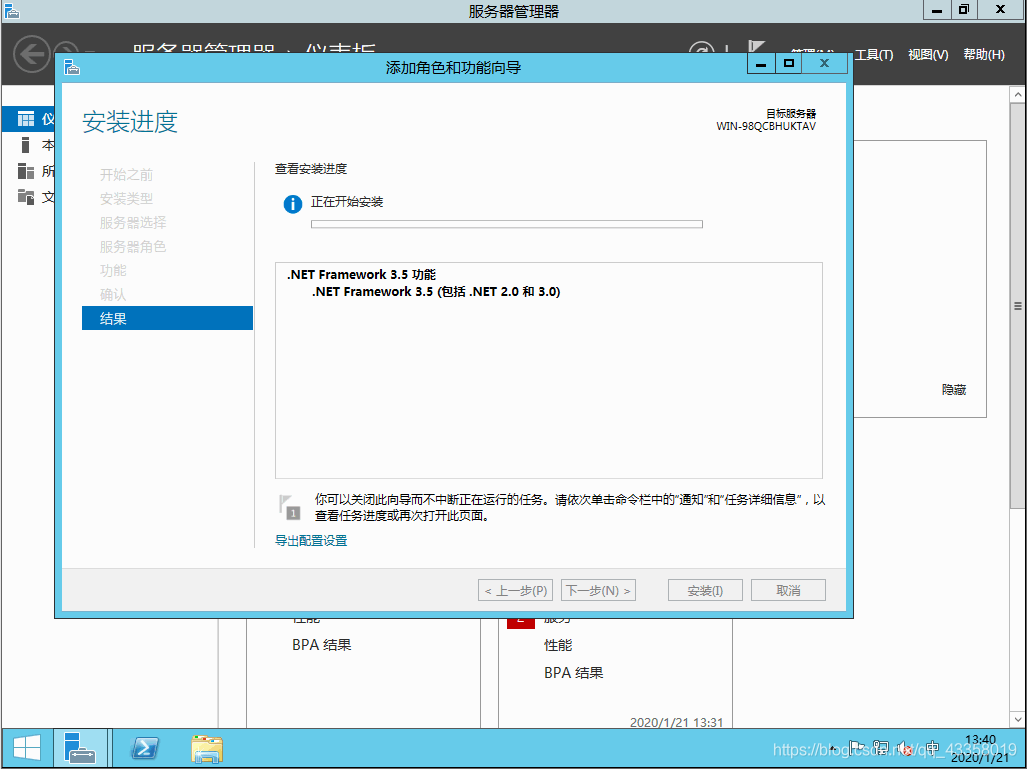 to finish the installation, and then close VMware.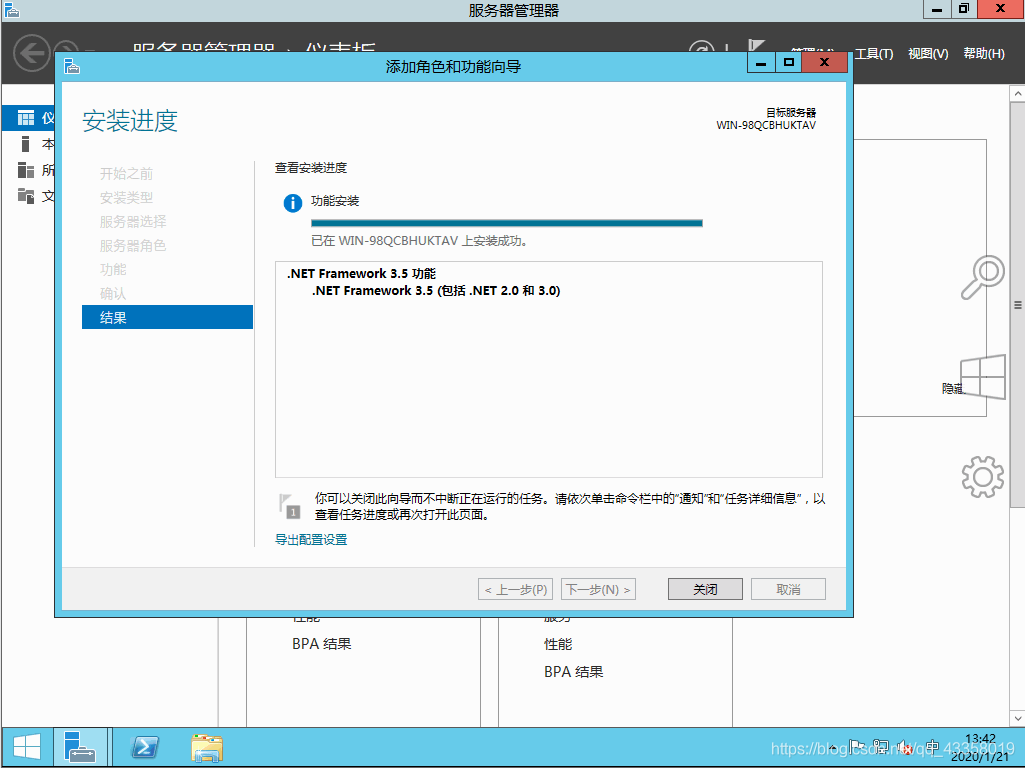
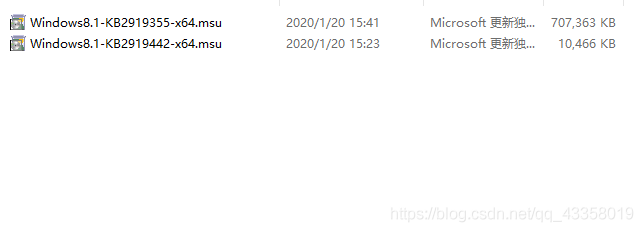 first install windows8.1-kb2919442-x64.msu, then install windows8.1-kb2919255-x64.msu, and restart the system after installation. Install vmware tools.