Author Archives: Robins

Error 1606 could not access network location% SystemDrive% / inetpub / wwwroot /

Prompt for title error when uninstalling or reinstalling Infragistics NetAdvantage
Under Windows 7
1. Open registry Regedit
2, find the HKEY_LOCAL_MACHINE/SOFTWARE/Microsoft/InetStp PathWWWRoot
64-bit operating system: HKEY_LOCAL_MACHINE\SOFTWARE\Wow6432Node\Microsoft\InetStp\PathWWWRoot
% SystemDrive %/inetpub/below/= = “C: \ inetpub \ below


[xampp] error: Apache shutdown unexpected. 11:00:50 [Apache] solution details

XAMPP Apache does not work, and has been reporting errors:
Error: Apache shutdown unexpectedly. 11:00:50 [Apache] This may be due to a blocked port, missing dependencies, 11:00:50 (Apache) improper privileges, a crash, Or a shutdown by another method. 11:00:50 [Apache] Press the Logs button to view error
 
That means the port problem, just change the port.
 

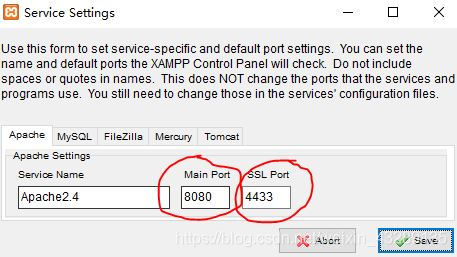
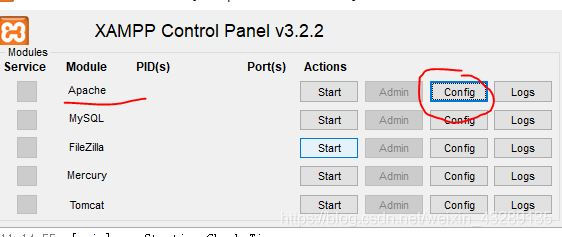
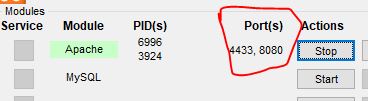
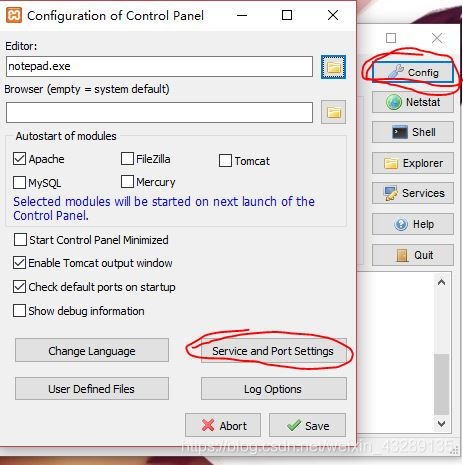
    click on this Config and select the Service and Port Settings


2. Change the original port Numbers 80 and 443 to 8080 and 4433, respectively (more commonly used, can also be changed to other unused ports, such as 81,801)

 
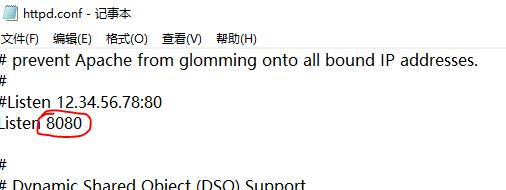
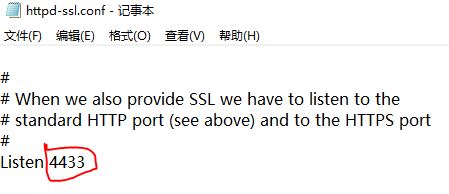
3. Then click Config in the main interface, select httpd.conf and httpd-sSL. conf to find the corresponding positions respectively and change them to 8080 and 4433 set previously (if other port Numbers are set, change the corresponding Settings).

 
This position is very easy to find, and when you see the number of Listen, you only need to change the Listen below. If this doesn’t work, change the Listen above


5. The next detail is that you have to go to the status bar to turn Xampp off completely! Reopen it. If it still doesn’t work, try again with a different port number.


Leave a comment.

Python TCP socket programming: send returns broken pipe error?

One of the most common mistakes in socket programming is the ECONNRESET error that I mentioned in this article. Another mistake that is rarely encountered is the EPIPE error that I will talk about today. This error can occur when sending data when the send function is called, and the program throws the following exception:

socket.error: [Errno 32] Broken pipe

Why this error?First, take a look at the official man 2 write document describing this error:

EPIPE
fd is connected to a pipe or socket whose reading end is closed. When this happens the writing process will also receive a SIGPIPE signal. (Thus, the write return value is seen only if the program catches, blocks or ignores this signal.)

Above, when writing data to a closed reader pipe or socket, the program receives a SIGPIPE signal. We have seen the example of a pipeline in this article.
Today, we’ll take a simple socket example to explore why this error occurs.
The client code is as follows:

import socket
import time

s = socket.socket(socket.AF_INET, socket.SOCK_STREAM)
s.connect(('127.0.0.1', 2222))

s.send('hello')
time.sleep(1)
s.send('hello')
s.send('hello')

s.close()

The server code is as follows:

import socket

s = socket.socket(socket.AF_INET, socket.SOCK_STREAM)
s.setsockopt(socket.SOL_SOCKET, socket.SO_REUSEADDR, 1)
s.bind(('127.0.0.1', 2222))
s.listen(5)

c, addr = s.accept()

c.recv(1024)

c.close()

After 1 second of running the client program, the Broken pipe error occurs:

[root@localhost python]# python client.py 
Traceback (most recent call last):
  File "client.py", line 10, in <module>
    s.send('hello')
socket.error: [Errno 32] Broken pipe

The results are as follows:

03:51:51.137047 IP 127.0.0.1.50870 > 127.0.0.1.2222: Flags [S], seq 2737957170, win 32792, options [mss 16396,sackOK,TS val 39403123 ecr 0,nop,wscale 5], length 0
03:51:51.137055 IP 127.0.0.1.2222 > 127.0.0.1.50870: Flags [S.], seq 2751472309, ack 2737957171, win 32768, options [mss 16396,sackOK,TS val 39403123 ecr 39403123,nop,wscale 5], length 0
03:51:51.137061 IP 127.0.0.1.50870 > 127.0.0.1.2222: Flags [.], ack 1, win 1025, options [nop,nop,TS val 39403123 ecr 39403123], length 0
03:51:51.137083 IP 127.0.0.1.50870 > 127.0.0.1.2222: Flags [P.], seq 1:6, ack 1, win 1025, options [nop,nop,TS val 39403123 ecr 39403123], length 5
03:51:51.137089 IP 127.0.0.1.2222 > 127.0.0.1.50870: Flags [.], ack 6, win 1024, options [nop,nop,TS val 39403123 ecr 39403123], length 0
03:51:51.137158 IP 127.0.0.1.2222 > 127.0.0.1.50870: Flags [F.], seq 1, ack 6, win 1024, options [nop,nop,TS val 39403123 ecr 39403123], length 0
03:51:51.139348 IP 127.0.0.1.50870 > 127.0.0.1.2222: Flags [.], ack 2, win 1025, options [nop,nop,TS val 39403137 ecr 39403123], length 0
03:51:52.140421 IP 127.0.0.1.50870 > 127.0.0.1.2222: Flags [P.], seq 6:11, ack 2, win 1025, options [nop,nop,TS val 39404140 ecr 39403123], length 5
03:51:52.140444 IP 127.0.0.1.2222 > 127.0.0.1.50870: Flags [R], seq 2751472311, win 0, length 0

It was observed that the error occurred as follows:

    client during sleep, the server has closed the connection normally. After the client is awakened, the first call to send to send data causes the socket to receive RST message. The second call send and then send the data causes the program to receive the SIGPIPE signal, and the Broken pipe error occurs.

Therefore, we can draw the conclusion that if the opposite end closes the connection normally and then RST message is received on the socket, then when send is called on the socket, the Broken pipe error will occur!
This error is usually caused by a bug in the program code, but it is not a serious error and can usually be avoided by ignoring the SIGPIPE signal.

Disk error press any key to restart solution

Question: 1. Boot display: Disk Error press any key to Restart. Can not enter the system, but after pressing any key, or appear this sentence!
2. After starting up, the cursor has been flashing, just can’t get into the system!
Solution: 1. First of all, in the case of computer restart, be sure to pull out the U disk, such as mobile hard disk, otherwise the above problems will appear!
2. There’s something really wrong with your hard drive. It’s time to fix it.
 

python: HTTP Error 505: HTTP Version Not Supported

The urlliB2 module of Python is used to obtain the data code as follows:

Try:
    data = urllib2.urlopen(url).read()
except Exception,e:
    print e
return data

Url parameter is:

http://sms.gildata.com:8080/sms/sendSms.do?content=Hello world&msisdns=18373239087&user=gildata2&key=804

The following problems occurred while executing the code:
HTTP Error 505: the HTTP Version Not Supported
online are urllib2 module does Not support http1.1 agreement, must carry on the processing of one sort or another, but I later found out that seems to be the url does Not support Spaces, I will Hello world this parameter Spaces take out, can successfully send text messages to come out, if it is in space can be used to add escape character % 20 instead of Spaces, you can also use % 0 a instead of a newline.

VirtualBox for macOS NS_ ERROR_ Failure (0x80004005) problem solving record

System environment
macOS catalina(10.15)virtualbox version: 6.0.14 r133895
Problem description
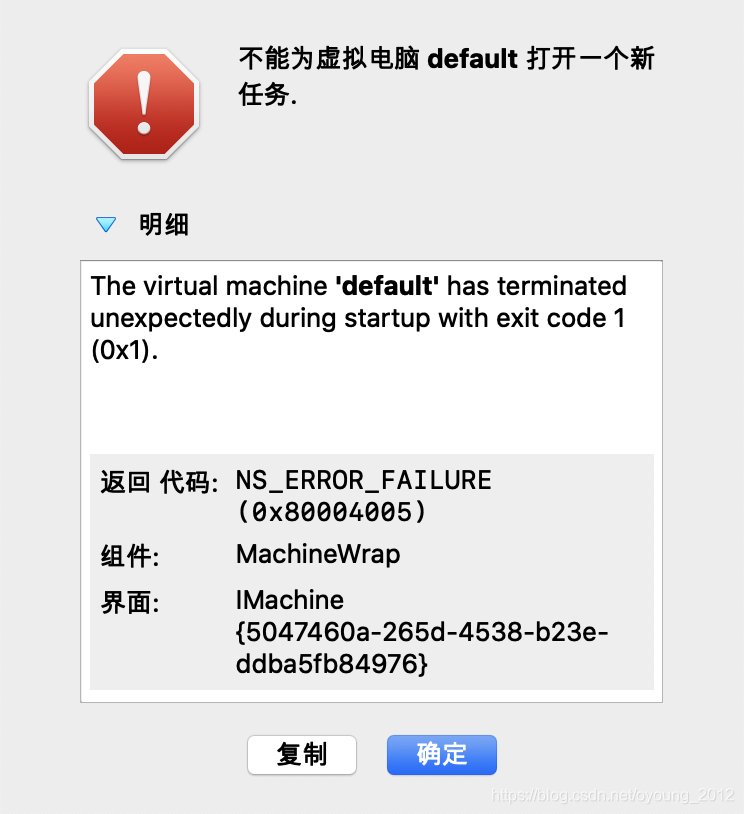
After upgrading the old version of VirtualBox 5 to VirtualBox 6.0, the following error is found in docker-machine start

➜  ~ docker-machine start
Starting "default"...
(default) Check network to re-create if needed...
Unable to start the VM: /usr/local/bin/VBoxManage startvm default --type headless failed:
VBoxManage: error: The virtual machine 'default' has terminated unexpectedly during startup with exit code 1 (0x1)
VBoxManage: error: Details: code NS_ERROR_FAILURE (0x80004005), component MachineWrap, interface IMachine

Details: 00:29:32.593106 Console: Machine state changed to 'PoweredOff'


found that all Vbox virtual machines could not start, the reason should be the same
. Then I remembered that I once had the permission to change some system directory (or users), whether I changed the installation path of VirtualBox
solution

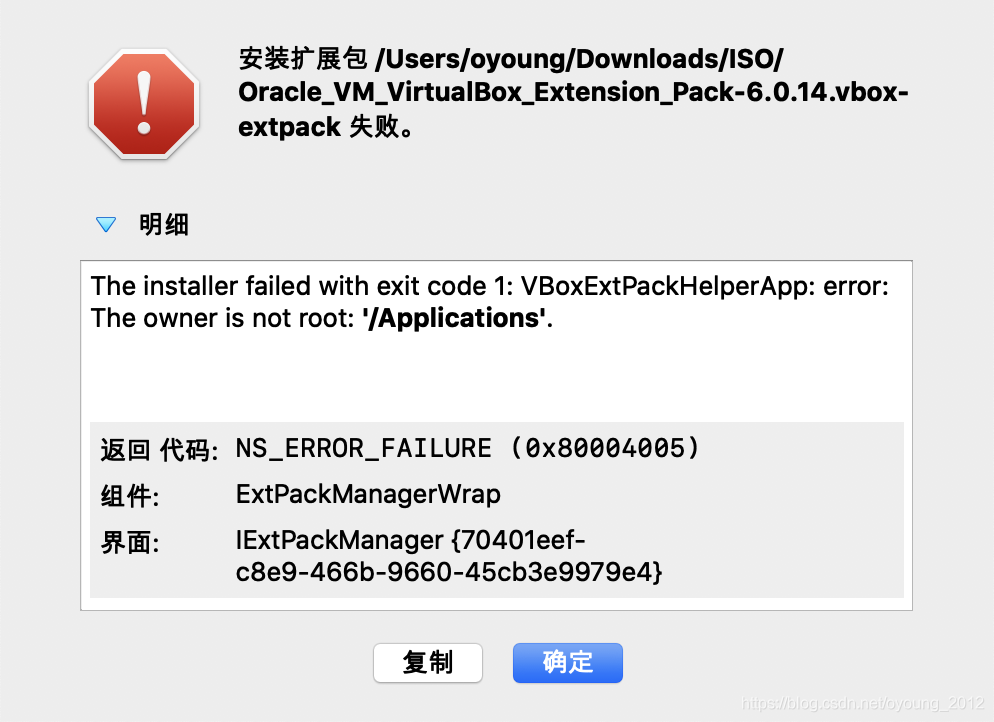
    because I’m not sure the original /Application/VirtualBox. App what permissions, so the uninstall tools perform VirtualBox installation image will be installed version completely uninstall, and then reassembled, found after heavy users and user groups is root: admin , but start still have the same error for help online, watch some, not installed corresponding enhanced version of the tools expansion pack, So I went to the official website to download the enhancement package and install it. When installing the package, an error was reported: then found that although The error type was The same, this time it was reported for a different reason: VBoxExtPackHelperApp: error: The owner is not root: /Applications. Now I remember that I once changed The /Application directory to a normal user in order to test a certain program and forgot to change it back... Really dug a pit pit themselves so /Applications by users and groups in the root: wheel , to perform the installation of the expansion pack, installation is not an error, guess is probably because when the user is not the root cause in the installation directory belong to unable to perform a specific system commands (such as virtual machine driver installation ) expansion pack, after the success of the installation, open the virtual machine again, found that already can start, The problem has been fixed here.
summary

    do not eat too full to have nothing to modify the system directory permissions (including the users) encounter problems can be Internet help, and then for each possible useful scheme to try one by one

Ubuntu (16.04) creates a Windows boot U disk, using woeusb instead of DD

Ubuntu (16.04) creates Windows boot usb drives, using WOeUSB instead of DD
Dd creation often doesn’t start, I heard that you have to convert isohybrid to get to the USB flash drive. (Also, for Linux clones, if you already have a Linux system, install a Squashfs-Tools, just copy the root unsquashfs from the CD to a partition, and change the password to Chroot.)
Then we have to use another tool: WoeUSB
Installation:

sudo add-apt-repository ppa:nilarimogard/webupd8
sudo apt update 
sudo apt install woeusb

graphical interface use is not talked about, talked about the command line:

sudo woeusb --device </path/to/windows.iso> <device>
for example
sudo woeusb --device /home/windows.iso /dev/sdc

Update: if you get an error like this: “Error: Partition(s) on /dev/sdb are being used” when WinUSB/WoeUSB tries to format the USB stick from the command line, or “Error 256” in the beginning of the process when using the GUI, you must unmount the partitions. Firstly, to get a list of partitions, run the following command (“mount” also works):

df -aTh

This should list all the partitions mounted on your system. If you got here, you should already know the USB device drive, e.g. /dev/sdc, so you need to look for the partitions (it could also only be one) on this drive, like /dev/sdc1, /dev/sdc2, etc. Then, unmount them like this (example):

sudo umount /dev/sdc1
sudo umount /dev/sdc2
(etc)

HALCON error #2036: could not find license file in operator set_ Part solution

HALCON error #2036: could not find license file in operator set_part
operator set_part
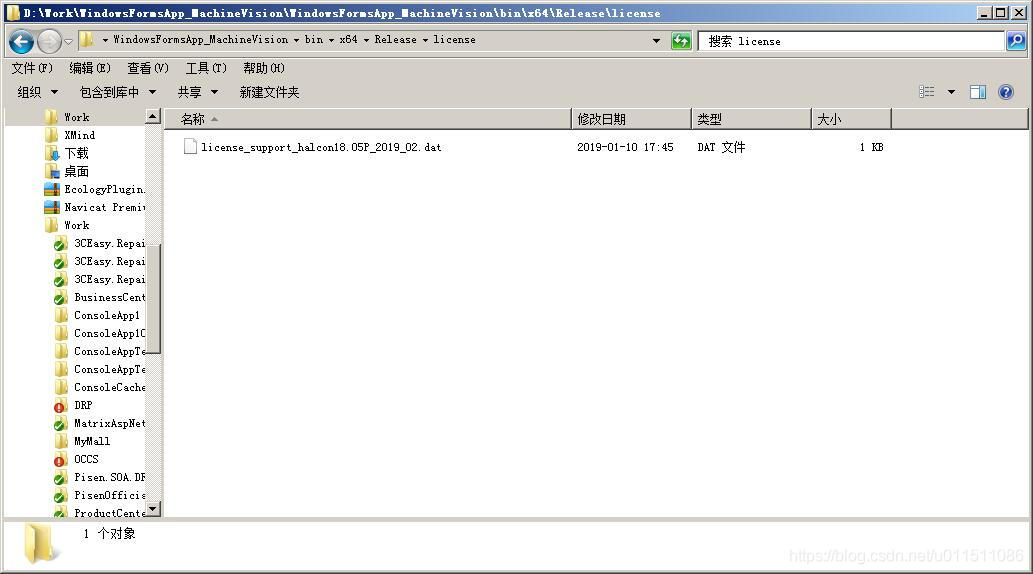
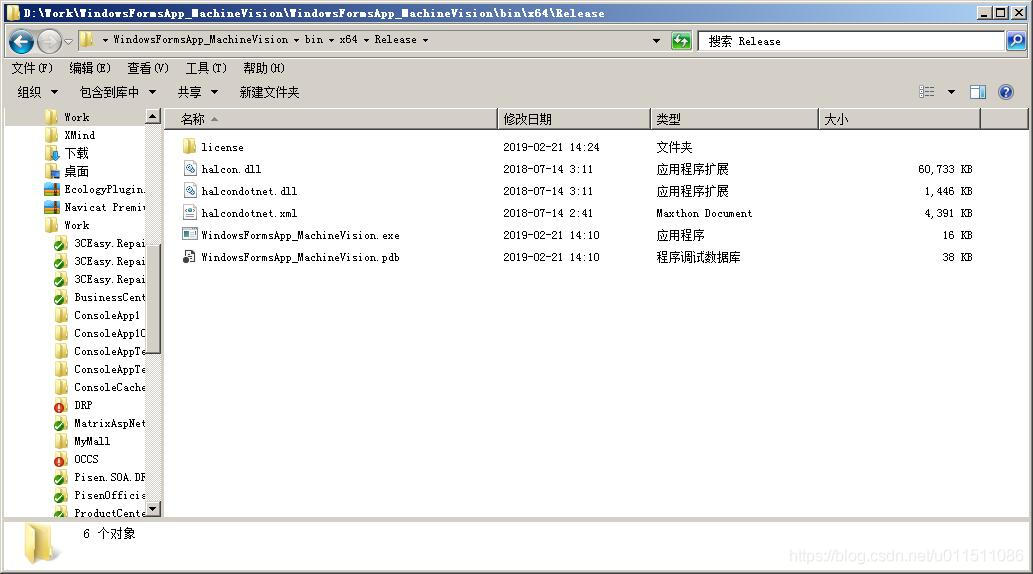
copy the license folder into the root directory of exe, then you can run the program normally


2019-03-04
change the license_xxx.dat to license.dat and put it in the root directory of the running program to solve the license_xxx.dat. Please note that the license_xxx.dat must be valid and have no expired certificates

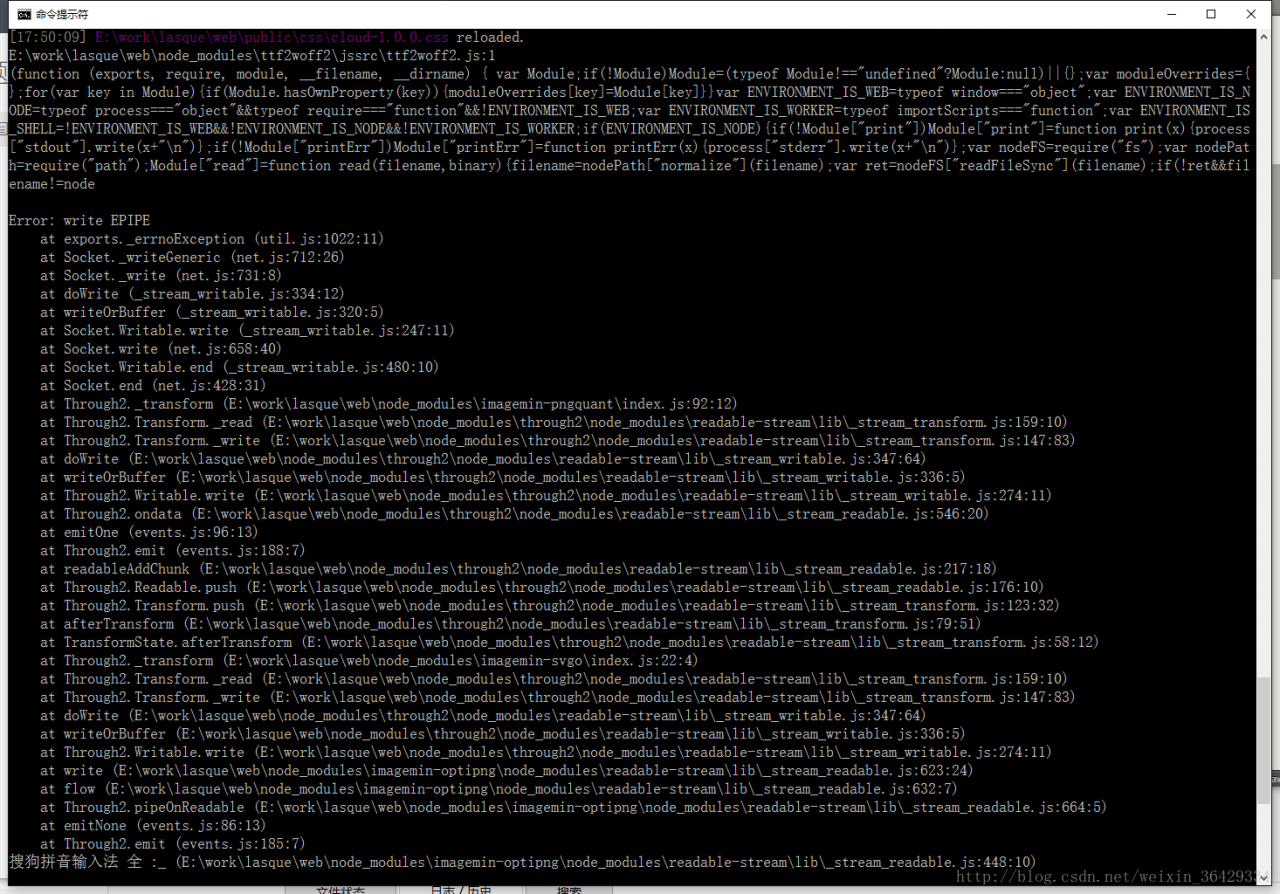
node.js Error: write epipe problem solved!

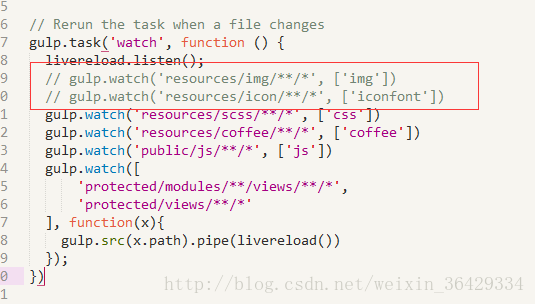
1. Open the Gulpfile.js file in the installation directory
2, as shown in the figure below, the error place annotation or default in the operation will be deleted accordingly. If you need to use the annotation, please download the lower version and try to install the slave again


3. Error report is shown in the figure below

Docker machine install syntax error near unexpected token ‘newline’! DOCTYPE HTML problem resolution

Recently learned that the host management docker – machine this chapter, https://blog.csdn.net/CloudMan6/article/details/75810234 according to the article to learn,
To recommend a lot on learning docker website at https://github.com/llitfkitfk/docker-tutorial-cn
System: Ubuntu 14.04
Docker: 18.06.0 – ce
There was a problem with the installation and the command was as follows:

The curl -l https://github.com/docker/machine/releases/download/v0.9.0/docker-machine- ` ` uname – s – ` uname -m ` & gt; /tmp/docker-machine & &
chmod +x /tmp/docker-machine & &
sudo cp /tmp/docker-machine /usr/local/bin/docker-machine

His version was a little old, so I just changed v0.14.0 without considering anything else. The installation process is as follows. I was ordered to execute three separate orders,

The docker-machine file appears in the /usr/local/bin directory
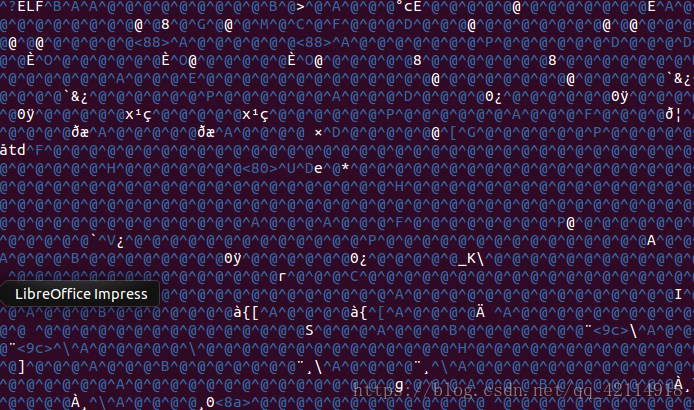
View the version information to verify that the installation was successful. Run the command Docker-Machine version and find an error

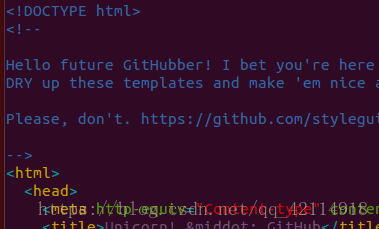
When I look at the contents of the file, I see no problem. I suspect it’s A newline. Cat-a filename finds that the newline is $.
Also tried running the %s/^M//g command with the ^M tail removed. It could also be ‘< > ‘, but the HTML5 header can’t be deleted.

I found a way to install the website. No matter what I learn, I like the documents on the official website very much, because he is the most formal.
https://docs.docker.com/machine/install-machine/
If you are running on Linux:

$base=https://github.com/docker/machine/releases/download/v0.14.0 & amp; &
curl -L $base/docker-machine-$(uname -s)-$(uname -m) > /tmp/docker-machine & &
sudo install/TMP /docker-machine /usr/local/bin/docker-machine

I still have three commands to run, either replacing $bash with the url above, or simply accessing and pasting it directly in the host browser.
The installation process is as follows. Unlike above, it takes a little time and looks a lot more obvious.

Then it was time to witness the miracle. That’s it. I’ve finally installed it.

If you look at the files in /usr/local/bin, the contents are different. I’m finally ready to move on.


git clone https:// gnutls_handshake() failed: The TLS connection was non-properly terminated.

This problem occurred to me especially behind corporate firewall after updating ubuntu to 18.04 LTS. I tried all possible approaches before coming across solution to compile GIT with openssl rather than gnutls. Copy+Pasting below that resolved the problem(Reference link: here)…

sudo apt-get update
sudo apt-get install build-essential fakeroot dpkg-dev libcurl4-openssl-dev
sudo apt-get build-dep git
mkdir ~/git-openssl
cd ~/git-openssl
apt-get source git
cd git-2.17.0/
vim debian/control    # replace all libcurl4-gnutls-dev with libcurl4-openssl-devvim debian/rules      # remove line "TEST =test" otherwise it takes longer to build the package

sudo dpkg-buildpackage -rfakeroot -b -uc -us   # add "-uc -us" to avoid error "gpg: No secret key"
sudo dpkg -i ../git_2.17.0-1ubuntu1_amd64.deb

Note 1: I got “OpenSSL SSL_connect: SSL_ERROR_SYSCALL in connection to proxy” when doing “git clone https://…” after steps above, which turns out to be a problem about git proxy setting. It can be fixed by:

git config --global http.proxy http://proxy.server.com:8080
git config --global https.proxy https://proxy.server.com:8080

Note that it’s better to verify the proxy & port works well first in browsers like Chrome.  Reference link: here.
Note 2: I accidentally removed libcurl4-gnutls-dev when trying different approaches, unfortunately, lots of dependent libs are removed as well, including the network manager and GDM3. As a result, the network can’t work any more and the whole display UI was messed up(it switched to lightdm for display manager). I managed to fix the mess with “sudo apt install gdm3”.
So as a lesson learn, don’t remove libcurl4-gnutls-dev for this issue.