Error installing Microsoft Office 2010 or 2007 error 1935


Yesterday, when I installed Office 2010, I had a frustrating problem. The diagram below:
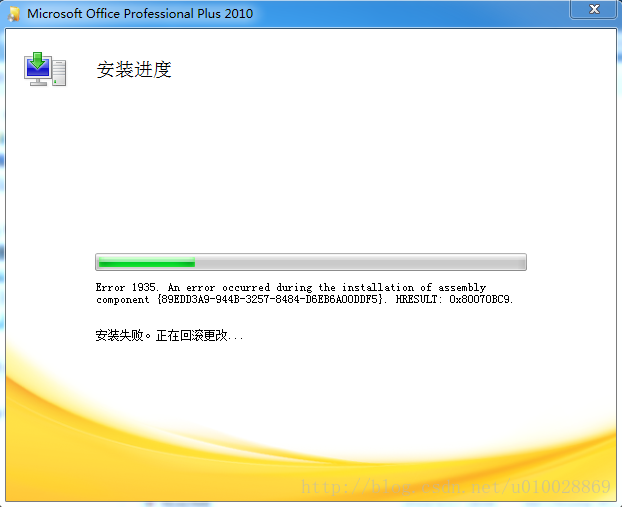
 
 
I have never had any problems installing Office before, so I rebooted the computer and tried to run the installation program again, with predictable results.
Then I went online for a solution: It turned out to be a component of the Microsoft.net Framework.
First, go into the computer’s programs and functions, check the installed programs, and see if the latest version of the NET Framework has been installed.
To do this, follow these steps:

    opens the run window (use the shortcut key “Win+R”). Type Appwiz.cpl, and then press Enter. Find the Microsoft.net Framework 4 Client Profile in the installed programs list. Figure below:
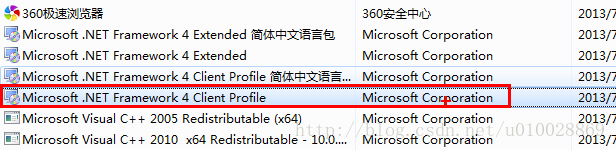

If you find the Microsoft.net Framework 4 Client Profile, you need to fix it,
Select it and right-click as shown in the figure:
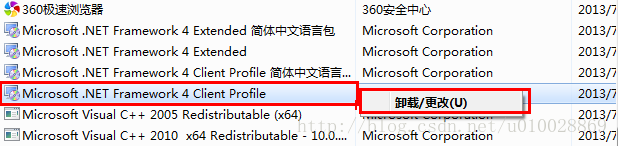

Then select the option to fix the.NET Framework 4 Client Profile to its original state, and then click Next.
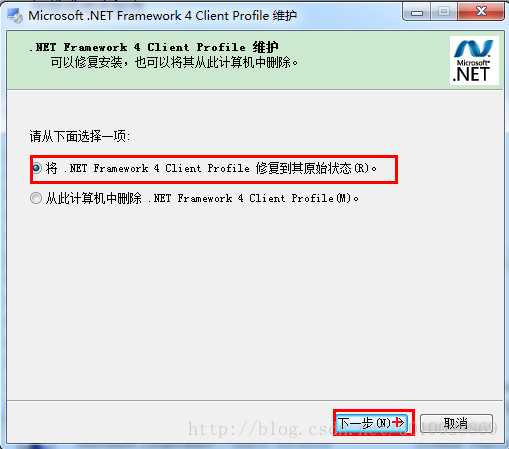

When the repair is complete, restart the computer.
Note: If you cannot find the Microsoft.NET Framework 4 Client Profile component, download and install this software, especially for new systems. This is a common problem when installing Office.
 
 
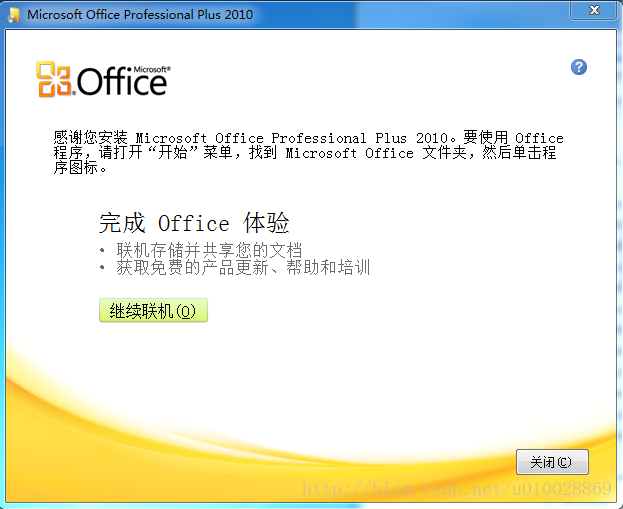
Reinstall Microsoft Office 2010.
Copy node causes NPM execution error: cannot find module ‘/ / lib / utils/ unsupported.js ‘

Copy node causes NPM execution error: Cannot find Module ‘.. /lib/utils/unsupported.js’

    execute NPM –version command times error, as follows
[exec] Error: Cannot find module '../lib/utils/unsupported.js'
[exec] Require stack:
[exec] - /home/jenkins/workspace/324970/eis-product/eis-ui/eis-ui-app-pc/node-exelib/bin/npm
[exec]     at Function.Module._resolveFilename (internal/modules/cjs/loader.js:982:15)
[exec]     at Function.Module._load (internal/modules/cjs/loader.js:864:27)
[exec]     at Module.require (internal/modules/cjs/loader.js:1044:19)
[exec]     at require (internal/modules/cjs/helpers.js:77:18)
[exec]     at /home/jenkins/workspace/324970/eis-product/eis-ui/eis-ui-app-pc/node-exelib/bin/npm:19:21
[exec]     at Object.<anonymous> (/home/jenkins/workspace/324970/eis-product/eis-ui/eis-ui-app-pc/node-exelib/bin/npm:153:3)
[exec]     at Module._compile (internal/modules/cjs/loader.js:1158:30)
[exec]     at Object.Module._extensions..js (internal/modules/cjs/loader.js:1178:10)
[exec]     at Module.load (internal/modules/cjs/loader.js:1002:32)
[exec]     at Function.Module._load (internal/modules/cjs/loader.js:901:14) {
[exec]   code: 'MODULE_NOT_FOUND',
[exec]   requireStack: [
[exec]     '/home/jenkins/workspace/324970/eis-product/eis-ui/eis-ui-app-pc/node-exelib/bin/npm'
[exec]   ]
[exec] }
[exec] Result: 1
    after verification, normally NPM is a soft connection, but through zip packaging, and then decompressed NPM becomes the actual contents of the npm-cli.js file, so no responsive module can be found when executing the script. Solution: You can use the tar command to package.

Normal conditions:

total 45148
-rwxr-xr-x 1 1001 1001 46228688 Feb 18 12:35 node
lrwxrwxrwx 1 1001 1001       38 Feb 18 12:35 npm -> ../lib/node_modules/npm/bin/npm-cli.js
lrwxrwxrwx 1 1001 1001       38 Feb 18 12:35 npx -> ../lib/node_modules/npm/bin/npx-cli.js
lrwxrwxrwx 1 1001 1001       35 Mar  2 17:51 vuepress -> ../lib/node_modules/vuepress/cli.js 

Abnormal conditions (after decompression by ZIP compression) :

total 45164
-rwxr-xr-x 1 root root 46228688 Mar  2 17:53 node
-rwxr-xr-x 1 root root     4615 Mar  2 17:53 npm
-rwxr-xr-x 1 root root      177 Mar  2 17:53 npx
-rwxr-xr-x 1 root root      713 Mar  2 17:53 vuepress

Vs 2015 IIS express debug error: http error 401.2 – unauthorized

Interface was developed using VS2015. After running the back-end API in debug mode, Postman called the interface and sent back an error message:
< title> IIS 10.0 Detailed error-401.2-unauthorized< /title>
< h4> The most likely reason :& Lt; /h4>
& lt; ul>
& lt; li> No authentication protocol (including anonymity) was selected in IIS. < /li>
& lt; li> Only integrated authentication is enabled, and the client browser used does not support integrated authentication. < /li>
& lt; li> Integrated authentication is enabled, and the request is issued through a proxy, but the proxy changes the authentication header before the request reaches the Web server. < /li>
& lt; li> The Web server is not configured for anonymous access and does not receive the required authorization headers. < /li>
& lt; li>” The configuration/system. WebServer/authorization “configuration section may explicitly rejected the user access. < /li>
& lt; /ul>
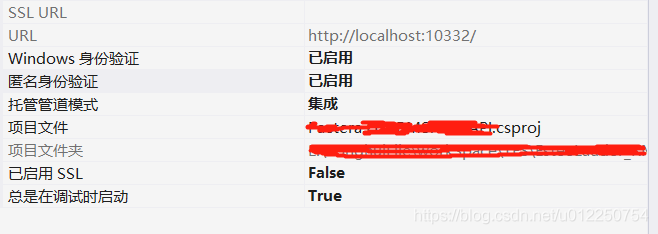
Solution: Project – Properties – Anonymous Authentication – has been enabled

Non system disk or disk error

The cause of
Because there are two systems, I want to delete another useless system, and then Start dead ==
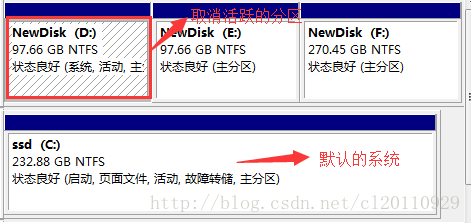
The formatted failure is because disk D is an active partition, so the failure of formatting cancel the disk partition marked as active:

You can only have the command line when you cancel because the Windows TAB has been lightened and can’t be checked. 1. Command line prompt, run DISKPART, run into prompt “DISKPART>” ; 2. Use the “LIST DISK” command to determine the ## of your removable hard drive; 3. Use “Select DISK 0” to set your removable DISK to the current operating DISK; 4. Use “Select PARTITION 1” to set the first PARTITION to the current operation PARTITION;
. Use the “INACTIVE” command to INACTIVE the current partition.

did according to this, and then restarted on non-system disk or disk error
The solution
When the machine guess is the D disk cancel active problem, why?Isn’t disk C the default system?Because the boot data is on disk D?Start with a U disk, enter the PE interface, the last item, called normal into the system?After entering the system normally, open the disk management, D disk mark active, restart the computer, normal

VBA returns “n / a” and other error information

When we use Excel’s built-in functions to return A Value, if the argument is wrong or cannot be found, we often return #N/A or #Value! And so on prompt message.
Can the VBA code we write in the module also return this information?
The answer is yes, because the code in the module itself can be called within the formula, so naturally this information can also be returned.
However, it is important to note that this information is not text, it is a built-in error value!
The following table shows some commonly used error values for reference:

Constant

Error Number

Cell Error value

xlErrDiv0

2007

0 # DIV /!
xlErrNA 2042 #N/A
xlErrName 2029 #NAME?
xlErrNull 2000 #NULL!
xlErrNum 2036 #NUM!
xlErrRef 2023 #REF!
xlErrValue 2015 #VALUE!

returns the value by calling CVErr(error constant), so what you see on the interface is the error value we want to display.
Such as:
CVErr(xlErrValue)

VBA “user defined type not defined” MSXML2.DOMDocument

When using a VBA tool written by a colleague in Excle, an error is reported as soon as it is run:
user defined type not defined
The error statement checked is:
Dim newFile As MSXML2 DOMDocument
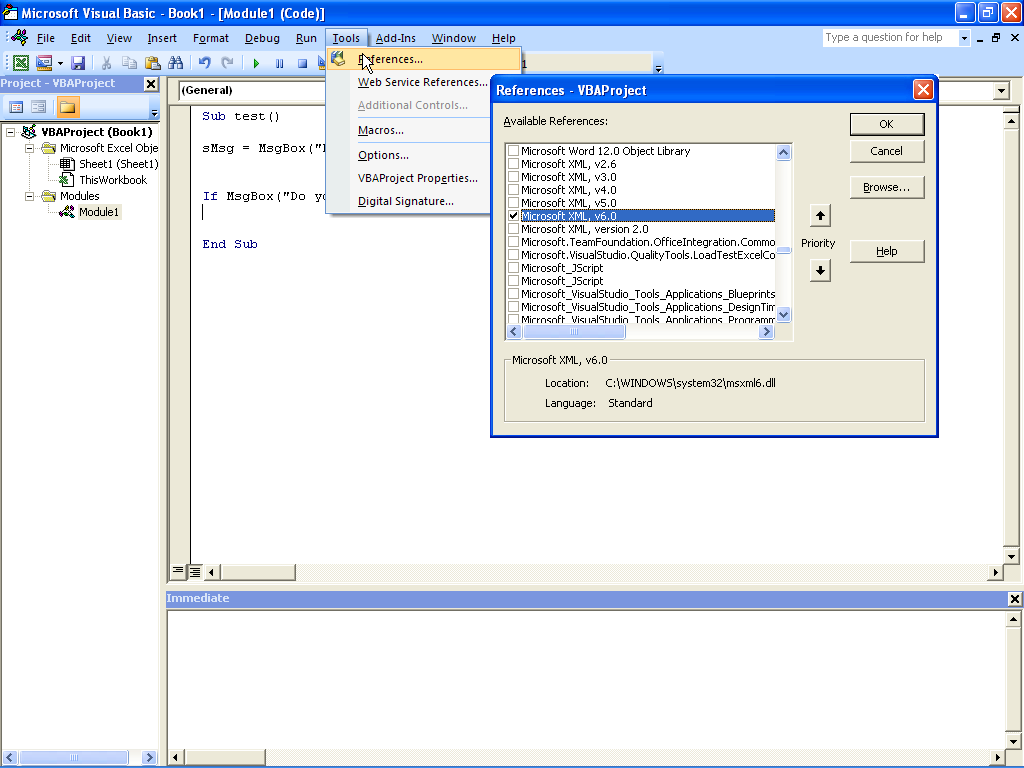
My environment is windows10 + office2016, so I guess he used Microsoft XML V3.0, and I’m using V6.0.
The solution I found online is as follows: If in Tools> References: Microsoft XML V6.0 was selected. When declaring variables, use the following format:
Dim newFile As MSXML2 DOMDocument60

A fatal error occurred while trying to sysprep the computer system

Cause: When you encapsulate the system with SYsprep/generalizing, the system reduces the number of rearm. When REARM is 0, the problem of unencapsulation occurs. The default number of Rearm is 3, which means you can only encapsulate 3 times.
How to resolve this problem:
setup1:
While holding down the Win +R key, enter Regedit to enter the registry;
Setup2:
Route 1: HKEY_LOCAL_MACHINE \ SOFTWARE \ Microsoft \ WindowsNT \ CurrentVersion \ SoftwareProtectionPlatform \ SkipRearm set it from 0 to 1
Path 2: HKEY_LOCAL_MACHINE\SYSTEM\Setup\Status\SysprepStatus\GeneralizationState set it from 3 to 7;
Setup3: just rerun sysprep.

An authentication error occurred in the remote desktop connection

I couldn’t connect to the server remotely this morning. I thought it was down again.
Prompt Message:
An authentication error has occurred.
The function requested is not supported.
Remote computer: < hostname>
Then I searched it and found it was the pot with the updated patch. Just today when I started up, I found my computer was updating.
OK, uninstall that update. Of course not. I’ll change it with this
 
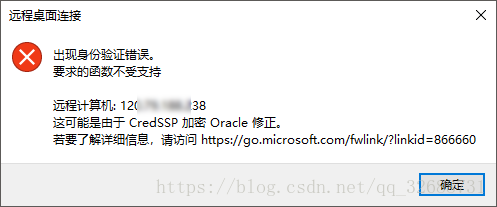
An authentication error occurred on the remote desktop. The requested function is not supported
An authentication error has occurred. The function requested is not supported.
Windows 7 remote login servers used to be normal, but today remote desktop login is a persistent error.
An authentication error occurred in Windows 10 (Win10) requiring an incorrect function, which could be due to a CredSSP encryption Oracle fix.
 
Uninstall and update KB4103718 (Windows 7 Monthly Security quality Summary for X64 based systems), and restart Windows 7 to log in normally.
Or use Microsoft’s official recommendations to modify the local group policy:
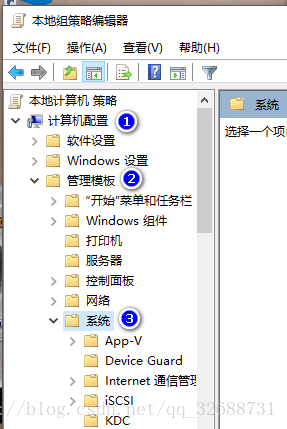
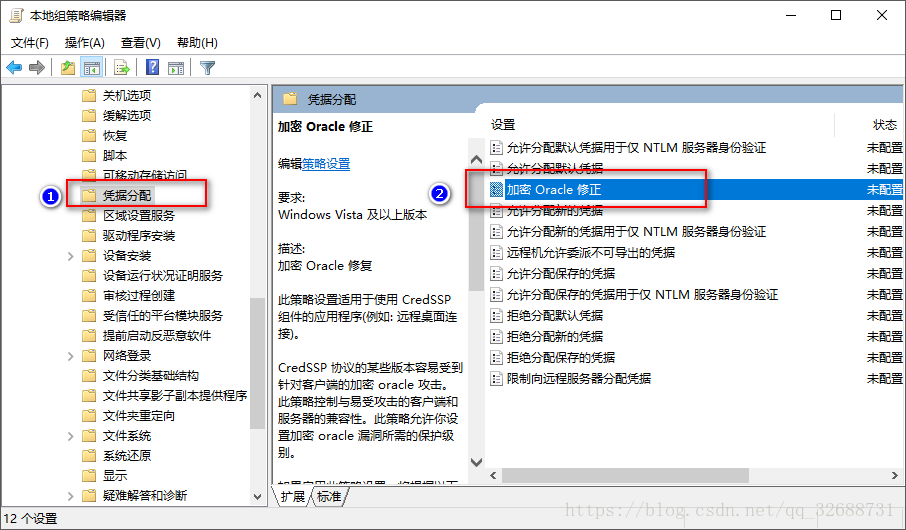
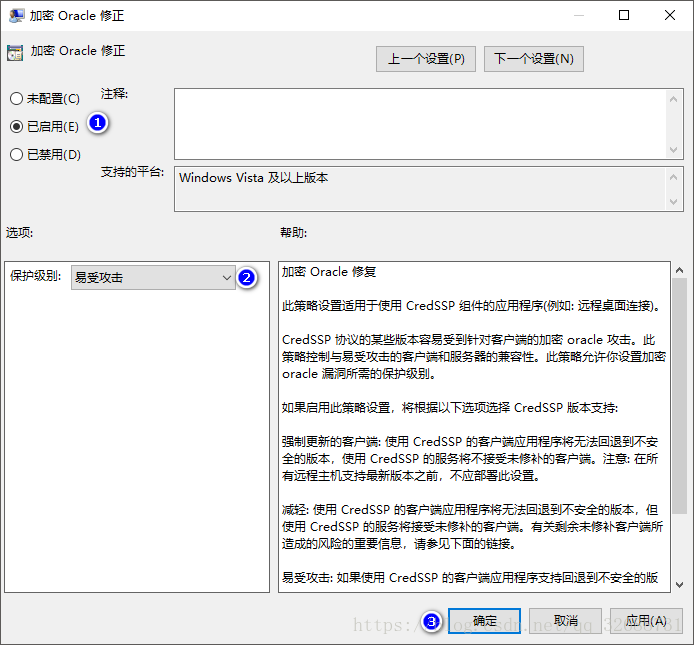
Computer configuration & GT; Management template & GT; System & gt; Credential assignment & GT; Encryption Oracle fix selection enabled and selected vulnerable.
Vulnerable – Client applications using CredSSP will expose remote servers to attack by supporting fallback to an insecure version, but services using CredSSP will accept unpatched clients.
english
Group Policy -> Computer Configuration -> Administrative Templates -> System -> Credentials Delegation> Encrypted Oracle Remediation change to Vulnerable
Vulnerableclient Applications that use CredSSP will expose the remote servers to attacks by supporting Fallback to insecure versions, and services that use CredSSP will accept unpatched clients.
 
https://support.microsoft.com/zh-cn/help/4093492/credssp-updates-for-cve-2018-0886-march-13-2018
https://support.microsoft.com/en-hk/help/4093492/credssp-updates-for-cve-2018-0886-march-13-2018
Take Win10 as an example:
 

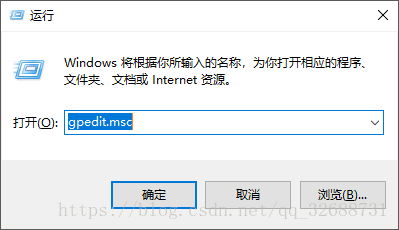
1. Run GPEdit.msc in Win+R

2. Find the following directory

3. Find this

4. Modify the setting to

Then the remote connection to the server will be successful!

【linux】error: stdio.h: No such file or directory

Ubuntu does not have a C and C++ compilation environment by default
By default, Ubuntu does not have C and C++ compiler environment. When newly installed Ubuntu USES GCC, it will report an error and cannot find a certain header file. When compiling a demo such as hello world, an error will be reported:
error: stdio.h: No such file or directory
Install the C and C++ compilation environment

if there is no aptitude installed, use apt-get, e.g.
udo apt-get install build-essential

Error 1045 (28000) access denied for user ‘root’ @’localhost ‘appears in MySQL under Windows system

Error 1045(28000) Access Denied for user ‘root’@’localhost’

From http://zxy5241.spaces.live.com/blog/cns! 7682A3008CFA2BB0! 361.entry
When installing mysql database in Windows operating system, you encounter Error 1045(28000) Access Denied for user ‘root’@’localhost’, you need to reset the password.
the specific method is:
1. First, find my. Ini configuration file in the installation directory, open the configuration file, find the line [mysqld], add skip-gran-tables below and save the file, and restart mysql dynamic service.
2. Then execute mysql -u root mysql
mysql> update user set password=password(‘newpassword’) where user=’root’;
mysql> Flush privileges;
where newpassword is root’s newpassword. 3. Remove the line that added to my. Ini configuration file just now, and finally restart mysql.

After installing mysql or uninstalling the downloaded free version, the default is no my.ini file.
. However, there are several similar files, such as [code] my-small-ini, my-media.ini, my-large. Ini, my-huge. Ini, [/code].
these files are the different configuration information recommended by mysql for different applications; But these configurations will only be applied if you put them in my. Ini.
where:
1, my-small. Ini is designed for small database. This model should not be used for databases that contain common items.
2, my-media.ini is designed for medium-sized databases. If you are using RHEL in the enterprise, you will have significantly more physical memory than the minimum RAM requirements for this operating system (256MB). As you can see, if you have that much RAM memory available, you can naturally run other services on the same machine.
3, my-larg.ini is designed for use exclusively with a SQL database. Since it can use up to 512MB of memory for the database, at least 1GB of RAM will be required on this type of system so that it can handle both operating system and database applications.
4, my-huge. Ini is designed for databases in enterprises. Such a database would require a dedicated server and 1GB or more of RAM. These choices are highly dependent on the amount of memory, the speed of the computer, the size of the database details, the number of users accessing the database, and the number of users loading and accessing data into the database. The performance of the database may change as the number of databases and users increases.

according to their own situation, select a file configuration copy to my. Ini file, of course, you need to create your own, just create a new file, and then copy into the configuration information.

Flex Error #2032 Stream Error

Question:
The machine in CCBN exhibition visited the PAGE of OSS system, Error #2032 Stream Error occurred, and the SWF file could not be viewed.

Environment:
The biggest difference is that the second way of compiling the files that depend on the Flex framework is Merged into the SWF of the source. It is much larger than the first SWF file that is compiled using the RSL.
Compiling with the RSL requires the Flex framework file to be placed in the same directory as the source SWF.
Flex frame files are divided into two types: framework_swz (for example, framework_4.0.0.14159.swz) at compile time and frame_swf (for example, framework_4.0.0.14159.swf) at run time. According to analysis, framework_4.0.0.14159.SWz is priority to load framework_4.0.0.14159.SWz when client machine access, it will be put into the Flash Player’s cache directory after successful loading. Flash Player automatically downloads framework _4.0.0.14159.swF (either of these files can be downloaded and displayed properly).

Problem analysis:
In the flash directory of the OSs_system_web_page project of our current OSS system, there are only Flex framework related SWF files (6 in total), and no related SWZ files. When the machine of the exhibition visited the system, the SWZ file of the frame could not be found, and the SWF file of the frame was not found automatically, so the access error occurred. In our company, the desktop machine automatically finds the SWF file of the frame, so there is no problem.

Solutions:
SWZ, OSMF_flex. 4.0.0.13495.SWz, RPC_4.0.0.14159.SWz, SPARk_4.0.0.14159.SWz, SPARkskins_4.0.0.14159.SWz, SPARkskins_4.0.0.14159.SWz, SPARkskins_4.0.14159.SWz, SPARkskins_4.0.14159.SWz, SPARkskins_4.0.14159.SWz, SPARkskins_4.0.14159.SWz, Textlayout_1.0.0.595.swz) in the FLASH directory of the OSs_system_web_page project, and then configure the web.xml file of the project, so that the Tomcat server can recognize the SWZ file:

<mime-mapping>

  <extension>swz</extension>

  <mime-type>application/octet-stream</mime-type>

</mime-mapping>

This way, when the exhibition machine accesses the system, it will find the Flex frame-related SWZ files and will be able to access the system SWF files correctly. Problem solving.

Refer to http://blog.csdn.net/hanxing0/article/details/5556042
http://www.blogjava.net/aiaiwoo/articles/338454.html

Nodejs exception error: listen eacces 127.0.0.1:8000

This article is reprinted, if you do not want to infringe copyright, please timely inform
The original address to http://blog.csdn.net/y2010081134/article/details/72800812
Exception information

Error: listen EACCES 127.0.0.1:8000
    at Object.exports._errnoException (util.js:1018:11)
    at exports._exceptionWithHostPort (util.js:1041:20)
    at Server._listen2 (net.js:1245:19)
    at listen (net.js:1294:10)
    at net.js:1404:9
    at GetAddrInfoReqWrap.asyncCallback [as callback] (dns.js:62:16)
    at GetAddrInfoReqWrap.onlookup [as oncomplete] (dns.js:81:10)

npm ERR! Windows_NT 10.0.14393
npm ERR! argv "D:\\nodejs\\node.exe" "D:\\nodejs\\node_modules\\npm\\bin\\npm-cli.js" "start"
npm ERR! node v6.10.3
npm ERR! npm  v3.10.10
npm ERR! code ELIFECYCLE
npm ERR! [email protected] start: `http-server ./app -a localhost -p 8000 -c-1`
npm ERR! Exit status 1
npm ERR!
npm ERR! Failed at the [email protected] start script 'http-server ./app -a localhost -p 8000 -c-1'.
npm ERR! Make sure you have the latest version of node.js and npm installed.
npm ERR! If you do, this is most likely a problem with the angular-phonecat package,
npm ERR! not with npm itself.
npm ERR! Tell the author that this fails on your system:
npm ERR!     http-server ./app -a localhost -p 8000 -c-1
npm ERR! You can get information on how to open an issue for this project with:
npm ERR!     npm bugs angular-phonecat
npm ERR! Or if that isn't available, you can get their info via:
npm ERR!     npm owner ls angular-phonecat
npm ERR! There is likely additional logging output above.

npm ERR! Please include the following file with any support request:
npm ERR!     E:\Git\Repository\angular-phonecat\npm-debug.log

The solution


The exception is caused by 8000 port being occupied. Check the 8000 port being occupied under Windows

E:\Git\Repository\angular-phonecat>netstat -ano|findstr "8000"
  TCP    0.0.0.0:8000           0.0.0.0:0              LISTENING       18480
  TCP    127.0.0.1:8000         127.0.0.1:50236        TIME_WAIT       0
  TCP    127.0.0.1:8000         127.0.0.1:50237        TIME_WAIT       0
  TCP    127.0.0.1:8000         127.0.0.1:50238        TIME_WAIT       0
  TCP    127.0.0.1:8000         127.0.0.1:50239        TIME_WAIT       0
  TCP    127.0.0.1:8000         127.0.0.1:50240        TIME_WAIT       0
  TCP    127.0.0.1:8000         127.0.0.1:50286        TIME_WAIT       0
  TCP    127.0.0.1:50285        127.0.0.1:8000         TIME_WAIT       0
  UDP    0.0.0.0:8000           *:*                                    18480

Because process 0 is a system process, executing “Taskkill/PID 0” will not kill it. So, find another way to change the port, as follows:

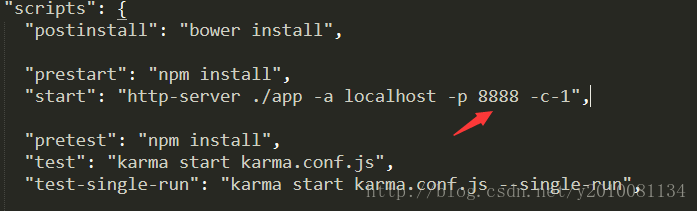
Under node’s installation root, find package.json, search 8000, and replace with 8888


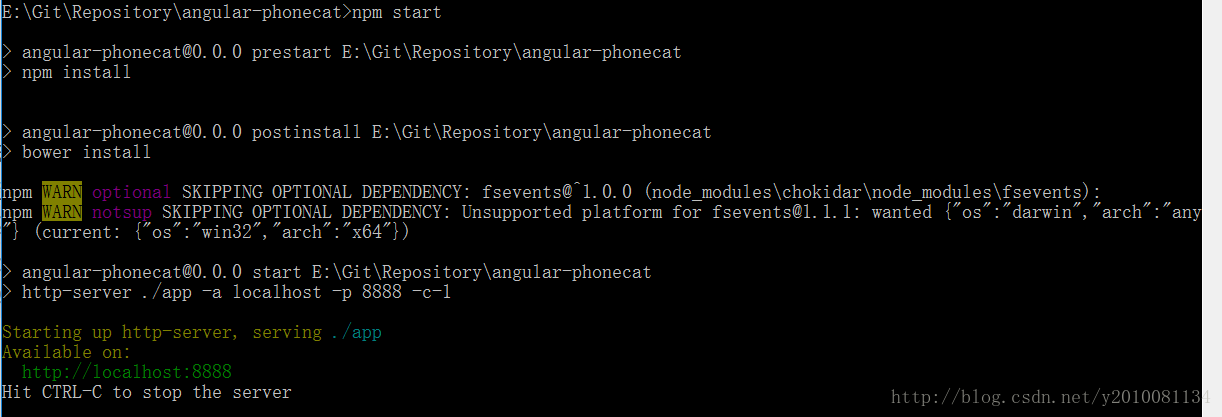
Then execute the command NPM Start from the command line, and it starts successfully

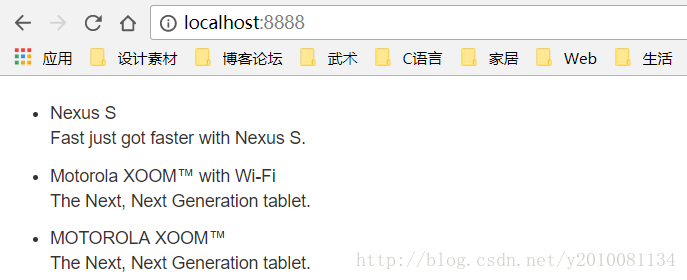
Enter it in the browser
http://localhost:8888
, you can see the successful access