Category Archives: How to Fix

filezilla Failed to create listen socket on port 21 for IPv4 solution

Mdxy-dxy font: [
increase
Reduced] type: reprint

Today, when I configured filezilla for a client, Filezilla Failed to create the listen Socket on port 21 for IPv4. It turned out that the 21 port was occupied, so it was ok to change the port

When Windows Server 2003 USES Filezilla, once installed, clicking on “Active” may report the following error

Creating listen socket on port 21…  

Failed to create listen socket on port 21 for IPv4

Failed to create listen socket on port 21 for IPv6

Failed to create a listen socket on any of the specified ports. Server is not online!  

Creating listen socket on port 21…  

Failed to create listen socket on port 21 for IPv4

Failed to create listen socket on port 21 for IPv6

Failed to create a listen socket on any of the specified ports. Server is not online!  

Creating listen socket on port 21…  

Failed to create listen socket on port 21 for IPv4

Failed to create listen socket on port 21 for IPv6

specific solutions:

this is usually the case because port 21 is occupied, first use this command to query

copy code code as follows:

netstat -abn |findstr 21

check to see if your iis built-in FTP is turned on, or if you have installed some other FTP software, stop first, then enable filezilla, it is ok.

Failed to load resource: net::ERR_CONNECTION_REFUSED

#Failed to load resource: net:: err_connection_union report error
this is because of the file loading error, when I was loading the image, did not show the browser reported error
solution:
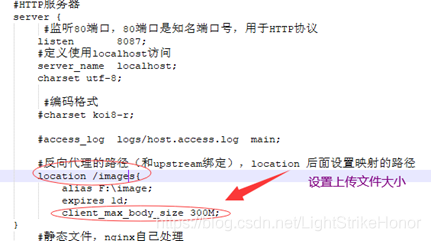
1. First, there may be a configuration problem in Nginx to prevent files from being too large to load
2. There may be a problem with the path of the file in your application.properties

How to solve “import cv2 failed ImportError: DLL load fail: Cannot find the specified module” in Anaconda environment

First refer to https://blog.csdn.net/wss794/article/details/83119939
conda install -c https://conda.binstar.org/menpo opencv
> > > import cv2
: : ImportError:DLL Load Fail: The specified module was not found
Analysis: the Internet should be found under the Opencv and Python version does not correspond caused.
Solution: reference https://blog.csdn.net/weixin_41679065/article/details/83413498
Uninstall opencV and install it with Anaconda Navigator. No more errors will be reported
Note: The Navigator automatically matches the opencV version that corresponds to the current environment.

The process of solving Intellij IDEA can’t load jvm DLL error at a time

The article directories
Resolution of a Intellij IDEA can’t load JVM DLL error procedure

Resolution of a Intellij IDEA can’t load JVM DLL error procedure
After installing Intellij IDEA 2019.2 Community on a new Windows 10 computer today, an error occurred during Intellij startup: “Failedo to Load JVM DLL.”
The detailed error information is as follows:

Failed to load JVM DLL
… \ JBR \bin\server\jvm.dll
If you already have a 64-bit JDK installed, define a JAVA_HOME variable…

At first, I thought there was no JDK installed, so I downloaded the zip package of Redhat OpenJDK8, unzipped it, set the JAVA_HOME environment variable, and added the %JAVA_HOME%\bin to the PATH environment variable. Environment variables were checked to be set correctly in CMD and Git Bash, but once Intellij was started, the same error remained.
Then install the ExE package for Redhat OpenJDK8 and repeat the above steps with the same error.
Then install the EXE package of Oracle JDK8 and repeat the above steps with the same error.
Then it occurred to me that Intellij should have come with a JVM to start Intellij itself, and that a DLL file \ JBR \bin\server\jvm.dll would also exist to check the error messages.
Then try to download and install Microsoft Visual C++ 2010 Redistributable Package (x64) following one of the answers on Stackoverflow with the same error.
Intellij shortcuts were suspected to be pointing incorrectly, but were checked, and the same error occurred when running idea64.exe manually.
Then I saw another response on Stackoverflow that said Run as AdminStrator on Windows 10 would fix the problem, tried it and it worked. Then check the shortcut property to Run as AdminStrator so that you don’t have to right-click Run as AdminStrator every time.
Then it occurred to me that My computer account was supposed to have Administrator rights, but the configuration was wrong, so I logged in to a different one, installed and turned on Intellij, and everything went well.
Reference document:
https://stackoverflow.com/questions/40204189/error-launching-idea-failed-to-load-jvm-dll-c-program-files-java-jdk1-8-0-112https://stackoverflow.com/questions/48666118/error-launching-pycharm-failed-to -load-jvm-dll

React Native: TypeError: Network request failed

It’s been about four weeks since I started react Native’s project, and it’s about the packaging stage. However, I found that the App on the iOS side was working normally. Android apps are slow to update data.
Post my request interface

let NetUtil = {
    postJson(type, data){
        return new Promise(function (resolve, reject) {
            fetch("http://www.samplesite.com",{
                method: 'POST',
                headers: {
                    "Accept": "application/json",
                    "Content-Type": 'application/json',
                    "type":"getUserData"
                },
                body: JSON.stringify(data)
            }).then((response) => {
                if (response.ok) {
                    return response.json();
                } else {
                    reject({status:response.status})
                }
            }).then((response) => {
                resolve(response);
            }).catch((error) => {
                console.log(error);
            }).done();
        })
    },
}

In a nutshell, use fetch to send JSON data to the server via a POST request.
Use the Google browser to debug and make requests
At the end of an android: first success, second failure. Success on the third shot, failure on the fourth…
On iOS: Everything is fine.
The request failed as follows:
TypeError: Network request failed:
 
At the XMLHttpRequest. XHR. Onerror (fetch. Js: 441)
At the XMLHttpRequest. DispatchEvent (event – target. Js: 172)
At the XMLHttpRequest. SetReadyState (XMLHttpRequest. Js: 567)
At the XMLHttpRequest. __didCompleteResponse (XMLHttpRequest. Js: 397)
the at XMLHttpRequest. Js: 503
the at RCTDeviceEventEmitter. Emit (EventEmitter. Js: 179)
the at Messagequeue. ___ callfunction (messagequeue. js:351)
at messagequeue. js:116
at messagequeu. ___ (messagequeue. js:314)
at MessageQueue. CallFunctionReturnFlushedQueue (MessageQueue. Js: 115)
 
 
I was initially skeptical that it was a network framework problem, so I tried XMLHttpRequest, Axios… Without exception. Each time on the androidend the first attempt succeeds and the second attempt fails. Fetch and Axios are both XMLHttprequest-based encapsulations.
 
 
On StackOverflow and Github, someone also proposed sending with FETCH and got TypeErrpr:Network Request failed. I’ve seen almost everything. To summarize their various answers:
If you want to obtain data from the server set up locally on your computer by simulating it through HTTP request, you need to change localhost to the real IP of your computer. If you send an HTTP request from a remote server to get the data, there is basically no solution. One person asked that he solved the problem by demoting RN. Android SDK version issues. Nginx configuration issues…
https://stackoverflow.com/questions/33969333/react-native-fetch-request-failed-with-error-typeerror-network-request-faile
https://stackoverflow.com/questions/38077273/react-native-fetch-network-request-failed-not-using-localhost
https://stackoverflow.com/questions/38418998/react-native-fetch-network-request-failed
https://github.com/facebook/react-native/issues/10404
I’ve tried to downgrade React Native, and I’ve tested the Android SDK through 23 to 26. But it didn’t work. It didn’t solve the problem.
Then I began to wonder if there was a problem with the interface.
I bought several API interfaces online, both post and GET. Tests have found no success or failure in the android end of the request issue. Which means it has nothing to do with react Native or Android versions. The problem is the interface. But what I can’t explain is that there’s not a single success or failure on iOS. I haven’t had any problems testing interfaces in Python.
“– June 30, 2018
Http1.1 defaults to long connections. Almost all browsers and Ajax default to “Connection”:” keep-alive “in the header. The default for iOS is “Connection”:” Close “.
I’m going to change the request header to

             headers: {
		"Accept": "application/json",
		"Content-Type": 'application/json',   
		"Connection": "close",   
		"type": "getUserData",   
                },"Connection": "close",   
		"type": "getUserData",   
                },

My problem is solved by the above methods.


Modify the tomcat configuration in docker, causing javaagent to report agent library failed to init instrument

A project in the Docker Tomcat container needs to modify the JavaAgent parameter, which was modified previously as follows
In the catalina.sh file, add the JAVA_OPTS parameter as follows
Export JAVA_OPTS = “$JAVA_OPTS – javaagent:/aspectjweaver – 1.8.13. Jar”
Restart the container, error, jar cannot be found
After checking, the JavaAgent parameter should be followed by a full path. Relative paths cannot be used.
 
To:
Export JAVA_OPTS = “$JAVA_OPTS – javaagent:/usr/local/tomcat/bin/aspectjweaver – 1.8.13. Jar”
 

Hbase Native memory allocation (mmap) failed to map xxx bytes for committing reserved memory

New start test environment Hbase error, error log as follows

#
# There is insufficient memory for the Java Runtime Environment to continue.
# Native memory allocation (mmap) failed to map 31715688448 bytes for committing reserved memory.
# An error report file with more information is saved as:
# /opt/cm-5.13.0/run/cloudera-scm-agent/process/521-hbase-REGIONSERVER/hs_err_pid132687.log

View the Hbase RegionServer configuration

See 31G allocated and check server memory usage

Spotting a huge shortage of memory that could be allocated to RegionServer and causing problems, RegionServer freed it or resized its configuration, restarted the service and got it back on.  

tortoiseSVN cleanup failed

When we were using tortoiseSVN to update, we had to prompt about cleanup, and when we had to do it, it happened, “Run the WC DB work queue” blahblah. The solution is as follows:
I. Install SQlitE3
Download url: https://www.sqlite.org/download.html.
download Precompiled Binaries for Windows sqlite-dll-win32-x86-xxx.zip and sqlite-tools-win32-x86-xxx.zip. The version is not determined because it will be updated. After downloading, create a new folder “C:\sqlite” under the C disk, put sqlite3. Def and SQlite3. DLL extracted from SQLite-DLL-Win32-x86-XXx. zip into the newly created folder, and put SQlite3. Exe extracted from SQlite-tools-win32-x86-XXx.zip into the newly created folder.
opens ** “edit system environment variable”. In the environment variable **, add “C:\sqlite” to the Path of the system variable.
win + R open “run window”, type “CMD” to open the command line, type “sqlite3”, you should see SQLite version, so that you are installed.

C:\> Sqlite3
SQLite version 3.29.0 2019-07-10 17:03
Enter “. Help “for usage> Connected to a in-memory database.
Use”. Open FILENAME “to reopen on a persistent database.

2. Clean wC.DB files
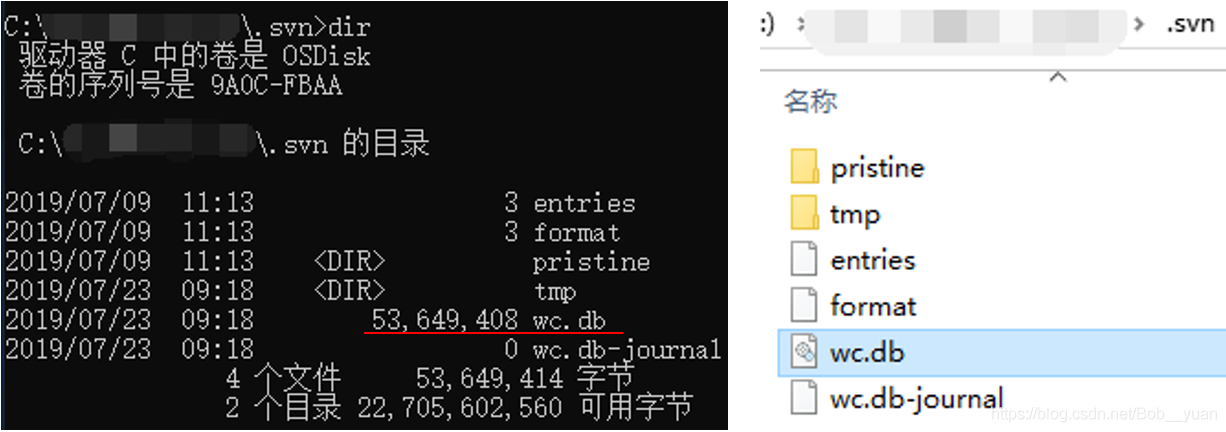
Switch to the “.svn “folder in the same directory as the cleanup folder (if not, select the hidden item in” View “at the top of the folder window) and type” dir “to view the files in the folder. There is a wC.db file and you can see it by opening the folder, but wC.db is binary.

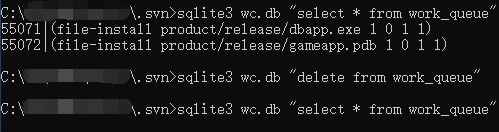
Use “sqlite3 WC.db “select * from work_queue” to view the content of wC.db, then use “sqlite3 WC.db “delete from work_queue” to clear the content, and then check again to make sure it’s done.

3. Cleanup
Cleanup is now ready.

hdfs 192.168.2.19:9000 failed on connection exception: java.net.ConnectException:Connection refused

HDFS connection failed:
Common causes of errors may be:
1. Hadoop is not started (not all started). Hadoop is normally started including the following services. If the services are not all started, you can check the log

 
2. Installation of pseudo-distributed mode; localhost or 127.0.0.1 is used in the configuration file; at this time, the real ID should be changed, including core-site.xml, Mapred-site.xml, Slaves,
Masters, after modifying IP, the dataNode may fail to start,
Set DFS. Data.dir in the HDFs-site.xml profile:
& lt; property>
& lt; name> dfs.data.dir< /name>
& lt; value> /data/hdfs/data< /value>
& lt; /property>  
Delete all files in the folder in Hadoop and restart Hadoop

Camtasia error :video codec open failed

Open Camtasia9.0 and click record. Click the red record button in the upper left corner to adjust the recording area. When clicking the ammonium button of “REC”, a dialog box popped up, indicating “Error occurred in Recorder: Video Codec Open Failed”.
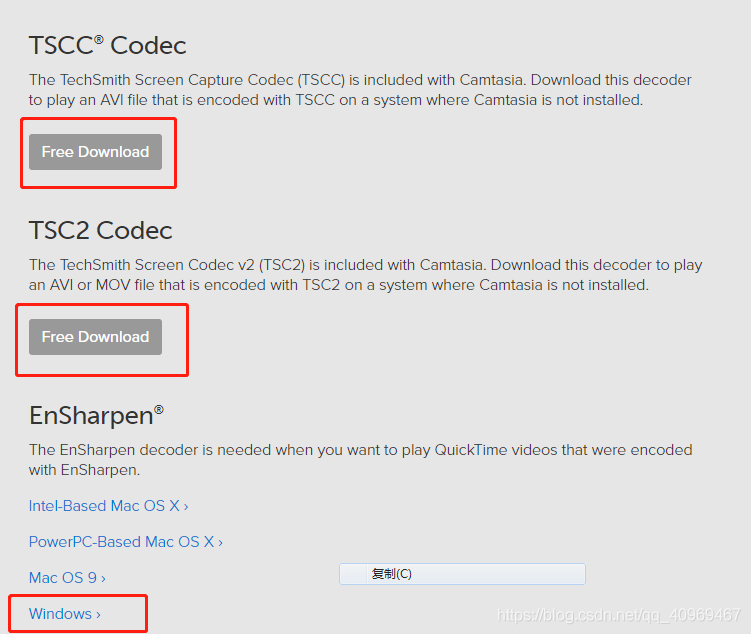
After a reason to find the final solution, just download three decoder installation on the official website can be. Share this with others who are experiencing these problems.
Website: https://www.techsmith.com/codecs.html

Express error: Failed to lookup view “error” in views directory processing

Express framework installs EJS templates by modifying them in app.js

app.set('views', path.join(__dirname, 'views/'));
app.engine('.html', require('ejs').renderFile);
app.set('view engine', 'html');

template for ejs, suffix to HTML after individual pages open tip Failed to lookup the view “error” in views directory error, found behind the template in a parameter is not passed so there is an error, but because the views directory under the lack of the error file resulting in this error, the solution is below the template directory to create a error file is used to output error information.

Form Compile Issues: (FRM-18108: Failed to load the following objects)

Form compilation problem (FRM-18108: Failed to load the following objects.)


frm-18108: Failed to load the following objects.
Source Module:APPSTAND
Source Object: STANDARD_PC_AND_VA
Source Module:APPSTAND
Source Object: STANDARD_TOOLBAR
Source Module:APPSTAND
Source Object: STANDARD_CALENDAR
Compiling package specification APP_CUSTOM…
No compilation errors.

Cause:
as a result of non-import of APPSTAND.
Resolution:
CD $AU_TOP/forms/US/ — must compile in this directory, . In this way can FRMCMP find APPSTAND FMB file
frmcmp_batch Module = $CUX_TOP/forms/US/CUXORDENT FMB Userid = apps/apps the Module_Type = FORM output_file = $CUX_TOP/forms/US/CUXORDENT FMX [@ more @]

From “ITPUB blog” link: http://blog.itpub.net/394664/viewspace-1057829/, if you want to reprint, please indicate the source, otherwise will be investigated for legal responsibility.

Reproduced in: http://blog.itpub.net/394664/viewspace-1057829/