Category Archives: How to Fix

Docker machine install syntax error near unexpected token ‘newline’! DOCTYPE HTML problem resolution

Recently learned that the host management docker – machine this chapter, https://blog.csdn.net/CloudMan6/article/details/75810234 according to the article to learn,
To recommend a lot on learning docker website at https://github.com/llitfkitfk/docker-tutorial-cn
System: Ubuntu 14.04
Docker: 18.06.0 – ce
There was a problem with the installation and the command was as follows:

The curl -l https://github.com/docker/machine/releases/download/v0.9.0/docker-machine- ` ` uname – s – ` uname -m ` & gt; /tmp/docker-machine & &
chmod +x /tmp/docker-machine & &
sudo cp /tmp/docker-machine /usr/local/bin/docker-machine

His version was a little old, so I just changed v0.14.0 without considering anything else. The installation process is as follows. I was ordered to execute three separate orders,

The docker-machine file appears in the /usr/local/bin directory
View the version information to verify that the installation was successful. Run the command Docker-Machine version and find an error

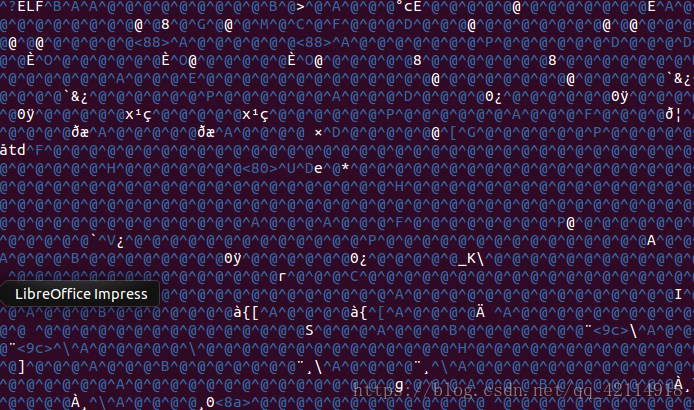
When I look at the contents of the file, I see no problem. I suspect it’s A newline. Cat-a filename finds that the newline is $.
Also tried running the %s/^M//g command with the ^M tail removed. It could also be ‘< > ‘, but the HTML5 header can’t be deleted.
I found a way to install the website. No matter what I learn, I like the documents on the official website very much, because he is the most formal.
https://docs.docker.com/machine/install-machine/
If you are running on Linux:

$base=https://github.com/docker/machine/releases/download/v0.14.0 & amp; &
curl -L $base/docker-machine-$(uname -s)-$(uname -m) > /tmp/docker-machine & &
sudo install/TMP /docker-machine /usr/local/bin/docker-machine

I still have three commands to run, either replacing $bash with the url above, or simply accessing and pasting it directly in the host browser.
The installation process is as follows. Unlike above, it takes a little time and looks a lot more obvious.

Then it was time to witness the miracle. That’s it. I’ve finally installed it.

If you look at the files in /usr/local/bin, the contents are different. I’m finally ready to move on.


git clone https:// gnutls_handshake() failed: The TLS connection was non-properly terminated.

This problem occurred to me especially behind corporate firewall after updating ubuntu to 18.04 LTS. I tried all possible approaches before coming across solution to compile GIT with openssl rather than gnutls. Copy+Pasting below that resolved the problem(Reference link: here)…

sudo apt-get update
sudo apt-get install build-essential fakeroot dpkg-dev libcurl4-openssl-dev
sudo apt-get build-dep git
mkdir ~/git-openssl
cd ~/git-openssl
apt-get source git
cd git-2.17.0/
vim debian/control    # replace all libcurl4-gnutls-dev with libcurl4-openssl-devvim debian/rules      # remove line "TEST =test" otherwise it takes longer to build the package

sudo dpkg-buildpackage -rfakeroot -b -uc -us   # add "-uc -us" to avoid error "gpg: No secret key"
sudo dpkg -i ../git_2.17.0-1ubuntu1_amd64.deb

Note 1: I got “OpenSSL SSL_connect: SSL_ERROR_SYSCALL in connection to proxy” when doing “git clone https://…” after steps above, which turns out to be a problem about git proxy setting. It can be fixed by:

git config --global http.proxy http://proxy.server.com:8080
git config --global https.proxy https://proxy.server.com:8080

Note that it’s better to verify the proxy & port works well first in browsers like Chrome.  Reference link: here.
Note 2: I accidentally removed libcurl4-gnutls-dev when trying different approaches, unfortunately, lots of dependent libs are removed as well, including the network manager and GDM3. As a result, the network can’t work any more and the whole display UI was messed up(it switched to lightdm for display manager). I managed to fix the mess with “sudo apt install gdm3”.
So as a lesson learn, don’t remove libcurl4-gnutls-dev for this issue.

Xshell 6 opens with an error prompt FlexNet_ Licensing

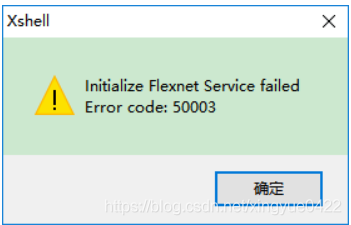
Before the computer from a third party website under the Xshell version 6, may not be the formal official version caused. FlexNet_Licensing Initialize Flexnet Service failed Error code 50003. Normal family/school use does not require licensing. Found a lot of answers, although this tip does not affect the use, but look awkward not. Find a solution and share it for your reference.
Error screenshot:
         
The attachment already exists on CSDN: File name: FlexNet_Licensing_xshell Service error Reporting solution.7z
Operation method:
If you really mind the Error popover of Error 50003, please download and unzip to a directory and run! -install.bat script to Install the service, or run! -Uninstall.bat script uninstalls this service. This script also works for Xshell 6 + Xftp 6 integrated and Xshell 5 + Xftp 5 integrated

[depth concept] · introduction of EER (equal error rate)

· Introduction of the evaluation index EER(Equal Error Rate)
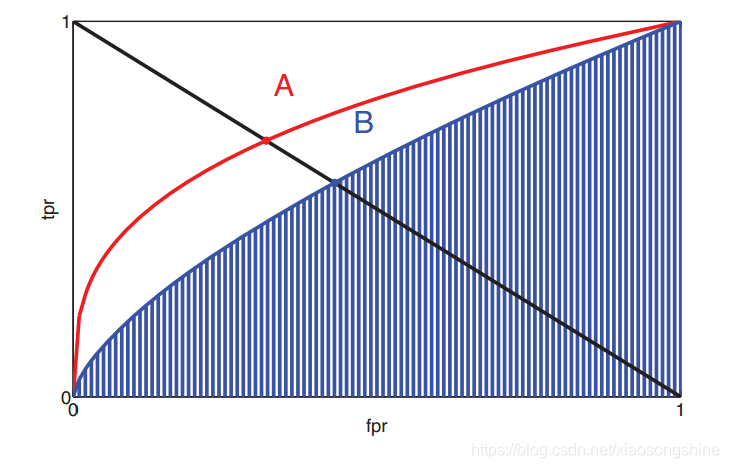
In-depth learning articles generally use Error probabilities such as EER(Equal Error Rate) as an objective criterion for measuring classifiers, and the RECEIVER Operating Characteristic (ROC) curve explains how to calculate EER.
Here is a brief introduction to the EER calculation
EER (Average error probability) is a biometric security system algorithm used to pre-determine its error acceptance rate and its error rejection rate threshold. When the rates are equal, the common value is called the equal error rate. This value indicates that the proportion of false acceptances is equal to the proportion of false rejections. The lower the iso-error rate, the higher the accuracy of biometric identification system.


Use other ROC evaluation criteria
AUC (area under thecurve), also is the area under the ROC curve, the greater the classifier, the better, the maximum value is 1, the blue stripes in the graph area is the blue curve corresponding AUCEER (equal error rate), that is, the value of the FPR = FNR, due to the FNR = 1 – TPR, can draw A from (0, 1) to (1, 0) in A straight line, finding the intersection point, in the figure A and B two points.

Solution to PCL XL error of HP p2055d laser printer

Recently, HP P2055d laser printer (produced in November 2009) has been installed at the customer’s office. The hardware environment is as follows: PC: Dell OptiPlex 360, and another Fujitsu DPK 8600E ticket printer. P2055d is connected to PC via USB data cable. Software environment: The operating system, Windows XP SP2, USES the driver disk attached. After the installation of the operating system and the driver, the HP P2055d printer will be installed. After the installation of the driver, the test page will be printed, OK; Then, the Fujitsu DPK8600E was installed. After the installation was completed, everything worked fine. As a result, the P2055d hung up.
— — — — — — — — — — — — — — — — — — — — — — — — — — — error message started the author add (visit) — — — — — — — — — — — — — — — — — — — — — — — — — — — —
PCL XL error
Subsystem: KERNEL
Error: IllegalOperatorSequence
Operator: EndSession
Position: 7
— — — — — — — — — — — — — — — — — — — — — — — — — — — — — — — — — — — — — — — — — — — — — — — — — — — — — — –// error message end I (visit)
Using the built-in test function of the machine, the printer can work normally, but it cannot communicate with the PC normally. Uninstall and reinstall the driver and all associated software, and the problem remains. Helpless, call HP customer service, customer service staff told the problem cannot be determined, can only use the following methods to try. Because the telephone is far from the machine, it is not convenient to operate. After two calls to customer service, the P2055d can finally be printed. The operation method is listed here for later use.
1. Change the advanced options for the first time
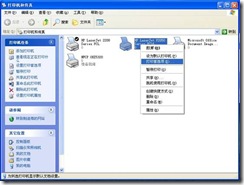
1) Right-click the printer and select “Print Preference…” in the window that pops up. , as shown in Figure 1.

Figure 1
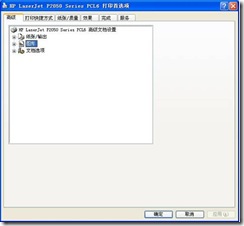
2) Open the print preferences window as shown in Figure 2

Figure 2
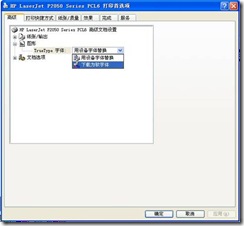
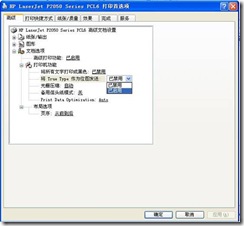
3) Expand “Graph” and select “Download as Soft Font” from the drop-down list of “True Type Font” below (Figure 3)

Figure 3
4) Expand Document Options a Printer Functions and change the drop-down list of Send True Type as bitmap to Enabled (Figure 4).

Figure 4.
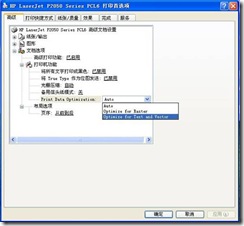
5) Then, change the “Print Data Optimization” drop-down list to “Optimize for Text and Vector,” apply “–” Optimize “(Figure 5).

Figure 5
To be on the safe side, I restarted the machine and printer (actually shutting down the computer and then shutting down the printer).
2. Try again and change the driver
As the problem was not solved, the author turned to HP customer service again (every time I played HP customer service, I had to wait, I didn’t know whether HP service was too good or HP product quality was wrong). The author was told to replace it with a 2200 driver, so I tried again.
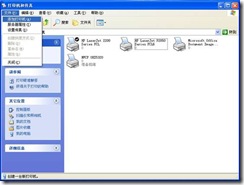
1) Open the “Printer and Fax” window (start A to set A printer and fax), and click “File” A to “Add Printer” in turn, as shown in Figure 6.

Figure 6.
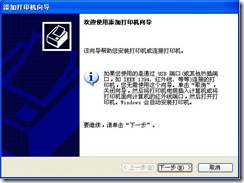
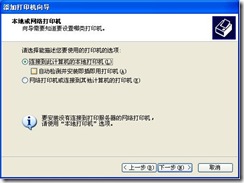
2) Open the “Add Printer Wizard” window as shown in Figure 7, and click “Next”.

Figure 7.
3) Remove the selection of “Automatic Detection and Installation of plug and play Printer” in the window shown in Figure 8, and click “Next”.

Figure 8.
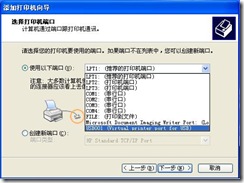
4) In the “Select Printer Ports” window, select “USB001” (Figure 9) from the following port drop-down list and click “Next”.

Figure 9.
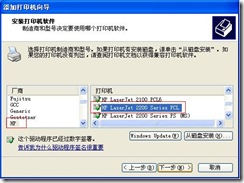
5) In the “Install Printer Software” window, select “HP” from the list of manufacturers, and the printer select “HP LaserJet 2200 Series PCL”, and click “Next” to add the printer.

Figure 10.
After adding this printer, print the document and test page OK. The original 2055D printer system will be installed automatically. It is recommended to set this 2200 printer as the default printer. At this point, the “PCL XL error” problem is resolved.
When the operating system was reinstalled, the printer was installed directly in accordance with Plan 2, and everything was fine.

Solve the startup error “something Wen wrong” of NVIDIA geforce experience

Something went wrong. There are two cases, which are respectively introduced below

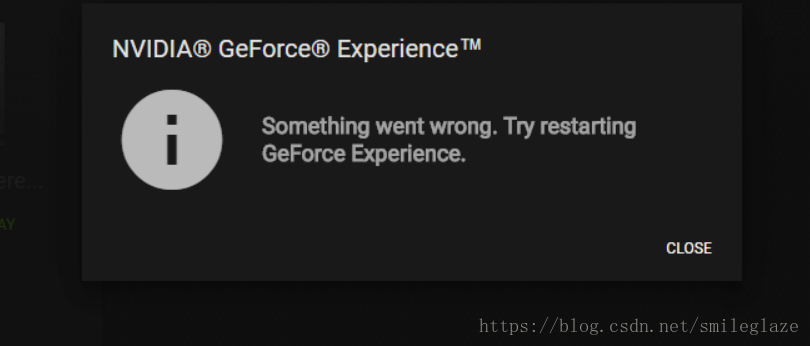
Something went wrong.Try restarting Geforce Experience.
When you find that Nvidia Geforce Experience cannot be opened, the following interface will be prompted no matter how it is opened (run by administrator)

Searched a circle on the net, it is reinstall software at the beginning, update BIOS, all useless.
And then found that Nvidia related service is disabled, is following the http://tieba.baidu.com/p/5733082084

Manually set to start automatically, manually open complains at http://tieba.baidu.com/p/5758178861
In the “Computer acceleration” function of Tencent Computer Housekeeper, restore the disabled in the lower left corner and open the disabled service item, the result was still disabled after a while. I also tried to add the Nv related directory to the anti-virus scan trust area, but still failed.
Using the https://zhidao.baidu.com/question/263205342659652165.html approach allows the application or function through Windows firewall, still can’t open it.
final solution
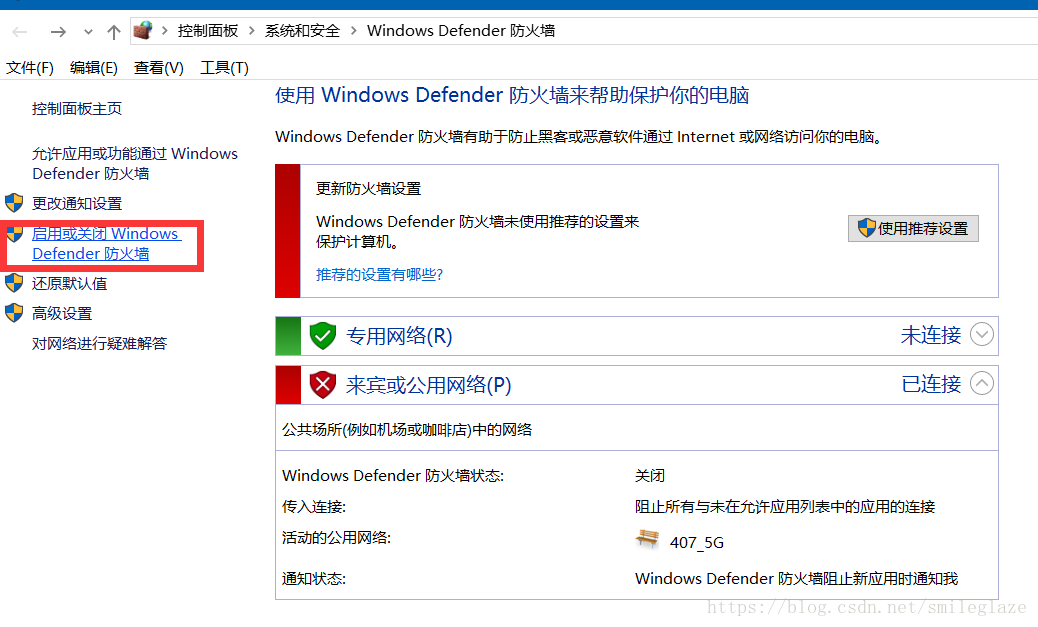
Is to close the firewall, then start the relevant services, the problem is resolved

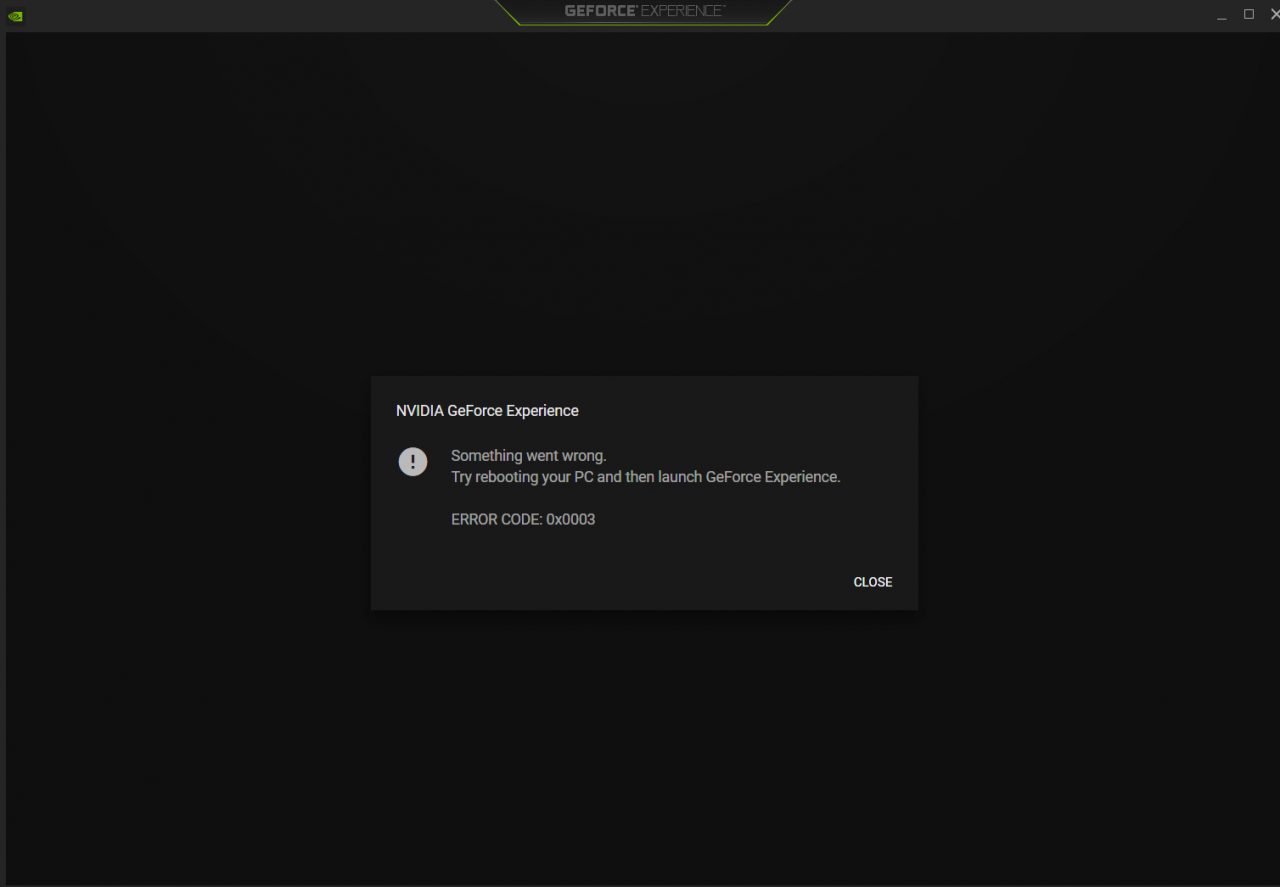
Something went wrong.Try rebooting your PC and then launch GeForce Experience. ERROR CODE:0x0003
The error message encountered in this case is as follows

The corresponding solution is the same as the above scenario, except that the corresponding service should be NVIDIA Telemetry Container, which is set to start automatically
The solution is as follows:
1. Search or find the operation in the system menu with the shortcut win + R.
2, then enter services.msc in run and click ok.
3, find the NVIDIA Telemetry Container in the open services.msc.
4, right-click NVIDIA Telemetry container to open its properties.
5, there is a running state in the property general, if it is stopped, click start.

Python custom class typeerror: ‘module’ object is not callable

When I was new to Python, I wanted to customize the Item and reference it when I was learning crawlers. The custom Item is shown below

import scrapy

​​​​​​​
class MyItem(scrapy.Item):
    title = scrapy.Field()
    pass

In the crawler file, the code is as follows:

# -*- coding: utf-8 -*-

import scrapy
from tutorial.items.MyItem import MyItem


class MySpider(scrapy.Spider):
    name = 'myitem.demo'
    allowed_domains = ['toscrape.com']

    def start_requests(self):
        yield scrapy.Request('http://toscrape.com/tag/humor/', self.parse)

    def parse(self, response):
        for h1 in response.xpath('//h1').getall():
            yield MyItem(title=h1).print_item()

        for href in response.xpath('//a/@href').getall():
            yield scrapy.Request(response.urljoin(href), self.parse)

Here, Tutorial.item.myItem needs to write the class file name

Windows FTP Error 425: Unable to build data connection

http://www.trapstone.com/articles/windows_ftp_425_connection_refused

Having problems transferring files with FTP?If you are using the command line FTP client within Windows and getting errors like these…

500 Illegal PORT command 425 Unable to build data connection: Connection refused

Well, don’t worry – you’re in good company.
This is probably one of the most commonly encountered problems by Windows users with the command line FTP client, primarily when connecting to servers that use non-default ports.
This article explains why … and what you can do about it.
Illegal Port Command – Why FTP may be running on a non-standard port
Every day, countless attempts are made to get access to servers via FTP by guessing account names and passwords.
As a result, many companies who provide FTP access to their customers have configured their servers to run FTP on a non-standard port (i.e. anything other than the default port 21).
Normally this should not be a problem, as you can tell your FTP client which port to connect to on the server and to use passive mode. If you don’t know what passive mode is all about, take a look at the article on Active FTP vs. Passive FTP.
Why Windows FTP Can’t Build A Data Connection
If you use the standard FTP client (the command line one) that comes bundled with Microsoft Windows, then you will find that even if you specify a different port number, you cannot enable passive mode.
Note also that you can’t specify the port number on the command line itself as a server.name:port pair (unlike pretty much every other command line FTP client on the planet).
Instead, you can only attempt this from within the client interactively. For example, here’s a session from an attempt to connect to one of our FTP servers which is running on port 7021…

Here we can see our attempt to connect to our server on it’s non-standard port is successful.
However, as soon as we attempt to transfer data, the attempt to open a secondary port for the data flow fails. Microsoft’s own article on the Windows FTP Client Receives Error Message 425 points out that:

“The FTP clients that ship with Windows do not support passive mode. Therefore, they always need to negotiate a data port when issuing a command that returns data.”

As a result, even if you do correctly specify a non-default port number, you still cannot use passive mode.
Sigh… cheers guys.
Note that you may find a lot of articles on the ‘net claiming that Windows FTP client does support passive FTP – often because they’ve seen the PASV entry in the registry or because the client appears to accept the literal pasv command.
It does not work with the Windows command line FTP client!
The server might respond to a PASV command with a message saying it is in passive mode but the Windows command line client has silently ignored it.
How You Can Use Passive FTP Under Windows
Internet Explorer can support passive mode as an FTP client if you enable it in the “Internet Options”, although that’s only useful for retrieving files – you can’t upload via Internet Explorer.
For full bidirectional FTP functionality, the simple answer is to not use the Windows command line FTP client at all.
We recommend that you use something like FileZilla, which provides a clear, friendly and useful interface – and it’s free!. Alternatively, Firefox users can get the FireFTP add-on to integrate bi-directional FTP with their browser.
If security is a concern and if the FTP server supports SSH connections, you may also want to download SFTP, which is part of the PuTTY SSH client distribution. This is also free and FileZilla supports SFTP as an alternative backend.

FileZilla 425 Can’t open data connection

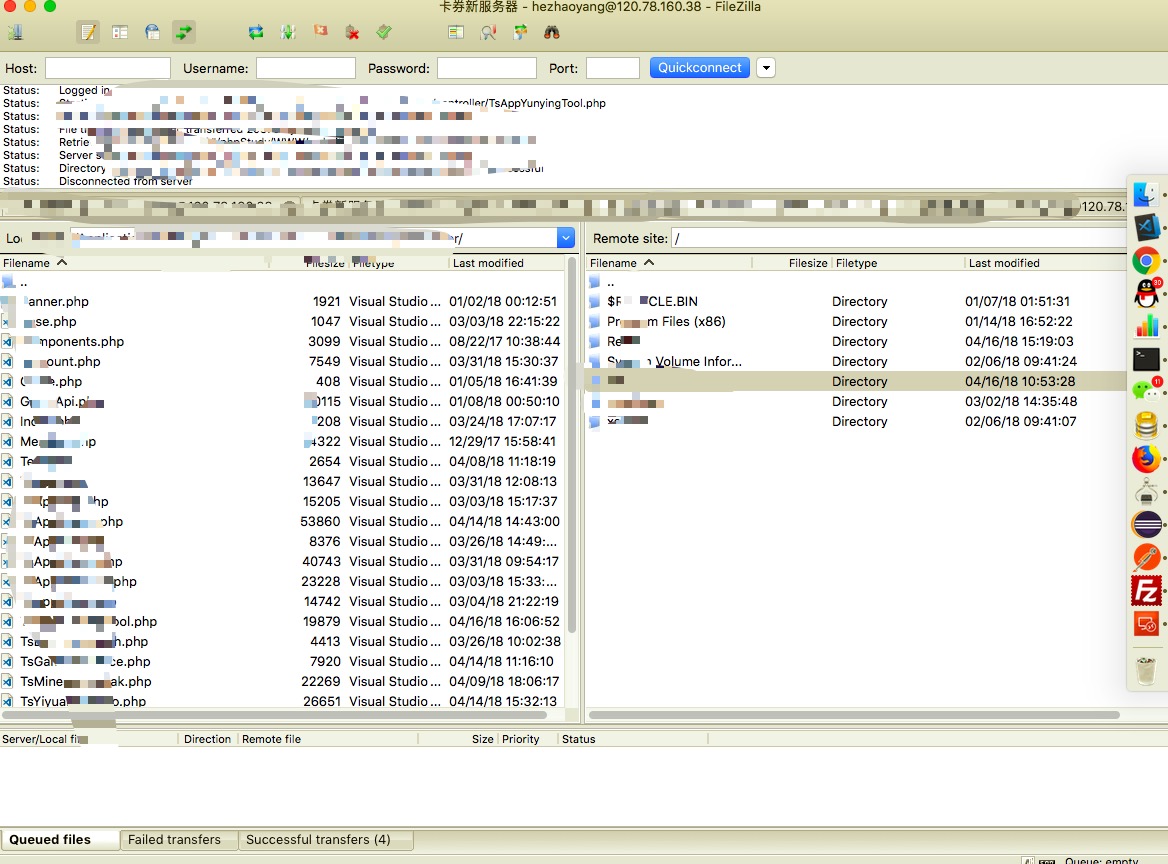
Yesterday found that the company server being poisoned half a month, abnormal reminding email is not in their hand, alive when the chicken, half month is normal business running, if it weren’t for yesterday exploded with CPU can’t found dead, snapshot backup after reshipment system didn’t even find FTP death, active passive automatic all tried and can access to the directory but unable to traverse the file, is the problem of port:
First go to the server to open the firewall 80 (HTTP), 3306 (SQL), 443 (HTTPS), 21 (FTP) these open ports are open, at this time the website can normally access, but FTP still can not get the file as usual;
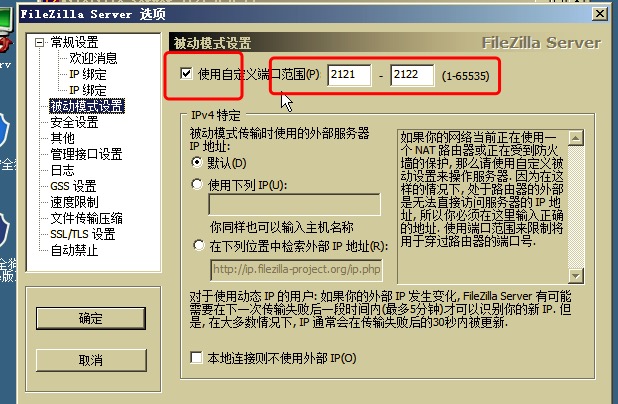
The server is ftPserV, but it has been changed to passive and port:
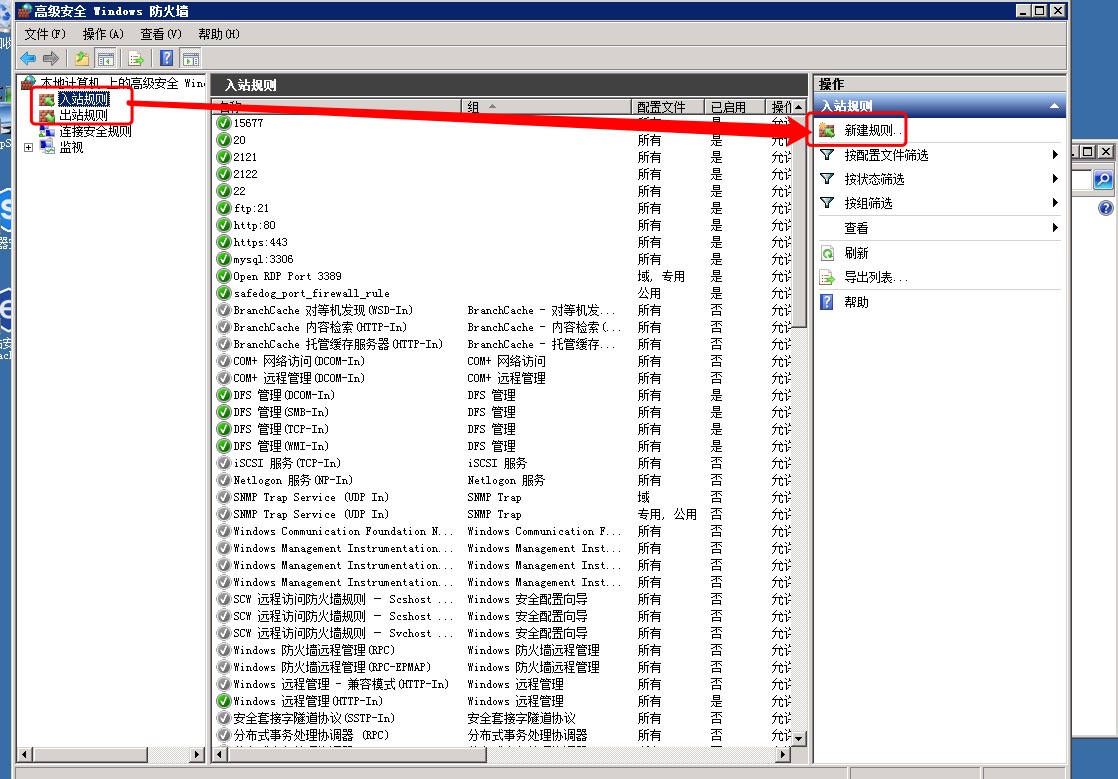
Then add these two ports to your firewall (note that both inbound and outbound rules are added) :

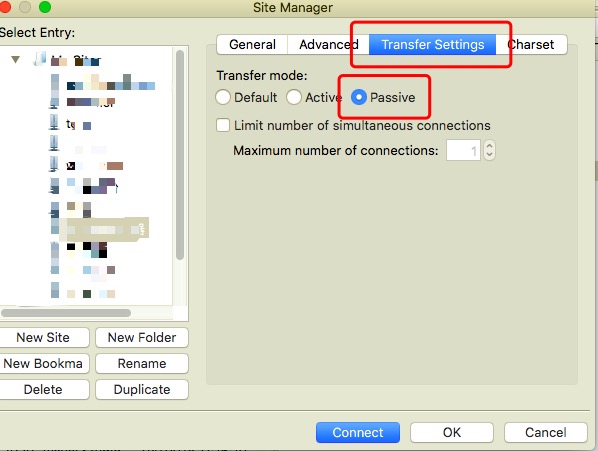
Filezilla for the client, change the mode to passive mode:

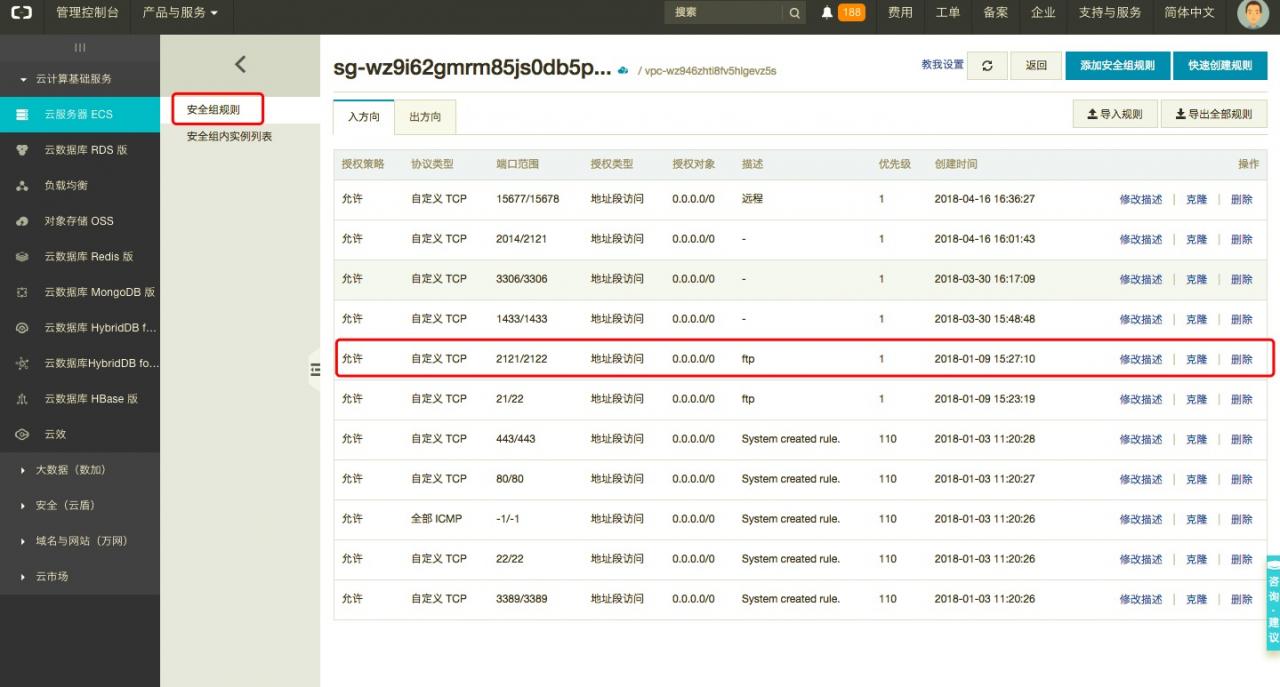
It turns out that it still doesn’t work. It turns out that the security group of Aliyun also needs to match these ports (both entering and leaving should be matched) :

At this point, FTP is perfectly linked.

Maven compilation error: package does not exist jar package does not exist

A compilation failure was encountered while using the Maven command MVN package to package. Maven prompted the compilation error: the package does not exist JAR package. After checking, it was the use of non-Maven repository jars in the project, i.e., the use of local jars, which caused Maven to compile without finding jars. The solution is to configure POm.XML to add the path to the local JAR so that Maven can identify and find the local JAR at compile time.

The configuration of the Maven-compiler-plugin in POM.xml is referred to below. The focus is on the configuration of the compilerArguments element. To add a native JAR package, just add a line to the compilerArguments element.

< compilerArguments>
< extdirs> ${project.basedir}/src/main/webapp/WEB-INF/lib< /extdirs>
< /compilerArguments>

The pom.xml build configuration is referenced below.

<build>
		<finalName>test</finalName>
		<plugins>
			<plugin>
				<groupId>org.apache.maven.plugins</groupId>
				<artifactId>maven-compiler-plugin</artifactId>
				<configuration>
					<source>1.8</source>
					<target>1.8</target>
					<compilerArguments>
					<extdirs>${project.basedir}/src/main/webapp/WEB-INF/lib</extdirs>
					</compilerArguments>
				</configuration>
			</plugin>
			<plugin>
				<groupId>org.apache.maven.plugins</groupId>
				<artifactId>maven-surefire-plugin</artifactId>
				<configuration>
					<skipTests>true</skipTests>
					<testFailureIgnore>true</testFailureIgnore>
				</configuration>
			</plugin>
		</plugins>
</build>

Error of oracel VM installing Windows Server 2012

Windows Server 2012 R2 on VirtualBox – Error 0x000000C4

Vardhan asked this question in a comment:
I have tried Windows Server 2012 R2 Preview on VirtualBox but fell over with 0x000000C4 error. Is there any remedy for this?

EMCO MSI Package Builder

Create MSI AutomaticallyConvert EXE to MSICustomize Existing InstallationsBuild MSI for Remote Installation

I got the same error message. It doesn’t matter if you install from the ISO or the VHD. You always get:
Your PC needs to restart.
Please hold down the power button.
Error code: 0x000000C4
Parameters:
0x0000000000000091
0x000000000000000F
0xFFFFF801E5962A80
0x0000000000000000
The solution to the problem is this command:

1

“c:\Program Files\Oracle\VirtualBox\VBoxManage.exe”

setextradata

[
vmname
]

VBoxInternal
/
CPUM
/
CMPXCHG16B

1

You have to replace vname with the name of your Virtual Machine which you can find in the VirtualBox interface or with this command:

1

“c:\Program Files\Oracle\VirtualBox\VBoxManage.exe”

list
vms

Don’t forget to set the VM name in quotes if it contains blanks.
The command enables the CPU instruction CMPXCHG16B. More info here.
I tried it with the VHD of Windows Server 2012 R2 Preview and it with the ISO.