Author Archives: Robins

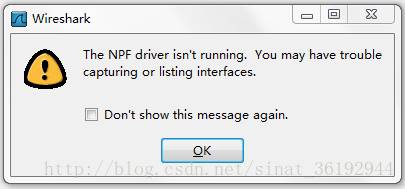
The NPF driver isn’t running. You may have trouble capturing or listing interfaces

The processing method of “the NPF driver isn’t running. You may have trouble capturing or listing interfaces (as shown)” appears in Wireshark packet capturing tool


First of all, you have to make sure that you have installed WinPcap (it’s better to download the latest version: official download, which seems to be unable to be opened by the official, and it can also be downloaded by the Chinese Army)

a. If you are using Linux or Ubuntu, please use & gt$ The Su administrator command switches to the account with the highest authority, and then enters the command: “net start NPF” (if not, find a similar command yourself). b. If you are using Windows XP/me, please use the administrator account to log in, open CMD, and enter the command: “net start NPF”. You will be prompted to open the driver service successfully. c. If you are using Windows Vista or windows 7 that I tried out, please find the file cmd.exe under “C::?Windows?System32”, right-click and select “run as administrator”, and then enter the command “net start NPF” in the command line mode to successfully open the NPF driver. It should be that the npf.sys file I found earlier has been opened.


Finally, turn on Wireshark again, and “bingo” will work normally.

See

Ora-02292: integrity constraint (XX) violated – child record found foreign key Association, record cannot be deleted

When we delete data with foreign keys, Oracle will prompt: ora-02292: integrity constraint (XX) violated – child record found  

Step 1: invalidate the primary key: alter table_ name disable primary key cascade;

Step 2: delete from   table_ name   where id = ‘xx’;

Step 3: make the primary key effective: alter table_ name enable primary key;

Unable to boot : please use a kernel appropriate for your cpu

Suppose you get this message in the VirtualBox:

                  Unable to boot – please use a kernel appropriate for your CPU

The following solutions can help you:

1. Restart your computer and enter the BIOS. There are options such as virtualization technology. Let it choose enable

Assuming this doesn’t solve your problem, try another way.

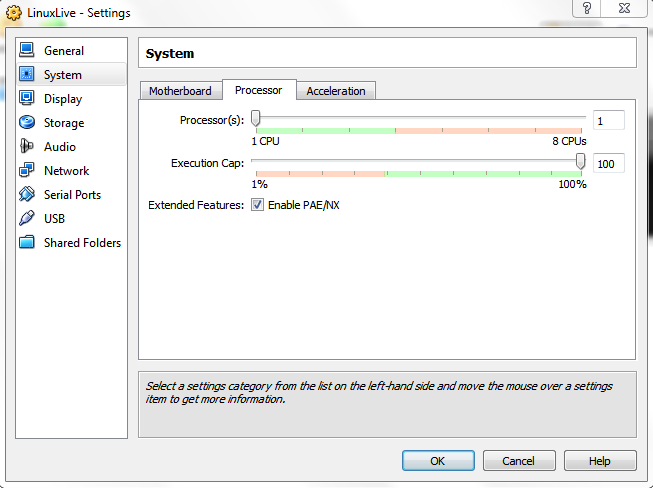
2. Enter the settings of VirtualBox, click system, and select enable PAE/NX, as shown in the figure:

3. This prompt may also be that you are running a 64 bit operating system and the processor is not compatible. Just download 32-bit instead of 64 bit.

Reproduced in: https://www.cnblogs.com/mengfanrong/p/5217029.html

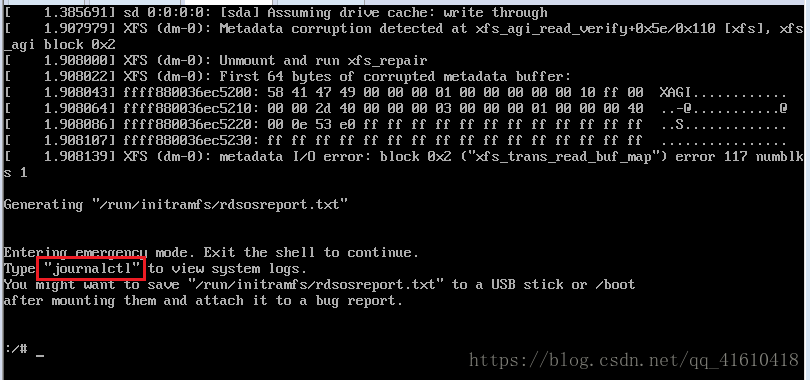
Entering emergency mode. Exit the shell to continue.

When the CentOS virtual machine is powered off or forced to shut down, there is a problem when it is rebooted:

Find out where the problem is:
here, journalctl is to view the log information of the system; Enter this command to view the log directly. There may be a lot of log content. Quickly turn the page or directly locate the latest log information. If you find something marked in red, it means that there is an error here
error reason:
failed to mount/sysRoot.
dependency failed for initrd root file system.
dependency failed for reload configuration from the real root.
problem solving:
input command: XFS_ The repair – V – L/dev/dm-0
– L option specifies to force log zeroing and XFS_ Repair zeros the log even if it contains dirty data (metadata changes).

java.lang.IllegalStateException: Cannot call sendRedirect() after the response has been committed

Error message: java.lang.illegalstateexception: cannot call sendredirect() after the response has been committed java.lang.illegalstateexception


Error message parsing: redirection cannot be called after response

Basic overview of Servlet

    determine whether it is necessary to use redirection. If necessary, use redirection. Otherwise, continue the work of servlet

    Cause of error:

      when using retargeting, our page has jumped, and the retargeted code will not be able to perform work. In order to make the jump page unaffected, we add a return after retargeting (most likely) the doget() and dopost() methods in servlet are incomplete. For example, write a doget() method less and delete the super. Doget() and super. Dopost() in the doget() and dopost() methods after rewriting; Here, we can use a request method to receive parameters. For example, the client uses the post or get request to send parameters, and we receive and respond consistently using the get method. At this time, we can add the code dopost (request, response) in the dopost () method check whether the program logic causes multiple jumps

      Note: when we write the redirection path. Redirection supports both the project resources and the resources in the server to use redirection, so the general redirection path is /project resource name/page or servlet to be redirected to or write the relative path directly

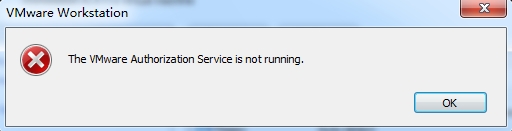
How to Solve VMware Workstation Error: The VMware Authorization Service is not running.

An error is reported when opening the virtual machine (as shown in the figure below), and starting the virtual machine fails due to the following error:

wKiom1T7pBeiN5AxAABl_Dp-Pys213.jpg

Solution:

the reason:

This problem may occur when the VMware Authorization service is not running or the service does not have administrator rights.

To solve this problem, please start the service and make sure that it does have administrator rights.

To start the VMware Authorization service or check whether it is running, follow these steps:

  1. Log in to the Windows operating system as an administrator.
  2. Click Start , and then click Run .
  3. Type services.msc and click OK
  4. Scroll down the displayed list to find the VMware Authorization service
  5. Click to start this service , unless the status displayed for this service is already started.

Note : The VMware Authorization service depends on the Windows Management Instrumentation service. The service must also be running. If the VMware Authorization service fails to start or stops after starting, find and start the Windows Management Instrumentation service.

If the VMware Authorization service displays the status as started, it means that the service may not have administrator rights. To provide administrator rights to the VMware Authorization service

Start-run, enter: services.msc, open “services”. Find the VMware Authorization Service service, start this service, modify its properties, and change the startup type to “automatic”.

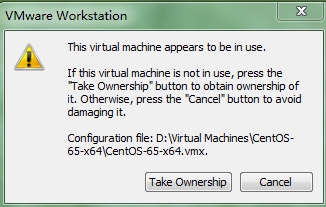
How to Solve VMware Workstation Error: This virtual machine appears to be in use.

This may be a bug of VMware Workstation. When the virtual machine in VMware Workstation is running, it is shut down or restarted abnormally. As a result, when we restart the virtual machine again, it will prompt “The Virtual Machine Appears to be in use”, and the virtual machine cannot be started.

wKioL1T7nmXDseDrAACtfDZMG2k161.jpg

PS: This lck file is the disk lock file of the virtual machine. We know that the disk of the virtual machine and the disk of the host coexist, but due to the use of a specific virtual mechanism, the two do not affect each other. When using a virtual machine, vmware will generate a number of disk lock files to protect the disk occupied by the current virtual machine from being modified by the host or other virtual machines. After the virtual machine is shut down normally, vmware will automatically delete this lock. However, in a few cases, such as a sudden host crash, abnormal shutdown, etc., vmware cannot delete the lck disk lock file. So next time you start the virtual machine, vmware will mistakenly believe that the virtual system that needs to be started is already running, and the above this virtual machine appears to be in use error appears. After deleting the file, it can return to normal.

【Solution】

The repair method is very simple. Go to the corresponding virtual machine directory and delete the %virtual machine name%.vmx.lck folder or the files in it. If there is still an error, you need to restart the host.

  • Yes, if you are certain that the guest is truly not running, go to the guest’s folder and delete any .lck files and folders. Delete the folders with .lck file extension.
  • If you can’t delete these files, make sure to close VMware workstation program and then try.
  • After deleting above .lck folders and files, I could able to successfully start virtual machine on VMware workstation 10.

[Solved] Android Gradle Build Error: Some file crunching failed, see logs for details

Error Message: Error:java.lang.RuntimeException: Some file crunching failed, see logs for details


Log:

FAILURE: Build failed with an exception.

* What went wrong:
Execution failed for task ‘:app:mergeDebugResources’.
> Error: java.lang.RuntimeException: Crunching Cruncher ic_default_home_new.png failed, see logs

* Try:
Run with –stacktrace option to get the stack trace. Run with –info or –debug option to get more log output.


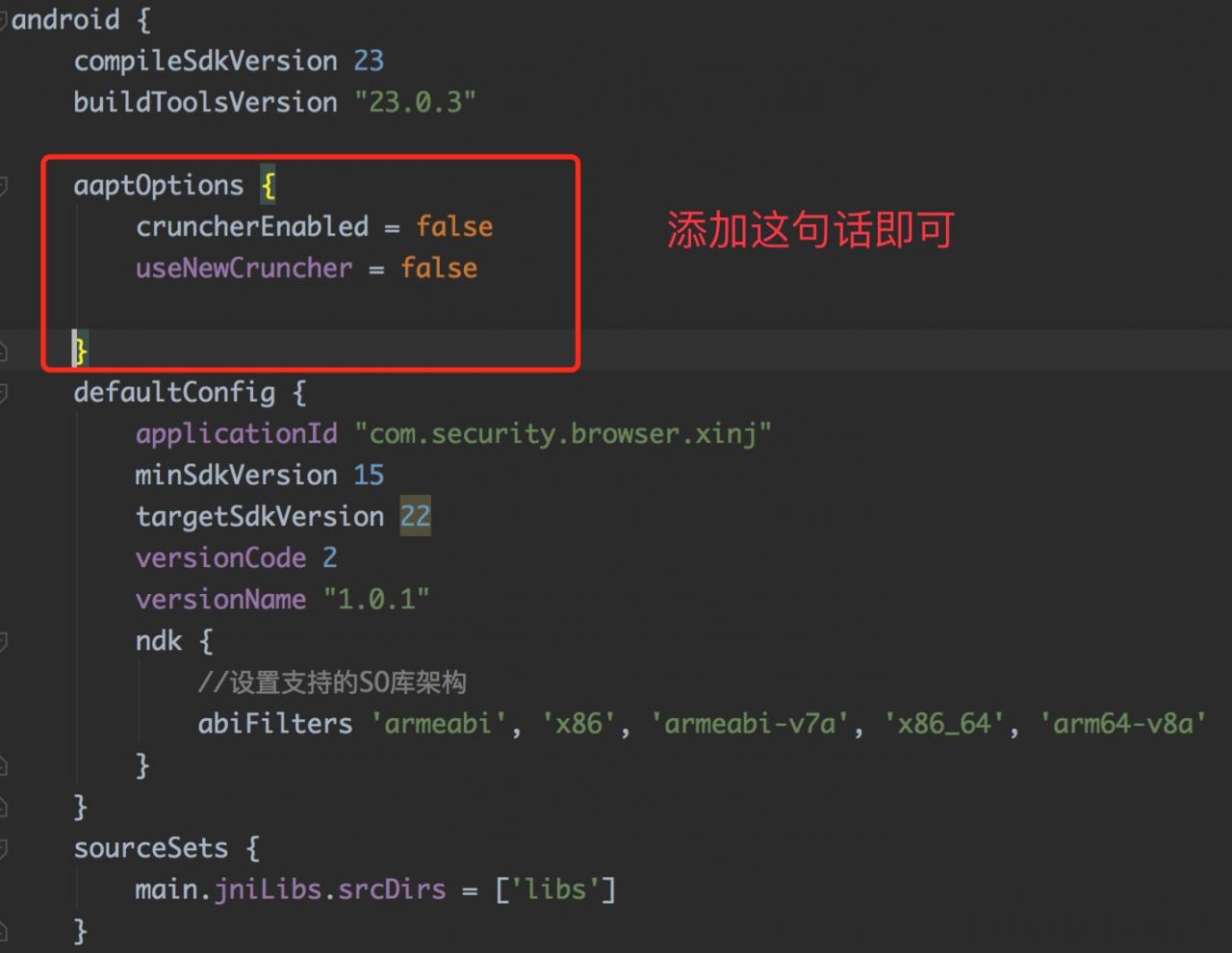
The solution is as follows:

1  android {
 2      compileSdkVersion 23
 3      buildToolsVersion "23.0.3"
 4      

5 aaptOptions { 6 cruncherEnabled = false 7 useNewCruncher = false 8 9 }

 10      defaultConfig {
 11          applicationId "com.xxx.xxx"
 12          minSdkVersion 15
 13          targetSdkVersion 22
 14          versionCode 2
 15          versionName "1.0.2"
 16          ndk {
 17              // Set the supported SO library architecture 
18             abiFilters 'armeabi', 'x86', 'armeabi-v7a', 'x86_64', 'arm64-v8a'
19         }
20     }
21 }


What is the reason for this error?

1. When building Gradle, Gradle will check whether the file extension has been modified;

2. Generally, most of them appear on pictures. This problem occurs when .jpg is modified to .png;

This problem may also occur with 3.9 patch pictures.


[Solved] Error C1189: #error: Please use the /MD switch for _AFXDLL builds

An error occurred when compiling the program in VS 2013:

Error message 1:

error C1189: #error: Building MFC application with /MD[d] (CRT dll version) requires MFC shared dll version. Please #define _AFXDLL or do not use /MD[d]

Reason :

The conventional one is: use MFC in the static library, or use the standard Windows library, at this time, no matter what it is, an error may be reported.

The multi-threaded debugging in the runtime library is: MDd (multi-threaded debugging DLL)

Solution :

Change MDd to MTd. If error 2 is reported after correction, change it as follows.


Error message 2:

error C1189: #error: Please use the /MD switch for _AFXDLL builds 

Reason :

The conventional one is: use MFC in a shared DLL,

The multi-threaded debugging in the runtime library is: MTd (multi-threaded debugging)

Solution :

Change the general to: use MFC in the static library, or use the standard Windows library


Conventional and runtime libraries are as follows:

General: Right-click the project -> Properties -> Configuration Properties -> General, and then select “Use MFC in a static library” in the “Use of MFC” option in the “Project Defaults” on the right,

Multi-threaded debugging: Right-click the project–>Properties->Configuration Properties->c/c++->Code Generation->Runtime Library->Multithreaded Debugging (/MTd)


Related notes:

There are three settings for the use of MFC : 

 1. Use standard Windows libraries

 2. Use MFC in the static library: it is to write the relevant code in the DLL into the EXE file, the file is larger, but it can be run on the machine without the relevant DLL;

 3. Use MFC in a shared DLL: It means that the content of some MFC DLLs is not included in the EXE file when packaging, so the EXE file is small, but the system requires related DLL files at runtime;

Multi-threaded debugging

/MD: Use multithreading in the dll to create the release version of the dynamic link library, which needs to be selected.

/MT: Use multithreading in exe to create a release version of exe, which needs to be selected.

/MTd: Same as /MT, but used in the Debug version.

/MDL: Same as /MD, but used in the Debug version.


If it is Debug’s “Use MFC in a static library”, don’t use MDd, use MTd instead, and then compile it to pass.

If it is Debug’s “Use MFC in shared DLL”, be careful not to use MTd, use MDd instead;

If it is the Release version “use MFC in static library”, don’t use MD, use MT;

If it is the Release version of “Use MFC in a shared DLL”, do not use MT, use MD.

[jv-convert] Error 1, [all-recursive] Error 1 (How to Solve)

g++4.6 compilation is an error:

make profiledbootstrap  
  
/var/tmp/gcc4/gcc-4.0.1/sparc-sun-solaris2.8/gcc/gcj  
-B/var/tmp/gcc4/gcc-4.0.1/sparc-sun-solaris2.8/gcc/  
-B/tools/freeware/gcc4.0/sparc-sun-solaris2.8/bin/  
-B/tools/freeware/gcc4.0/sparc-sun-solaris2.8/lib/  
-isystem /tools/freeware/gcc4.0/sparc-sun-solaris2.8/include  
-isystem /tools/freeware/gcc4.0/sparc-sun-solaris2.8/sys-include -g -O2  
-o .libs/jv-convert --main=gnu.gcj.convert.Convert -shared-libgcc   
-L/var/tmp/gcc4/gcc-4.0.1/sparc-sun-solaris2.8/sparc-sun-solaris2.8/libjava  
-L/var/tmp/gcc4/gcc-4.0.1/sparc-sun-solaris2.8/sparc-sun-solaris2.8/libjava/.libs ./.libs/libgcj.so  
-L/var/tmp/gcc4/gcc-4.0.1/sparc-sun-solaris2.8/sparc-sun-solaris2.8/libstdc++-v3/src  
-L/var/tmp/gcc4/gcc-4.0.1/sparc-sun-solaris2.8/sparc-sun-solaris2.8/libstdc++-v3/src/.libs  
-lpthread -lrt -ldl -L/var/tmp/gcc4/gcc-4.0.1/sparc-sun-solaris2.8/gcc  
-L/tools/freeware/gcc4.0/sparc-sun-solaris2.8/bin  
-L/tools/freeware/gcc4.0/sparc-sun-solaris2.8/lib -L/usr/dt/lib  
-L/usr/openwin/lib -L/usr/lib/X11 -L/usr/ucblib -L/usr/atria/lib  
-L/tools/freeware/gcc4.0/lib -L/tools/freeware/lib -L/tools/sun5/lib  
-L/tools/freeware/gcc4.0/lib/gcc/sparc-sun-solaris2.8/../../../sparc-sun-solaris2.8/lib  
-L/usr/ccs/bin -L/usr/ccs/lib  
-L/tools/freeware/gcc4.0/lib/gcc/sparc-sun-solaris2.8/../.. -lgcc_s -lgcc_s  
-Wl, --rpath -Wl,/tools/freeware/gcc4.0/lib  
/tools/freeware/gcc4.0/bin/ld: unrecognized option'-Wl,-rpath'  
/tools/freeware/gcc4.0/bin/ld: use the --help option for usage information  
collect2: ld returned 1 exit status  
make[3]: *** [jv-convert] Error 1  
make[3]: Leaving directory  
`/var/tmp/gcc4/gcc-4.0.1/sparc-sun-solaris2.8/sparc-sun-solaris2.8/libjava'  
make[2]: *** [all-recursive] Error 1  
rm gnu/gcj/tools/gcj_dbtool/Main.class  
make[2]: Leaving directory  
`/var/tmp/gcc4/gcc-4.0.1/sparc-sun-solaris2.8/sparc-sun-solaris2.8/libjava'  
make[1]: *** [all-target-libjava] Error 2  
make[1]: Leaving directory `/var/tmp/gcc4/gcc-4.0.1/sparc-sun-solaris2.8'  
make: *** [profiledbootstrap] Error 2  

At this time, the configuration is to set the speaking language to c, c++. as follows:

./configure –prefix=/usr/local/gcc-4.6.1 -enable-threads=posix -disable-checking -disable-multilib -enable-languages=c,c++

[Solved] error [email protected]: The engine “node” is incompatible with this module.

An error was reported when initializing the react project:

error [email protected]: The engine “node” is incompatible with this module. Expected version “^6.14.0 || ^8.10.0 || >=9.10.0”. Got “8.9.4”
error Found incompatible module
info Visit https://yarnpkg.com/en/docs/cli/add for documentation about this command.

This is caused by the incompatibility of the node version. Upgrading the node version can solve it, or it can be solved without upgrading. Use the following command:

1
npx create-react-app my-app  --use-npm


Official issues: https://github.com/facebook/create-react-app/issues/5714 and https://github.com/facebook/create-react-app/issues/3974

problem:

Guys, a few days ago, I installed `yarn` on my Mac just because it’s necessary for a project where I’m involved.

My problem is that, now, when I create a new app with `CRA`, it’s going to use `yarn` instead of `npm`. And, to be honest, I prefer `npm`.

Is there a way to force to use `npm` instead of `yarn`?
Or should I wait until finish the initial setup, then remove the `yarn.lock` file, the `node_modules` folder and then run `npm i`?

answer:

You can run CRA with `–use-npm` flag to force it to use npm.

urllib.error.HTTPError: HTTP Error 403: Forbidden [How to Solve]

problem:

 The urllib.request.urlopen() method is often used to open the source code of a webpage, and then analyze the source code of the page, but for some websites when using this method, an “HTTP Error 403: Forbidden” exception will be thrown
For example, when the following statement is executed
[python] 
<span style=”font-size:14px;”> urllib.request.urlopen(“http://blog.csdn.net/eric_sunah/article/details/11099295”)</span>  
The following exception will occur:
[python]  
<span style=”color:#FF0000;”> File “D:\Python32\lib\urllib\request.py”, line 475, in open  
    response = meth(req, response)  
  File “D:\Python32\lib\urllib\request.py”, line 587, in http_response  
    ‘http’, request, response, code, msg, hdrs)  
  File “D:\Python32\lib\urllib\request.py”, line 513, in error  
    return self._call_chain(*args)  
  File “D:\Python32\lib\urllib\request.py”, line 447, in _call_chain  
    result = func(*args)  
  File “D:\Python32\lib\urllib\request.py”, line 595, in http_error_default  
    raise HTTPError(req.full_url, code, msg, hdrs, fp)  
urllib.error.HTTPError: HTTP Error 403: Forbidden</span>  
analysis:
The reason for the above exception is that if you open a URL with urllib.request.urlopen, the server will only receive a simple request for access to the page, but the server does not know the browser used to send this request . Operating system, hardware platform and other information, and requests for missing this information are often abnormal access, such as crawlers.
In order to prevent such abnormal access, some websites will verify the UserAgent in the request information (its information includes hardware platform, system software, application software, and user personal preferences). If the UserAgent is abnormal or does not exist, then this request Will be rejected (as shown in the error message above)
So you can try to include UserAgent information in the request
Program:
For Python  3.x, it is very simple to add UserAgent information in the request, the code is as follows
[python]  
#If you do not add the following line, urllib2.HTTPError: HTTP Error 403: Forbidden error will appear  
    #It is mainly caused by the prohibition of crawlers on this website. You can add header information to the request and pretend to be a browser to access User-Agent. The specific information can be queried through the FireBug plug-in of Firefox  
    headers = {‘User-Agent’:’Mozilla/5.0 (Windows NT 6.1; WOW64; rv:23.0) Gecko/20100101 Firefox/23.0′}  
    req = urllib.request.Request(url=chaper_url, headers=headers)  
    urllib.request.urlopen(req).read()  
After replacing urllib.request.urlopen.read() with the above code, the page with the problem can be accessed normally