The exception prompt is as follows:
Microsoft Office Excel cannot access the file “*. XLS”. The possible reasons are:
1 the file name or path does not exist
After checking some information, we found that everyone encountered this problem
The solution is to create a directory named desktop under the directory of C: windows, system32, config, systemprofile and C: windows, syswow64, config, systemprofile
For the problem that COM components cannot be accessed,
solution:
1.
1). Add simulation in webconfig and add administrator permissions,
2). In this way, you can start the application process, operate excel, create new EXCEL and export Excel, but you still can’t open the excel file on the server side
however, this method has a disadvantage: if you, If the crystal report is used in the project, the crystal report will be abnormal, so the handout is handled in the latter way
2.
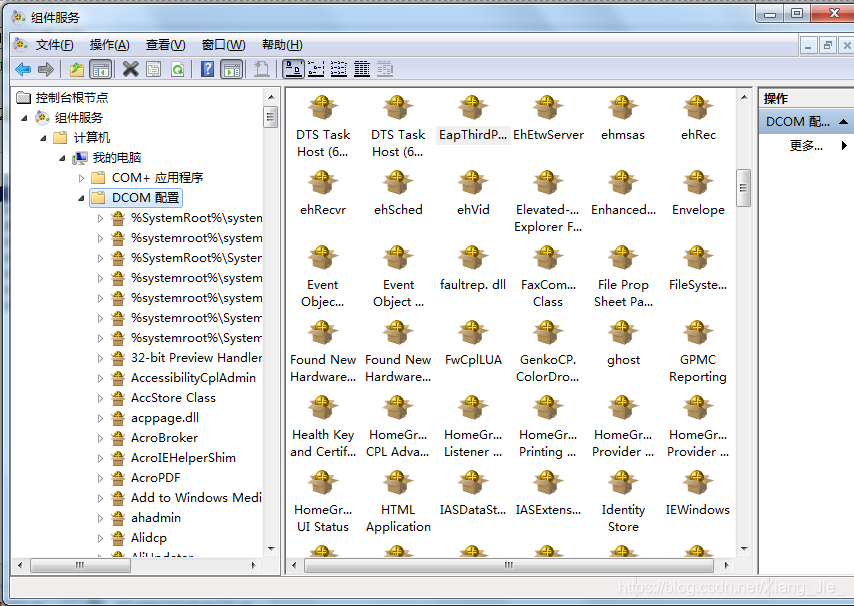
in the component service, DOCM sets the attributes of Microsoft Excel application,
because it operates on a 64 bit system, docom does not have it by default in the component service, because Microsoft Excel application is a DCOM configuration of 32, So solve it in the following way (refer to step 3)
1) . start –> run –> CMD
2) at the command prompt, enter comexp.msc – 32 to open the 32 console
3). In the file menu, add and delete snap ins –> component services
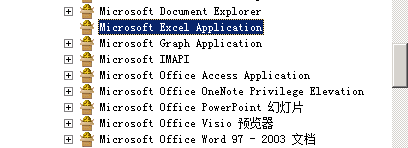
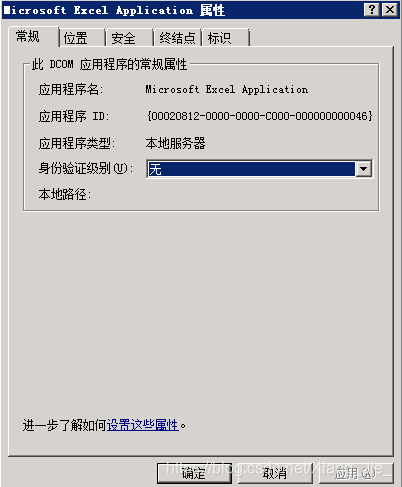
4). Find “Microsoft Excel application” in “DCOM configuration”, right-click it, and then click “properties”, The “Microsoft Excel application properties” dialog box will pop up
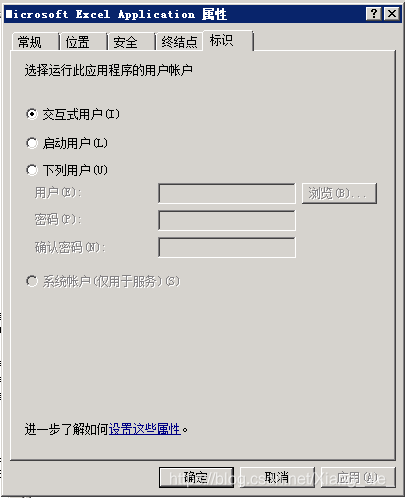
5). Click the “identity” tab and select “interactive user”
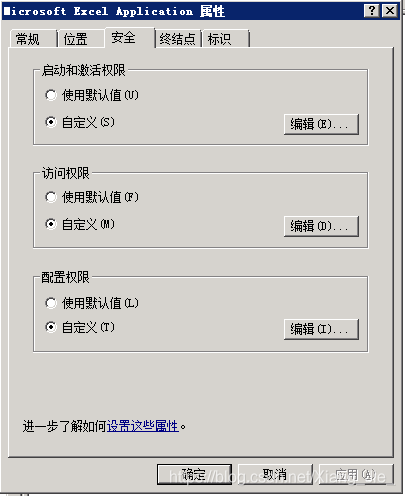
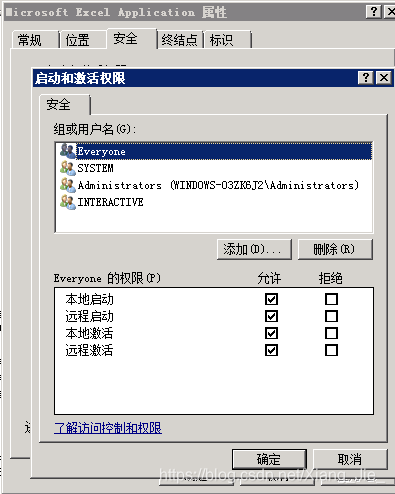
6). Click the “security” tab, click “custom” on the “start and activate permissions”, and then click the corresponding “Edit” button to fill in a “network service” user in the pop-up “security” dialog box, And give it the “local start” and “local activation” permissions
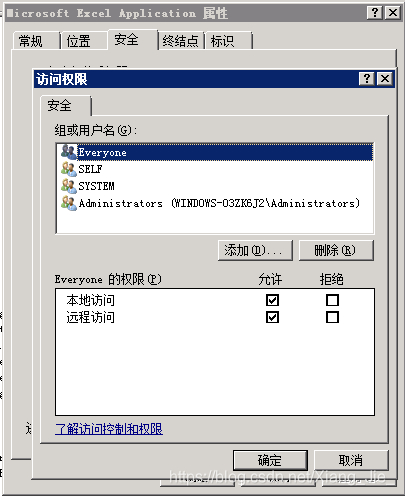
7). It is still the “security” label. Click “custom” on the “access permission”, and then click “Edit”. In the pop-up “security” dialog box, a “network service” user is also added, Then give “local access” permission.
the specific figure is as follows:
Exception from HRESULT: 0x80041FE2
Installation vs community version, new project appears:
Exception from HRESULT: 0x80041FE2Reasons for the problem:
when installing, the Linux related environment was selected. When creating the project, the visual c + + project was created, because these components were not installed, an error was reported
Creating Linux related projects will not.
Solution / error of. Net framework 4.0 installation failure HResult 0xc8000222 solution
When installing. Net framework 4.0, you will encounter the following error page,
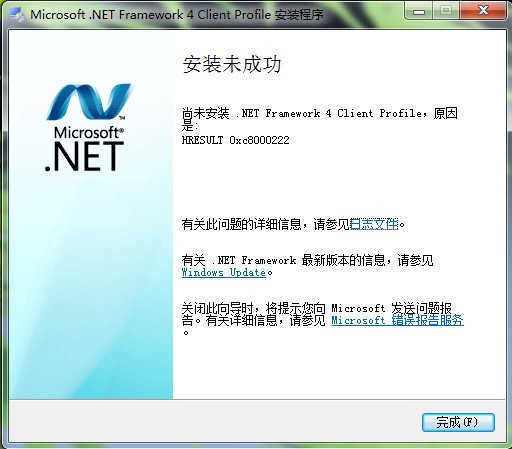
Next, I will post solutions for you
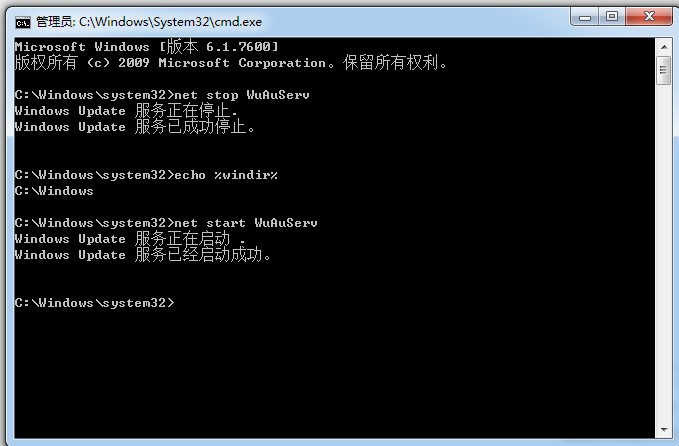
1. After inputting CMD in the start menu, the CMD command input window will pop up
2. Enter net stop wuauserv in the above CMD command line
3. Continue to enter echo% windir%
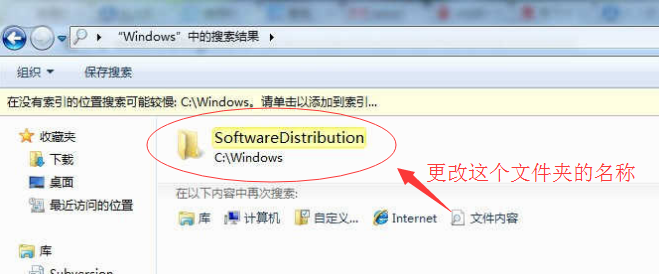
4. Change the name of the software distribution folder in the pop-up folder (usually C: Windows)
5. Continue to enter net start wuauserv
6. Install net4.0 again and it will be successful
//If you think the above command is troublesome, you can paste and copy it to the CMD window with the mouse
Pyspark36830;- 25509;- Postgresql38169; java.lang.ClassNotFoundException: org.postgresql.Driver
How to connect pyspark with PostgreSQL
Method 1: the PostgreSQL jar package placed in the spark2/jars path does not work. (error)
Method 2: setting spark. Conf. set in spark. Conf. set (‘spark. Jars’, ‘/ usr/HDP/3.0.1.0-187/spark2/jars/postgresql-42.2.5. Jar’) does not work. (error)
Solution
When starting pyspark, add parameters after it
pyspark –jars / usr/hdp/3.0.1.0-187/spark2/jars/postgresql-42.2.5.jar
That’s fine
Used by: Java. Lang. classnotfoundexception: org. PostgreSQL. Driver
Always report an error saying that failed by: Java. Lang. classnotfoundexception: org. PostgreSQL. Driver
After a series of searching to find out the reasons, such as the quotation in the box is wrong, I can’t quote what I need;
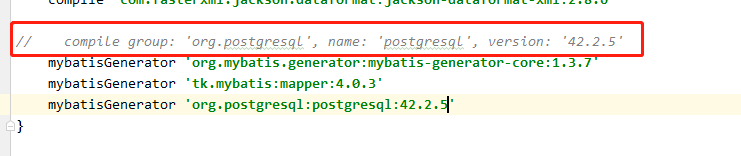
Only the writing method as shown in the figure below can be quoted successfully,

In memory of the time I’ve been tossing about, it’s also a small lesson of using gradlew for the first time
Sending ‘const NSString *__strong‘ to parameter of type ‘NSString *‘ discards qualifiers
String value encountered a warning message, record it
Sending 'const NSString *__strong' to parameter of type 'NSString *' discards qualifiers
The code is written like this
UIKIT_EXTERN const NSString * kNetworkType;
This warning will be issued when using it, and it will be changed to:
UIKIT_EXTERN NSString * const kNetworkType;
If const is placed after nsstring *, there will be no warning.
Causes and solutions of nm test o file format not recognized
Recently, I wrote makefile, Encountered the error nm: test. O: file format not recognized. Let’s see:
test.h:
void output();test.cpp:
#include <stdio.h>#include "test.h"void output(){ printf("c is good\n");}compile:
xxxxxx:~/mkfile> g++ -c test.cpp test.h -o test.oxxxxxx:~/mkfile> nm test.onm: test.o: File format not recognizedxxxxxx:~/mkfile>Strange, isn’t it?The reason is that there are too many test. H files. There is no need at all. The compiler will find them automatically as long as you specify the directory. If you change the order of test. H and test. CPP, you will be prompted:
xxxxxx:~/mkfile> g++ -c test.h test.cpp -o test.og++: cannot specify -o with -c or -S with multiple filesxxxxxx:~/mkfile> We have already said that.
It seems that when there is – O, you can go to – C to specify multiple files, which is a huge pit.
Let’s share my teacher Dashen’s AI course. Zero base! Easy to understand! Funny! And yellow jokes! Hope you can join our AI team! https://blog.csdn.net/jiangjunshow
Solution to the problem of GCC file format not recognized
When compiling a Linux program, if there is an error:
“File format not recognized” In general, XXX. O in makefile If it is wrongly written as XXX. C, it can be corrected.
Typeerror: write() argument must be STR, not bytes and the method of writing binary file in Python 3
Python 2 writes binary file randomly:
with open('/python2/random.bin','w') as f:
    f.write(os.urandom(10))
However, using Python 3 will report an error:
TypeError:must be str, not bytesThe reason is: Python 3 adds a new parameter named encoding to the open function, and the default value of this new parameter is “UTF-8”. In this way, when the read and write operations are carried out on the file handle, the system requires the developer to pass in the instance containing Unicode characters instead of the byte instance containing binary data.
resolvent:
Use binary write mode (“WB”) to open the file to be operated, instead of using character write mode (“W”) as before.
The method of adapting both Python 3 and python 2 is as follows
with open('python3/rndom.bin','wb') as f:
    f.write(os.urandom(10))
There is a similar problem when the file reads data. The solution to this problem is similar: open the file in ‘RB’ mode (binary mode) instead of ‘R’ mode.
Typeerror: write() argument must be STR, not bytes and the method of writing binary file in Python 3
Python 2 writes binary file randomly:
with open('/python2/random.bin','w') as f:
    f.write(os.urandom(10))
However, using Python 3 will report an error:
TypeError:must be str, not bytesThe reason is: Python 3 adds a new parameter named encoding to the open function, and the default value of this new parameter is “UTF-8”. In this way, when the read and write operations are carried out on the file handle, the system requires the developer to pass in the instance containing Unicode characters instead of the byte instance containing binary data.
resolvent:
Use binary write mode (“WB”) to open the file to be operated, instead of using character write mode (“W”) as before.
The method of adapting both Python 3 and python 2 is as follows
with open('python3/rndom.bin','wb') as f:
    f.write(os.urandom(10))
There is a similar problem when the file reads data. The solution to this problem is similar: open the file in ‘RB’ mode (binary mode) instead of ‘R’ mode.
Reproduced in: https://www.cnblogs.com/circleyuan/p/10350202.html
DB: the solution of table already exist when migrating
When running rake DB: migrate, you sometimes find an error in rake abort. Rake says that a table already exists, so it can’t do the work of this migrate. This table does exist, so how can rake skip this table or force it to be overridden?There is one area that needs to be modified:
Original migrate file:
Ruby code
- class CreateProducts & lt; ActiveRecord::Migration def self.up create_ table : products do | t| t.column : title, : string t.column : description, : text t.column : image_ url, : string end end def self.down drop_ table : products end end
Modified migrate file:
Ruby code
- class CreateProducts & lt; ActiveRecord::Migration def self.up create_ table : products, : force =& gt; true do | t| t.column : title, : string t.column : description, : text t.column : image_ url, : string end end def self.down drop_ table : products end end
Do you see that in create_ In the parameter of table, add: force = & gt; True.
(transfer) using Wireshark package capture software to prompt the NPF driver isn’t running solution
Wireshark is a powerful packet capture analysis tool. When it is first used on win7/10 64 bit system, unexpected situations may occur. The NPF driver isn’t running. This may be because WinPcap driver is not installed or WinPcap option is not selected when WinPcap is installed.
resolvent:
- WinPcap is not installed. Generally, there is an installation package with WinPcap in the installation directory of Wireshark. The installation package of the green version of Wireshark is usually in the following location: wiresharkportable/APP/Wireshark/WinPcap_ x_ x_ x.exe。 Run the installation once, and then restart the system. Note that there is an auto start option to be selected during the installation process. Otherwise, you may need to manually start the NPF driver every time you use Wireshark. If the installation of WinPcap is wrong, please try to uninstall WinPcap first, and restart the system after the uninstall is completed. If there is a file locking error during the uninstall process, you do not need to pay attention to it. When you restart the computer and re install WinPcap, you may be prompted that WinPcap has been installed in your system. You don’t need to worry about it. Just continue to install it. After the installation, restart the system so that Wireshark can be used normally
3. None of the above two situations can be solved. First, you need to confirm whether the NPF service has been installed in the system correctly. First, you need to confirm whether the npf.sys file exists in the folder C: windows?System32?Drivers. If the file does not exist, please re install WinPcap. If the file exists, then run CMD (win7/Vista user needs to press start, input CMD search, right-click the icon of cmd.exe in the search program results, and select run as administrator.
3.1 enter the command to query whether the NPF service is installed
C:\Windows\system32> sc qc npf
[SC] QueryServiceConfig SUCCESS
SERVICE_ NAME: npf
TYPE : 1 KERNEL_ DRIVER
START_ TYPE : 2 AUTO_ START
ERROR_ CONTROL : 1 NORMAL
BINARY_ PATH_ NAME : system32\drivers\npf.sys
LOAD_ ORDER_ GROUP :
TAG : 0
DISPLAY_ NAME : NetGroup Packet Filter Driver
DEPENDENCIES :
SERVICE_ START_ Name:
with the above results, the output is normal. If not, re install WinPcap and try again.
3.2 start NPF service manually:
C:\Windows\system32> SC start NPF
if there is no error prompt, Wireshark can be used normally.
3.3 if start in the query result of NPF service_ The value of type is not auto_ If you want to start, you don’t want to run the NPF driver manually every time. You can use the following command to change the NPF service to start automatically.
C:\Windows\system32> sc config npf start= auto
The source text of the post is from the website
and http://blog.sina.com.cn/s/blog_ 718ccdb90102uzqr.html