Author Archives: Robins

R language: How to Solve DMwR Install Error

If the code is

install.packages("DMwR")

That may be the version of the installation package. Change to

install.packages("DMwR2")

want a go. The same is true when importing

library("DMwR2")

Specific process of error correction:

At first, I thought that the version of rstudio was not new enough. After updating rstudio, I found that it still couldn’t; Download rtools again, or report an error

The installation code of dmwr is as follows

install.packages("DMwR")

Error display

Warning in install.packages :
package ‘DMwR’ is not available for this version of R

A version of this package for your version of R might be available elsewhere,
see the ideas at
https://cran.r-project.org/doc/manuals/r-patched/R-admin.html#Installing -packages

(in fact, there is another error when downloading rtools and updating rstudio, but there is no screenshot,

Rtools is required to build R packages, but is not currently installed

Then try to change the installed image, Download rtools and update rstudio, and the error message becomes the above one)

I found the dmwr2 package by chance. I tried it and downloaded it successfully.

It is recommended to try dmwr2 first. If not, you can update rstudio and install rtools
Linux: How to Solve sudo operate Error

Here, I need to install a driver on the server. When using sudo command, the following error is reported
XXX (user name) is not in the sudoers file. This incident will be reported.
it should be noted that my user is not a super administrator user, but a new ordinary user developed by the super administrator user, The reason why the above error is reported is that this user is an ordinary user and does not have operation permissions on the operating system. Here, the super administrator needs to add top-level permissions to ordinary users in the configuration file sudoers. The operations are as follows:

1. Switch to root, directly enter Su in terminator, and then prompt for the password. The password here is the login password of super administrator

2. The/etc/sudoers file is read-only by default for all users (including the root user), so you need to add write permission to the sudoers file. The command is: CHMOD U + W/etc/sudoers

3. Edit the sudoers file VI/etc/sudoers
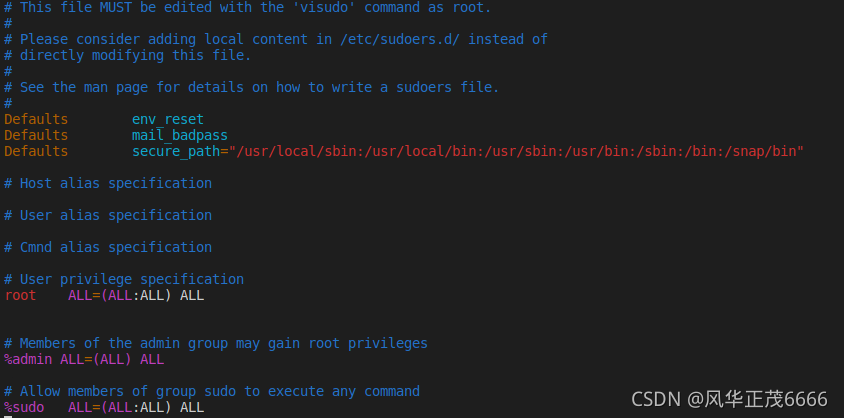
the sudoers file is as follows
find this line root all = (all) all, and add XXX all = (all) all (XXX here is your user name)

PS: Here you can add any of the following four lines to sudoers

youuser ALL=(ALL) ALL
%youuser ALL=(ALL) ALL
youuser ALL=(ALL) NOPASSWD: ALL
%youuser ALL=(ALL) NOPASSWD: ALL

Line 1: allow user youuser to execute sudo command (password required).
line 2: allow users in user group youuser to execute sudo command (password required).
line 3: allow user youuser to execute sudo command without entering password.
line 4: allow users in user group youuser to execute sudo command, And do not enter the password when executing

4. Revoke sudoers file write permission. Command:

chmod u-w /etc/sudoers

Android studio does not prompt error messages [How to Solve]

Solution

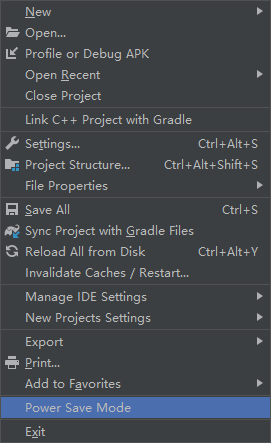
1.After the as is upgraded, it is set to the power saving mode by default. If it is set to the power saving mode, the as will disable many auxiliary functions to achieve the purpose of power-saving. Therefore, automatic code prompt and error prompt are also prohibited.

Turn off power saving mode: File—> Remove the tick √ in front of power save mode

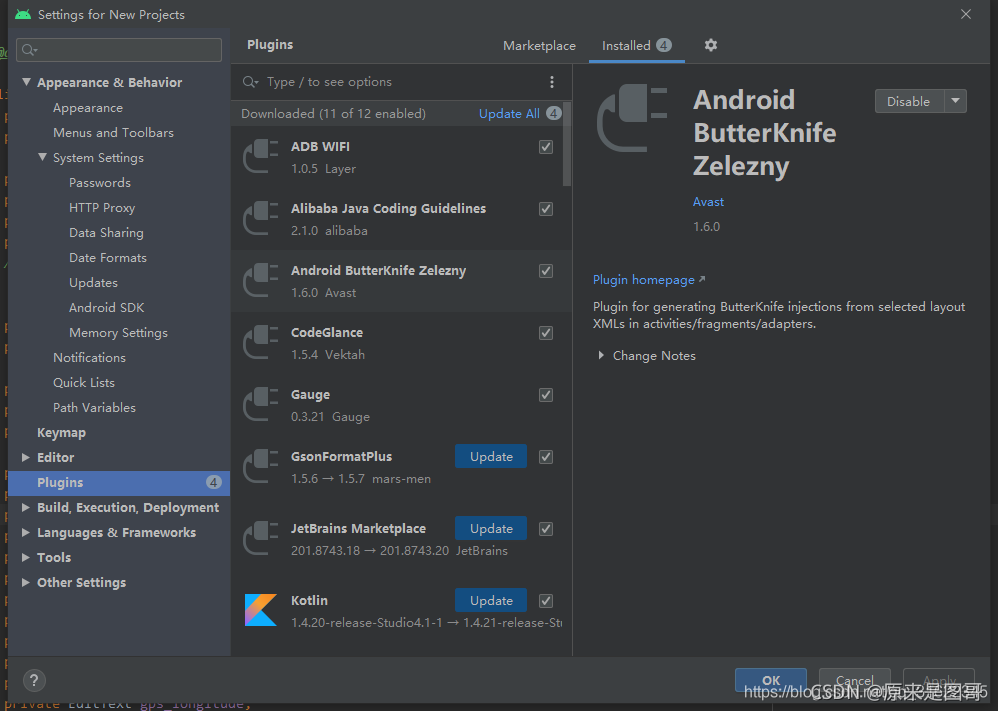
2.Your Android studio has installed the plug-in of butterknife. Open file — > Setting—> Plugins—> Find butterknife — > Right-click uninstall delete to uninstall and restart it. After restarting studio, open the project. It’s ok because now butterknife is no longer used. It is recommended to use viewbinding.

[Solved] Vue calls style loader error: Module build failed: CssSyntaxError

Vue uses style loader to add CSS style to Dom and reports an error

ERROR in ./src/css/normal.css
Module build failed: CssSyntaxError

(1:1) Unknown word

> 1 | var content = require("!!./normal.css");
    | ^
  2 | 
  3 | if (typeof content === 'string') {

 @ ./src/main.js 11:0-27
npm ERR! code ELIFECYCLE
npm ERR! errno 2
npm ERR! [email protected] build: `webpack`
npm ERR! Exit status 2
npm ERR!
npm ERR! Failed at the [email protected] build script.
npm ERR! This is probably not a problem with npm. There is likely additional logging output above.

The loader sequence you configured in the webpack.config.js file may be wrong
original code

const path=require('path')
module.exports={
  entry: './src/main.js',
  output: {
    path:path.resolve(__dirname,'dist'),
    filename:'bundle.js'
  },
  module: {
    rules: [
      {
        test: /\.css$/,
        use: ['css-loader','style-loader']
      },

    ]
  }
}

Code after modification

const path=require('path')
module.exports={
  entry: './src/main.js',
  output: {
    path:path.resolve(__dirname,'dist'),
    filename:'bundle.js'
  },
  module: {
    rules: [
      {
        test: /\.css$/,
        use: ['style-loader','css-loader']
      },

    ]
  }
}

This is because when multiple loaders are configured, the program is read from right to left

Sqoop connection gbase data error [How to Solve]

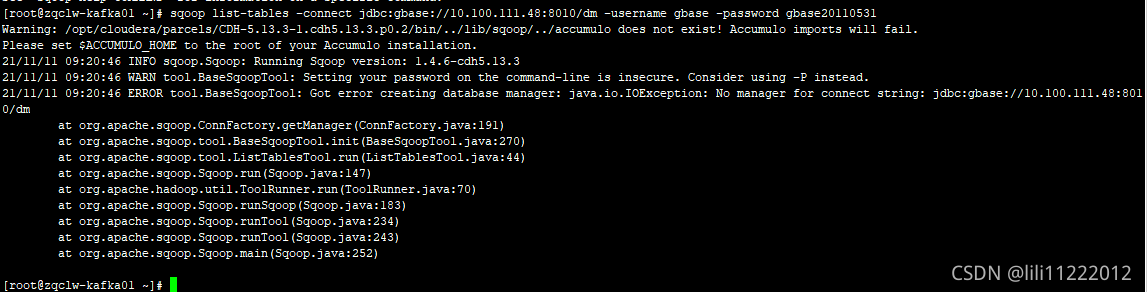
1. When sqoop accesses the gbase database through the command, the connection error is as follows:;

Just add the — driver parameter to the command

sqoop list-tables -connect jdbc: gbase://10.100.111.48:8010/dm -Driver com.gbase.jdbc.driver – username gbase – password gbase2010531
run successfully!

Solutions to errors in virtual machine running in Android studio

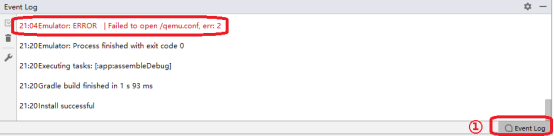
When starting the virtual machine in Android studio, there may be an error message in the “event log” of the main interface. At this time, the virtual machine can still run.

1. Solution to failed to open/qemu.conf

“Emulator: error | failed to open/qemu.conf, err: 2” (Figure 1 ②) is displayed in “event log” (Figure 1 ①), and the error message is “failed to open qemu.conf file”.

1.1 qemu.conf file

QEMU is a set of simulation software that can simulate another set of operating system in Windows operating system. Because it can simulate a virtual CPU in the system, and then hand over the operating system to be simulated to the virtual CPU for processing, it can achieve the purpose of executing two operating systems on the same platform at the same time.

Qemu.conf is the configuration file of Android studio virtual machine. When the virtual machine starts, you need to read the information of the configuration file. By default, the configuration file is in the root directory of drive C.

1.2 solutions

Create qemu.conf file in the root directory of drive C. First, open “this computer” on the desktop, click “view” in the toolbar (Figure 2 ①), and then select “file extension” (Figure 2 ②). The purpose of this operation is to display the file extension so that the file extension is changed to “conf”.


Figure 2 shows the file extension

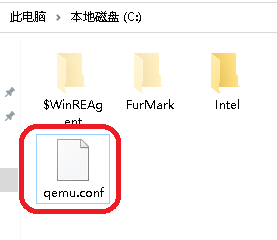
Then, create a new text file in the root directory of drive C and rename it “QEMU. Conf”, as shown in Figure 3.

Figure 3 qemu.conf file

Run the simulator again at this time, and the above error prompt will not appear again.

2. Solution to unexpected system image feature string

When the simulator is running, “emulator: warning | unexpected system image feature string. Emulator may not function correctly.please try updating the emulator” is displayed in “event log”. The prompt means “unexpected system image feature string. The virtual machine may not work properly. Please update the virtual machine.”


Figure 4 warning message

For such error messages, you can lower the API level of the virtual machine. For example, if the API level of the current virtual machine is 30 and the above warning information will be displayed, delete the virtual machine and create a virtual machine with API level 29, as shown in Figure 5.


Figure 5 virtual machine API level  


Redis Stand-alone Builds a Master-slave Copy Error [How to Solve]

Premise: connect Huawei ECS purchased by individuals on the xshell platform, install redis, and build a master-slave replication architecture on a single machine

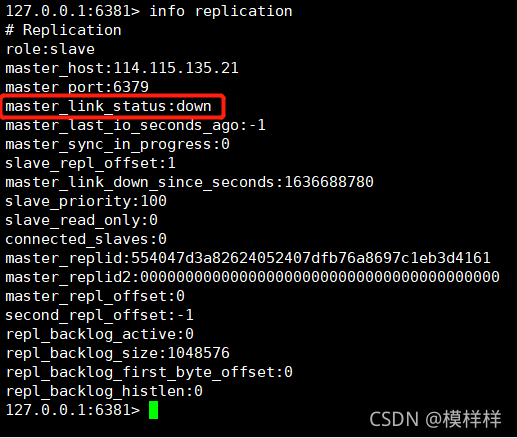
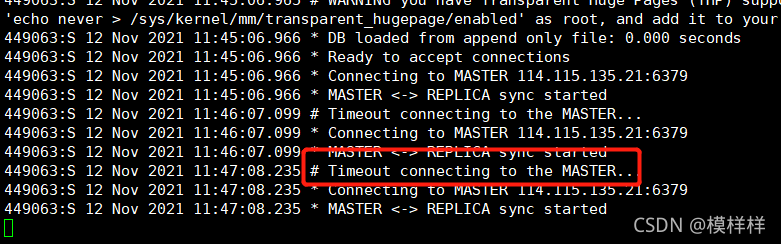
Problem: after the setup is completed, start the slave node. The slave node Ping the master node succeeds, but the master status is displayed as down, and the background log prompts that the connection times out. As shown below:

Solution:

1. Check the configuration of the slave node: is replicaof correct.

It should be configured as the IP of Linux and the redis port of the master node

2. Check whether the master node is configured with a password. If so, the slave node also needs to be configured with a password

3. Check whether the Ping configuration of the primary node configures a single non own IP. If so, comment it out or change it to 0.0.0.0

4. Check whether the firewall is on. There are two types of firewalls

1. Iptables firewall

View firewall service iptables status     If this firewall is not installed, the query will fail.

Stop firewall   service iptables stop

Turn on the firewall   service iptables start

service iptables restart   service iptables restart

Permanently turn off the firewall   chkconfig iptables off

Restart firewall after permanent shutdown   chkconfig iptables on

2.Firewall firewall

View firewall service status   systemctl status firewalld

Turn off firewall   service firewalld stop

View firewall rules   firewall-cmd --list-all

Permanently open 80 ports   firewall-cmd --permanent --add-port=80/tcp

service iptables restart  firewall-cmd --reload (restart after modifying firewall configuration)

4. After I tried the above, I still reported the same error. Finally, I found that the IP configuration of my slave node replicaof was wrong. I mistakenly thought that the IP connected to xshell was the Linux IP I should configure. Who knows, I actually need to use my local IP 127.0.0.1

[Solved] NVIDIA driver error: NVIDIA-SMI has failed because it couldn’t communicate with the NVIDIA driver…

NVIDIA driver error reporting solution

Command line input

nvidia-smi

report errors:

NVIDIA-SMI has failed because it couldn’t communicate with the NVIDIA driver. Make sure that the latest NVIDIA driver is installed and running

Solution 1:

Don’t rush to reinstall the NVIDIA driver. First check whether the security boot is disabled in the BIOS. If not, please enter the BIOS to disable the security boot!

Solution 2:

Confirm that the security boot is disabled, and then follow the online method:

    enter the Ubuntu advanced option and select the previous kernel version. If the previous method doesn’t work, reinstall the NVIDIA driver

Linux: How to Solve Rabbitmq Plug-in Install Error

After rabitmq is installed normally, rabbitmq server starts normally, but rabbitmq_ The management plug-in failed to start and reported an error:

rabbitmq-plugins enable rabbitmq_management
{:query, :rabbit@web101, {:badrpc, :timeout}}

Solution:
add the Linux host number and host name at the end of the hosts file
method: VI/etc/hosts
Edit by I
host number host name
for example: 192.168.1.1 localhost (fill in your own here)
after adding: WQ save exit
at this time, you can view the rabbitmq plug-in

After rabbitmq is started and the plug-in is also enabled, the page cannot be accessed
the firewall may not be closed

Solution: turn off the Linux firewall

(1) Set boot enable firewall: systemctl enable firewalld.service

(2) Set boot disable firewall: systemctl disable firewalld.service

(3) Start firewall: systemctl start firewalld

(4) Turn off the firewall: systemctl stop firewalld

(5) Check firewall status: systemctl status firewalld

[Solved] GP tool Call Error: ERROR 000824: The tool is not licensed.

Error reporting when calling GP tool

Last week, I wrote the code to call the two GP under esri.arcgis.datamanagementtools: createenterpriseodatabase and enableenterprise Geodatabase, that is, to create an enterprise database and convert the database into an enterprise database, but there are always errors. The error contents are as follows:

Executing: EnableEnterpriseGeodatabase
Start Time: Mon Nov 15 14:19:41 2021
Failed to execute. Parameters are not valid.
ERROR 000824: The tool is not licensed.
Failed to execute (EnableEnterpriseGeodatabase).
Failed at Mon Nov 15 14:19:41 2021 (Elapsed Time: 0.00 seconds)

When I manually execute the tool by using the tool in the toolbox provided by ArcGIS, the execution is successful. The execution parameters are as like as two peas, but the code execution is not a problem. Later, it was found that it was an authorization problem. The following permission initialization code was added to the code constructor or loading event. The problem was solved perfectly.

ESRI.ArcGIS.RuntimeManager.BindLicense(ESRI.ArcGIS.ProductCode.EngineOrDesktop, ESRI.ArcGIS.LicenseLevel.GeodatabaseUpdate);