Tag Archives: python

Error encountered while executing PIP install: error: complete output from command Python setup.py egg_ info:

An error encountered while implementing PIP install:
~]# PIP install-u docker-compose

 .................
 ERROR: Complete output from command python setup.py egg_info:
 ERROR: Traceback (most recent call last):
  File "<string>", line 1, in <module>
  File "/tmp/pip-install-XPRUHU/pycparser/setup.py", line 65, in <module>
    cmdclass={'install': install, 'sdist': sdist},
  File "/usr/lib64/python2.7/distutils/core.py", line 112, in setup
    _setup_distribution = dist = klass(attrs)
  File "/usr/lib/python2.7/site-packages/setuptools/dist.py", line 269, in __init__
    _Distribution.__init__(self,attrs)
  File "/usr/lib64/python2.7/distutils/dist.py", line 287, in __init__
    self.finalize_options()
  File "/usr/lib/python2.7/site-packages/setuptools/dist.py", line 302, in finalize_options
    ep.load()(self, ep.name, value)
  File "/usr/lib/python2.7/site-packages/pkg_resources/__init__.py", line 2341, in load
    return self.resolve()
  File "/usr/lib/python2.7/site-packages/pkg_resources/__init__.py", line 2351, in resolve
    raise ImportError(str(exc))
 ImportError: 'module' object has no attribute 'check_specifier'
 ----------------------------------------
ERROR: Command "python setup.py egg_info" failed with error code 1 in /tmp/pip-install-XPRUHU/pycparser/

The solution is to simply update setuptools and PIP:
~]# PIP install –upgrade setuptools & & python -m pip install –upgrade pip

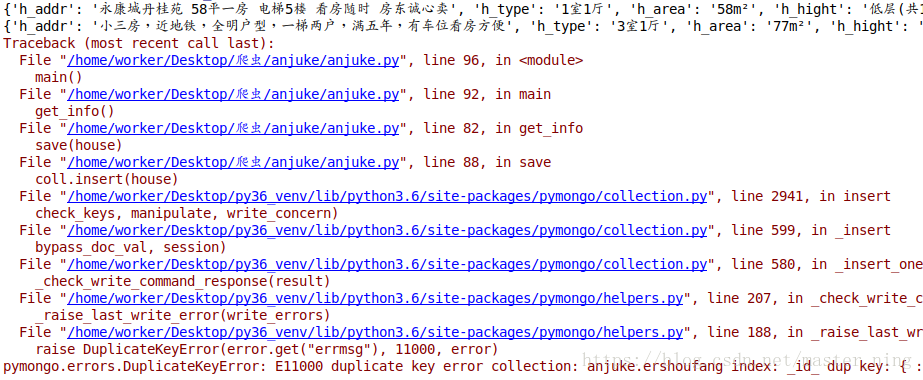
pymongo.errors.DuplicateKeyError: E11000 duplicate key error collection: anjuke.ershoufang index

This bug kept me busy all afternoon and a night, and finally I ko it
Attach a section of crawling to take anjuke second-hand housing information code
Re
import time
import pymongo
import requests
from bson import ObjectId
from LXML import etree
from pprint import pprint
headers = {
“user-agent “: “Mozilla/5.0 (X11; Linux x86_64) AppleWebKit/537.36 (KHTML, like Gecko) Chrome/66.0.3359.139 Safari/537.36”,
“cookie”: “aQQ_ajkguid= 243e5d558-8b13-d7bd-4922-3de583e03855; ctid=11; _ga = GA1.2.1030980732.1530799904; _gid = GA1.2.506397644.1530799904; 58tj_uuid=c606f59a-2fb9-4c91-9815-741fdf9cfe5d; als=0; lps=http%3A%2F%2Fwww.anjuke.com%2F%3Fpi%3DPZ-baidu-pc-all-biaoti%7Chttps%3A%2F%2Fwww.baidu.com%2Fs%3Fie%3Dutf-8%26f%3D8%26rsv_bp%3D0%26rsv_idx%3D1%26tn%3Dbaidu%26wd%3D%25E5%25AE%2589%25E5%25B1%2585%25 E5%25AE%25A2%26rsv_pq%3Dd71198bd000395ca%26rsv_t%3D6172VDlcx2zzRQ%252FLyCdcEidtafr%252BSvVyVXrlZ0lsK3U1MEz8066IF4byz4c%26rqlang%3Dcn%26rsv_enter%3D1%26rsv_sug3%3D5%26rsv_sug1%3D5%26rsv_sug7%3D101; twe=2; sessid=3497C1D2-43A8-6143-B2D7-CFDA33FF0C0E; new_uv=2; __xsptplus8 7 c = 8.2.1530840314.1530840335.2%232%7Cwww.baidu.com % % 7 c % 7 c % 25 e5%25 ae b1%2585% % 2589% % 25 e5 25 25 e5%25 ae % 25 a2%23 z7v3xnqldcxthemliqlxqslhvxrh8k_r 7 c % 23% % 23 “,
“referer” : “https://shanghai.anjuke.com/?PI = pz-bid-pc-all-biaoti “
}

# connect to database
client = pymongo.MongoClient(‘127.0.0.1’, 27017)
# define database name
db = client.anjuke
# define table name
coll = db.ershoufang

def get_info():
count = 0
for I in range(23):

response = Requests. The get (‘ # https://shanghai.anjuke.com/sale/p {}/filtersort ‘. The format (I), headers = headers)

item = response. The text

# print (item)
# use etree. HTML, The string into an HTML document.
HTML = etree HTML (item)
HTMLS = HTML. The xpath (‘// * [@ id = “houselist – mod – new”]/li ‘)
# print (HTMLS)

house = {}
for h in HTMLS:
h_addr = h.x path (‘/div [2]/div [1]/a/text () ‘) [0]. The strip ()
h_type = h.x path (‘/div [2]/div [2]/span [1]/text () ‘) [0]. The strip ()
h_area = H.x path (‘/div [2]/div [2]/span [2]/text () ‘) [0]. The strip ()
h_hight = h.x path (‘/div [2]/div [2]/span [3]/text () ‘) [0]. The strip ()
h_name = H.x path (‘/div [2]/div [2]/span [4]/text () ‘) [0]. The strip ()
try:
h_youshi1 = h.x path (‘/div [2]/div [4]/span [1]/text () ‘) [0]. The strip ()
the except:
H_youshi1 = None
try:
h_youshi2 = h.x path (‘/div [2]/div [4]/span [2]/text () ‘) [0]. The strip ()
the except:
h_youshi2 = None
try:
H_youshi3 = h.x path (‘/div [2]/div [4]/span [3]/text () ‘) [0]. The strip ()
the except:
h_youshi3 = None
h_price = H.x path (‘/div [3]/span [1]/strong/text () ‘) [0]. The strip ()

house [‘ h_addr] = h_addr
house [‘ h_type] = h_type
house [‘ h_area] = h_area
House [‘ h_hight] = h_hight
house [‘ h_name] = h_name
house [‘ h_youshi1] = h_youshi1
house [‘ h_youshi2] = h_youshi2
house [‘ h_youshi3] = h_youshi3
House [‘ h_price] = h_price
# pprint (house)
time. Sleep (0.01)

# coll. Insert (house)
save (house)
Count + = 1
print (count)

def save (house) :

coll. Insert (house)

def main () :
get_info ()

if __name__ = = “__main__ ‘:
The main ()
This code can only run two pieces of data,

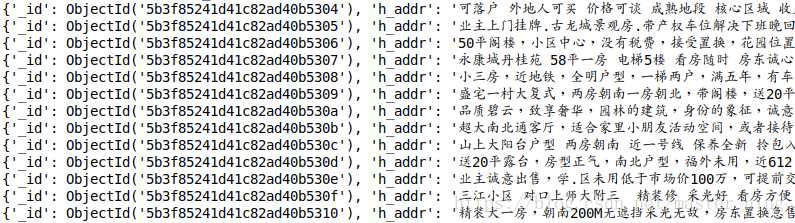
has two data sets, one with ‘_id’ and one without
There are two solutions:
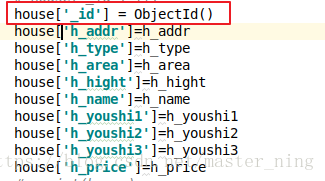
1. Add a ‘_ID’ into the program. Set the _ID field by yourself instead of the system assignment:

Program no problem:

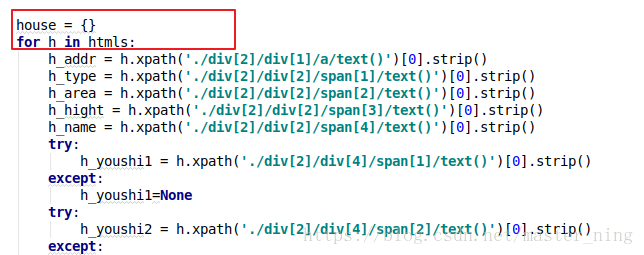
Two: put house={}, the dictionary inside the for loop:

Either of these approaches will solve the problem, and my personal suggestion is that the second approach, code specification, lets the system assign its own ID

Windowserror: [error 183] error and in Python os.raname () detailed explanation

When I used Python to iterate over files in a folder and rename them, the correct code sometimes incorrectly reported WindowsError[183].
【 183 】 — & gt; Indicates that a file cannot be created while it exists.

Os.rename (oldFilepath,newfilepath), this error is most likely because your new path newfilepath has duplicated a file in the current folder [183].
Solution: Find duplicate files named other, or give a non-duplicate name first, then os.rename(oldFilepath, newFilepath)
Get the name you want.
For a variety of WindowsError error code, can refer to the article: https://blog.csdn.net/qq_35221523/article/details/79214356

Jython installation

Jython installation is a bit bumpy
Jython installation small bumpy background software configuration installation process encountered problems in the last episode

Jython installation is a bit bumpy
background
Since Jython is required to use MonkeyRunner, let’s take a look at the bumps in the Android process.
Software configuration
Operating system: Windows 7 64-bit
Java version: 1.8.3
Python version: 2.7.8
The installation process
To get started, go to Jython’s official website and download the latest version of Jython, which comes in a.JAR.
in CMD directly with java-jar + jar command to install
Problems encountered
After using the latest version of Jython installation, an Error was reported in CMD, indicating Error loading python27.dll (Error code 14001). The search engine searched and found the reason on stackoverflow. Jython2.7.1 does not support Windows 7. You can only download version 2.7.0 or lower. You found 2.7.0 here and downloaded the JAR package.
is installed directly in CMD with the java-jar + jar command, as before.
error was reported again this time. The error was reported as follows:

Error: Registry key 'Software\JavaSoft\Java Runtime Environment'\CurrentVersion'
has value '1.8', but '1.7' is required.
Error: could not find java.dll
Error: Could not find Java SE Runtime Environment.

This does not need the search engine to know is Java is too high, alas, have no way, have to change the environment variable of the system Java in the computer to 1.7.
thought this would be fine,
did not expect, after changing the Java version to reinstall the same prompt, I wonder. I read the Java version in CMD with java-version, 1.7. Why not?Have no way, have to turn to search engine again. [results] (https://stackoverflow.com/questions/29697543/registry-key-error-java-version-has-value-1-8-but-1-7-is-required) found the answer in this: the reason is that in the system path, Windows\System32 or Windows\SysWOW64 there are java.exe, javaw.exe, javaws.exe0 these files are still 1.8.3.
in this case, I guess the cache, although the environment variable has changed, but the path has not been changed.
The last
Finally, it is installed successfully. To check whether it is installed, you need to configure the environment variable. jython.exe· the path is in the /bin file of the installation path. After configuring it, just like Python, enter jython ‘in CMD directly and see if it enters jython.
episode
When the installation failed at the beginning, I went to the official installation guide on the official website. Jar –help java-jar jythn-installer -2.7.1.jar –help
I found that -help or -help is very useful, sometimes do not know what command, you can type this parameter in the back, see if it is useful. “Hee hee”

usage:
       java -jar jython-installer-2.7.0.jar [-c | -s | -A] [-d dir] [-t type] [-i
       part(s)] [-e part(s)] [-v] [-h | -?]

No option at all will start the interactive GUI installer, except:
Options respected in GUI mode are 'directory', which serve as default values
in the wizard.
In non-GUI mode the following options are available:
 -c,--console             console based installation (user interaction)
                          any other options will be ignored (except 'verbose')
 -s,--silent              silent installation (without user interaction)
 -A,--autotest            automatic stress tests for the installer
                          most of the other options are ignored
                          allowed additional options: 'verbose
 -d,--directory <dir>     target directory to install to
                          (required in silent mode,
                          used as default in GUI mode)
 -t,--type <type>         installation type
                          one of the following types is possible
                          (see also include/exclude parts):
                          - all: everything (including src)
                          - standard: core, mod, demo, doc, ensurepip
                          standard is the default
                          - minimum: core
                          - standalone: install a single, executable .jar,
                          containing all the modules
 -i,--include <part(s)>   finer control over parts to install
                          more than one of the following is possible:
                          - mod: library modules
                          - demo: demos and examples
                          - doc: documentation
                          - src: java source code
                          - ensurepip: install pip and setuptools
 -e,--exclude <part(s)>   finer control over parts not to install
                          more than one of the following is possible:
                          - mod: library modules
                          - demo: demos and examples
                          - doc: documentation
                          - src: java source code
                          - ensurepip: install pip and setuptools
                          (excludes override includes)
 -v,--verbose             print more output during the installation
                          (also valid in GUI and autotest mode)
 -h,--help                print this help (overrides any other options)
 -?                      print this help (overrides any other options)

example of a GUI installation:
        java -jar jython-installer-2.7.0.jar

example of a console installation:
        java -jar jython-installer-2.7.0.jar -c

example of a silent installation:
        java -jar jython-installer-2.7.0.jar -s -d targetDirectory

examples of a silent installation with more options:
        java -jar jython-installer-2.7.0.jar -s -d targetDirectory -t minimum -i src
        java -jar jython-installer-2.7.0.jar -s -d targetDirectory -t standard -e demo doc -i src

example of an autotest installation into temporary directories:
        java -jar jython-installer-2.7.0.jar -A
        (uses java.awt.Robot; make sure you do NOT touch mouse NOR keyboard
         after hitting enter/return!)

In the end, I deliberately installed it without a graphical interface, using -C to install it with the console, and found that there were more options to choose than the graphical interface, so I won’t expand it here.
be interested in yourself to try.

.. ld: symbol(s) not found for architecture x86_64 collect2: ld returned 1 exit status make[2]: ***

2019 Unicorn enterprise heavily recruited Python engineer standard & GT; > >

./configure –prefix=/usr/local/nginx –with-http_ssl_module –with-http_stub_status_module –add-module=/usr/local/ngx_devel_kit-0.3.0 –add-module=/usr/local/ lua-nginx-Module-0.10.6 – add – the module =/usr/local/echo – nginx – module – 0.60
– with – cc – opt = “-i/usr/local/Cellar/pcre/8.39/include” – with – ld – opt = “-l/usr/local/lib/Cellar/pcre/8.39”
 
 
The e problem that had puzzled us for two days was finally solved.
Increase these two parameters
– with – cc – opt = “-i/usr/local/Cellar/pcre/8.39/include” – with – ld – opt = “-l/usr/local/lib/Cellar/pcre/8.39”
 

Reproduced in: https://my.oschina.net/cooler1217/blog/736886

Fatal Python error: Py_Initialize: unable to load the file system codec.

Fatal Python error: Py_Initialize: unable to load the file system codec. ImportError: No module named ‘encodings’
 
Problem description: when installing anaconda3 process nearing completion pop-up error Python interface, close not to finish after debugging, but at the end of the command line call Python times the above error, the solution is to find on your computer do you have any other versions of Python, if you have just uninstall deleted, or not to delete, but want to go to their corresponding environment path environment variable to delete, keep the latest installation.

pip install – PermissionError: [Errno 13] Permission denied

This error occurs when you run Anaconda and install SkLearn:

Windows 10 Python 3.6.0 Anaconda
The errors are as follows:

Exception:
Traceback (most recent call last):
  File "d:\anaconda3\lib\site-packages\pip\basecommand.py", line 209, in main
    status = self.run(options, args)
  File "d:\anaconda3\lib\site-packages\pip\commands\install.py", line 317, in run
    prefix=options.prefix_path,
  File "d:\anaconda3\lib\site-packages\pip\req\req_set.py", line 732, in install
    **kwargs
  File "d:\anaconda3\lib\site-packages\pip\req\req_install.py", line 835, in install
    self.move_wheel_files(self.source_dir, root=root, prefix=prefix)
  File "d:\anaconda3\lib\site-packages\pip\req\req_install.py", line 1030, in move_wheel_files
    isolated=self.isolated,
  File "d:\anaconda3\lib\site-packages\pip\wheel.py", line 344, in move_wheel_files
    clobber(source, lib_dir, True)
  File "d:\anaconda3\lib\site-packages\pip\wheel.py", line 322, in clobber
    shutil.copyfile(srcfile, destfile)
  File "d:\anaconda3\lib\shutil.py", line 115, in copyfile
    with open(dst, 'wb') as fdst:
PermissionError: [Errno 13] Permission denied: 'd:\\anaconda3\\Lib\\site-packages\\sklearn\\utils\\m
urmurhash.cp35-win_amd64.pyd'

Solution: Run as an administrator: Anaconda Prompt

A new problem arose after the problem was resolved, and when I tried to create a new Python,
Conda create –name py36 python=3.6
Error started again:

CondaHTTPError: HTTP None Nonefor url <None>

An HTTP error occurred when trying to retrieve this URL.
ConnectionError(MaxRetryError('HTTPSConnectionPool(host=\'repo.continuum.io\', p
ort=443): Max retries exceeded with url: /pkgs/free/win-64/repodata.json.bz2 (Ca
used by ReadTimeoutError("HTTPSConnectionPool(host=\'repo.continuum.io\', port=4
43): Read timed out. (read timeout=6.1)",))',),)

The cause of the error may be a problem with the domestic network connecting to foreign libraries, which may occur with the emergence of some major events.

The change method is to use the image of Tsinghua University as the default library to update, and write the following code under Prompt:

conda config --add channels https://mirrors.tuna.tsinghua.edu.cn/anaconda/pkgs/free/

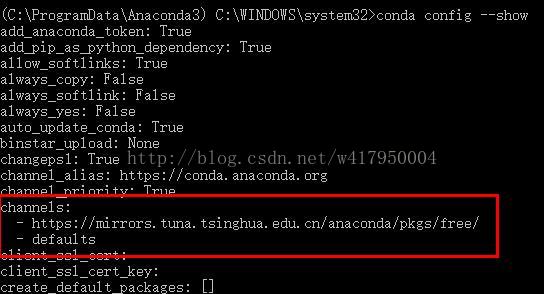
Then look at the configuration information using the conda config –show statement and you will find:

There’s an extra default.
Then update the package and it will be quick.

Postscript:
If the second question is still wrong after the first two, check out your firewall Settings.
Try closing the firewall.

Refer to the article: http://www.jianshu.com/p/2f3be7781451

After tensorflow installation, an error occurred while importing: importerror: DLL load failed: the specified module could not be found

(author: Chen freebie)
share a friend’s artificial intelligence tutorial. Zero basis! Easy to understand! Funny humor! And dirty jokes! You can see if it is helpful to your http://www.captainbed.net/luanpeng
Tensorflow can be installed via PIP or anaconda, but once installed, it runs in a Python script

import tensorflow as tf

ImportError: DLL Load failed: : It failed to find the specified module.
Three solutions were tried:
1) Besides TensorFlow, tensorFlow-GPU should be installed
Later, I learned that the tensorFlow-GPU was installed mainly for acceleration, and the installation did not solve this problem.
2) The second is to uninstall and reinstall
So I upgraded the PIP, uninstall tensorflow by PIP uninstall tensorflow, and then reinstall it by PIP install tensorflow, but still couldn’t solve the problem.
3) Three said to update the pillow
Pillow is an image processing library in Python, which comes with Anaconda. But maybe because Pillow’s version is older, you need to update it.

conda uninstall pillow
conda update pip
pip install pillow

Through the above three lines of commands, first uninstall the PILLOW in Anaconda, then update the PIP, and then install the latest PILLOW through the upgraded PIP. The problem is solved. Hey, it is also amazing that the Python package conflicts with TensorFlow… However, the installation of strange problems are mostly version problems, can only check the version, but most of the time is to upgrade, and sometimes to downgrade is more headache.
Resources:
https://blog.csdn.net/blueheart20/article/details/79612985

Pandas memory error

Problem description
I will use pandas to process data, which is known to all children’s shoes related to data processing. Read in from CSV file with a pd.read_csv, and then play as you like. Recently, when I was doing data preprocessing, I encountered a headache. Every time the program was executed to pd. Read_csv is always reported to memory error. Finally all kinds of search stackoverflow, finally find the crux:
Replace Python with X64
Yes, it’s as simple as that!
Attached to the
As anyone who has ever used Pandas knows, it is impossible to install Pandas in WIN without any trouble. With all kinds of dependence and the disgusting network in China, it may not be so easy to change Python into X64. Please don’t be impatient, and here comes the magic device:
Please use Anaconda, select an X64, download and install it directly, graphically, install the python X64 version with a full set of data analysis package, of course, there is a Python X64 version with ipython and other tools, not malicious, and even strongly recommend the first time you install Python directly to use this.
The end

Importerror of Django error: no module named**

There was a problem testing Django today, and I was badly burned.

D:\pythonCode\django\mysite>django-admin.py startproject mysite

And then I’m going to create my APP, which I’m going to call MB

python manage.py startapp mb

The directory structure is as follows:

D:.
│  manage.py
│
├─mb
│      admin.py
│      models.py
│      models.pyc
│      tests.py
│      views.py
│      __init__.py
│      __init__.pyc
│
└─mysite
        settings.py
        settings.pyc
        urls.py
        wsgi.py
        __init__.py
        __init__.pyc

For testing, I created a very simple model
Modify the MB – & gt; Models.py, with only one field

from django.db import models

# Create your models here.
class Test(models.Model):
    testField = models.TextField()

 
Modify the mysite – & gt; settings.py

INSTALLED_APPS = (
    'django.contrib.admin',
    'django.contrib.auth',
    'django.contrib.contenttypes',
    'django.contrib.sessions',
    'django.contrib.messages',
    'django.contrib.staticfiles',
    'mysite.mb',
)

Note: This is where I want the database to be set to

DATABASES = {
    'default': {
        'ENGINE': 'django.db.backends.sqlite3',
        'NAME': 'D:\\test.db',
    }
}


When performing database tests

manage.py sql mb

Error message:

ImportError: No module named mb

Well, I set it in Settings.py, why don’t I have this model?
 
I don’t know, Baidu, will mysite-> Settings. Py

INSTALLED_APPS = (
    'django.contrib.admin',
    'django.contrib.auth',
    'django.contrib.contenttypes',
    'django.contrib.sessions',
    'django.contrib.messages',
    'django.contrib.staticfiles',
    'mb',
)

This time, there it is

BEGIN;
CREATE TABLE "mb_test" (
    "id" integer NOT NULL PRIMARY KEY,
    "testField" text NOT NULL
)
;

COMMIT;

 
It looks like a success, but why?For explanation.