Python installation of third-party libraries reported an error: “these packages do not match the hashes from the requirements file.”

Problem: an error “these packages do not match the hashes from the requirements file” appears when installing the third-party library

Reason: the download error is usually caused by the network speed problem, resulting in the corresponding hash value does not match.

Solution: when pip is needed, add the “- upgrade” parameter. Usually, the download will report an error timeout at this time, so adding a “- default timeout = 100000” is more secure (the value of timeout can vary according to the situation).

pip install --upgrade --default-timeout=100000 packagename

Later, when installing pyqt5, I encountered the same problem. I still reported an error by using the above method. After using the online method, I solved the problem

# Install pyqt5
pip install PyQt5 -i https://pypi.douban.com/simple
# Install pyqt5-tools
pip install PyQt5-tools -i http://pypi.douban.com/simple --trusted-host=pypi.douban.com
Error in activation of Navicat premium register

Error in activating Navicat with registration machine

Version: Navicat premium 15

Error on decrypt rrequestf code

Processing: disconnect the network and reload Navicat (delete the registry according to the situation)

It is installed on Disk C by default (installation on disk D may not succeed, when the activation code is returned)

Results: it was successful

Springboot: start error reporting after introducing paging plug-in PageHelper

The main errors are as follows:

org.springframework.beans.factory.BeanCreationException: 
Error creating bean with name 'com.github.pagehelper.autoconfigure.PageHelperAutoConfiguration': 
Post-processing of merged bean definition failed; nested exception is java.lang.IllegalStateException: Failed to introspect Class [com.github.pagehelper.autoconfigure.PageHelperAutoConfiguration] from ClassLoader [sun.misc.Launcher$AppClassLoader@764c12b6]

The solution is to change the version of PageHelper to 1.2.3:1

	<dependency>
           <groupId>com.github.pagehelper</groupId>
           <artifactId>pagehelper-spring-boot-starter</artifactId>
           <version>1.2.3</version>
      </dependency>

Note: the spring boot used is version 2.1.2

Springboot startup exception: error creating bean with name ‘permissioncontroller’

Springboot + springdatajpa startup exception: org.springframework.beans . factory.UnsatisfiedDependencyException : Error creating bean with name ‘permissionController’

Error reason: the interface name of springdatajpa does not match the corresponding field in the database

Modify the PID field in the database table to parent_ After the ID field, the findbytypeandpid() method name in permissiondao was forgotten to modify, resulting in Hibernate unable to automatically obtain the corresponding field in the database. Change findbytypeandpid() to findbytypeandparentid().


LoadRunner error — memory violation: exception access_ Solution

Recently, I was doing the performance test of file download. I used LoadRunner tool to report “error: C interpreter run time error: action. C (1613): error – memory violation: exception access” after running for several times_ VIOLATION received.”。 After careful review of the script and scenario analysis, it is found that: in the fopen method of the script, the file operation mode is “W +”, and Encyclopedia:
W + reads and writes in plain text mode, while WB + reads and writes in binary mode.
W + open the read-write file. If the file exists, the length of the file will be zero, that is, the content of the file will disappear. If the file does not exist, the file is created.
Open or create a new binary file in WB write only mode, and only write data is allowed.
WB + read/write mode opens or creates a binary file that allows reading and writing.
The image file I downloaded belongs to binary file,
all the files that must be read and written with WB +, namely fopen (file, “WB +”);
test again, and the error will no longer appear.
Note: if you are using plain text files, you can use w +, if you are downloading binary files, you must use WB mode.

Err: error parsing query: found name, expected identifier, string

When the query filedkey is name, the following error will appear.  select * from mytable where name=”lisi”
ERR: error parsing query: found NAME, expected identifier, string, number, bool at line 1, char 29

Put name in double quotation marks to solve the problem. select * from mytable where “name”=”lisi”

The reason for the problem may be that name is a keyword in influxdb


Gyp err! Build error stack error

Error content:

gyp ERR! build error
gyp ERR! stack Error: `C:\\Program Files (x86)\\Microsoft Visual Studio\\2017\\BuildTools\\MSBuild\\15.0\\Bin\\MSBuild.exe` failed with exit code: 1

Repeat several times and still report an error.
Check the problem. The yarn version is normal, and the image is also a Taobao image.

solve:

1. Execute NPMI – G node gyp command
2. Delete directory/node_ All files under modules
3. Re install.

In addition, it can be seen on the Internet that it may be due to the node version. The node version needs to be lowered. I didn’t try this method. I don’t know if it’s feasible.

Vscode error: error: read etimedout


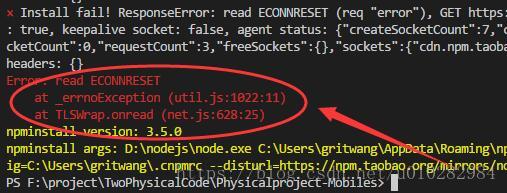
Recently, I was working on a “body test” project of the company. When I started ide vscode, I reported an error as follows:


Error: read ETIMEDOUT 
   at _ errnoException ( util.js:1022 :11) 
   at TLSWrap.onread ( net.js:628 :25)


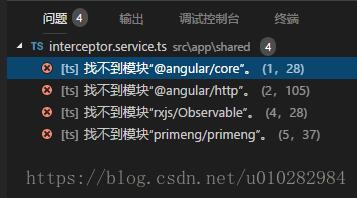
And this:


Then I went to the Internet to find a solution, and found the following solution (it didn’t solve my problem, but it’s a good method. Maybe it can solve your problem, so I stuck it. Here’s an explanation)


Now I’ll talk about the specific commands that need to be executed under the terminal

1. Install cli proxy plugin

npm install -g @ionic/cli-plugin-proxy

2. Configure proxy

export HTTP_PROXY="http://127.0.0.1:51481" # also used by npm
export HTTPS_PROXY="https://127.0.0.1:51481" # also used by npm
export IONIC_HTTP_PROXY="http://127.0.0.1:51481"

Among them, 127.0.0.1:51481 is my own agent

3. Install ionic template

After successfully performing the above two steps, we can download the ionic template

ionic start ionicProject blank


This is a solution found on the Internet. The way to solve my problem is to set the firewall to stop blocking“ node.js ”It's very simple. Ha ha.


There are two solutions in total. If you encounter this problem, I suggest you take a look at the firewall first. If you are not sure, you can use the above method, which should be able to solve the problem. If not, then I can't help it. I can only continue to look for other solutions on the Internet.


WeChat official account: "meet Wang Chuan"

Programming, financial management, English, welcome to play with me.


Java command line uses a JNI error has occurred, please check your installation and try again

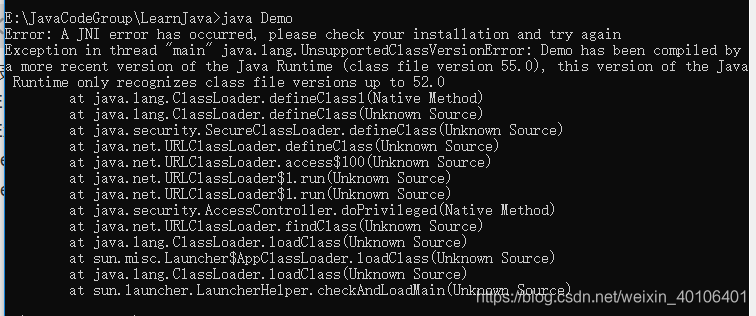
Error: a JNI error has occurred, please check your installation and try again
exception in thread “main” java.lang.UnsupportedClassVersionError : Demo has been compiled by a more recent version of the Java Runtime (class file version 55.0), This version of the Java runtime only recognizes class file versions up to 52.0

solution:
jre8u164 was installed once before in the system, and jdk11.0.2 was installed without uninstalling. It is estimated that there is a conflict. Just delete jre8u164.

Extended content

For the concepts and differences of JDK, JRE, Java se, Java EE and java me, please refer to https://www.cnblogs.com/In-order-to-tomorrow/p/3652315.html

Syntax error: invalid syntax before Python string

The usage of adding f before Python string


import time
t0 = time.time ()
time.sleep (1)
name = ‘processing’

#Starting with {f} indicates that Python expressions in braces are supported in strings
Print (f ‘{name} done in{ time.time () – t0:.2f} s’) 

Output:
processing done in 1.00 s


Why report a mistake

This usage is only used after 3.6. Mine is Python 3.5, which is so direct and simple

resolvent

What’s the way?Of course, it’s anaconda