Category Archives: JavaScript

[Solved] Vue Error: error ‘xxx‘ is defined but never used no-unused-vars

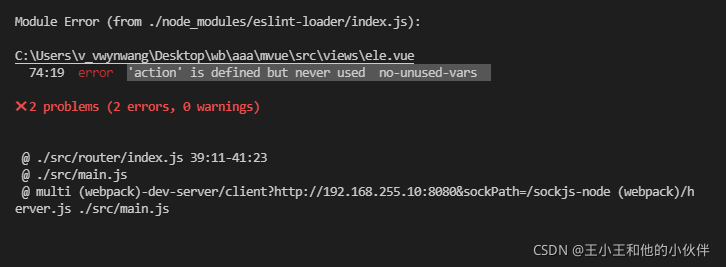
If there is an error, solve it: ‘action’ is defined but never used no unused vars

* * error reason: * * because the built Vue project selects the eslint verification specification -> The eslint specification is that you either don’t define a variable or you must use it if you define it

Solution:

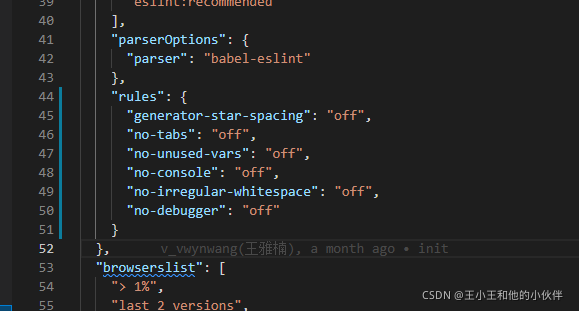
Add the following code into the package.json file (restart the project after saving!!!)

"rules": {
    "generator-star-spacing": "off",
    "no-tabs":"off",
    "no-unused-vars":"off",
    "no-console":"off",
    "no-irregular-whitespace":"off",
    "no-debugger": "off"
}

[Solved] Vue Error: Module build failed: Error: No PostCSS Config found in

Problem description
execute the NPM install command to install all dependencies, and then run NPM run dev to report an error:

error  in ./node_modules/view-design/dist/styles/iview.css

Module build failed: Error: No PostCSS Config found in: /Users/lanweihong/Code/JS/hotel-pms/node_modules/view-design/dist/styles
    at config.search.then (/Users/lanweihong/Code/JS/hotel-pms/node_modules/postcss-load-config/src/index.js:91:15)
    at <anonymous>

Solution
create a new postcss.config.js file in the project root directory. Postcss.config.js is a special processing for webpack 3.0.

postcss.config.js

module.exports = { 
    plugins: { 
      'autoprefixer': {browsers: 'last 5 version'} 
    } 
}

Rerun NPM run dev.

[Solved] Failed to load config “react-app“ to extend from.

When learning Redux, the code cloned from the official GitHub runs with errors
failed to load config “react app” to extend from.
referenced from: F:\web\react\Redux\examples\Redux master\redux.Eslintrc.JS
when checking the data, it is found that most of the problems are caused by the lack of eslint, However, for the official demo, the problem is that the version of eslint conflicts with the version you downloaded, and the method of configuring. Env also fails
the solution is to comment out the configuration content in.Eslintrc.js directly.

PDF.js load PDF Error: Message: failed to fetch

The meta-buy of pdf.js has been annotated with the following code:
// if (origin !== viewerOrigin && protocol !== 'blob:') {
  //   throw new Error('file origin does not match viewer\'s');
  // }

The main reason is: the HTTPS website loads the PDF resource file address of HTTP, and the PDF resource file address of HTTPS needs to be provided.

[Solved] NPM Error: FATAL ERROR: Ineffective mark-compacts near heap limit Allocation failed

This error is reported when NPM run build is executed to package Vue project, because the maximum value of node file set is not enough and the file after project packaging is too large.

Solution: install increase memory limit globally

Command line CMD, DOS window running: cnpm install – G increase memory limit,

Enter the project folder and run: increase memory limit

If NPM run build reports an error ‘node — Max old space size = 10240’ after executing increase memory limit after entering the project file, it is neither an internal or external command nor a runnable program ‘

You can create the following JS file contents in the project root directory, execute the file with node, and then run NPM run build to package successfully. This is to replace the public function of the string in the file corresponding to the. Bin file under the node_mosules file.

// Execute this script via node the first time you run the project
const fs = require('fs')
const path = require('path')
const wfPath =  path.resolve(__dirname, './node_modules/.bin')

fs.readdir(wfPath, (err, files)=>{
   if (err) {
    console.log(err);
   } else {
      if(files.length != 0 ) {
        files.forEach((item)=>{
           if(item.split('.')[1] === 'cmd') {
              replaceStr(`${wfPath}/${item}`, /"%_prog%"/, '%_prog%')
           }
        })
     }
   }
 })

// Parameters: [file path, string to be modified, modified string] (public function to replace the string in the corresponding file)
function replaceStr(filePath, sourceRegx, targetSrt) {
  fs.readFile(filePath, (err, data)=>{
     if(err) {
     console.log(err)
     } else {
       let str = data.toString();
      str= str.replace(sourceRegx, targetSrt);
       fs.writeFile(filePath, str, (err)=> { console.log(err) })
     }
  })
}

[Solved] Uniapp project use vant icon Error: (module build failed from./node_modules/postcss loader/SRC/index)

Solve the problem of error reporting when using vant icons in uniapp projects
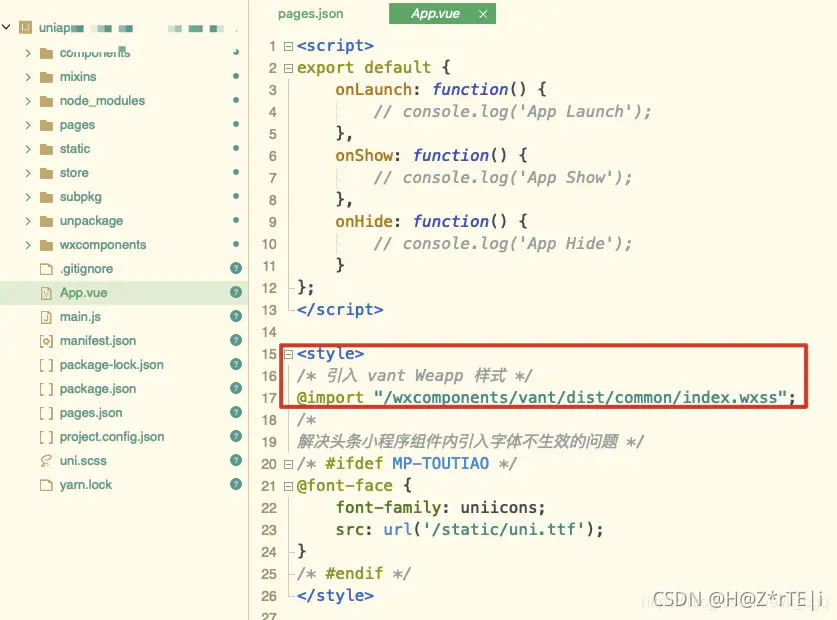
when developing projects using uniapp, the vant web component library is used, as shown in the following figure:
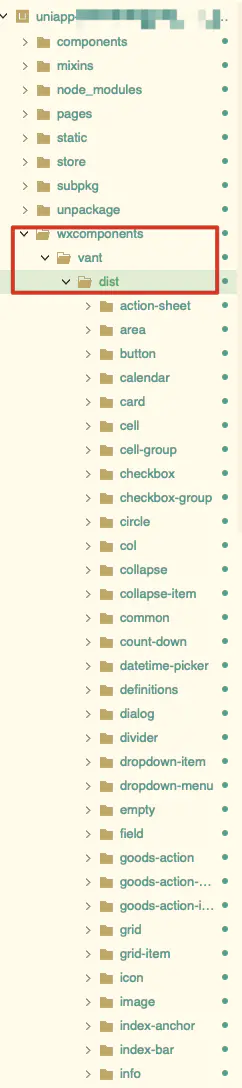
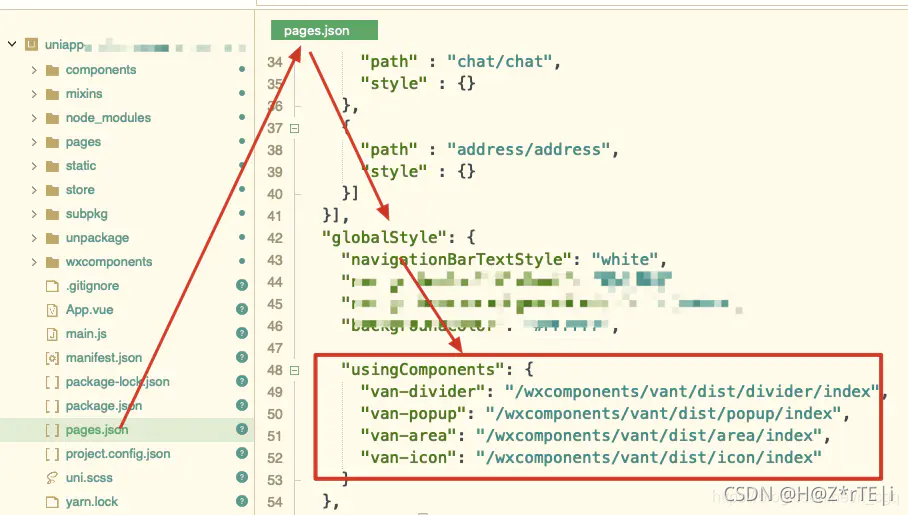
However, when running the project for compilation or publishing the project for packaging, the following errors are reported:
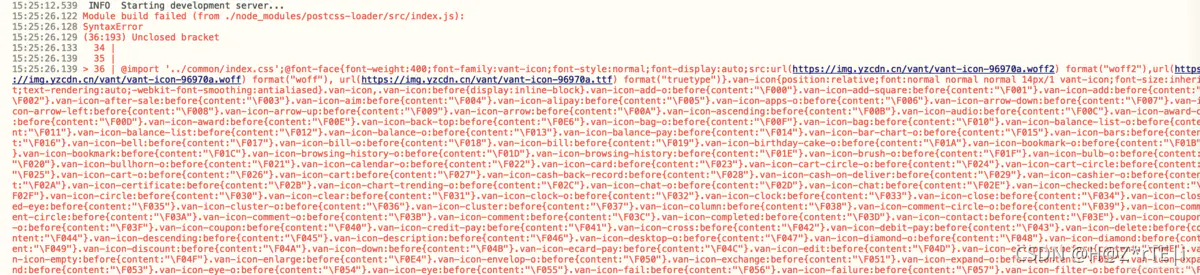
The following is the specific error information

15:25:26.122 Module build failed (from ./node_modules/postcss-loader/src/index.js):
15:25:26.128 SyntaxError
15:25:26.129 (36:193) Unclosed bracket
15:25:26.133   34 | 
15:25:26.139   35 | 
15:25:26.139 > 36 | @import '../common/index.css';@font-face{font-weight:400;font-family:vant-icon;font-style:normal;font-display:auto;src:url(https://img.yzcdn.cn/vant/vant-icon-96970a.woff2) format("woff2"),url(https://img.yzcdn.cn/vant/vant-icon-96970a.woff) format("woff"), url(https://img.yzcdn.cn/vant/vant-icon-96970a.ttf) format("truetype")}.van-icon{position:relative;font:normal normal normal 14px/1 vant-icon;font-size:inherit;text-rendering:auto;-webkit-font-smoothing:antialiased}.van-icon,.van-icon:before{display:inline-block}.van-icon-add-o:before{content:"\F000"}.van-icon-add-square:before{content:"\F001"}.van-icon-add:before{content:"\F002"}.van-icon-after-sale:before{content:"\F003"}.van-icon-aim:before{content:"\F004"}.van-icon-alipay:before{content:"\F005"}.van-icon-apps-o:before{content:"\F006"}.van-icon-arrow-down:before{content:"\F007"}.van-icon-arrow-left:before{content:"\F008"}.van-icon-arrow-up:before{content:"\F009"}.van-icon-arrow:before{content:"\F00A"}.van-icon-ascending:before{content:"\F00B"}.van-icon-audio:before{content:"\F00C"}.van-icon-award-o:before{content:"\F00D"}.van-icon-award:before{content:"\F00E"}.van-icon-back-top:before{content:"\F0E6"}.van-icon-bag-o:before{content:"\F00F"}.van-icon-bag:before{content:"\F010"}.van-icon-balance-list-o:before{content:"\F011"}.van-icon-balance-list:before{content:"\F012"}.van-icon-balance-o:before{content:"\F013"}.van-icon-balance-pay:before{content:"\F014"}.van-icon-bar-chart-o:before{content:"\F015"}.van-icon-bars:before{content:"\F016"}.van-icon-bell:before{content:"\F017"}.van-icon-bill-o:before{content:"\F018"}.van-icon-bill:before{content:"\F019"}.van-icon-birthday-cake-o:before{content:"\F01A"}.van-icon-bookmark-o:before{content:"\F01B"}.van-icon-bookmark:before{content:"\F01C"}.van-icon-browsing-history-o:before{content:"\F01D"}.van-icon-browsing-history:before{content:"\F01E"}.van-icon-brush-o:before{content:"\F01F"}.van-icon-bulb-o:before{content:"\F020"}.van-icon-bullhorn-o:before{content:"\F021"}.van-icon-calendar-o:before{content:"\F022"}.van-icon-card:before{content:"\F023"}.van-icon-cart-circle-o:before{content:"\F024"}.van-icon-cart-circle:before{content:"\F025"}.van-icon-cart-o:before{content:"\F026"}.van-icon-cart:before{content:"\F027"}.van-icon-cash-back-record:before{content:"\F028"}.van-icon-cash-on-deliver:before{content:"\F029"}.van-icon-cashier-o:before{content:"\F02A"}.van-icon-certificate:before{content:"\F02B"}.van-icon-chart-trending-o:before{content:"\F02C"}.van-icon-chat-o:before{content:"\F02D"}.van-icon-chat:before{content:"\F02E"}.van-icon-checked:before{content:"\F02F"}.van-icon-circle:before{content:"\F030"}.van-icon-clear:before{content:"\F031"}.van-icon-clock-o:before{content:"\F032"}.van-icon-clock:before{content:"\F033"}.van-icon-close:before{content:"\F034"}.van-icon-closed-eye:before{content:"\F035"}.van-icon-cluster-o:before{content:"\F036"}.van-icon-cluster:before{content:"\F037"}.van-icon-column:before{content:"\F038"}.van-icon-comment-circle-o:before{content:"\F039"}.van-icon-comment-circle:before{content:"\F03A"}.van-icon-comment-o:before{content:"\F03B"}.van-icon-comment:before{content:"\F03C"}.van-icon-completed:before{content:"\F03D"}.van-icon-contact:before{content:"\F03E"}.van-icon-coupon-o:before{content:"\F03F"}.van-icon-coupon:before{content:"\F040"}.van-icon-credit-pay:before{content:"\F041"}.van-icon-cross:before{content:"\F042"}.van-icon-debit-pay:before{content:"\F043"}.van-icon-delete:before{content:"\F044"}.van-icon-descending:before{content:"\F045"}.van-icon-description:before{content:"\F046"}.van-icon-desktop-o:before{content:"\F047"}.van-icon-diamond-o:before{content:"\F048"}.van-icon-diamond:before{content:"\F049"}.van-icon-discount:before{content:"\F04A"}.van-icon-down:before{content:"\F04B"}.van-icon-ecard-pay:before{content:"\F04C"}.van-icon-edit:before{content:"\F04D"}.van-icon-ellipsis:before{content:"\F04E"}.van-icon-empty:before{content:"\F04F"}.van-icon-enlarge:before{content:"\F0E4"}.van-icon-envelop-o:before{content:"\F050"}.van-icon-exchange:before{content:"\F051"}.van-icon-expand-o:before{content:"\F052"}.van-icon-expand:before{content:"\F053"}.van-icon-eye-o:before{content:"\F054"}.van-icon-eye:before{content:"\F055"}.van-icon-fail:before{content:"\F056"}.van-icon-failure:before{content:"\F057"}.van-icon-filter-o:before{content:"\F058"}.van-icon-fire-o:before{content:"\F059"}.van-icon-fire:before{content:"\F05A"}.van-icon-flag-o:before{content:"\F05B"}.van-icon-flower-o:before{content:"\F05C"}.van-icon-free-postage:before{content:"\F05D"}.van-icon-friends-o:before{content:"\F05E"}.van-icon-friends:before{content:"\F05F"}.van-icon-gem-o:before{content:"\F060"}.van-icon-gem:before{content:"\F061"}.van-icon-gift-card-o:before{content:"\F062"}.van-icon-gift-card:before{content:"\F063"}.van-icon-gift-o:before{content:"\F064"}.van-icon-gift:before{content:"\F065"}.van-icon-gold-coin-o:before{content:"\F066"}.van-icon-gold-coin:before{content:"\F067"}.van-icon-good-job-o:before{content:"\F068"}.van-icon-good-job:before{content:"\F069"}.van-icon-goods-collect-o:before{content:"\F06A"}.van-icon-goods-collect:before{content:"\F06B"}.van-icon-graphic:before{content:"\F06C"}.van-icon-home-o:before{content:"\F06D"}.van-icon-hot-o:before{content:"\F06E"}.van-icon-hot-sale-o:before{content:"\F06F"}.van-icon-hot-sale:before{content:"\F070"}.van-icon-hot:before{content:"\F071"}.van-icon-hotel-o:before{content:"\F072"}.van-icon-idcard:before{content:"\F073"}.van-icon-info-o:before{content:"\F074"}.van-icon-info:before{content:"\F075"}.van-icon-invition:before{content:"\F076"}.van-icon-label-o:before{content:"\F077"}.van-icon-label:before{content:"\F078"}.van-icon-like-o:before{content:"\F079"}.van-icon-like:before{content:"\F07A"}.van-icon-live:before{content:"\F07B"}.van-icon-location-o:before{content:"\F07C"}.van-icon-location:before{content:"\F07D"}.van-icon-lock:before{content:"\F07E"}.van-icon-logistics:before{content:"\F07F"}.van-icon-manager-o:before{content:"\F080"}.van-icon-manager:before{content:"\F081"}.van-icon-map-marked:before{content:"\F082"}.van-icon-medal-o:before{content:"\F083"}.van-icon-medal:before{content:"\F084"}.van-icon-minus:before{content:"\F0E8"}.van-icon-more-o:before{content:"\F085"}.van-icon-more:before{content:"\F086"}.van-icon-music-o:before{content:"\F087"}.van-icon-music:before{content:"\F088"}.van-icon-new-arrival-o:before{content:"\F089"}.van-icon-new-arrival:before{content:"\F08A"}.van-icon-new-o:before{content:"\F08B"}.van-icon-new:before{content:"\F08C"}.van-icon-newspaper-o:before{content:"\F08D"}.van-icon-notes-o:before{content:"\F08E"}.van-icon-orders-o:before{content:"\F08F"}.van-icon-other-pay:before{content:"\F090"}.van-icon-paid:before{content:"\F091"}.van-icon-passed:before{content:"\F092"}.van-icon-pause-circle-o:before{content:"\F093"}.van-icon-pause-circle:before{content:"\F094"}.van-icon-pause:before{content:"\F095"}.van-icon-peer-pay:before{content:"\F096"}.van-icon-pending-payment:before{content:"\F097"}.van-icon-phone-circle-o:before{content:"\F098"}.van-icon-phone-circle:before{content:"\F099"}.van-icon-phone-o:before{content:"\F09A"}.van-icon-phone:before{content:"\F09B"}.van-icon-photo-fail:before{content:"\F0E5"}.van-icon-photo-o:before{content:"\F09C"}.van-icon-photo:before{content:"\F09D"}.van-icon-photograph:before{content:"\F09E"}.van-icon-play-circle-o:before{content:"\F09F"}.van-icon-play-circle:before{content:"\F0A0"}.van-icon-play:before{content:"\F0A1"}.van-icon-plus:before{content:"\F0A2"}.van-icon-point-gift-o:before{content:"\F0A3"}.van-icon-point-gift:before{content:"\F0A4"}.van-icon-points:before{content:"\F0A5"}.van-icon-printer:before{content:"\F0A6"}.van-icon-qr-invalid:before{content:"\F0A7"}.van-icon-qr:before{content:"\F0A8"}.van-icon-question-o:before{content:"\F0A9"}.van-icon-question:before{content:"\F0AA"}.van-icon-records:before{content:"\F0AB"}.van-icon-refund-o:before{content:"\F0AC"}.van-icon-replay:before{content:"\F0AD"}.van-icon-scan:before{content:"\F0AE"}.van-icon-search:before{content:"\F0AF"}.van-icon-send-gift-o:before{content:"\F0B0"}.van-icon-send-gift:before{content:"\F0B1"}.van-icon-service-o:before{content:"\F0B2"}.van-icon-service:before{content:"\F0B3"}.van-icon-setting-o:before{content:"\F0B4"}.van-icon-setting:before{content:"\F0B5"}.van-icon-share-o:before{content:"\F0E7"}.van-icon-share:before{content:"\F0B6"}.van-icon-shop-collect-o:before{content:"\F0B7"}.van-icon-shop-collect:before{content:"\F0B8"}.van-icon-shop-o:before{content:"\F0B9"}.van-icon-shop:before{content:"\F0BA"}.van-icon-shopping-cart-o:before{content:"\F0BB"}.van-icon-shopping-cart:before{content:"\F0BC"}.van-icon-shrink:before{content:"\F0BD"}.van-icon-sign:before{content:"\F0BE"}.van-icon-smile-comment-o:before{content:"\F0BF"}.van-icon-smile-comment:before{content:"\F0C0"}.van-icon-smile-o:before{content:"\F0C1"}.van-icon-smile:before{content:"\F0C2"}.van-icon-star-o:before{content:"\F0C3"}.van-icon-star:before{content:"\F0C4"}.van-icon-stop-circle-o:before{content:"\F0C5"}.van-icon-stop-circle:before{content:"\F0C6"}.van-icon-stop:before{content:"\F0C7"}.van-icon-success:before{content:"\F0C8"}.van-icon-thumb-circle-o:before{content:"\F0C9"}.van-icon-thumb-circle:before{content:"\F0CA"}.van-icon-todo-list-o:before{content:"\F0CB"}.van-icon-todo-list:before{content:"\F0CC"}.van-icon-tosend:before{content:"\F0CD"}.van-icon-tv-o:before{content:"\F0CE"}.van-icon-umbrella-circle:before{content:"\F0CF"}.van-icon-underway-o:before{content:"\F0D0"}.van-icon-underway:before{content:"\F0D1"}.van-icon-upgrade:before{content:"\F0D2"}.van-icon-user-circle-o:before{content:"\F0D3"}.van-icon-user-o:before{content:"\F0D4"}.van-icon-video-o:before{content:"\F0D5"}.van-icon-video:before{content:"\F0D6"}.van-icon-vip-card-o:before{content:"\F0D7"}.van-icon-vip-card:before{content:"\F0D8"}.van-icon-volume-o:before{content:"\F0D9"}.van-icon-volume:before{content:"\F0DA"}.van-icon-wap-home-o:before{content:"\F0DB"}.van-icon-wap-home:before{content:"\F0DC"}.van-icon-wap-nav:before{content:"\F0DD"}.van-icon-warn-o:before{content:"\F0DE"}.van-icon-warning-o:before{content:"\F0DF"}.van-icon-warning:before{content:"\F0E0"}.van-icon-weapp-nav:before{content:"\F0E1"}.van-icon-wechat:before{content:"\F0E2"}.van-icon-youzan-shield:before{content:"\F0E3"}.vant-dist-icon-index{display:-webkit-inline-flex;display:inline-flex;-webkit-align-items:center;align-items:center;-webkit-justify-content:center;justify-content:center}.van-icon--image{width:1em;height:1em}.van-icon__image{width:100%;height:100%}.van-icon__info{z-index:1}

After checking the relevant information on the Internet, the reason for the error should be the problem of font recognition by uniapp,
that is, the problem caused by the following fonts:

src:url(https://img.yzcdn.cn/vant/vant-icon-96970a.woff2) format("woff2"),url(https://img.yzcdn.cn/vant/vant-icon-96970a.woff) format("woff"), url(https://img.yzcdn.cn/vant/vant-icon-96970a.ttf) format("truetype")}

These fonts are in the wxcomponents/vant/dist/icon/index.wxss file
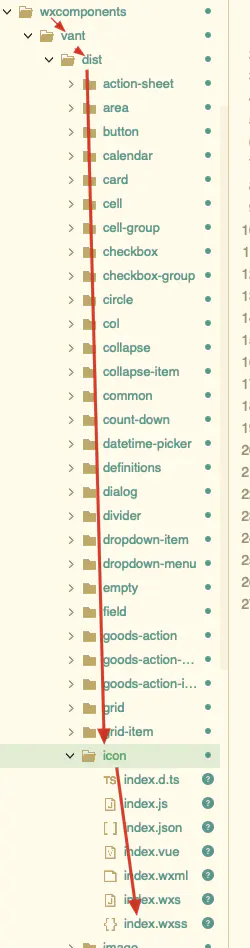
in the wxcomponents/vant/dist/icon/index.wxss file, Ctrl + F, enter the icon number 96970a in the error report (my error report icon number here is 96970a, you can search according to your own error report icon number), then add a space before the second and third URLs respectively, and finally save the current file. (key to problem solving)

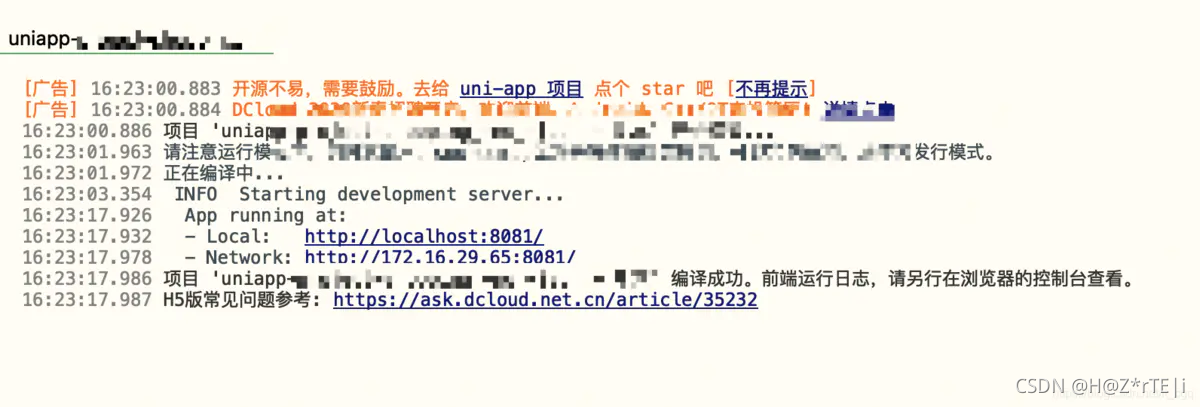
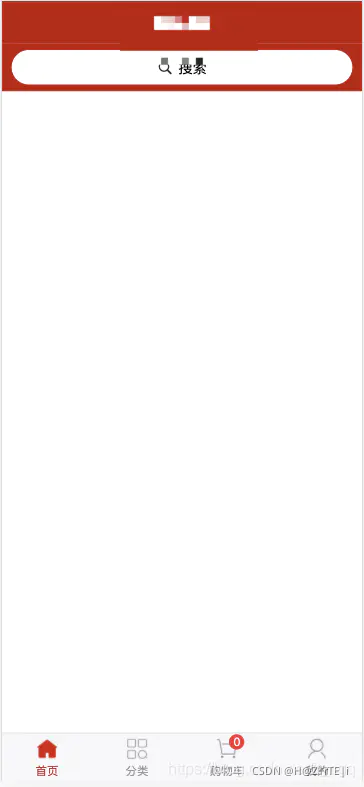
Rerun the compiled project or release the packaged project and it will be solved successfully
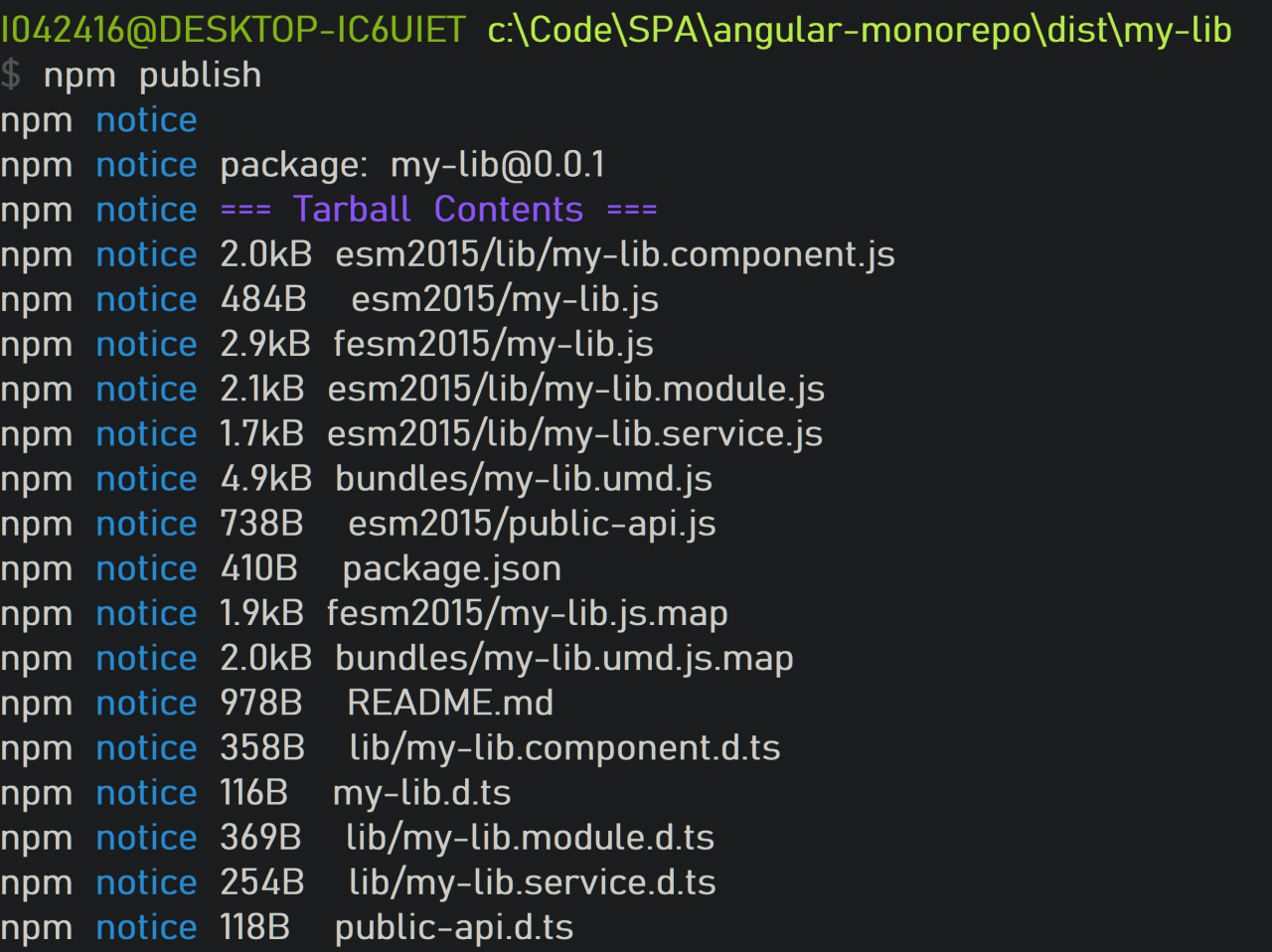
NPM publish an angular library Error [How to Solve]

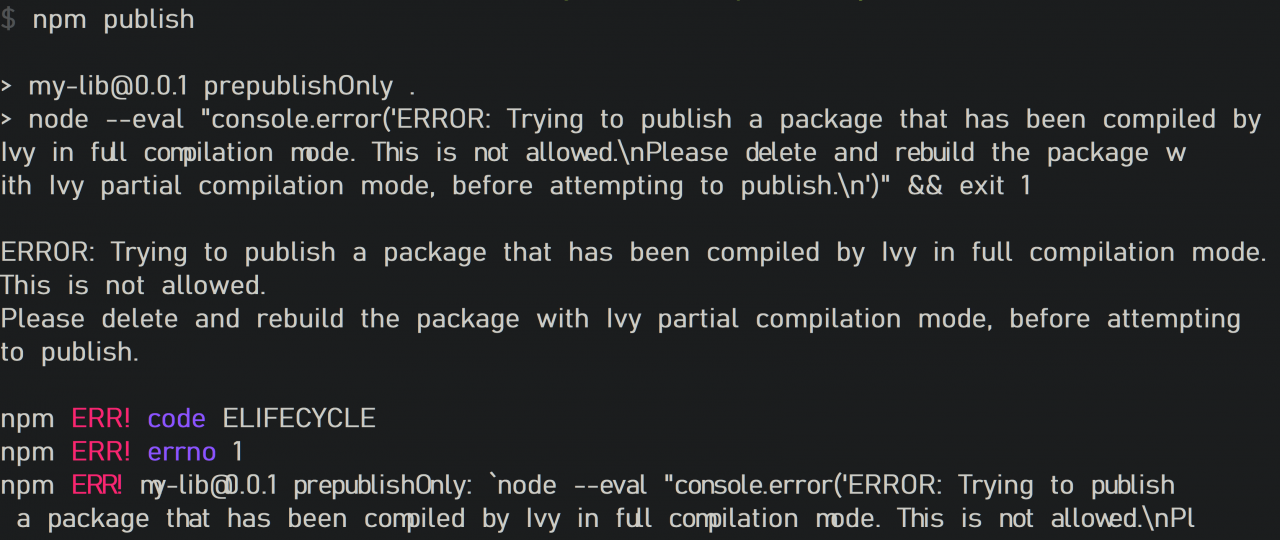
Error Messages:

ERROR: Trying to publish a package that has been compiled by Ivy in full compilation mode. This is not allowed.
Please delete and rebuild the package with Ivy partial compilation mode, before attempting to publish.


This is because I was previously building my Angular library in development mode: the

Replace with the following production model.

ng build my-lib –configuration production

After that the error disappears.

How to Solve Vue route jump repeated clicks Error

The following error message appears
Solution:
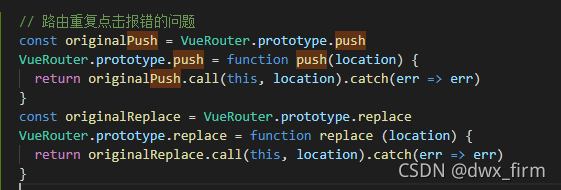
Set the index.js under router as follows, and the problem is solved


The code is as follows.
// Repeated click on the route reports an error
const originalPush = VueRouter.prototype.push
VueRouter.prototype.push = function push(location) {
return originalPush.call(this, location).catch(err => err)
}
const originalReplace = VueRouter.prototype.replace
VueRouter.prototype.replace = function replace (location) {
return originalReplace.call(this, location).catch(err => err)
}

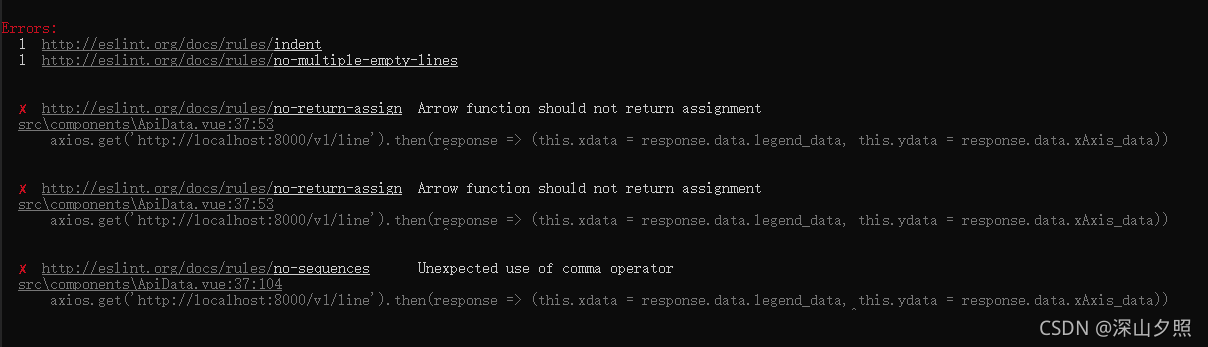
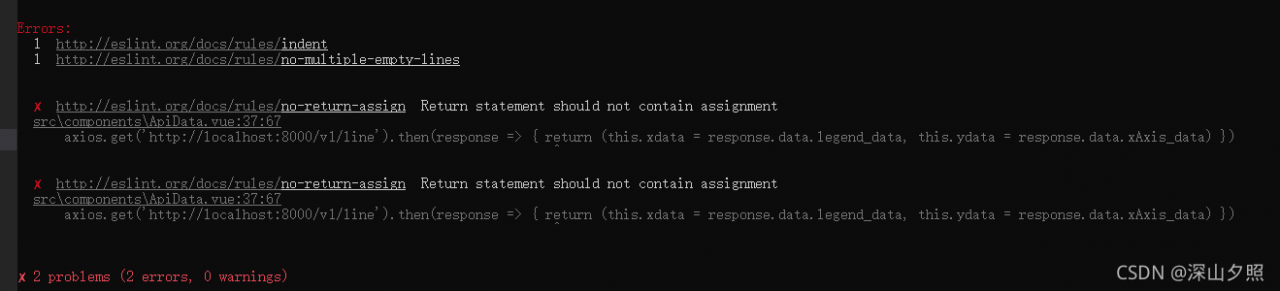
[Solved] Vue Project Error: Arrow function should not return assignment

Vue item error arrow function should not return assignment

Problem source

Recently, there was an error arrow function should not return assignment

when creating a startup Vue project. In fact, there is more than one error, but the final reason is that the eslint check code is referenced.

Solution:

1. Modify the code to comply with the rules of eslint (this method does not take effect here)
add {} to the code after the arrow; however, it reports this error again (I don’t know how to solve this error up to now)

2. Remove eslint
and comment ‘standard’
in the. Eslintrc.js file under the project root directory
[Solved] Error spawn CMD enoent errno when starting Vue project: – 4058

Question

When I set the Vue project to automatically jump to the browser after startup, the console reports the following errors:

DONE  Compiled successfully in 11178ms                                                                      下午3:42:04


  App running at:
  - Local:   http://localhost:8080/
  - Network: unavailable

  Note that the development build is not optimized.
  To create a production build, run npm run build.

events.js:292
      throw er; // Unhandled 'error' event
      ^

Error: spawn cmd ENOENT
    at Process.ChildProcess._handle.onexit (internal/child_process.js:269:19)
    at onErrorNT (internal/child_process.js:465:16)
    at processTicksAndRejections (internal/process/task_queues.js:80:21)
Emitted 'error' event on ChildProcess instance at:
    at Process.ChildProcess._handle.onexit (internal/child_process.js:275:12)
    at onErrorNT (internal/child_process.js:465:16)
    at processTicksAndRejections (internal/process/task_queues.js:80:21) {
  errno: -4058,
  code: 'ENOENT',
  syscall: 'spawn cmd',
  path: 'cmd',
  spawnargs: [ '/c', 'start', '""', '/b', 'http://localhost:8080/' ]
}
npm ERR! code ELIFECYCLE
npm ERR! errno 1
npm ERR! [email protected] serve: `vue-cli-service serve`
npm ERR! Exit status 1
npm ERR!
npm ERR! Failed at the [email protected] serve script.
npm ERR! This is probably not a problem with npm. There is likely additional logging output above.

npm ERR! A complete log of this run can be found in:
npm ERR!     D:\node\node_cache\_logs\2020-12-19T07_42_04_693Z-debug.log

When I don’t set "serve": "Vue cli Service -- Open", it can run normally without any error. According to the error prompt spawn CMD enoent, we can know

spawn XXX enoent: indicates that the environment variable of the corresponding running program is missing. The reason for the error is that the computer lacks the environment variable of the CMD running program. I think the error is probably because to realize automatic jump, you need to enter a command in CMD and then the computer system calls the browser, but the computer lacks the environment variable of the CMD running program, so the error is reported (comments are welcome)

Solution:

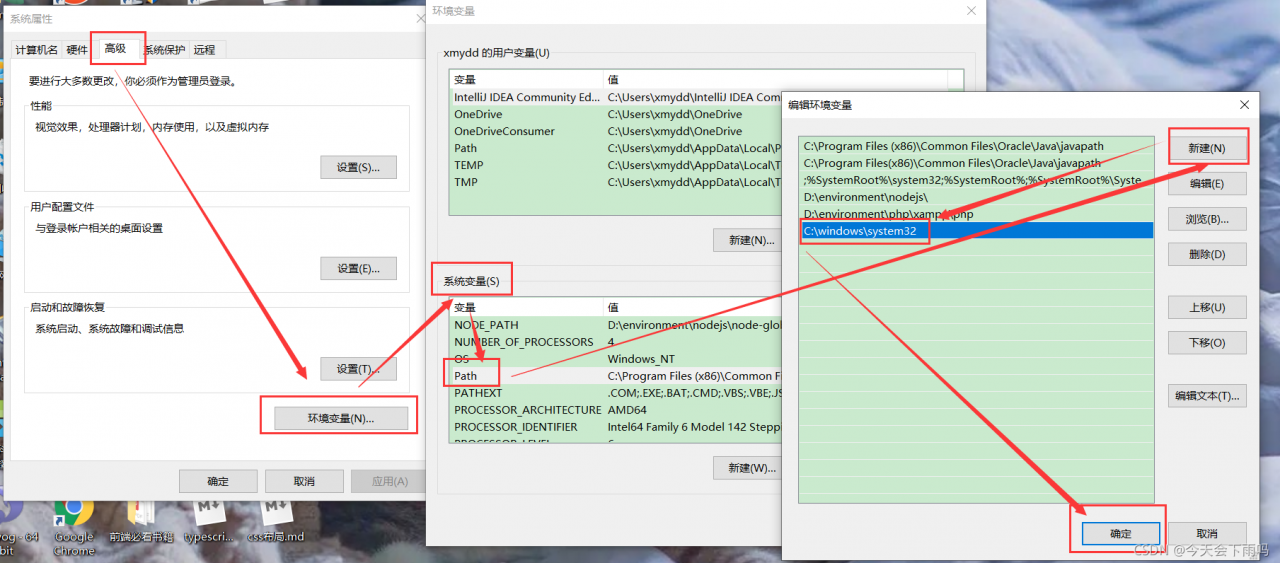
Add C:\windows\system32 to the environment variable path

Right click my computer (this computer) – properties – advanced system settings (search) – Advanced – environment variables – system variables, find path and add it
after adding, close vscode and reopen the startup project
Echarts Map Error: Error: Invalid geoJson format Cannot read property ‘length‘ of undefined

When displaying the districts and counties of Taizhou, Zhejiang Province, I found an error on the page. I found that the difference in the file is that there is a “type”: “geometrycollection”
Modify node in Yuhuan JSON_Modules\charts\lib\coord\geo\parsegeojason.js code

/*
 * Licensed to the Apache Software Foundation (ASF) under one
 * or more contributor license agreements.  See the NOTICE file
 * distributed with this work for additional information
 * regarding copyright ownership.  The ASF licenses this file
 * to you under the Apache License, Version 2.0 (the
 * "License"); you may not use this file except in compliance
 * with the License.  You may obtain a copy of the License at
 *
 *   http://www.apache.org/licenses/LICENSE-2.0
 *
 * Unless required by applicable law or agreed to in writing,
 * software distributed under the License is distributed on an
 * "AS IS" BASIS, WITHOUT WARRANTIES OR CONDITIONS OF ANY
 * KIND, either express or implied.  See the License for the
 * specific language governing permissions and limitations
 * under the License.
 */


/**
 * AUTO-GENERATED FILE. DO NOT MODIFY.
 */

/*
 * Licensed to the Apache Software Foundation (ASF) under one
 * or more contributor license agreements.  See the NOTICE file
 * distributed with this work for additional information
 * regarding copyright ownership.  The ASF licenses this file
 * to you under the Apache License, Version 2.0 (the
 * "License"); you may not use this file except in compliance
 * with the License.  You may obtain a copy of the License at
 *
 *   http://www.apache.org/licenses/LICENSE-2.0
 *
 * Unless required by applicable law or agreed to in writing,
 * software distributed under the License is distributed on an
 * "AS IS" BASIS, WITHOUT WARRANTIES OR CONDITIONS OF ANY
 * KIND, either express or implied.  See the License for the
 * specific language governing permissions and limitations
 * under the License.
 */

/**
 * Parse and decode geo json
 */
import * as zrUtil from 'zrender/lib/core/util';
import Region from './Region';

function decode(json) {
    if (!json.UTF8Encoding) {
        return json;
    }

    var jsonCompressed = json;
    var encodeScale = jsonCompressed.UTF8Scale;

    if (encodeScale == null) {
        encodeScale = 1024;
    }

    var features = jsonCompressed.features;

    for (var f = 0; f < features.length; f++) {
        var feature = features[f];
        var geometry = feature.geometry;

        if (geometry.type === 'Polygon') {
            var coordinates = geometry.coordinates;

            for (var c = 0; c < coordinates.length; c++) {
                coordinates[c] = decodePolygon(coordinates[c], geometry.encodeOffsets[c], encodeScale);
            }
        } else if (geometry.type === 'MultiPolygon') {
            var coordinates = geometry.coordinates;

            for (var c = 0; c < coordinates.length; c++) {
                var coordinate = coordinates[c];

                for (var c2 = 0; c2 < coordinate.length; c2++) {
                    coordinate[c2] = decodePolygon(coordinate[c2], geometry.encodeOffsets[c][c2], encodeScale);
                }
            }
        }
    } // Has been decoded


    jsonCompressed.UTF8Encoding = false;
    return jsonCompressed;
}

function decodePolygon(coordinate, encodeOffsets, encodeScale) {
    var result = [];
    var prevX = encodeOffsets[0];
    var prevY = encodeOffsets[1];

    for (var i = 0; i < coordinate.length; i += 2) {
        var x = coordinate.charCodeAt(i) - 64;
        var y = coordinate.charCodeAt(i + 1) - 64; // ZigZag decoding

        x = x >> 1 ^ -(x & 1);
        y = y >> 1 ^ -(y & 1); // Delta deocding

        x += prevX;
        y += prevY;
        prevX = x;
        prevY = y; // Dequantize

        result.push([x/encodeScale, y/encodeScale]);
    }

    return result;
}

export default function parseGeoJSON(geoJson, nameProperty) {
    decode(geoJson);
    return zrUtil.map(
        zrUtil.filter(geoJson.features, function (featureObj) {
            if (featureObj.geometry.geometries) {
                let geometry = featureObj.geometry.geometries.map(i => {
                    return i.coordinates;
                });
                let { type, properties} = featureObj;
                return {
                    type,
                    properties,
                    geometry
                };
            }
            // Output of mapshaper may have geometry null
            return (
                featureObj.geometry &&
                featureObj.properties &&
                featureObj.geometry.coordinates &&
                featureObj.geometry.coordinates.length > 0
            );
        }),
        function (featureObj) {
            var properties = featureObj.properties;
            var geo = featureObj.geometry;
            var coordinates = geo.coordinates;
            var geometries = [];

            if (geo.type === "GeometryCollection") {
                let geometry = {
                    type: "Polygon"
                };
                let coordinatesArr = featureObj.geometry.geometries.map(i => {
                    return i.coordinates;
                });
                geometry.coordinates = coordinatesArr;
                console.log(coordinatesArr, "coordinatesArr");
                coordinatesArr.forEach(i => {
                    geometries.push({
                        type: "polygon",
                        // According to the GeoJSON specification.
                        // First must be exterior, and the rest are all interior(holes).
                        exterior: i[0],
                        interiors: i.slice(1)
                    });
                });
            }
            if (geo.type === "Polygon") {
                console.log("coordinatesPolygon", coordinates);
                geometries.push({
                    type: "polygon",
                    // According to the GeoJSON specification.
                    // First must be exterior, and the rest are all interior(holes).
                    exterior: coordinates[0],
                    interiors: coordinates.slice(1)
                });
            }

            if (geo.type === "MultiPolygon") {
                zrUtil.each(coordinates, function (item) {
                    if (item[0]) {
                        geometries.push({
                            type: "polygon",
                            exterior: item[0],
                            interiors: item.slice(1)
                        });
                    }
                });
            }
            console.log(
                properties[nameProperty || "name"],
                geometries,
                properties.cp,
                "asdfasdfasdf"
            );
            var region = new Region(
                properties[nameProperty || "name"],
                geometries,
                properties.cp
            );
            region.properties = properties;
            return region;
        })
}

[Solved] VS Code Error: Vetur can‘t find ‘tsconfig.json‘ or ‘jsconfig.json‘

1. Cause

A new configuration file of vetur.config.js is added in vetur 0.31.0.
after this version, priority will be given to finding whether the project is equipped with tsconfig.json (TS project) or jsconfig.json (JS project).
if these two files are not found, go to vetur.config.js. If they are not found, this prompt will be thrown.

2. Explain

The JavaScript support of vscode can run in two different modes:
file range (without jsconfig.JSON)
in this mode, JavaScript files opened in vscode are regarded as independent units
as long as the file A.js does not explicitly reference the file b.ts (using// reference instructions or commonjs modules), there is no common project context between the two files.

3. Explicit project

(use jsconfig.JSON)

The JavaScript project is defined through the jsconfig.JSON file. The existence of such a file in the directory indicates that the directory is the root directory of the JavaScript project
the file itself can optionally list files belonging to the project, files to be excluded from the project, and compiler options (see below)
the JavaScript experience improves when you have a jsconfig.json file in your workspace that defines the project context
therefore, when you open a JavaScript file in a new workspace, we provide a prompt to create a jsconfig.json file.

4. Solution (1 out of 3)

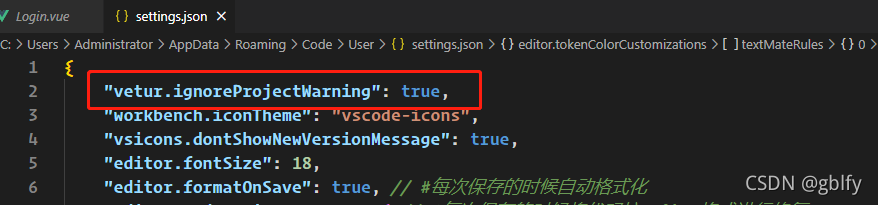
4.1. Configure the vehicle plug-in and ignore the prompt </ H6>
 "vetur.ignoreProjectWarning": true,

4.2. Create jsconfig.json file in the project root directory </ H6>

Add code:

{
    "include": [
        "./src/*"
    ]
}
4.3. Create the vetur.config.js file in the project root directory </ H6>

Add code:

module.exports = {
    // vetur configuration, which will override the settings in vscode.  default: `{}`
    settings: {
        "vetur.useWorkspaceDependencies": true,
        "vetur.experimental.templateInterpolationService": true
    },
    // Normal projects use the default configuration default: `[{ root: './' }]`
}