Category Archives: JavaScript

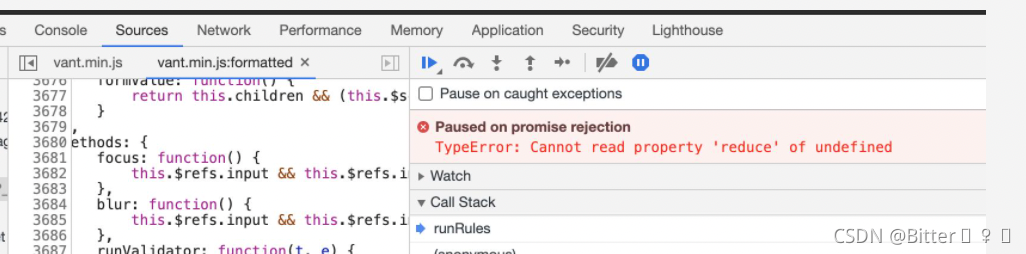
[Solved] TYPEERROR: CANNOT READ PROPERTY ‘REDUCE‘ OF UNDEFINED

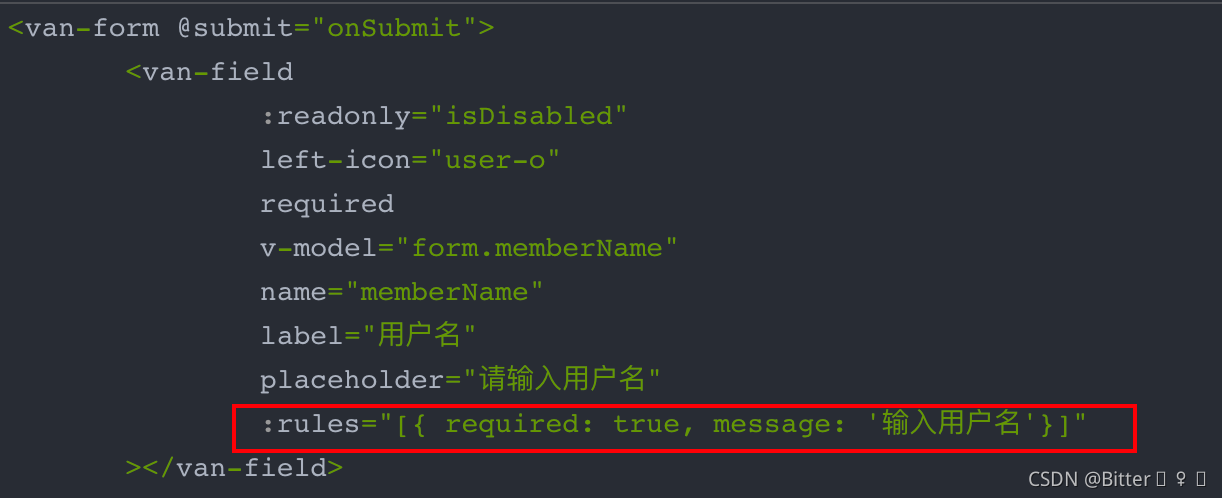
The from form is used to write the mobile terminal page using the vant framework, but the error is reported in the from verification

Solution:

Each field of the form must have the :Rules attribute, otherwise the above error will be reported.

That is, add the :Rules validation attribute to each van field form item, even if the current form item does not perform any validation

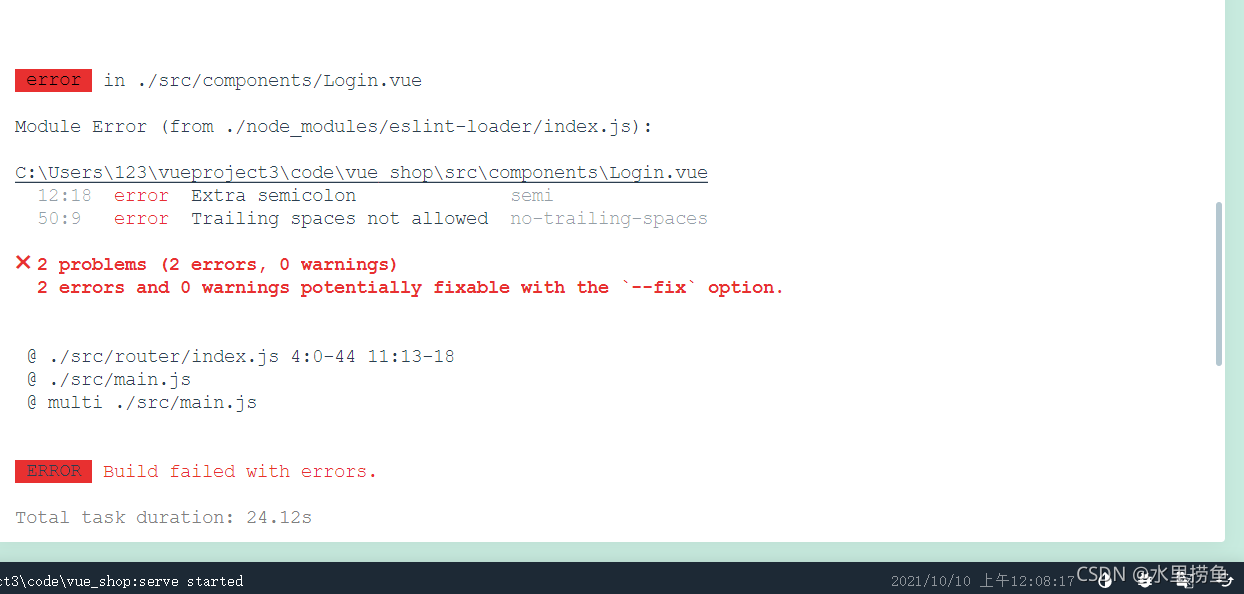
[Solved] ✖ 2 problem (1 error, 0 warnings) 2 error and 0 warnings potentially fixable with the`–fix`

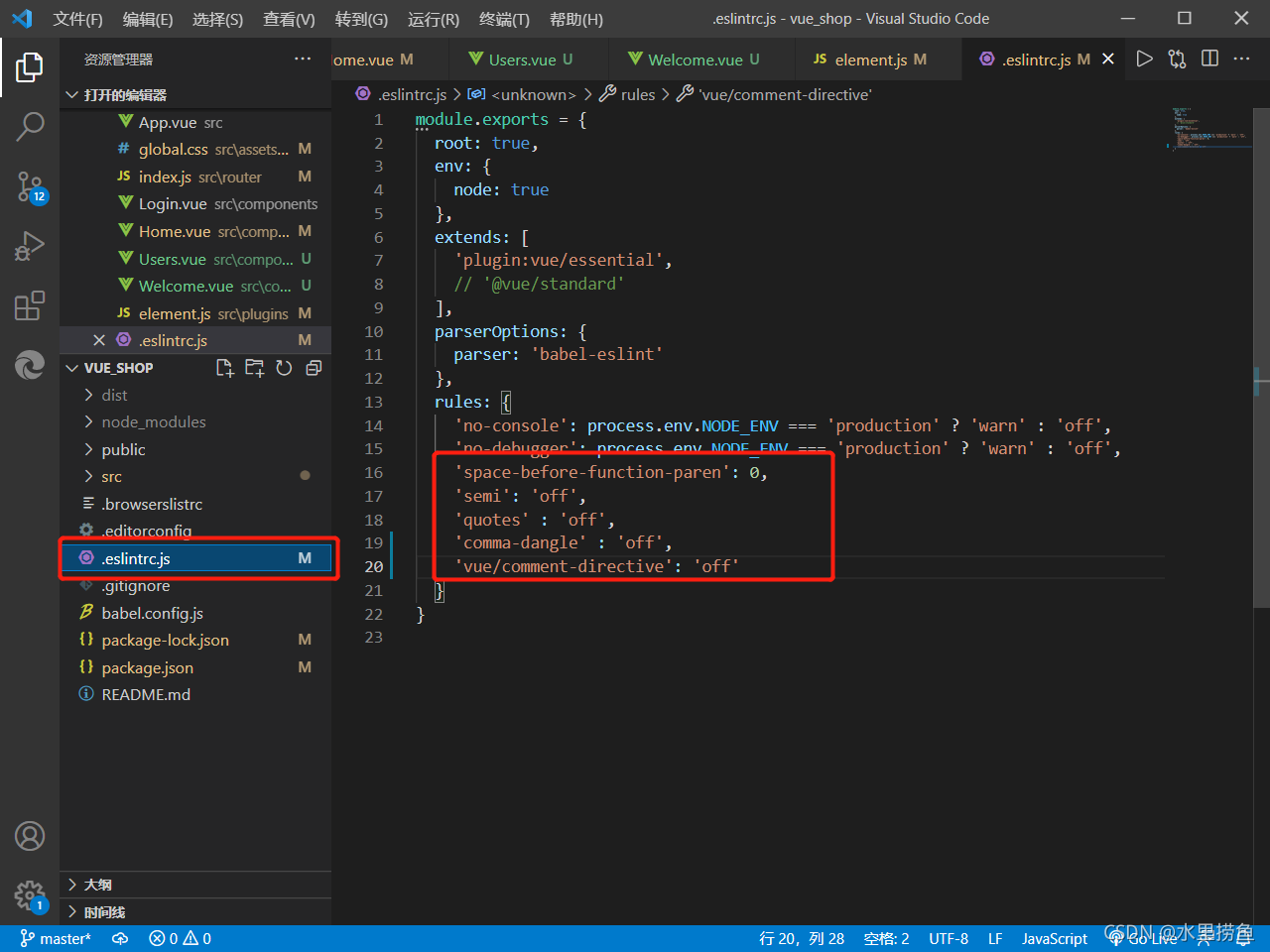
Semi in eslint is to check whether the semicolon is wrong. No trailing spaces is the absence of spaces in the code Open. Eslintrc.js in the project and add the following code in the rules to solve the above problems. Just add the first and second lines of code in the box. Some are added to the problems later. It is recommended to add them because they are useful later.

'space-before-function-paren': 0,
'semi': 'off',
'quotes' : 'off',
'comma-dangle' : 'off',
'vue/comment-directive': 'off'

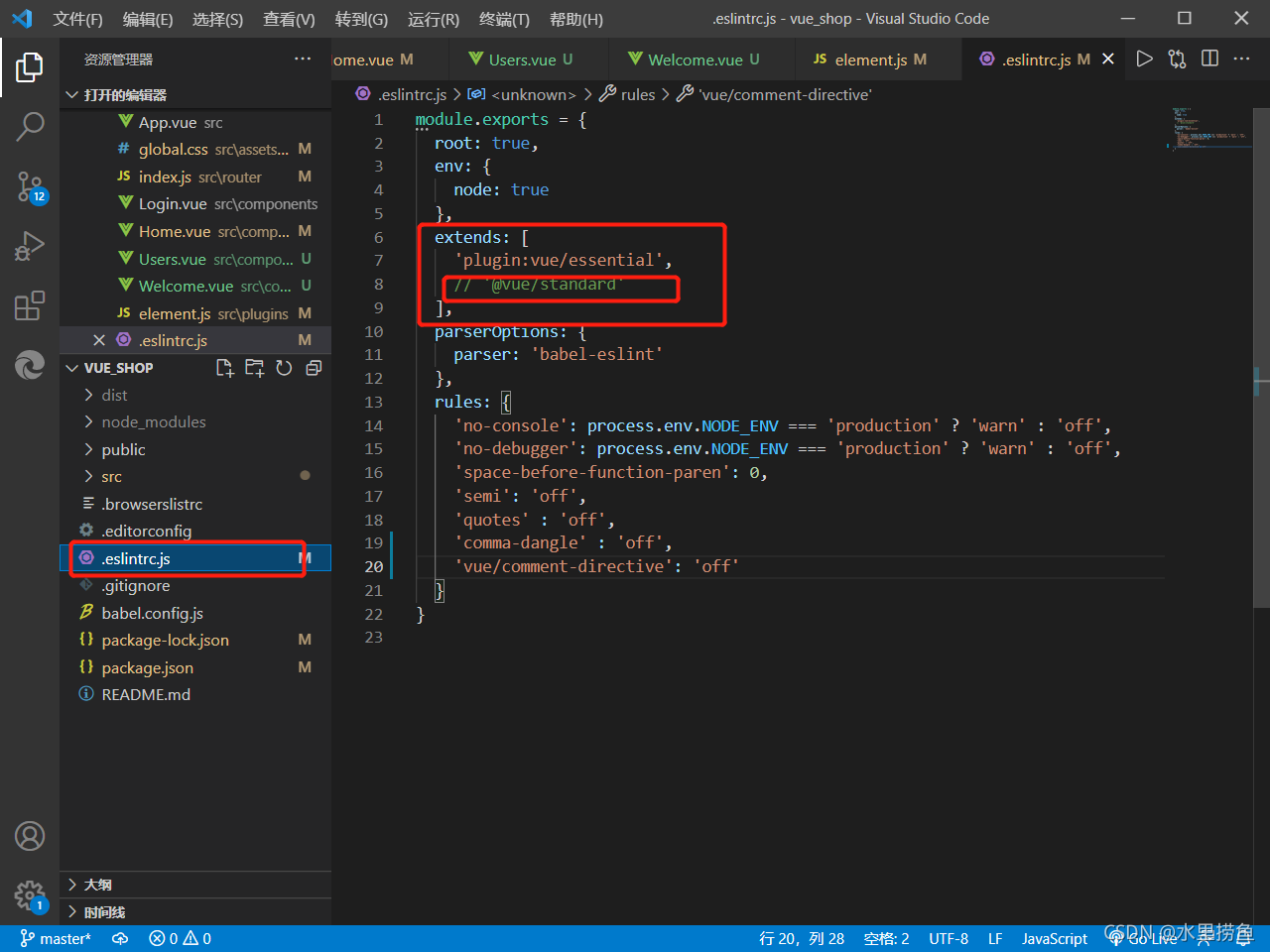
Eslint requires strict code format. Sometimes errors will occur when there are fewer or more spaces. It is recommended to replace the extensions in. Eslintrc.js in the project  ‘@ Vue/standard ‘is commented out. This will reduce many subsequent format problems.

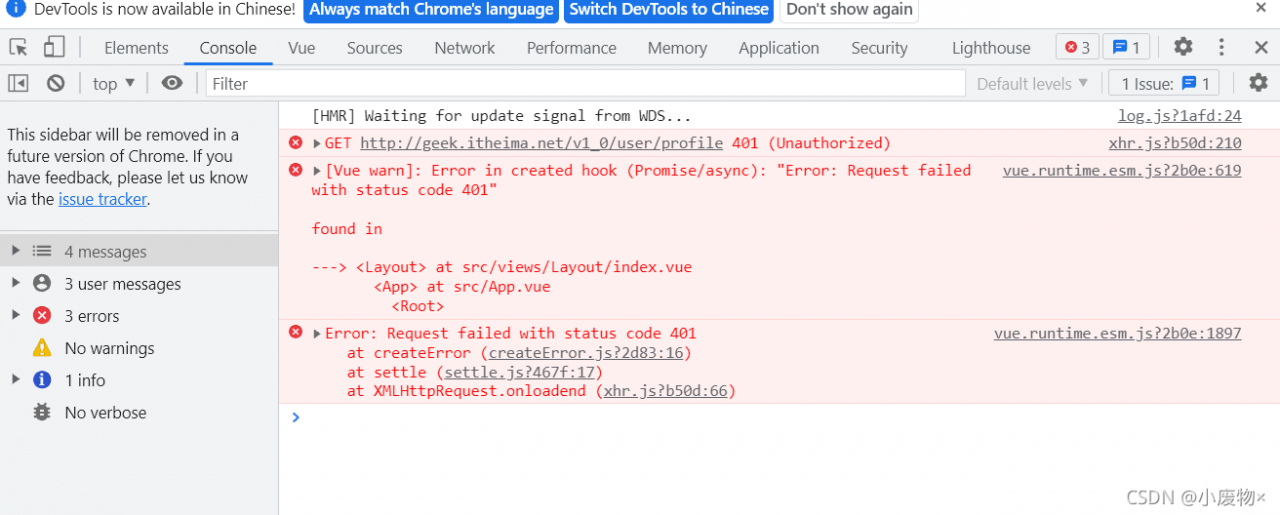
Error:Request failed with status code 401 [How to Solve]

Error: Request failed with status code 401

Error:

// Access to personal information
export const getUserInfoAPI = () => {
  return request({
    url: '/v1_0/user/profile',
    method: 'GET',
    Headers: {
      Authorization: `Bearer ${getToken()}`
    }
  })
}

Correct practice

// Access to personal information
export const getUserInfoAPI = () => {
  return request({
    url: '/v1_0/user/profile',
    method: 'GET',
    headers: {
      Authorization: `Bearer ${getToken()}`
    }
  })
}

In the process of writing request headers, the use of headers did not notice the case problem!!!

About JS error uncaught syntax error: invalid shorthand property initializer

Sometimes when typing JS code, you will often encounter such errors:

This is due to careless typing of code, resulting in grammatical format errors.

If the object literal is used to define the object, the relationship between the attribute name and the attribute value:

<script>
var province = [{
            id: 1002,
            name: 'Heibei',
            city: [{
                    id: 1,
                    name= 'Shijiazhuang' // use object literals to define objects with attribute names separated from attribute values by:.
                },
                {
                    id: 2,
                    name: 'Handan'
                }
            ]
        }];
</script>

Grammar norms are very important. Try not to make mistakes that can be avoided.

[Solved] JS Error: Uncaught TypeError: Cannot set properties of null (setting ‘innerHTML‘)

Many students have encountered this problem when writing JS code:

Cannot set properties of null (setting ‘innerHTML’). This error means that the null property “innerHTML” cannot be read, which means that the place where you want to insert the written HTML code cannot be found.

Solution: put the script of the read part of the DOM behind the body. Or add window.onload in the script tag and execute this part of the code after the page is loaded.

Reason: when the browser loads the HTML document, it will parse the HTML document into a tree structure called DOM tree. The code is executed from top to bottom. When the innerHTML line of code is executed, it does not load into the following DOM structure, and an error will be reported that the HTML cannot be read.

Example:

<!DOCTYPE html>
<html lang="en">
<head>
    <meta charset="UTF-8">
    <meta http-equiv="X-UA-Compatible" content="IE=edge">
    <meta name="viewport" content="width=device-width, initial-scale=1.0">
    <title>Document</title>
    <script>
        function showTime() {
            var today = new Date;
            var year = today.getFullYear();
            var month = checkNum(today.getMonth() + 1);
            var data = checkNum(today.getDate());
            var hour = today.getHours();
            var minute = checkNum(today.getMinutes());
            var second = checkNum(today.getSeconds());
            var day = today.getDay();
            var a = ['Sunday', 'Monday', 'Tuesday', 'Wednesday', 'Thursday', 'Friday', 'Saturday'];
            var tip = 'PM'
            if (hour > 12) {
                hour -= 12;
                tip = 'AM'
            }
            var time = year + 'Year' + month + 'Month' + data + 'date' + ' ' + tip + ' ' + hour + ':' + minute + ':' +
                second + ' ' + a[day];
            document.getElementById('time').innerHTML = time;
        }

        function checkNum(num) {
            if (num < 10) {
                return '0' + num;
            }
            return num;
        }
        setInterval(showTime, 1000);
    </script>
</head>

<body>
    <div id="time"> </div> 
</body>
</html>

Solution: will setInterval(showTime, 1000); Put this line of code after the body:

<body>
    <div id="time"> </div>
</body>
<script>
    setInterval(showTime, 1000);
</script>
</html>

Or add window.onload to the original script tag

        window.onload = function () {
            setInterval(showTime, 1000);
        }
    </script>

This can be solved perfectly!
Vue Project Error: Expected indentation of 2 spaces but found 4,Newline required at end of file but not found

Several error messages were encountered when learning Vue project was packaged

★   Extra semicolon

The first is that there is an additional semicolon. The error query found that main.js does have a semicolon. After we deleted it, the error disappeared

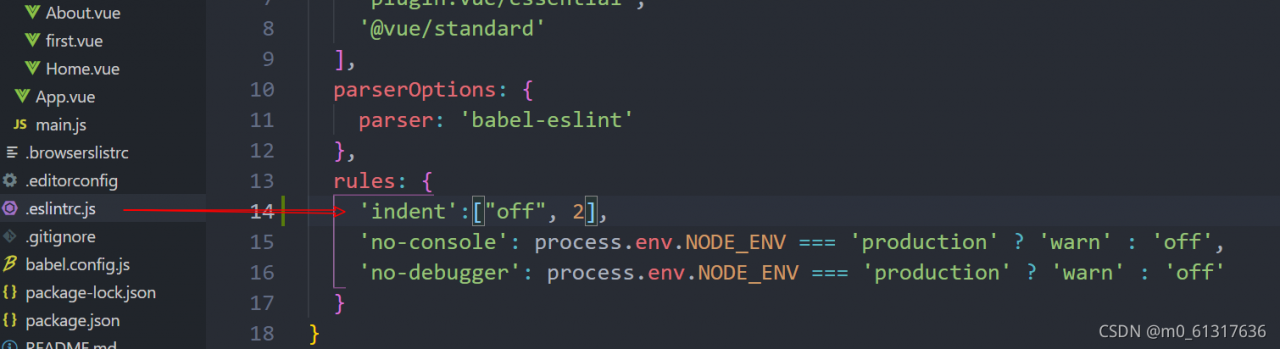
★   Expected indentation of 2 spaces but found 4

The second one is “expected to indent 2 spaces, but found 4”. After Baidu search, it is found that this is not an error, but a check rule. Find this file in the project and add this configuration. See the figure below

★   Newline required at end of file but not found

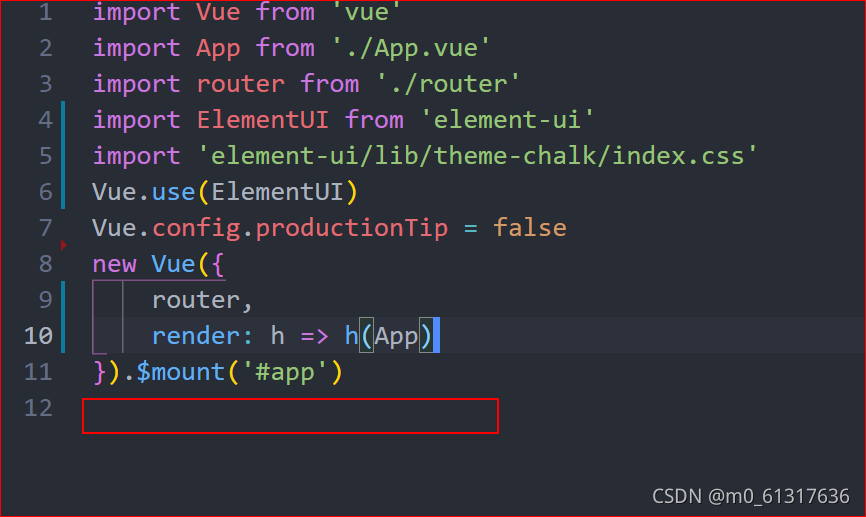
The third one is more wonderful. It means that “line breaks are required at the end of the file, but they are not found”. Then we go to the error file, that is, main.js. We can solve the error by typing enter at the end. See the figure below

Adding a blank line here can solve the problem of error reporting

How to Solve Nodejs error: cannot find module ‘. /application’

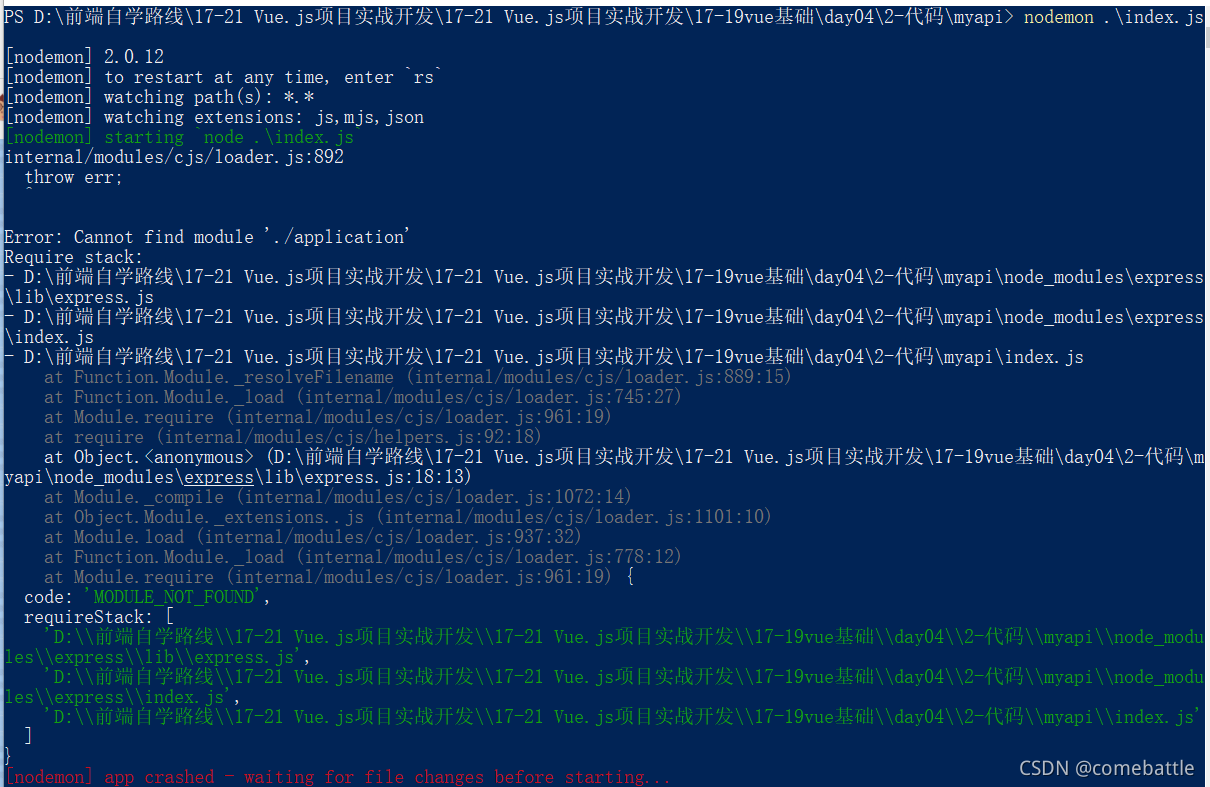
Open the terminal and enter nodemon./index.js. The following error messages appear:

Solution:

After entering the directory where index.js is located
delete node_ Module folder and package lock.json file open the terminal, type NPM clean cache , clear the cache, type NPM I , and type nodemon index. JS  for installation dependency
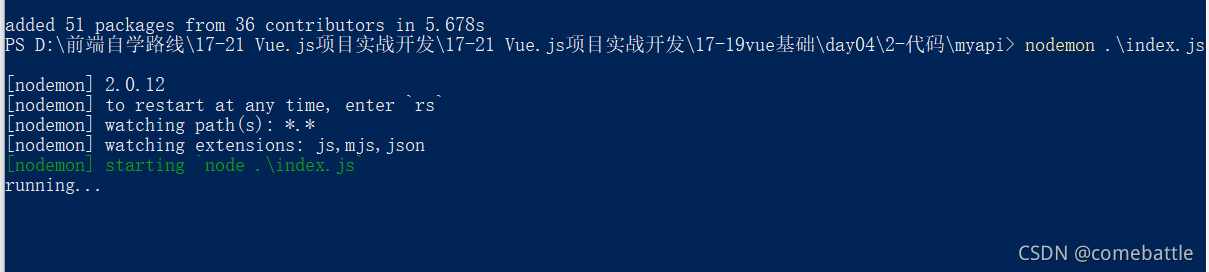
Run nodemon./index.js again

Perfect solution~

Error when Python executes JavaScript statement

‘gbk’ codec can’t encode character ‘\u20ac’ in position 62114: illegal multibyte sequence
find this line in the JS files:

e = "a€|",

It should be this symbol that reports an error. How to solve it

with open('./encryp_js/eventid_encryp.js', 'r', encoding='utf-8') as f:
    content = f.read()
jsdata = execjs.compile(content)