Category Archives: How to Fix

Power view error: invalid activate method of class oleobject

problem description

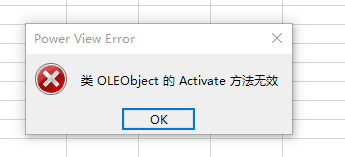
when using Excel’s Power View component, the error message is: Activate method of OLEObject class failed or Activate method of class OLEObject is invalid

problem cause

this is because Flash, Silverlight, and Shockwave controls are disabled by default in the Windows version of Office. In this way, most users will not be affected, but we will have problems when we use some high-end office professional functions, such as

  1. click the embedded Flash movie during the PowerPoint slide show without any reaction although this has been used before.
  2. power View in Excel does not work again (because it USES Silverlight). You may see an error message indicating “failed activation of OLEObject class methods “.

solution

since we have found the problem, then the solution is clear, we can activate the office disabled controls, how to do it?Activation control on Windows is through the modification of the value of the registry to achieve, for computer small white to modify the registry value is a risk, once the error will cause other system problems, so here to introduce the use of script automation to modify the registry, to avoid the risk of hand error.

activates SilverLight as follows:

Windows Registry Editor Version 5.00

[HKEY_LOCAL_MACHINE\SOFTWARE\Microsoft\Office\16.0\Common\COM Compatibility\{DFEAF541-F3E1-4c24-ACAC-99C30715084A}]
"Compatibility Flags"=dword:0
"ActivationFilterOverride"=dword:1

[HKEY_LOCAL_MACHINE\SOFTWARE\WOW6432Node\Microsoft\Office\16.0\Common\COM Compatibility\{DFEAF541-F3E1-4c24-ACAC-99C30715084A}]
"Compatibility Flags"=dword:0
"ActivationFilterOverride"=dword:1

specific steps are:

  1. in your computer to create a TXT file, and then copy the above code -> Paste into the new TXT file and save as ActSilverlight.reg.
  2. close all office software (including Excel, Word, PPT, etc., all belong to office), then double-click the actsilverlight.reg file just executed, successfully restart the computer, and the power View can be used normally.

PS: Microsoft official solution

Python reports oserror: initializing from file failed

phenomenon description:

When

opens a file, the newspaper Initializing from file failed to initialize the file.

the original statement is:

df=pd.read_csv(r’ job list query by original expected date 529.csv’)

reason analysis:

is because the file path contains Chinese. Since the default engine of read_csv function is C, Chinese recognition is not supported, so this error is reported. This is a common problem when using notebook to open files.

solution:

change engine=’python’ executes successfully.

df=pd.read_csv(r’ job list query by original expected date 529. CSV ‘,engine=’python’)

Solve the problem that power view in Excel prompts activate method of oleobject class failed or activate method like oleobject is invalid

The

method is as follows link

includes method one that executes enable Silverlight’s file

method two, manually modify the registry

https://support.office.com/zh-cn/article/microsoft-office-%E4%B8%AD%E8%A2%AB%E9%98%BB%E6%AD%A2%E7%9A%84-flash-%E5%92%8C-silverlight%EF%BC%8Cshockwave-%E6%8E%A7%E4%BB%B6-55738f12-a01d-420e-a533-7cef 1ff6aeb1?omkt=zh-CN& ui=zh-CN& rs=zh-CN& ad=CN

if Silverlight is damaged, fix

with the following link

https://support.microsoft.com/zh-cn/help/2608523/how-to-clean-a-corrupted-silverlight-installation-and-then-reinstall-s

tensorflow.python.framework.errors_impl.InternalError: Failed to create session.

tensorflow.python.framework.errors_impl.InternalError: Failed to create session. Solution summary

recently wrote a simple tensorflow program to test new computers. Because the new computer is two different Nvidia graphics CARDS, you need to set up which GPU to use each time, or you will always pop up the error of not being able to create a session, and there seem to be several kinds of errors.

solution:

adds the following code to the program:

import os
os.environ["CUDA_VISIBLE_DEVICES"] = '0' #使用编号为0的gpu
config = tf.ConfigProto()
config.gpu_options.per_process_gpu_memory_fraction = 0.5 
config.gpu_options.allow_growth = True 

this method resolves the error

in the above picture

other solutions that cannot create sessions:

change python test.py to CUDA_VISIBLE_DEVICES=0 python test.py

when running the program

Failed to connect to Mir:Failed to connect to server socket:No such file or directory

error when running.py file under Linux:

Failed to connect to Mir:Failed to connect to server socket:No such file or directory

Google to the solution, in the terminal input instruction:

export DISPLAY=:0 

and then run the.py file ~

but this is only a temporary solution, you have to execute this command every time you open the terminal.
solution:

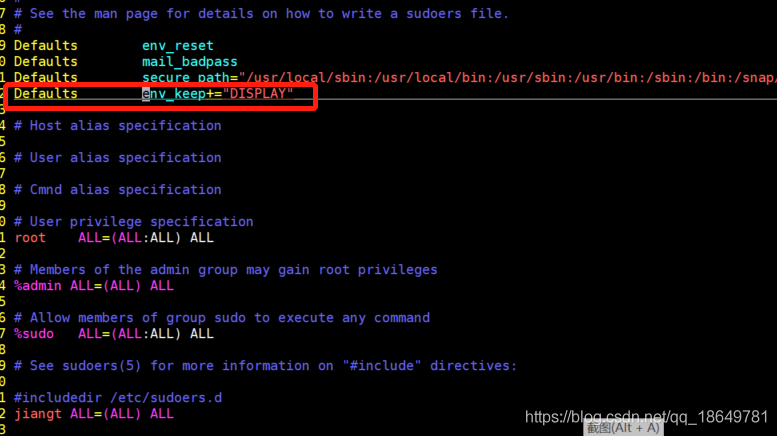
Add

to the end of file for /etc/sudoers:

Defaults env_keep+="DISPLAY"

since this file requires write permissions, open it with the following command:

sudo visudo

open the file and add:

here


after save the file is ok ~

Notes:
remember to always use “+ =” when adding to env_keep. If there are any other EN v_keep with “=” change them to “+ =” because using “=” will overwrite other values.

Ps: but this method suddenly doesn’t work at the moment, so we have to use export DISPLAY every time.

Solved “openssl config failed: error:02001003:system library:fopen:No such process” for Nodejs Windo

If you get this error after installing nodejs in windows 10, your ssl is not pointing correctly
So you must point to the correct path echo %OPENSSL_CONF% (see your openssl path)set OPENSSL_CONF=C:\OpenSSL\bin\ OpenSSL .cnf (set your OpenSSL path)

Then enter

Code npm – v
In cmd again

You should be able to operate smoothly.

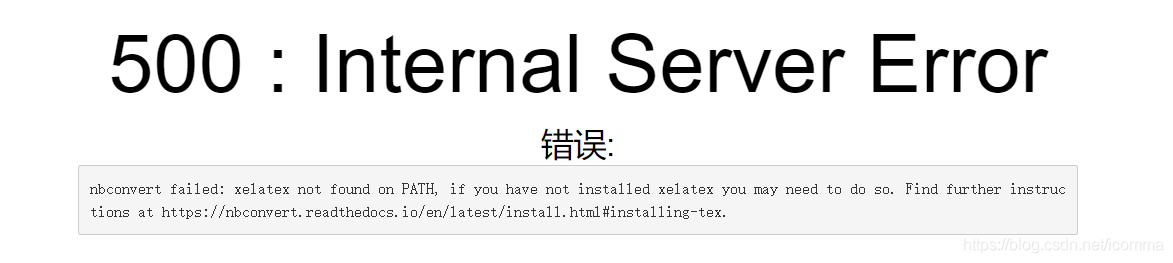
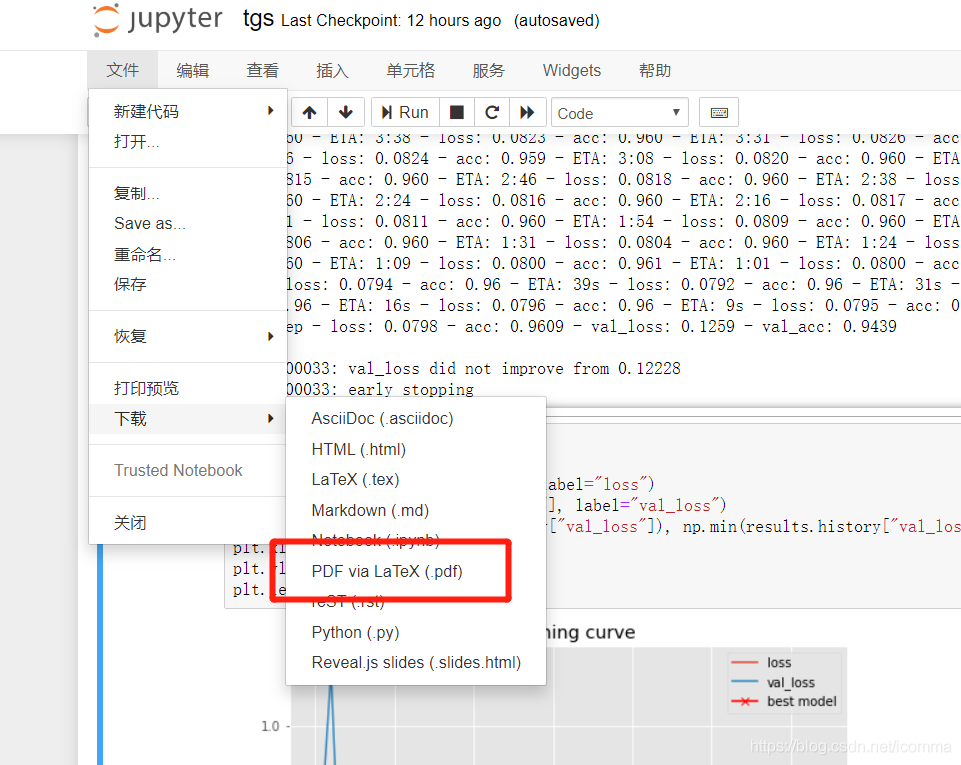
nbconvert failed: xelatex not found on PATH, if you have not installed xelatex you may need to do so

problem description

solution:

1. Install pandoc

download pandoc official download http://miktex.org/howto/install-miktex

other available CSDN resources download address
click directly to install, the default installation, you can choose the installation location.
then configure the environment variable to configure the installation path to the system path. For example, I put E:\IDE\Pandoc into the PATH.

2. Install miktex

directly click install, the default installation, you can choose the installation location.
(if the program does not automatically configure environment variables) requires manual configuration of environment variables to configure the installation path to the system path. If mine is put E:\IDE\MiKTeX 2.9\ MiKTeX \bin\x64 in path.

3. Install various macro packages

select convert PDF


automatically prompt to install various macro packages directly click install (install several times, until the installation is complete…)
note! However, if you encounter Chinese content will report an error, it is unable to convert Chinese, or if you encounter other problems, please feel free to leave a message.

Angular: Program ng failed to run No application is associated

today, when building the Angular CLI framework, I encountered a strange problem. When I finished Angular CLI setup, I typed the ng command on Windows PowerShell and command prompt, which worked fine, but failed on VSCode PowerShell.

I’ve sorted out the solutions here, hoping to be of some help to those reading this article.

problem description

The following error occurred when I typed the ng command on VSCode PowerShell.

Program 'ng' failed to run: No application is associated with the specified file for this operationAt line:1 char:1

ng
~~.
At line:1 char:1
ng
~~
CategoryInfo : ResourceUnavailable: (:) [], ApplicationFailedException
FullyQualifiedErrorId : NativeCommandFailed

solution

change PowerShell execution policy on a Windows machine. Here are the steps:

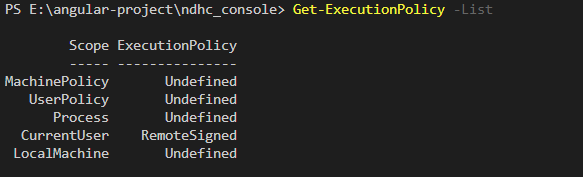
get the list of execution policies

enter the following command to get a list of PowerShell execution policies:

Get-ExecutionPolicy -List

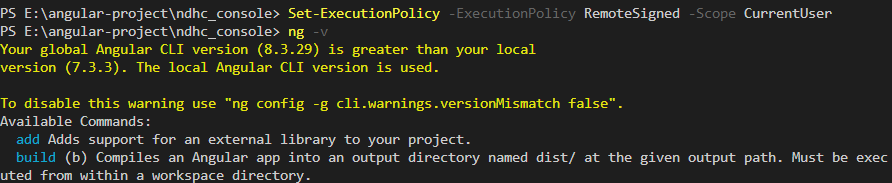
set CurrentUser policy

set CurrentUser to the remoteswignet strategy and enter the command ‘

Set-ExecutionPolicy -ExecutionPolicy RemoteSigned -Scope CurrentUser


after the above steps are completed, close the VSCode PowerShell, and then restart it. Finally, re-enter the ng command to check if it was successful.

  • if errors still occur, you can try to close all existing command prompt and PowerShell Windows.

  • try to restart your computer if you still have problems.

  • if the problem still exists, please check whether the C:\Users\{username}\AppData\ NPM environment variable is set.

  • finally, you can also try reinstalling Angular CLI.

try it all over again anyway to make sure it works.

cadvisor Failed to start container manager: inotify_add_watch /sys/fs/cgroup/cpuacct,cpu: nosuchfile

# 报错如下:
[xxx@izgtdlcgloqnfyz ~]# docker logs ba2d4ab942f9
W1022 06:12:09.413462       1 manager.go:349] Could not configure a source for OOM detection, disabling OOM events: open /dev/kmsg: no such file or directory
F1022 06:12:09.504230       1 cadvisor.go:172] Failed to start container manager: inotify_add_watch /sys/fs/cgroup/cpuacct,cpu: no such file or directory


# 解决
sudo mount -o remount,rw '/sys/fs/cgroup'
sudo  ln -s /sys/fs/cgroup/cpu,cpuacct /sys/fs/cgroup/cpuacct,cpu

systemctl start docker Job for docker.service failed because the control process exited with error

1. Docker failed to start after installation

[root@tbase1 ~]# systemctl start docker
Job for docker.service failed because the control process exited with error code. See "systemctl status docker.service" and "journalctl -xe" for details.
[root@tbase1 ~]# 
[root@tbase1 ~]# journalctl -xe
Oct 22 11:10:36 tbase1 systemd[1]: Unit docker.service entered failed state.
Oct 22 11:10:36 tbase1 systemd[1]: docker.service failed.
Oct 22 11:10:38 tbase1 systemd[1]: docker.service holdoff time over, scheduling restart.
Oct 22 11:10:38 tbase1 systemd[1]: Stopping Docker Socket for the API.
-- Subject: Unit docker.socket has begun shutting down
-- Defined-By: systemd
-- Support: http://lists.freedesktop.org/mailman/listinfo/systemd-devel
-- 
-- Unit docker.socket has begun shutting down.
Oct 22 11:10:38 tbase1 systemd[1]: Starting Docker Socket for the API.
-- Subject: Unit docker.socket has begun start-up
-- Defined-By: systemd
-- Support: http://lists.freedesktop.org/mailman/listinfo/systemd-devel
-- 
-- Unit docker.socket has begun starting up.
Oct 22 11:10:38 tbase1 systemd[1]: Listening on Docker Socket for the API.
-- Subject: Unit docker.socket has finished start-up
-- Defined-By: systemd
-- Support: http://lists.freedesktop.org/mailman/listinfo/systemd-devel
-- 
-- Unit docker.socket has finished starting up.
-- 
-- The start-up result is done.
Oct 22 11:10:38 tbase1 systemd[1]: start request repeated too quickly for docker.service
Oct 22 11:10:38 tbase1 systemd[1]: Failed to start Docker Application Container Engine.
-- Subject: Unit docker.service has failed
-- Defined-By: systemd
-- Support: http://lists.freedesktop.org/mailman/listinfo/systemd-devel
-- 
-- Unit docker.service has failed.
-- 
-- The result is failed.
Oct 22 11:10:38 tbase1 systemd[1]: Unit docker.service entered failed state.
Oct 22 11:10:38 tbase1 systemd[1]: docker.service failed.

[root@tbase1 ~]# systemctl stop docker
[root@tbase1 ~]# 
[root@tbase1 ~]# 
[root@tbase1 ~]# systemctl start docker
Job for docker.service failed because start of the service was attempted too often. See "systemctl status docker.service" and "journalctl -xe" for details.
To force a start use "systemctl reset-failed docker.service" followed by "systemctl start docker.service" again.
[root@tbase1 ~]# 
[root@tbase1 ~]# 

Json to /etc/docker/ daemone.conf, but not daemone.json. But mine is the newly installed Docker, /etc/docker has no such file under it.

[root@tbase1 docker]# cd /etc/docker/
[root@tbase1 docker]# ls
key.json
[root@tbase1 docker]# 

3. Start dockerd directly and check the log

[root@tbase1 docker]# dockerd
INFO[2020-10-22T11:17:08.729949738+08:00] Starting up                                  
INFO[2020-10-22T11:17:08.732247548+08:00] parsed scheme: "unix"                         module=grpc
INFO[2020-10-22T11:17:08.732274835+08:00] scheme "unix" not registered, fallback to default scheme  module=grpc
INFO[2020-10-22T11:17:08.732298172+08:00] ccResolverWrapper: sending update to cc: {[{unix:///run/containerd/containerd.sock 0  <nil>}] <nil>}  module=grpc
INFO[2020-10-22T11:17:08.732306615+08:00] ClientConn switching balancer to "pick_first"  module=grpc
INFO[2020-10-22T11:17:08.733766403+08:00] parsed scheme: "unix"                         module=grpc
INFO[2020-10-22T11:17:08.733793158+08:00] scheme "unix" not registered, fallback to default scheme  module=grpc
INFO[2020-10-22T11:17:08.733807436+08:00] ccResolverWrapper: sending update to cc: {[{unix:///run/containerd/containerd.sock 0  <nil>}] <nil>}  module=grpc
INFO[2020-10-22T11:17:08.733813642+08:00] ClientConn switching balancer to "pick_first"  module=grpc
failed to start daemon: error initializing graphdriver: /var/lib/docker contains several valid graphdrivers: overlay2, devicemapper; Please cleanup or explicitly choose storage driver (-s <DRIVER>)
[root@tbase1 docker]# 

error mainly due to failed to start daemon: error initializing graphdriver: /var/lib/docker contains several valid graphdrivers: overlay2, devicemapper; Please cleanup or explicitly choose storage driver (-s < DRIVER>) .

4, according to the above error, first put /var/lib/docker under overlay2,devicemapper mv drop

[root@tbase1 docker]# cd /var/lib/
[root@tbase1 lib]# ls
AccountsService  color       dnsmasq  geoclue    misc                  pacemaker   pulse      spamassassin  upower
alsa             colord      docker   gssproxy   mlocate               PackageKit  rasdaemon  stateless     virtuoso
alternatives     containerd  dovecot  hyperv     net-snmp              pcp         rhsm       stolon        vmware
amanda           containers  etcd     initramfs  NetworkManager        pcsd        rpcbind    systemd       xkb
authconfig       corosync    flatpak  iscsi      nfs                   Pegasus     rpm        tpm           yum
bluetooth        cs          fprint   libvirt    openlmi-registration  plymouth    rpm-state  tuned
chrony           dbus        games    logrotate  openlmi-storage       polkit-1    rsyslog    udisks2
cockpit          dhclient    gdm      machines   os-prober             postfix     samba      unbound
[root@tbase1 lib]# cd docker/
[root@tbase1 docker]# ls
containers  devicemapper  image  network  overlay2  plugins  runtimes  swarm  tmp  trust  volumes
[root@tbase1 docker]# 
[root@tbase1 docker]# 
[root@tbase1 docker]# mv overlay2 overlay2_back
[root@tbase1 docker]# mv devicemapper/ devicemapper_bak
[root@tbase1 docker]# ls -ltr
total 0
drwx------ 4 root root 32 Aug 23 20:02 plugins
drwx------ 2 root root  6 Aug 23 20:02 trust
drwxr-x--- 3 root root 19 Aug 23 20:02 network
drwx------ 2 root root  6 Aug 23 20:02 swarm
drwx------ 4 root root 42 Aug 23 20:09 image
drwx------ 5 root root 53 Aug 23 20:10 devicemapper_bak
drwx------ 3 root root 78 Aug 23 20:10 containers
drwx------ 3 root root 97 Aug 23 20:10 volumes
drwx------ 2 root root  6 Oct 22 11:17 tmp
drwx------ 2 root root  6 Oct 22 11:17 runtimes
drwx------ 3 root root 40 Oct 22 11:17 overlay2_back

5. Start docker

again

[root@tbase1 docker]# systemctl start docker
[root@tbase1 docker]# systemctl status docker
● docker.service - Docker Application Container Engine
   Loaded: loaded (/usr/lib/systemd/system/docker.service; disabled; vendor preset: disabled)
   Active: active (running) since Thu 2020-10-22 11:19:37 CST; 27s ago
     Docs: https://docs.docker.com
 Main PID: 1926 (dockerd)
   Memory: 56.0M
   CGroup: /system.slice/docker.service
           └─1926 /usr/bin/dockerd -H fd:// --containerd=/run/containerd/containerd.sock

Oct 22 11:19:36 tbase1 dockerd[1926]: time="2020-10-22T11:19:36.905481889+08:00" level=info msg="scheme \"unix\" no...e=grpc
Oct 22 11:19:36 tbase1 dockerd[1926]: time="2020-10-22T11:19:36.905497425+08:00" level=info msg="ccResolverWrapper:...e=grpc
Oct 22 11:19:36 tbase1 dockerd[1926]: time="2020-10-22T11:19:36.905504796+08:00" level=info msg="ClientConn switchi...e=grpc
Oct 22 11:19:36 tbase1 dockerd[1926]: time="2020-10-22T11:19:36.917251460+08:00" level=info msg="Loading containers: start."
Oct 22 11:19:37 tbase1 dockerd[1926]: time="2020-10-22T11:19:37.071539867+08:00" level=info msg="Default bridge (do...dress"
Oct 22 11:19:37 tbase1 dockerd[1926]: time="2020-10-22T11:19:37.099207556+08:00" level=info msg="Loading containers: done."
Oct 22 11:19:37 tbase1 dockerd[1926]: time="2020-10-22T11:19:37.147549150+08:00" level=info msg="Docker daemon" com....03.13
Oct 22 11:19:37 tbase1 dockerd[1926]: time="2020-10-22T11:19:37.147636946+08:00" level=info msg="Daemon has complet...ation"
Oct 22 11:19:37 tbase1 dockerd[1926]: time="2020-10-22T11:19:37.164192481+08:00" level=info msg="API listen on /var....sock"
Oct 22 11:19:37 tbase1 systemd[1]: Started Docker Application Container Engine.
Hint: Some lines were ellipsized, use -l to show in full.

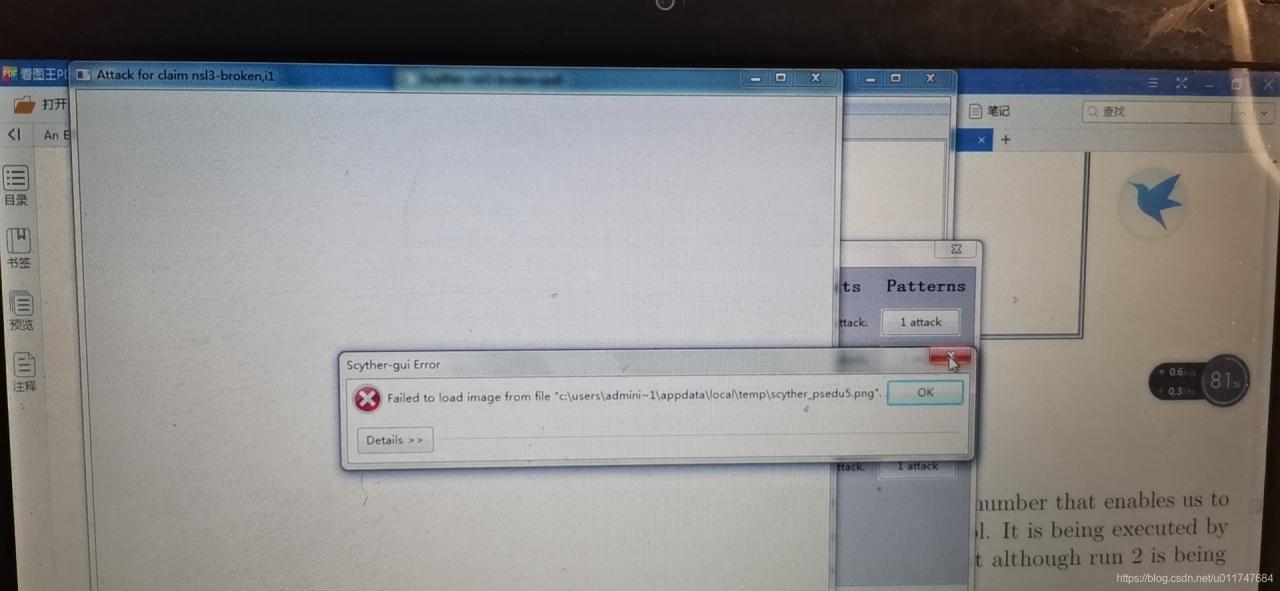
Failed to load image from file “* * *. Png“

Scyther installation Failed to load image from file “***. PNG “

there is a problem installing scytherv1.1.3

after the installation of Python2.7, wxpython3.0-win3.0.2.0-py27.exe, graphviz-2.44.1-win32.exe and scyther-w32-v1.1.3,
, run scyther-guy.py, open the built-in protocol file ns3.spdl, click verify to appear the protocol security analysis results, and then click the corresponding attack in the results. “***. PNG”, as shown in the figure below, so how to solve this problem?

solution

the first software development are based on the python, the pop-up error is due to the PNG file failed to generate, and graphviz this software is responsible for drawing, so it must be scyther call graphvz this software, then try to uninstall 2.44.1 this version, switch to graphviz – 2.38, (software can be downloaded on the baidu, it doesn’t have to be in the official website to download), the results successfully solve the problem.