Ims Request Failed on channel 0
Couldn’t read packet: Connection reset by peer
Ims> /etc/ssh/sshd_config the following line has been added to the file :
ims SFTP /usr/lib/openssh/sftp-server
The reason:
The SFTP service did not start
Unable to load file while debugging
Reproduced in: https://www.cnblogs.com/Tpf386/p/10167142.html
Mac report ZSH: fork failed: Resource Permanently (reason and solution)
MacOS version: 10.15.3 (19D76)
why
A few days ago, I used django-crontab to do the timing task and forgot to delete the task, which led to the continuous creation of processes in the background, and finally the terminal kept reporting errors, and the new browser and files could not be opened.
Check the following command to see that there are 1000+ processes in the background
ps -ef | grep cron | wc -l
The solution
During this period, try to close crontab directly, but cannot close it all the time
sudo /usr/sbin/cron stop # 关闭命令
cron: cron already running, pid: 177
Final solution
First of all, empty the crontab task, delete what was created by what, for example, I passed django-crontab
So the command to remove the task is python manager.py crontab remove
Then batch delete the cron process
ps -ef | grep /usr/sbin/cron |grep -v grep | cut -c 9-15 | xargs sudo kill -9
Solve it!!
conclusion
The Mac exception occurs because the thread or open file exceeds the system limit. If such an exception is reported as an error and is frequent, and the restart does not work, you need to consider whether there is some program frantically starting the process in the background. Don’t go to modify the Mac thread/file limit, to find the root cause, if indeed because development demand process, then can consider to modify the Mac itself limits, otherwise just solve the abnormal surface, but the process is still on your background, constantly eat your system resources.
Unable to open kernel device "\\.\Global\vmx86": 系统找不到指定的文件. Did you reboot after installing VMware Workstation? Failed to initialize monitor device.
”
Try this:
1. Shut down the virtual machine, download the green cracked version of Vmware and get the Vmware installation package
2. Unzip a folder, search for “vmx86.sys” in this folder, and copy
3. Enter this path: C:\Windows\System32\drivers, and search “vmx86.sys”. If this file exists, replace it (note that the backup is replaced)
4. Enter “Run” in the start menu: NET Start VMx86 and press OK;
5. Start the virtual machine and everything goes back to normal.
Note: This method is feasible for personal testing. Please refer to the network for some steps.
directory
Install Xen Virtual Machine with Virt-Manager Install Xen Virtualization Install Virt-Manager check libvirtd service status Create Xen Virtual machine view issues encountered with virtual machine status
Install the Xen virtual machine using virt-Manager
This article focuses on how to install the Xen virtual machine on CentOS 7 using Virt-Manager. The following environments need to be prepared:
CentOS 7Xen virtualization Virt-managerVMware Workstation 12
Note: The desktop version of CentOS7 is installed on the same host as Xen virtualization and Virt-Manager for this environment
Install Xen virtualization
See my post on Installing Xen virtualization under CentOS 7 for details
Install the virt – manager
Use the following command to install
yum install -y virt-manager
Check the status of the libvirtd service
Use the following command to see that the service starts properly
systemctl status libvirtd

Create the Xen virtual machine
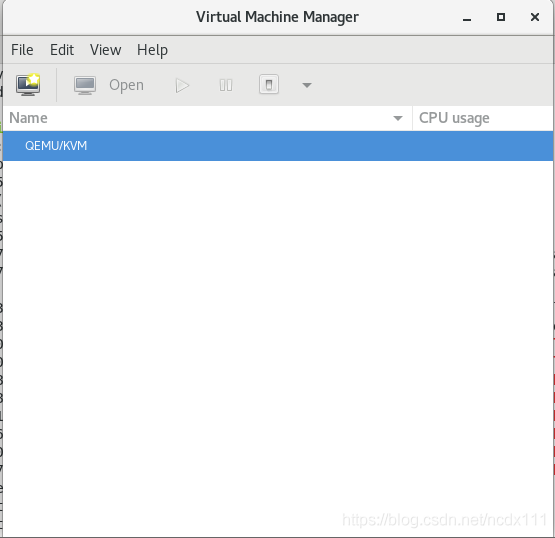
Open the virt-Manager interface
virt-manager

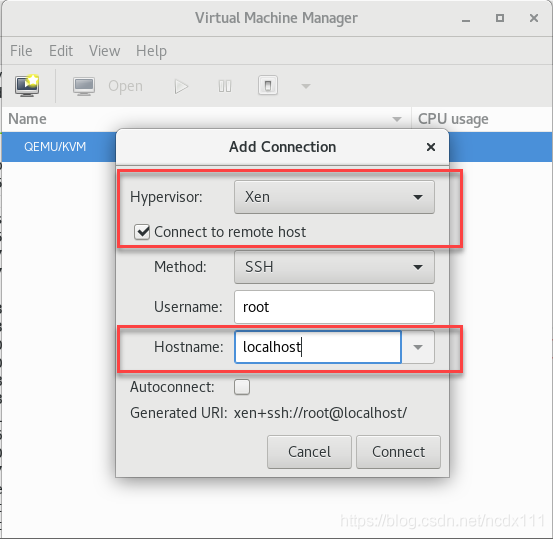
To connect to Xen virtualization, click File-> Add Connection, select Xen, where Hostname fill in Xen virtualization server IP
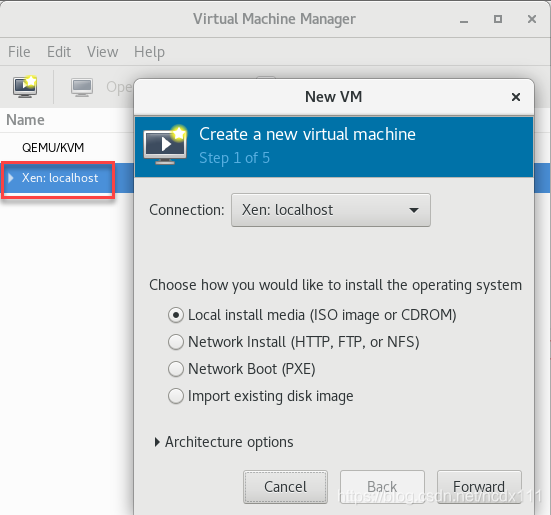
create virtual machine, right click Xen:localhost-> New opens the create page and selects the installation method specified.
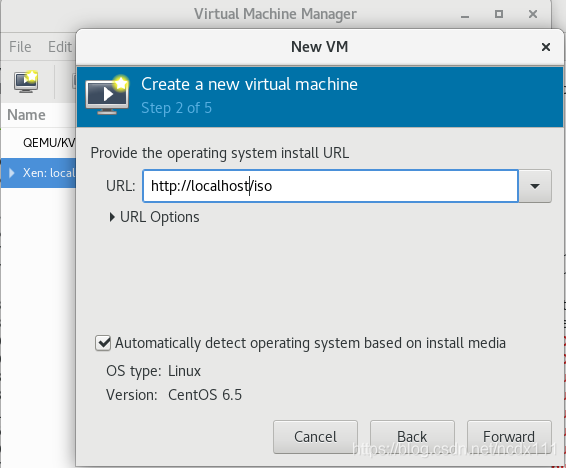
input Network Install Network Install installation address
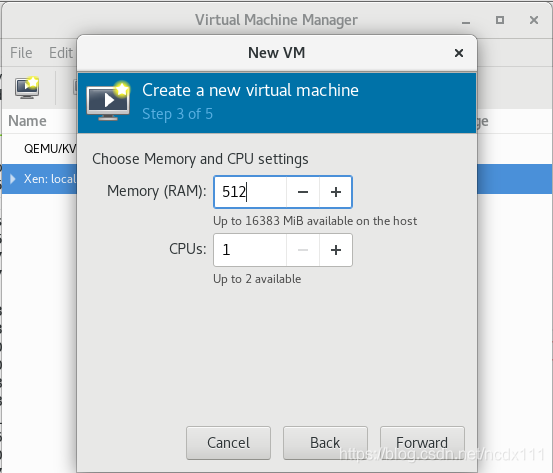
select the virtual machine memory and CPU configuration, the image installed in this paper is centos6.5-minnal version
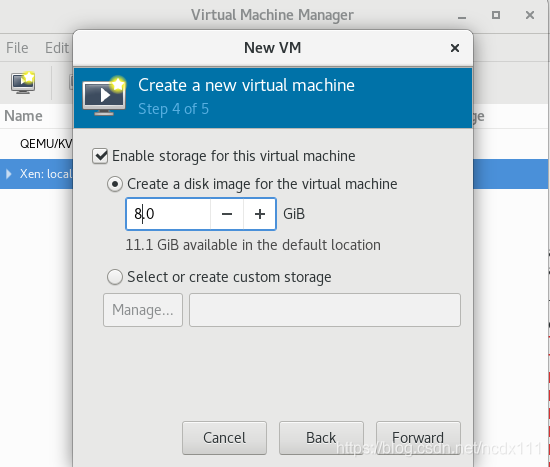
select the virtual machine disk size
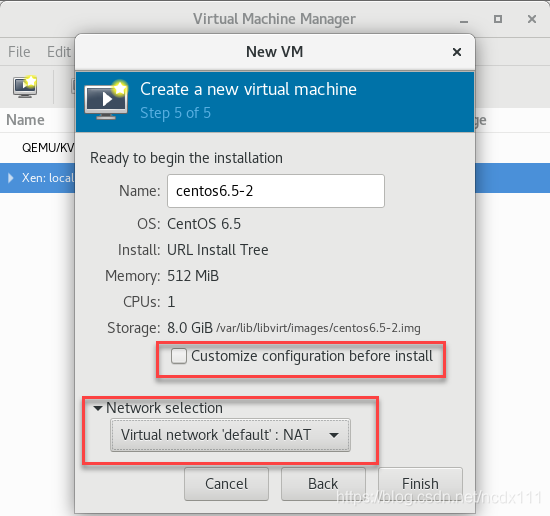
confirm the installation information (including the selection of Network configuration, whether to customize the configuration information), Check the first red box in the figure below if there is a custom requirement.
click Finish to enter the installation interface. Installation steps are not described in this article, but you can find the installation tutorial by yourself
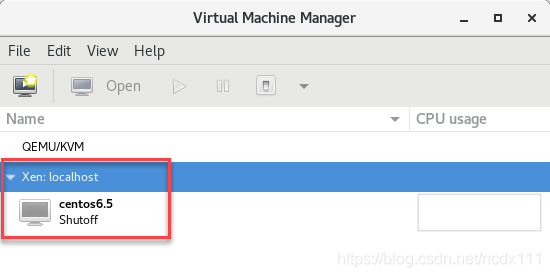
View virtual machine status
can be viewed through the virt-manager to enter the virtual machine command line by entering the following command
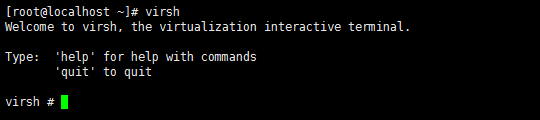
virsh

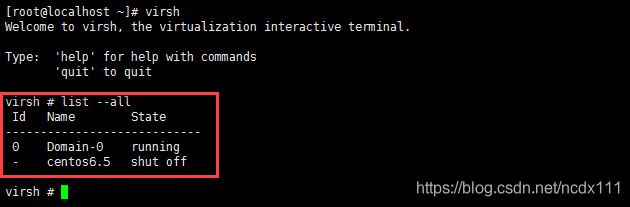
You can use help to view relevant commands. For example, enter the following command to see the virtual list and its status
list --all

Problems encountered
In the process of creating virtual machines using Virt-Manager, the following problems are encountered, and the solutions are attached for your reference.
:'internal error:process exited while connecting to monitor:qemu:could not load PC BIOS 'bs-256k.bin ' Unable to complete install:’internal error:process exited while connecting to monitor:qemu:could not load PC BIOS’ bs-256k.bin ‘ Just create a BIOS -256k.bin file under seabios directory
cp /usr/share/seabios/bios.bin /usr/share/seabios/bios-256k.bin
incapable to complete install:'interbal error:libxenlight failed to create new domain 'centos6.5' 1. There is a centos6.5 virtual machine in the current virtual machine list. Rename the currently created virtual machine or delete the existing virtual machine to
2. Use the command yum update qemu-img to update the file
3. Determine if the memory and CPU of the virtual machine being created is greater than the memory and CPU of the host, and ensure that the virtual machine’s resources are smaller than those of the host

Addresses that are already in use.
Normally, each socket address (protocol/IP address/port) is allowed to be used only once.
This error occurs if the application tries to bind a socket to an IP address/port that is already in use for an existing socket, or a socket that is not properly closed, or is still in the process of being closed.
For server applications that need to bind multiple sockets to the same port number, such as when a client process is taskkill and starts again, consider using setsockopt (SO_REUSEADDR).
Client applications usually do not need to call bind-connect to automatically select an unused port. When calling bind with a wildcard address (including ADDR_ANY), the WSAEADDRINUSE error may be delayed until a specific address is committed. This may occur later when another function is called, including connect, listen, WSAConnect, or WSAJoinLeaf.
BOOL bOptVal = TRUE;
int bOptLen = sizeof(BOOL);
iResult = setsockopt(ListenSocket, SOL_SOCKET, SO_REUSEADDR, (char *)&bOptVal, bOptLen);
if (iResult == SOCKET_ERROR)
{
char m[500];
snprintf(m, 500, "%s %d: setsockopt failed, port %d failed with error: %d",
__func__, __LINE__, port_number, WSAGetLastError());
printf("%s\n", m);
freeaddrinfo(result);
closesocket(ListenSocket);
WSACleanup();
return -1;
}
https://docs.microsoft.com/en-us/windows/desktop/api/winsock/nf-winsock-setsockopt
Reproduced in: https://www.cnblogs.com/liujx2019/p/10811330.html
Dbeaver started up today with an error “Fail to create Java Virtual Machine” and no other notifications. I remember that I installed Hadoop and Spark on my computer last week. During the process, I downloaded the JDK. It may be the Java version.
When it comes to environmental problems, there is no trick, but to search for the solutions of predecessors on the Internet.
1. Search for solutions
I looked at several scenarios and said that I wanted to modify the parameters in the myeclipse.ini file. So I went to see what’s in the Dbeaver package Contents, and I found the dbeaver.ini file in Eclipse.
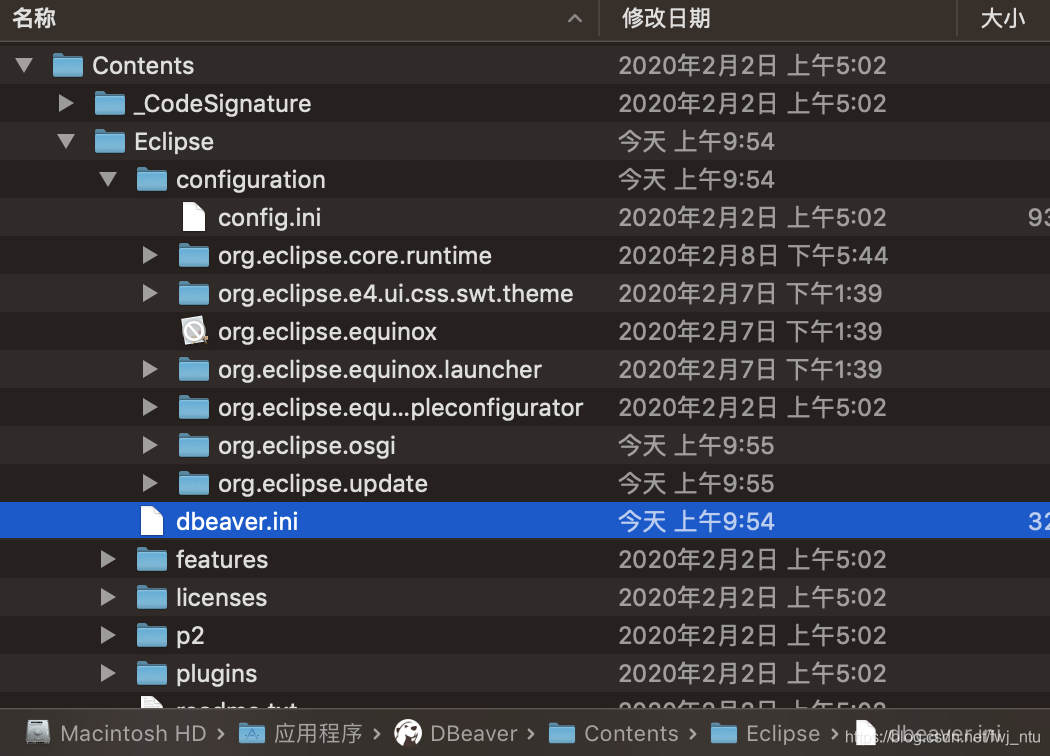
opens the dbeaver.ini file and sees the following configuration information:
-startup
../Eclipse/plugins/org.eclipse.equinox.launcher_1.5.600.v20191014-2022.jar
--launcher.library
../Eclipse/plugins/org.eclipse.equinox.launcher.cocoa.macosx.x86_64_1.1.1100.v20190907-0426
-vmargs
-XX:+IgnoreUnrecognizedVMOptions
--add-modules=ALL-SYSTEM
-Xms64m
-Xmx1024m
-XstartOnFirstThread
There is a lot of talk on the Internet about modifying Xmx parameters, and reducing the maximum memory size by half would solve the problem. I tried it, but it didn’t work. Some other means can only be sought. Another solution was found, which meant manually specifying the Java installation directory in the.ini file.
Taking another look at the dbeaver.ini file indicates that you don’t understand the configuration files, so you open readme.txt. To be honest, after installing software that is used to fooling around, we don’t think about reading these very detailed readme.txt files, but there is a lot of useful information.
-vm <java vm path>
Use Java VM installed in <java vm path> folder instead of default
location.
-vmargs <jvm parameters>
Allows to pass any number of additional parameters to JVM.
Additional parameters may be used to customize environment or
3-rd party jdbc drivers.
– VM is used to specify the location of the Java Virtual Machine installation:
If this parameter is configured, the specified < is used; java vm path> Java Virtual Machine installed in; If you do not configure this parameter, you will go to the default path for the JVM. So far, the dbeaver.ini file already has the -vmargs parameter, but it doesn’t have any value after it, and there’s no -VM in the file.
2. Solve problems
The JDK is already installed on this machine, so open the path information previously configured in the ~ /.bash_profile file and add the JDK path to the dbeaver.ini file.
-vm
/Library/Java/JavaVirtualMachines/openjdk-14.jdk/Contents/Home
Turn on Dbeaver again. However, instead of succeeding, I reported another error, saying that the Java version did not match, directly providing a JRE download link to download – Java for OS X 2017-001.
Ini file – The Java Virtual Machine installation directory after vm is /Applications/ JRE, after saving the file, open Dbeave again, success!
-vm
/Applications/jre
This article in my Java version conflict problems of MAC played an important role, can refer to:
https://blog.csdn.net/gaofenglxx/article/details/102565883
Welcome to WeChat official number
“data analyst notes”

![]()
Problem: RegAsm: error RA0000: Failed to load ‘XXX. DLL’ because I
t is not an valid.NET assembly.
It turned out that the FramWork version was too low, so updating It was the solution.
Reproduced in: https://www.cnblogs.com/PengRay0221/p/9140327.html
The reason is:
During the test, turn off the port number of RTMP,./kill -9 PID (RTMP :1935)
Results in starting the Nginx,./Nginx – c/usr/local/Nginx/conf/Nginx. Conf
The above error occurs
The result process is as follows:
First use lsof – I :80 to see what program is using port 80. Lsof returns the following:
[root@localhost sbin]# lsof – I :80
COMMAND PID USER FD TYPE DEVICE SIZE/OFF NODE NAME
nginx 63170 root 9u IPv4 14243472 0t0 TCP *: HTTP (LISTEN)
Close process: Kill -9 63170
Restart the Nginx: [root @ localhost sbin] #./Nginx – c/usr/local/Nginx/conf/Nginx. Conf
Problem solving
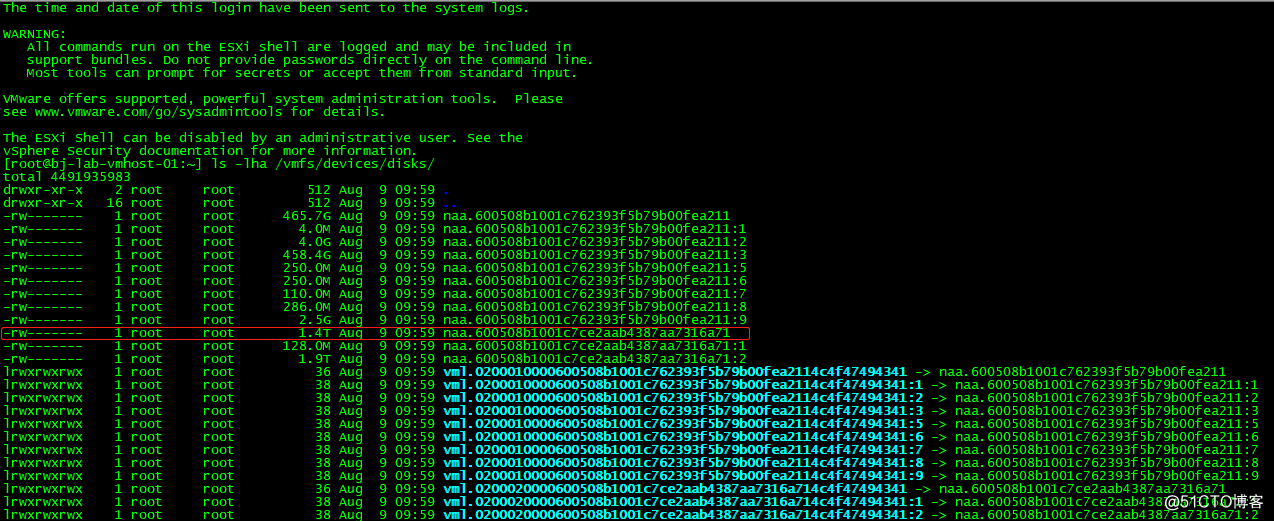
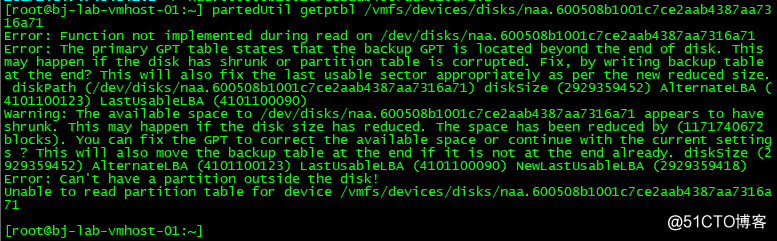
When you create a new data warehouse datastore in VMware vShere/ESXi, the following error message pops up! “Fail to create VMFS Datastore VMFS XXXX” – Cannot change the host Configuration. For the first time, it’s hard to know what to do about this bug, so here’s how to fix it!

Log in to your VMware vShere/ESXi host using SSH or Telnet, and run the following command, which lists all the storage partitions, and then copy out the ID number of the partition where the creation failed. My example is shown in red below.

Then enter the copied id after the following command:

Then fix it with the following command:

With the above fixes, you can go back to VMware vShere/ESXi host again to create datastore and no longer report errors!
Attach a KB for reference: https://kb.vmware.com/s/article/1008886