Category Archives: How to Fix

Introduction to VTK

VTK profile
Outline the characteristics of the frame structure

An overview of the
The VTK1Visualization Toolkit) is a free, open-source software Toolkit designed and developed by Kitware based on object-oriented programming techniques for image processing, 3D graphics, and visual programming. VTK is designed as a Toolkit rather than a system. It is an independent target library, which can be easily embedded into any development tool and developed its own library functions on the basis of it, so as to build an independent large-scale application system. VTK consists of C++ class libraries and a compilation interface layer including Tcl/Tk, Java and Python. This hierarchy allows developers to develop in a tool language they are familiar with, and each of these languages has its own GUI development support.
VTK encapsulates many commonly used algorithms in the field of graphics and visualization, and shields some details often encountered in the process of visualization development, which greatly eases the vast number of researchers and developers. In terms of image processing and visualization, VTK has incomparable advantages over other software packages. As a popular image application software development platform, it is widely used in scientific research and engineering fields.
The characteristics of
VTK is a set of excellent 3D visualization graphics system, which has been widely valued and applied in recent years. It has the following distinct technical features 2
The most notable feature of VTK is the open source code, which can meet the needs of different users. Because of its open source code, many research institutions and individuals around the world use it for teaching, research and visualization system development, so that it is widely supported, prompting its code to continue to update, so it has been constantly improved and improved. VTK supports C ++, TCL, JAVA, Python and other language environments, and has a variety of programming languages between the code conversion function. VTK encapsulates many excellent 3D data visualization algorithms at present, provides comprehensive functional support, and can easily realize various operations and transformations on data sets. Users can use VTK to achieve any image processing functions, such as two-dimensional and three-dimensional graphic image visualization calculation, volume rendering, image segmentation, image registration and so on. The 3D image generated by VTK is convenient for interaction, less code writing and good code reuse. VTK can be used in both Windows and UNIX systems, with platform independence and good portability. VTK supports a wealth of data types and can process a variety of data types.

Frame structure
VTK adopts object-oriented design method, which includes two different object models: graphic model and visual model. The graphic model is the abstraction of the three-dimensional graph, and the visual model is the visual data flow model 3
Graphic model presents the essential characteristics of 3D graphics system, which is mainly used to display the geometric shapes of data sets as intuitive 3D graphics, and to set and operate properties such as attributes, camera, lighting, rendering window, etc., so as to realize the functions of image generation and user interaction. It can be used for 2D, 3D and other general graphics processing, it mainly has 9 basic objects 4

    Attribute: Describes some characteristics of geometric objects, such as illumination characteristics, reflection intensity, gray scale of objects, drawing style of objects, coloring mode, etc., in order to achieve the rendering of three-dimensional graphics with a sense of reality. Role: Represents the drawing object entity in the rendering scene and can be scaled to the role, and the role’s position, orientation, rendering properties, references, texture mapping and other properties can be set through parameter adjustment. Transforms: A stack containing a 4×4 transformation matrix, which can be translated, scaled, rotated, etc., usually at the top of the stack. Mapping: Specifies the relationship between basic primitives and rendering data in the graphics library. Its main task is to convert data objects in the visualization process into geometric primitives. One or more roles can use the same mapping, and multiple parameters control the mapping. Camera: Used to define viewpoint position, focal point position, and other related properties, which can be set by the caller as needed. Light: it can illuminate the drawing object in the scene. The position, state, Angle, intensity and color of the light can be changed by calling parameters. It also supports point light source and parallel light source. When the characters in the scene interact with the light, they can be observed through the camera. Render controller: Creates a render window and defines a method for calculating coordinates, device-independent. Renderer: it is mainly used to control the rendering process of the target, manage the position and attributes of the light source, camera and drawing object, and provide the conversion between the observation coordinate system, display coordinate system and world coordinate system. After rendering, you need to load the renderer into the render window for display. Rendering window: is a user graphical interface, used to generate a window on the display device, you can set the size of the rendering window, produce stereo display effect, etc., multiple image renderers can draw into a single image rendering window, at the same time can also create multiple image rendering Windows.

The visualization model adopts the data flow model 5In this model, each module is connected in the network, and a series of operations on the data are realized by using the module. The characteristic of this model is that it is applicable to different data types and different algorithms, so it is very flexible. VTK uses a data stream approach to convert raw information into graphical data. There are two basic objects in this method: a Data Object and a Process Object.
VTK uses Pipe Line mechanism, which supports regular or irregular Point sets, images, Volume and other data types, and can easily realize the conversion between these data types. In the VTK class library, it provides flexible and rich classes for reading files of various data formats and their conversion, such as VTKBMPreader (bitmap reading class), VTKJPEGReader (JPEG image reading class) and other classes for reading images which are inheriting from VTKImageReader 6
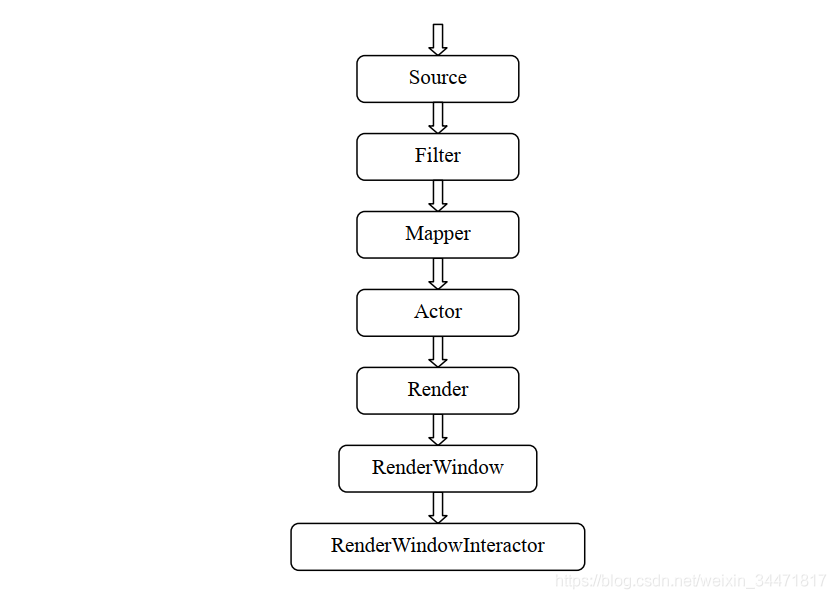
neral framework is shown in the figure. Source is the beginning of the whole pipeline. Source data is first generated by reading files and other means. Filter can have a number of data input, and can produce a number of data output, is a relatively independent calculation module, the function is to make a variety of data transformation. Mapper converts the data processed by the Filter into graph data, and realizes the mapping relationship from data to graph, which is the interface between the visualization pipeline and the graph model. Only mapping relation is obviously not enough. In order to see the real image, Actor is also needed, whose function is to materialize the mapping relation obtained by Mapper, so that people can see the final drawing result. Actor can also control the display properties of the image to make the image appear more realistic by calling the property object (VTKProperty). The next step is for Render and RenderWindow to display the image on the computer window. By calling the graphics engine they provide and the interface between the computer window system, the drawn graphics can be displayed in the window. RenderWindowInterActor is used to realize the interaction between the user and the image, so that the image can be rotated through the mouse operation, and it is convenient to observe the image from all angles.

Copyright Notice: All posts on this blog are licensed under the CC BY-NC-SA 4.0 license, unless otherwise stated. Reprint please indicate the source!


    W.J.S chroeder, K.M.M artin, W.E.L orensen, The Visualization Toolkit – An 0 bject Oriented Approach to 3 d Graphics, Prentice Hall, Upper Richard River, NJ, 1996. ↩ ︎ Shi Yu. Research and implementation of Visualization technology based on VTK [D]. Xian building university of science and technology, 2009.6. ↩ ︎ Schroeder W, Martin K, Lorensen B.T he the Visualization Toolkit an Object – oriented Approach to 3 D Graphics [M]. Prentice Hall: Kitware Inc, 2002. ↩ ︎ qing-gong xu, chang-hua li. VTK Discussion on Frame Structure and Operation Mechanism [J]. Journal of luoyang institute of technology (natural science edition), 2008, 19 (1) : 67-70. ↩ ︎ huang shanshan, wang liang, xiao-ping min. Visualization technology based on VTK studies [J]. Journal of China digital medicine, 2008, 3 (1) : 31-34. ↩ ︎ Wu Songjun, peng demobilization. Of 2 d contour line based on VTK 3 d visualization reconstruction [J]. Computer and modern, 2004, (10) : 111-113. ↩ ︎

VTK learning notes: visual model

Visual model
Graphical model the main function of the graphics is used to describe the geometry of the scene, the main effect of visual line is the geometry data (such as the cube of the vertex coordinates) into a graphical data and is responsible for the construction of geometry, VTK using the geometry data into a data flow through the graphic data, there are two main basic classes and associated data transformation, they are vtkDataObject classes and class vtkProcessObject.
Data objects represent various types of data, VTKDataObject can be thought of as a binary chunk (BLOB) of data, and structured data can be thought of as a dataset (DataSet) (VTKDataSet class).
Process objects, also known as filters, process data objects according to some algorithm and optimize the data of data objects. Process objects represent the geometric shapes in the system. Data objects and process objects are connected together to form visualization
Pipelining (for example, a data flow network), Figure 1-4 is a description of a visual process.
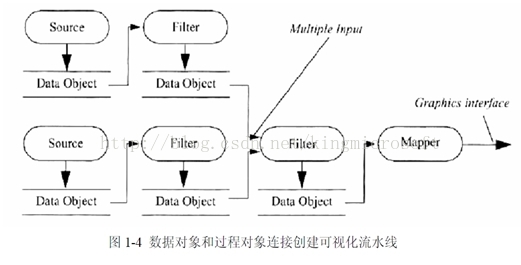
Visual application with VTK is very convenient, it includes two basic parts. Firstly, an appropriate target graph is established to illustrate the data. Second, a data pipeline is created to process the data. Pipelines connect sources, Filters, and Mappers. The visualization model of VTK mainly includes two types of objects:
(1) Data objects
(a) Polygonal data (VTKployData): Represents geometry composed of vertices, lines, polygons, i.e. triangular surfaces, and supports a variety of atomic types, such as VTKvertex, VTK-ployvertex, VTKline, etc.
(b) StructurePoint Data (VTKStructurePoint): It is a geometry including surface shape and geometric shape.
(c) Unstructured point data (VTKUNSTRUCTUREPOINT): Specifies the appearance of the geometry; StructureGrid (VTKStructureGrid): Specifies the structure of the geometry.
(d) Unstructured Grid (VTKUNSTRUCTUREGRID): It can be a combination of any cell type.
(e) Data object inheritance relationships.
(2) Process objects
Process objects defined in VTK mainly include sources, Filters, Mappers, and data pipelines according to their Pipeline.
Source: VTKSource is the base class for all data sources, and its subclasses define many data Source types.
VTKFilter is the base class of various Filters, derived from VTKSource. It receives data from the Source and performs different Filter processing. Filters are the main components of VTK, and many subclasses are derived from its base class to implement graphical algorithms. To encapsulate it, users only need to write a simple program interface call, and can change the parameters to achieve the desired effect;
Mappers: VTKMapper is the base class for all Mappers, taking data from Filtes and mapping it to base primitives in the graphics library. There are multiple inheritance subclasses, depending on how you map.
 
To here, understand how the VTK display images, the general principle of the introduction of almost.
Since my research is 3D reconstruction of images, I still focus on data processing and analysis. For example, controlling the camera, controlling the light source and controlling the objects in the scene are all controlling the display effect, which does not involve the data processing of reconstruction, so it is directly passed.

VTK tutorial 1 ——– VTK installation under win10

VTK installation
in this paper, under the win10 operating system, installed VTK8.1.2.

, Visual Studio2017 Community, this version can be used for free.
2, cmake-3.13.1-win64-x64.msi
2, CMake
3, VTK8.1.2, download vtk-8.1.2.zip, binary file, free to use.
First of all, install VS2017 and CMAKE two software, because the installation of these two software is very simple, this article is skipped, if you have problems can be Baidu or Bing, pay attention to install VS2017 MFC also installed.
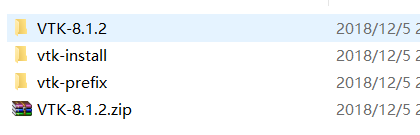
:
:
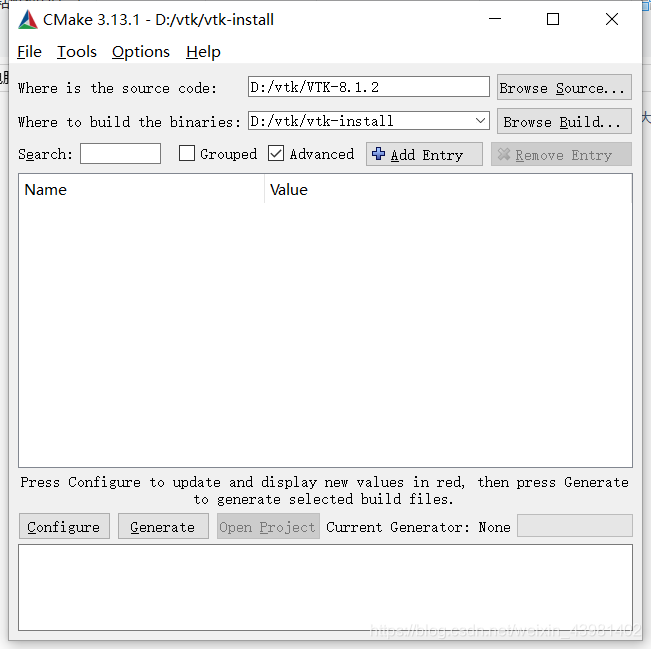
:
:
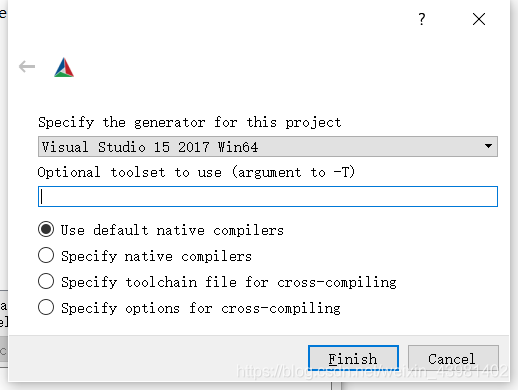
:
:
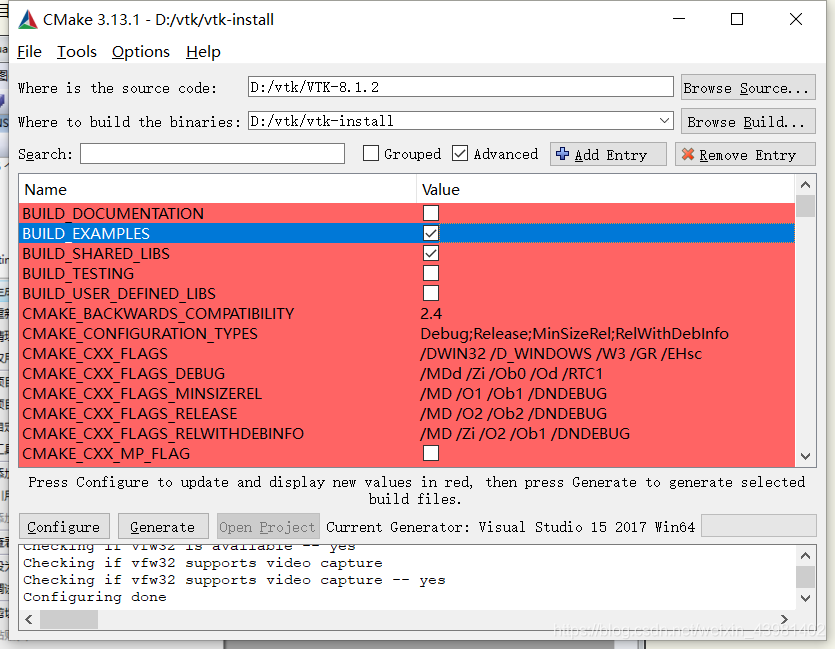
:
:
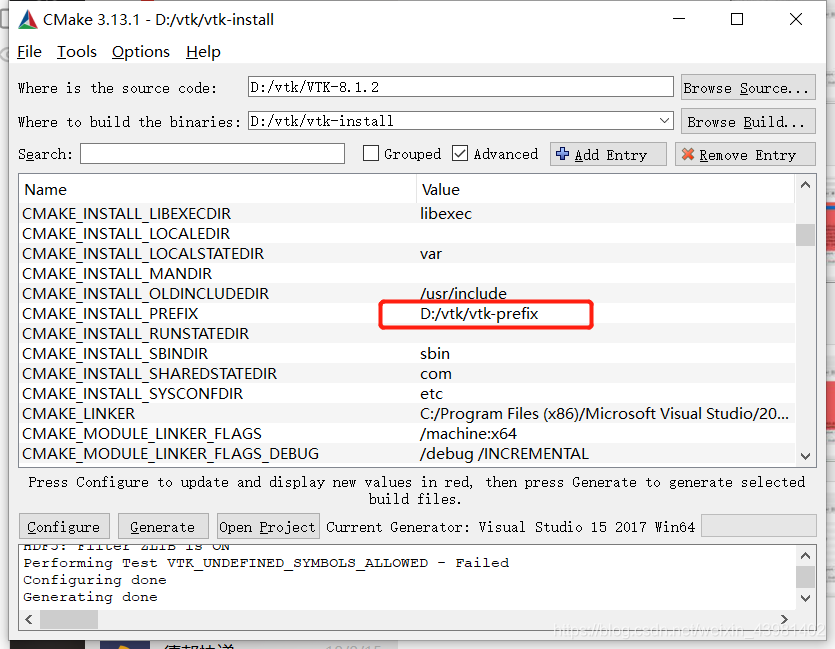
:
:
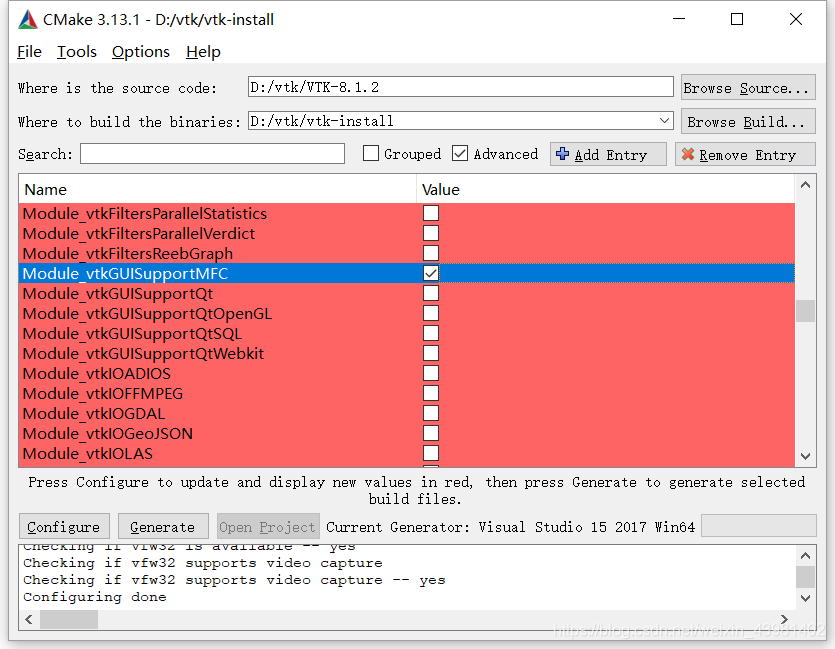
:
:
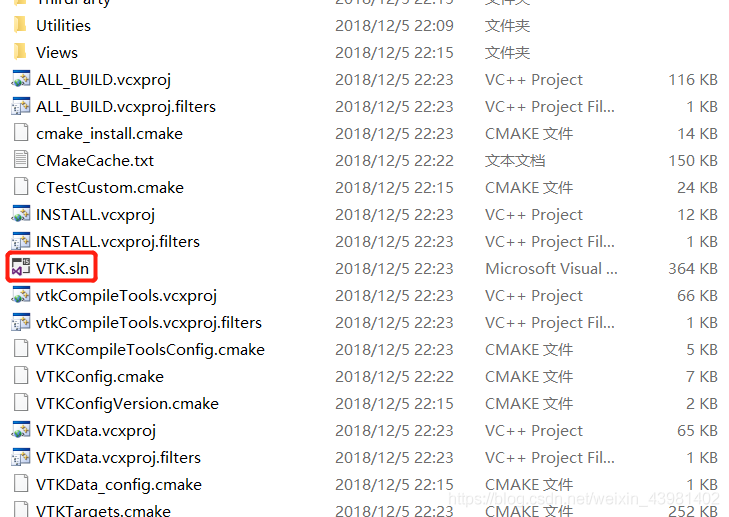
Vs2017 compiles pcl1.8.1 with vtk8.0 and uses qt5.9.5

Package version and download address:

Qt5.9.5 (msvc2017-64)

http://download.qt.io/archive/qt/5.9/5.9.5/qt-opensource-windows-x86-5.9.5.exe

VS2017

Microsoft’s official website

VTK – 8.0.0 https://download.csdn.net/download/u013598629/10683029

Cmake – 3.12.2

https://cmake.org/download/
Local Directory Description:

pcl1.8.1 installation directory

E: \ pcl1.8.1

Qt5.9.5 MSVC – 64 – bit directory

E: \ Qt \ Qt5.9.5\5.9.5 \ msvc2017_64

vtk8.0.0 Extract the directory

E: \ VTK – v8.0.0

vtk8.0.0 build directory

E: \ VTK – v8.0.0 \ build

vtk8.0.0 The install directory

E: \ PCL1.8.1\3 rdparty \ VTK
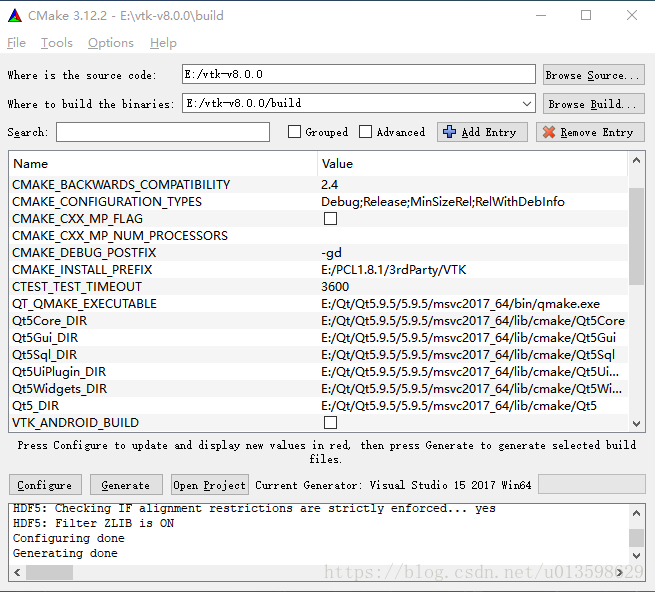
Cmake Settings:
[1. Set the source directory is the vtk8.0.0 decompression directory ] and generated directory [is the build directory].
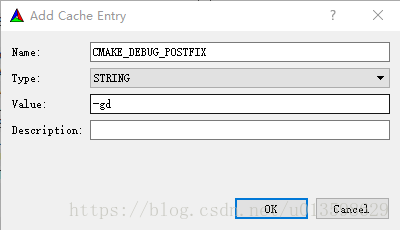
2. Click Add Entry,Name is CMAKE_DEBUG_POSTFIX, Type is String, Value is -GD, and click OK. This is to separate the final generated debug from the release version of the lib.

3. Click Configure, select VisualStudio 15 2017 Win64, and click Finish to wait for the configuration to complete.
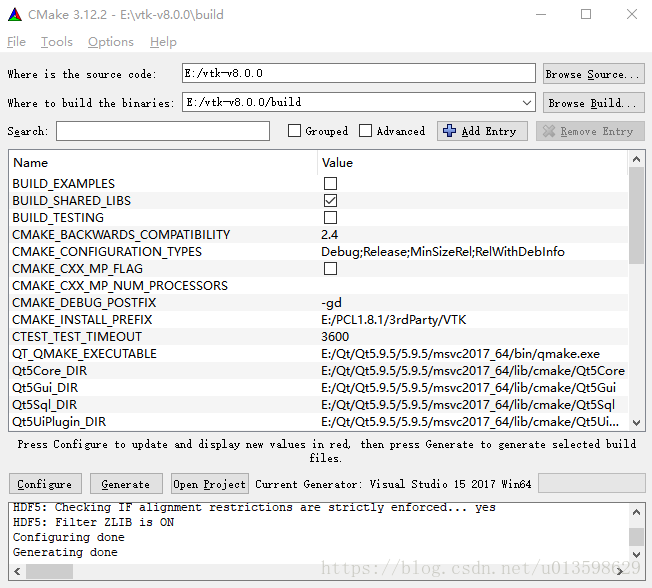
After some time, the configuration is finished, and a configuration list will appear. Follow these steps to configure it
BUILD options
BUILD_EXAMPLES, build_shared_libs, BUILD_TESTING
Just tick build_shared_libs, and the other two are up to the individual to select, so it’s a lot faster at compile time, so I just tick build_shared_libs.

VTK installation directory
CMAKE_INSTALL_POSTFIX- Set to the vtk8.0.0 install directory described in the local directory above

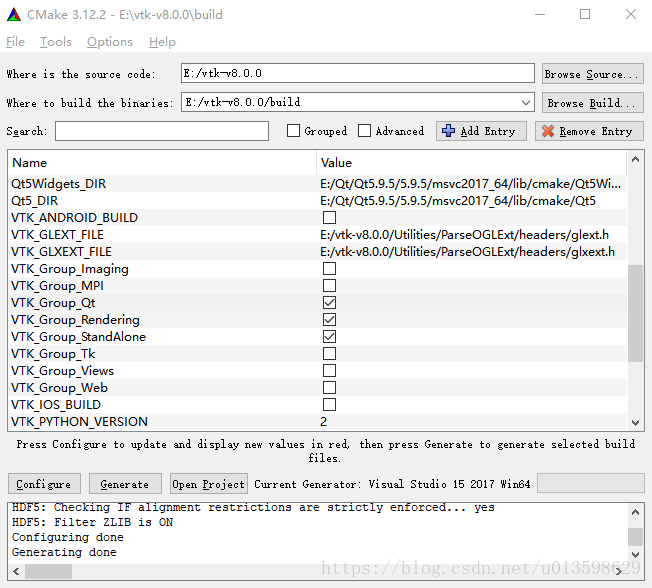
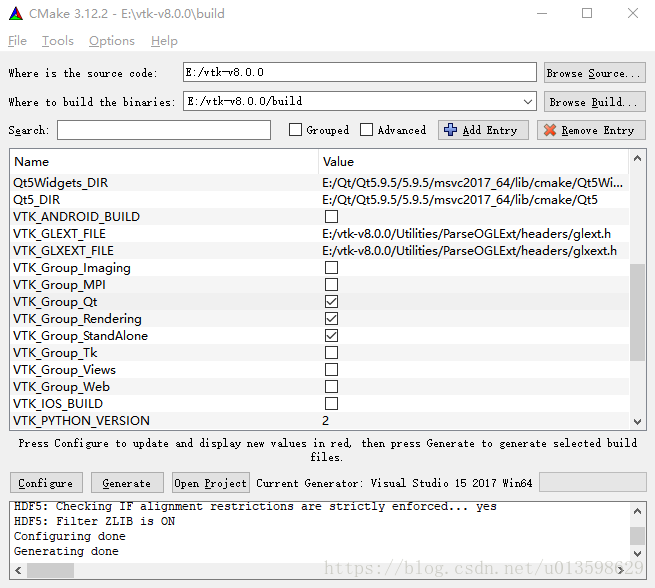
VTK_Group_Qt

Click Configure and wait for the configuration to finish.
After some time, more configuration options will appear, and then follow the following steps to configure them.
1. Modify Qt5_DIR to E:\Qt\Qt5.9.5\5.9.5\msvc2017_64\lib\cmake\Qt5.
2. Set VKT_QT_VERSION to 5. Click Configure again to continue.

Generate engineering
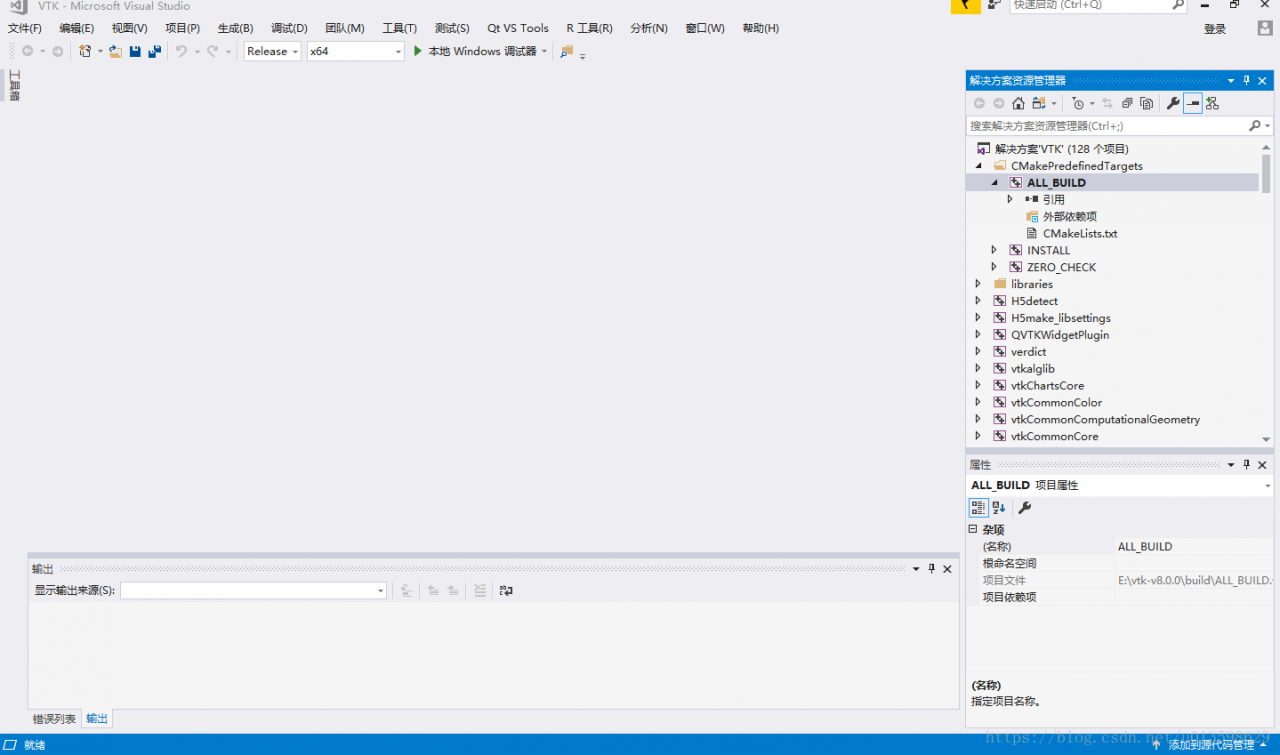
After the configuration is successful, a Configuring Done prompt appears. Click Generate to build the project. If Generating Done appears, you can click Open Project. VTK. SLN will be opened in VS2017.

First, configure the solution to Debug in VS2017. In Solution Manager, go to ALL_BUILD, right-click, and click Build. Wait for VS to compile. When finished, find Install, click the right mouse button, and click Create
Switch the solution configuration to Release. In Solution Manager, go to ALL_BUILD, right-click, and click Build. Wait for VS to compile. When finished, find Install, click the right mouse button, and click Create.
After the above steps are completed, the compiled file will be placed under the path set by CMAKE_INSTALL_PREFIX.
Then put the QVTKWidgetPlugin.dll in the E:\vtk-v8.0.0\ Build \bin\Release directory
Copy to E:\Qt\Qt5.9.5\5.9.5\msvc2017_64\plugins\designer.
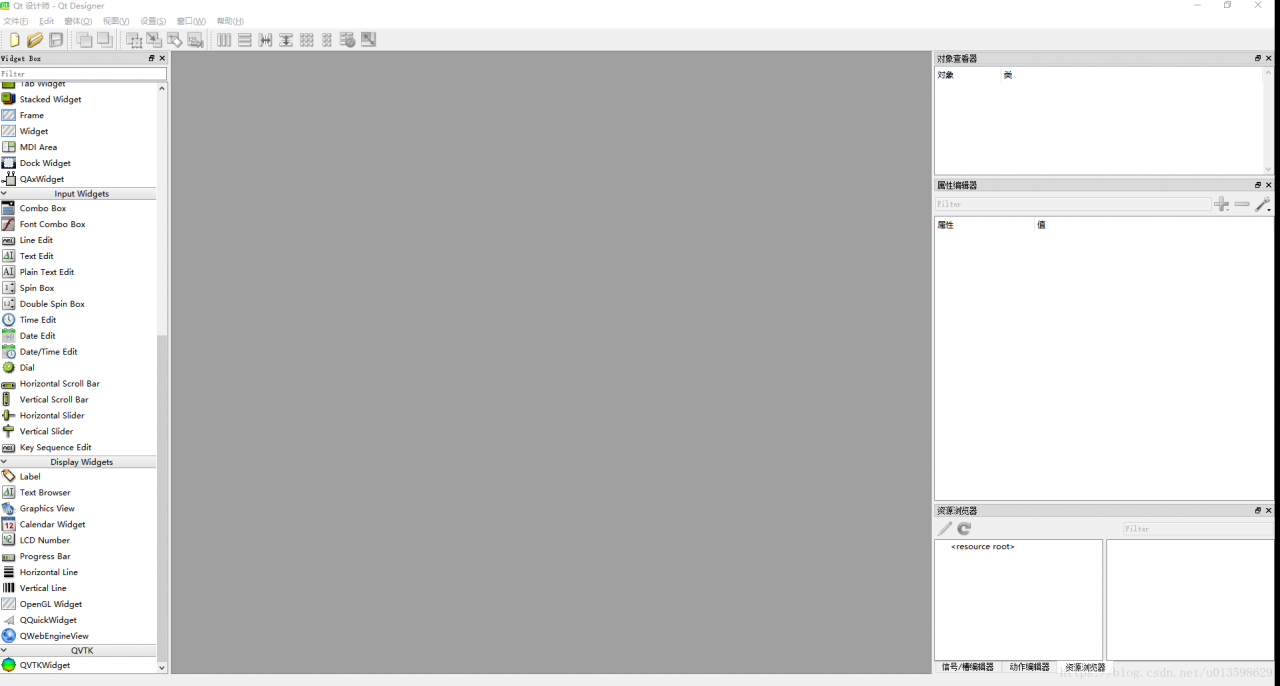
At this point, open the Designer again and you will see the QVTKWidget.

Vtk7. X is compiled and installed under vs2013 and vs2015

To do a good job, a worker must first sharpen his tools
First of all, we need to prepare the required documents, which are as follows:
(1) cmake, download link cmake download. As for what CMAKE is, I will not introduce it, so a book, want to say it is hard to say. If you look at the suffix,.msi and.zip, you may wonder “what’s the difference?” In my opinion, zip is more convenient than msi.
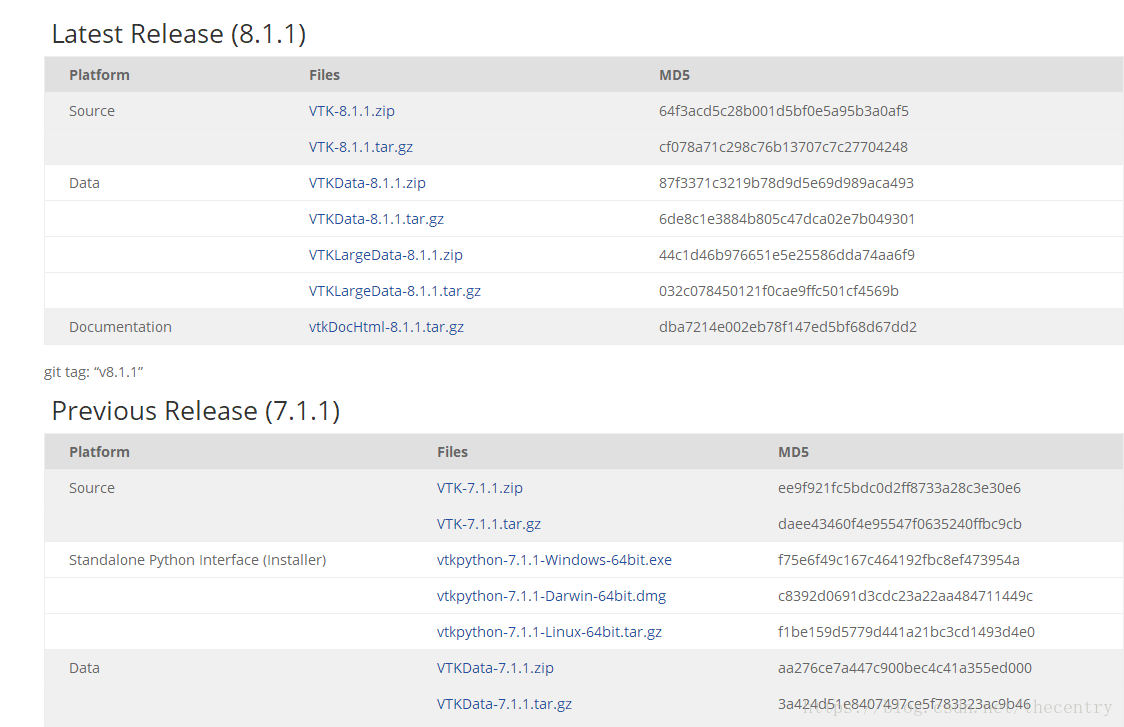
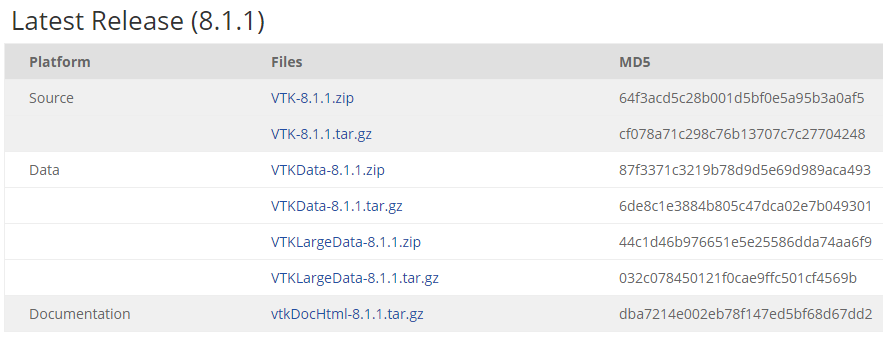
(2) VTK file, divided into Source file and Data file. Download link VTK download link. Click the download link and you will see the picture.

Download zip files for source and zip files for data. Since I’m using VS here, I don’t need to download Python.
After downloading, it is decompressed. I used to decompress the files extracted from Data into the files extracted from Source. I stressed that I decompressed them separately, that is, decompressed them into two folders.
Two, start compiling
(1) Create a new folder in the folder after source unzipped, habitually named build, this folder is used to put the project related files after cmake.
(2) Open cmake

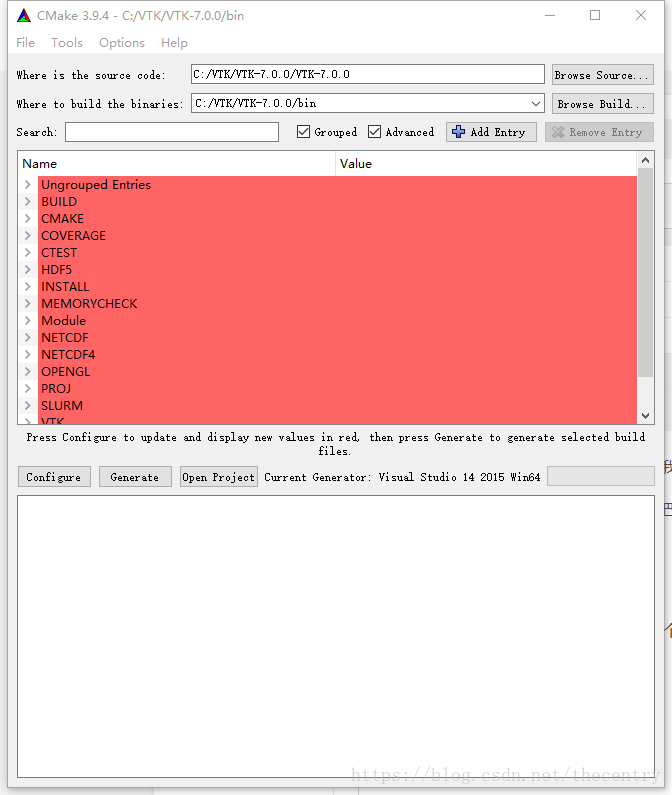
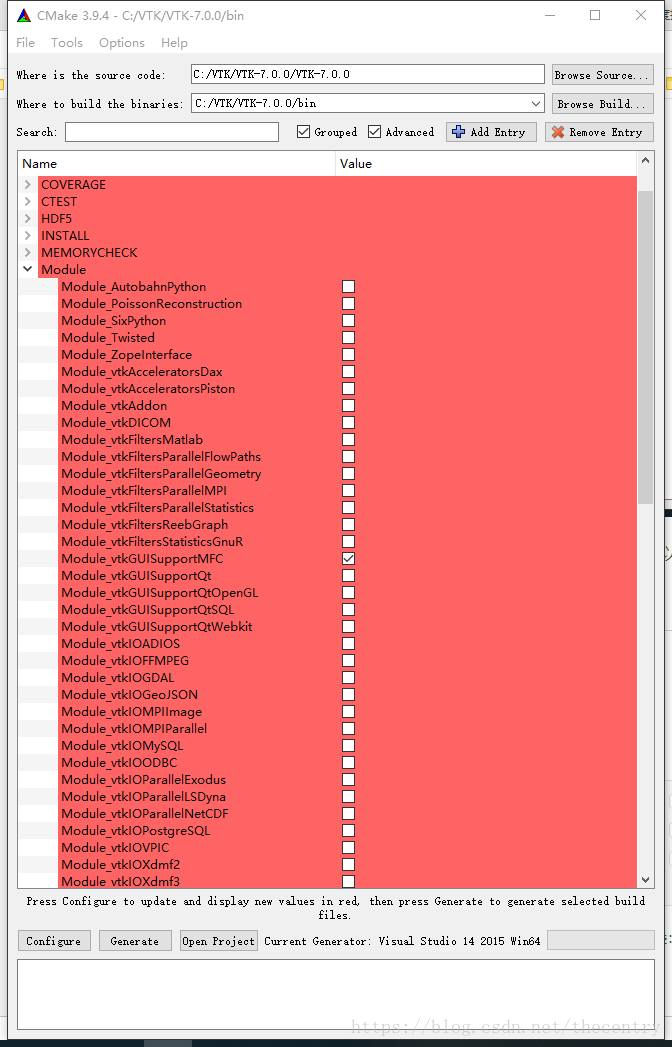
The source code bar is the path after unzips the source, and the build bar is the path of the project generated by CMAKE. The bin folder in the picture is not what I said above, so you can change the destination path to the build folder you created.
If you want to create a 64-bit VTK, you need to select the 64-bit VSXuan option. If you want to create a 64-bit VTK, you need to select the 64-bit VSXuan option
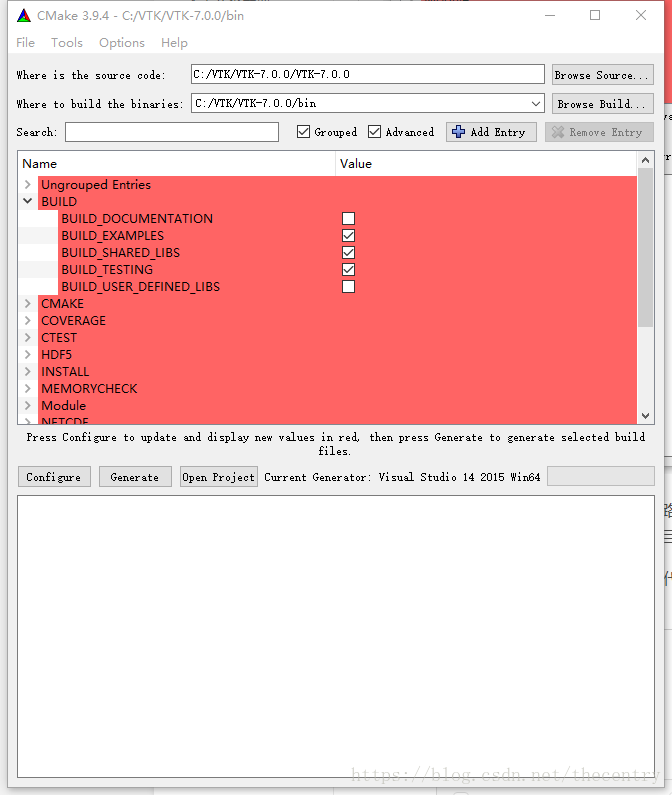
(3) Make the file options, the specific meaning of the options I will not say

This is the item that should be checked in Build.

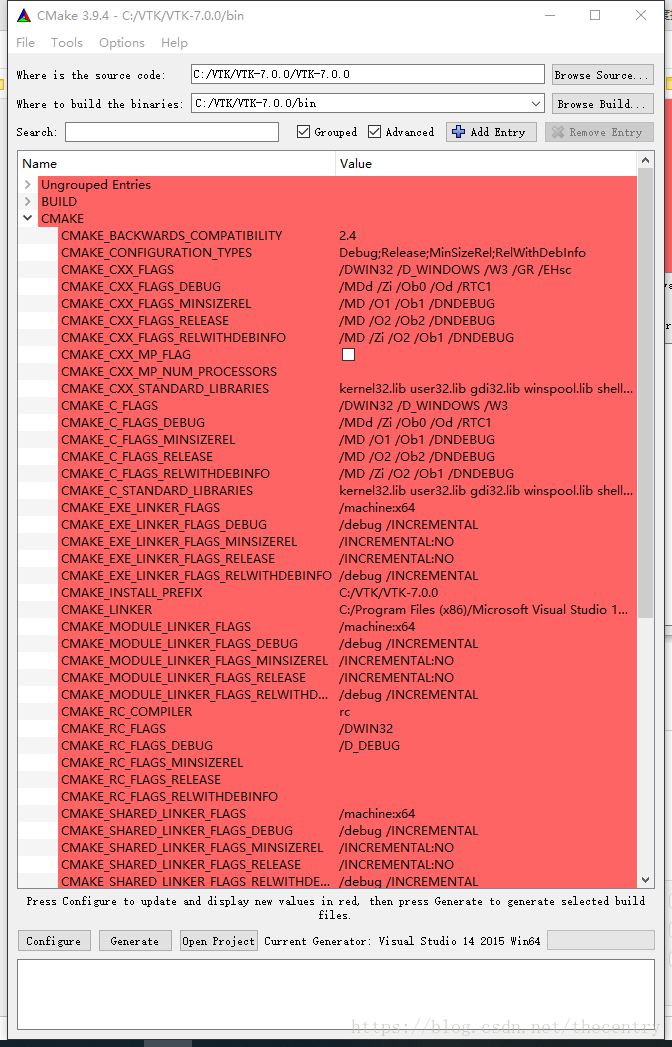
This is the cmake group, but watch out for CMAKE_INSTALL_PREFIX. This is a very important one. You’ll notice that most of the blogs don’t talk about it at the moment, but it will make it much easier to use VTK.
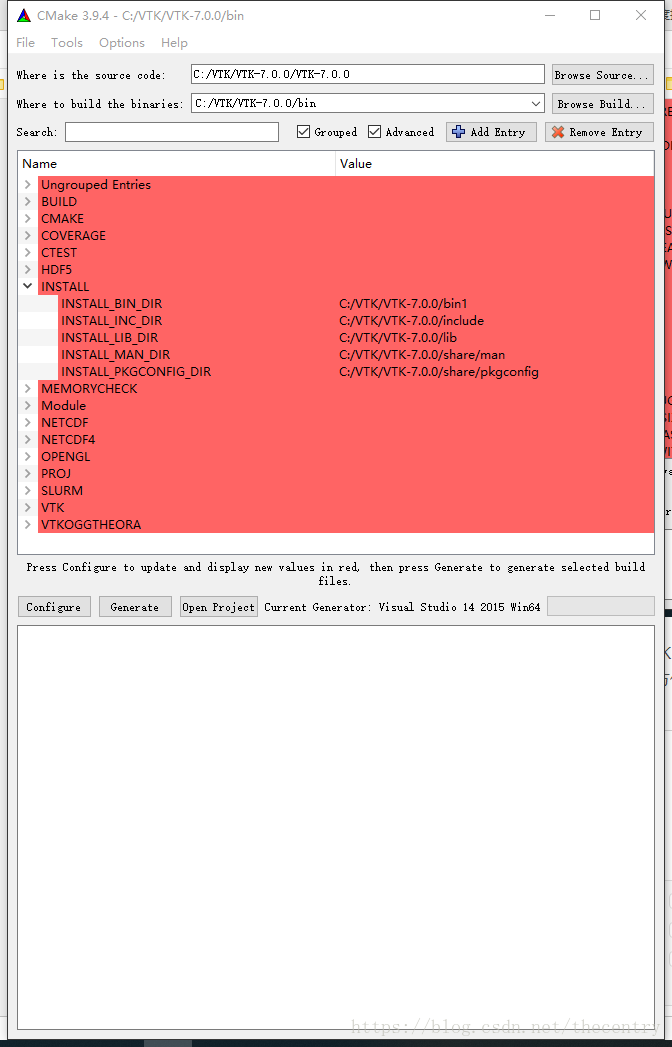
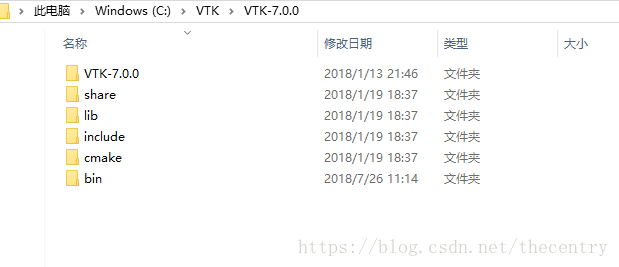
Then is the intall road strength configuration, as shown below:

Represent the DLL path, the LIB path, and the VTK header path compiled with VS respectively. You need to set it up by yourself. In the future, you can use VTK just like OpenCV.

Because I’m using MFC, check the module_vtkguisupportMFC in the Module. Other options seem to be the default.
(4) Click the Configure button, and when the red color turns to white, click the Generate button to Generate the project.
Note: If there is an error when cmake is checked, it may be because the VS installation path has Chinese. Therefore, it is specially reminded that the installation path in Chinese should not appear.
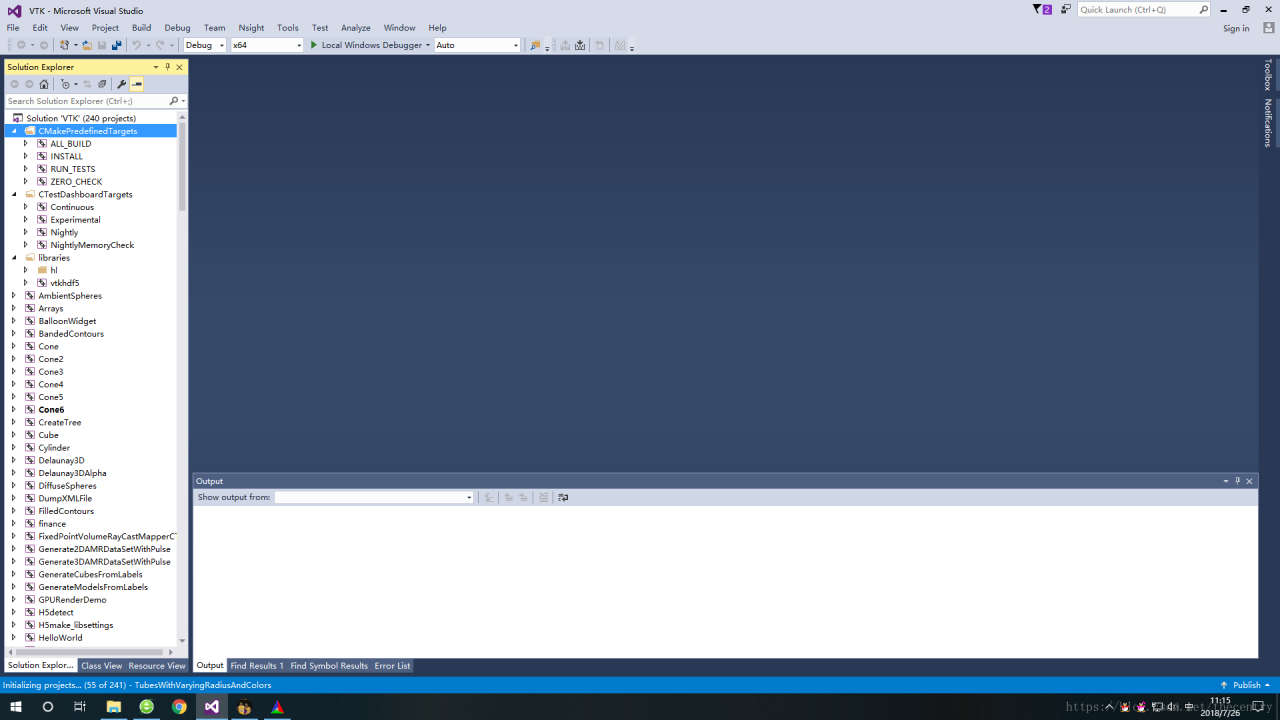
(5) Finally, click Open ProJeroject to open the generated project in VS. As shown in figure:

Compile all_build, only install if successful.
While I’m using VS2015, other VSs do the same, I need to remind you that there is one more step you need to take before VS2013 is compiled, and that is to install multiple character sets.

The result after successful compilation is shown in the figure below:

As for the use, and you are familiar with the use of OpenCV is the same.
Because everyone’s level is different, I don’t know if it’s clear or not. If there is a lack of documents, or what questions can be left in the blog question, we discuss together.
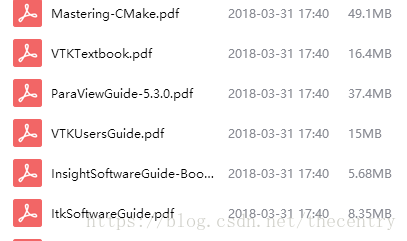
And finally, the aforementioned book:

These are books about learning VTK, ITK, and CMAKE. Please leave a comment below if you need any.


Configuration, compilation and installation of vtk8.1 in qt5.9

To implement RealSense’s PCL point cloud display, VTK support is required. Since the entire platform is implemented in the Qt environment, VTK is compiled as a Qt plug-in. The whole process is not complicated, most of the online articles are not complete, their own carding, share out, I hope this is the last article you read under Qt install VTK plug-in article.

0 Compiling Environment

0.1 Package and version

Qt5.9.4

msvc2015_64

VS2015

VTK 8.1.1

https://www.vtk.org/download/

cmake3.11.3

Download

0.2 Local directory description

Qt5.9.4 msvc64 directory

C: \ Qt \ Qt5.9.4\5.9.4 \ msvc2015_64

VTK decompression directory

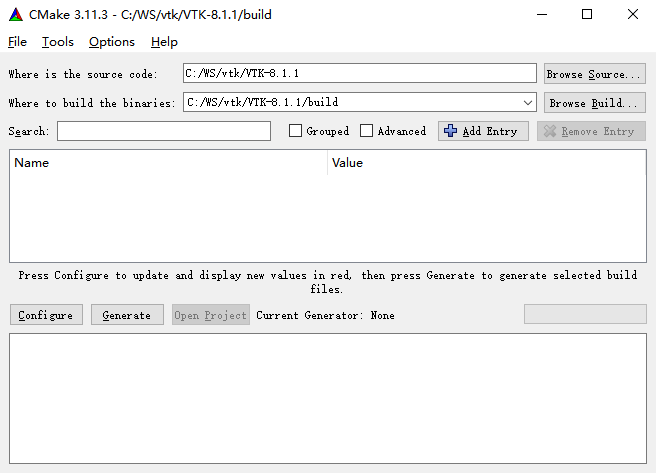
C: \ WS \ VTK \ VTK – 8.1.1

VTK Build directory

C: \ WS, VTK, VTK – 8.1.1, build

VTK installation directory (containing compiled inc,lib)

C:\vtk

1 the VTK download

1.1 Download VTK-8.1.1.zip,VTKData-8.1.1.zip files

1.2 unzip

Select unzip to the current directory, the two files will be automatically assembled in the vtk-8.1.1 folder after unzip.

2. Configure VTK for Qt

2.1 Start CMake, specify the source directory and compile directory, and click Configure.

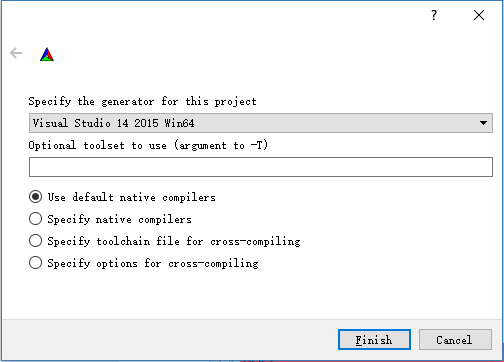
2.2 Specify the VS version

64-bit Visual Studio 14 2015 Win64, 32-bit Visual Studio 14 2015. Click Finish and wait for the configuration to complete.

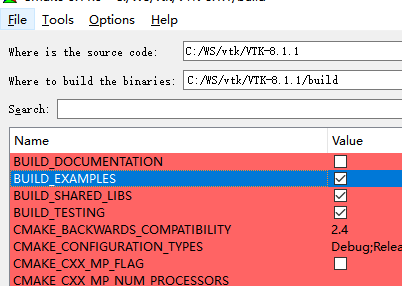
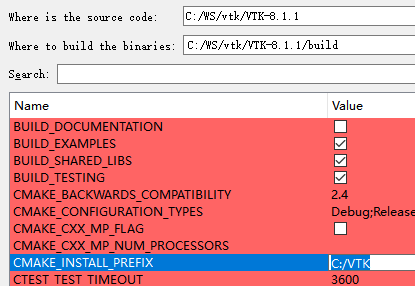
2.3 Configure compilation options (1)

BUILD options

Select Build_Examples, Build_Shared_Libs, and Build_Testing.

Note:

It is not recommended to select Documentation, which requires that Doxygen be installed first.

It is not recommended to remove TESTING as this will cause errors to be reported at the later VS compilation stage and header files to be modified.


VTK installation directory

Include, lib, DLL (bin), and so on.


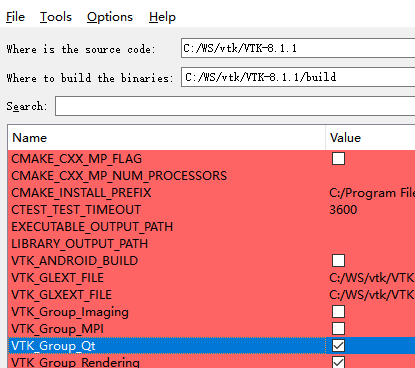
VTK_Group_Qt

Set the target environment for compilation to Qt.


Once you have done all three Settings, click Configure.

2.4 Configure compilation options (2)

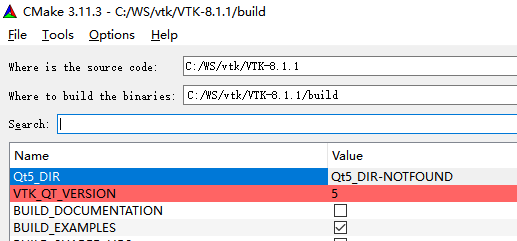
After the first configuration is complete, the user is prompted for Qt5_DIR and VKT_QT_VERSION.

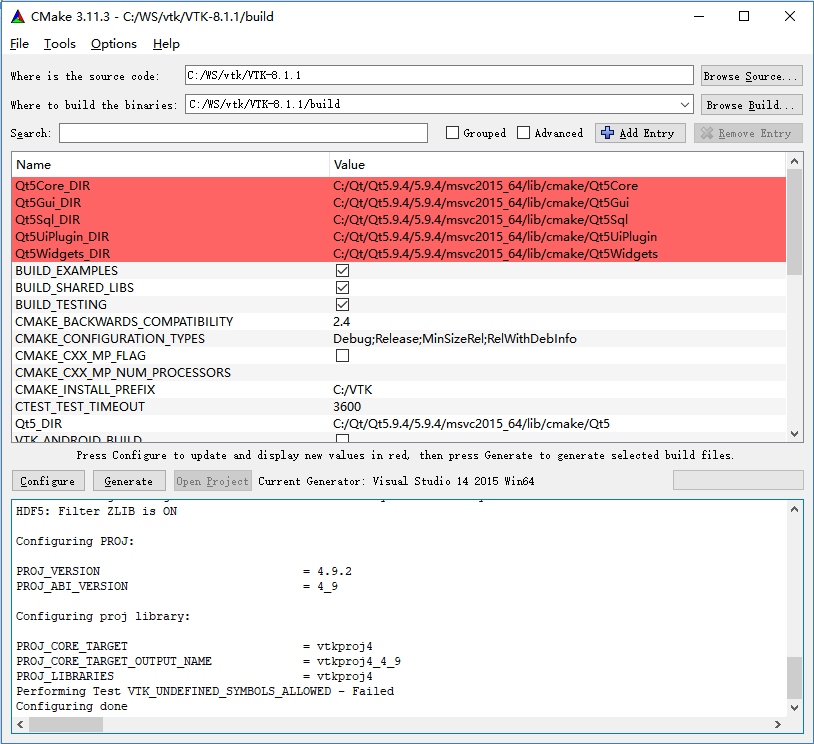
Amend the Qt5_DIR to C:/Qt/Qt5.9.4 5.9.4 msvc2015_64/lib/cmake/Qt5.

Set VKT_QT_VERSION to 5.

Click Configure again to continue.

2.5 the Generate engineering

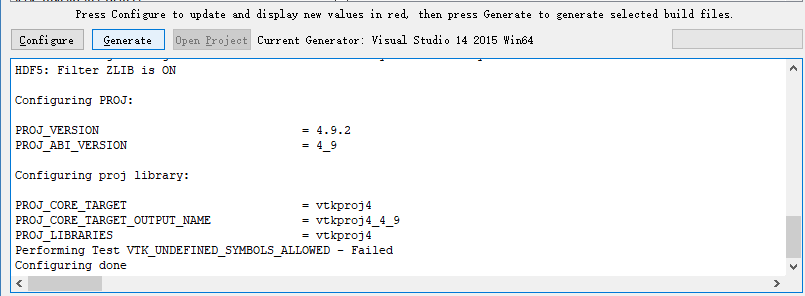
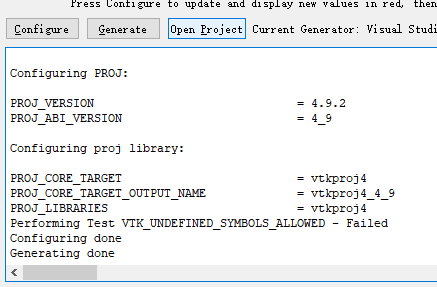
When the configuration is successful, a Configure Done prompt appears. Click Generate to build the project.

2.6 Start VS2015 and start compiling

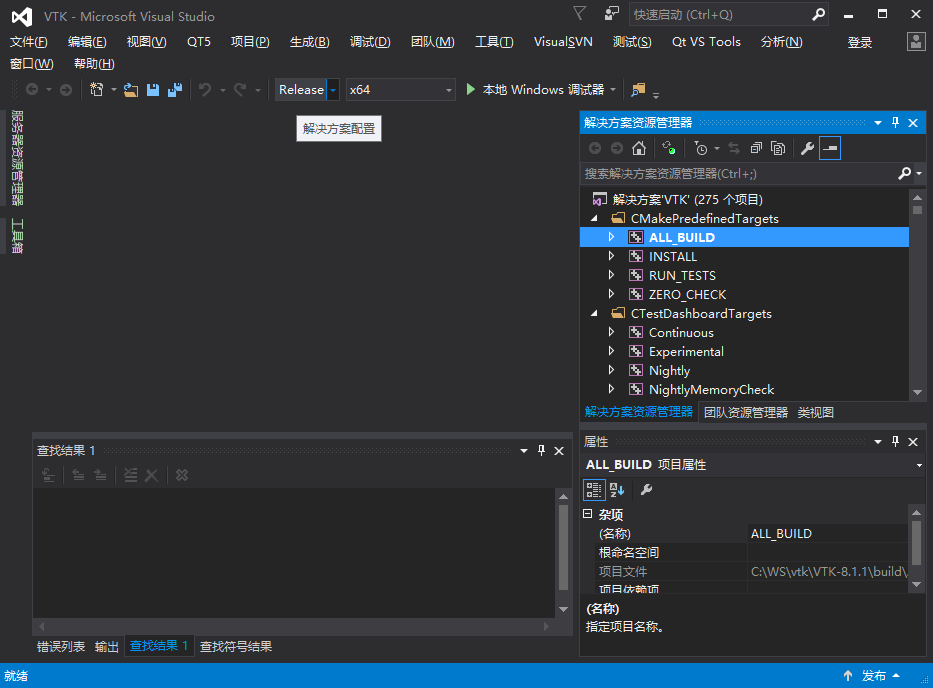
Generating done indicates that VS2015 project has been generated successfully. Click Open Project, VS2015 will start and Open the Project.

3 Compile VTK project in VS2015

3.1 build

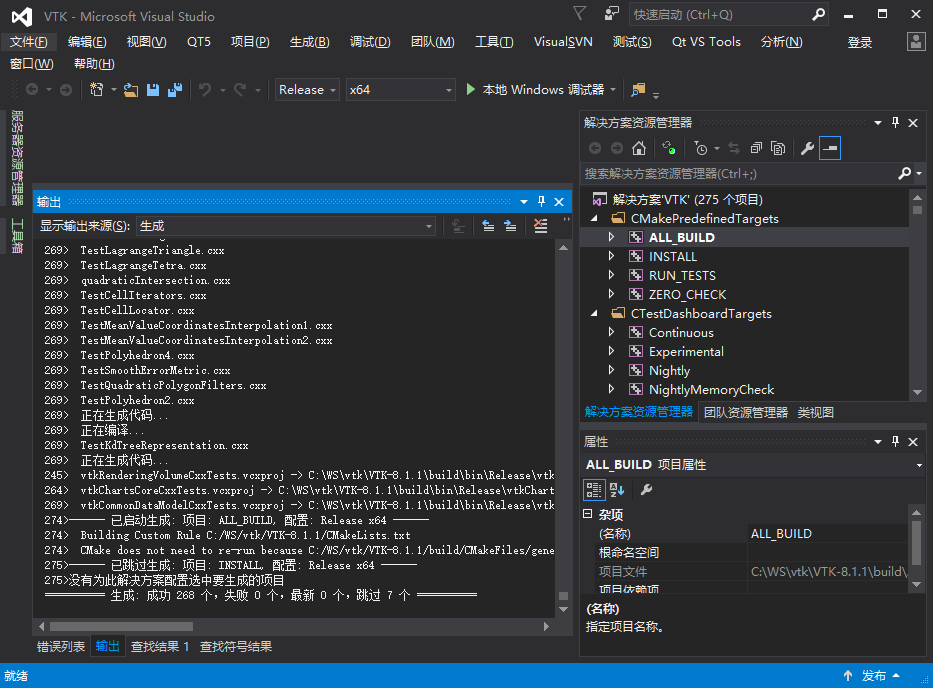
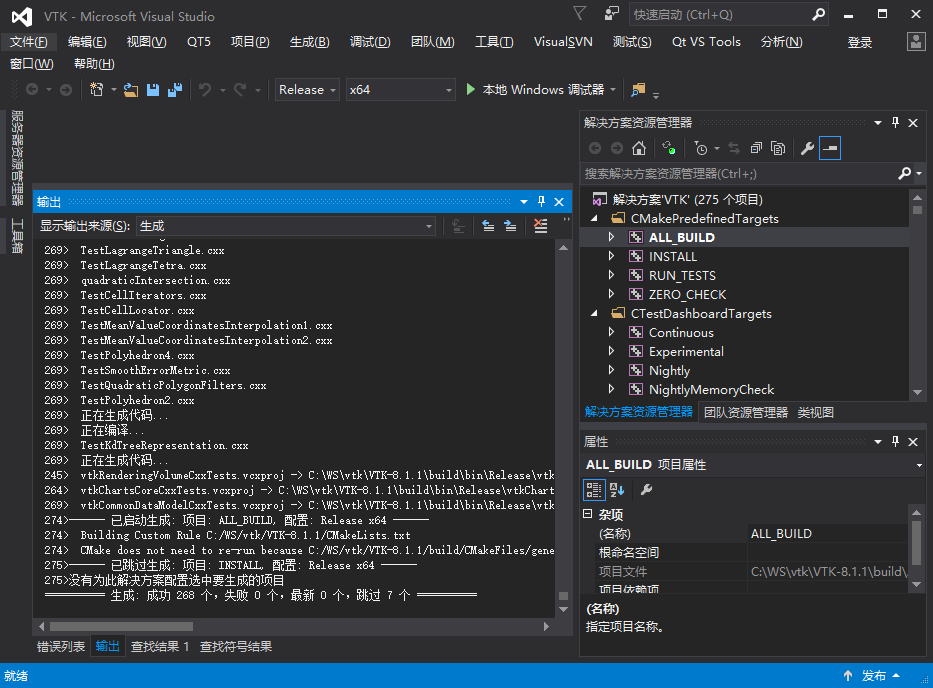
After opening the project, the default startup item is ALL_BUILD, and you can directly select Build. Both the Release and Debug versions need to be built, so two compilations are performed.


It’s been a long time, long time… . And it worked.

3.2 installation

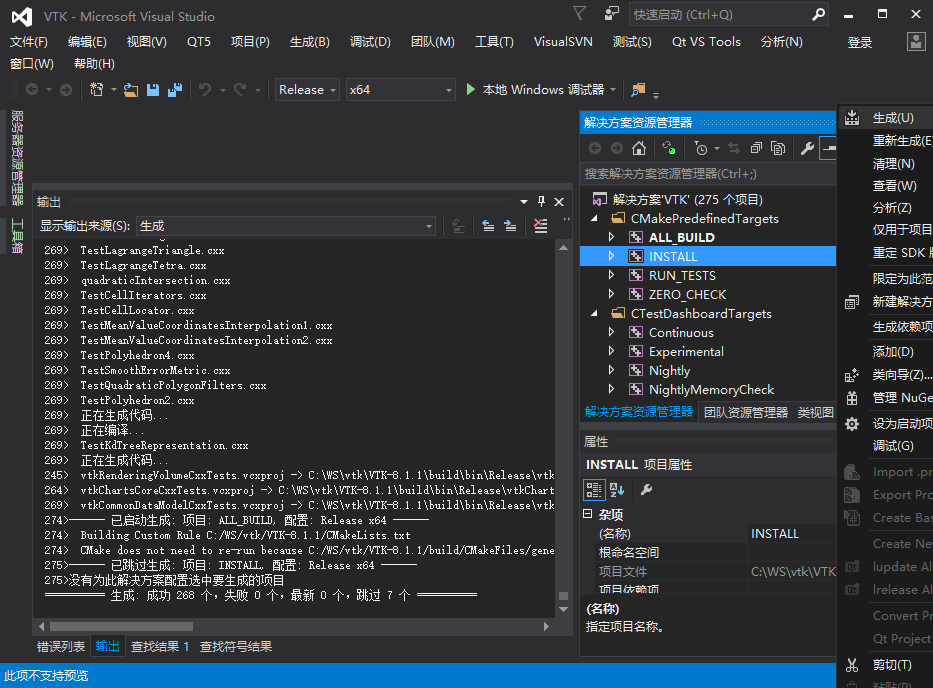
Select Install, right-click Build.


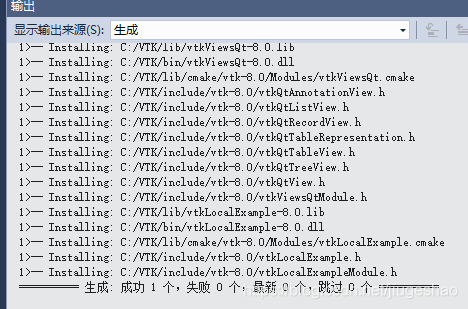
Install OK.

3.3 Compiling results

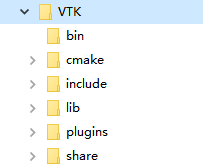
The results of VS2015 compilation include four parts.

1. Include does not distinguish between Release and Debug versions

2. Lib does not discriminate versions

3. The DLL selects debug and release versions according to the input configuration.

4. Plugin DLL is only available in Release versions.

The four compiled results are placed in two locations.

The.h and.lib files are stored in the C:\VTK directory (step 2.3 configuration). Please do not use DLL files under C:\VTK, because there is no distinction between release and debug.


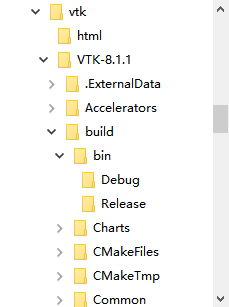
The.dll file is placed in C:\WS\ VTK \ vtk-8.1.1 \build\bin (step 2.1 configuration).

3.4 Compile test successfully (you can skip this step if you don’t want to test)

Compiled DLLs and EXEs in vtk-8.1.1\ build\bin\Release\

Copy qt5gui.dll, qt5core. DLL, qt5Widgets. DLL from the Qt directory to this directory or the debug directory. (Environment variables can also be configured)

Run qtvtkrenderWindows.exe in this directory, and see as shown in the figure, the compilation of exe is successful after startup.

4. Install the QVTKWidget plug-in for Qt Designer

4.1 installation

Will be C: \ WS, VTK, VTK – 8.1.1, build \ bin \ Release \
Copy the QVTKWidgetPlugin.dll to the C:\Qt\Qt5.9.4\5.9.4\msvc2015_64\plugins\designer\ directory.

Note: Be sure to copy the Release version.

4.2 validation

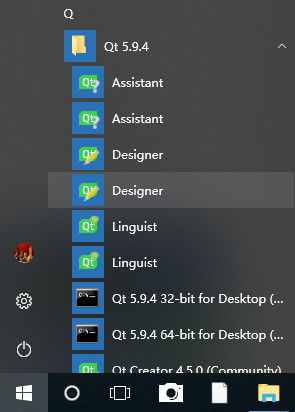
Start Qt Designer.

There are two versions, usually 32-bit at the top and 64-bit at the bottom. Select according to the compiled version.


At the bottom of the left-hand Widget Box you can see the QVTKWidget description installed successfully.

5 supplementary

5.1 Use VTK in VS2015 environment

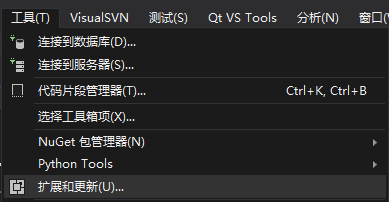
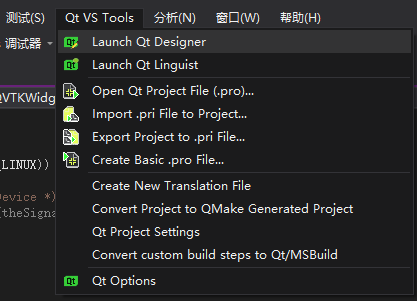
You need to install the Qt Visual Studio Tools extension in the VS2015 extension and update. Note that QTPackage cannot use the QVTKWidget, do not install.

Installation steps


1. Select Extend and Update from the Tools menu

2. Select Qt Visual Studio Tools for installation online. There is also a QTPackage that cannot be used, do not install it.


3. After successful installation, Qt VS Tools will appear on the menu. Click Launch Qt Designer to see it.

5.2 Use VTK in the Qt Creator environment

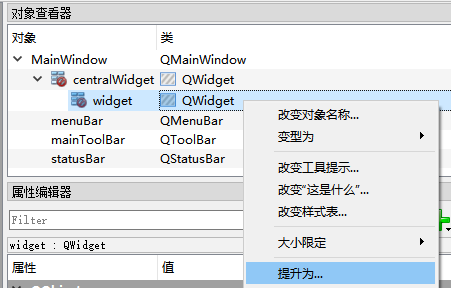
Designer in Qt Creator environment cannot see QVTKWidget, so it cannot be dragged and dropped directly. You need to drag and drop QWidget first, and then select QWidget to be promoted to QvtkWidget.

Vtk8.0 compilation process record under vs2017 and qt5.12.1

I want to display point cloud in Qt interface, but the VTK of PCL 1.8.1 lacks qvtkwidgetPlugin.dll, so I need to recompile it.
1. VTK source source
Link: https://pan.baidu.com/s/10kMCNJ-5UiYqRTOvrlrR9A
extraction code: ug7p
2. The build folder is created by yourself in the D:/vtk-v8.0.0 directory

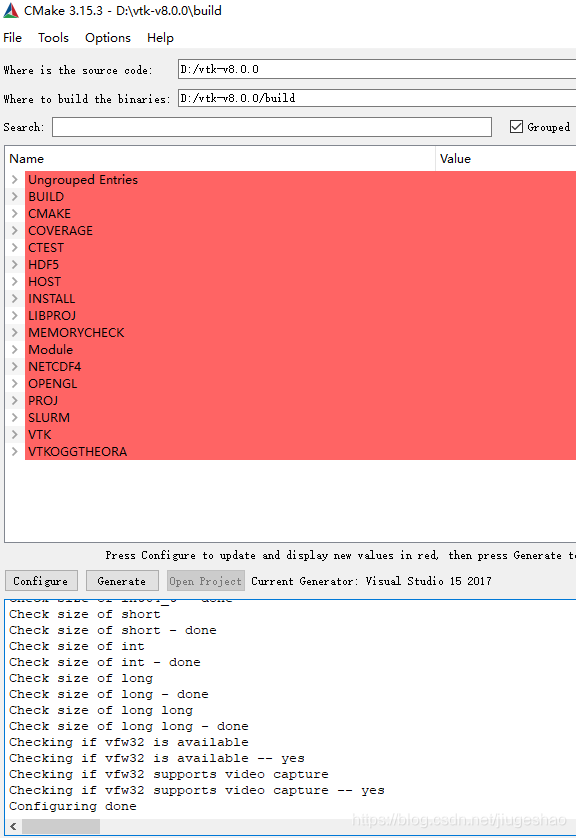
3. Click the Configure button in the lower left corner

After waiting for some time, the following screen appears

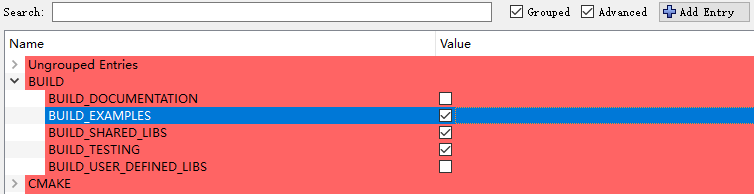
The Build option checks the following three

The CMake option CMAKE_INSTALL_PREFIX is set to the following path, which is where a directory structure similar to the VTK that comes with PCL will be generated when you run the install project in the compiled solution
The following is checked in the VTK options

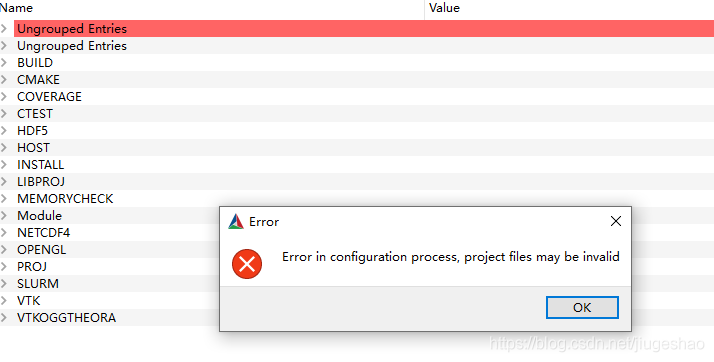
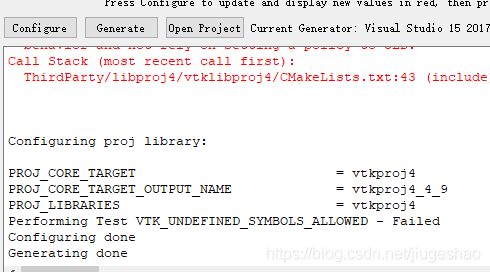
Click Configure again and report the following error when the configuration is complete

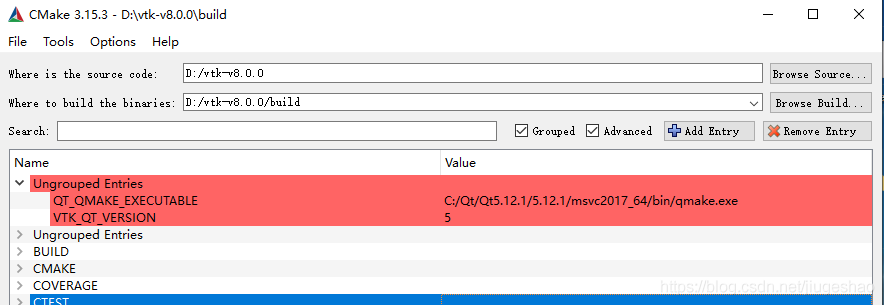
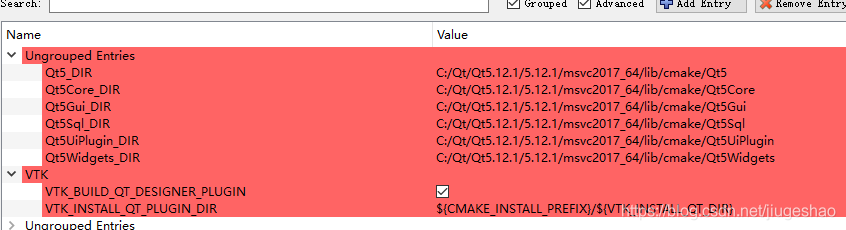
The two lines at the red position below are modified as follows:

Then click the Configure button again. Then click the configuration Ungrouped Entries again

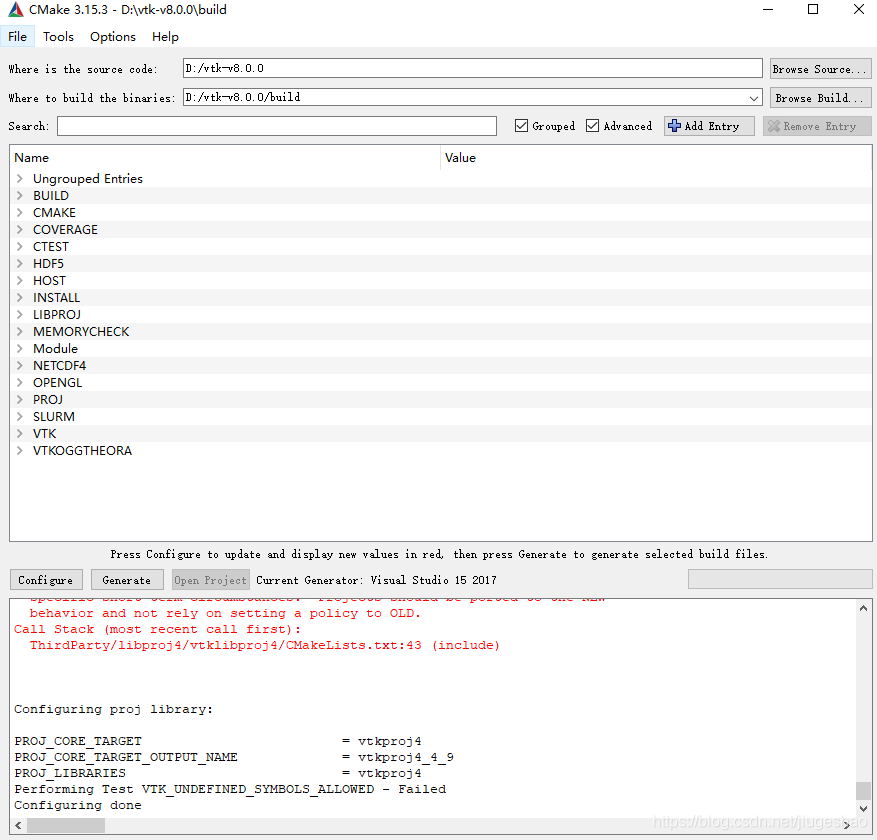
Click Configure again, no more errors

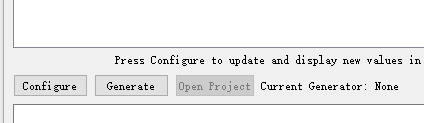
Click Generate to Generate the project

Then click the Open Project button to Open the solution with VS2017
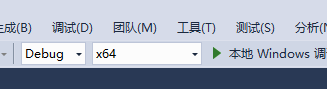
Check the environment, currently I have Debug, x64

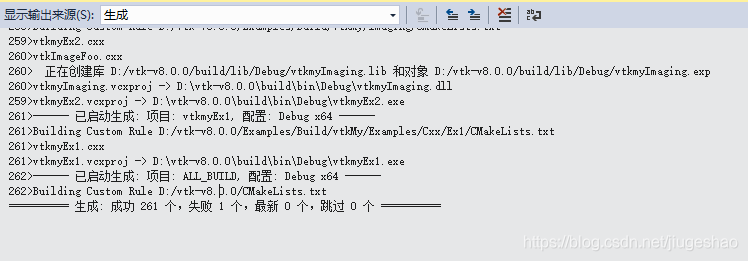
Then click on the generate ALL_BUILD project, which will last for a long time.
1 error message was found at the end

Some files did not download in time
1> — [download 83% complete]
1> — [download 84% complete]
1> CMake Error at D:/VTK – v8.0.0/CMake/ExternalData CMake: 1005 (the message) :
1 & gt; The Object MD5 = 9 e68ff1b1cc914ed88cd84f6a8235021 not found at:
1 & gt;
1> http://midas3.kitware.com/midas/api/rest?method=midas.bitstream.download& checksum=9e68ff1b1cc914ed88cd84f6a8235021& algorithm=MD5 (“HTTP response code said error”)
1> http://www.vtk.org/files/ExternalData/MD5/9e68ff1b1cc914ed88cd84f6a8235021 (” the Timeout was reached “)
1 & gt; Call Stack (most recent call first):
1> D:/VTK – v8.0.0/CMake/ExternalData CMake: 1027 (_ExternalData_download_object)
1 & gt;
1>
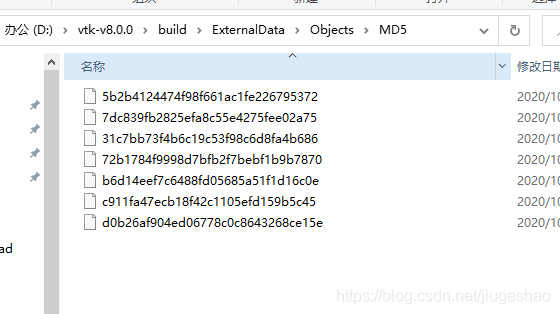
D:\vtk-v8.0.0\build\ExternalData\Objects\MD5 :\vtk-v8.0.0\build\ExternalData\Objects\MD5

Here I will upload a copy, and replace the folder MD5 after unzipping
Link: https://pan.baidu.com/s/1GItTKoBPeiil20RXgMwyYg
extraction code: k4tz
It then regenerates into the next ALL_BUILD project
After success, generate only the INSTALL project

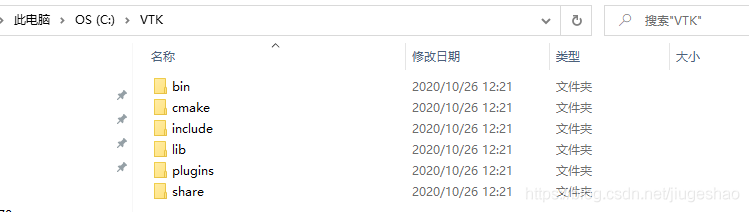
Then go to the C disk directory C:\VTK and look at this folder

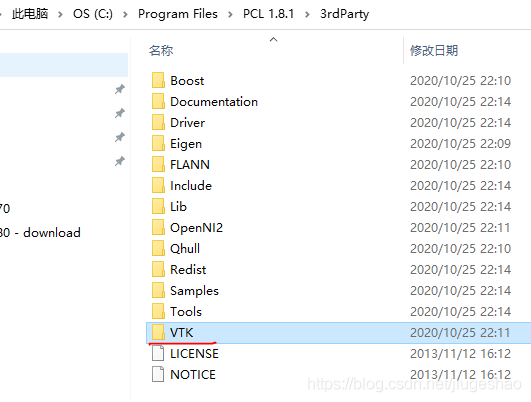
Similar to the VTK structure that comes with PCL1.8.1. There is a plugins folder, and then replace this folder with the following folder in PCL1.8.1

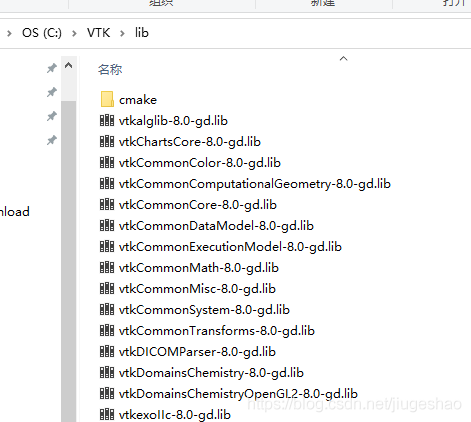
Since the debug version of VTK shipped with PCL1.8.1 contains the -gd keyword, you can use the following Python script to modify the file name

#!/usr/bin/env python
# -*- coding: utf-8 -*-
# author:jiugeshao
import os
import sys

filepath= r'C:/VTK/lib'
fileList = os.listdir(filepath)
currentpath = os.getcwd()
os.chdir(filepath)

for fileName in fileList:
    result = "lib" in fileName
    if(result):
      os.rename(fileName,fileName.replace(".lib","-gd.lib"))

os.chdir(currentpath)

The format of the lib name in the modified folder is as follows:

Switch to Release x64 and compile ALL_BUILD. After compiling, remember to compile INSTALL
You can run the example QtVTKRenderWindows project

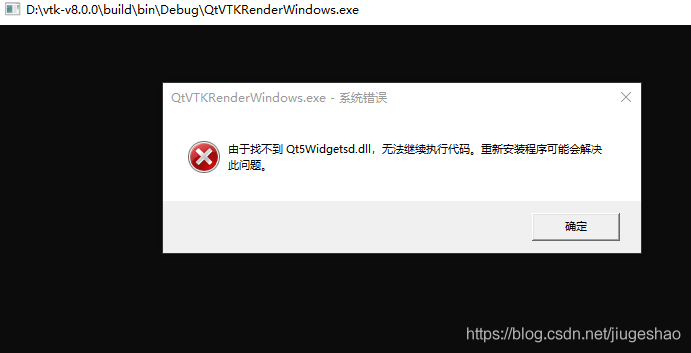
When running under DEBUG, report an error

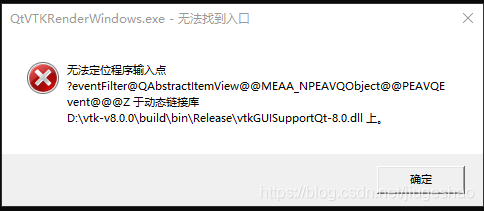
Unable to locate program input vtkguisupportqt-8.0. DLL by running error under release

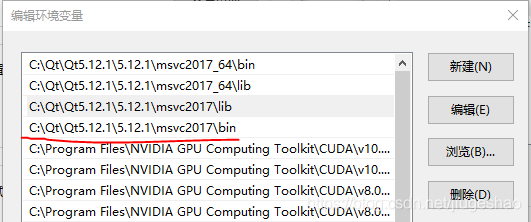
Note the environment variables at this point, since I installed both 32bit and 64bit versions of QT, I added bin and lib to the environment variables.
Also note that these four paths are placed at the top (environment variables can be sorted).

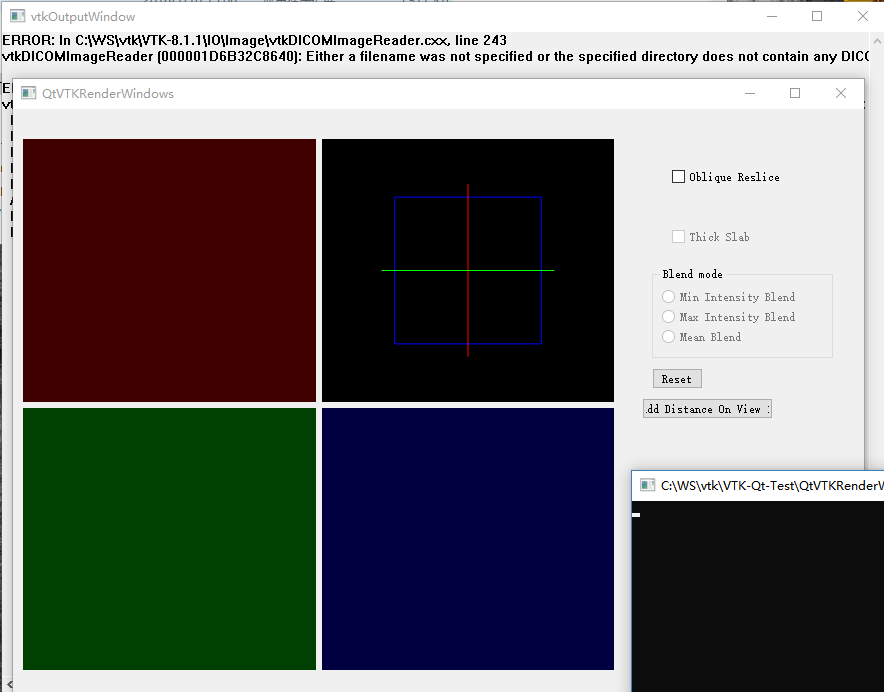
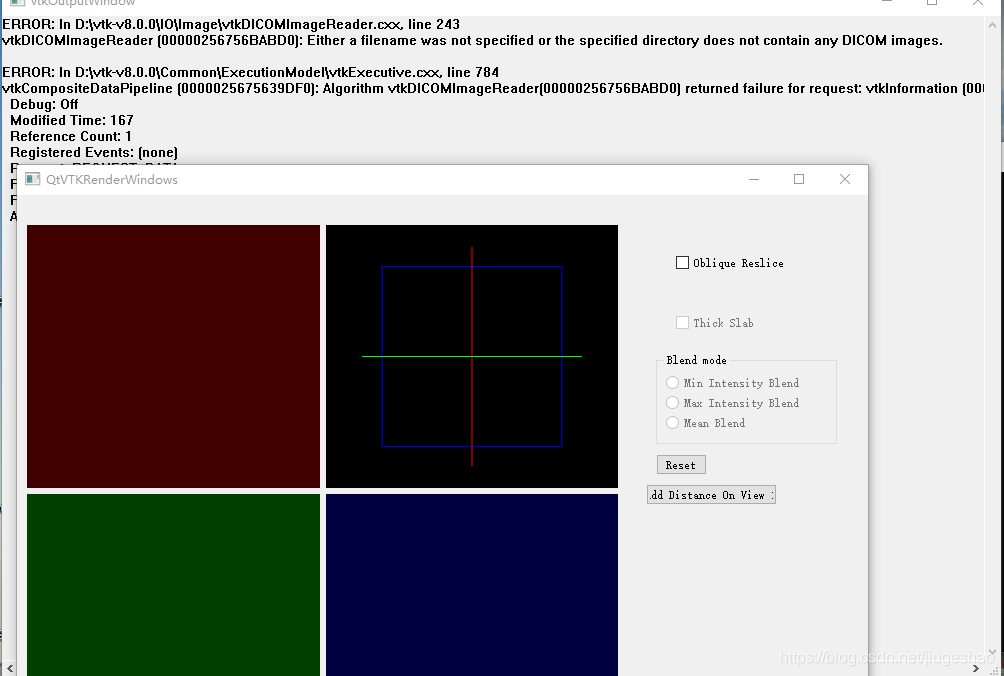
When running QTVTKrenderWindows project in debug mode, the interface can be displayed, but there is an error message in VTKOutputWindow
Either a filename was not specified or the specified directory does not contain any DICOM images.

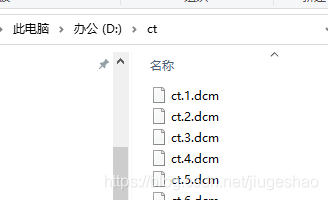
I upload a DICOM diagram here

I put it under the folder D:\ ct
Link: https://pan.baidu.com/s/1adDaWCQaTwgnLVARf2nQkg
extraction code: h793.
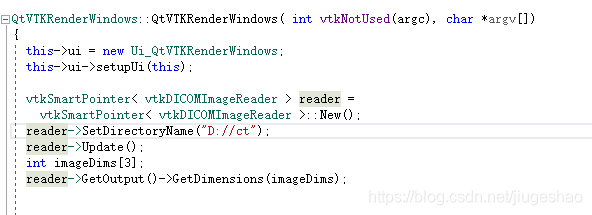
and then open the QtVTKRenderingWindows CXX file, modify the following way

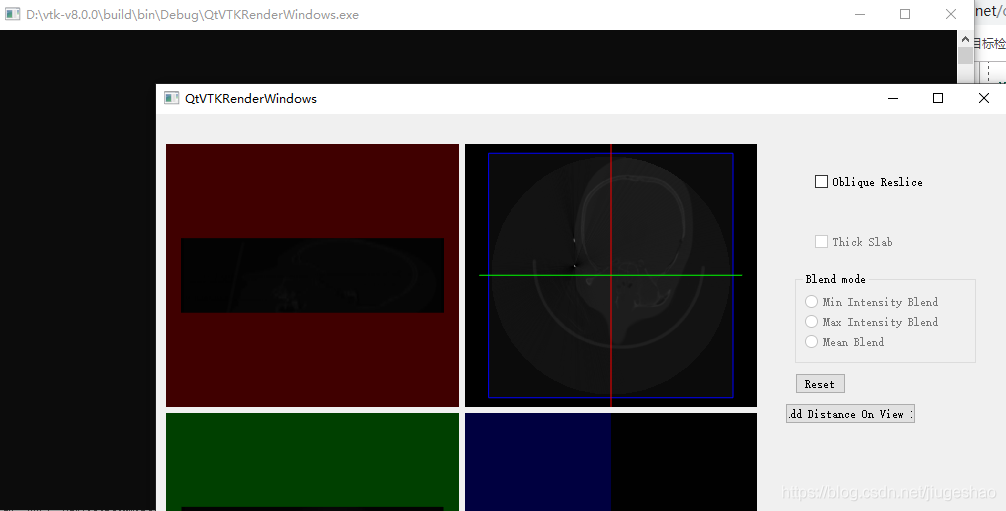
This will show the following interface in both debug and release mode:

After I compiled the debug version and release version of VTK, see Baidu net disk
Link: https://pan.baidu.com/s/199YssGsprlm99zkuI5eM3g
extraction code: 3 ip5

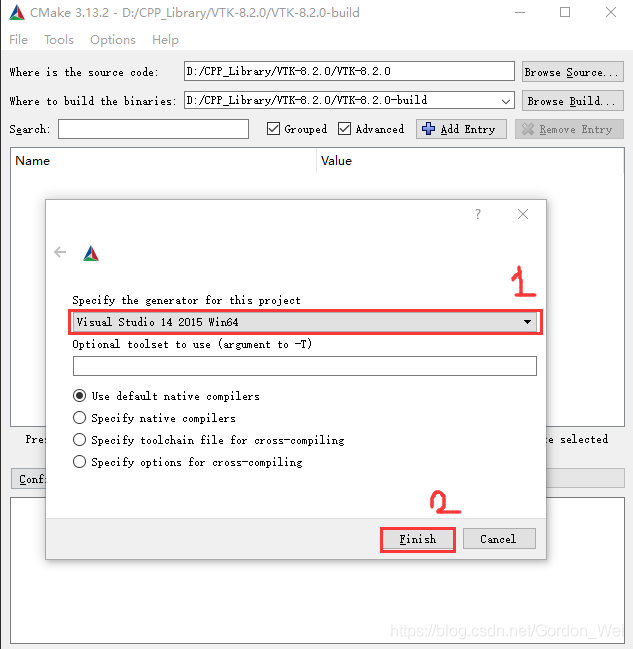
[VTK] vtk8.2.0 + vs2015 + win10 compilation and configuration

VTK8.2.0 + VS2015 + Win10 compilation and configuration
Special thanks to the “cook a delicious fish” blogger for technical support please refer to: VTK8.2.0+ITK4.13.2+VS2015 configuration
Only the VTK library is compiled here, not the examples and data contained in the VTK.
because the project needs to use only the VS2015 version, and the compilation process is also applicable to VS2017 and VS2019;
1 Download the source code
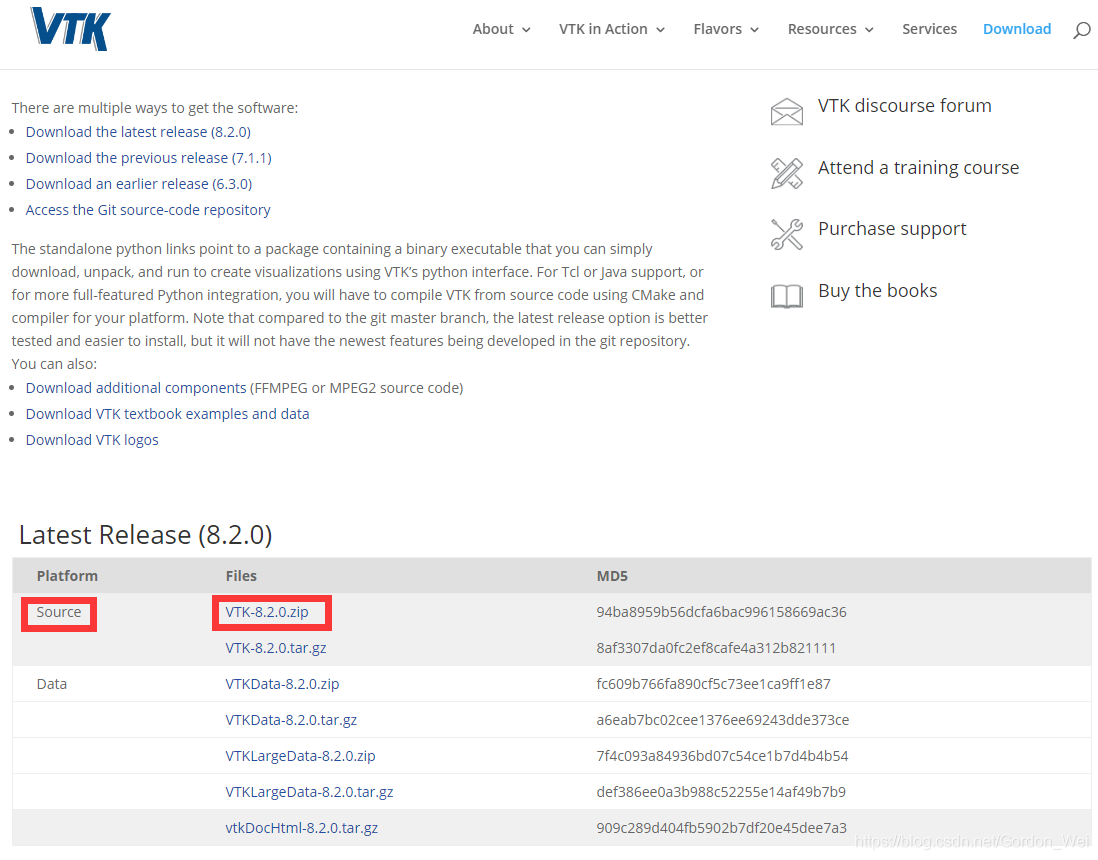
1.1 VTK source code can be downloaded from VTK official website
Download address: https://vtk.org/download/

in 8.2.0 release version of the Source select a package to download.
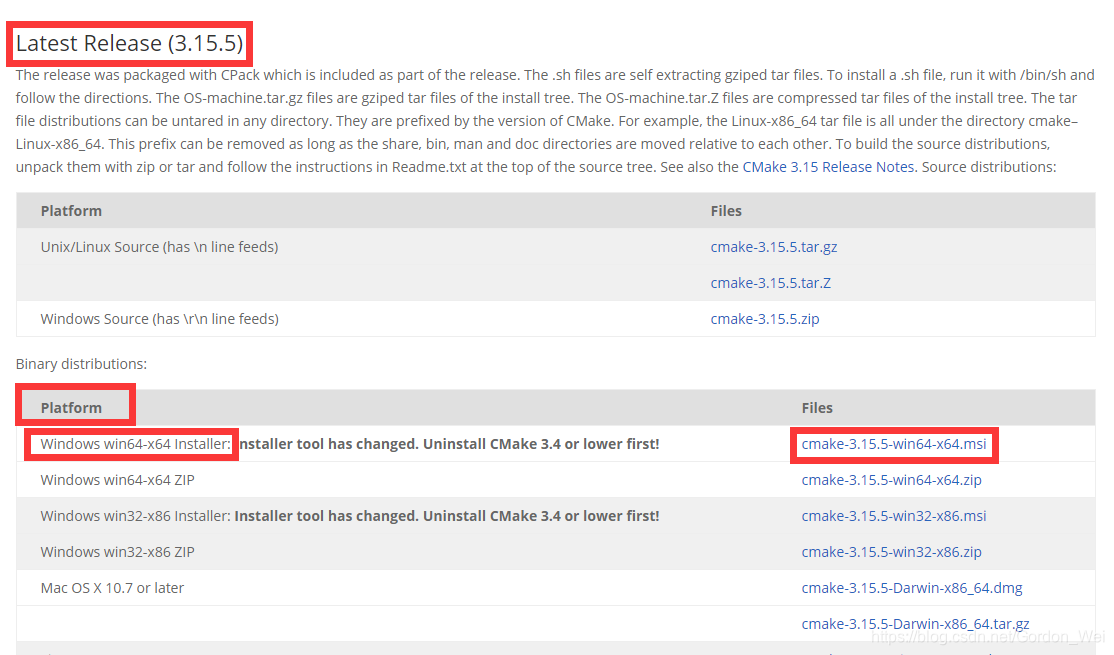
1.2 CMake official website download
Download address: https://cmake.org/download/

select the latest Release version, choose according to your Windows Platform, I am a 64 – bit system, so choose Windows win64 – X64 Installer installation package, download can be installed directly after, best as an administrator to install.
2. Generate VS2015 project file of VTK using CMAKE
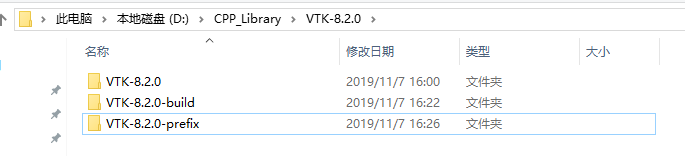
Unzip the VTK source code to get the vtk-8.2.0 folder, open it and see if there is a layer of VTK8.2.0 available when creating a new folder vtk-8.2.0-build and vtk-8.2.0-prefix.

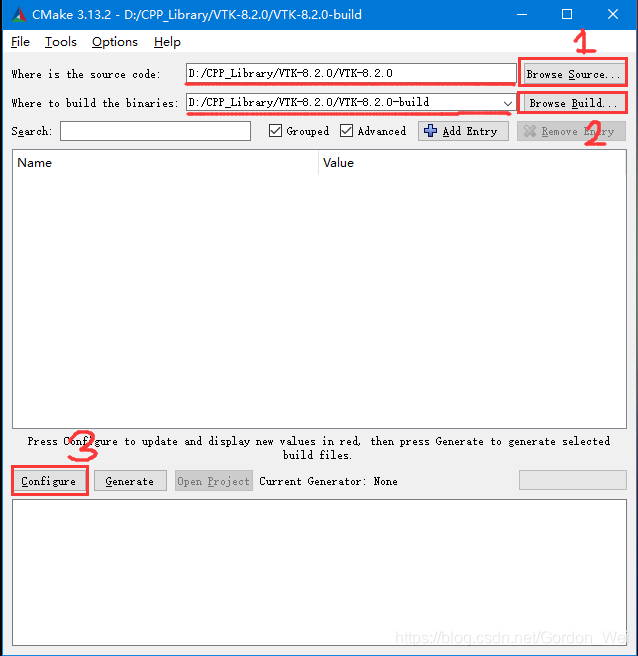
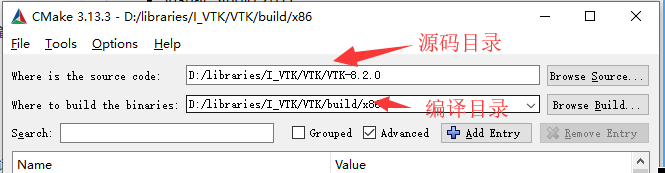
2.1 Open the installed Cmake (cmak-gui) (please ignore that my version is not the latest version) and select the VTK source path and the VTK generation path as the previous step, click Configure.

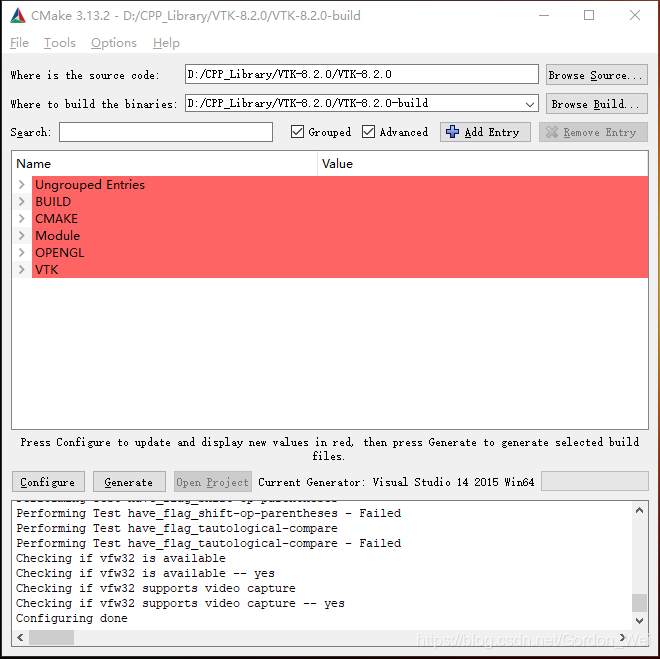
I am VS2015 64-bit version, click Finish to start loading the configuration and wait until the red area appears and the Configuring done appears.


2.3 Modify configuration parameters
2.3.1 Tickle BUILD_SHARED_LIBS under Build (I didn’t check it for example tests if I want to check it)
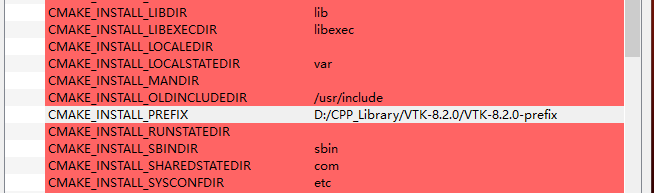
2.3.2 Modify the CMAKE_INSTALL_PREFIX option path to the vtk-8.2.0-prefix path created earlier
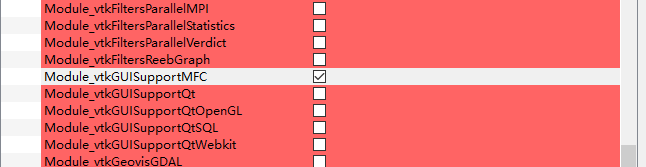
2.3.3 If you want to support MFC, check the MODULE_VTKGUISUPPORTMFC option under Module
2.3.4 Click the Configure button until the red part disappears, and click the Generate button to Generate the project file
2.3.5 Here refer to “VTK8.2.0 Compile, Installation and Test Case Run (Win10 + VS2017 + QT5, Release+Debug)” to set the value of CMAKE_DEBUG_POSTFIX. This variable represents the character added after the output filename in Debug mode, set to “_D”, then the filename generated in Debug mode will have the suffix “_D”. In order to distinguish between the files used in Release and Debug mode (I did not set it, you can set it, so that when you create a Release after the Debug version, you will not overwrite the files you created before)


3 Enter the generated VS2015 project file and compile the VTK library
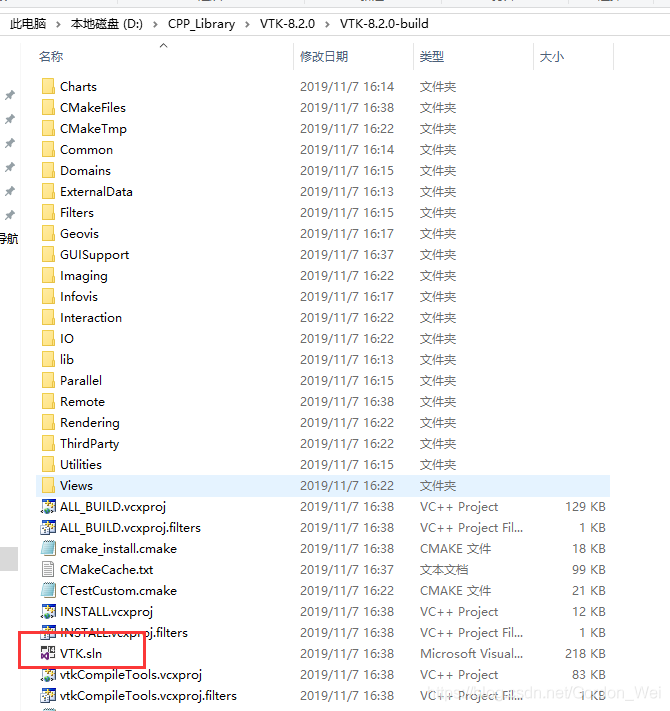
3.1 Open before the new VTK-8.2.0-Build folder, use VS2015 to open VTK. SLN (it is best to open Win10 as an administrator to modify C disk data is very sensitive, may lead to compilation failure, close 360 and other defense software, close no necessary programs)
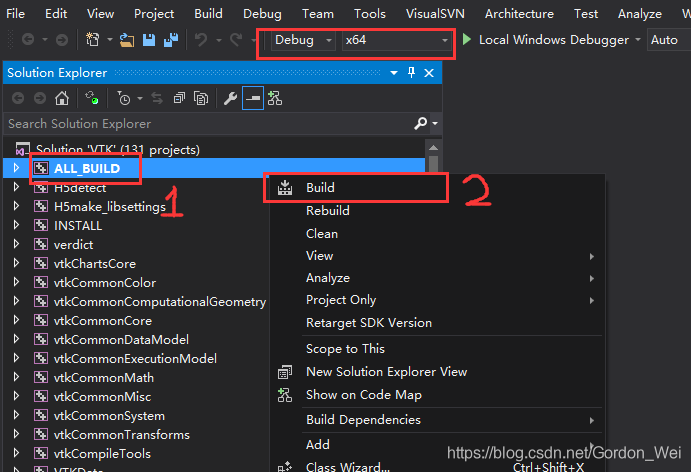
3.2 The default attribute is debug x64, right-click ALL_BUILD and select Build for compilation. It is better not to operate the computer during the Build period. After completion, check whether the output is all successful.


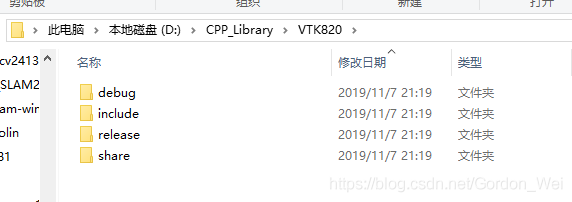
3.3 Copy the include, bin, lib, and share files from the vtk-8.2.0-prefix files to your own VTK library folder. For example: Create a new VTK820 folder with Debug and Release, because include and share files are shared by debug and release versions, put include and share folders in VTK820, and copy the generated bin and lib files to the corresponding folders. For example, the bin and lib files generated by vtk-8.2.0-prefix under debug environment are placed in the Debug folder of VTK820.

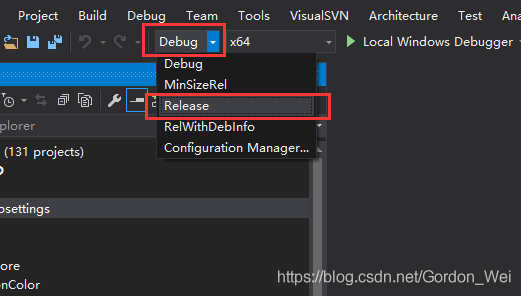
3.4 After changing Debug to Release in VS2015, repeat the operation of 3.2 to generate the Release version of VTK library (note: the bin and lib generated under vtk-8.2.0-prefix will be overwritten and copied ahead of time). Save the library files to the Release as described in 3.3

4. Use of VTK
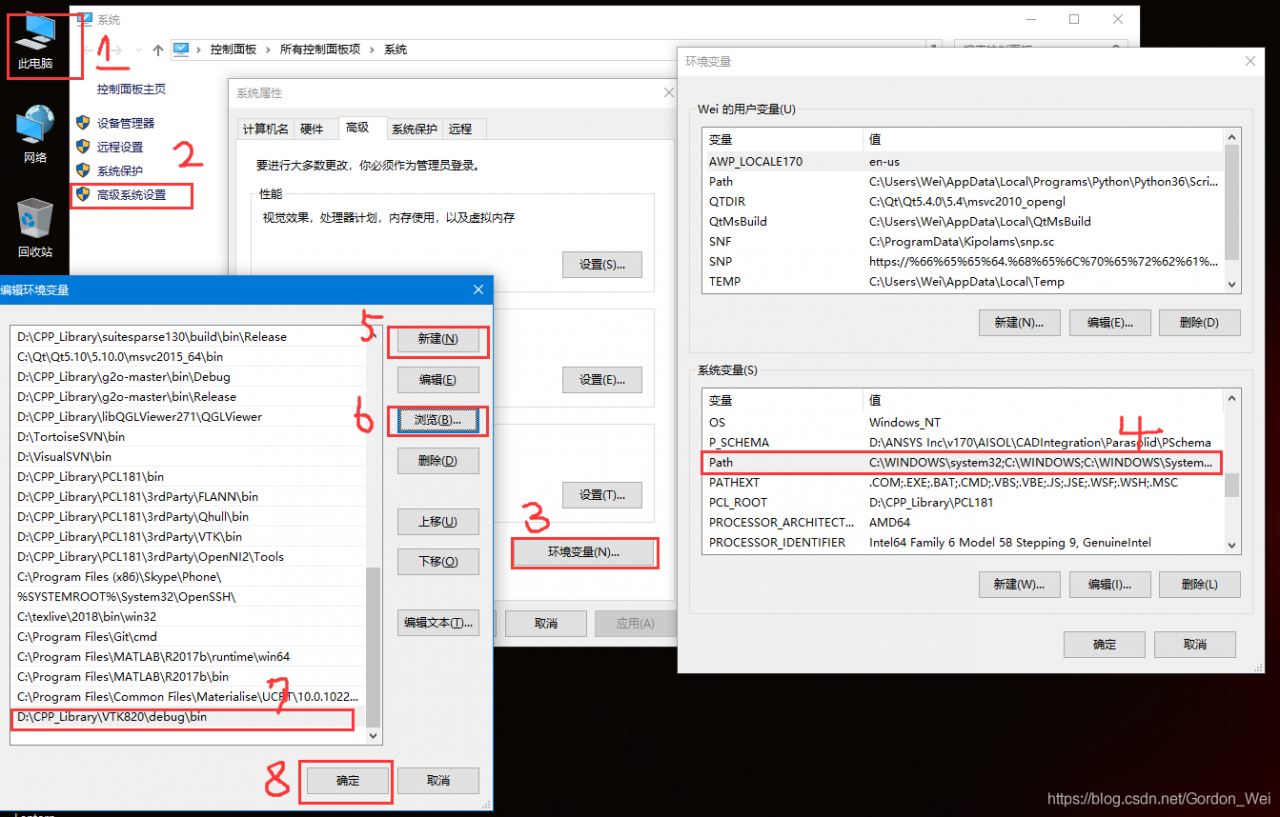
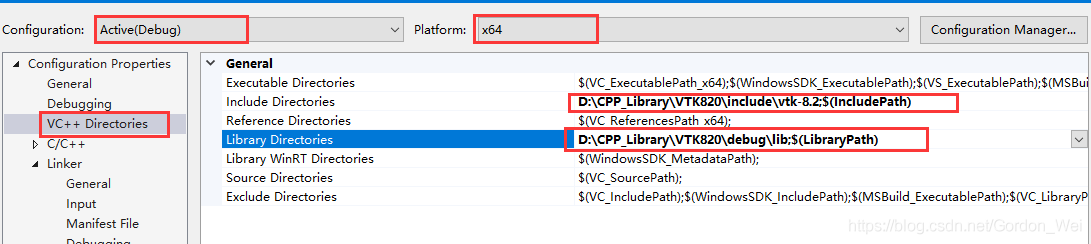
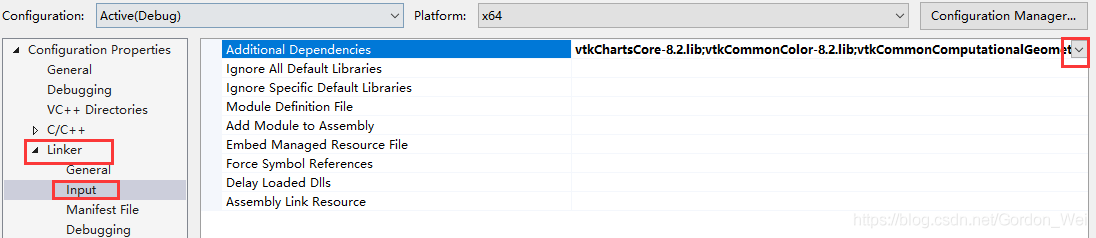
Configure the VTK library, including (1) add the environment variable VTK820 bin folder directory (debug and release used to fill which is OK) (after configuration need to restart VS or restart the computer), create a new console application (2) modify the project properties contain directory and lib library directory, (3) and use the lib file name to Link->; Iput-> Additional Dependencies (there is a method to get all the lib names, create a new.txt file under the lib file, and type dir /b *.lib>;

ah
a>

Vtk8.2.0 (32bit + 64bit) compilation and installation test (win10 + vs2017 + Qt5)

This article referred to the following articles in the installation process, and I would like to express my thanks to the following bloggers! :
https://blog.csdn.net/anhec/article/details/86777302
I. Preparation before installation
Visual Studio 2017 qt5cmakevtk source (https://vtk.org/download/)
Two. VTK compilation
My compile directory is as follows

Run CMake as follows

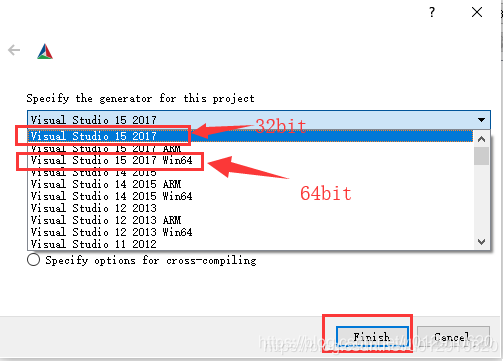
Click Configure, select Visual Studio 15 2017 (32bit) or Visual Studio 15 2017 Win64 (64bit), and click Finish.

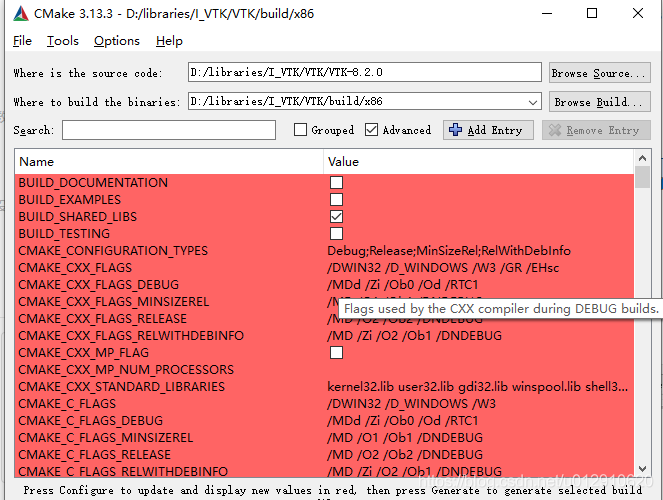
When configure is complete, manually modify some of the parameters as follows:

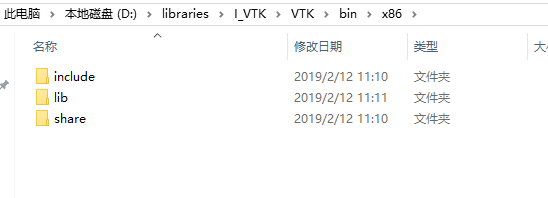
    BUILD_SHARED_LIBS, unchecked if static lib generation is needed; BUILD_EXAMPLES, which generate test cases, check the suggested box for easy post-compile testing; CMAKE_DEBUG_POSTFIX, which means that in debug mode the filename is followed by the specified character; VTK_Group_Qt, VTK supports Qt; CMAKE_INSTALL_PREFIX, set the VTK installation directory (D:\libraries\I_VTK\VTK\bin\x86 or D:\libraries\I_VTK\VTK\bin\x64);

Click Configure again to Configure the Qt path

Select the Qt path: (32bit) D:\libraries\Qt\Qt5.12.0\5.12.0\msvc2017\lib\cmake\Qt5
(64 – bit) D: \ libraries \ Qt \ Qt5.12.0\5.12.0 \ msvc2017_64 \ lib \ cmake \ Qt5
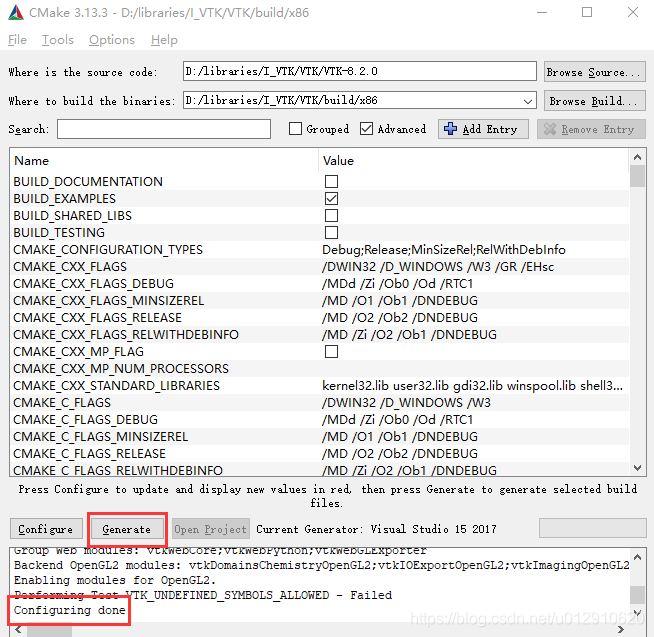
Click Configure again (change the red color if it still appears, then click Configure) and click Generate when you’re done.

III. VS2017 compilation
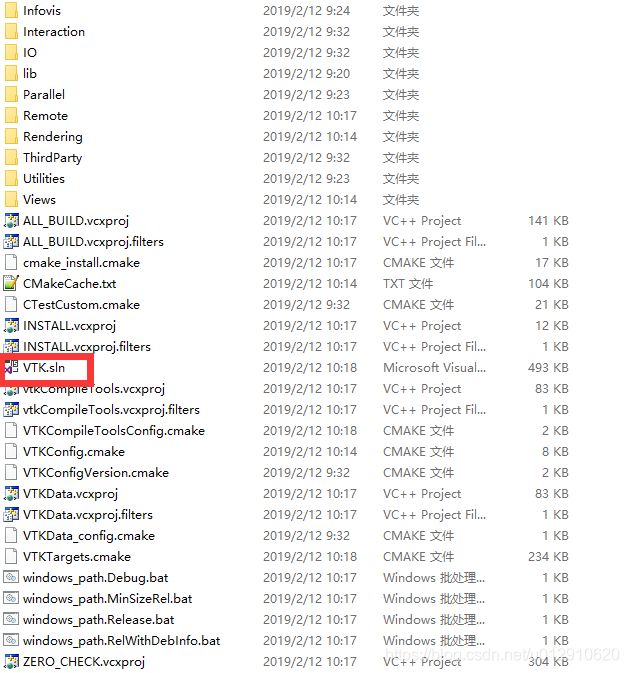
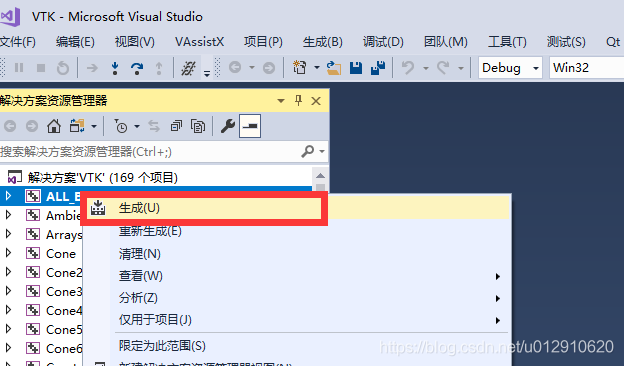
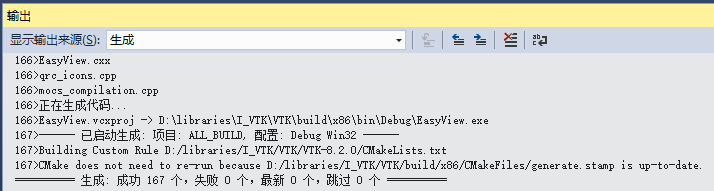
Open vtk.sln with vs2017, then right-click ALL_BUILD, click build, wait for some time, all compile successfully;


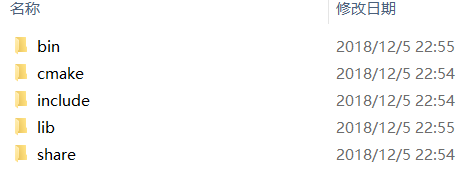
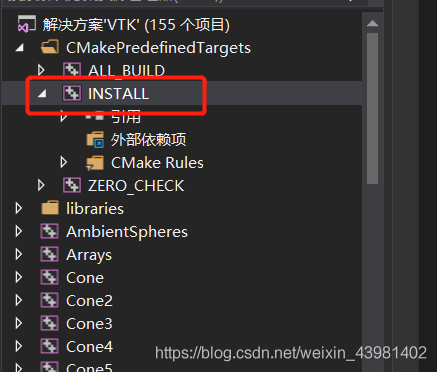
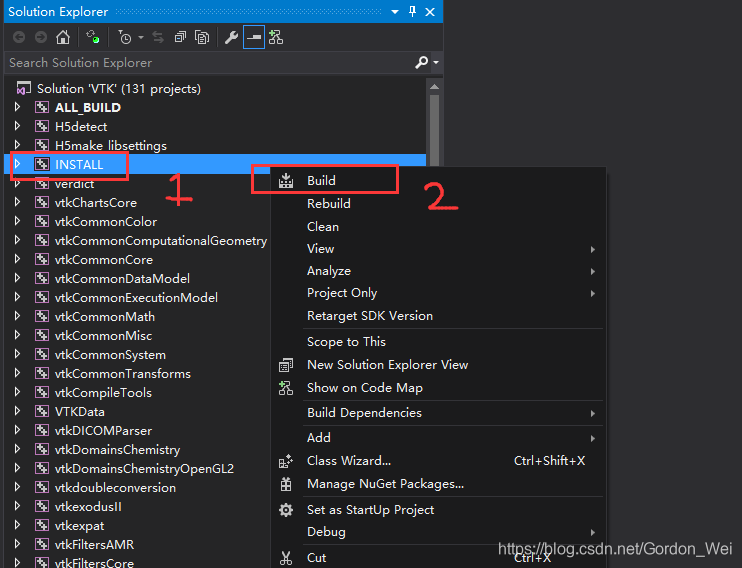
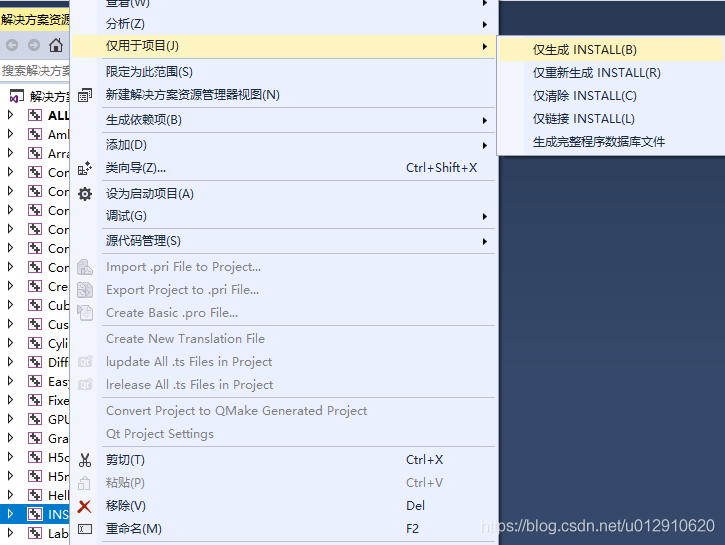
Right-click Install again and select Project Only –>; Only generate INSTALL, after completion you can see in the installation directory (D:\libraries\I_VTK\VTK\bin\x86), see the related lib, include, etc


In VS2017, change the configuration from Debug to Release, repeat ALL_BUILD and INSTALL above;
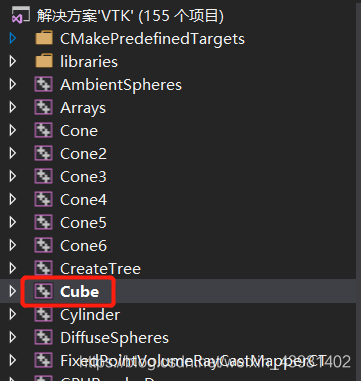
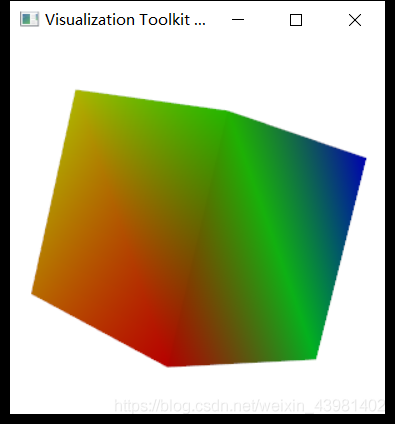
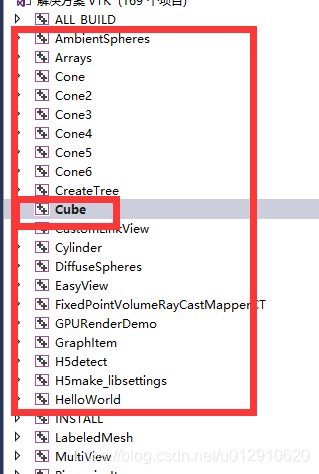
Test three.

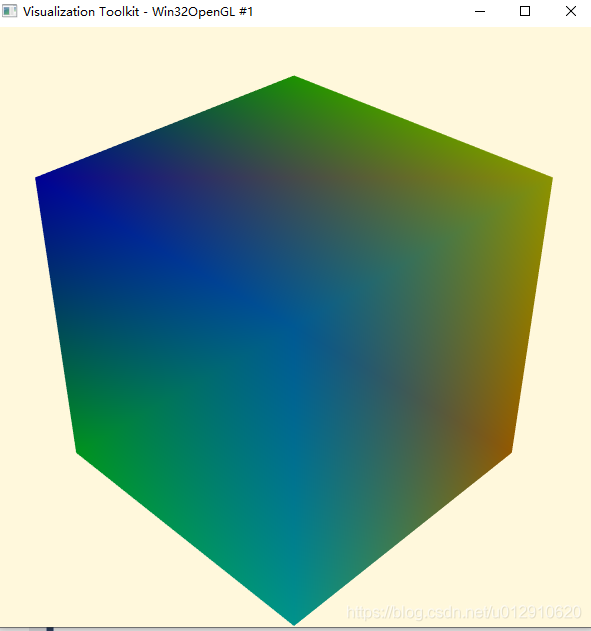
Select Cube and run


VC + + COM programming error of 0xc0000005: access conflict when reading location 0xfeefef6

Calling COM+ gives you the desired result and returns an error after the last return 0 sentence.

error location in comip.h

void _Release() throw()

{

if (m_pInterface! = NULL) {

m_pInterface – & gt; Release(); // Error reported here

}

}
When I encounter this problem myself, I use m_pInterface->; Release(); Comment out the program no longer reports an error.
Some other ways online:
1.m_pInterface-> Release () into m_pInterface = NULL from http://topic.csdn.net/u/20091120/16/8a9c8d91-9a39-416b-8d8d-8c2cd2a71d3e.html
2. In the program implementation: PTR ->; Release(); To PTR. Release (); From http://topic.csdn.net/u/20091120/16/8a9c8d91-9a39-416b-8d8d-8c2cd2a71d3e.html
3. One statement is that it is a matter of scope. I don’t know much about it. See: http://stackoverflow.com/questions/2653797/why-does-couninitialize-cause-an-error-on-exit
This method has been tried, but it also works. See the following instructions for details.

I’m working on a C++ application to read some data from an Excel file. I’ve got it working, but I’m confused about one part. Here’s the code (simplified to read only the first cell).

//Mostly copied from http://www.codeproject.com/KB/wtl/WTLExcel.aspx 
 
#import "c:\Program Files\Common Files\Microsoft Shared\OFFICE11\MSO.DLL" 
#import "c:\Program Files\Common Files\Microsoft Shared\VBA\VBA6\VBE6EXT.OLB" 
#import "C:\Program Files\Microsoft Office\Office11\excel.exe" rename ("DialogBox","ExcelDialogBox") rename("RGB","ExcelRGB") rename("CopyFile", "ExcelCopyFile") rename("ReplaceText", "ExcelReplaceText") exclude("IFont", "IPicture") 
 
_variant_t varOption((long) DISP_E_PARAMNOTFOUND, VT_ERROR); 
 
int _tmain(int argc, _TCHAR* argv[]) 
{ 
    DWORD dwCoInit = 0; 
    CoInitializeEx(NULL, dwCoInit); 
    Excel::_ApplicationPtr pExcel;     
    pExcel.CreateInstance(_T("Excel.Application")); 
    Excel::_WorkbookPtr pBook; 
    pBook = pExcel->Workbooks->Open("c:\\test.xls", varOption, varOption, varOption, varOption, varOption, varOption, varOption, varOption, varOption, varOption, varOption, varOption); 
    Excel::_WorksheetPtr pSheet = pBook->Sheets->Item[1]; 
    Excel::RangePtr pRange = pSheet->GetRange(_bstr_t(_T("A1"))); 
    _variant_t vItem = pRange->Value2; 
    printf(_bstr_t(vItem.bstrVal));     
    pBook->Close(VARIANT_FALSE); 
    pExcel->Quit(); 
    //CoUninitialize(); 
    return 0; 
} 

I had to comment out the call to CoUninitialize for the program to work. When CoUninitialize is uncommented, I get an access violation in the _Release function in comip.h on program exit.
Here’s the code from comip. h, for what it’s worth.

void _Release() throw() 
{ 
    if (m_pInterface != NULL) { 
        m_pInterface->Release(); 
    } 
} 

I’m not very experienced with COM programming, so there’s probably something obvious I’m missing.

    Why does the call to CoUninitialize cause an exception? What are the consequences of not calling CoUninitialize? Am I doing something completely wrong here?

ANSWER!

The problem you are having is one of scope. The short answer is to move the CoInit and CoUninit into an outer scope from the Ptrs. For example:

//Mostly copied from http://www.codeproject.com/KB/wtl/WTLExcel.aspx 
 
#import "c:\Program Files\Common Files\Microsoft Shared\OFFICE11\MSO.DLL" 
#import "c:\Program Files\Common Files\Microsoft Shared\VBA\VBA6\VBE6EXT.OLB" 
#import "C:\Program Files\Microsoft Office\Office11\excel.exe" rename ("DialogBox","ExcelDialogBox") rename("RGB","ExcelRGB") rename("CopyFile", "ExcelCopyFile") rename("ReplaceText", "ExcelReplaceText") exclude("IFont", "IPicture") 
 
_variant_t varOption((long) DISP_E_PARAMNOTFOUND, VT_ERROR); 
 
int _tmain(int argc, _TCHAR* argv[]) 
{ 
    DWORD dwCoInit = 0; 
    CoInitializeEx(NULL, dwCoInit); 
    { 
        Excel::_ApplicationPtr pExcel;     
        pExcel.CreateInstance(_T("Excel.Application")); 
        Excel::_WorkbookPtr pBook; 
        pBook = pExcel->Workbooks->Open("c:\\test.xls", varOption, varOption, varOption, varOption, varOption, varOption, varOption, varOption, varOption, varOption, varOption, varOption); 
        Excel::_WorksheetPtr pSheet = pBook->Sheets->Item[1]; 
        Excel::RangePtr pRange = pSheet->GetRange(_bstr_t(_T("A1"))); 
        _variant_t vItem = pRange->Value2; 
        printf(_bstr_t(vItem.bstrVal));     
        pBook->Close(VARIANT_FALSE); 
        pExcel->Quit(); 
    } 
    CoUninitialize(); 
    return 0; 
} 

The longer answer is that the Ptrs destructors (which calls Release) are being called on exit from main. This is after CoUnit which, basically, shuts down the communication channel between your app and the COM object.
What are the consequences of not calling CoUnit?For short lived in-process COM servers, there really isn’t any negative consequence.