Category Archives: How to Fix

collect2: error:ld returned 1 exit status solution

Collect2 :error: LD returned 1 exit status
This error occurred many times and has been solved before, but this time the same error occurred again, however, I have forgotten what caused it before, So, anyway, I have to write it down this time.
Given my experience with reporting so many errors, all of my reasons are: the same function name is used in both CPP files, even though they are in their own classes, but it doesn’t work, just change one of the function names to be OK.

To solve the problem of importerror when installing tensorflow: libcublas.so . 10.0, failed to load the native tensorflow runtime error

Recently installing TensorFlow-GPU on a service has been experiencing the following error:
ImporError: libcublas.so.10.0: Cannot open shared object file: No such file or directory
iled to load the native TensorFlow Runtime.
I>Error: libcublas.so. Different TensorFlow-GPU versions correspond to different CUDA and CUDNN versions. How do I view CUDA and CUDNN versions?

DA 8.0→ CUDNN V6.0/CUDA 8.0→ CUDNN V6.0/CUDA 9.0→ CUDNN V7.0.5
T>rFlow 1.6/1.5 CUDA 9.0 and 1.3/1.3 CUDA 8.0.
TensorFlow 1.6/1.5 CUDA 9.0
As a result, specify TensorFlow – GPU version to reinstall (Note: you don’t need to install TF before uninstalling it, you can PIP directly because it will automatically detect the installed TF and uninstall it).

pip install  tensorflow-gpu==1.5

Note: it is best to use mirror image such as Tsinghua mirror, the speed difference is not a little bit.

pip install -i https://pypi.tuna.tsinghua.edu.cn/simple some-package

You can test it once it’s installed

import tensorflow as tf
sess = tf.Session(config=tf.ConfigProto(log_device_placement=True))

Displaying large section of relevant information indicates successful installation!

Problem solving: importerror: libcublas.so .9.0: cannot open shared object file: No such file

ImporError: LibCublas.so.9.0: Cannot open shared object file: No such file: ImporError: LibCublas.so.9.0: Cannot open shared object file: No such file: ImporError: LibCublas.so.
This means the CUDA version is not compatible with TF.
I’m running in a virtual environment created by Conda. Python =3.6. CUDA version = 9.2 in basic environment.
When TensorFlow was configured, it was TF1.8 installed as CUDA 9.2. How could it not be compatible?So I’m n V c minus V.

So I was curious to create a new virtual environment and install TensorFlow =1.8.

conda install tensorflow-gpu==1.8


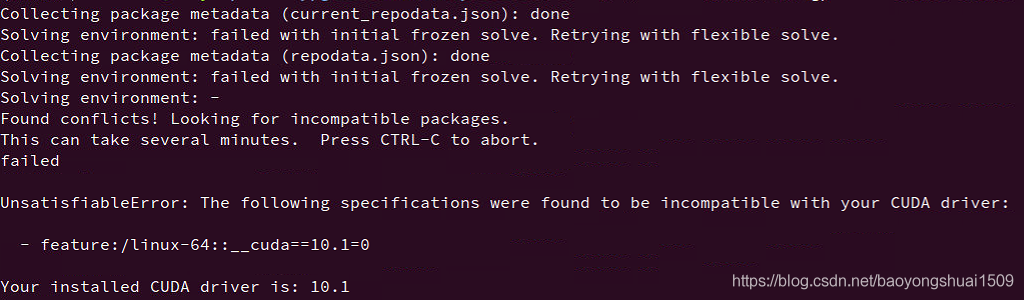
See the error and think TF1.8 is really not compatible with CUDA10 + lol, I need to confirm the CUDA driver version.

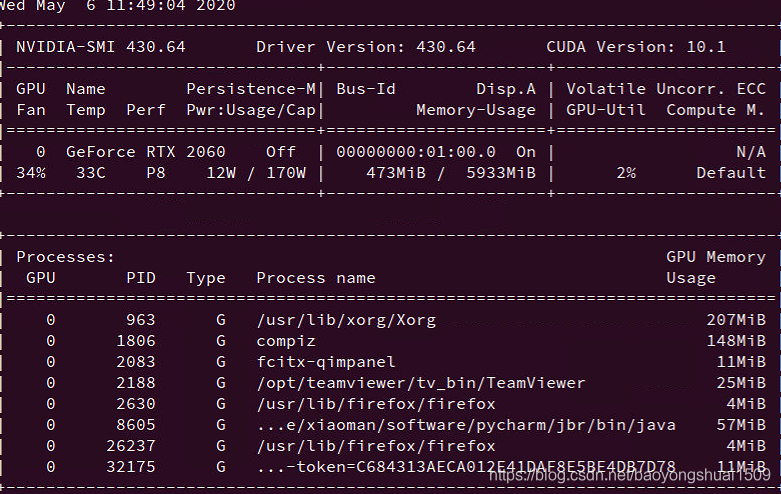
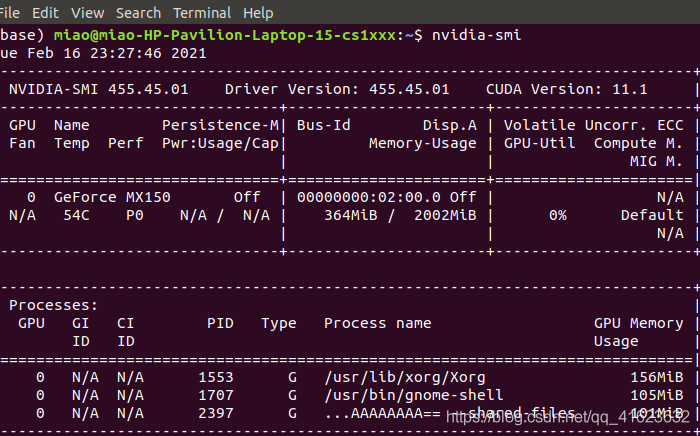
nvidia-smi


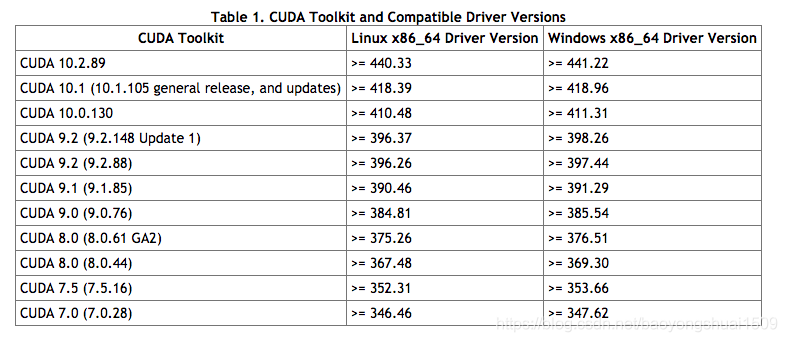
The original CUDA driver is 10.1, the CUDA version and the driver version are not consistent, embarrassing. It turned out that the graphics driver on the new computer was too new. Please refer to the corresponding relationship on Nvidia’s website:

The CUDA driver is 430.64, but the CUDA version=9.2 is configured. Well, upgrade the CUDA version and the problem is solved. Of course TF will be upgraded to 2.0+.

CONDA 3090 install tenslow GPU report error importerror: libcublas.so .9.0: cannot open shared object file

ImporError: libcublas.so.9.0: Cannot open shared object file: No such file or directory
The complete installation of TensofLow2.x creates the environment to go into the environment and install the TensorFlow test environment

background
Graphics card 3090 GeForce RTX driver version 455.23.04 CUDA version 11.1
why
cudatoolkit/ code>> is not installed in the Conda environment, use the install command

conda install cudatoolkit

A complete installation of tensoflow2.x
Create an environment

conda create -n tensorflow-gpu python=3.8 cudatoolkit

Into the environment

conda activate tensorflow-gpu

Install tensorflow

pip install tensorflow -i https://pypi.tuna.tsinghua.edu.cn/simple

The test environment

import tensorflow as tf
tf.test.is_gpu_available()

The solution of centos7 in VMware virtual machine unable to access after installing nginx

VMware virtual machine in Centos7 after installing NGINX is not native access solution
To install Nginx on Linux, see: Linux Centos7 to install Nginx
The firewall of CentOS is changed to “iptables”, which is no longer called “iptables”. The firewall of CentOS is changed to “iptables”, which is no longer called “iptables”. The firewall of CentOS is changed to “iptables”.

firewall-cmd --zone=public --add-port=80/tcp --permanent  

Command meaning:
— zone # scope
— add-port=80/ TCP # Add port in format: port/communication protocol
— permanent # is permanent and will fail if restarted without this parameter
Restart firewall:

systemctl stop firewalld.service  
systemctl start firewalld.service  

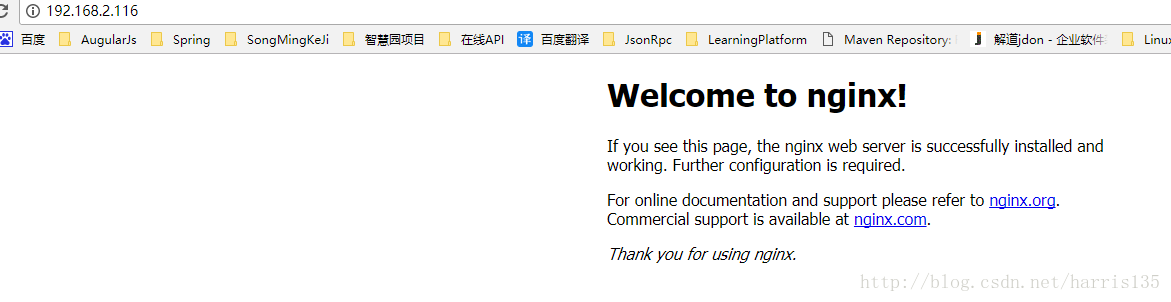
Refresh the access again, as shown in the figure below:

The solution of centos7’s inaccessibility after installing nginx

The firewall of Centos7 is changed to “iptables” and is no longer called “iptables”. The firewall of Centos7 is not called “iptables” anymore. The firewall of Centos7 is changed to “iptables”.

firewall-cmd --zone=public --add-port=80/tcp --permanent  

1
Command meaning:
— zone # scope
— add-port=80/ TCP # Add port in format: port/communication protocol
— permanent # is permanent and will fail if restarted without this parameter
Restart firewall:

systemctl stop firewalld.service  
systemctl start firewalld.service  

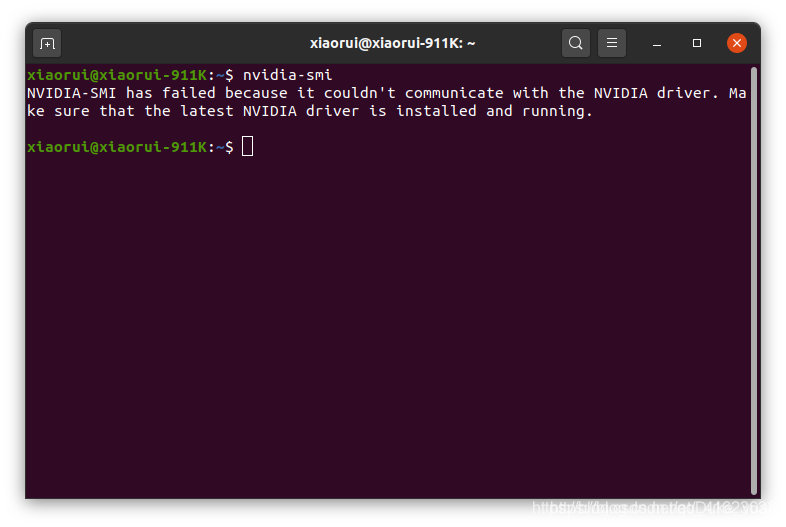
NVIDIA SMI caused by updating BIOS has failed because it could’t communicate with the NVIDIA

Problem description, when the input nvidia – when smi nvidia – smi has failed because it couldn ‘t communicate with the nvidia:

link: https://blog.csdn.net/hangzuxi8764/article/details/86572093, enter the following two lines of code can be solved, but I tried to use.
is finally found that I have recently updated the Bios, the Bios of the secure boot not closing led to the above problems, HP press F10 to enter Bios Settings, we find a secure boot the boot option, and then press enter, select disable, press F10 to save exit, restart the computer, at this moment we are in the terminal to the input $nvidia – smi

ah, don’t need to uninstall it’s good to install the driver again! I hope you found it useful.

How to install postman tool in Ubuntu 16.04

Ubuntu16.04 postman installation: basic steps:

1) : official website to download software package: https://www.getpostman.com/apps

2) : unzip the installation:

sudo tar -xzf Postman-linux-x64-6.0.10.tar.gz

3): Enter the unzipped PostMan folder to open the terminal and start PostMan

./Postman/Postman

4): Create startup icon for quick startup
Create a soft link to create Postman from the extracted Postman file in /usr/bin/

sudo ln -s  /home/c/Downloads/Postman/Postman   /usr/bin/


Ubuntu 18.04 installing postman

Download the tar packages
Official download zip package
The installation
1, enter the download directory to decompress

sudo  tar -xzf postman.tar.gz	-C /usr/local/tools

2. Try running PostMan

/Postman/Postman

Create global variables

sudo ln -s /usr/local/tools/Postman/Postman /usr/bin/postman

4. Add launcher application icon

sudo vim /usr/share/applications/postman.desktop

Add content

[Desktop Entry]

Encoding=UTF-8

Name=Postman

Exec=postman

Icon=/usr/local/tools/Postman/app/resources/app/assets/icon.png

Terminal=false

Type=Application

Categories=Development;