Author Archives: Robins

Two deformation methods of tensorflow image

There is also the padding, which can prevent the image from deforming, but the result is not good, because there are too many irrelevant factors on the pad, so we don’t use this.
1. For labels, fill with the nearest neighbor’s value:

tf.image.resize_nearest_neighbor(
        tf.expand_dims(label, 0),
        new_dim,
        align_corners=True)

2. Apply to images, using bilinear interpolation

tf.image.resize_bilinear(
      tf.expand_dims(image, 0),
      new_dim,
      align_corners=True)

Because both of the above methods require four dimensions, expand_dim
Capital water. But I’m actually writing code for myself for easy review, funny.

Tensorflow image random_ There seems to be something wrong with the shift function

Environment: Python 3.6, TensorFlow 1.15
Hope for augmentation, using tf keras. Preprocessing. Image. Random_shift function
Unsupported operand type(s) for *: ‘Dimension’ and ‘float’
Line 446 in tensor_shape.py is return self * other
Return self * other –> return self * other –> return self * int(other)
The random_shift function does not work, and the image does not have any shift effects
As a last resort, change the design function to achieve random_shift function function
According to my requirements, first of all, two random numbers are generated by TF.Random. Uniform, which are used as the translation pixels of the width and height dimensions of the image. Then use tf.roll to translate the image in two dimensions of height and width. The code is as follows:

shift_num = tf.random.uniform(shape=[2], minval=-img_height/2, maxval=img_height/2, dtype=tf.dtype.int32)

img_out = tf.roll(img_in, shift=shift_num, axis=[1,2])

This code does what I need the random_shift function to do, but it’s slow
over

Oracle 12C installation process related errors and Solutions

For the latest version of Oracle 12c database, we will encounter many problems in the process of installing and building the database. Here I will summarize the problems I encountered, and give the corresponding solutions.


1.ORA-12500: TNS: Listener could not start the dedicated server process
As the name implies, this type of problem relates to the associated listening service

sqlplus/noolog
nn /as sysdba
s>up
conn /as sysdba
startup
conn /as sysdba
startup ORCL database associated with the service, if not opened in the CMD check can be through the task manager in the service column to find the relevant service to open the restart, ORACLESSWrite – ORACLESService – Listener – ORACLEScheduler -, generally is one of the service and Listener did not start, the service can be resolved after the restart. To reconfigure listeners, open the Net Configuration Assistant and reconfigure existing listeners. Open the netmanager and check whether the user’s localhost port 1521 is not abnormal.


ORA-12560:TNS: Protocol oracer error
Error problems can be caused by three factors:
The listening service is not up.
Windows platform a operation as follows: Start – Program – Management Tools – Services, open the Services Panel, start OracleHome92TNSListener service. The database instance is not up.
Windows platform: Start – Programs – Management Tools – Services, open the Services panel, launch Oracle Server XXXX,XXXX is your Database SID. Registry problems.
regedit, then go to HKEY_LOCAL_MACHINE\SOFTWARE\ORACLE\HOME0 and set the environment variable ORACLE_SID to XXXX. XXXX is your database SID. Or just to the right of My Computer, Properties — Advanced — Environment Variable — System Variable — New, Variable Name = ORACLE_SID, Variable Value =XXXX,XXXX is your Database SID. ORACLE_SID =XXXX. ORACLE_SID =XXXX. ORACLE_SID =XXXX.


3. Port occupancy problem
CMD to perform netstat ano | findstr searches in 1521 CMD perform netstat – ano find localaddress port
Query to the PID of the executing process
Taskkill /pid ** /f Open the services panel, find the running pid process and terminate it
End the process, and the occupied port will be released


4.ORA-12505 Listener refused the connection

    sid, user name, etc. Make sure it matches the database you created — restart your computer, release the used port 1521 — restart Oracle Develpoer — then run CMD, open a command prompt, and type LSNRCTL to run stop first. Then start — Open Resource Manager
    and run C:\ Oraclexe \app\ Oracle \product\10.2.0\ Server \BIN\tnslsnr.exe
    ey_local_machine \ System \CurrentControlSet\Services\ OraclexetNSListener
    I>Path key value: C: \ oraclexe \ app \ oracle \ product \ 10.2.0 \ server \ BIN \ TNSLSNR exe


    Temarily sorted out the above four problems, in general, to ensure that the associated monitoring service is normally opened, the server SID and other configurations are correct, can test the successful connection.

When installing oracle12c, the problem of “unable to check whether the specified location is on CFS” appears

This problem occurred after uninstalling Oracle12c.
others said need to modify the host file, restart the works after modification. Then changed the computer name, after reboot easy to use.
In other cases, the installation of Oracle will get stuck. When exiting and reinstalling Oracle, select “New System User”, which is easy to use.

Solutions to the failure of importing Python 3.7 SSL module

There are a lot of articles on the Internet about how to solve the failure of Python3.7 import _SSL module, but most of the actual operation is not successful. The following method can be used in a practical test.
First, install dependencies
OpenSSL or Libressl (either optional) is required to install the SSL module. OpenSSL is installed in version 1.0.1, which does not meet the requirements of Python3.7. The version requirements for the SSL library are as follows:
openssl > = 1.0.2 libressl & gt; = 2.6.4
My working environment:
14.04 Python3.7.3 Ubutun download link: https://www.python.org/ftp/python/3.7.3/Python-3.7.3.tgz
Download and install Libressl
Website: https://www.libressl.org/, download link: https://ftp.openbsd.org/pub/OpenBSD/LibreSSL/libressl-2.9.1.tar.gz./config – prefix =/usr/local/SSL make sudo make intallmv/usr/bin/openssl/usr/bin/openssl. Bak (if not installed SSL before, /usr/include/openssl.bak /usr/include/openssl.bak This step can be skipped) ln -s/usr/local/SSL/bin/openssl/usr/bin/openssl ln -s/usr/local/SSL/include/openssl/usr/include/openssl in/etc/ld. So. Conf., d directory to create libressl – 2.9.1. Conf file, add/usr/local/SSL/libsudo ldconfig
Install Python3.7
Configure environment variables
Export LDFLAGS = “-l/usr/local/SSL/lib”
export CPPFLAGS = “-i/usr/local/SSL/include”
export PKG_CONFIG_PATH = “/ usr/local/SSL/lib/pkgconfig”
Unzip the Python installation package and execute the configure file:
./configure — enable – Shared
Check that the SSL configuration is working
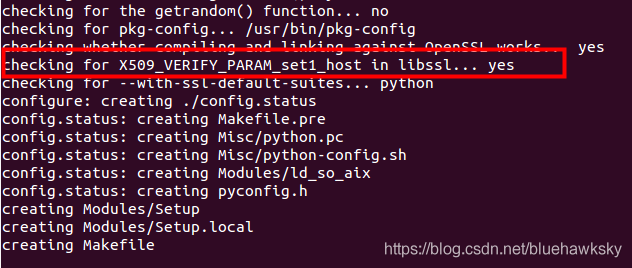
Verifies that the SSL module was successfully installed in /usr/local/bin/python3.7

3. Other errors
Failed to compile the SSL module

Solutions:
Go to the libressl compilation directory libressl-2.9.1
Sudo cp SSL/libs/libssl. So the 47.0.5 – gnu/Linux/lib/x86_64 –
sudo cp crypto/libs/libcrypto. So the 45.0.4/lib/x86_64 – – the gnu/Linux
Sudo ln-s /lib/x86_64-linux-gnu/libcrypto.so.47.0.5 /lib/x86_64-linux-gnu/libcrypto.so.47
sudo ln-s /lib/x86_64-linux-gnu/libcrypto.so.45.0.4 /lib/x86_64-linux-gnu/libcrypto.so.45
recompile
Failed to compile the _ctypes module
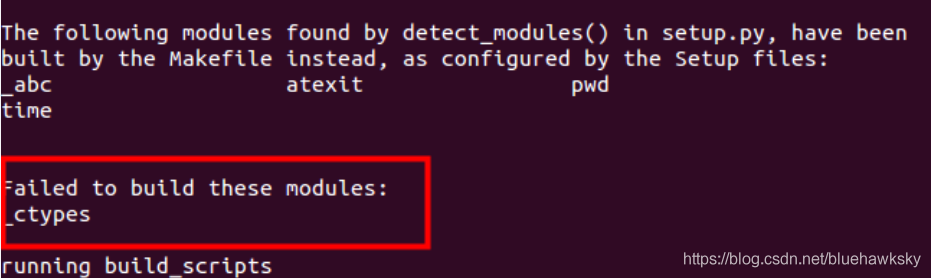
Sudo apt-get install libffi-dev, install libffi-dev, install libffi-dev

 

Python error open SSL.SSL.SysCallError :(-1,‘Unexpected EOF‘)

Ssl. syscallError :(-1,’Unexpected EOF’)
Verify = False: verify = False: verify = False: verify = False

Request, when using a proxy to crawl a web page
Verify = False; verify = False
code

URL = "https://docs.google.com/uc?export=download"

session = requests.Session()

response = session.get(URL, params = { 'id' : id }, stream = True )

Verify = False

URL = "https://docs.google.com/uc?export=download"

session = requests.Session()

response = session.get(URL, params = { 'id' : id }, stream = True, verify = False )

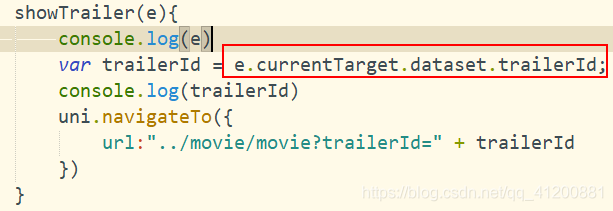
uniapp e. currentTarget.dataset Pay attention

There is a problem with uniapp. When you compile to H5, you can get the data, but you can’t get the data in the WeChat applet
As shown in figure:

Then, at the prompt, add console.log to the relevant code to see the output
It turns out that there was an error adding a label to the element

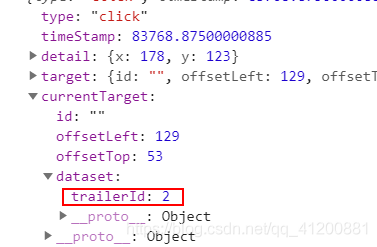
Look at both sides of the console to find the reason:
H5:

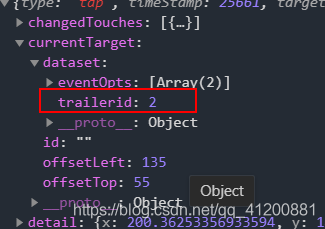
WeChat applet:

The WeChat applet converts uppercase letters to lowercase
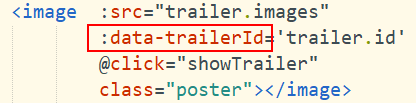
Fix: Change the data-trailerID in HBuilderX to all lowercase

The Linux terminal appears bash: setup.bash : no such file or directory, and. Bashrc file

Earlier in the Linux open a terminal, he always appear bash:/opt/ros/indig/setup. Bash: No to the file or directory. This problem is related to the bash that needs to be loaded every time the terminal is opened.

/etc/bashrc: This file sets up environment information for each user of the system and is executed when the user first logs in and collects shell Settings from the configuration file in the /etc/profile.d directory. This file is read when the bash shell is opened.
~/.bash_profile: Each user can use this file to enter specific shell information for his or her own use, and this file is executed only once when the user logs in! By default, it sets some environment variables and executes the user’s.bashrc file.
~/.bashrc: This file contains bash information specific to your bash shell, which is read when you log in and every time you open a new shell.
/.bash_logout: This file is executed every time you exit the system (exit the bash shell)
I turn to open the file, the last in ~ /. Bashrc found the last line of this file: the source/opt/ros/indig/setup. Bash the bash file does not exist in the file system, so I deleted it. After that, it works fine when you start the terminal again.
P.S. We can get through

echo "source /opt/ros/indigo/setup.bash" >> ~/.bashrc

Command to add a path to the.bashrc file.

Then through

source ~/.bashrc

Order to put it into effect.

Linux has no way to solve bash. / that file or directory

Running./ XXX in Ubuntu 64-bit will pop up saying there is no such file or directory, but ls will see this file again, which is very strange.
In fact, the reason is very simple, because he does not have the 32-bit runtime ia32-libs, just install it.
apt-get install ia32-libs
It is possible that XXX is referenced by another package, but the following package replaces it: lib32ncurses5 lib32z1
The method of zero:
sudo apt-get install g++-multilib
Method one:
http://pkgs.org/download/ia32-libs
download mint 17 deb software installation for the center line depends on what the solution automatically
Method 2:
Sudo DPKG –add-architecture i386
sudo apt-get update
do apt-get dist-upgrade
This step is used to install Wine, which may occur if the computer does not have Wine installed (in fact, it will prompt you to install it if it does not).
Method 3:
Apt-get-f install: apt-get-f install
Method 4:
See the solution for ubuntukylin.com WUY069
 
1. Switch to root
Sudo -i
2. Enter the APT source list
CD/etc/apt/sources. List. D
3. Add source for Ubuntu 13.04, since IA32-libs is deactivated in subsequent versions of 13.10
Echo “deb http://archive.ubuntu.com/ubuntu/ raring main restricted universe multiverse” & gt; ia32-libs-raring.list
 
4. Update the source and install IA32-LIBS
Apt to get the update
Apt to get the install ia32 libs
 
5. Restore the source
The rm ia32 libs – raring. List
Apt to get the update

Solve the problem of “bash. / don’t have that file or directory” in Ubuntu 64 bit

When you first run the./XXX file in Ubuntu 64-bit, you might say that bash doesn’t have that file or directory, but it does;
The reason is that there is no 32-bit runtime;

Solution:

$sudo apt-get install ia32-libs

If it says no packages are available, then install the alternative:

$sudo apt-get install libc6:i386 libgcc1:i386 gcc-4.6-base:i386 libstdc++5:i386 libstdc++6:i386

>