Author Archives: Robins

React Native Network Request Failed solution

Today, when I was writing a demo of Network Request with React Native, the emulators kept telling me Network Request Failed, which was very annoying, baidu search for a long time did not find the answer I wanted, someone said on stackoverflow that this error only appeared in the development mode, but the production version would not appear, but it didn’t solve the problem at all. Another says: If you’re using FETCH to get data, and you’re using POST, notice that Headers has to add a request header. You can’t use the body when the request is for GET, you must include the body when it is for POST, and once you set the header, everything works fine. However, the fetch method used by me does not need to add any headers, so the problem of Network Request Failed has not been solved.
To prevent code errors, I directly copied the official sample code, as follows

fetch('http://facebook.github.io/react-native/movies.json')
      .then((response) => response.json())
      .then((responseJson) => {
        console.log(responseJson.movies);
        return responseJson.movies;
      })
      .catch((error) => {
        console.error(error);
      });

I put this code directly into the browser console console to run, and found that everything was ok, the console successfully output content. Then it could be the ios emulator.
Now that fecth API is problematic try using XMLHttpRequest instead, and the console output the Resource could not be loaded because the app Transport Security policy requires the use of a secure Connection, Baidu search only found that iOS9 introduced the new feature App Transport Security (ATS). The new feature requires that networks accessed within the App must use the HTTPS protocol, meaning that the Api interface must be HTTPS in the future. But my project USES HTTP, and I can’t immediately switch to HTTPS for transport.
Fortunately there is an alternative solution
1. Add NSAppTransportSecurity type Dictionary to info.plist.
2. Add nsallowsarbitraryoccurrence type Boolean under NSAppTransportSecurity, value set to YES
For details, please refer to this document for the resolution that iOS9 HTTP does not work properly
The most complete collection of solutions to Tortoise SVN Clean up failure

preface
1. SVN cleanup failed again. It’s been a year or so. Remember the last time I wrote a post, I had a problem in 2014, please check the SVN cleanup failed.
 
The work environment
Work version: TortoiseSVN 1.9.4, Build 27285-64 Bit,
 
Try to approach
Each person has a different version of SVN and a different work environment, so if you don’t want to recheckout the whole project, I suggest you try one of these methods in turn.
 
Methods a
Sqlite3 method to clean SVN WC.DB database:
http://blog.csdn.net/ling913/article/details/38612861
http://blog.csdn.net/keenweiwei/article/details/34090553
Multiple attempts fail.
 
Method 2
According to the prompt “SVN Working Copy XXX locked”
Remove the SVN lock with the command. Note that the locked file is backed up and the locked file is deleted at the same time as the lock is deleted. Reference:
https://my.oschina.net/wuyizhong/blog/115169
http://blog.csdn.net/xusongsong520/article/details/7943604
Still no result,
Disheartened.
Heart as dead as ashes.
In despair…
Was there only one way out again?
 
Methods three
Finally, in the desperation of waiting for takeout, I tried to clean up using command Line.
(If a TortoiseSVN command line component of the Windows version was not installed when installing TortoiseSVN, a separate download is required
Reference: http://blog.sina.com.cn/s/blog_7abb28aa0101ji68.html)

 
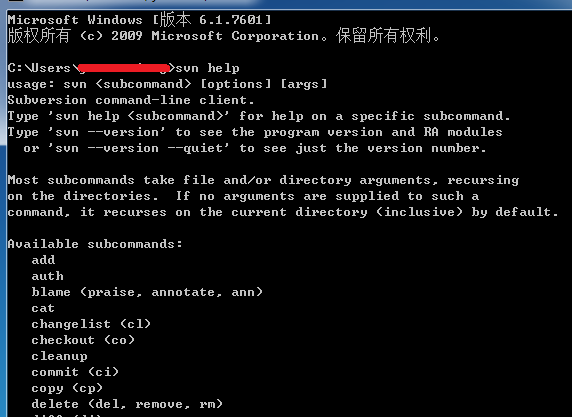
If the above information appears, the SVN instruction is already available through the CMD window.
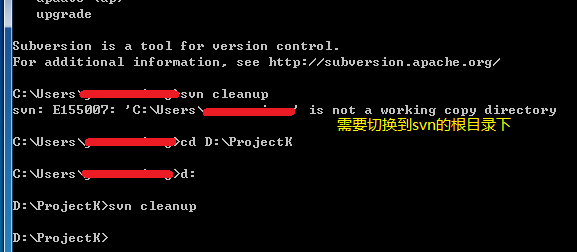
Switch to the SVN project and execute SVN Clean up.

 
Without hope at all, SVN can be used normally!!
People still want to have a little dream, in case it comes true!
Just have a little faith.
— — —
2018.12.22 added:
Copy the following command to a batch file, put the path to the root directory where you need to cleanup, and execute.

cd %~dp0 
svn cleanup
pause


[FAILED] Failed to start Raise network interfaces

[FAILED] Failed to start Raise network interfaces. The problem
The following error occurred when starting Linux and Windows did not communicate. The reason may be that DHCP and static IP conflict, using ifconfig command only ipv6 address without IPv4 address.
The solution
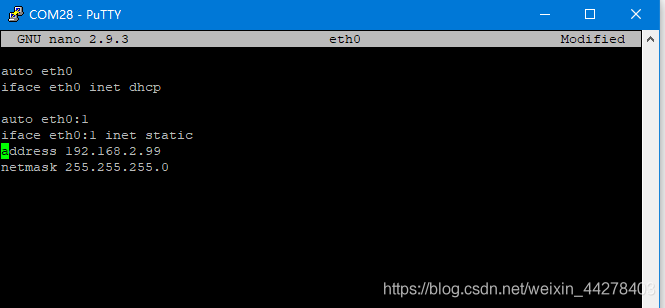
Modify the following files /etc/network/interfaces. D/eth0 , remove the static IP Settings or DHCP Settings section:
for example my:

remove DHCP, changed to:

auto eth0
iface eth0 inet static
address 192.168.2.99
netmask 255.255.255.0

Restart, problem solved.

Chrome failed to install

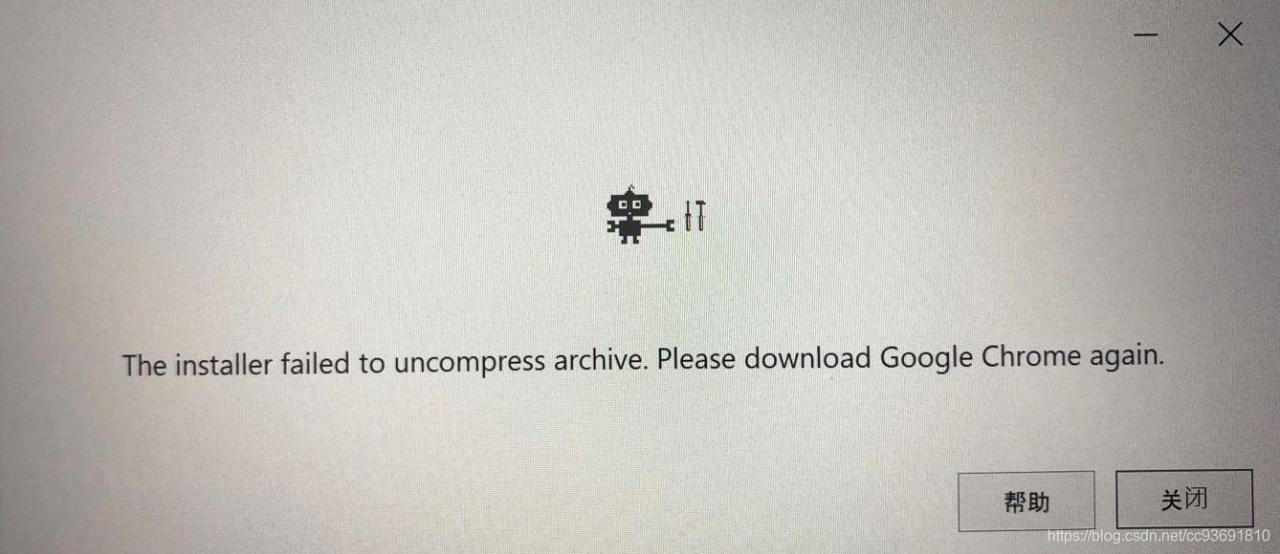
Please download Google Chrome again.”
at that time, I had successfully installed Chrome. There was a moment when Chrome failed to respond, and The installer failed to uncompress archive. Chrome then failed to open and failed to reinstall. Following this error message, I redownloaded and installed Chrome several times, but it never worked.
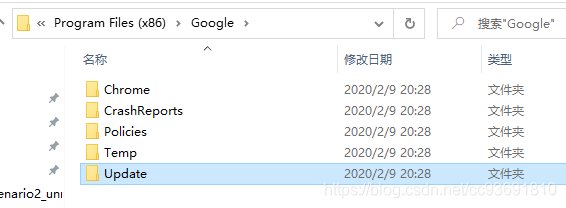
When I tried to uninstall Chrome from the control panel, I was told that Chrome had been successfully uninstalled. Then I went to the installation path of Chrome C:\Program Files (x86)\Google\ to directly delete the folder of Chrome. At this time, an error occurred, telling me that some programs under this folder were being occupied and could not be deleted.

then deleted the folders one by one, and finally found the problem in C:\Program Files (x86)\Google\Update\1.3.35.442 googlecrashhandler.exe and googlecrashhandler64. exe. The name makes perfect sense, as it turns out to be related to the previous Chrome crash that failed to respond.
The solution is to find the two processes in the task manager, manually terminate them, and then delete the Google folder completely. To be on the safe side, I also rebooted the computer and Chrome was up and running.
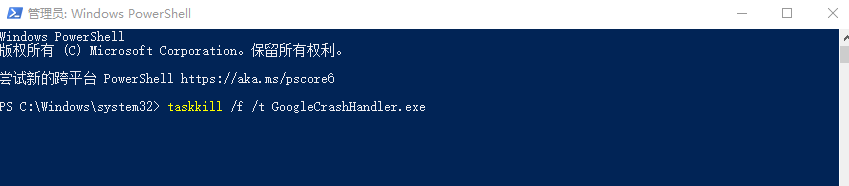
You can also open Windows PowerShell with admin privileges and run taskkill /f /t googlecrashhander.exe with the same effect

thanks for the inspiration of this article.

WordPress download template, update error No working transports found solution

    error because PHP did not open curl. Windows open method as follows

    1. Put php.ini; 2. Extension = remove the semicolon in front of php_curl. DLL
    Libeay32.ll, ssleay32.dll, php_curl, libssh2.dll move PHP into Windows /system32, and then restart Apache server, problem solved note: many answers on the net are put libeay32.ll, ssleay32.dll, php_curl. DLL three files are enough, but I try to come down, but also need libssh2.dll

express nodejs Failed to lookup view error in views directory (How to Fix)

The article directories
Article Reference Express configuration interface template Failed to Lookup View “error” in Views Directory solution

This article refer to

    [https://www.cnblogs.com/alian111/p/5766078.html] (Failed to lookup the view “error” in views directory solution)
    Express configuration interface template

    // view engine setup
    app.set('views', path.join(__dirname, 'views'));   //设置模板文件夹的路径
    app.set('view engine', 'html');   //设置视图模板为ejs
    app.engine('html',require('ejs').renderFile);
    

    Failed to Lookup View “error” in Views Directory solution
    When the template is loaded, there must be an error in the views folder. However, we formulated the ejs template in HTML format , so we could not find the error.html and reported an error when the project was loaded. Therefore, a new error.html was created under the Views folder, which successfully solved the problem

filezilla Failed to create listen socket on port 21 for IPv4 solution

Mdxy-dxy font: [
increase
Reduced] type: reprint

Today, when I configured filezilla for a client, Filezilla Failed to create the listen Socket on port 21 for IPv4. It turned out that the 21 port was occupied, so it was ok to change the port

When Windows Server 2003 USES Filezilla, once installed, clicking on “Active” may report the following error

Creating listen socket on port 21…  

Failed to create listen socket on port 21 for IPv4

Failed to create listen socket on port 21 for IPv6

Failed to create a listen socket on any of the specified ports. Server is not online!  

Creating listen socket on port 21…  

Failed to create listen socket on port 21 for IPv4

Failed to create listen socket on port 21 for IPv6

Failed to create a listen socket on any of the specified ports. Server is not online!  

Creating listen socket on port 21…  

Failed to create listen socket on port 21 for IPv4

Failed to create listen socket on port 21 for IPv6

specific solutions:

this is usually the case because port 21 is occupied, first use this command to query

copy code code as follows:

netstat -abn |findstr 21

check to see if your iis built-in FTP is turned on, or if you have installed some other FTP software, stop first, then enable filezilla, it is ok.

Failed to load resource: net::ERR_CONNECTION_REFUSED

#Failed to load resource: net:: err_connection_union report error
this is because of the file loading error, when I was loading the image, did not show the browser reported error
solution:
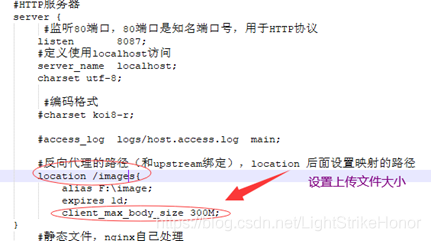
1. First, there may be a configuration problem in Nginx to prevent files from being too large to load
2. There may be a problem with the path of the file in your application.properties

How to solve “import cv2 failed ImportError: DLL load fail: Cannot find the specified module” in Anaconda environment

First refer to https://blog.csdn.net/wss794/article/details/83119939
conda install -c https://conda.binstar.org/menpo opencv
> > > import cv2
: : ImportError:DLL Load Fail: The specified module was not found
Analysis: the Internet should be found under the Opencv and Python version does not correspond caused.
Solution: reference https://blog.csdn.net/weixin_41679065/article/details/83413498
Uninstall opencV and install it with Anaconda Navigator. No more errors will be reported
Note: The Navigator automatically matches the opencV version that corresponds to the current environment.

The process of solving Intellij IDEA can’t load jvm DLL error at a time

The article directories
Resolution of a Intellij IDEA can’t load JVM DLL error procedure

Resolution of a Intellij IDEA can’t load JVM DLL error procedure
After installing Intellij IDEA 2019.2 Community on a new Windows 10 computer today, an error occurred during Intellij startup: “Failedo to Load JVM DLL.”
The detailed error information is as follows:

Failed to load JVM DLL
… \ JBR \bin\server\jvm.dll
If you already have a 64-bit JDK installed, define a JAVA_HOME variable…

At first, I thought there was no JDK installed, so I downloaded the zip package of Redhat OpenJDK8, unzipped it, set the JAVA_HOME environment variable, and added the %JAVA_HOME%\bin to the PATH environment variable. Environment variables were checked to be set correctly in CMD and Git Bash, but once Intellij was started, the same error remained.
Then install the ExE package for Redhat OpenJDK8 and repeat the above steps with the same error.
Then install the EXE package of Oracle JDK8 and repeat the above steps with the same error.
Then it occurred to me that Intellij should have come with a JVM to start Intellij itself, and that a DLL file \ JBR \bin\server\jvm.dll would also exist to check the error messages.
Then try to download and install Microsoft Visual C++ 2010 Redistributable Package (x64) following one of the answers on Stackoverflow with the same error.
Intellij shortcuts were suspected to be pointing incorrectly, but were checked, and the same error occurred when running idea64.exe manually.
Then I saw another response on Stackoverflow that said Run as AdminStrator on Windows 10 would fix the problem, tried it and it worked. Then check the shortcut property to Run as AdminStrator so that you don’t have to right-click Run as AdminStrator every time.
Then it occurred to me that My computer account was supposed to have Administrator rights, but the configuration was wrong, so I logged in to a different one, installed and turned on Intellij, and everything went well.
Reference document:
https://stackoverflow.com/questions/40204189/error-launching-idea-failed-to-load-jvm-dll-c-program-files-java-jdk1-8-0-112https://stackoverflow.com/questions/48666118/error-launching-pycharm-failed-to -load-jvm-dll

React Native: TypeError: Network request failed

It’s been about four weeks since I started react Native’s project, and it’s about the packaging stage. However, I found that the App on the iOS side was working normally. Android apps are slow to update data.
Post my request interface

let NetUtil = {
    postJson(type, data){
        return new Promise(function (resolve, reject) {
            fetch("http://www.samplesite.com",{
                method: 'POST',
                headers: {
                    "Accept": "application/json",
                    "Content-Type": 'application/json',
                    "type":"getUserData"
                },
                body: JSON.stringify(data)
            }).then((response) => {
                if (response.ok) {
                    return response.json();
                } else {
                    reject({status:response.status})
                }
            }).then((response) => {
                resolve(response);
            }).catch((error) => {
                console.log(error);
            }).done();
        })
    },
}

In a nutshell, use fetch to send JSON data to the server via a POST request.
Use the Google browser to debug and make requests
At the end of an android: first success, second failure. Success on the third shot, failure on the fourth…
On iOS: Everything is fine.
The request failed as follows:
TypeError: Network request failed:
 
At the XMLHttpRequest. XHR. Onerror (fetch. Js: 441)
At the XMLHttpRequest. DispatchEvent (event – target. Js: 172)
At the XMLHttpRequest. SetReadyState (XMLHttpRequest. Js: 567)
At the XMLHttpRequest. __didCompleteResponse (XMLHttpRequest. Js: 397)
the at XMLHttpRequest. Js: 503
the at RCTDeviceEventEmitter. Emit (EventEmitter. Js: 179)
the at Messagequeue. ___ callfunction (messagequeue. js:351)
at messagequeue. js:116
at messagequeu. ___ (messagequeue. js:314)
at MessageQueue. CallFunctionReturnFlushedQueue (MessageQueue. Js: 115)
 
 
I was initially skeptical that it was a network framework problem, so I tried XMLHttpRequest, Axios… Without exception. Each time on the androidend the first attempt succeeds and the second attempt fails. Fetch and Axios are both XMLHttprequest-based encapsulations.
 
 
On StackOverflow and Github, someone also proposed sending with FETCH and got TypeErrpr:Network Request failed. I’ve seen almost everything. To summarize their various answers:
If you want to obtain data from the server set up locally on your computer by simulating it through HTTP request, you need to change localhost to the real IP of your computer. If you send an HTTP request from a remote server to get the data, there is basically no solution. One person asked that he solved the problem by demoting RN. Android SDK version issues. Nginx configuration issues…
https://stackoverflow.com/questions/33969333/react-native-fetch-request-failed-with-error-typeerror-network-request-faile
https://stackoverflow.com/questions/38077273/react-native-fetch-network-request-failed-not-using-localhost
https://stackoverflow.com/questions/38418998/react-native-fetch-network-request-failed
https://github.com/facebook/react-native/issues/10404
I’ve tried to downgrade React Native, and I’ve tested the Android SDK through 23 to 26. But it didn’t work. It didn’t solve the problem.
Then I began to wonder if there was a problem with the interface.
I bought several API interfaces online, both post and GET. Tests have found no success or failure in the android end of the request issue. Which means it has nothing to do with react Native or Android versions. The problem is the interface. But what I can’t explain is that there’s not a single success or failure on iOS. I haven’t had any problems testing interfaces in Python.
“– June 30, 2018
Http1.1 defaults to long connections. Almost all browsers and Ajax default to “Connection”:” keep-alive “in the header. The default for iOS is “Connection”:” Close “.
I’m going to change the request header to

             headers: {
		"Accept": "application/json",
		"Content-Type": 'application/json',   
		"Connection": "close",   
		"type": "getUserData",   
                },"Connection": "close",   
		"type": "getUserData",   
                },

My problem is solved by the above methods.