How to generate lib library with keil MDK and use lib Library

reference resources: https://xiaopengzhen.blog.csdn.net/article/details/90036247?utm_ medium= distribute.pc_ relevant.none -task-blog-2%7Edefault%7EBlogCommendFromMachineLearnPai2%7Edefault-4.control&dist_ request_ id=1331647.11602.16183926662894565&depth_ 1-utm_ source= distribute.pc_ relevant.none -task-blog-2%7Edefault%7EBlogCommendFromMachineLearnPai2%7Edefault-4.control


1. Organize the source files to be compiled and encapsulate the interface.

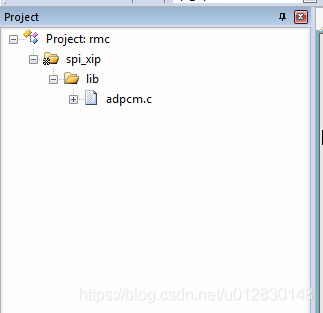
2. Add the source file to the MDK project, for example:

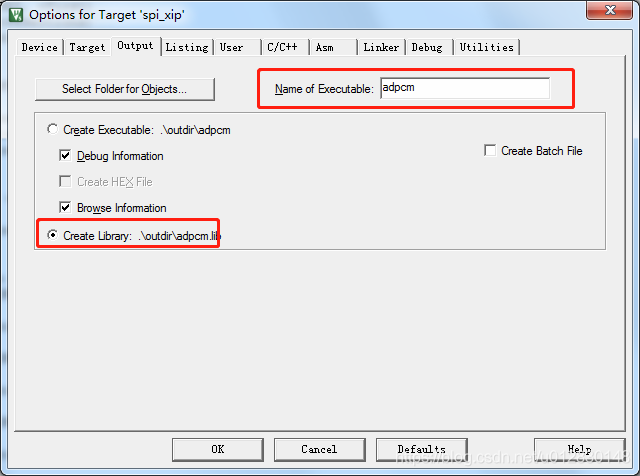
3. Setting in MDK: check create library and set the file name of Lib library

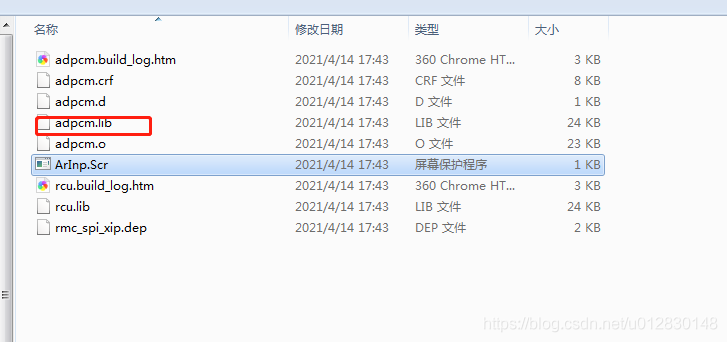
4. Compile and view the output file.

5. How to use it will not be repeated.


Git Clone Error: ‘fatal: HTTP request failed‘

There are several possible reasons for this situation

1) Problems with git version

2) The system time is wrong

1) For the first case, use this command to see the GIT version.

git –version

Most of the time, just uninstall the original GIT and re install a newer version. ( https://www.kernel.org/pub/software/scm/git/ perhaps https://github.com/git/git/releases )

2) For the second case, just modify the system time directly.

Use commands to modify, such as:

date -s “25 MAY 2019 17:30:00”

Manual modification is also possible.

Opensuse12.3 installation of VirtualBox error resolution

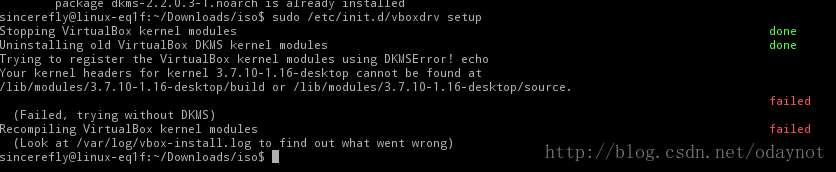
At the beginning, you will be prompted what to install DKMS, and then you will see the error as shown in the figure after downloading and installing, that is

sincerefly@linux-eq1f:~/Downloads/iso$ sudo rpm -Uivh dkms-2.2.0.3-1.noarch.rpm
root's password:
Ready...                          ################################# [100%]
        package dkms-2.2.0.3-1.noarch is already installed
sincerefly@linux-eq1f:~/Downloads/iso$ sudo /etc/init.d/vboxdrv setup
Stopping VirtualBox kernel modules                                                                            done
Uninstalling old VirtualBox DKMS kernel modules                                                               done
Trying to register the VirtualBox kernel modules using DKMSError! echo
Your kernel headers for kernel 3.7.10-1.16-desktop cannot be found at
/lib/modules/3.7.10-1.16-desktop/build or /lib/modules/3.7.10-1.16-desktop/source.
                                                                                                              failed
  (Failed, trying without DKMS)
Recompiling VirtualBox kernel modules                                                                         failed

I don’t know what’s the reason. It’s not good to worry about virtual machines. One is to learn from CentOS. The other is to do experiments. It’s not safe in the physical system, but it’s OK. There’s Baidu. If there is a problem, it needs to be solved

Search for

   sudo apt-get install dkms build-essential linux-headers-$(uname -r)
   sudo /etc/init.d/vboxdrv setup

It’s just a Debian command

I see such a sentence in it

The reason is that the corresponding package for the corresponding kernel is missing. Although I have executed the install command for kernel-devel before, the corresponding kernel-devel for the uek kernel is not installed, the correct one should be kernel-uek-devel.

That “kernel devel installation command” misled me for a long time, suddenly woke up, it was the package.

This is easy to do. Use zypper search kernel devel to search, and it is
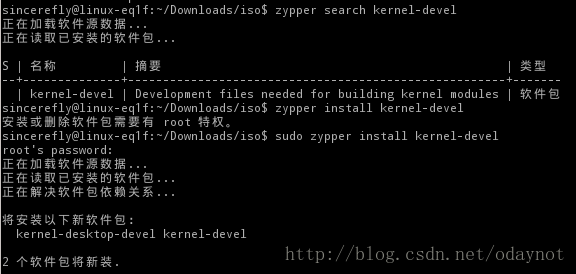
After the installation, run it again

sudo /etc/init.d/vboxdrv setup

success!

Then my VB can run.
Solution of installing Vue cli scaffold error-4048

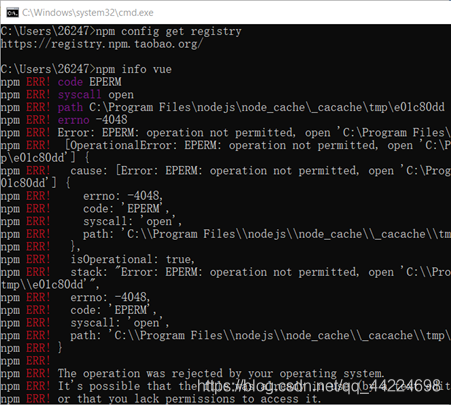
Error report screenshot:

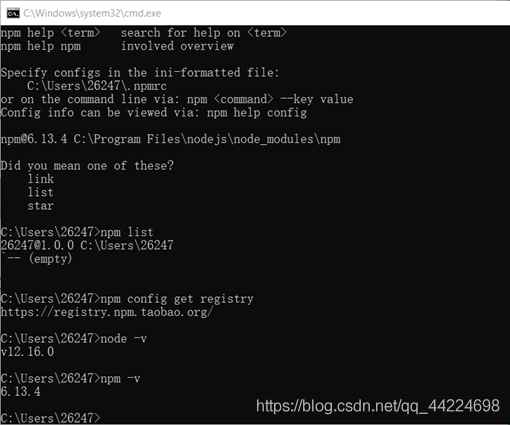
take a look at nodejs version and NPM version:

solution:
there is no permission, you need to use the administrator’s permission
right click the admin permission to run C: Windows/system32\ cmd.exe
If my article is helpful to you, welcome to like, leave a message and pay attention to it. Thank Sanlian!!!
The problem has not been solved!!! 😘😘😘

CSDN: I heard that you are good at playing
GitHub: zhongzhimao
Coupons: coupons

Solution to inaccessibility of Vue cli scaffold project after startup

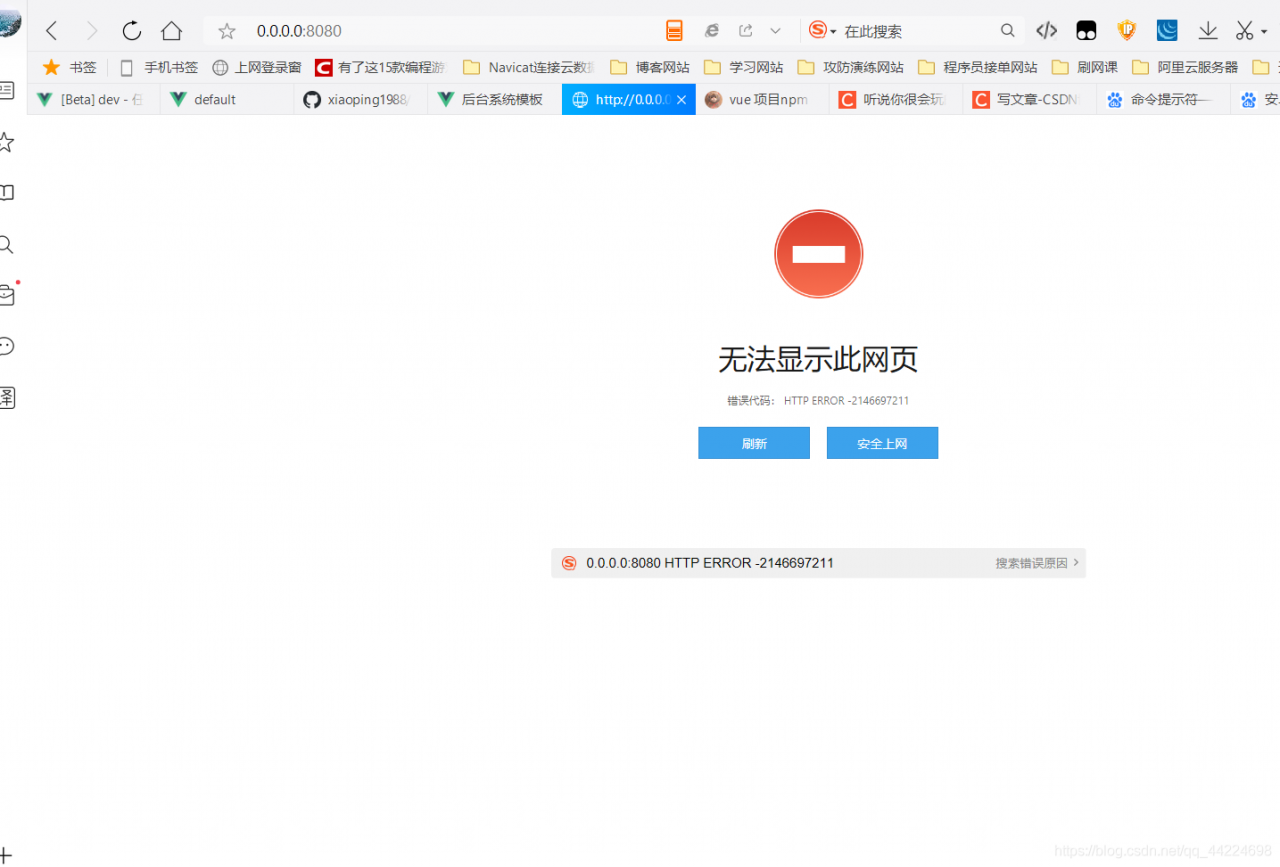
The problem is as follows: the IP address cannot be accessed

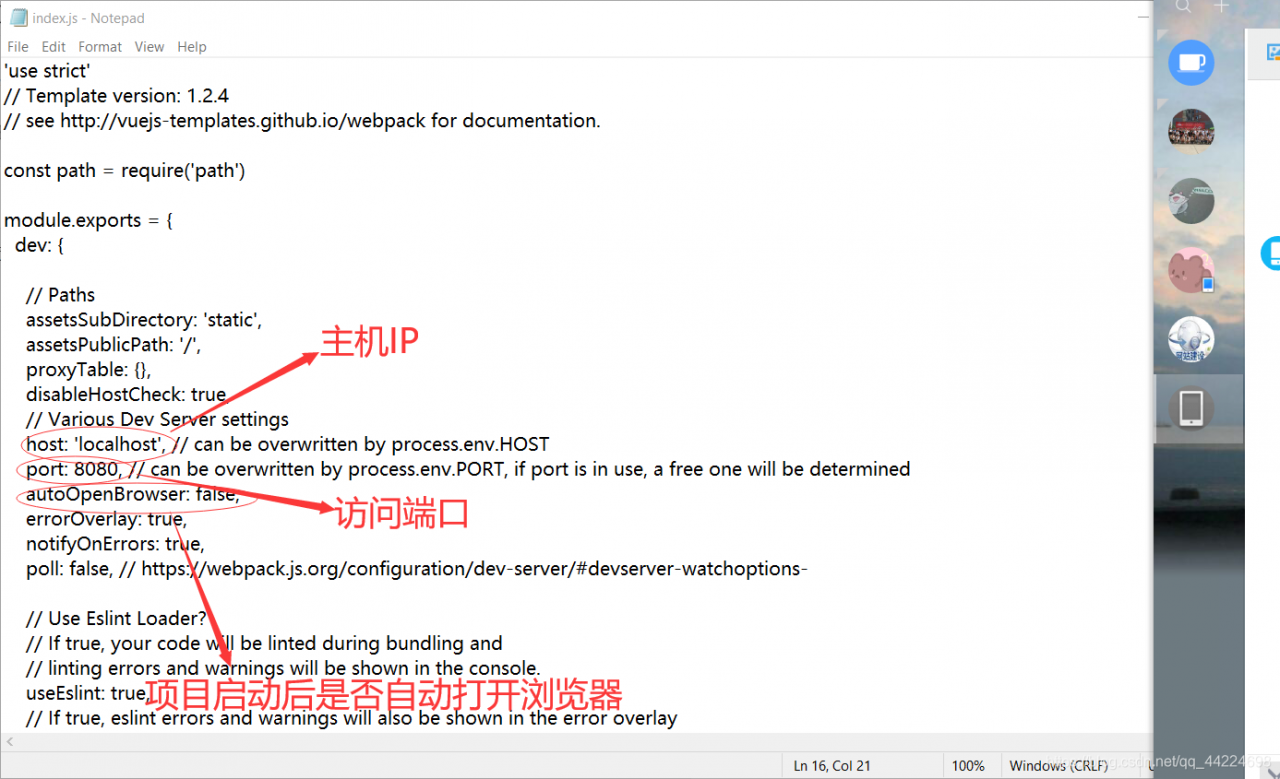
Enter the file “project name – config”- index.js ”Open index.js File, modify parameter

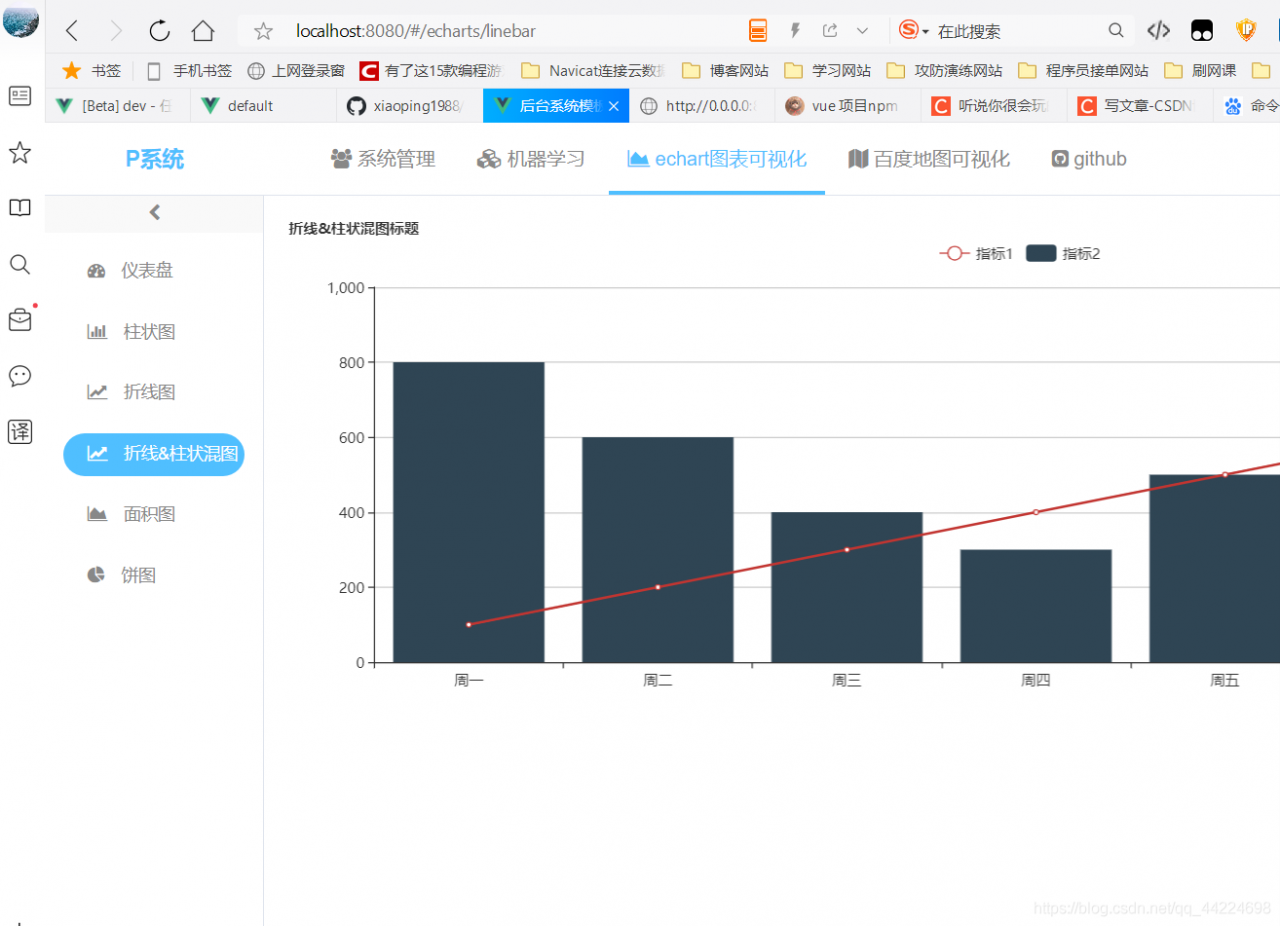
after modification, it can be accessed normally:

If my article is helpful to you, welcome to like, leave a message and pay attention to it. Thank Sanlian!!!
The problem has not been solved!!! 😘😘😘

CSDN: I heard that you are good at playing
GitHub: zhongzhimao
Coupons: coupons

Opensuse12.3 enable / disable touchpad

Use the command:

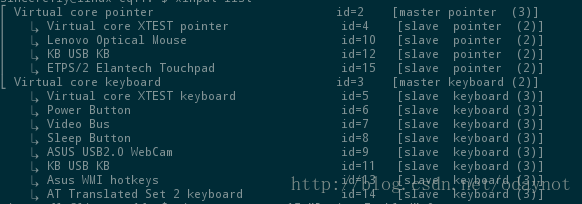
xinputlist 

View devices

Find the ID of the touchpad. For example, my id = 15

Then use the command:

xinput set-prop 15 “Device Enabled”0

The last “0” is to close the touchpad, and “1” is to open the touchpad

OpenSUSE test is available. I always use the external keyboard, but I can’t use the touch pad. Anyway, I don’t need it. It’s better to turn it off. Maybe I can save some power?Ha ha
ha

Solve the problem of USB mouse failure in the laptop mode of Ubuntu

A while ago, in order to solve the problem of not saving the brightness of the boot, the laptop mode management system was installed

But recently, I happened to find that the mouse can’t be used after the power is off. Because I have no time and seldom use the notebook in battery mode, I never care about it.

If you are free today, try the online method. Solve this problem. The method is as follows

First, input lsusb in the terminal, and the display is as follows:

$lsusb
Bus 001 Device 001: ID 1d6b:0002 Linux Foundation 2.0 root hub
Bus 002 Device 001: ID 1d6b:0002 Linux Foundation 2.0 root hub
Bus 001 Device 002: ID 8087:0024 Intel Corp. Integrated Rate Matching Hub
Bus 002 Device 002: ID 8087:0024 Intel Corp. Integrated Rate Matching Hub
Bus 001 Device 003: ID 058f:a014 Alcor Micro Corp. 
Bus 001 Device 004: ID 0bda:0139 Realtek Semiconductor Corp. 
Bus 002 Device 003: ID 093a:2521 Pixart Imaging, Inc. 
Bus 002 Device 004: ID 1a2c:0002 

If you find multiple devices. But I don’t know which is the USB mouse. Don’t worry. I don’t know. Then look down.

Enter the following command:
0

lsusb -xv

It shows a lot of detailed information. What can we do.

Can’t you read it?

Of course not. We export the result with the following command.

lsusb -xv > ~/mouse.txt

And then do it

gedit ~/mouse.txt

We went to the “mouse” editor, and we went up there. Just look for the ID of the mouse.

Bus 002 device 003: ID 093A: 2521 pixart imaging, Inc.
this is what I found. Remember 093A: 2521

Then open the configuration with the following command.

sudo gedit /etc/laptop-mode/conf.d/usb-autosuspend.conf

Search again for “autosuspend”_ USBID_ BLACKLIST=”

I found it. Under my picture

In the double quotation marks at the end of the second line of yellow, fill in the ID of the mouse. That’s 093a:2521

. Is the mouse still working normally after saving and unplugging?

PS: my current computer is ubuntu12.04

reference resources: http://forum.ubuntu.org.cn/viewtopic.php?t=391117

Using cbmakegen to export makefile of code:: blocks

First, Download cbmakegen from the official website

Official website address: http://developer.berlios.de/projects/cbmakegen/

Can also be downloaded through my baidu disk

[Windows version] address: http://pan.baidu.com/share/link?shareid=123030&uk=1227046485

[Linux version] address: http://pan.baidu.com/share/link?shareid=123067&uk=1227046485

【Windows】

Decompress cbmakefilegen-bin-0.3.12.5-win32

obtain cbMakefileGen.cbplugin

Open plugins – & gt; manage plugins in the code:: blocks interface

add to cbMakefileGen.cbplugin

Then the generate makefile option will appear in the Project menu to export the makefile

It appears in the project directory Makefile.gen

Change the path in the user directory in Chinese Ubuntu to English

In order to make it easy for users to use, it is installed in the “home”, “music”, “pictures” and “natural” It’s all in Chinese.

Most of the time, I like to put some files to be operated on the desktop. There are many command-line operations in Linux, so it’s hard to avoid using the command line to operate things on the desktop. Then I need to “CD desktop”. When I hit “desktop”, I need to switch the input method. It’s troublesome So I tried to find a way to change the path under the user directory to English, while the other Chinese remained unchanged. The method is as follows:

Open the terminal and enter the command in the terminal

        export LANG=en_US

        xdg-user-dirs-gtk-update

Jump out of the dialog box and ask if you want to convert the directory to an English path, agree and close it.
enter the command in the terminal:

        export LANG=zh_CN

Close the terminal and restart. Next time you enter the system, the system will prompt you whether to change the converted directory back to Chinese. Select no more prompt and cancel the modification. The Chinese to English conversion of the main directory is completed~

Reprinted from: http://my.oschina.net/myriads/blog/2867

_ASSERTE((unsigned)(c + 1) <= 256);

_ Asserte ((unsigned) (c + 1) & lt; = 256);

when using VS2010 to write a program, it is a very simple program, but when inputting Chinese characters, the following error prompt appears.

at the beginning, I was obsessed with the “cannot find or open the pdb file” of the error prompt, but later found that it was not the problem there. I started to notice the following problems.

click Retry, and a breakpoint message will appear.

next, click interrupt, and the breakpoint information will appear.

it can be seen from the figure that this is one of the problems in isctype. C file.

the solution is to right-click on the project – properties – configuration properties – C/C + + – command line

and then enter “/ J”

in the input box on the lower right side to re-enter Chinese characters. It is found that the error has been solved.

reference: msdn.microsoft.com

note: for other editors, such as VS2005, 2008 and 2012, you can choose from the top of the above website. As shown in the figure below

Solution — windows 2012 installation Framework 3.5 in VMWare

Solution – Windows 2012 installation Framework 3.5 in VMWare

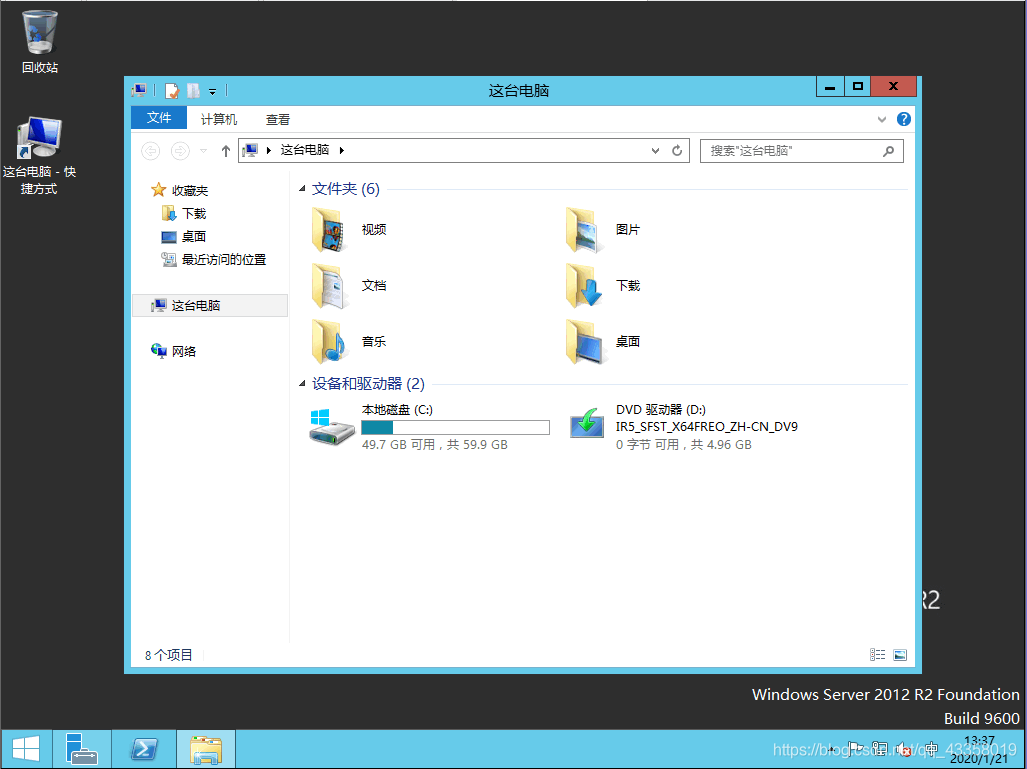
Mount the system image
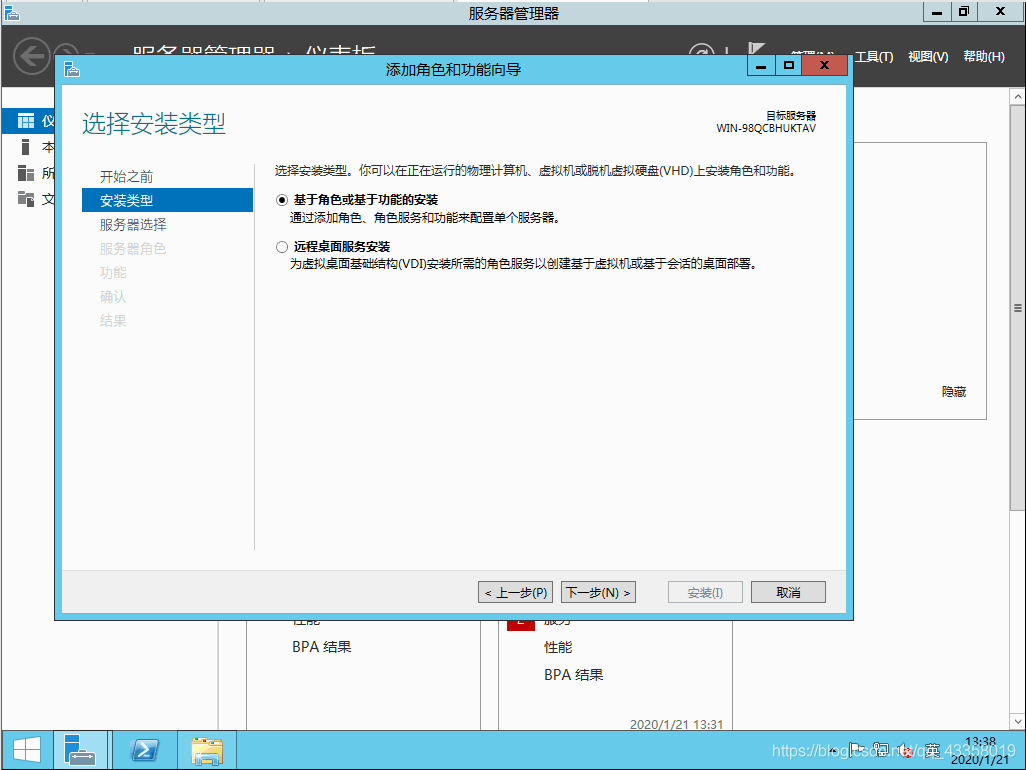
, open the server manager, click “add roles or functions”
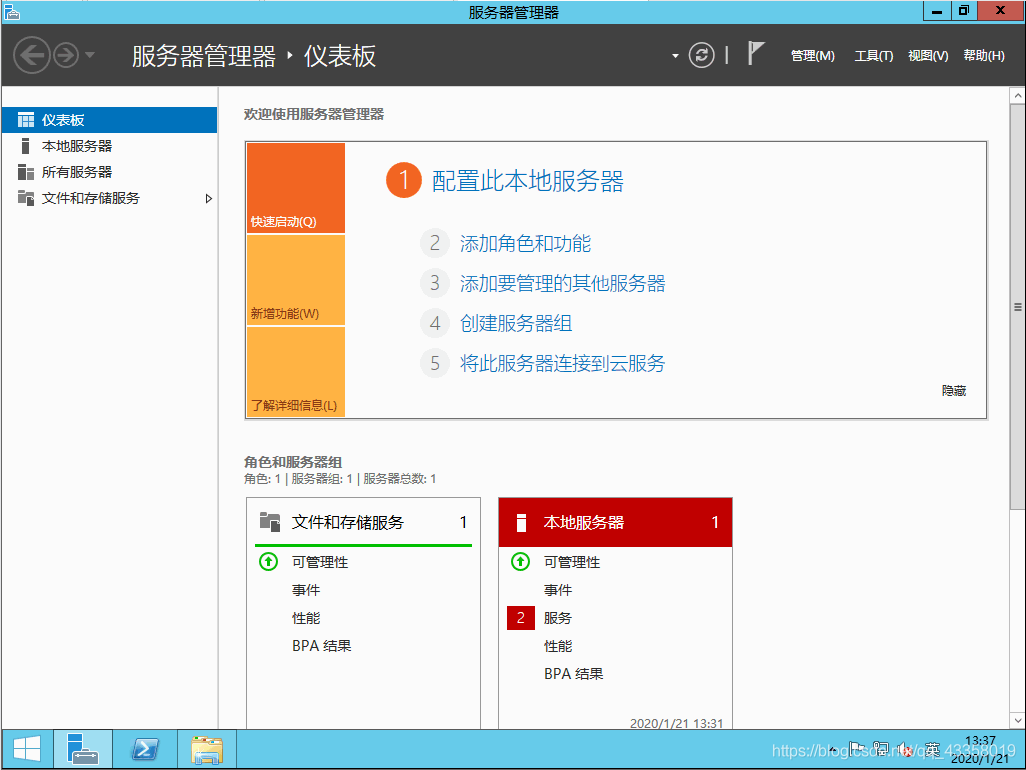
next
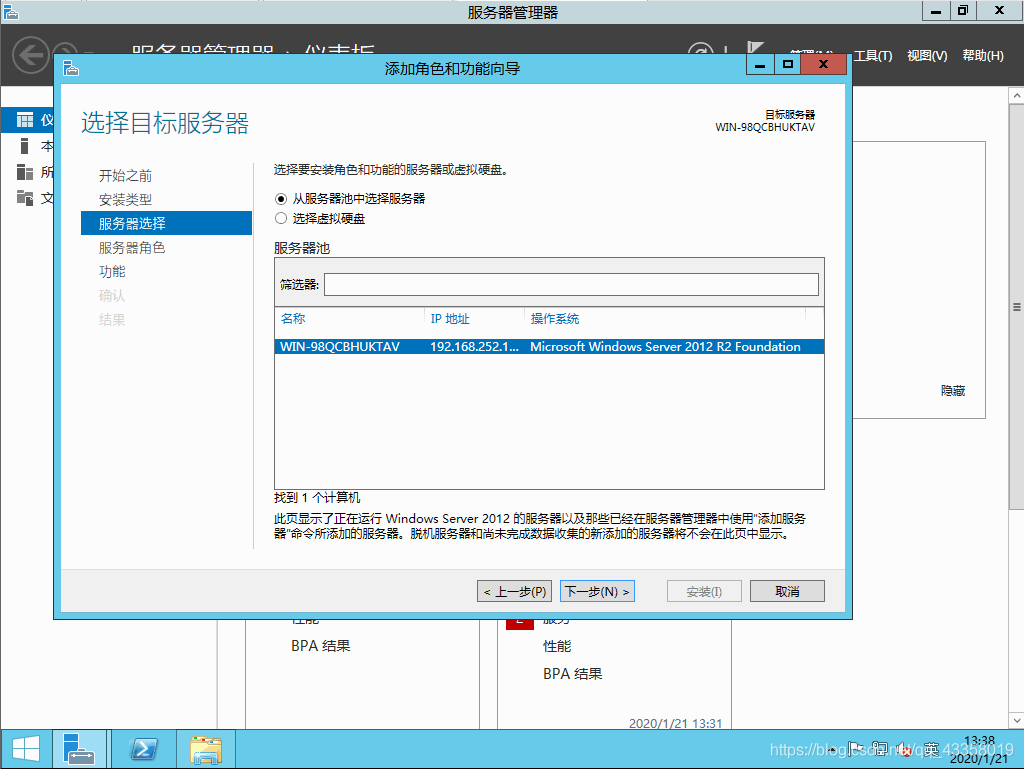
next
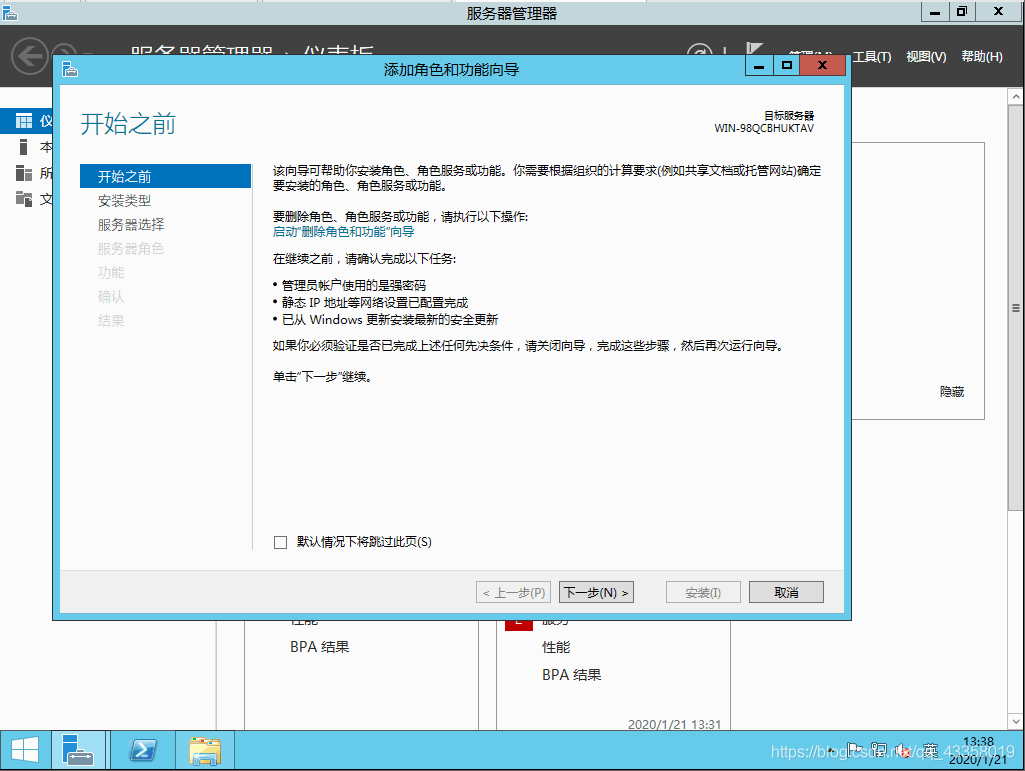
next
do not need to operate here, directly next
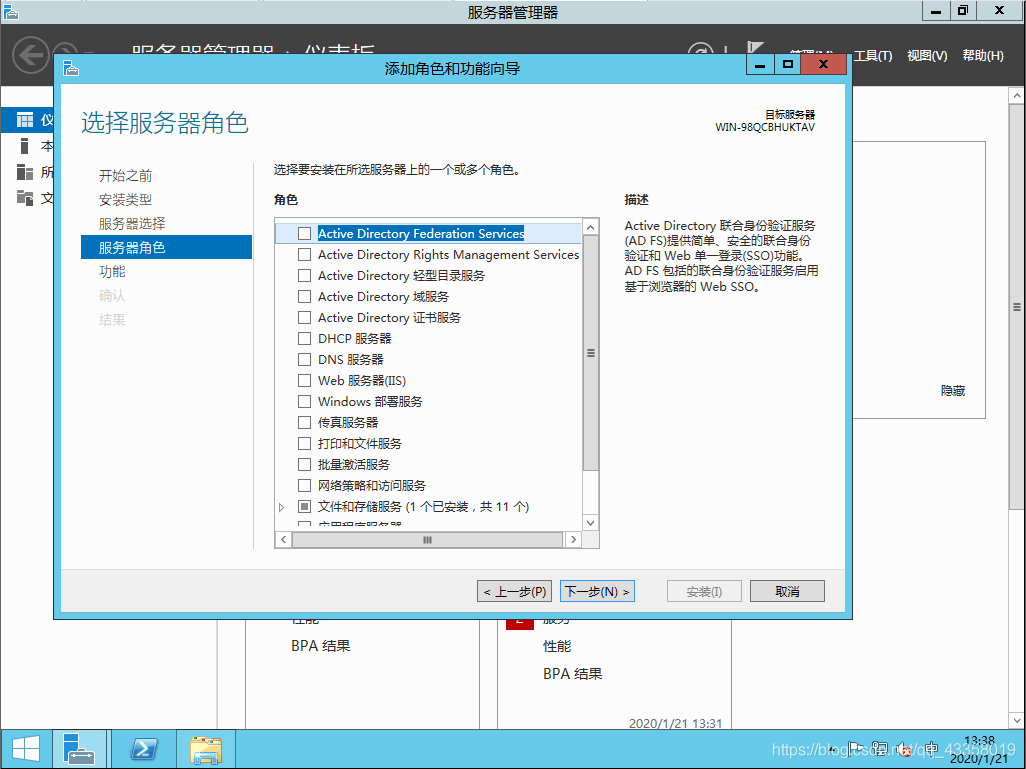
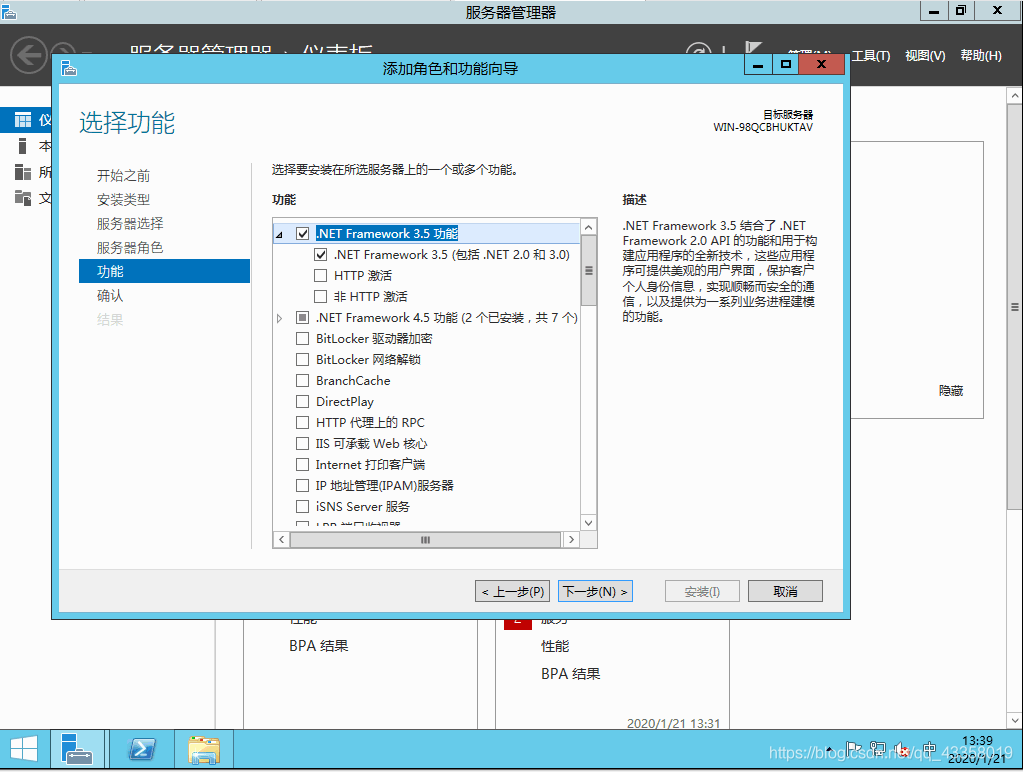
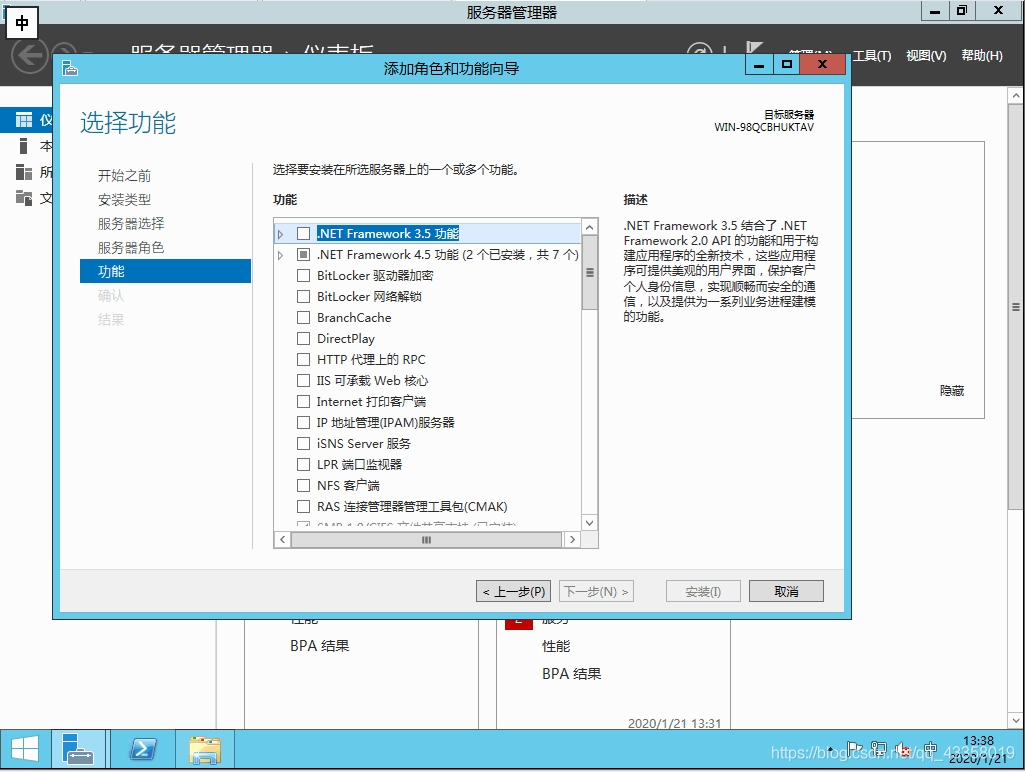
check Framework 3.5 here, and then next
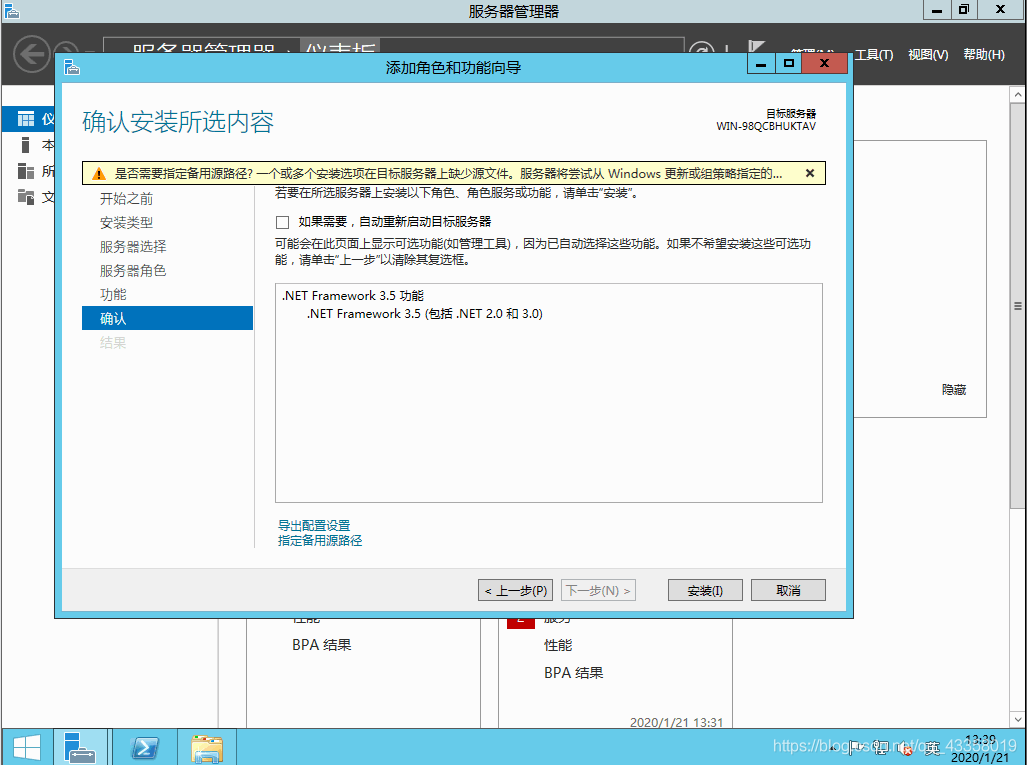
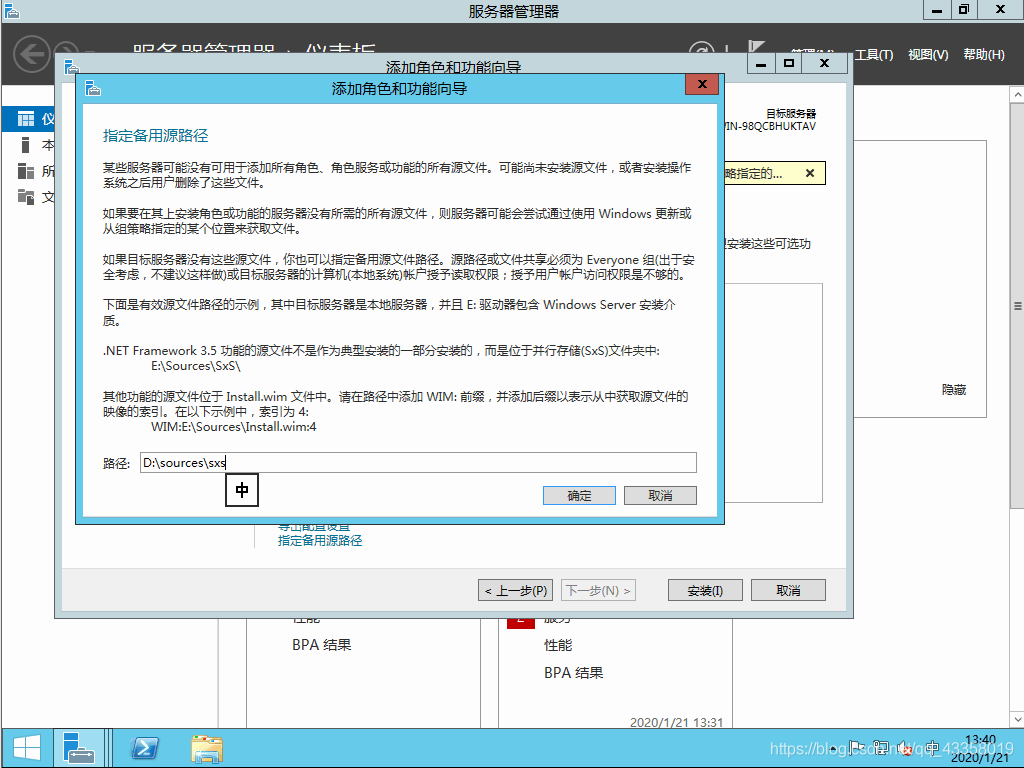
click specify alternate source path option
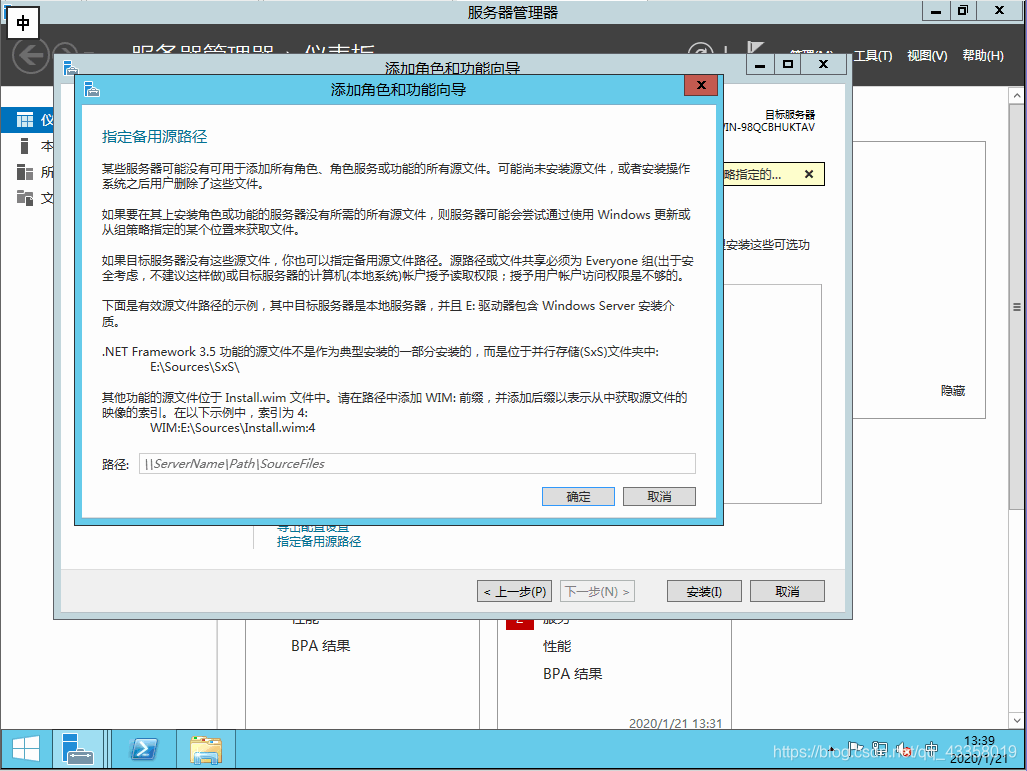
A289885427 here you need to fill in the alternate source path
open the mounted system image, enter the specified location, copy the path
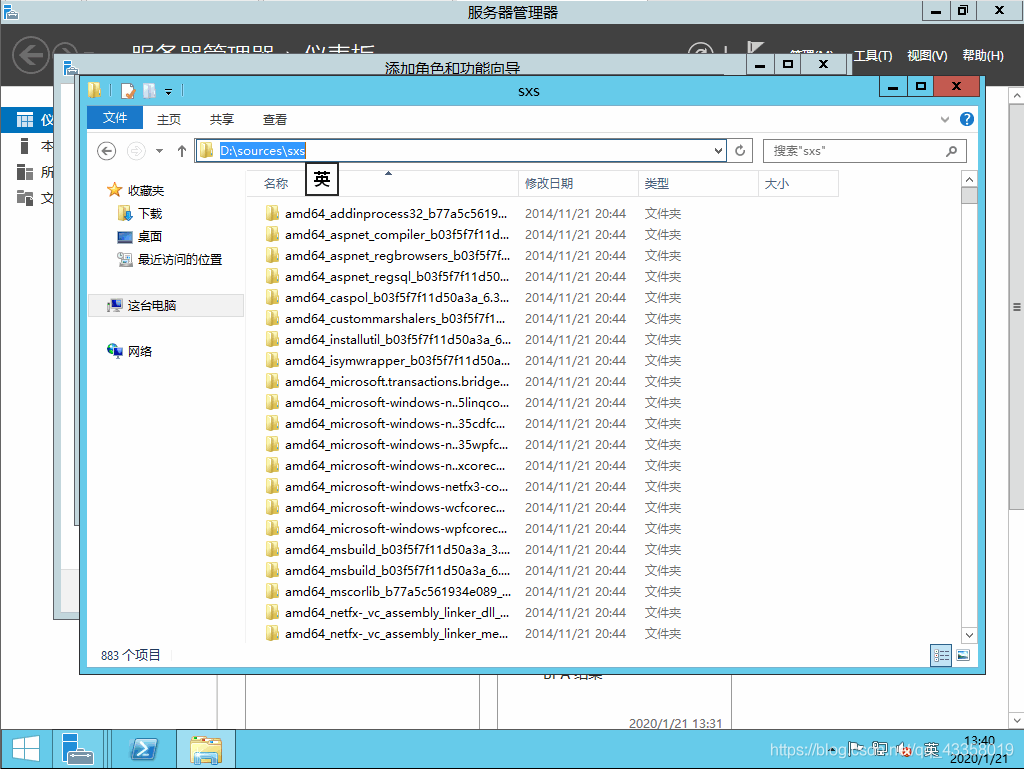
fill in the alternate source path, confirm, and then click Install
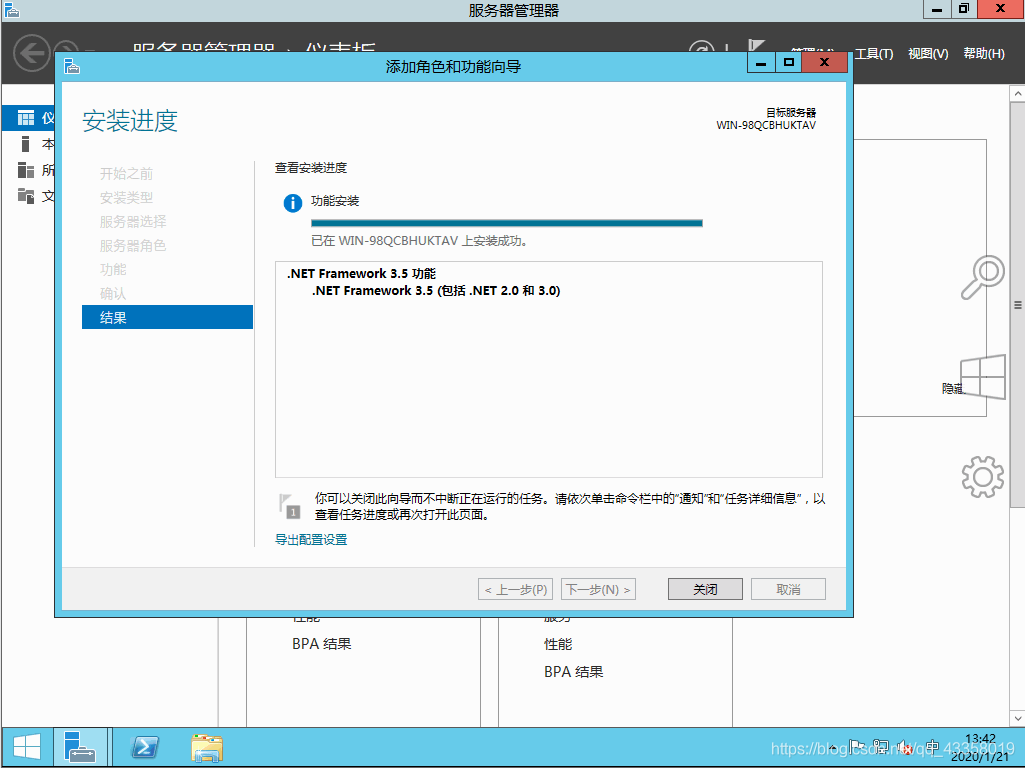
to start the installation, wait for the installation to complete
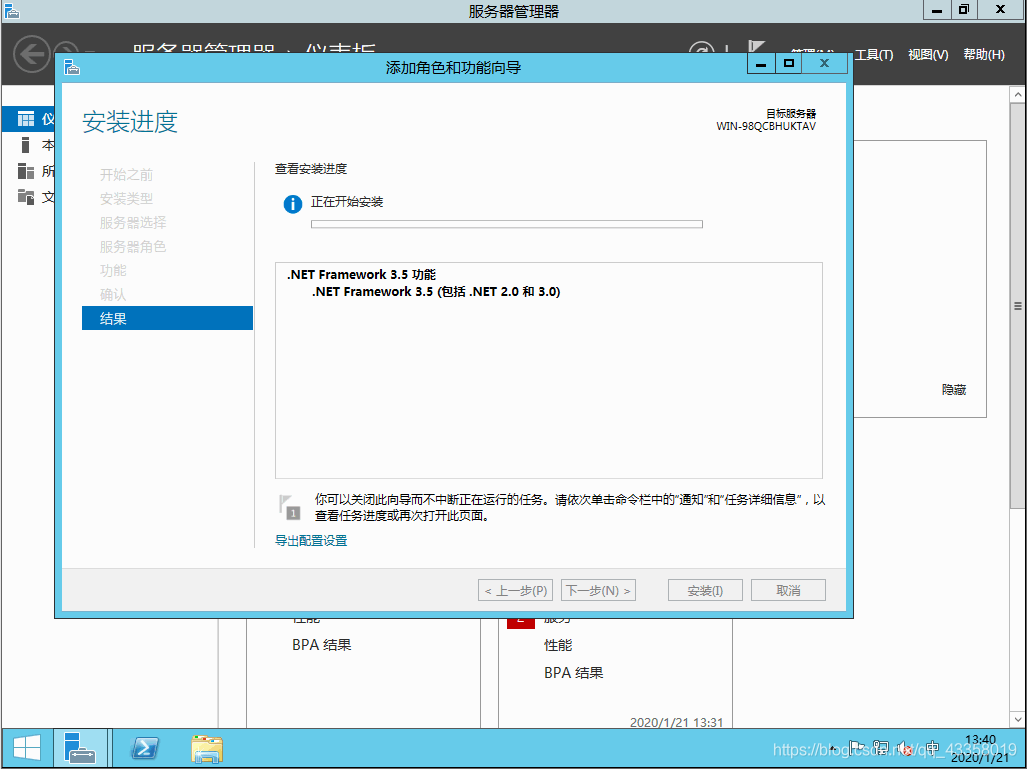
to finish the installation, and then close VMware.