Category Archives: JavaScript

[Solved] Vue Project Error: Syntax Error: TypeError: this.getOptions is not a function

Question:

Vue project, NPM run dev, the following error:

Or

reason:

The installed sass loader version is too high. Reinstall the lower version sass-loader.

Solution:

// Uninstall the current version
npm uninstall sass-loader

// Install the specified version
npm install --save-dev sass-loader@10

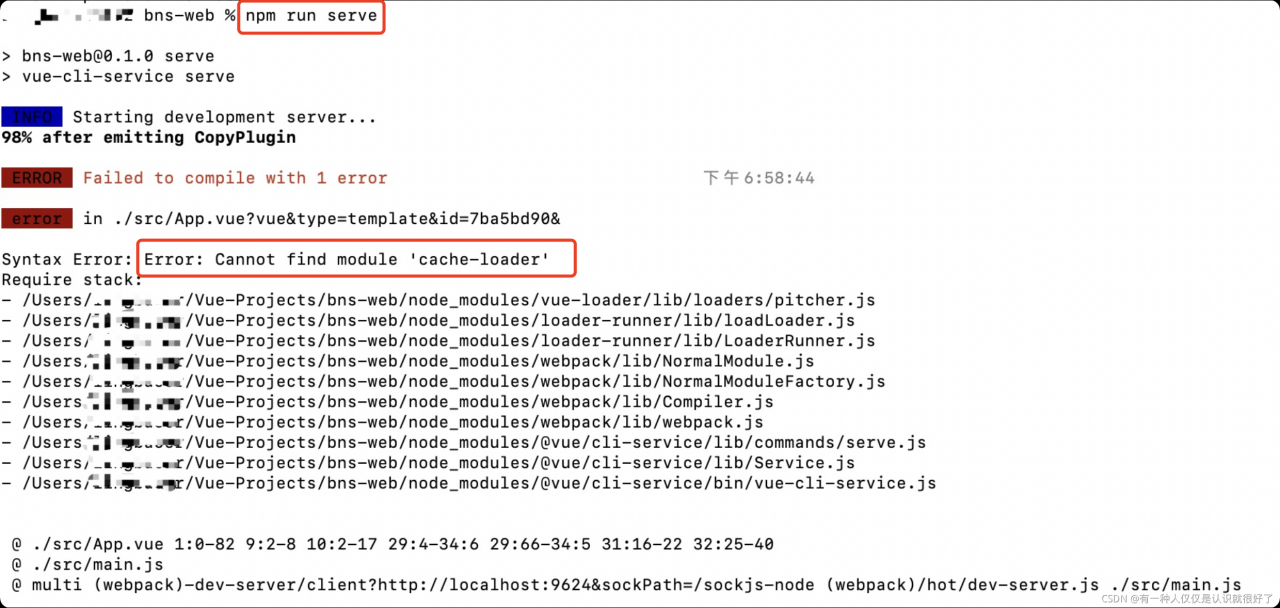
[Solved] Syntax Error: Error: Cannot find module ‘cache-loader‘

The following problem occurs. It should be that some dependent packages are not downloaded successfully and need to be reinstalled

Solution:
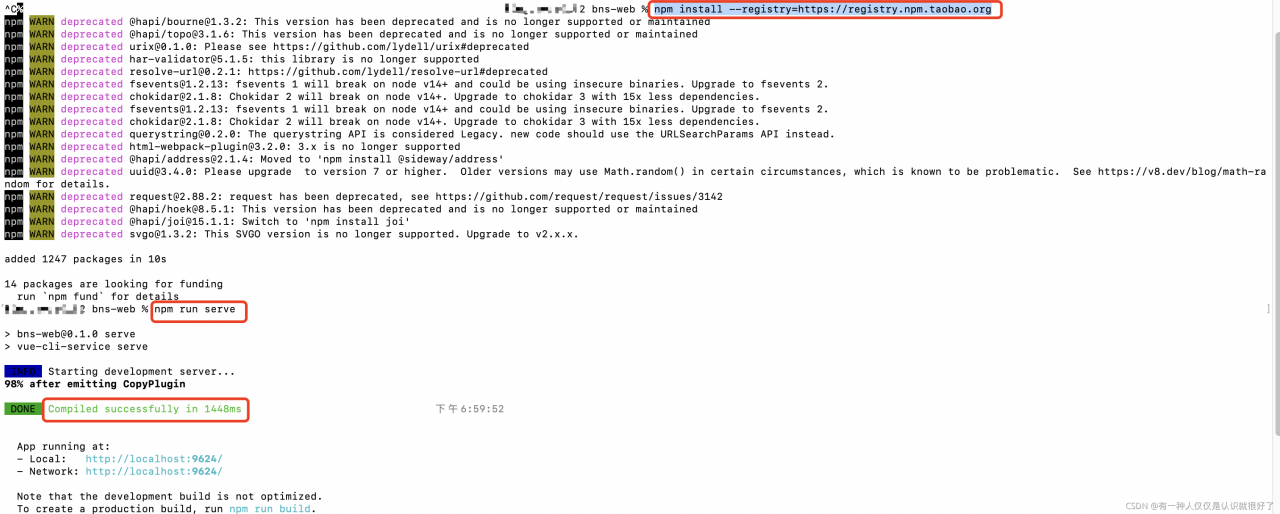
1. Enter the folder directory of the project and delete the node_ Modules file and package-lock.json file. Note that it is not package.json (if it cannot be deleted, check whether the project is open and try again after closing)
2. Enter NPM install installation dependency

3. Start the project and it can be started normally.

Error: Duplicate plugin/preset detected [How to Solve]

Reason: element UI in .Babel is repeated

Solution: remove duplicate code in babel.config.js

Before modification

module.exports = {
  "presets": [
    "@vue/cli-plugin-babel/preset"
  ],
  "plugins": [
    [
      "component",
      {
        "libraryName": "element-ui",
        "styleLibraryName": "theme-chalk"
      }
    ],
    [
      "component",
      {
        "libraryName": "element-ui",
        "styleLibraryName": "theme-chalk"
      }
    ]
  ]
}

After modification

module.exports = {
  "presets": [
    "@vue/cli-plugin-babel/preset"
  ],
  "plugins": [
    [
      "component",
      {
        "libraryName": "element-ui",
        "styleLibraryName": "theme-chalk"
      }
    ]
  ]
}

Error creating webgl context [How to Solve]

Error creating webgl context

This error is a webgl context error. There is a stupid way to use it for the time being:

chrome://flags/#ignore-gpu-blacklist

Open the address in the browser, search webgl, change the items of enablers display component to use a new GPU thread to default, and then click relax in the lower right corner

[Solved] Vue Compile Error: JavaScript heap out of memory

Vue element UI project

The default size limit of V8 engine for memory use is 1.4g. You can set the limit through the node.js command to solve this problem. Modify the contents in the package.json file as follows.

"serve": "npx --max_old_space_size=4096 vue-cli-service serve",
"build": "npx --max_old_space_size=4096 vue-cli-service build --modern"

General Vue items

Vue didn’t put  package.json   inside  scripts  The node command of the script command of the field is hidden. We directly write the option parameters provided in V8 above to scripts  Field  node  After the command, it’s OK. An example is as follows

"build": "node --max_old_space_size=4096 build/build.js"

VUE Error: Mixed spaces and tabs [How to Solve]

Error reporting reason:

Mixed spaces and tabs.

Eslint is used in the development process to standardize the code style. Eslint loader is used in webpack configuration. Eslint is a syntax checking tool. The disadvantage is that it is too strict with the written code. Most code conventions require the use of spaces or tabs for indentation. Therefore, if a line of code is mixed with tab indentation and space indentation at the same time, it is usually wrong. You need to delete the spaces where the error is reported before compiling.

Solution:

Add rules under eslintconfig in package.json

"rules": {
		"no-console": "off",
		"no-debugger": "off",
		"no-mixed-spaces-and-tabs": "off"
	}

How to Solve Vue loading 3D model Error

Loading the 3D model in vue today keeps reporting errors

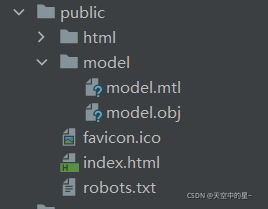
There is no error in the code, but the path of the model is wrong, resulting in an error when loading the model (the model was originally placed under the assets path and imported through the relative path). After checking the data, it is found that the model file cannot be placed under the assets path, but under the public path, and the file under the public must be imported through the absolute path (this depends on the configuration of publicpath in vue.config.js. The default is /)

Specific code and steps for loading 3D model in Vue:

1. NPM install three — save package for installing three.js

2. Introduce three related packages

import * as THREE from 'three';
import {OrbitControls} from 'three/examples/jsm/controls/OrbitControls';
import {MTLLoader} from 'three/examples/jsm/loaders/MTLLoader';
import {OBJLoader} from 'three/examples/jsm/loaders/OBJLoader';

3. The model should be placed in the public folder. The resources placed in the public directory will be copied directly and will not be packaged by webpack

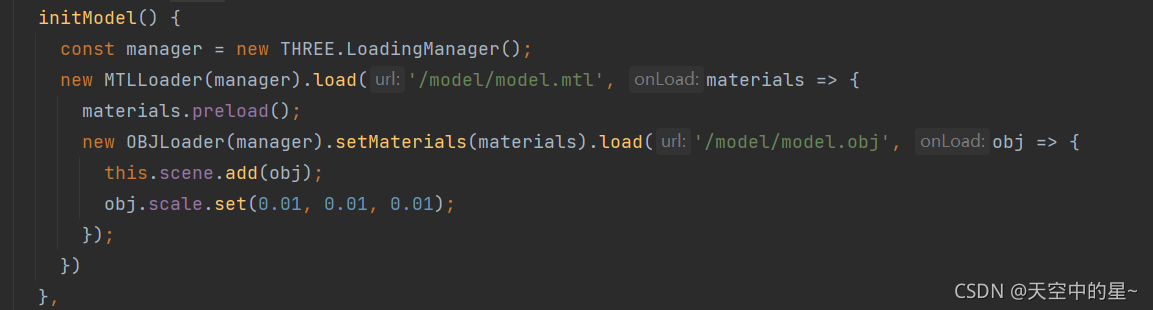
4. Load model

Vscode save Vue format eslint check error [How to Solve]

1. Problem description

When writing items with Vue, the eslint syntax check was turned on as usual, but various errors, single and double quotation marks and function spaces were found after formatting and saving with vscode. Because the formatting plug-in of vscode itself does not match eslint. Therefore, some configurations need to be modified to achieve the effect of configuration. There are two ways to modify.

2. Solution 1

Since the vsdoe formatting does not match eslint, we will modify the rules of vscode. Create a file .Pretierrc under the current project and modify relevant configuration items. Here, we only modify single and double quotation marks and semicolons.

 {
   "semi": true,
   "singleQuote": true
 }

3. Solution 2

Modify the style location where you save Vue formats:

3.1 open configuration item
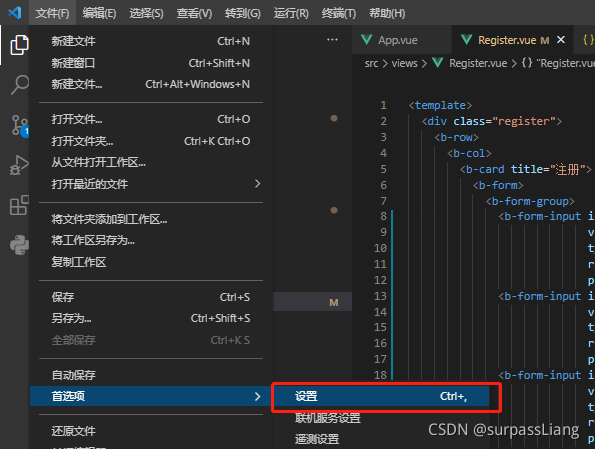
3.2 find the corresponding configuration item and modify the corresponding value

"[vue]": {
        //"editor.defaultFormatter": "esbenp.prettier-vscode" //before fixing,
         "editor.defaultFormatter": "octref.vetur" // Use vetur formatting rules, after modification
    },

3.3 setting vetur rules

"vetur.format.defaultFormatterOptions": {
        "js-beautify-html": {
            "wrap_attributes": "force-aligned" //Attribute forced line alignment
         },
         "prettier": {
             "semi": true, // keep the semicolon
             "singleQuote": true, // true uses single quotes
        },
    },


Vue Start Error: This relative module was not found:

This relative module was not found:
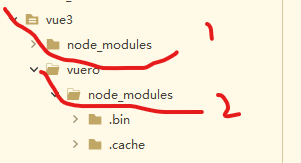
I checked it for a long time and found nothing wrong. Finally, I took a look at the directory

I first created an empty project… And then created another project in the empty project by using the terminal command NPM create. The result is that when NPM install XXX is followed, it is in the parent directory of vuero. Therefore, an error will be reported when starting vuero,
in addition, try to use cnpm install XXX instead of NPM insatl XXX