Category Archives: How to Fix

“Pandoc document conversion failed with error 1033” error message appears in rstudio knit

recently followed a course of data mining and machine learning in R language. While knitting to HTML, Rstudio was often buggy with

even when it was done more than one time

pandoc document conversion failed with error 1033

in the mind of mystery Debug, start trying Restart R, Restart RStudio, clear cache and other operations. Over time, however, none of these methods worked, and I had a vague feeling that a cache file conflict was causing the bug, but none of them worked.

there is no resistance in the browser search around the bug information, suddenly a brainwave:
Modify the file name of the.rmd file that needs to be converted

sure enough, this time there is no conflict, mystery debug success.

Android error: ADB port is occupied( adb.exe ,start-server’ failed — run manually if necessary)

error message:
10:28:32 adb server version (31) doesn’t match this client (39); This time…
10:28:32 could not read ok from ADB Server
10:28:32 * failed to start daemon
10:28:32 error: Always connect to the daemon
10:28:32 ‘I: \ AndroidSDK \ platform – the tools \ adb exe, start – server’ failed – run manually if necessary

today, when I opened AS for debugging, I found that adb could not run and I could not connect to the mobile phone. What situation, yesterday was still good, how not today??

the first thought is that the port may be occupied, so open the DOS command, casually typed out a line:

adb kill-server (杀掉adb进程),

So it’s

and then it’s

adb start-server (启动adb)

but found no “* server not running *” and
“adb server version (39) doesn’t match this client (36); This time…
* daemon started successfully * “message. Embarrassing ~

baidu check, it turns out that adb’s port is occupied by some (unknown) process. Well, to find out why, let’s analyze which process is so mischievously using this port.
opens DOS command window

输入: adb nodaemon server 回车
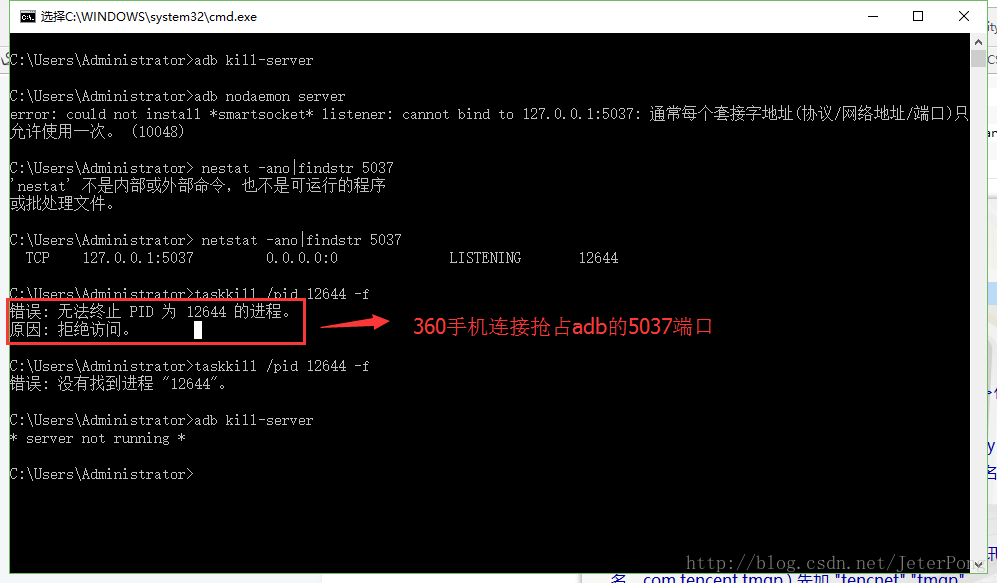
found to be occupied by process 12466. Then I opened task Manager to see that the 5037 interface was occupied by the original 360 bundled mobile assistant. I tried to stop the process, but was denied access. Well, enough rogue, enough rogue, but also forced occupation not to kill the process, so skin, why not god?

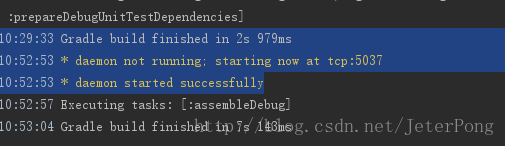
in desperation, decided to a simple direct violence method, directly put 360(including bundled software) to uninstall. It’s ok to try adb kill- Server again, but you can also turn on ADB debugging in AS.
Reference links:

https://blog.csdn.net/suomalixiongmao/article/details/51158666
Ubuntu error: flAbsPath on /var/lib/dpkg/status failed – realpath (2: No such file or directory)

false

E: flAbsPath on /var/lib/dpkg/status failed - realpath (2: No such file or directory)

solution

sudo mkdir -p /var/lib/dpkg/{alternatives,info,parts,triggers,updates}
sudo cp /var/backups/dpkg.status.0 /var/lib/dpkg/status
apt-get download dpkg
sudo dpkg -i dpkg*.deb
apt-get download base-files
sudo dpkg -i base-files*.deb
sudo apt-get update
sudo apt-get check

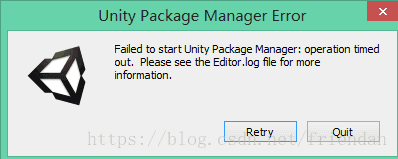
fail to start Unity Package Manager

fail to start Unity Package Manager,

my environment is Unity 2018.2.3f1 + Win10

solution:

1. Set the value of environment variable UNITY_NOPROXY to localhost,127.0.0.1

quickly set CMD command: setx UNITY_NOPROXY localhost,127.0.0.1

2, find C:\Windows\System32\drivers\etc\hosts file, remove the comment symbol before “127.0.0.1 localhost” and save.

3, close the system firewall, close the system firewall, close the system firewall…

4, close antivirus software, eliminate interference…

What about ibtool failed with exit code 255? processing method

: Command/Applications/Xcode. The app/Contents/Developer/Platforms/iPhoneSimulator platform/Developer/usr/bin/ibtool failed with exit code 255


solution:

is basically clean plus clear cache, the steps are as follows:


  • clean your project
  • delete the cached data (Organizer-> Projects-> Derived Data tap ‘Delete… ‘
  • insure that for this XIB the proper versioning is set (select XIB, 3rd Xcode tab on right, File options:
  • close the project
  • quit Xcode
  • reopen Xcode, then the product
  • try again

Nextcloud error: “access forbidden CSRF check failed”

### reproduce step

1. Log in with any user

2. Try to exit

3. Error

### expected behavior

user should log out.

Nextcloud report error :”Access forbidden CSRF check failed”

Nextcloud to configure Nginx cross-region solution

### actual behavior

user clicks logout with error:

“Access forbidden

CSRF check failed”

### solution (configure nginx)

1. The first part is to mapmap in the HTTP in the global configuration (default path /etc/nginx/nginx.conf);

First configure nginx.conf add HTTP map

vi /etc/nginx/nginx.conf

# added to HTTP save

map $http_upgrade $connection_upgrade { 
    default upgrade; '' close; 
}

2. The second part, it is the corresponding nextcloud configuration file (create/etc/nginx/conf. D/nextcloud. Conf) under the server IP configuration.

Configure nextcloud.conf inverse configuration file by adding

vi/etc/nginx/conf. D/nextcloud. Conf

proxy_set_header Host $http_host; 

proxy_set_header X-Forwarded-Proto $scheme;

proxy_set_header X-Real-IP $remote_addr;

proxy_set_header Upgrade $http_upgrade; 

proxy_set_header Connection $connection_upgrade;


After

configuration is completed, run nginx-t to check, and confirm that there is no error, run nginx-s reload or systemctl restart nginx to restart nginx for effective configuration.


3. After completion, visiting Nextcloud again may appear: reverse proxy domain is not in the trusted_domain of Nextcloud your visiting domain is not in the trusted domain of Nextcloud
#

modify $nextcloud/config/config in PHP trusted_domains parameters can

Installation failed with message Failed to finalize session : INSTALL_FAILED_INVALID_APK

problem:

modified some things yesterday, debugging show this error, before is to uninstall before installation, and then re-run it, but this time, run several times, the phone has also restarted several times, or error, a little bit close to crash.

reason:

is not clear

resolved:

method 1:

this morning I found the memory space of the phone was a little full, then I cleaned it up, and the debugging was successful again.

method 2:

there are other ways online, the above can not solve this you can try this:

click Build, click Clean Project, then click Rebuild Project, then run.

https://blog.csdn.net/qq_36826618/article/details/84638404

method 3:

File -> Settings… -> Build -> Debuger -> Instant Run-> Uncheck the first TAB to Enable Instant Run… .

reference: https://www.cnblogs.com/lihuawei/p/10516201.html

others:

another problem:

AndroidStudio 安装Gradle问题gradle project sync failed.Basic functionality(e.g.editing,debugging) will n

is a problem that I don’t understand very well, so I basically use the most direct solution every time:

create a new project. Gradle,. Idea, gradle. Build a copy of the new project folder to the current project folder. It is a good idea to make a backup copy before using, as repostories may differ in Gradle.build.

if not you can refer to the other: https://blog.csdn.net/runrun117/article/details/93311522

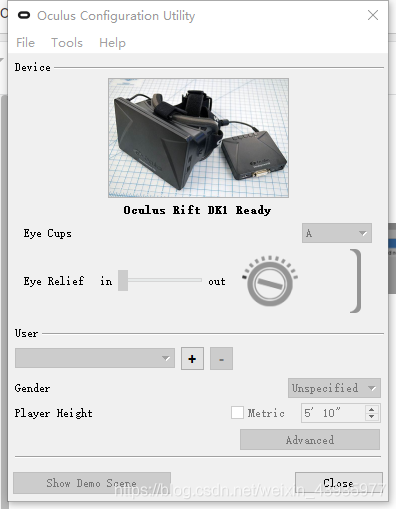
unity 3D:Virtual Reality SDK Oculus failed to initialize.

problem description:

unity3D has successfully connected to the oculus helmet, and can carry out front and back movement and rotation operations in the u3D compiler, but an error has been reported in the unity console, as shown in the figure below,

Virtual Reality SDK oculus failed to initialize.

  1. new project. No error will be reported after creating a new project, but the helmet is still not shown, and the same error will be opened again after closing the project.
  2. reimport oculus package, https://stackoverflow.com/questions/58744920/virtual-reality-sdk-oculus-failed-to-initialize said doesn ‘t work. I didn’t try, I didn’t know
  3. is looking for… I update the
    — — — — — — — — — —
    update, this equipment has been abandoned, no display of helmet should be separately display did not set up in a computer.

Gulp failed to run

$ gulp
[18:09:47] Failed to load external module @babel/register
[18:09:47] Requiring external module babel-register
C:\users\astros\file\es6pro\node_modules\[email protected]@babel-core\lib\transformation\file\opti        ons\build-config-chain.js:154
      throw err;
      ^

SyntaxError: C:\users\astros\file\es6pro\.babelrc: Error while parsing JSON - Unexpected EOF at lin        e 1 column 2 of the JSON5 data. Still to read: ""
    at error (C:\users\astros\file\es6pro\node_modules\[email protected]@json5\lib\json5.js:56:25)
    at word (C:\users\astros\file\es6pro\node_modules\[email protected]@json5\lib\json5.js:393:13)
    at value (C:\users\astros\file\es6pro\node_modules\[email protected]@json5\lib\json5.js:493:56)
    at Object.parse (C:\users\astros\file\es6pro\node_modules\[email protected]@json5\lib\json5.js:508:1        8)
    at ConfigChainBuilder.addConfig (C:\users\astros\file\es6pro\node_modules\[email protected]@ba        bel-core\lib\transformation\file\options\build-config-chain.js:150:65)
    at ConfigChainBuilder.findConfigs (C:\users\astros\file\es6pro\node_modules\[email protected]@        babel-core\lib\transformation\file\options\build-config-chain.js:96:16)
    at buildConfigChain (C:\users\astros\file\es6pro\node_modules\[email protected]@babel-core\lib        \transformation\file\options\build-config-chain.js:61:13)
    at OptionManager.init (C:\users\astros\file\es6pro\node_modules\[email protected]@babel-core\l        ib\transformation\file\options\option-manager.js:354:58)
    at compile (C:\users\astros\file\es6pro\node_modules\[email protected]@babel-register\lib\        node.js:103:45)
    at loader (C:\users\astros\file\es6pro\node_modules\[email protected]@babel-register\lib\n        ode.js:144:14)

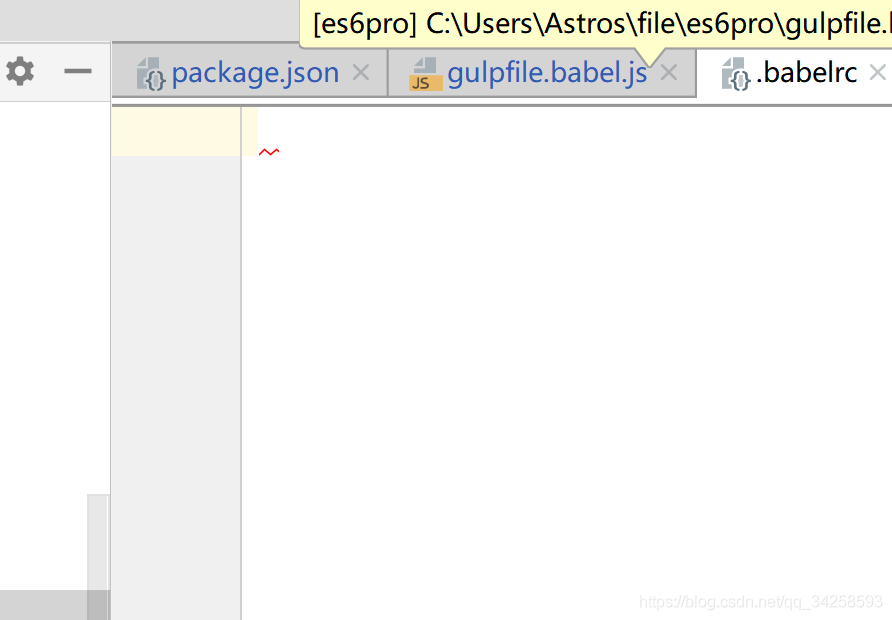
The reason why

occurs above is because babelrc is empty

, in babelirc.js, write

//presets转成2015
//写法需安装cnpm install babel-preset-es2015 --save-dev
{
  "presets":["es2015"]
}

ok

Error “nbconvert failed: xelatex not found on path…” Solutions

for without special configuration of Jupyter, when we export files as PDF often appear the following error:

nbconvert failed: xelatex not found on PATH, if you have not installed
xelatex you may need to do so. Find further instructions at
https://nbconvert.readthedocs.io/en/latest/install.html#installing-tex.

error cause: xelatex

is not installed

(note: in some cases, pandoc needs to be installed in addition to “xelatex”, but since pandoc is installed by default in anaconda2-5.0.1 and above, you only need to install “xelatex”)

solution:

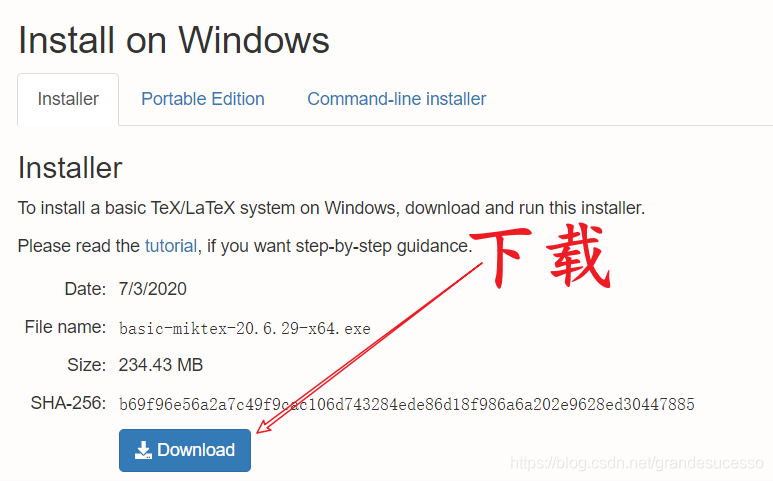
Step 1: download and install “Miktex” software

download address: https://miktex.org/download

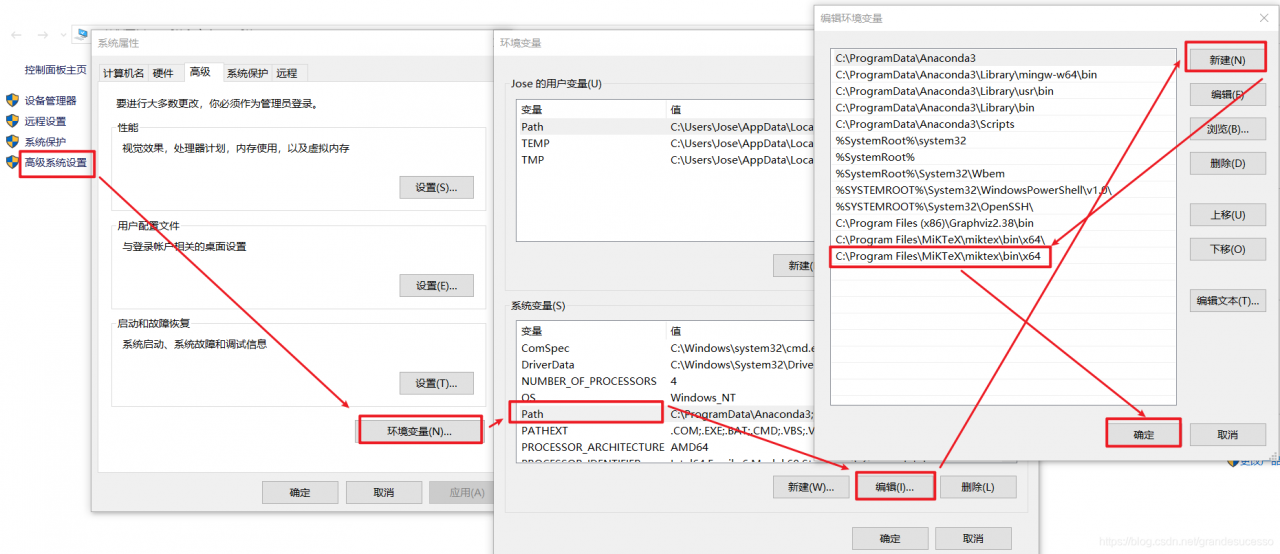
step 2: add the installation path of the Miktex installed in the previous step to the environment variable

Miktex installation path: C:\Program Files\ Miktex \ Miktex \bin\x64

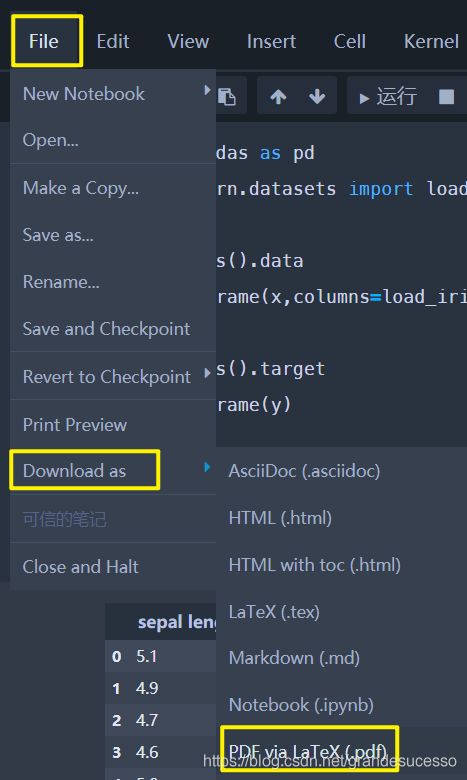
step 3: restart Jupyter Notebook, open any “ipynb” file and click “Download as” – “PDF via LaTeX(.pdf)”

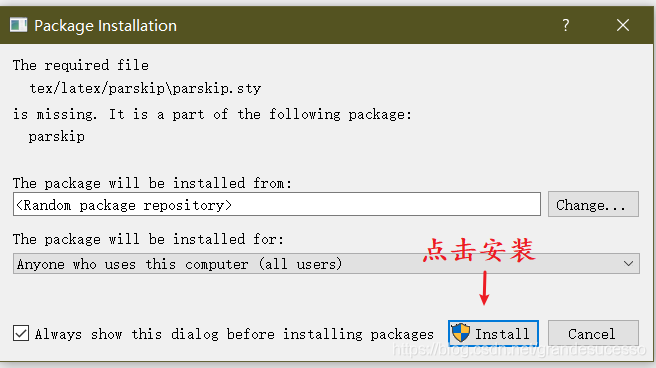
step 4: next, N (indeed N) packages will pop up. Click “Install” to Install each package until the menu no longer pops up

step 5: click Download as again – “PDF via LaTeX(.pdf)” to export the PDF file in the Download item of the current browser.