Category Archives: How to Fix

Take over the project, the project path is inconsistent with the native UE4 path and the solution of Failed to open descriptor file ..//..//..//UE4/UE4.uproject


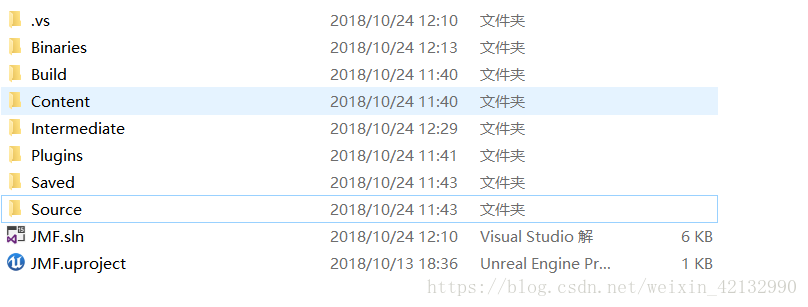
Delete folders. Vs… Binarires … Build… Intermediate and the project name. SLN
Right-click the project name. Uproject Generated. Open the project name. Uproject prompts whether to start build and click OK
To solve.
 
Thanks for the advice from the Code master of The Buddhist department. Ha, ha, ha

Run Red Alert and other old games under Win10…

***FATAL***String manager failed to initilaized
When the game is downloaded, ***FATAL***String Manager fails to initilaized cleavage on the first run. The solution is to change the configuration of the running program, right click to run the program & GT; – attribute & gt; – Compatibility configuration is shown below:

Problem two: lack of runtime environment Microsoft_Visual_C++_2005_SP1_Redistributable_Package_x86
directly to install the runtime environment. Here is the link:
directx9; or 0 1 2 or above 3
the three problem is lack of dx (directx9, 10, 11) under the given resources: dirextx9 directx10 directx11

extract resources double-click the executable file can be installed a a step-by-step.
Problem 4: black screen but sound
is due to the 3 d acceleration, the following is a resource: cloud disk resources
0 1 2 3 4 5 there are two registers, like red alert 2 configuration does not need very high game need to turn off 3D acceleration, like red alert 3 configuration requirements a little higher game need to turn on 3D acceleration, in order to simple direct use of these two registers.
Question 5: enter the game network TAB
this is because the red alert on the net have been changed so you can’t use, the solution is to add a DLL files in the root directory, the following is a chain answer: cloud disk link
Question 6: network options inside can’t find other players
The resources: cloud disk resources
this is due to win10 can not manually open the ipx protocol, the solution will be the following compression package files to replace the game root directory (is to replace);
after if you are a 32-bit system or 64 system, click the corresponding directplay-win32/64. Reg registry file;
after opening the ipxconfig.exe file, then do not need to change, click ok.
Problem 7: online serial number or cd-key is not allowed to be online at the same time, etc.
this is because all come from a file copy, so the serial number is the same on the Internet.

solution is found in the game under the root directory Woldata. Key file open with notepad to modify the back of the digital and distinguished from other players.
After question 8: enter using the task manager can’t exit
can’t quit because you order is less than the task manager, this kind of situation can be solved using win10 multi desktop.
(1) press the Windows key + TAB keys;
The (2) close the task manager;
switch to a desktop from below, open the task manager and close the program, however you will find that this method is very common unless you normally close the game.
Problem nine: other problem can look for resource on the net, make good use of network resource, contribute oneself brocade silk power at the same time, have on the net good resource also have lousy resource must distinguish right from wrong.

The above content comes from the summary of relevant knowledge on the Internet, all kinds of tools are from online resources, salute to the author!
The
share more interesting things

[Space] There are many right and wrong before and after, it can cause major failures, please see


System operation and maintenance has always been a delicate work. In addition to the constraints of rules and specifications, the preciseness and caution of operation and maintenance personnel are also essential. Sometimes a simple mistake will lead to a disaster, as small as a character or a space.
In this case, Oracle RAC suffered a failed restart due to a blank space.

Phenomenon of failure: The customer 10.2.0.4 RAC for Solaris 10 environment suddenly experienced an instance restart.
Failure process: The database runs normally until about 3 p.m., then the two nodes are restarted separately, and the instance on one of the nodes cannot be started automatically. A review of the alarm logs for both instances found that a significant ORA-27504 error occurred on both nodes before the node was restarted.
Error message:

ORA-27504: IPC error creating OSD context
ORA-27300: OS system dependent operation:
if_not_found failed WITH STATUS: 0
ORA-27301: OS failure message: Error 0
ORA-27302: failure occurred at: skgxpvaddr9
ORA-27303: additional information:
Requested Interface 192.168.168.3 NOT Found.
CHECK output FROM ifconfig command

Note that the error message is clear and the requested IP address does not exist, so you need to check the output of Ifconfig.

Next is the IPC timeout:

Wed Apr 10 15:08:13 2013
ospid 25678: network interface WITH IP
Address 192.168.168.3 No longer operational
Requested Interface 192.168.168.3 NOT Found.
CHECK output FROM ifconfig command
Wed Apr 10 15:08:16 2013
IPC Send timeout detected.Sender: ospid 25748
Receiver: inst 2 binc 430164 ospid 11890

Then instance expulsion is inevitable:

Wed Apr 10 15:16:40 2013
Waiting FOR instances TO leave:
2

The cause of the problem can be easily analyzed according to the error message. The IP address on node 2 was modified, causing abnormal heartbeat communication. Node 1 tried to kick node 2 out of the cluster, but could not communicate with node 2, so it had to wait for node 2 to restart.

Check the operating system log of Node 2 to get the following main information:

Apr 10 15:00:04 IP: [ID 482227 Kern. notice] IP_arp_done: Init failed
Had[4135]: [ID 702911 daemon.notice] VCS CRITICAL
CPU usage ON bj-sst IS 92%
sshd[13485]:error: Failed TO allocate internet-DOMAIN X11 display socket.

The IP_arp_done: init failed message appeared at 15:04 seconds, indicating that the host name information was used when setting up the network card interface, and the IP address of the host was modified online.

Finally, according to HISTORY, it was found that someone logged into the system through root:

Execute ifconfig — a6 to check the IPV6 address, but the command is typed incorrectly
Ifconfig — A 6 is executed, with an extra space between A and 6
Causes all IP addresses of the host to be set to 0.0.0.0

Thus causes the above whole fault, a blank causes the whole cluster to crash instantly, this is the blood case that a blank causes.

The lesson from this case is that any operation, at the command level, also needs to be careful for privileged users, including DBA users and ROOT users.

Review the use of the ifconfig command by the way:
The ifconfig command is used to configure and display network parameters for network interfaces in the Linux kernel. The network card information configured with the ifconfig command does not exist after the network card is restarted and the machine restarts. In order to keep the above configuration information in the computer forever, it is necessary to modify the configuration file of the network card.  

grammar
The ifconfig (parameters)

parameter
add< Address & gt; : Set the IP address of IPv6 for network devices;
del< Address & gt; : Delete the IP address of IPv6;
Down: Turn off the specified network device;
< hw< Type of Network Equipment & GT; < Hardware address & GT; : Set the type and hardware address of the network device;
io_addr< I/O address & gt; : Set the I/O address of the network device;
irq< IRQ address & gt; : Set the IRQ of the network device;
media< Type of Network Media & GT; : Set the media type of the network device;
mem_start< Memory address & GT; : Set the starting address occupied by the network device in the main memory;
metric< The number & gt; : Specifies the number to be added when calculating the number of times a packet is forwarded;
mtu< Byte & gt; : Set the MTU of the network device;
netmask< Subnet mask & GT; : Set the subnet mask of the network device;
tunnel< Address & gt; : Establish the channel communication address between IPv4 and IPv6;
Up: Starts the specified network device;
-broadcast< Address & gt; : Packets to be sent to the specified address will be treated as broadcast packets;
-pointopoint< Address & gt; : Establish a direct connection with the network device at the specified address. This mode has the security function;
— Promiscuous mode for turning off or starting designated network devices;
IP address: Specify the IP address of the network device;
Network device: Specifies the name of the network device.  

Explanation:
Eth0 represents the first network card, where HWaddr represents the physical address of the card. You can see that the current physical address of the card (MAC address) is 00:16:3E:00:1E:51.
Inet ADDr is used to represent the IP address of the network card. The IP address of this network card is 10.160.7.81, the broadcast address is 10.160.15.255, and the Mask address is 255.255.240.0.
Lo is the bad return address of the host. This is generally used to test a network program, but it does not want users on LAN or external network to be able to view it. Instead, it can only run and view the network interface used on this host. For example, if you specify the HTTPD server to return to a bad address, type 127.0.0.1 in your browser to see the WEB site you are hosting. But as long as you can see, no other host or user of the LAN knows.
Line 1: Connection type: Ethernet (Ethernet) HWaddr (hardware MAC address).
The second line: IP address, subnet, mask of the network card.
The third row: UP (for the nic’s open state) RUNNING (for the nic’s cable to be connected) MULTICAST MTU:1500 (for the maximum transmission unit); MULTICAST :1500 bytes.
The fourth and fifth lines: receiving and sending data packets.
Line 7: Receive and send data byte count statistics.
Start and close the specified network card:
The ifconfig eth0 up
The ifconfig eth0 down
Ifconfig eth0 up to start the network card eth0, ifconfig eth0 down to close the network card eth0. Use SSH to log into a Linux server. You can’t turn it on if it’s turned off, unless you have multiple network CARDS.

Configure and remove IPv6 addresses for network CARDS:
Ifconfig eth0 add 33 ffe: 3240:800-1005: : 2/64
Configure IPv6 addresses for the network card eth0
Ifconfig eth0 del ffe 33:3240-800:1005: : 2/64
Remove the IPv6 address for the network card eth0

Modify MAC address with IFConfig:
Ifconfig eth0 HW Ether 00:AA:BB:CC: DD :EE

Configure IP address:
[root@localhost ~]# ifconfig eth0 192.168.2.10
[root@localhost ~]# ifconfig eth0 192.168.2.10 Netmask 255.255.255.0
[root@localhost ~]# ifconfig eth0 192.168.2.10 Netmask 255.255.255.0 Broadcast 192.168.2.255

Enable and disable ARP protocol:
Ifconfig eth0 ARp # opens the ARP protocol for network card eth0
Ifconfig eth0 – ARp # Close the ARP protocol for network card eth0

Set the maximum transmission unit:
Ifconfig eth0 mtu 1500 # sets the maximum packet size that can pass to 1500 bytes

Comprehensive source: public “data and cloud”, etc

Read more about this article

Develop an enterprise-class monitoring platform in Python
Use Python code to automatically grab train tickets
Ctrip operation and maintenance automation platform, tens of thousands of server changes can also be very easy
Is intelligent operation and maintenance personnel replaced by AI?
Look at Tencent operation and maintenance to deal with the “18 years old photos of the national nostalgia” event plan, you will not regret!
Seamless operation: a best practice of alibaba’s operation and maintenance guarantee system
Forever young! The 20-year struggle history of an old operation and maintenance
Hungry?Remote dual live database combat
Operation and maintenance version of “Chengdu”, listen to how many people cry…

second level monitoring under the order of ali trillion transactions
Salvation of IT Operation and Maintenance — The ideal practice of SF Operation and Maintenance

Want to get a closer look at Tencent SNG team’s operation and maintenance system?

Come to the 9th GOPS Global Operations Conference.

Shenzhen, April 13-14, 2018.

The two-day conference features 19 special sessions covering a wide range of technical areas including AIOps, Operations automation and DevOps.


Click to read the original text and enter the official website of the conference

SteamVR error code 108/203/208/301/306/308/400/405 troubleshooting method

 
[ERROR (108) Failed to find head-mounted display] Elimination method
This error could be a USB or driver problem. Please try the following problem resolution steps:
1. Restart your head-mounted monitor:
A. Right click the diagram of the head-mounted display in SteamVR.
B. Select “Restart the VIVE head-mounted Display” and wait for the restart process to complete.
 
2. Remove and reconnect the power supply of the connecting box:
A. exit SteamVR
B. Unplug the power and USB cable from the computer end of the connection box (non-orange end)
C. Wait a few seconds before connecting the power cord and USB cable back to the connection box. You may see more drivers installed on the operating system. Please wait patiently for this procedure to complete.
D. Execute SteamVR.
You may need to repeat the above steps several times.
 
3. Reboot your computer:
A. exit SteamVR
B. Reboot the computer
C. SteamVR execution
 
4. Connect the connection box to another USB port on the computer:
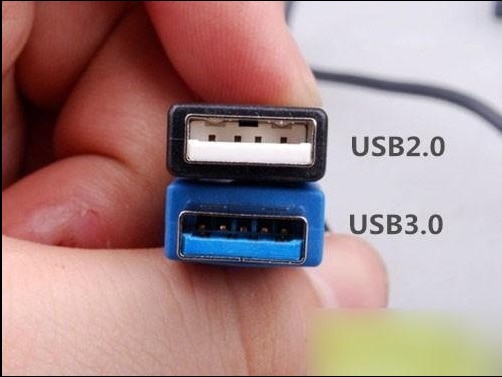
A. Please try to connect your connection box to the USB 2.0 port; There are certain USB 3.0 and 3.1 chip sets that may cause problems.
 
The way to determine USB 2.0 and USB 3.0:
1. Base color: Generally speaking, USB 2.0 base is white or black, while USB 3.0 base is blue
2. USB 2.0 has 4 pins on the front and USB 3.0 has 9 pins
3. The commonly used color of USB 2.0 and USB 3.0 is blue
 
B. You may also attempt to use a USB port that is currently in use – please move the device to another port and attach your connection box to this port.
C. If this problem persists, try resetting your USB device
 
Make sure that all 9 USB devices in the device administrator are displayed (top 5 USB input devices, bottom 4 HID Standard Vendor defined Devices).
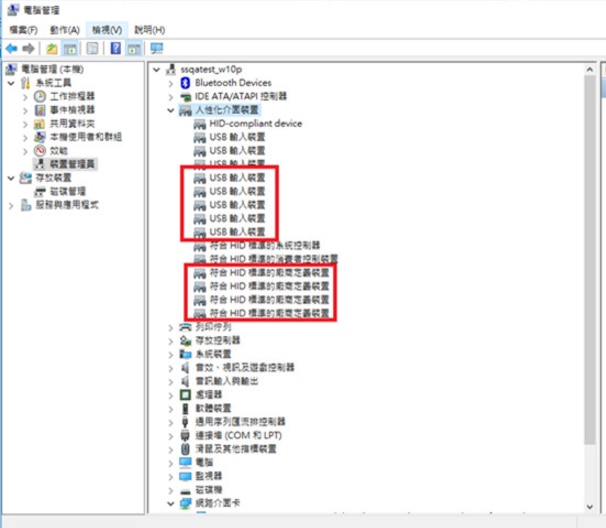
 
If all the USB devices are not displayed, it may be that the power in the control box is not plugged in properly. Please change the USB port to have a look.
ASUS AI Suite software must be installed on its motherboards.
 
 
[Error (203) Shadow stack not running] Elimination mode
If the locator has a sync line, the helmet tri-line is plugged into the host, and the computer detects the installation of Bluetooth and updates it.

Error (208) USB can detect headwear monitors, but no display screen can be found
This is a non-specific head-mounted display error message. There are multiple solutions for this error, so try one of the possible solutions listed below:
1. Please make sure that all the wires are connected.
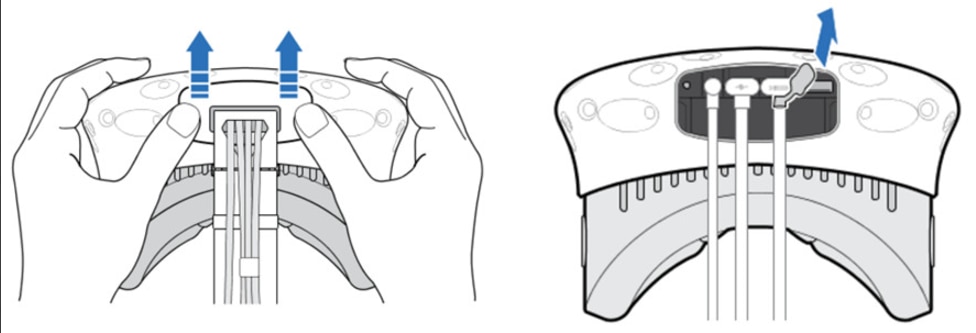
The power cord on the head-mounted display may come loose with use.
Please push the cable hole cover above the head display outward in the forward direction to remove it to check the connection.
2. Please make sure that your connection box is installed in the correct direction. There shall be an orange coating line connector on the head-mounted display, which shall be connected to the corresponding orange connector on the connection box.
3. Check and make sure you have the latest display card driver installed.
4. “Cannot start openVr.tool. Steamvr_room_setup. Error “VRApplicationError_UnknownApplication”.
The reason is that the wire inside the helmet is loose. Please remove the helmet shell and connect the wire
 
If the user name and save path are already in English, the USB slot for connecting to the VIVE does not show the four “HID standard compliant vendor defined devices”.
In addition, the HDMI/USB cable attached to us still fails to solve the problem of error 208. At this time, Windows USB might detect the error. Please try the following method:
A. SteamVR → Settings → developer → delete all the USB devices of SteamVR. After installing all THE VIVe-related USB devices in the administrator and removing them, re-plug and unplug all the wires on the streaming (link box), and let Windows re-detect
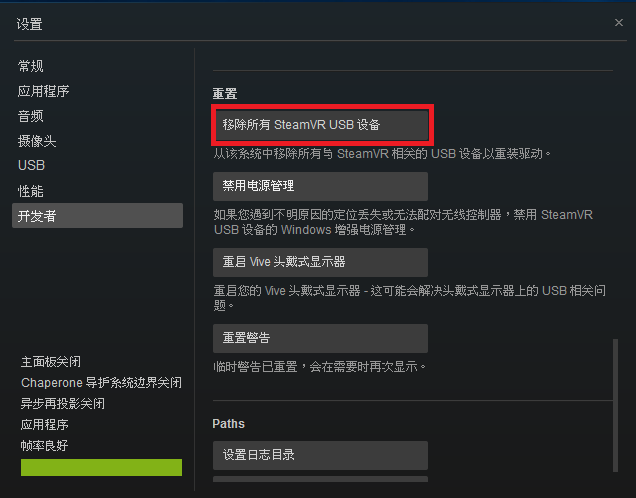
 
B. If method A above fails, try using the following method:
1. Download the USB Deview software (http://www.nirsoft.net/utils/usb_devices_view.html) (https://usbdeview.en.softonic.com/)
2. Uninstall all USB devices displayed on the screen (red box as shown below)
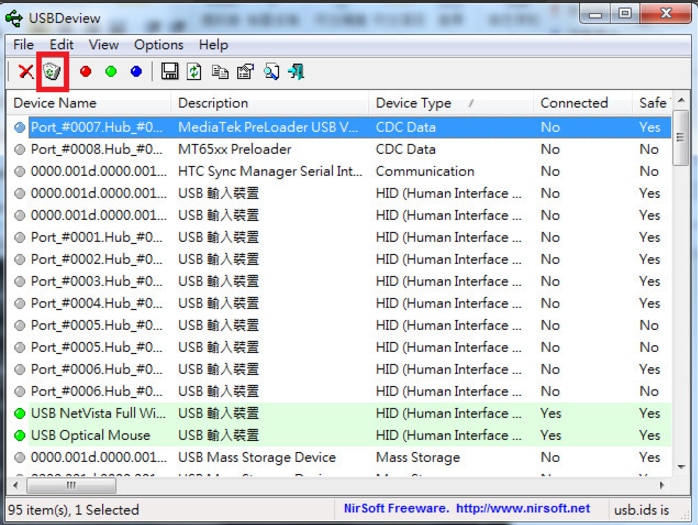
3. After all removal, the USB keyboard mouse will not be able to move
4. Re-plug and unplug all USB devices, including keyboard/mouse/VIVE to make Windows re-detect
5. Turn off the power of the control box/SteamVR
6. Hold down the head display button
7. Power on the control box
8. Wait 15 seconds
9. The SteamVR open
10. SteamVR will ask you if you want to restore the software, and say “Yes”
11. This will restore all the software, do not unplug the power supply before the completion of restore
 
 
[ERROR (301) cannot find the key element of SteamVR] Elimination method
1. Start SteamVR with the permission of the system administrator, and if possible, close the anti-virus program that may be affected
2. Install SteamVR (different hard disk) in a different place (due to the system name conflict)
3. Reinstall the viVe-related drivers (using USBDeview and similar software)
[ERROR (306/308) cannot find the key element of SteamVR] Elimination method
Key parts of SteamVR don’t work properly. Right – click to open with administrator privileges. If it’s no use with administrator privileges to open to the Steam/steamapps/common/SteamVR/bin/win64 vrpathreg to repair, or user/AppData/Local/delete openvr openvr vrpath)
[ERROR (400/405) shadow folding device is not available] elimination method
The shadower is not available (error 400 or 405) any of these items may cause an error
1. Please use DVI to HDMI or connect directly to HDMI (do not use DP to HDMI)
2. Update the video card driver to the latest version of the
3. Remove all line, plug in again (head inside also need, can refer to detailed here: https://www.vive.com/cn/support/category_howto/unplugging-the-3-in-1-and-audio-cables.html)
4. Remove excess anti-light sources such as mirrors, glass, tile floors… Such cause reflective objects
5. Locators must be over 30 degrees down (detailed setting method can refer to here: https://www.vive.com/cn/support/category_howto/tips-for-setting-up-the-base-stations.html)
AndroidStudio sync failed solution

Error running All Tests: Gradle projectsync failed. Please fix your project and try again. How to solve?
First, a two-week solution was found online:
Plan 1: Since Gradle is suggested, start with this batch. What is Gradle?Please poke here: click open link
1. The File – & gt; Invalidate caches/Restart
2. The Shutdown Android Studio
3. Rename/remove. Gradle Folder in the user Home Directory
4 Restart Android Studio let it Download all the Gradlestuff it Needs
Gradle Build Success!
6. Rebuild project… success !
 
Scheme 2:
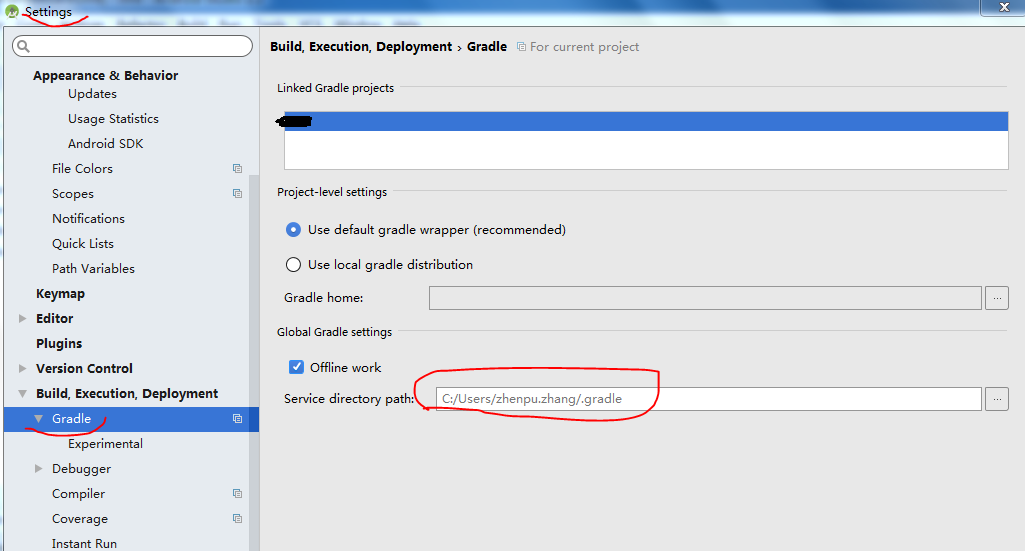
File -> Settings Search for Gradle, make the following changes (specify the location of Gradle to be downloaded manually), For Gradle download, please stamp here: click open link

Solution 3:
The above method didn’t work, so I killed gradle and Gradle in the project directory, created a new project, copied the two folders in the new project, and the Studio returned to normal.

In addition to the above methods, based on personal experience can also be:
This can also happen if a project developed on an original device is about to be moved to another device (the gradle update download is very slow)
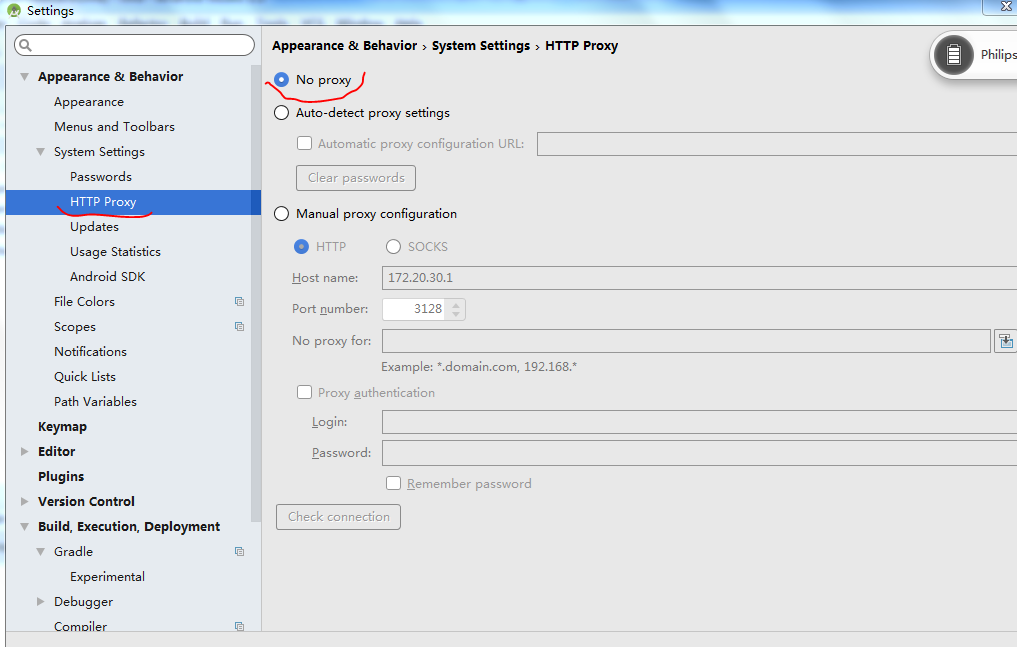
At this point, first go to the Settings of Android Studio under the new device and turn off the Proxy

Then go to the directory of Gradle

Use the.gradle directory for the original device instead of the gradle directory for the new device.

Android Studio error “Manifest merger failed with multiple errors, see logs” solution

Error:Execution failed for task 'XXX :processDebugManifest'. > Manifest merger failed with multiple errors, see logs
problem solution.

added a new item as a dependency to the original project today, after a series of configurations in the Manifest, this error occurs for gradle.
Why
The Gradle plug-in for AS enables the Manifest Merger Tool by default, and if the same attributes AS the main project are also defined in the Library project (such AS the default-generated Android:icon and Android: Theme), then the merge fails and the error is reported.
solution
In the manifest is joined on the root tag XMLNS: tools = "http://schemas.android.com/tools" , and in the manifest. The application of XML tags add tools: replace = "icon, label, the theme" (multiple attributes, separated, as the case may be). Or tools: replace = "the android: icon, android: label, android: theme"
http://tools.android.com/tech-docs/new-build-system/user-guide/manifest-merger official method for reference

An error occurred when running ROCR: Failed to load the package ‘caTools’, package or namespace load failed

If it helps, thank thumb up for the encouragement
The environment is win10+R3.6.3
, the problem has been solved, and the Error is reported as follows:
loading required package: gplot Error: package or namespace load failed for 'gplot' in loadNamespace(j < -i [[1L]], c(lib.loc,.libpaths (), versionCheck = vI[[j]): there is no package error called 'caTools' : failed to load the package' gpaths '
There has been a problem this morning, which is strange. CaTools could not be installed in Rstudio and I have already packed the plots, so I guess it’s caTools’ problem.

    USES general method one, not ok:
    directly click Rstudio, click install and then enter caTools is not ok. Use method 2, no:
install.packages("caTools")
    use method three, first download the resources and then local installation, successfully solved.

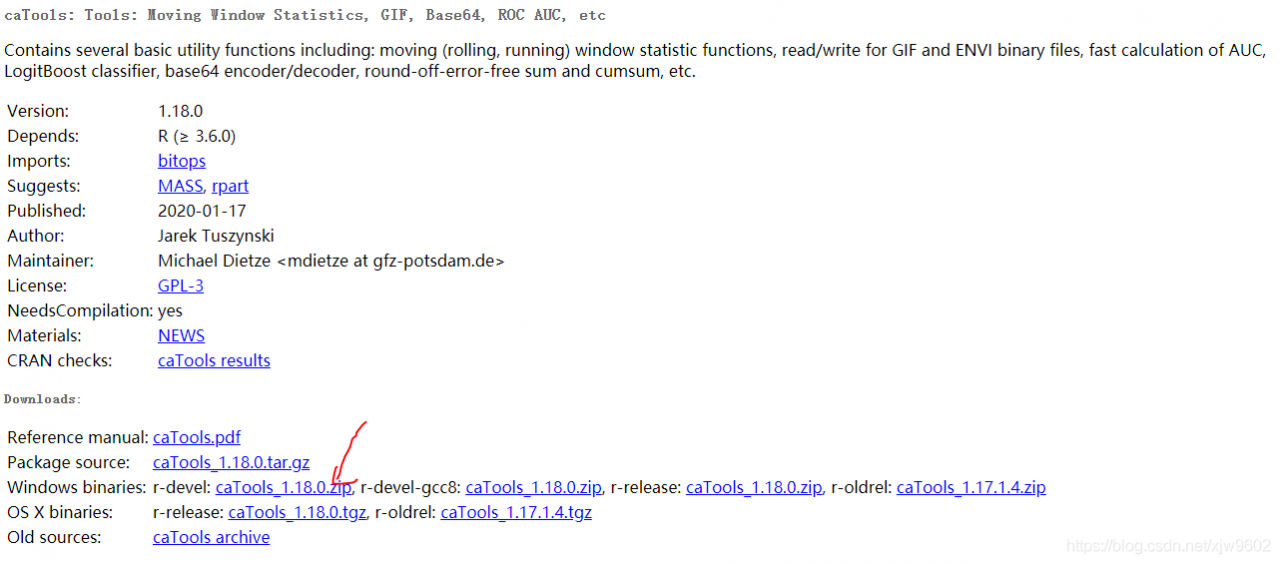
First find caTools resource location, address is as follows:
https://cran.r-project.org/web/packages/caTools/
and then on the page, right click to get the resource bundle links, return to Rstudio, enter the following two lines of code, run successfully solve the problem of caTools installation.

packageurl <- "https://cran.r-project.org/bin/windows/contrib/4.0/caTools_1.18.0.zip"

install.packages(packageurl, repos=NULL, type="source")

It should be added that if a package has not been installed, baidu searches for the package, such as "R installs caTools". We then see if our dependent packages are configured so that we can have a second way to look at them, in addition to the ones that the console output lacks.
Refer to the blog:
https://blog.csdn.net/ARPOSPF/article/details/84997200 https://blog.csdn.net/zdx1996/article/details/86629965

Maven compilation error Checksum validation failed, error in opening zip file

Problem: Error reporting MVN compile time
1) Checksum Validation Failed, expected < ! DOCTYPE but is c53aeb6e9e798502f6e4d9283b4747c24ceba6f5.
2) read/Users/m2/repository/com/alibaba/druid/1.0.20/druid – 1.0.20. An error occurred when the jar; error in opening zip file

[INFO] --------------------------------[ jar ]---------------------------------
Downloading from codelds: https://code.lds.org/nexus/content/groups/main-repo/org/springframework/spring-core/4.2.6.RELEASE/spring-core-4.2.6.RELEASE.pom
Downloaded from codelds: https://code.lds.org/nexus/content/groups/main-repo/org/springframework/spring-core/4.2.6.RELEASE/spring-core-4.2.6.RELEASE.pom (0 B at 0 B/s)
[WARNING] The POM for org.springframework:spring-core:jar:4.2.6.RELEASE is invalid, transitive dependencies (if any) will not be available, enable debug logging for more details
Downloading from codelds: https://code.lds.org/nexus/content/groups/main-repo/org/springframework/spring-core/4.2.6.RELEASE/spring-core-4.2.6.RELEASE.jar
[WARNING] Checksum validation failed, expected <!DOCTYPE but is c53aeb6e9e798502f6e4d9283b4747c24ceba6f5 from codelds for https://code.lds.org/nexus/content/groups/main-repo/org/springframework/spring-core/4.2.6.RELEASE/spring-core-4.2.6.RELEASE.jar
[WARNING] Could not validate integrity of download from https://code.lds.org/nexus/content/groups/main-repo/org/springframework/spring-core/4.2.6.RELEASE/spring-core-4.2.6.RELEASE.jar: Checksum validation failed, expected <!DOCTYPE but is c53aeb6e9e798502f6e4d9283b4747c24ceba6f5
[WARNING] Checksum validation failed, expected <!DOCTYPE but is c53aeb6e9e798502f6e4d9283b4747c24ceba6f5 from codelds for https://code.lds.org/nexus/content/groups/main-repo/org/springframework/spring-core/4.2.6.RELEASE/spring-core-4.2.6.RELEASE.jar
Downloaded from codelds: https://code.lds.org/nexus/content/groups/main-repo/org/springframework/spring-core/4.2.6.RELEASE/spring-core-4.2.6.RELEASE.jar (7.5 kB at 1.9 kB/s)

. . . .
[ERROR] Error while reading /Users/.m2/repository/com/alibaba/druid/1.0.20/druid-1.0.20.jar; error in opening zip file
[ERROR] Error reading /Users/.m2/repository/org/hibernate/hibernate-core/4.3.11.Final/hibernate-core-4.3.11.Final.jar; error in opening zip file
[ERROR] Error reading /Users/.m2/repository/org/hibernate/hibernate-ehcache/4.3.11.Final/hibernate-ehcache-4.3.11.Final.jar; error in opening zip file
[ERROR] Error reading /Users/.m2/repository/org/quartz-scheduler/quartz/2.2.2/quartz-2.2.2.jar; error in opening zip file
[ERROR] Error when reading /Users/.m2/repository/com/oracle/ojdbc6/11.2.0.3/ojdbc6-11.2.0.3.jar; error in opening zip file
[ERROR] Error reading /Users/.m2/repository/com/alibaba/druid/1.0.20/druid-1.0.20.jar; error in opening zip file
[ERROR] Error reading /Users/.m2/repository/org/hibernate/hibernate-core/4.3.11.Final/hibernate-core-4.3.11.Final.jar; error in opening zip file
[ERROR] Error reading /Users/.m2/repository/org/hibernate/hibernate-ehcache/4.3.11.Final/hibernate-ehcache-4.3.11.Final.jar; error in opening zip file
[ERROR] Error reading /Users/.m2/repository/org/quartz-scheduler/quartz/2.2.2/quartz-2.2.2.jar; error in opening zip file
[ERROR] Error when reading /Users/.m2/repository/com/oracle/ojdbc6/11.2.0.3/ojdbc6-11.2.0.3.jar; error in opening zip file

Analysis:
Asked under Baidu, said the JAR package download problem, may be the permission of what the problem, Blah blah blah…
Solution:
Watch the pom project, refers to the remote warehouse, https://code.lds.org/nexus/content/groups/main-repo,
Browser view found that the site is being maintained, so changed the address of the remote warehouse, with the central warehouse to download the compilation can be;

Mobile development: prompt ‘Task failed with exit 1 signal 0 {…’ error

Task failed with exit 1 signal 0 {… ‘
This is a problem caused by the failure of key string verification. Follow the following steps to deal with it
1. Close Xcode
2, open the ‘key string access’ program
3. Drag your developer credentials from the Login page to the Systems page.
4. After dragging, the key string and key will be prompted. The selection is always allowed
5. Recompile the APP, and the problem will be solved
 
https://stackoverflow.com/questions/41205250/swift-sdtlib-tool-error-task-failed-with-exit-code-1

ssh port forwarding

Haihan Zhou July 2, 2010

Goddady’s Linux virtual host is used to provide SSH. However, when using SSH-D port XXX @server, I encountered the following error of SSH printing:

channel 3: open failed: administratively prohibited: open failed

When the Firefox browser is configured with SOCKS5 pointing to a local port, browsing any web page appears blank.
What is the reason for this?
SSH, open sSHd_config and have a look.

cat /etc/ssh/sshd_config

There was a row:

AllowTcpForwarding no

The original host set the TCP port forwarding for SSH to be disabled. That wants to use SSH as agent to carry out port forwarding is certainly unsuccessful.
Look at the system configuration again, also prohibit IP forwarding;

cat /etc/sysctl.conf | grep ip_forward
net.ipv4.ip_forward = 0

Therefore, the virtual host prompt port forwarding is prohibited, normal.