WebSocket connection to ‘XXX’ fails: Error during WebSocket handshake: Unexpected Response code 200
This problem is mainly the problem of background, the front-end address access is yes
in my own configuration used in the project of the security framework of Shiro, because no open access permissions so appeared the error
it is good to open the access here
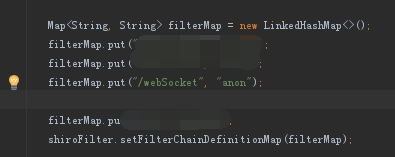
if it is not the problem can look for the background does not open access what
if the address was wrong will directly at 404 mistakes, instead of 200
Category Archives: How to Fix
Using xrdp to realize windows remote desktop Ubuntu Linux
In general, we use SSH client to remotely log in Linux system. As for Linux remote login tools under the graphical interface, we usually think of VNC, but its security is not enough.
Here, I introduce the XRDP installation configuration method. We can easily use Windows remote desktop Linux.
XRDP installation configuration method
Open terminal: Install in turn
sudo apt-get install xrdp
sudo apt-get install vnc4server tightvncserver
Set the XRDP
echo “gnome-session –session=gnome-classic” > ~/.xsession
Ubuntu12.04 has unity and gnome multiple desktop managers. You need to specify one when you start up, otherwise
Even if the remote login is successful, it is only background.
XRDP’s configuration documents are in the /etc/xrdp directory of xrdp.ini and Sesman.in, generally selected by default.
Restart XRDP
sudo /etc/init.d/xrdp restart
Run MSTSC for Windows
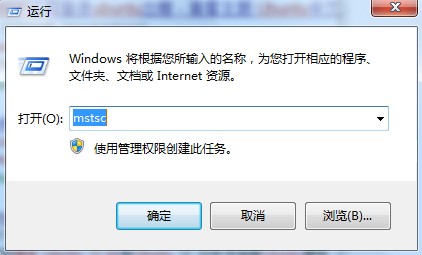
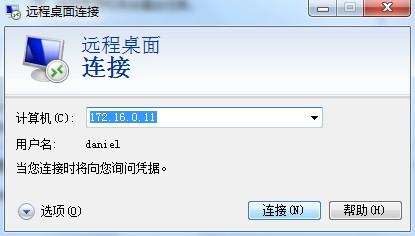
Windows remote desktop, open the input remote Ip, connection, enter the user password can be remote Linux.
Error encountered
1, XRDP access to Ubuntu only see the background, not the menu bar solution
Gnome-panel
sudo apt-get install gnome-panel
2, Failed to load session “gnome”
Try
on the desktop with ubuntu-2d
Type the command: echo “gnome-session — session= Ubuntu-2D “> ~/.xsession, and then restart XRDP.
3. Error:
Possiblitie to sesman IP 127.0.0.1 port 3350
sesman connect ok
sending login info to sesman
login successful for display 14
connecting to 127.0.0.1 5914
error – problem connecting
XRDP – Sesman. log, error:
[INFO ] starting Xvnc session…
[ERROR] X server for display 10 startup timeout[INFO ] starting xrdp-sessvc – xpid=2924 – wmpid=2923
[ERROR] X server for display 10 startup timeout
[ERROR] another Xserver is already active on display 10
[DEBUG] aborting connection…
if your log also has things like Xserver for display 10 startup timeout and another Xserver is already active on display 10
The root cause of the problem is TightvNC. The version in question conflicts with the X font, causing an error in connection to the Xserver.
Solutions:
apt-get purge tightvnc xrdp
apt-get install tightvncserver xrdp
Finally:
Start the XRDP service, sudo /etc/init.d/ XRDP restart, at which point the port is enabled and the aspect is configured by default.
By command: netstat -tnl
Check 3350 3389 5910 these three ports in LISTEN, generally no problem.
The name of the DPkg-L + package that tells you what files the package contains.
4, ubuntu 13.10 and later without background:
Thanks for the Suggestions in the comments:
XRDP does not support 13.10 GNOME. The solution is to install an XFCE interface.
sudo apt-get install xubuntu-desktop
And then:
echo xfce4-session > ~/.xsession
Set up the configuration file again
sudo gedit /etc/xrdp/startwm.sh
Insert
xfce4-session on the front line of./etc/x11/xsession
Restart XRDP
sudo service XRDP
Python has a bus error while importing tensorflow
Bus error occurred when Python was importing tensorFlow, as shown in the figure below:

This problem is usually caused by CUDNN, but for the building owner, it is caused by incomplete decompression of CUDNN
Reextract THE CUDnn and complete the installation
This problem is usually caused by CUDNN, but for the building owner, it is caused by incomplete decompression of CUDNN
Reextract THE CUDnn and complete the installation
Problems in compiling and using node FFI under electron
The project needed to load DLLS in NodeJS, learned that the easiest solution was to use Node-FFI, and then started a half-day of novice tramp.
This problem occurs when NPM install FFI sets up the project
This problem occurs when NPM install FFI sets up the project
error: no member named 'ForceSet' in 'v8::Object'After checking on the official website, the author indicated that FFI does not support nodeJS 10 or above at present. Then I researched and walked through a lot of pothoods and found electronrebuild, which actually automatically goes down the corresponding Node header file and lib according to the electron version and platform version used in your project, and successfully solved the COMPILATION problem of FFI. After that, I tried to package and release, but there was another problem. Debugging code in Vscode was running well, and lifting directly with Electron. Exe would indicate that dynamic library loading failed
ffi.Library('./libfactorial'This DLL loading code, please use the absolute path, modify the dynamic scheme, done
npm ERR! Error: EPERM: operation not permitted, open ‘C:\Program Files\nodejs\node_ Solution to cache / xxx
Problem: When installing NPM I VUe-CLI-g, an error is reported as the problem message
General solutions (for Windows 10) :
Method 1: Click the search button at the bottom left of the screen, search for the keyword ‘command prompt’, right-click, and run as an administrator.
Method two: right click window badge or Window + X in the lower left of the screen, run as an administrator (Windows PowerShell (administrator)), you can.
This method is suitable for permission problems.
An error is reported when you open HTTPS with the following error code: SSL_ error_ ssl_ Disabled) (solved)
To connect to Oracle’s EM console recently, use the Firefox browser.
It always fails to connect:
https://124.13.23.23:1158/em
Error: Unable to secure connection because SSL protocol is disabled. (SSL_error_sSL_disabled)
Check on the AIX system that the EM service has been started:
Hgsdfe01 :[/oracle]$emctl status dbconsole
oracle Enterprise Manager 11g Database Control Release 11.2.0.1.0
Copyright (c) 1996, 2009 Oracle Corporation. All rights reserved.
It always fails to connect:
https://124.13.23.23:1158/em
Error: Unable to secure connection because SSL protocol is disabled. (SSL_error_sSL_disabled)
Check on the AIX system that the EM service has been started:
Hgsdfe01 :[/oracle]$emctl status dbconsole
oracle Enterprise Manager 11g Database Control Release 11.2.0.1.0
Copyright (c) 1996, 2009 Oracle Corporation. All rights reserved.
https://hgdss01:1158/em/console/aboutApplication Oracle Enterprise Manager 11 g is running.
——————————————————————
Logs are generated in directory /oracle/app/oracle/product/11g/db/hgdsfe01_sfedev/sysman/log
Em has been started.
Solutions:
1: Download the latest Firefox browser: 3.6.12
2: Tools — options — Advanced — encryption
3: Check: Use TLS1.0
4: Click OK
5: Turn off Firefox from now on.
Solutions to the problems of unsuccessful installation of winpcap4.13 under win10
A, Win10 installation winPCAP4.13 prompt as follows:
WinPcap 4.1.3 is already installed on this machine.
Press Ok if you want to force the installation, or Cancel if you want to
abort the installation.
has been uninstalled.
delete the following file to
c:\ Windows \system32\Packet. DLL
c:\ Windows \system32\drivers/ NPF. Sys
c:\ Windows \system32\WanPacket. DLL
:\ Windows \system32\wpcap.dll
C :\ Windows \system32\ pthreadvc. DLL
in fact, I only deleted packet. DLL and wpcap. DLL and then the normal installation 3.01.
ii, win10 installation WinPcap4.13 when the following picture prompts, can not be installed
Error opening file for writing:
C:\Windows\system32\wpcap.dlI
Click Abort to stop the itltin,
Retry to try again, or
Ignore to skip this file.
Old
C:\Windows\SysWOW64’s wpcap.dll change to wpcap.dll.
C:\Windows\SysWOW64’s packet. DLL change to packet. DLL. Any use of WinPCap is incomplete
CUDA error:out of memory
Today, when I was running the program, I kept reporting this error, saying that I was out of CUDA memory. After a long time of debugging, it turned out to be
At first I suspected that the graphics card on the server was being used, but when I got to mvidia-SMi I found that none of the three Gpus were used. That question is obviously impossible. So why is that?
Others say the TensorFlow and Pytorch versions conflict. ?????I didn’t get TensorFlow
The last reference the post: http://www.cnblogs.com/jisongxie/p/10276742.html
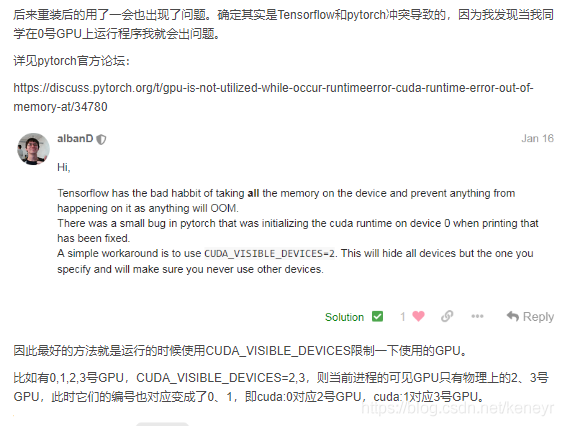
Yes, Like the blogger, I’m also using a No. 0 GPU, so I don’t know why my Pytorch process works. I can only see a no. 2 GPU physically, I don’t have a no. 3 GPU. So something went wrong?
So I changed the code so that PyTorch could see all the Gpus on the server:
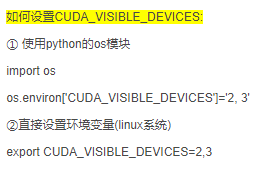
OS. Environ [‘ CUDA_VISIBLE_DEVICES] = ‘0’
Then on the physics of no. 0 GPU happily run up ~~~
At first I suspected that the graphics card on the server was being used, but when I got to mvidia-SMi I found that none of the three Gpus were used. That question is obviously impossible. So why is that?
Others say the TensorFlow and Pytorch versions conflict. ?????I didn’t get TensorFlow
The last reference the post: http://www.cnblogs.com/jisongxie/p/10276742.html
Yes, Like the blogger, I’m also using a No. 0 GPU, so I don’t know why my Pytorch process works. I can only see a no. 2 GPU physically, I don’t have a no. 3 GPU. So something went wrong?
So I changed the code so that PyTorch could see all the Gpus on the server:
OS. Environ [‘ CUDA_VISIBLE_DEVICES] = ‘0’
Then on the physics of no. 0 GPU happily run up ~~~
A JavaScript error occured in the main process
As shown in the figure, when opening A certain software, the occured error of
A JavaScript error occured in the main process
Uncaught Exception:
error: be Unable to find A valid app
at Object.< anonymous> (E: \ \ Program Files \ (x86)… \ resources \ electron asar \ browser \ init js: 121:
9 at the Object
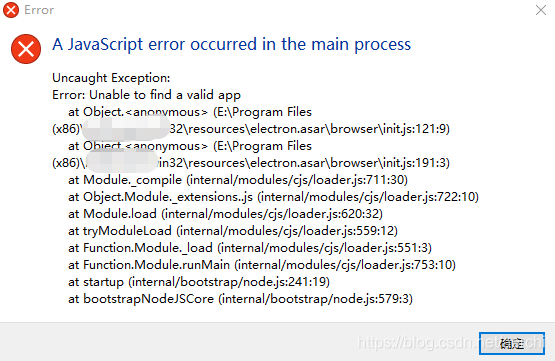
Solution: Redownload the latest version of the program and install it.
A JavaScript error occured in the main process
Uncaught Exception:
error: be Unable to find A valid app
at Object.< anonymous> (E: \ \ Program Files \ (x86)… \ resources \ electron asar \ browser \ init js: 121:
9 at the Object
Solution: Redownload the latest version of the program and install it.
This error may also indicate that the docker daemon is not running.
Running error reporting after installing Docker Toolbox:
$ docker ps
error during connect: Get http://%2F%2F.%2Fpipe%2Fdocker_engine/v1.37/containers/json: open //./pipe/docker_engine: The system cannot find the file specified. In the default daemon configuration on Windows, the docker client must be run elevated to connect. This error may also indicate that the docker daemon is not running.
Run command:
$ docker-machine create boxCreate a Docker image
$ docker-machine create box
Running pre-create checks...
Creating machine...
(box) Copying C:\Users\Administrator\.docker\machine\cache\boot2docker.iso to C:\Users\Administrator\.docker\machine\machines\box\boot2docker.iso...
(box) Creating VirtualBox VM...
(box) Creating SSH key...
(box) Starting the VM...
(box) Check network to re-create if needed...
(box) Windows might ask for the permission to create a network adapter. Sometimes, such confirmation window is minimized in the taskbar.
(box) Found a new host-only adapter: "VirtualBox Host-Only Ethernet Adapter #3"
(box) Windows might ask for the permission to configure a network adapter. Sometimes, such confirmation window is minimized in the taskbar.
(box) Windows might ask for the permission to configure a dhcp server. Sometimes, such confirmation window is minimized in the taskbar.
(box) Waiting for an IP...
Detailed installation procedures for Docker Toolbox refer to the official documentation:
https://docs.docker.com/toolbox/toolbox_install_windows/
The software licensing service reported that the product SKU is not found
Today I reinstalled the office computer system, the previous one has been used for more than 3 years, win10 is still good!! Ha ha
Open the giant hard download address: https://www.microsoft.com/zh-cn/software-download/windows10
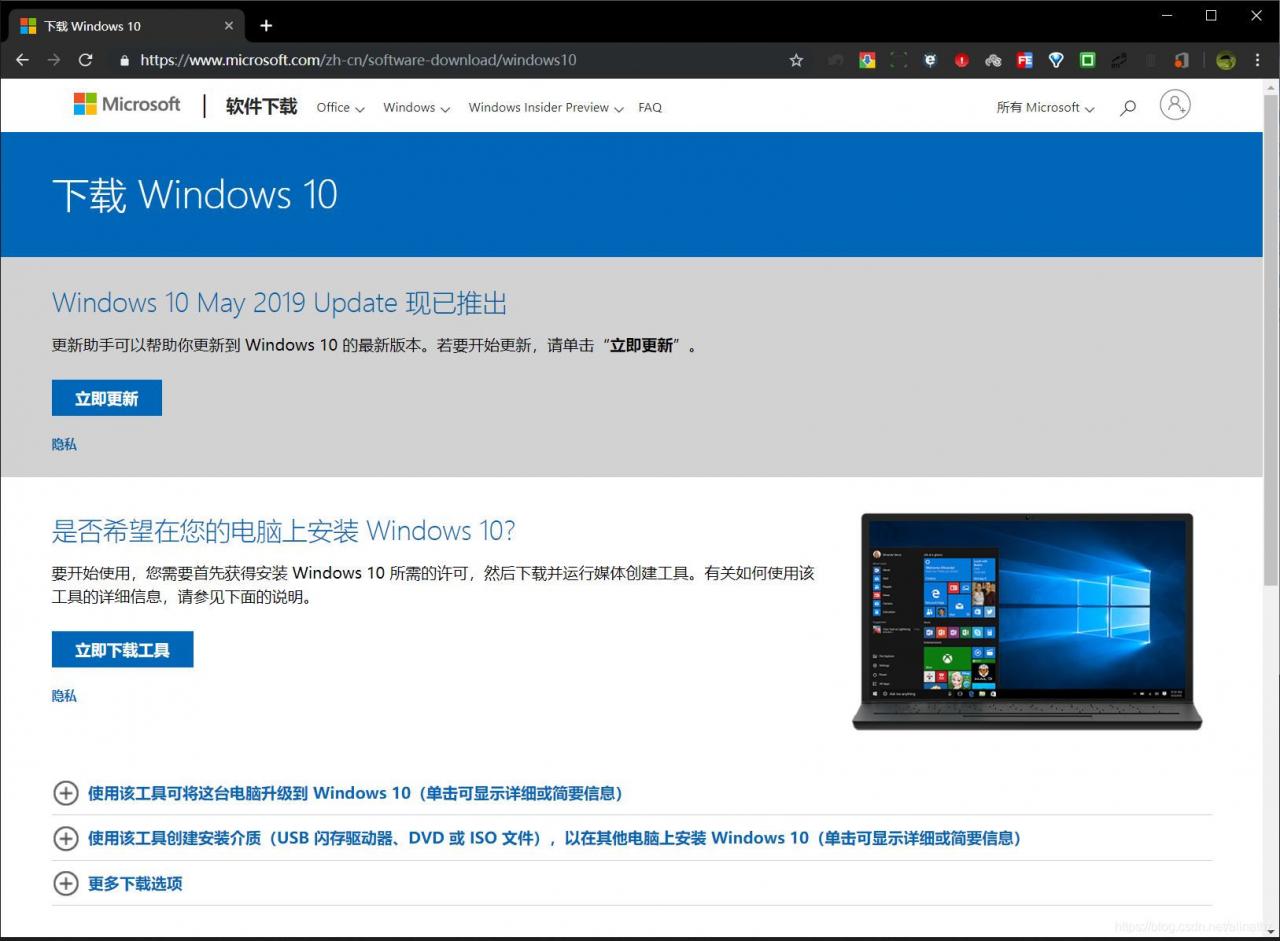
the above update now, you can update the current win10 system to the latest version, I dropped the X1 also upgrade to 1903.
Click “Download tool now” to download the program. After downloading, plug in the USB flash disk of more than 8G (drop the format first) and run the downloaded program. After a while, the installation program of the system will be automatically burned into the USB flash disk. (Used to download the ISO image to MSDN. Itellyou.cn, and then burn it to a USB flash disk with other software…)
How to install skip over.
In order to catch up with the new ones, 2016 was installed in Office and activated with KMS (the self-built KMS server was placed in the internal network). When the serial number was imported in the first step of activation, an error occurred:
---Processing--------------------------
ERROR CODE: 0xC004F069
ERROR DESCRIPTION: The Software Licensing Service reported that the product SKU is not found.
---Exiting-----------------------------
Baidu can not find the answer, only with the omnipotent Google, a search, in the second to find a solution!! Baidu… I go to…
this is not an error in VLMCSD, this is a problem with Office. If you don’t have a volume license SKU installed on your system, open the C:\Program Files\Microsoft Office\root\icenses16 folder, which should be a pile of XRM-MS Files. If so, the following batch file will install the license certificate for you:
@echo off
:ADMIN
openfiles >nul 2>nul ||(
echo CreateObject^("Shell.Application"^).ShellExecute "%~s0", "", "", "runas", 1 >> "%temp%\getadmin.vbs"
"%temp%\getadmin.vbs" >nul 2>&1
goto:eof
)
del /f /q "%temp%\getadmin.vbs" >nul 2>nul

for /f "tokens=6 delims=[]. " %%G in ('ver') do set win=%%G

setlocal

set OPPKEY=XQNVK-8JYDB-WJ9W3-YJ8YR-WFG99
set PPKEY=YG9NW-3K39V-2T3HJ-93F3Q-G83KT
set VPKEY=PD3PC-RHNGV-FXJ29-8JK7D-RJRJK
set S4BKEY=869NQ-FJ69K-466HW-QYCP2-DDBV6

pushd "%~dp0"
Title Office 2016 Retail to Volume License Converter

SET OfficePath=%ProgramFiles%\Microsoft Office
if not exist "%OfficePath%\root\Licenses16" SET OfficePath=%ProgramFiles(x86)%\Microsoft Office
if not exist "%OfficePath%\root\Licenses16" (
	echo Could not find the license files for Office 2016!
	pause
	goto :eof
)

echo Press Enter to start VL-Conversion...
echo.
pause
echo.
cd /D "%SystemRoot%\System32"

if %win% GEQ 9200 (
	cscript slmgr.vbs /ilc "%OfficePath%\root\Licenses16\ProPlusVL_KMS_Client-ppd.xrm-ms"
	cscript slmgr.vbs /ilc "%OfficePath%\root\Licenses16\ProPlusVL_KMS_Client-ul.xrm-ms"
	cscript slmgr.vbs /ilc "%OfficePath%\root\Licenses16\ProPlusVL_KMS_Client-ul-oob.xrm-ms"

	cscript slmgr.vbs /ilc "%OfficePath%\root\Licenses16\ProjectProVL_KMS_Client-ppd.xrm-ms"
	cscript slmgr.vbs /ilc "%OfficePath%\root\Licenses16\ProjectProVL_KMS_Client-ul-oob.xrm-ms"
	cscript slmgr.vbs /ilc "%OfficePath%\root\Licenses16\ProjectProVL_KMS_Client-ul.xrm-ms"

	cscript slmgr.vbs /ilc "%OfficePath%\root\Licenses16\VisioProVL_KMS_Client-ppd.xrm-ms"
	cscript slmgr.vbs /ilc "%OfficePath%\root\Licenses16\VisioProVL_KMS_Client-ul-oob.xrm-ms"
	cscript slmgr.vbs /ilc "%OfficePath%\root\Licenses16\VisioProVL_KMS_Client-ul.xrm-ms"

	cscript slmgr.vbs /ilc "%OfficePath%\root\Licenses16\SkypeforBusinessVL_KMS_Client-ppd.xrm-ms"
	cscript slmgr.vbs /ilc "%OfficePath%\root\Licenses16\SkypeforBusinessVL_KMS_Client-ul.xrm-ms"
	cscript slmgr.vbs /ilc "%OfficePath%\root\Licenses16\SkypeforBusinessVL_KMS_Client-ul-oob.xrm-ms"

	cscript slmgr.vbs /ilc "%OfficePath%\root\Licenses16\client-issuance-bridge-office.xrm-ms
	cscript slmgr.vbs /ilc "%OfficePath%\root\Licenses16\client-issuance-root.xrm-ms
	cscript slmgr.vbs /ilc "%OfficePath%\root\Licenses16\client-issuance-root-bridge-test.xrm-ms
	cscript slmgr.vbs /ilc "%OfficePath%\root\Licenses16\client-issuance-stil.xrm-ms
	cscript slmgr.vbs /ilc "%OfficePath%\root\Licenses16\client-issuance-ul.xrm-ms
	cscript slmgr.vbs /ilc "%OfficePath%\root\Licenses16\client-issuance-ul-oob.xrm-ms
	cscript slmgr.vbs /ilc "%OfficePath%\root\Licenses16\pkeyconfig-office.xrm-ms
)
 if %win% LSS 9200 (
	cscript "%OfficePath%\Office16\ospp.vbs" /inslic:"%OfficePath%\root\Licenses16\ProPlusVL_KMS_Client-ppd.xrm-ms"
	cscript "%OfficePath%\Office16\ospp.vbs" /inslic:"%OfficePath%\root\Licenses16\ProPlusVL_KMS_Client-ul.xrm-ms"
	cscript "%OfficePath%\Office16\ospp.vbs" /inslic:"%OfficePath%\root\Licenses16\ProPlusVL_KMS_Client-ul-oob.xrm-ms"

	cscript "%OfficePath%\Office16\ospp.vbs" /inslic:"%OfficePath%\root\Licenses16\ProjectProVL_KMS_Client-ppd.xrm-ms"
	cscript "%OfficePath%\Office16\ospp.vbs" /inslic:"%OfficePath%\root\Licenses16\ProjectProVL_KMS_Client-ul-oob.xrm-ms"
	cscript "%OfficePath%\Office16\ospp.vbs" /inslic:"%OfficePath%\root\Licenses16\ProjectProVL_KMS_Client-ul.xrm-ms"

	cscript "%OfficePath%\Office16\ospp.vbs" /inslic:"%OfficePath%\root\Licenses16\VisioProVL_KMS_Client-ppd.xrm-ms"
	cscript "%OfficePath%\Office16\ospp.vbs" /inslic:"%OfficePath%\root\Licenses16\VisioProVL_KMS_Client-ul-oob.xrm-ms"
	cscript "%OfficePath%\Office16\ospp.vbs" /inslic:"%OfficePath%\root\Licenses16\VisioProVL_KMS_Client-ul.xrm-ms"0

	cscript "%OfficePath%\Office16\ospp.vbs" /inslic:"%OfficePath%\root\Licenses16\SkypeforBusinessVL_KMS_Client-ppd.xrm-ms"
	cscript "%OfficePath%\Office16\ospp.vbs" /inslic:"%OfficePath%\root\Licenses16\SkypeforBusinessVL_KMS_Client-ul.xrm-ms"
	cscript "%OfficePath%\Office16\ospp.vbs" /inslic:"%OfficePath%\root\Licenses16\SkypeforBusinessVL_KMS_Client-ul-oob.xrm-ms"

	cscript "%OfficePath%\Office16\ospp.vbs" /inslic:"%OfficePath%\root\Licenses16\client-issuance-bridge-office.xrm-ms
	cscript "%OfficePath%\Office16\ospp.vbs" /inslic:"%OfficePath%\root\Licenses16\client-issuance-root.xrm-ms
	cscript "%OfficePath%\Office16\ospp.vbs" /inslic:"%OfficePath%\root\Licenses16\client-issuance-root-bridge-test.xrm-ms
	cscript "%OfficePath%\Office16\ospp.vbs" /inslic:"%OfficePath%\root\Licenses16\client-issuance-stil.xrm-ms
	cscript "%OfficePath%\Office16\ospp.vbs" /inslic:"%OfficePath%\root\Licenses16\client-issuance-ul.xrm-ms
	cscript "%OfficePath%\Office16\ospp.vbs" /inslic:"%OfficePath%\root\Licenses16\client-issuance-ul-oob.xrm-ms
	cscript "%OfficePath%\Office16\ospp.vbs" /inslic:"%OfficePath%\root\Licenses16\pkeyconfig-office.xrm-ms
)

for %%a in (%OPPKEY% %PPKEY% %VPKEY% %S4BKEY%) do cscript "%OfficePath%\Office16\ospp.vbs" /inpkey:%%a
cscript "%OfficePath%\Office16\ospp.vbs" /act

echo.
echo Retail to Volume License conversion finished.
echo.
pause
If you can’t find the certificate in the C:\Program Files\Microsoft Office\root\icenses16 folder, you are advised to install 2013!!
Copy down the above code, mail a BAT batch file, paste up to run it!!
[SQLITE_ Error] SQL error or missing database (table users already exists)
The problem I had with SQLite was that my table had been deleted, but this error was still prompted.
Solution:
Disconnect the database and rerun the statement
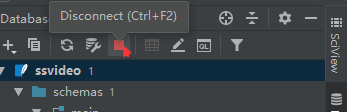
Solution:
Disconnect the database and rerun the statement