Integration of Tomcat tutorials with IntelliJ IDEA Community edition
The first step:
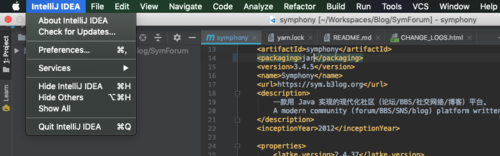
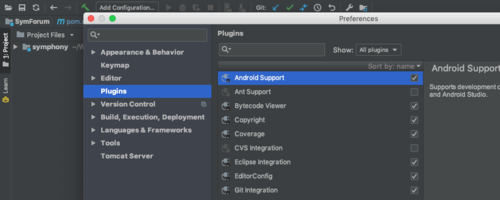
Open Intellij IDEA -& GT; Preference -> Plugins
The second step:
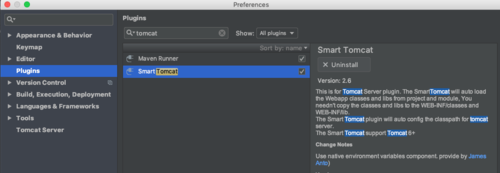
Search Tomcat/Jetty in the Plugins search box, and you see the following:
Step 3:
Select the Smart Tomcat plug-in, there is a green Install button on the right side, click to install, and restart IDEA after installation.
Step 4:
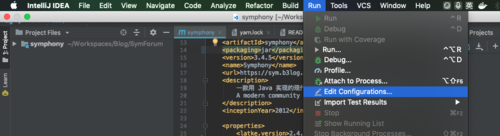
On the top menu bar Run -> Edit Configurations configuration environment variable:
Step 5:
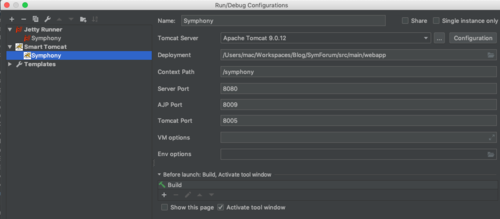
Set the path of Tomcat Server, Webapps, etc. :
Name: Project Name
Tomcat: Tomcat path
Deployment: The path of WebApps
Context Path: Context Path, this will be recognized automatically, and you generally don’t need to modify it
Server Port: Server listening Port 8080 (generally modified by yourself)
VM Options: Java Virtual Machine parameter Settings (optional)
PS: Click the + sign in the upper right corner. Select Smart Tomcat from the Templates Templates. You can also select Jetty, which can be Run/Debug online
Step 6:
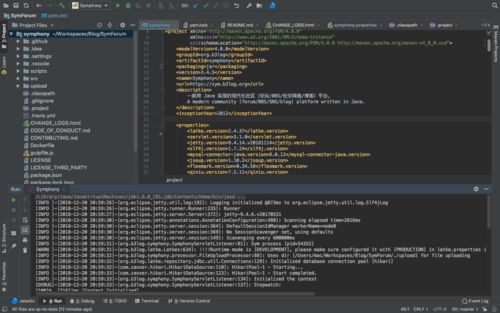
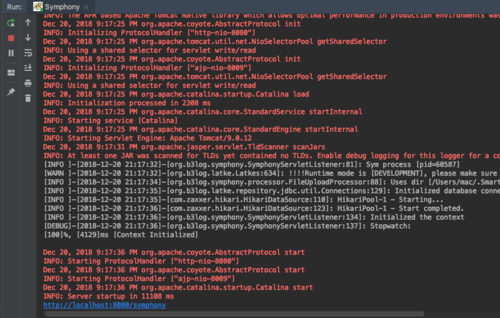
To run the sample program, you’ll see the Tomcat icon in the toolbar, then the run/debug button on the right green, the stop button in red, click the Green run or Debug button to start the container, and under IDEA, the print log will appear
Step 6:
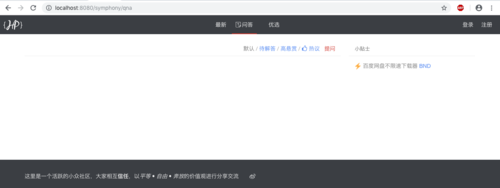
Open a browser, and then visit just set the address, http://localhost:8080/symphony
The port number 8080 is set when Tomcat Server is configured
Project Name Symphony is also set when configuring Tomcat Server. The sample interface is as follows:
Above step, you can run, in addition to this example to demonstrate the source code of the project, this open source project first AGPL protocol limits, please use within the limits of the protocol:
https://github.com/b3log/symphony
Similarities:
The C++ character processing function, the numeric string into an int output
Header files are #include< cstring>
Difference:
Atoi () is const char*, so we must call c_str() to const char* for a string STR. Stoi () is const string*, const char* is not required.
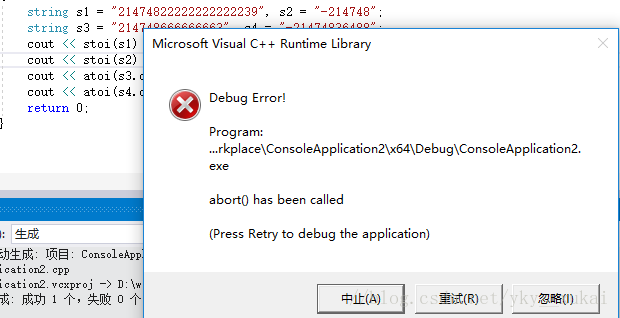
As shown in figure:
Stoi () will do the scope check, the default scope is within the scope of int, if beyond the scope will be runtime error!
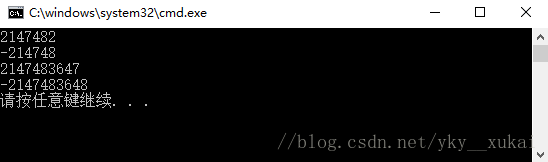
As shown in figure:
Atoi () will not check the range. If it exceeds the range, it will output the upper limit, and if it exceeds the lower limit, it will output the lower limit.
Code:
Install Google Chrome The easiest way to install google chrome on you Kali Linux is to by use of gdebi which will automatically download all depended packages. First, install gdebi:
# apt install gdebi-core
Once ready, install the actual google chrome package:
# gdebi google-chrome-stable_current_amd64.deb
Start Google Chrome To start Google Chrome, open up a terminal and run google-chrome command:
Python implements Bilibili(B station) video download
Project making address: https://github.com/Henryhaohao/Bilibili_video_download
Bilibili website – https://www.bilibili.com/
Author
?Henryhaohao?
Email
1073064953 @qq.com has ️
?disclaimer
The software is for learning and communication only, please do not use it for any commercial purposes! Thank you all!
?introduce
This project is a video download for Bilibili(B station)
Project description: download bilibili_video_download.py from the video crawler file under the AV number of station B or the video link address
?Runtime environment
Version: Python3
?Install dependency libraries
pip3 install -r requirements.txt
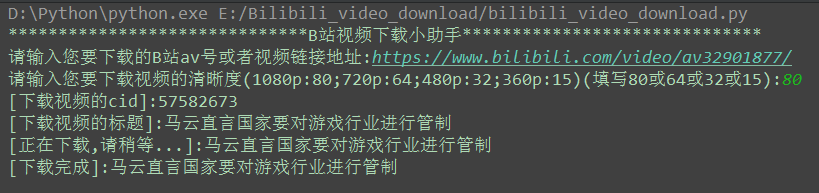
?Run a screenshot
Run download
download complete
?conclusion
Finally, if you think this project is good or helpful to you, give a Star, which is also a kind of encouragement for my study!
Ha ha ha, thank you all! Lead yo ~ * *??
Reproduced indicate the source: http://write.blog.csdn.net/postlist
Method one:
findpeaks function
PKS = findpeaks(data)
[PKS,locs] = findpeaks(data) — the number of peaks corresponding to PKS and locs
[…] = findpeaks(data,’minpeakheight’, MPH)– MPH sets the minimum peakheight
[…] = findpeaks(data,’minpeakdistance’, MPD)– MPD sets the minimum interval between two peaks
[…] = findpeaks(data,’threshold’,th)
[…] = findpeaks(data,’npeaks’,np)
[…] = findpeaks(data,’sortstr’, STR)
the command findpeaks is used to findpeaks of a vector that is greater than the value of two adjacent elements. for example: a=[1 3 2 5 6 8 5 3]; findpeaks(a), returns 3 8 [v,l]= findbb2 (a), returns v=3 8 l=2 6 if a is a matrix, the values and locations of the peaks are listed in column search order.
For more information, see Help FindPeaks
Disadvantages:
You can only find the peak, you can’t find the trough.
Reproduced indicate the source: http://write.blog.csdn.net/postlist
http://www.mkyong.com/hibernate/how-to-call-store-procedure-in-hibernate/
In this tutorial, you will learn how to call a store procedure in Hibernate.
MySQL store procedure
Here’s a MySQL store procedure, which accept a stock code parameter and return the related stock data.
SQL
DELIMITER $$

CREATE PROCEDURE `GetStocks`(int_stockcode varchar(20))
BEGIN
   SELECT * FROM stock where stock_code = int_stockcode;
   END $$

DELIMITER ;
In MySQL, you can simple call it with a call keyword :
SQL
CALL GetStocks('7277');
Hibernate call store procedure
In Hibernate, there are three approaches to call a database store procedure.
1. Native SQL – createSQLQuery
You can use createSQLQuery() to call a store procedure directly.
Query query = session.getNamedQuery("callStockStoreProcedure")
	.setParameter("stockCode", "7277");
List result = query.list();
for(int i=0; i<result.size(); i++){
	Stock stock = (Stock)result.get(i);
	System.out.println(stock.getStockCode());
}
Conclusion
The above three approaches are doing the same thing, call a store procedure in database. There are not much big different between the three approaches, which method you choose is depend on your personal prefer.
Reverse digits of an integer.
Example1: x = 123, return 321 Example2: x = -123, return -321
click to show spoilers.
[thinking]
This problem seems simple, but there are more pits.
Integer inversion is a simple problem, but overflow needs to be dealt with.
Save the result as a long, returning 0 if it is greater than the integer maximum or less than the negative minimum
[code]
public class Solution {
    public int reverse(int x) {
		if (x == 0) {
			return 0;
		}

		int sign = 1;
		if (x < 0) {
			sign = -1;
		}
		long result = 0;
		long t = Math.abs((long) x);

		while (t != 0) {
			result = result * 10 + t % 10;
			;
			t /= 10;
		}

		if ((sign == 1 && result > Integer.MAX_VALUE)
				|| (sign == -1 && sign * result < Integer.MIN_VALUE)) {
			return 0;
		}
		return sign * (int) result;
    }
}
A detailed description of the BLOB download problem
I want to use the SRC url blob:https%3A//www.youtube.com/23aea5c8-9ae2-40dc-9417-e675ea99b386 download video, but I don't know how to do it.
Is there a general way to download this kind of video?
Recommended solutions
I found a way to download a video using the blob url in Vimeo (I didn't know how until I read this article). I'm using Google Chrome. Here are the steps:
open More Tools> Developer Tools check if there is something like this in the video tag:
Copy the iframe SRC (if any) value of the label, such as http://player.vimeo.com/video/XYZ , if you find that it can be replicated, jump straight to point 7, otherwise in accordance with the step 4 and 6 to continue operating. Now find the string in the page https://skyfire.vimeocdn.com/... /master.json?Base64_init =1(using the Developer View), it should be found in the javascript function, like this:
Force a.akamaihd.net/... copy the link from the url field above to a new Chrome TAB, such as https://48skyfiregce-a.akamaihd.net/... /master.json?Base64_init =1, then open it with a browser, it will open a json file like this:
Use id now XYZ combination structure a URL, as shown in the following: https://player.vimeo.com/video/XYZ are replaced with the final URL video tag within the blob:https://player.vimeo.com/XXXXXXXX-XXXX-XXXX-XXXX-XXXXXXXXXXXX (created in the previous step # 6). Now you can see that, magically, the SRC field inside the video tag has changed (if not, try Step 7 multiple times)...
Finally, using the new link to download it directly, like this: https://fpdl.vimeocdn.com/vimeo-prod-skyfire-std-us/XX/XXX/X/XXXXXXXX/XXXXXXXXX.mp4?token=abcdefg
Other solutions
The answer is for the Twitter url -
right click on the video, then click check element -
You'll find code like this
<div id="playerContainer" class="player-container full-screen-enabled" data-config="{"is_360":false,"duration":28617,"scribe_widget_origin":true,"heartbeatEnabled":true,"video_url":"https:\/\/video.twimg.com\/ext_tw_video\/844504104512749568\/pu\/pl\/e91Du5N2TZ09ZaW_.m3u8","disable_embed":"0","videoInfo":{"title":null,"description":null,"publisher":{"screen_name":"MountainButorac","name":"Mountain Butorac","profile_image_url":"https:\/\/pbs.twimg.com\/profile_images\/808318456701521920\/vBvlAASx_normal.jpg"}},"cardUrl":"https:\/\/t.co\/SdSorop3uN","content_type":"application\/x-mpegURL","owner_id":"14120461","looping_enabled":true,"show_cookie_override_en":true,"visit_cta_url":null,"scribe_playlist_url":"https:\/\/twitter.com\/MountainButorac\/status\/844505243538931714\/video\/1","source_type":"consumer","image_src":"https:\/\/pbs.twimg.com\/ext_tw_video_thumb\/844504104512749568\/pu\/img\/FFt3qkbeOh0RlGfZ.jpg","heartbeatIntervalInMs":5000.0,"use_tfw_live_heartbeat_event_category":true,"video_loading_timeout":45000.0,"status":{"created_at":"Wed Mar 22 11:05:14 +0000 2017","id":844505243538931714,"id_str":"844505243538931714","text":"Took my Goddaughter to meet the pope. She stole his hat! https:\/\/t.co\/SdSorop3uN","truncated":false,"entities":{"hashtags":[],"symbols":[],"user_mentions":[],"urls":[],"media":[{"id":844504104512749568,"id_str":"844504104512749568","indices":[57,80],"media_url":"http:\/\/pbs.twimg.com\/ext_tw_video_thumb\/844504104512749568\/pu\/img\/FFt3qkbeOh0RlGfZ.jpg","media_url_https":"https:\/\/pbs.twimg.com\/ext_tw_video_thumb\/844504104512749568\/pu\/img\/FFt3qkbeOh0RlGfZ.jpg","url":"https:\/\/t.co\/SdSorop3uN","display_url":"pic.twitter.com\/SdSorop3uN","expanded_url":"https:\/\/twitter.com\/MountainButorac\/status\/844505243538931714\/video\/1","type":"photo","sizes":{"small":{"w":340,"h":604,"resize":"fit"},"thumb":{"w":150,"h":150,"resize":"crop"},"large":{"w":576,"h":1024,"resize":"fit"},"medium":{"w":576,"h":1024,"resize":"fit"}}}]},"source":"\u003ca href=\"http:\/\/twitter.com\/download\/iphone\" rel=\"nofollow\"\u003eTwitter for iPhone\u003c\/a\u003e","in_reply_to_status_id":null,"in_reply_to_status_id_str":null,"in_reply_to_user_id":null,"in_reply_to_user_id_str":null,"in_reply_to_screen_name":null,"geo":null,"coordinates":null,"place":null,"contributors":null,"retweet_count":0,"favorite_count":0,"favorited":false,"retweeted":false,"possibly_sensitive":false,"lang":"en"},"show_cookie_override_all":true,"video_session_enabled":false,"media_id":"844504104512749568","view_counts":null,"statusTimestamp":{"local":"4:05 AM - 22 Mar 2017"},"media_type":1,"user":{"screen_name":"MountainButorac","name":"Mountain Butorac","profile_image_url":"https:\/\/pbs.twimg.com\/profile_images\/808318456701521920\/vBvlAASx_bigger.jpg"},"watch_now_cta_url":null,"tweet_id":"844505243538931714"}" data-source-type="consumer">
Copy the above code and paste it into Notepad++ (Notepad++), then replace all & with "; quot; , replace all and \/ with /. (use CTRL + H)
You'll get something like this
The problem here is that after August 1, 2016, Twitter stopped using.MP4 video and instead converted to a new HLS, adaptive streaming format with a.m3u8 file extension.
The.m3u8 files are basically just a wrapper around the text, and they are very small (300-500 bytes). When you open them with a text editor, they contain links to different video sizes
in Notepad++ (Notepad++) open the file m3u8, which will contain the code
EXTM3U EXT-X-INDEPENDENT-SEGMENTS EXT - X - STREAM - INF: PROGRAM - ID = 1, BANDWIDTH = 256000, RESOLUTION = 180 x320 CODECS = "mp4a. 40.2, avc1.42001 f"/ext_tw_video/844504104512749568/pu/pl/180 x320/_Z42SY5zwMlLdFYx m3u8 EXT - X - STREAM - INF: PROGRAM - ID = 1, BANDW IDTH = 832000, 360 x640 RESOLUTION =, CODECS = "mp4a. 40.2, avc1.42001 f"/ext_tw_video/844504104512749568/pu/pl/360 x640/- Phfjbbx2yinirLi. M3u8
copy the corresponding link from above according to the resolution you need. Repeat the same steps until you have a.ts file. Download the.TS file (video file).






 download complete