Category Archives: How to Fix

How to Use Apt get Command Under Mac OSX

Since I have been in contact with the Ubuntu system before, I am quite familiar with the command sudo apt-get install XXX for a convenient installation software package. I have always felt that Mac is also a Linux system and there should be little difference between Ubuntu. However, today, when using the command sudo apt-get install libxml2, the Mac system reported -bash:apt-get:command not found. Later, I found out that the original apt-get is debian(Ubuntu) package manager, so I continued to query the solution.
Solution 1: Brew is used instead of Apt-GET
What is brew?
Homebrew is a software package management tool on Mac OSX that can be easily installed or uninstalled on the Mac.
How to install?
All you need to do to install is type the following command on the terminal (the Mac comes with Ruby and you don’t need to install it)

ruby -e "$(curl -fsSL https://raw.githubusercontent.com/Homebrew/install/master/install)"

After installation, use brew install libxml2. For more brew features, please use brew --help to view its help documentation.
Solution 2: Fink
What is Fink?
The Fink project hopes to bring a variety of open source software on Unix to the Darwin and Mac OS X platforms. We modified Unix software to compile and run (” port “) on Mac OS X, and provided a convenient distribution system so that everyone could download and use it. Fink USES tools in Debian such as DPKG and Apt-get to provide powerful binary package management. (The above content is from Fink’s official website)
How to install?
1. Open the following link to find the installation method of the corresponding version of OSX
http://www.finkproject.org/download/srcdist.php?PhpLang =zh
my system version is 10.10.3
can be in the upper left corner of the system apple -> About the local view system version
terminal input

More/System/Library/CoreServices/SystemVersion plist output

& lt; key> ProductVersion< /key>
< string> 10.10.3 & lt; /string>

2. Install
As mentioned in the link above, there are two ways to install version 10.10, one is to use a script provided by Fink for automatic installation, and the other is to download the zip for manual installation. I chose the first method, easy and quick 🙂

this address is a github address, I am not familiar with github, I have not found the way to download this file directly –So when I got to the link, I chose to copy the code and pasted it into a file called Install_Fink

chmod +x ./Install_Fink  // Modify the file as an executable
./Install_Fink  // Run the File

The script then checks to see if there are pre-installed xcode-select /Java/XQuartz programs in the system, without prompting for installation, and prompts you to continue by clicking any key or to exit by using Ctrl+ C and entering a password during the run. When the script downloads the Fink installation, it will be prompted with some configuration options. If it is not clear, Enter directly USES the default configuration or selects Y.
our prompt you to some basic installation is complete we lift upgrade has been completed, please run fink update – all take a look at what other have not upgraded, you may find this time after the input prompt can not find fink this command, if in the previous tip configuration Path when you don’t have refused to him, then only need to restart the terminal fink can use before ~ if you turned him down, and run which fink command what all can’t find the words, So you can run the Shell script /sw/bin/pathsetup.sh to configure the Path 🙂
(2) download the installed package
this method I don’t have a try, the installation process and order is the same as the script, specific please refer to the above gives a version of the installation address, probably look at the main steps include install xcode – select – & gt; Decompression package — & GT; Run./the bootstrap – & gt; Set the Path – & gt; Download the description file and the patch
After the installation is complete in terminal input sudo apt - get the install libxml2 </ code> surprise you will find that you can use ~ another Fink is not only a package manager, it also provides many other functions, so far I haven't to explore XD, another during installation to download command select features to install, I don't have to explore deeply ~ everything is waiting for you to read a text to dig too ~ if you have any questions about this article can give me a message, I will try my best to help solve ^. ^

How to Fix Your Timestep

Hello, I’m Glenn Fiedler and welcome to the second article in my series on Game Physics.
In the previous article we discussed how to integrate the equations of motion using an RK4 integrator. Integration sounds complicated but really it’s just a way to advance the your physics simulation forward by some small amount of time called “delta time” (or dt for short).
But how to choose this delta time value? This may seem like a trivial subject but in fact, there are many different ways to do it, each with their own strengths and weaknesses – so read on!
Fixed delta time
The simplest way to step forward is with a fixed delta time, like 1/60th of a second:

    double t = 0.0;
    double dt = 1.0/60.0;

    while ( !quit )
    {
         integrate( state, t, dt );
         render( state );
         t += dt;
    }

In many ways this code is ideal. If you are lucky enough to have your physics delta time match the display rate and you can ensure that your update loop takes less than one frame then you have the perfect solution for updating your physics simulation.
But in the real world you may not know the display refresh rate ahead of time, VSYNC could be turned off, or perhaps you could be running on a slow computer which cannot update and render your frame fast enough to present it at 60fps.
In these cases your simulation will run faster or slower than you intended.
Variable delta time
Fixing this *seems* simple. Just measure how long the previous frame takes, then feed that value back in as the delta time for the next frame. This makes sense because of course, because if the computer is too slow to update at 60HZ and has to drop down to 30fps, you’ll automatically pass in 1/30 as delta time. Same thing for a display refresh rate of 75HZ instead of 60HZ or even the case where VSYNC is turned off on a fast computer:

    double t = 0.0;

    double currentTime = hires_time_in_seconds();

    while ( !quit )
    {
         double newTime = hires_time_in_seconds();
         double frameTime = newTime - currentTime;
         currentTime = newTime;

         integrate( state, t, frameTime );
         t += frameTime;

         render( state );
    }

But there is a huge problem with this approach which I will now explain. The problem is that the behavior of your physics simulation depends on the delta time you pass in. The effect could be subtle as your game having a slightly different “feel” depending on framerate or it could be as extreme as your spring simulation exploding to infinity, fast moving objects tunneling through walls and the player falling through the floor!
One thing is for certain though and that is that it’s utterly unrealistic to just expect your simulation to correctly handle *any* delta time passed into it. To understand why, consider what would happen if you passed in 1/10th of a second as delta time?How about one second?10 seconds?100?Eventually you’ll find a breaking point.
Semi-fixed timestep
It’s much more realistic to say that your simulation is well behaved only if delta time is less than or equal to some maximum value. You can use mathematics to find this exact delta time value given your simulation (there is a whole field on it called numerical analysis, try researching “interval arithmetic” as well if you are keen), or you can arrive at it using a process of experimentation, or by simply tuning your simulation at some ideal framerate that you determine ahead of time. This is usually significantly easier in practice than attempting to make your simulation bulletproof at a wide range of delta time values.
With this knowledge at hand, here is a simple trick to ensure that you never pass in a delta time greater than the maximum value, while still running at the correct speed on different machines:

    double t = 0.0;
    double dt = 1/60.0;

    double currentTime = hires_time_in_seconds();

    while ( !quit )
    {
         double newTime = hires_time_in_seconds();
         double frameTime = newTime - currentTime;
         currentTime = newTime;
          
         while ( frameTime > 0.0 )
         {
             const float deltaTime = min( frameTime, dt );
             integrate( state, t, deltaTime );
             frameTime -= deltaTime;
             t += deltaTime;
         }

         render( state );
    }

The benefit of this approach is of course that we now have an upper bound on delta time. It’s never larger than this value because if it is we subdivide the timestep. The disadvantage is that we’re now taking multiple steps per-display update including one additional step to consume any the remainder of frame time not divisible by dt. This is no problem if you are render bound, but if your simulation is the most expensive part of your frame you could run into problems including the so called “spiral of death”.
What exactly is this spiral of death?It’s what happens when your physics simulation cannot keep up with the steps it’s asked to take. For example, if your simulation is told: “OK, please simulate X seconds worth of physics” and if it takes Y seconds of real time to do so where Y > X, then it doesn’t take Einstein to realize that over time your simulation falls behind. It’s called the spiral of death because ironically being behind causes your update to simulate more steps, which causes you to fall further behind, which makes you simulate more steps…
So how do we avoid this?In order to ensure a stable update I recommend leaving some headroom. You really need to ensure that it takes *significantly less* than X seconds of real time to update X seconds worth of physics simulation. If you can do this then your physics engine can “catch up” from any temporary spike by simulating more frames. Alternatively you can clamp at a maximum # of steps per-frame and the simulation will appear to slow down under heavy load. Arguably this is better than spiraling to death, assuming of course that the heavy load is just a temporary spike.
Free the physics
Now lets take it one step further. What if you want exact reproducibility from one run to the next given the same inputs?This comes in handy when trying to network your physics simulation using deterministic lockstep, but it’s also generally a nice thing to know that your simulation behaves exactly the same from one run to the next without any potential for different behavior depending on the render framerate.
But you ask why is it necessary to have fully fixed delta time to do this?Surely the semi-fixed delta time with the small remainder step is “good enough”?And yes, you are right. It is good enough in most cases but it is not *exactly the same*. It takes only a basic understanding of floating point numbers to realize that (v*dt) + (v*dt) is not necessarily equal to v*2*dt due to to the limited precision of floating point arithmetic, so it follows that in order to get exactly the same result (and I mean exact down to the floating point bits) it is necessary to use a fixed delta time value.
So what we want is the best of both worlds: a fixed delta time value for the simulation plus the ability to render at different framerates. These two things seem completely at odds, and they are – unless we can find a way to decouple the simulation and rendering framerates.
Here’s how to do it. Advance the physics simulation ahead in fixed dt time steps while also making sure that it keeps up with the timer values coming from the renderer so that the simulation advances at the correct rate. For example, if the display framerate is 50fps and the simulation runs at 100fps then we need to take two physics steps every display update.
What if the display framerate is 200fps?Well in this case it would seem that we need to take half a physics step each display update, but we can’t do that, we must advance with constant dt; So instead we must take one physics step every two display updates. Even trickier, what if the display framerate is 60fps, but we want our simulation to run at 100fps?There is no easy multiple here. Finally, what if VSYNC is disabled and the display frame rate fluctuates from frame to frame?
If you head just exploded don’t worry, all that is needed to solve this is to change your point of view. Instead of thinking that you have a certain amount of frame time you must simulate before rendering, flip your viewpoint upside down and think of it like this: The renderer produces time and the simulation consumes it in discrete dt sized chunks.
Again:
The renderer produces time and the simulation consumes it in discrete dt sized chunks.

    double t = 0.0;
    const double dt = 0.01;

    double currentTime = hires_time_in_seconds();
    double accumulator = 0.0;

    while ( !quit )
    {
         double newTime = hires_time_in_seconds();
         double frameTime = newTime - currentTime;
         currentTime = newTime;

         accumulator += frameTime;

         while ( accumulator >= dt )
         {
              integrate( state, t, dt );
              accumulator -= dt;
              t += dt;
         }

         render(state);
    }

Notice that unlike the semi-fixed timestep we only ever integrate with steps sized dt so it follows that in the common case we have some unsimulated time left over at the end of each frame. This is important! This left over time is passed on to the next frame via the accumulator variable and is not thrown away.
The final touch
But what do to with this remaining time?It seems incorrect somehow doesn’t it?
To understand what is going on consider a situation where the display framerate is 60fps and the physics is running at 50fps. There is no nice multiple so the accumulator causes the simulation to alternate between mostly taking one and occasionally two physics steps per-frame when the remainders “accumulate” above dt.
Now consider that in general all render frames will have some small remainder of frame time left in the accumulator that cannot be simulated because it is less than dt. What this means is that we’re displaying the state of the physics simulation at a time value slightly different from the render time. This causes a subtle but visually unpleasant stuttering of the physics simulation on the screen known as temporal aliasing.
The solution is to interpolate between the previous and current physics state based on how much time is left in the accumulator:

    double t = 0.0;
    const double dt = 0.01;

    double currentTime = hires_time_in_seconds();
    double accumulator = 0.0;

    State previous;
    State current;

    while ( !quit )
    {
         double newTime = time();
         double frameTime = newTime - currentTime;
         if ( frameTime > 0.25 )
              frameTime = 0.25;	  // note: max frame time to avoid spiral of death
         currentTime = newTime;

         accumulator += frameTime;

         while ( accumulator >= dt )
         {
              previousState = currentState;
              integrate( currentState, t, dt );
              t += dt;
              accumulator -= dt;
         }

         const double alpha = accumulator/dt;

         State state = currentState*alpha + previousState * ( 1.0 - alpha );

         render( state );
    }

This looks pretty complicated but here is a simple way to think about it. Any remainder in the accumulator is effectively a measure of just how much more time is required before another whole physics step can be taken. For example, a remainder of dt/2 means that we are currently halfway between the current physics step and the next. A remainder of dt*0.1 means that the update is 1/10th of the way between the current and the next state.
We can use this remainder value to get a blending factor between the previous and current physics state simply by dividing by dt. This gives an alpha value in the range [0,1] which is used to perform a linear interpolation between the two physics states to get the current state to render. This interpolation is easy to do for single values and for vector state values. You can even use it with full 3D rigid body dynamics if you store your orientation as a quaternion and use a spherical linear interpolation (slerp) to blend between the previous and current orientations.
Click here to download the source code for this article.
Further reading
Integration Basics
Integration is used to determine the motion of an object over time. In this article I show how to correctly integrate the equations of motion using an RK4 integrator instead of starting off on the wrong foot with a stupid Euler integrator.
Physics in 3D
Leap ahead from integrating single values to integrating the entire physics state for a cube in three dimensions. Introduces rotational physics concepts including orientation in 3D, angular velocity and momentum, inertia and torque.
Spring Physics
Explains the physics of springs and how to apply them to control physics simulations. Learn how to implement joints, constraints, motors and basic collision response.
Networked Physics
How do network games synchronize physics over the network?This article explains the core techniques used in today’s first person shooters and shows how you can apply these techniques to network your own physics simulations.

Error:Execution failed for task ‘:app:processDebugGoogleServices’. > Please fix the version conflict

After integrating Google login and Google map, run the project, report

Error:Execution failed for task ':app:processDebugGoogleServices'.
> Please fix the version conflict either by updating the version of the google-services plugin (information about the latest version is available at https://bintray.com/android/android-tools/com.google.gms.google-services/) or updating the version of com.google.android.gms to 9.0.0.

Look at the project. The build

buildscript {
    repositories {
        jcenter()
    }
    dependencies {
        classpath 'com.android.tools.build:gradle:2.2.3'
        classpath 'com.novoda:bintray-release:0.3.4'
        classpath 'com.google.gms:google-services:3.0.0'
        // NOTE: Do not place your application dependencies here; they belong
        // in the individual module build.gradle files
    }
}

Moreover is app. The build

apply plugin: 'com.android.application'
apply plugin: 'com.google.gms.google-services'

dependencies {
    compile fileTree(include: ['*.jar'], dir: 'libs')
     //google map
    compile 'com.google.android.gms:play-services-maps:9.8.0'
    compile 'com.google.android.gms:play-services-location:9.8.0'
    //google login
    compile 'com.google.android.gms:play-services-auth:9.8.0'
    }

According to the latest version of the document, if 9.8.0 is changed to 9.0.0, then the map’s mmapView.onstop (), mmapView.onstart (); The method is not integrated, nor is it possible to change Google-Services :3.0.0 to document query 3.1.1.
The final solution will be

apply plugin: 'com.android.application'
apply plugin: 'com.google.gms.google-services'

Instead of

apply plugin: 'com.google.gms.google-services'
apply plugin: 'com.android.application'

Can be

E: Unable to fetch some archives, maybe run apt-get update or try with –fix-missing?

Install software error
apt-get install python-minimal

E: Unable to fetch some archives, maybe run apt-get update or try with --fix-missing?

Reason:  the Error message indicates that the package failed to download to a database in the source.

Solution:
apt-get update
or
apt-get clean
apt-get update

problem resolution
1. source itself
According to the prompt, we should first update the source with apt-get. If this error is still reported after apt-get update, it means that there is an error in this source. Try the APt-get update– fix-Missing and still report this error, and change the source decisively
2. Network problems
The gateway mistakenly intercepts the packet or the firewall intentionally blocks it (for example, when the UPDATE contains the source of The Google Chrome browser, the IP will be automatically redirected to 6.6.6.6).
3. Replace source
sudo vim /etc/resolv.conf
Add the nameserver 8.8.8.8
The second:
The content of /etc/apt/ source. list is replaced with
sudo apt-get update

Matlab draw logarithmic coordinates!

In many engineering problems, some characteristics of data can be seen more clearly through logarithmic transformation of data. The curve of data points depicted in logarithmic coordinate system can directly represent logarithmic transformation.
There are two kinds of logarithmic transformation: double logarithmic transformation and single axis logarithmic transformation. Loglog function can be used to achieve the double log coordinate transformation, semilogx and Semilogy functions can be used to achieve the single axis log coordinate transformation.
Loglog (Y) means that the x and Y coordinates are logarithmic coordinates
Semilogx (Y) means that the x axis is a logarithmic coordinate system
Semilogy (…). That means that the Y-axis is a logarithmic coordinate system
So plotyy has two y axes, one on the left and one on the right
Example 1: Create a simple loglog with the square tag.
Solution: Enter a command
X = logspace (1, 2);
loglog(x,exp(x),’-s’)
Grid on % annotated grid
The produced figure is:

Example 2: Create a simple semi-logarithmic graph.
Solve input command:
x=0:.1:10;
semilogy(x,10.^x)
The produced figure is:

example 3: draw function graph, logarithmic graph and semilogarithmic graph of y=x^3.
Solution: Enter in the window:
x=[1:1:100];
Subplot (2,3,1);
plot(x,x.^3);
grid on;
title ‘plot-y=x^3’;
 
Subplot (2, 31);
loglog(x,x.^3);
grid on;
title ‘loglog-logy=3logx’;
 
Subplot (2 filling);
plotyy(x,x.^3,x,x);
grid on;
title ‘plotyy-y=x^3,logy=3logx’;
 
Subplot (2, 4);
semilogx(x,x.^3);
grid on;
title ‘semilogx-y=3logx’;
 
Subplot (2,3,5);
semilogy(x,x.^3);
grid on;
title ‘semilogy-logy=x^3’;
The produced figure is:


Change API level Android studio

Changing API Level Android Studio
I want to change the minimum SDK version in Android Studio from API 12 to API14. I have tried changing it in the manifest file, ie, I want to change the minimum SDK version in Android Studio from API 12 to API14. I tried to make the change in the manifest file, which is

<uses-sdk
    android:minSdkVersion="14"
    android:targetSdkVersion="18" />

and rebuilding the project, but I still get the Android Studio IDE throwing up some errors. and rebuild projects, but I still get the Android Studio IDE throw out some mistakes. I presume I have to set the min SDK in ‘project properties’ or something similar so the IDE recognizes the change, But I can’t find where this is done in Android Studio. I think I have to set the min SDK in project properties or something similar so that the IDE can recognize changes, but I can’t find anything done in Android Studio.


# 1/f,
Reference: https://stackoom.com/question/1JfkP/ change the Android API level – Studio


# 2 floor
For me what worked was: (right click)project-> android tools-> Clear lint markers. , for me, markers that have worked are :(right click) markers -> The android tools – & gt; Remove lint marks. Although for some reason the Manifest reverted to the old (lower) minimum API level, But after I changed it back to the new (higher) API level there was no red error underline and the project now USES the new minimum API level. although for some reason the list has been restored to the old (lower) minimum API level, But after I changed it back to the new (higher) API level, there was no red error underscore, and the project now USES the new lowest API level.
Edit: Sorry, I see you were using Android Studio, not Eclipse. Edit: Sorry, I see you are using Android Studio, not Eclipse. But I guess there is a similar ‘clear lint markers’ in Studio somewhere , which I think might be able to solve the problem.


The # 3 floor
As well as updating the manifest, update the module’s build.gradle file too (it’s listed in the project pane just below the manifest – if there’s no minSdkVersion key in it, you’re looking at the wrong one, Gradle build. Gradle file for the module (list this file in the project pane at the bottom of the list – if there is no minSdkVersion key in it, then you have entered the wrong key because there are several). A rebuild and things should be fine… rebuild, everything should be fine…


# 4 floor
When you want to update your minSdkVersion in an existent project… when you want to update your minSdkVersion in an existing project…

    Update build. Gradle (Module: app)-make sure is the one under gradle 4 build and it is NOT build. Gradle (Project: yourproject) Update build. Gradle (Module: app) App) - make sure it's the one under Gradle Script, not build. Gradle (Project: yourproject).

An example of build.gradle: build.gradle :

apply plugin: 'com.android.application'

android {
    compileSdkVersion 28
    buildToolsVersion "28.0.2"

    defaultConfig {
        applicationId "com.stackoverflow.answer"
        minSdkVersion 21
        targetSdkVersion 28
        versionCode 1
        versionName "1.0"
    }
    buildTypes {
        release {
            minifyEnabled false
            proguardFiles getDefaultProguardFile('proguard-android.txt'), 'proguard-rules.pro'
    }
}

dependencies {
    androidTestCompile 'junit:junit:4.12'
    compile fileTree(dir: 'libs', include: ['*.jar'])
}
    Sync gradle button (refresh all gradle projects also works) synchronous gradle button (refresh all gradle projects can also work)

For beginners in Android Studio "Sync gradle button" is located in Tools -> Android -> Sync Project with Gradle Files "Rebuild project" Build -> Rebuild Project for beginners in Android Studio, the "sync gradle button" is located in the tool -> Android-> Use Gradle file to synchronize the project "Rebuild Project" build-& gt; Rebuild Project

    Rebuild project Rebuild project

After updating the build.gradle 's minSdkVersion , You have to click on the button to sync gradle file (" sync Project with gradle files"). update build. After gradle minSdkVersion, you must click on the button gradle sync file (' sync Project with cradle files'). That will clear the marker. this will clear the marker.
Updating manifest.xml, for eg deleting any references to SDK levels in the manifest file, is NOT necessary anymore in Android Studio. ; Updating manifest.xml is NOT necessary. For example, remove any references to the SDK level in the manifest file.


The # 5 floor
For android studio users: For android studio users:

    right click the App directory right-click App directory choose the "module setting" option select "module Settings "option change the ADK Platform as what you need0 1 change the ADK Platform 2 3 click Apply click Apply

The gradle will rebuild The project automatically. gradle will automatically rebuild The project.


# 6 building
According to this answer , you just don't include minsdkversion in the manifest.xml, And the build system will use the values from the build.gradle file and put the information into the final apk. according to this answer, you only need to include minsdkversion in the manifest.xml, the build system will use the values in the build.gradle file and put the information into the final apk.
Because the build system needs this information anyway, this makes sense. Because the build system still needs this information, so this makes sense. You should not need to define this values two times. You do not need to define this values twice.
You just have to sync the project after changing the build.gradle file, But Android Studio 0.5.2 display a yellow status bar on top of the build. Gradle editor window to help you you only need to synchronize the project after changing the build. Gradle file, But Android Studio 0.5.2 displays the yellow status bar at the top of the build.gradle editor window to help you
Also note there at least two build. Gradle files: one master and one for the app/module. Also note that there are at least two build. Gradle files: one main file and one file for the application /module. The one to change is in The app/module, it already includes a property minSdkVersion in a newly generated project. to change is in The app/module, It has already included the attribute minSdkVersion in the newly generated project.

Parsing the difference between “R” and “RB” patterns of text files (Python)

Difference between a text file in r and rb mode
what’s the Difference between r and rb in fopen
0. EOL (end-of-line)
The difference is mainly in the treatment of EOL. For different operating systems,
Unix: \nMac: \rWindows: \r\n
For the Python language, the query is performed using the following statement:

>> import os
>> os.linesep
'\r\n'

1. Different operating systems
For Windows systems, having b (rb, wb, r+b) means to open files in binary form. Python on Windows handles text files differently than binary files,
2. Python 2 vs Python 3
For Python 3 environments:
r : Python returns STR rb : binary mode, read() returns 0 bytes1

Installation and unloading of Python module

Using the PIP command
If there are multiple versions of the system, use the corresponding PIP version to remove the corresponding Python version of the module
In python2.7 use pip3 above PIP python3.0
Installation module:
The python3 version USES the pip3 install module name
Such as installing python3 version of pygame

xubin@xubindeMBP:~/Python$ pip3 install pygame
Collecting pygame
  Using cached https://files.pythonhosted.org/packages/b9/89/aca02f8771727c2713c11a39c1cc295e4deb60be322be19ad7460570f978/pygame-1.9.4-cp37-cp37m-macosx_10_11_intel.whl
Installing collected packages: pygame
Successfully installed pygame-1.9.4

Unloading module:
The python3 version USES the pip3 uninstall module name
Such as uninstalling pygame in python3

xubin@xubindeMBP:~/Python$ pip3 uninstall pygame
Uninstalling pygame-1.9.4:
  Would remove:
    /usr/local/include/python3.7m/pygame/_camera.h
    /usr/local/include/python3.7m/pygame/_pygame.h
    /usr/local/include/python3.7m/pygame/_surface.h
    /usr/local/include/python3.7m/pygame/bitmask.h
    /usr/local/include/python3.7m/pygame/camera.h
    /usr/local/include/python3.7m/pygame/fastevents.h
    /usr/local/include/python3.7m/pygame/font.h
    /usr/local/include/python3.7m/pygame/freetype.h
    /usr/local/include/python3.7m/pygame/mask.h
    /usr/local/include/python3.7m/pygame/mixer.h
    /usr/local/include/python3.7m/pygame/pgarrinter.h
    /usr/local/include/python3.7m/pygame/pgbufferproxy.h
    /usr/local/include/python3.7m/pygame/pgcompat.h
    /usr/local/include/python3.7m/pygame/pgopengl.h
    /usr/local/include/python3.7m/pygame/pygame.h
    /usr/local/include/python3.7m/pygame/scrap.h
    /usr/local/include/python3.7m/pygame/surface.h
    /usr/local/lib/python3.7/site-packages/pygame-1.9.4.dist-info/*
    /usr/local/lib/python3.7/site-packages/pygame/*
Proceed (y/n)?y
  Successfully uninstalled pygame-1.9.4


Leetcode solution 189 Rotate Array Java version

189. Rotate Array
Rotate an array of n elements to the right byk steps.
For example, with n = 7 and k = 3, the array[1,2,3,4,5,6,7] is rotated to[5,6,7,1,2,3,4].
Note:
Try to come up as many solutions as you can, there are at least 3 different ways to solve this problem.
[show hint]Hint:
Could you do it in-place with O(1) extra space?
given an array of n lengths, rotate it to the right by k positions.first convert k into the number in [0, n-1]. Flip the entire array, flip the number at the [0, K-1] position, and flip the rest.
note that k is positive

	public void rotate(int[] nums, int k) {
		int len = nums.length;
		// Ensure that k is positive
		k = (len + (k % len)) % len;
		// Flip the entire array.
		rotateCore(nums, 0, len - 1);
		// Flip the array of subscript 0~k-1.
		rotateCore(nums, 0, k - 1);
		// Flip the array of subscript k~len-1.
		rotateCore(nums, k, len - 1);

	}

	/**
	 * @param nums
	 *            Flip the array (the subscript is closed front to back).
	 * @param start
	 * Subscript to the beginning of the flipped array
	 * @param end
	 * End subscript for flipping arrays
	 */
	private void rotateCore(int[] nums, int start, int end) {
		for (int i = start, j = end; i < j; i++, j--) {
			nums[i] = nums[i] ^ nums[j];
			nums[j] = nums[i] ^ nums[j];
			nums[i] = nums[i] ^ nums[j];
		}

	}


R language notes – sample() function

Field studies and sample selection in medical statistics or epidemiology often use one word: random sampling. Random sampling is an important method to ensure the equilibrium among comparison groups. So the first function introduced today is the function sample for sampling:

> x=1:10
> sample(x=x)

 [1]  3  5  9  6 10  7  2  1  8  4

The first line represents assigning the x vector 1 to 10, and the second line represents random sampling of the x vector. The output is the result of each sampling, and it can be seen that the sampling is not put back — at most n times, n is the number of elements in the x vector.

if you want to specify the number of elements extracted from the vector, you need to add a parameter size:

> x=1:1000
> sample(x=x,size=20)

 [1]  66 891 606 924 871 374 879 573 284 305 914 792 398 497 721 897 324 437
[19] 901  33

This is sampled in positive integers from 1 to 1000, where size specifies the number of times the sample is sampled, 20 times, and the result is shown above.
These are not put back into the sample. No put back sampling means that once an element is selected, there will be no more of that element in the population. If the sample is put back, a parameter repalce=T should be added:

> x=1:10
> sample(x=x,size=5,replace=T)

[1] 4 7 2 4 8

“Replace” means to repeat. So you can sample the elements repeatedly, which is what’s called a put back sample. We look at the results above. Element 4 is selected twice in the course of 5 random sampling.


R language code has a feature is “contraption”, maybe my word is not professional, but it means: if we enter the position of the code corresponds to the position of the parameters in a function, we can not write the parameters of the function, such as:

> x=1:10
> sample(x,20,T)

 [1] 1 2 2 1 5 5 5 9 9 5 2 9 8 3 4 8 8 8 1 1

In the above code, we have omitted the parameters x, size and Repalce, but it can still be evaluated and indicates that the x vector is put back to random extraction 20 times. The reason we try to take parameters with us every time we write code is because I think it’s a good habit and it looks clear. In addition, if you are familiar with the location of a function’s arguments, you will get the wrong result if there is no “counterpoint”. And many functions have too many arguments to remember where they are. If the parameters are taken, the operation can be carried out even if the positions do not correspond:

> x=1:10
> sample(size=20,replace=T,x=x)

 [1]  4  9  2  6  4  5  4  7 10  5  2  2  3  4  2  4  6  8  7  8

This advantage is obvious, not only clear, but also has no counterpart. And we can also see that if you put it back, the size is infinite, and if you don’t put it back, the size depends on the size of the population.

for the roll of dice, the roll of a coin (this is probably a necessary introduction to sampling), is a put back sampling.
It should be explained here that for the SAMPLE function, the parameter x can be either a numerical value or a character. In fact, the parameter x represents any vector:

> a=c("A","B")
> sample(x=a,size=10,replace=T)

 [1] "B" "A" "A" "A" "B" "A" "A" "B" "A" "A"

The code above can be interpreted as the number of flips of A coin, in which heads (A) and tails (B) occur 10 times.

above mentioned sampling process, each element is drawn with equal probability, called random sampling.
Sometimes our probability of extracting elements may not be equal (for example, common binomial distribution probability problems). In this case, we need to add a parameter prob, which is the abbreviation of “probability”. If a doctor performs an operation on a patient with an 80% chance of success, how many times can he operate on 20 patients today?The code is as follows:

> x=c("S","F")
> sample(x,size=20,replace=T,prob=c(0.8,0.2))

 [1] "F" "S" "S" "S" "S" "S" "S" "S" "S" "S" "S" "S" "F" "S" "S" "F" "S" "S"
[19] "F" "S"

Where “S” stands for success and “F” for failure.

> x=c(1,3,5,7)
> sample(x,size=20,replace=T,prob=c(0.1,0.2,0.3,0.9))

 [1] 3 5 7 3 7 3 7 5 3 7 7 7 1 5 7 5 7 7 3 7

These codes tell us that each element can be given a probability, and each probability is independent, that is, in the parameter PROb, the probability of all elements does not necessarily add up to 1, it only represents the probability of an element being extracted.

for the sample function, the parameter x can be any object in R (such as the sample character above). Another of the same functions is sample.int, short for “intger” or “integer.” Its argument n must be a positive integer:

> x=-10.5:7.5
> sample(x=x,size=3);sample.int(n=x,size=3)

[1] -5.5 -7.5  0.5
Error in sample.int(x, size = 3) : invalid first argument

The first line of code generates an arithmetic sequence of -10.5 to 7.5. The first line of output is the result of SAMPLE. The second line is the result of sample.int with an error: “First argument invalid” because it is not a positive integer. The rest of the usage is the same as sample.

pick from http://www.wtoutiao.com/p/186VWin.html

UDID and UUID in IOS development

Today, I suddenly want to talk to you about UDID and UUID. Although we usually ignore these two things, it is often difficult to distinguish them. Let’s talk about it today.
【 UDID 】
UDID’s full name is Unique Device Identifier: Device Unique Identifier. As you can see from the name, UDID is device specific and device specific, kind of like a MAC address. In my last blog, iOS App Release Process Details, I mentioned real machine debugging and the need to add UDID to the Provisoning Profile authorization file, which is to add a unique device identifier to identify a device.
UDID is a 40-bit hexadecimal sequence, and we can use iTunes and Xcode to get this value.
(1) iTunes acquisition of UDID:
Connect our phones to our computers and turn on iTunes.
.
By default, this location shows the serial number. Just click the location of the serial number to switch to UDID.

(2) Xcode gets UDID:
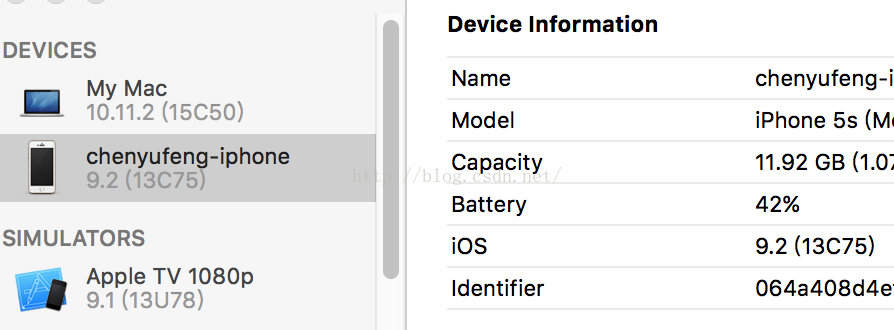
Connect your phone to your computer, open Xcode, and select Window–> Devices, all the Devices you are currently connected to are displayed, among which the Identifier displayed is the UDID of the device:
.

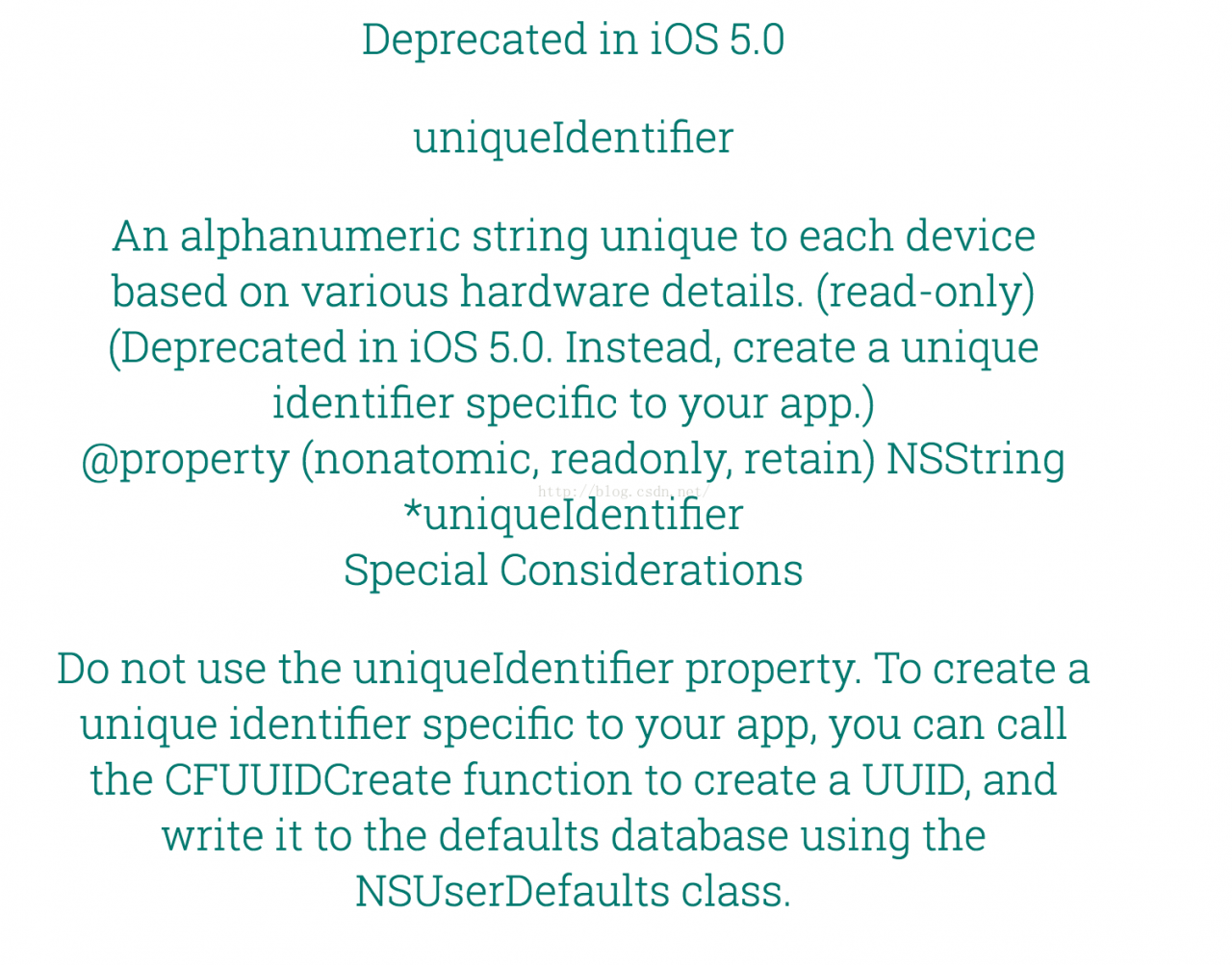
But what if we want to use UDID in our code?Unfortunately, since iOS5, apple has banned accessing UDID through code. Previously, you could drive past a device using the method [[UIDevice cuurrent] uniqueIdenfier], which is now impossible. As to why access to UDID is prohibited, I will mention below. In the current SDK, Apple provides a parameter identifierForVendor that replaces the original UDID function. The code is as follows:

NSUUID *uuid = [UIDevice currentDevice].identifierForVendor;
NSLog(@"uuid 1 = %@",uuid.UUIDString);

The string UUIDString that you print out here is not a real UDID, but rather a substitute that looks a little bit like it. As I mentioned above, UDID is only related to iOS devices, while the identifierForVendor is an application related to both the device and the device. An application A is installed on the device to generate an identifierForVendor (for example: 1234). An application installed on li Si’s device will generate another identifierForVendor (e.g. 5678). The B application was installed on zhang SAN’s device, and a new identifierForVendor (e.g. 9999) was installed on Li Si’s device. The B application was also installed on Li Si’s device. However, no matter how many times an application A is installed or uninstalled, the resulting identifier is 1234. So, we know that the identifierForVendor is an identifier generated by an application plus A device binding, equivalent to: Z(identifierForVendor) = X(an application) + Y(A device). Of course, the difference from a real UDID is obvious: App developers have no way to distinguish between a particular device, but can only identify an application on a particular device.

【 UUID 】
Universally Unique Identifier is a Universally Unique Identifier. Is a 32-bit hexadecimal sequence, connected by little horizontal lines: 8-4-4-12. UUID is unique in a given space and time. For example, in the current second, the uUids generated all over the world are different; Of course, the UUID generated by the same device is also different. In an earlier blog post, iOS Project Dev Practice: Getting current UUids, I used what now seems like a silly way to get current UUids. As some readers have reflected, the easiest way to get uUids is as follows:

    for (int i = 0; i < 10; i++)
    {
        NSString *uuid = [NSUUID UUID].UUIDString;
        NSLog(@"uuid 2 = %@",uuid);
    }

By running the program, it can be found that the value printed is different each time after 10 cycles, but no matter how many cycles there are, the value will never be the same. So in a way, the UUID doesn’t have anything to do with your device.

Apple has long said that if third-party app developers continue to share or use UDID on the iPhone, Mac or AppleWatch, their apps will be banned from the shelves. Why would Apple ban it from apps?That’s because of privacy issues. For example, I have developed 5 apps, and many users have downloaded these 5 apps and used them. If I can easily get the UDID of these users, I can actually piece together a lot of information about them. Due to the privacy nature of UDID itself, it was previously used for third-party statistics and other purposes. Now, of course, there are people who use MAC addresses to identify devices, because the MAC address uniquely identifies a device and doesn’t change, and I don’t know how Apple will do that in the future. Here’s Apple’s statement on disabling UDID:
.