Category Archives: How to Fix

Vs2015 + OpenGL configuration method

VS2015+OpenGL configuration method
Refer to VS2015 installation +OpenGL environment configuration and test
A few points to note:

    There is no need to install the full functionality of the VS. The platform must be changed to x64before performing step (4) of the OpenGL environment configuration. The FreeGlut.dll file should be placed on the same level as the x64 folder and source.cpp file

A fatal error C1083 occurred when compiling C + + code under. Net: unable to open the include file: “xuhk”_ Jnihelloworld. H “: solution to no such file or directory error.

Fatal error C1083: Could not open include file: “xuhk_jnihelloWorld.h” : No such file or directory. Error.
I head file copying, select the project directly paste in, although in the solution explorer shows the header files, but compile the above mistakes, I can’t find all documents, I opened the project directory and found there is no I just copy the header file, I can only be speechless why Microsoft, is not a BUG, is a hole. In the end I had to open the project directory and copy the file over.
So the correct order to refer to the header files is to copy the header files into your project directory, then open VS.NET and right-click your project. Add – & gt; For existing items, select the header file that you copy to the project.

Vs cannot open the source file unistd. H under Windows

Many C programs developed under Linux require the header file unistd.h, but VC does not have a header file, so compiling with VC always returns an error. This can be solved by saving the following content as unistd.h under the visual stdio header file path.

My path is: C: Program Files (x86)\Microsoft VisualStudio\2017\Community\VC\Tools\MSVC\14.16.27023\ Include

/** This file is part of the Mingw32 package.

unistd.h maps (roughly) to io.h
*/
#ifndef _UNISTD_H
#define _UNISTD_H
#include <io.h>
#include <process.h>
#endif /* _UNISTD_H */

Unistd.h is a header file for Unix system-defined symbolic constants defined by the POSIX standard. It contains many prototype functions for UNIX system services, such as the read function, write function, and getpid function. H in UNIX is similar to Windows.h in Windows.

OpenGL, such as glad library and glfw library, is incompatible

Do you have any friends who have similar problems?
I brought in both Glad and GLFW, and also added the GL library (including gl.h and glu.h) to the project dependencies, as shown below:
D:\GitProject\OpenGLlearn\learnOpenGL\Dependencies\gl
D:\GitProject\OpenGLlearn\learnOpenGL\Dependencies\GLFW\include
D:\GitProject\OpenGLlearn\learnOpenGL\Dependencies\GLAD\include
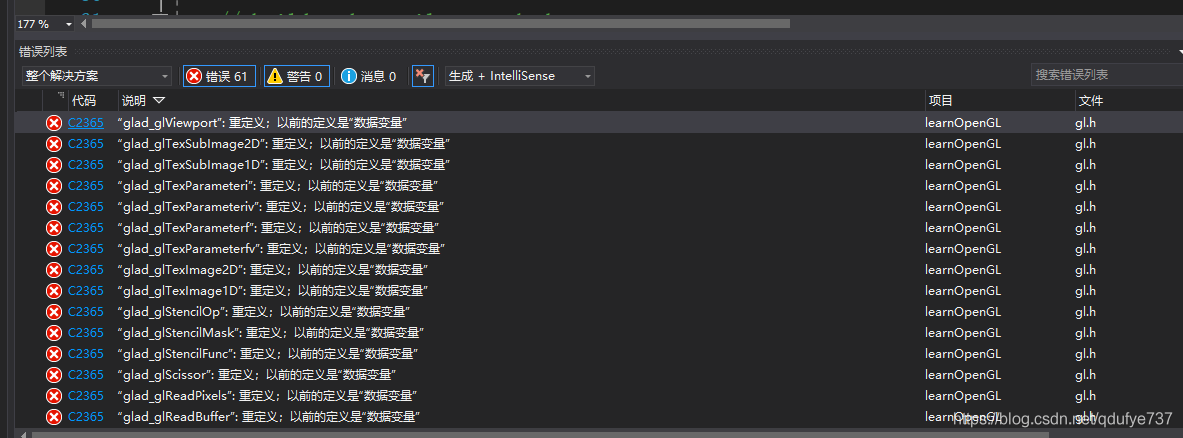
Here is the error message:

Vs compiling OpenGL project, the solution of unable to open the source file “GL / glaux. H” appears

The problem is as follows:

The reason:
Lack of header files and libraries to compile OpenGL;
Solutions:
1. Download OpenGL header files and libraries;
Download address: https://download.csdn.net/download/ssagnn23/2560229
2. Put the file in the specified directory;
(1) Copy GLUX32.DLL, GLUT32.DLL and GLUX.DLL to C:/WINDOWS/system32. The system32 directory should already have OpenGL32.DLL and GLU32.DLL.
(2) Copy Glut. H, Glut. H, Glut. H, Glut. H to
C:/Program Files/Microsoft Visual Studio X.0/VC/include/ GL
Or you might
C:\Program Files (x86)\Microsoft SDKs\Windows\vX.XA\Include\gl
Or you might
C:\Program Files (x86)\Windows Kits\X.X\Include\um\gl

(3) Copy glaux-lib, glu32. LIB, glut32. LIB, opengl32. LIB, Glut.lib, Glut.lib, Glut.lib, Glut.lib, Glut.lib, Glut.lib, Glut.lib
[32Bit]C:/Program Files/Microsoft Visual Studio X.0/VC/lib [32Bit]C:/Program Files/Microsoft Visual Studio X.0/VC/lib
Or you might
C:\Program Files (x86)\Microsoft SDKs\Windows\vX.XA\Lib
Or you might
C:\Program Files (x86)\Windows Kits\X.X\Lib\XXX


Other questions 1:

 
Solution:
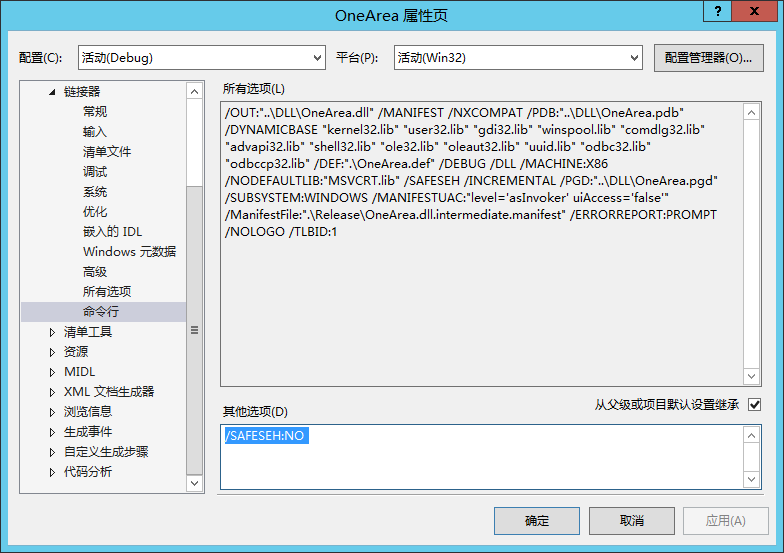
1. Open the Property Pages dialog box for the project.
2. Click the Linker folder.
3. Click the Command Line property page.
4. Copy /SAFESEH:NO into the “Additional Options” box and click Apply

Other Question # 2:
1 & gt; Glaux. Lib (tk.obj) : error LNK2019: Cannot resolve external symbol _sscanf, which is referenced in the function _GetRegistrySysColors@8
1> Glaux. Lib (tk.obj) : error LNK2019: Unresolvable external symbol _vsprintf, which is referenced in the function _PrintMessage
VS2015 compilation will cause this problem, the solution is in the project properties ->; The linker – & gt; Input – & gt; Add a dependency legacy_stdio_defines.lib to the attached dependency;

Reproduced in: https://www.cnblogs.com/21tcy/p/9771340.html

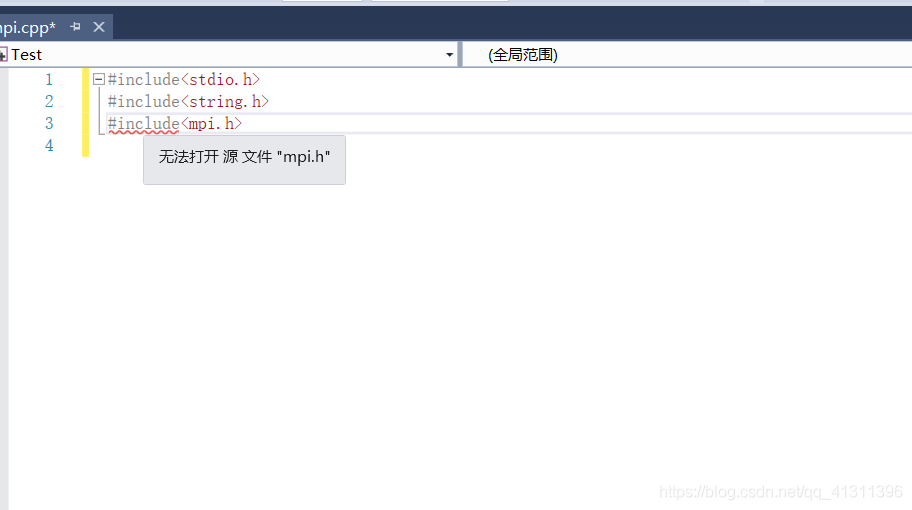
MPI cannot be found in C / C + +


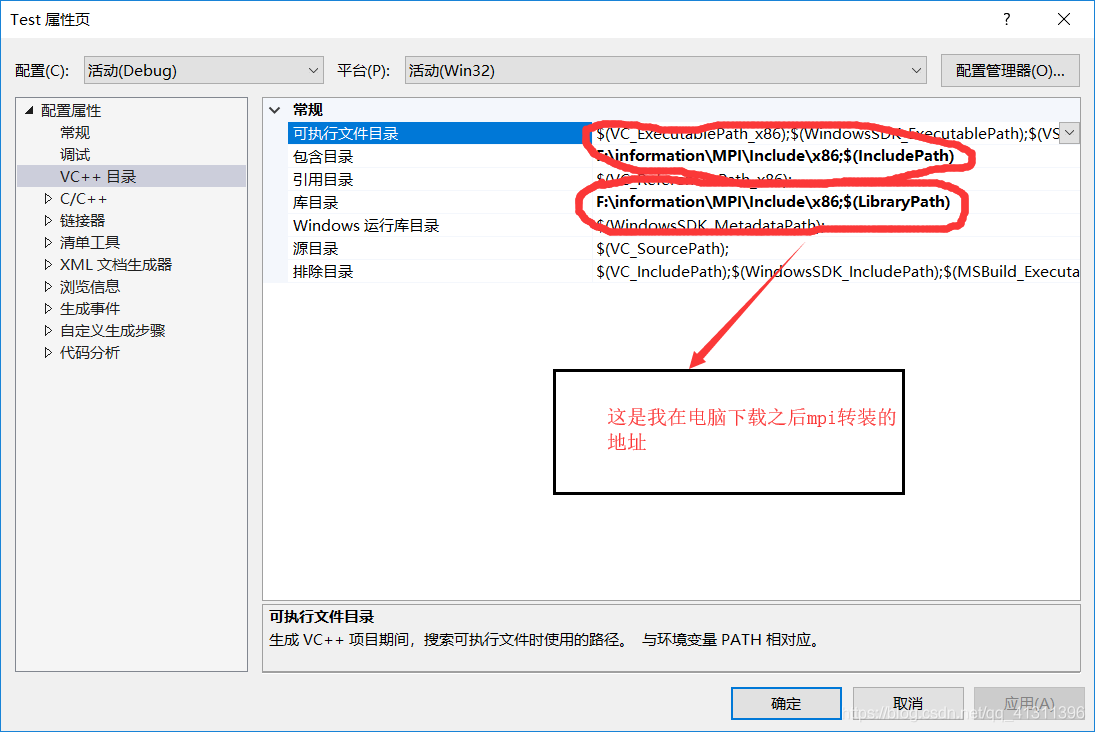
Before I do that I import the MPI location as

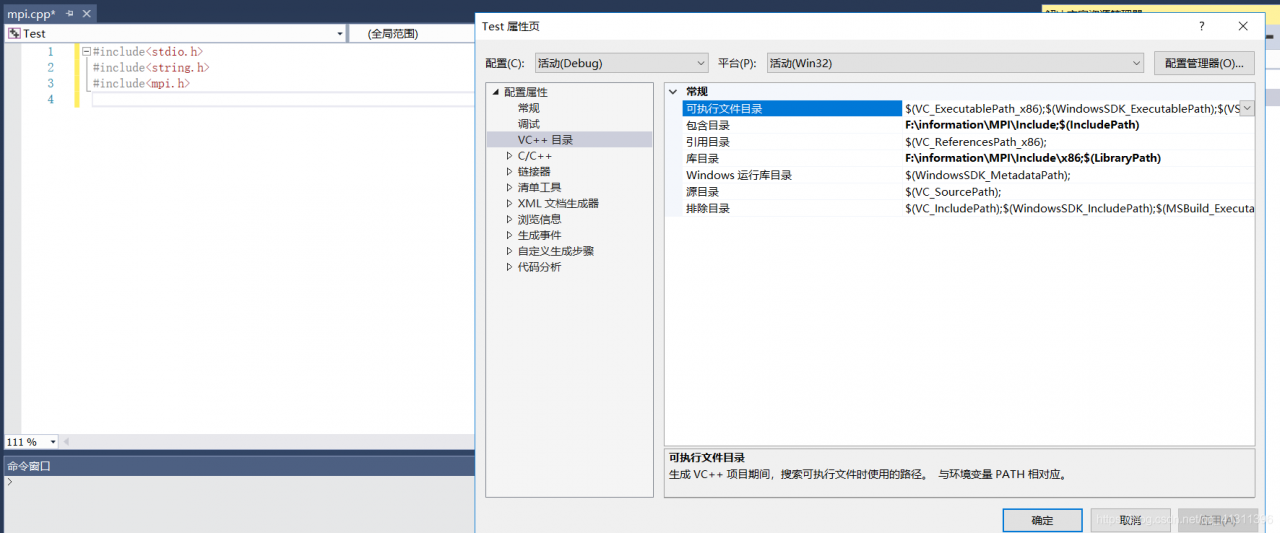
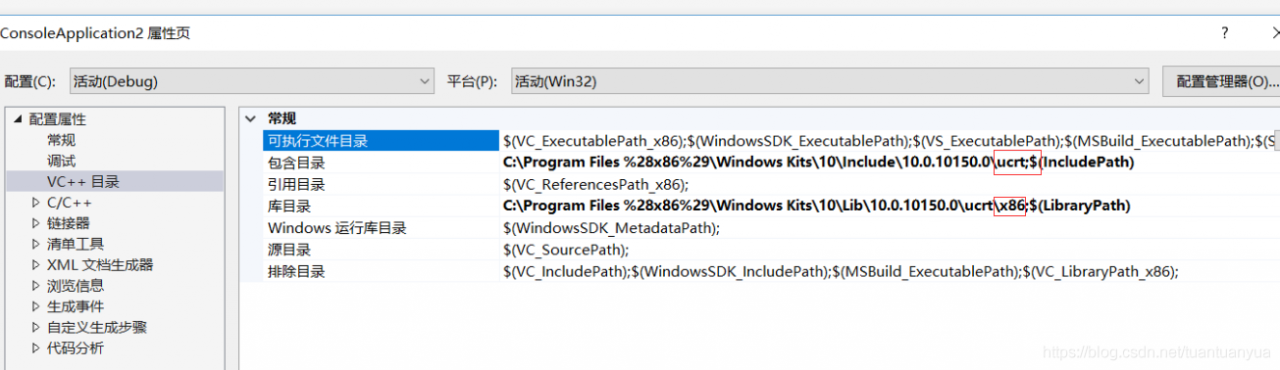
I thought it was weird that I had already imported it manually and then I realized that the inclusion directory should be stored in the include directory and found by the library directory
 
I fixed it and it worked out perfectly.

Solve the problem that the header file of “graphics. H” cannot be loaded in vs2015

PS: For all versions of VS, you just need to download the corresponding lib and include folders. The operation method is the same
First need from this baidu disk address link: click the link, password for wi9b password: wi9b
Then download the following two files:
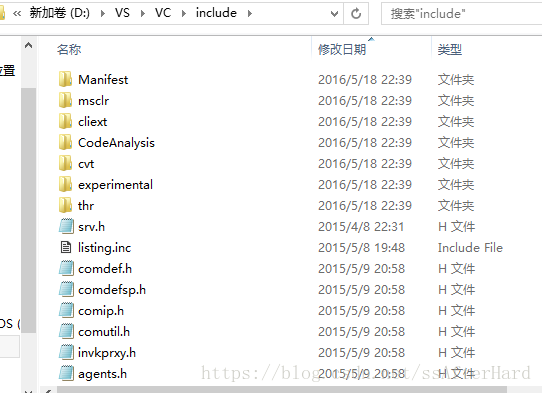
After downloading, open the downloaded folder Inlcude, copy the two files inside, and then paste into

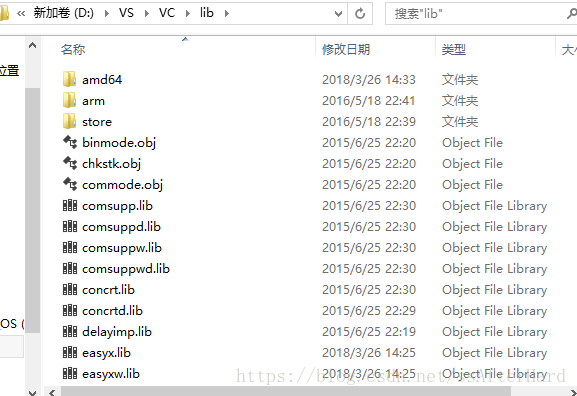
In the folder shown in the above image, continue to open the downloaded lib2015 folder, select all the contents, copy and paste into

As shown in the above picture, since my VS2015 is on the D disk, these two folders are under the VS folder under the VS2015 directory you installed.
Then we can run the “graphics.h” header file in VS2015, which contains rich drawing functions!!

IntelliSense in VC + + 2010: unable to open source file “StdAfx. H”

Refer to http://social.msdn.microsoft.com/Forums/en-US/vcprerelease/thread/efdf4ae8-437d-4a7f-8cf5-b895257da2bd
 
Problems such as unable to find files can be solved with this method, is the path problem. Similar problems may occur when a VC ++2008 project is transferred to VC ++2010.
 
Solution:
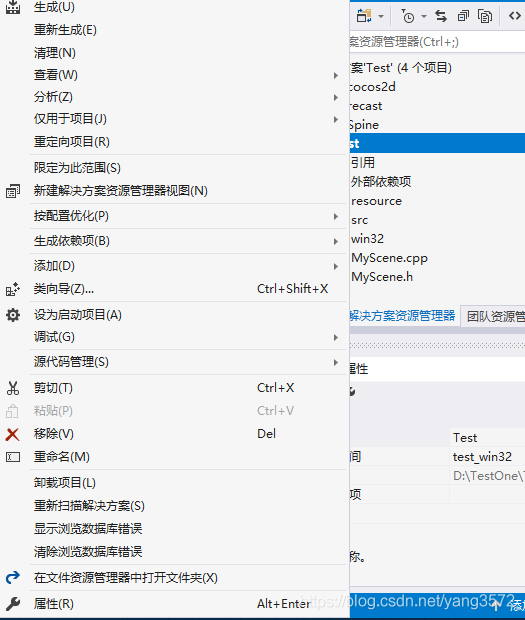
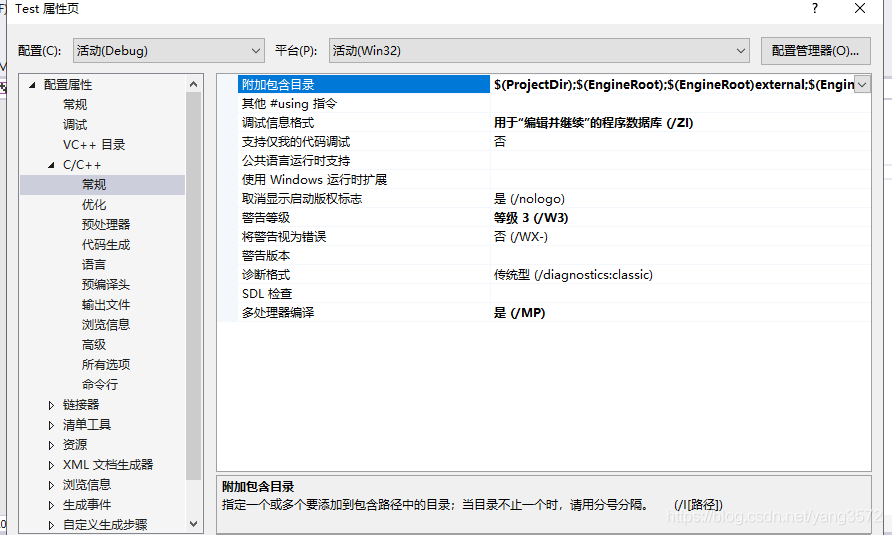
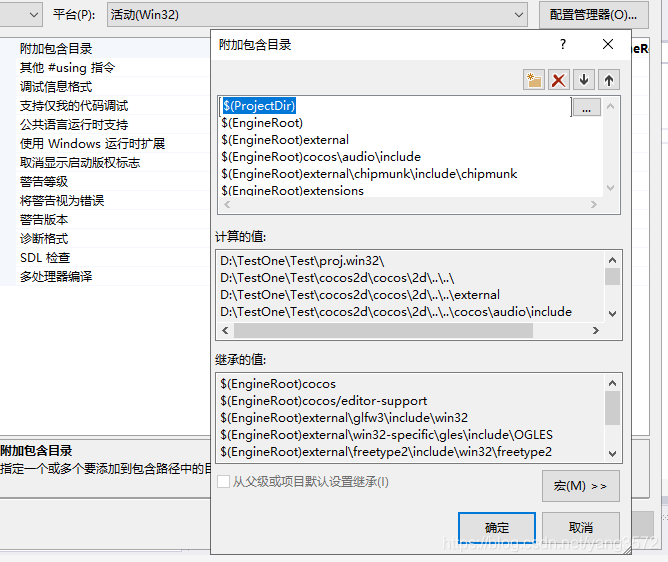
Add $(projectDir) to the Project Properties = Configuration Properties = C/C++ = General = Additional Includes directory
See below

IntelliSense: unable to open source file ‘StdAfx. H’

-h /.cpp file: cannot open the source file “stdafx.h”, some methods found are not applicable, such as: set project properties ->; Configure properties ->; C/C++-> Precompiled header ->; Using (/Yu)/ creating (/Yc)/ not using precompiled headers does not work either way. Despite this error, the program was run successfully. The initialization and compilation runs seem to use different lookup paths, which is a problem when developed with a lower version of VS2005/VS2008 but opened with a higher version of VS2010. The solution is:
< wbr> < wbr> < wbr> < wbr> < wbr> < wbr> < wbr> < wbr> < wbr> < wbr> < wbr> Project Properties -& gt; Configure properties -& gt; C/C++-& gt; General – & amp; gt; Additional include directory -& gt; < strong> $(ProjectDir)< /strong> < /wbr> < /wbr> < /wbr> < /wbr> < /wbr> < /wbr> < /wbr> < /wbr> < /wbr> < /wbr> < /wbr>

How to solve the problem of “unable to open include file:” graphics. H “: no such file or directory”

When peer Chinese chess program, import project, found that VS has been prompt
“unable to open include file:” graphics. H “: No to the file or directory”

found in data access is the lack of easyx file.

>
EasyX header and library files to VS2012 process.
EasyX is a relatively lightweight and simple graphics library, easy to install EasyX, EasyX website also has a detailed description.
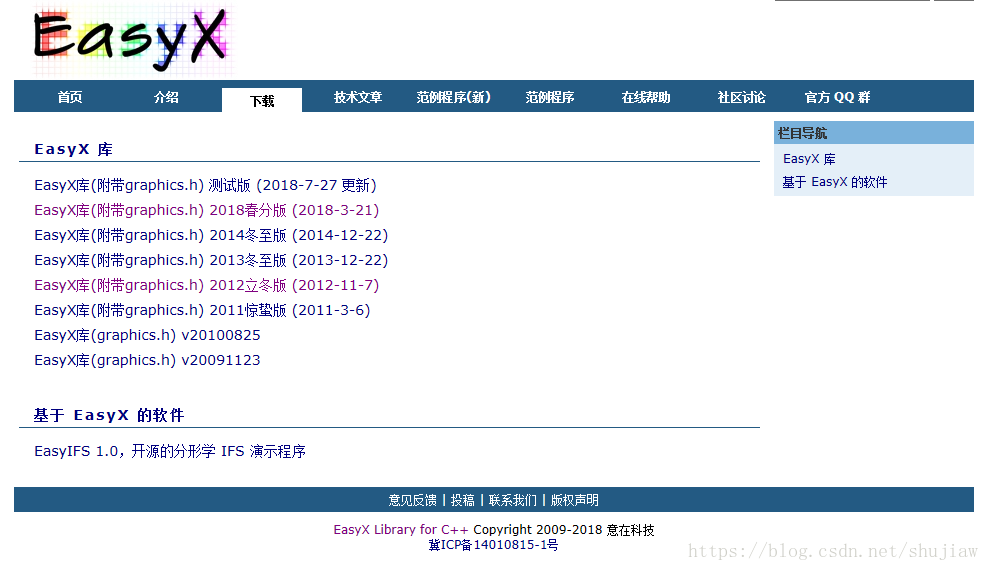
First go to the official website to download the easyx file, I downloaded the 2012 version.

After the download is successful, open the folder and you can see the files.

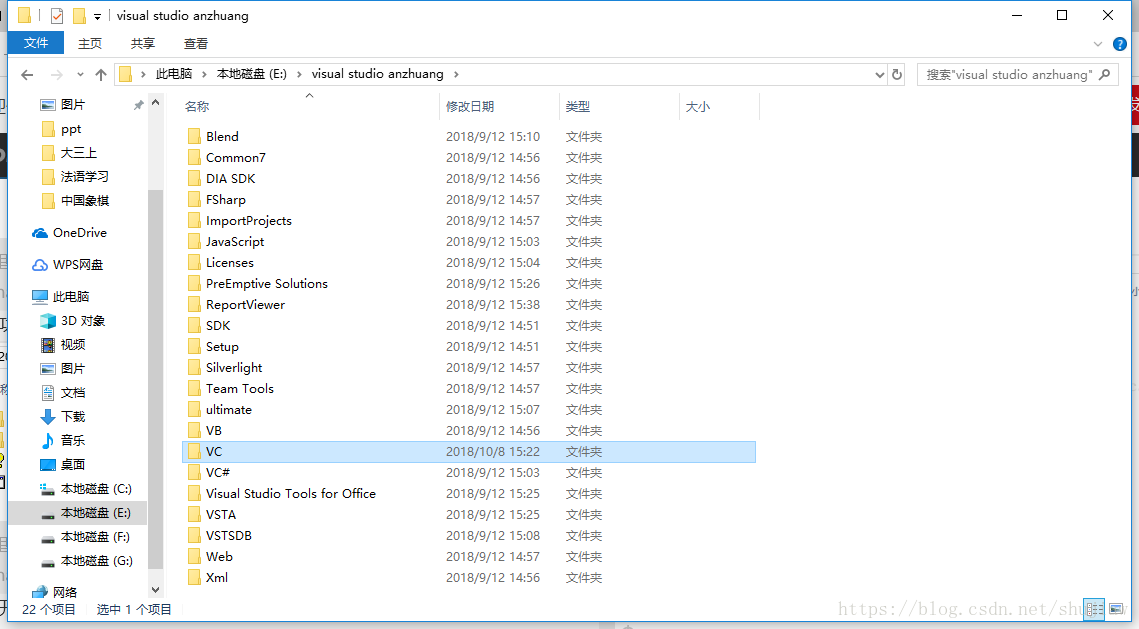
Then open the installation directory for VS2012:

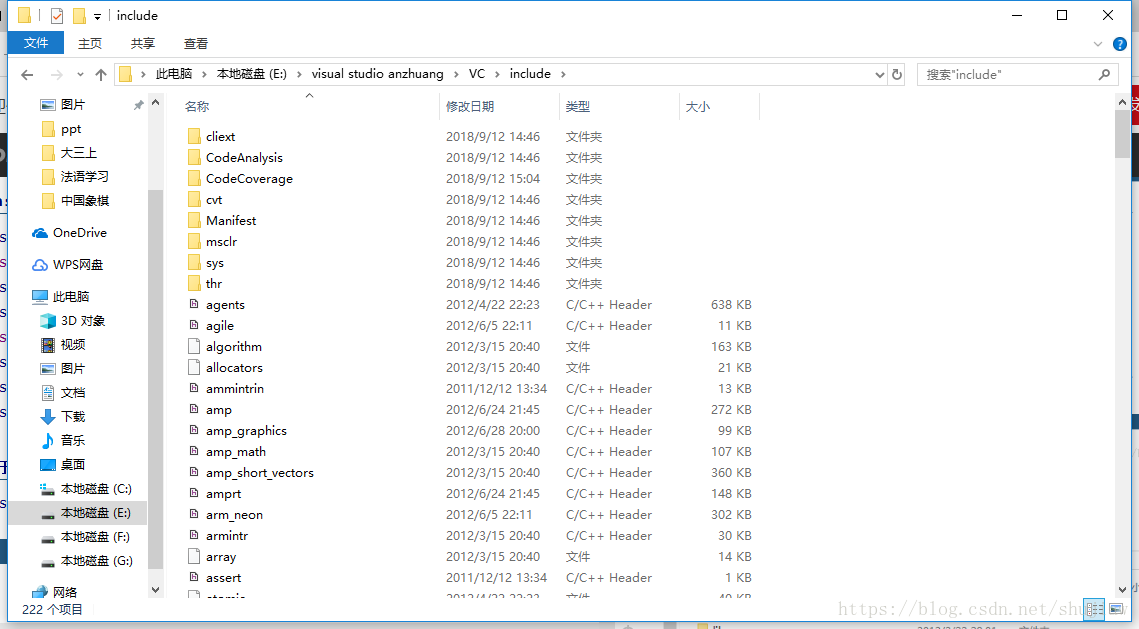
Select the VC folder and then the Include folder as follows:

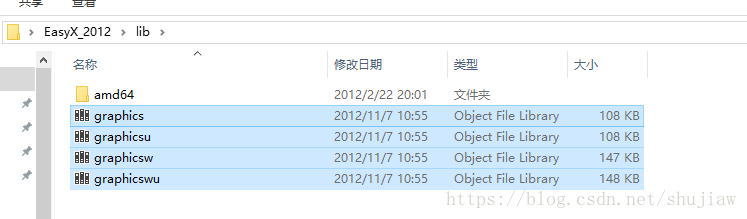
    copy graphics.h file from easyx include folder to VC include; Copy Graphicsw. lib and Graphicsw. lib from the lib/amd64 folder in easyx to the lib/amd64 folder in VC.

    ah