Author Archives: Robins

A little bug of CSDN blog

Recently, when editing the blog, I found a small flaw in CSDN, which should not be a bug, but if I don’t pay attention, it may also bring a lot of trouble to users.

Hyperlinks are sometimes used when editing blogs. When adding hyperlinks, the interface of CSDN is as follows:
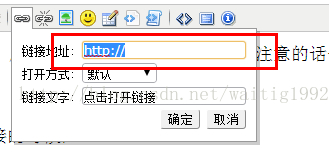
Users can enter their own link address in the link address column, but please note that the “http://” field is selected by default, that is, if you copy a link address and want to paste it into this column, you will erase the “http://” field, leaving only your own pasted address.

And in practice, the probability is very high.

What’s the difference between HTTP and no HTTP?

From the perspective of users, they don’t want to make a difference, but in practice, there is a big difference between HTTP and no http.

There is no HTTP at the beginning. The browser will treat the link as a relative address by default, that is, the address relative to the current address“ blog.csdn.net/waitig1992/article/details/ ”Add the address you entered after this address.

But most users don’t want this result. They just want the browser to jump to the link they input, which leads to the lack of user experience.

Some people will say: those who publish articles on CSDN are all technical giants. They should know these problems and can avoid them by themselves. They can modify them by themselves.

But all things can’t be solved by users themselves. Moreover, with the fierce competition, some small details may determine the success or failure of the enterprise.

And not everyone has noticed.

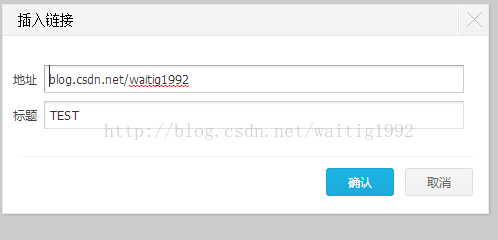
On the contrary, baidu space noticed this detail, its hyperlink input box does not have “http://”, but automatically detects changes after users edit. As shown in the figure:
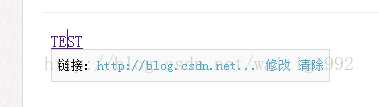
After editing, it will automatically detect and modify, and add “http://”, as shown in the figure:
In this way, users don’t have to care whether they write “http://”, but can focus more on their own articles.

That’s the details.

Appendix:

This link has “http://” blog.csdn.net/waitig1992

There is no http:// blog.csdn.net/waitig1992

You can click to see the difference;

I hope CSDN official can pay attention to this problem, and I will also send email feedback.

Finally, I wish CSDN more and more fire, you can all think of it!
Linux: Configure Network address through Netplan

Permanent address: Linux | configure network address through netplan 🙃)

Problem description

In Ubuntu 18.04, the default network configuration tool is netplan, and SYSTEMd networkd is used as the back-end configuration tool.

This note will record how to use netplan to configure network address in Ubuntu 18.04 and how to deal with common problems.

Solution

For more usage methods, refer to the documentation of netplan | backend aggressive network configuration in yaml.

Static address binding

# Add Configuration
cat > /etc/netplan/01-static.yaml <<EOF
network:
  version: 2
  renderer: networkd
  ethernets:
    enp3s0:
      addresses:
        - 10.10.10.2/24
      gateway4: 10.10.10.1
      nameservers:
        search: [mydomain, otherdomain]
        addresses: [10.10.10.1, 1.1.1.1]
EOF

# Application Configuration
netplan apply

Dynamic allocation (DHCP)

# Add Configuration
cat > /etc/netplan/01-static.yaml <<EOF
network:
    version: 2
    renderer: networkd
    ethernets:
        enp3s0:
            dhcp4: true
EOF

# Application Configuration
netplan apply

“21442;” 32771;”29486;

Network plan `124Backend-agnostic network configuration in YAML

The reason why jQuery files report errors is introduced

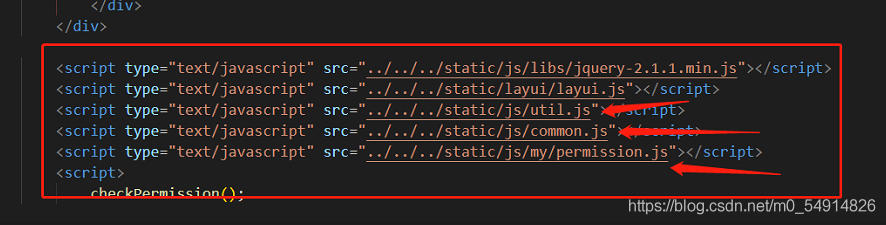
JS file import location is fastidious , Otherwise, an error will be reported

The above three arrows point to the JS is written by themselves, some may use the JQ framework, so if the JQ is placed below the three, the following three with JQ will report an error.
So pay attention when referencing to see if each JS referenced is independent or dependent on a JS, independent then the location will not have an impact, such as layui.js, but there are dependencies then the location will have an impact, such as the three JS arrows, you must refer to the JS he depends on before referencing in

SSM custom 404 and 500 error reporting interface

SSM custom 404 and 500 error reporting interface

1. In web.xml Configuration 2, test 404 error

1. In web.xml Medium configuration

 <!--Replace the 400 and 500 error message screens-->
  <error-page>
    <error-code>404</error-code>
    <location>/WEB-INF/error/404.jsp</location>
  </error-page>
  <error-page>
    <error-code>500</error-code>
    <location>/WEB-INF/error/500.jsp</location>
  </error-page>

2. Test 404 error

As shown in the figure below, is the effect much more comfortable than a pile of newspapers.

How to Solve Automatic error keyerror:***‘

r  =  {'code': 200, 'body': {'code': 200, 'msg': 'request success', 'data': {'username': 'a***', 'mobile': '132**51', 'companyType': 6, 'token': 'ey**RI', 'companyName': '** Company', 'nickname': 'ab**'}}}
body = r['body']
print(body)     # {'code': 200, 'msg': 'request success', 'data': {'username': 'a***', 'mobile': '132**51', 'companyType': 6, 'token': 'ey**RI', 'companyName': '**Company', 'nickname': 'ab**'}}
# Initialize the database object
conn = init_db("db_1")
# Search Results
res_db = conn.fetchone("select mobile from hy_user where username = 'abc'")
print("Database query result is: %s"%res_db)
# Validate the results
user_mobile = body['mobile']
assert user_mobile == res_db['mobile']

Keyerror: ‘mobile’

Because mobile is in the data dictionary of body, change to user_ Mobile = body [‘data ‘] [‘mobile’]

docker-compose Error Traceback (most recent call last)

docker-compose problem Traceback (most recent call last) Description.
After executing walle (walle) to automatically deploy the image, execute
docker-compose up -d && docker-compose logs -f
The error is reported as follows.

How to Solve:
pip uninstall requests
pip install –ignore-installed requests

Traceback (most recent call last):
File “/usr/local/lib/python3.9/site-packages/urllib3/connectionpool.py”, line 699, in urlopen
httplib_response = self._make_request(
File “/usr/local/lib/python3.9/site-packages/urllib3/connectionpool.py”, line 394, in _make_request
conn.request(method, url, **httplib_request_kw)
File “/usr/local/Cellar/[email protected]/3.9.2_4/Frameworks/Python.framework/Versions/3.9/lib/python3.9/http/client.py”, line 1255, in request
self._send_request(method, url, body, headers, encode_chunked)
File “/usr/local/Cellar/[email protected]/3.9.2_4/Frameworks/Python.framework/Versions/3.9/lib/python3.9/http/client.py”, line 1301, in _send_request
self.endheaders(body, encode_chunked=encode_chunked)
File “/usr/local/Cellar/[email protected]/3.9.2_4/Frameworks/Python.framework/Versions/3.9/lib/python3.9/http/client.py”, line 1250, in endheaders
self._send_output(message_body, encode_chunked=encode_chunked)
File “/usr/local/Cellar/[email protected]/3.9.2_4/Frameworks/Python.framework/Versions/3.9/lib/python3.9/http/client.py”, line 1010, in _send_output
self.send(msg)
File “/usr/local/Cellar/[email protected]/3.9.2_4/Frameworks/Python.framework/Versions/3.9/lib/python3.9/http/client.py”, line 950, in send
self.connect()
File “/usr/local/lib/python3.9/site-packages/docker/transport/unixconn.py”, line 43, in connect
sock.connect(self.unix_socket)
FileNotFoundError: [Errno 2] No such file or directory

Solve the problem of 404 Not Found error in nginx accessing dynamic interface

Problem description

We design a set of recruitment back transfer system, and use ant design Vue and jfinal framework at the front and back end respectively. You want to deploy the project to the server, but external access always reports 404 not found

Solutions

The error is: the dynamic interface can not be found, but I don’t know whether there is a problem in the project or after nginx agent.
Therefore, it is necessary to test the interface of the project itself and the interface after nginx proxy.

First, test the interface in the project

Enter the command: curl on the Ubuntu side http://localhost :port/xxx/xxx

Here my interface is. curl http://localhost:20294/sys/login

Results of operation:

It shows that there is no problem with the interface in my project.

Test the interface after nginx proxy again

Then input the command in Ubuntu

curl http://localhost:8080/api/user/login

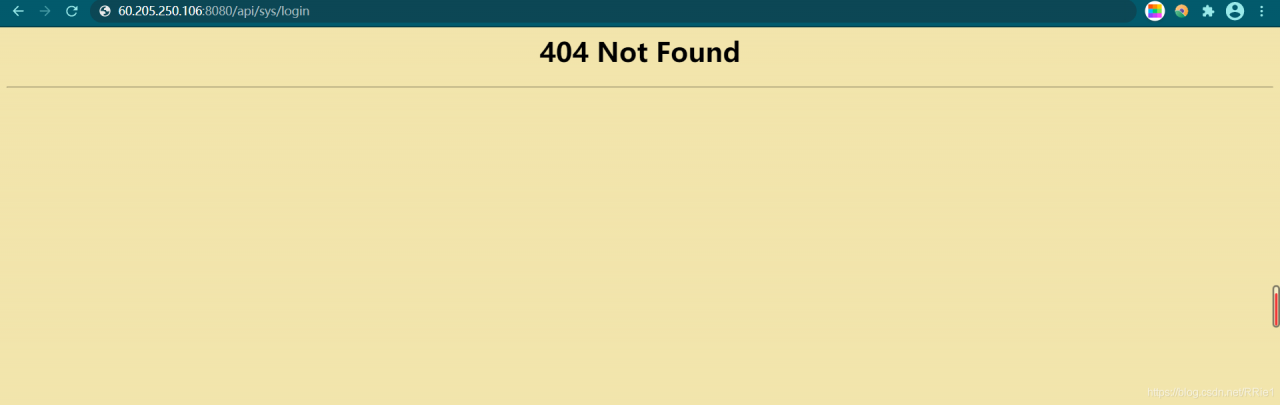
Running result:

the prompt here is that the interface cannot be found, which indicates that the problem lies in the proxy server nginx, so we need to modify the configuration file of nginx.

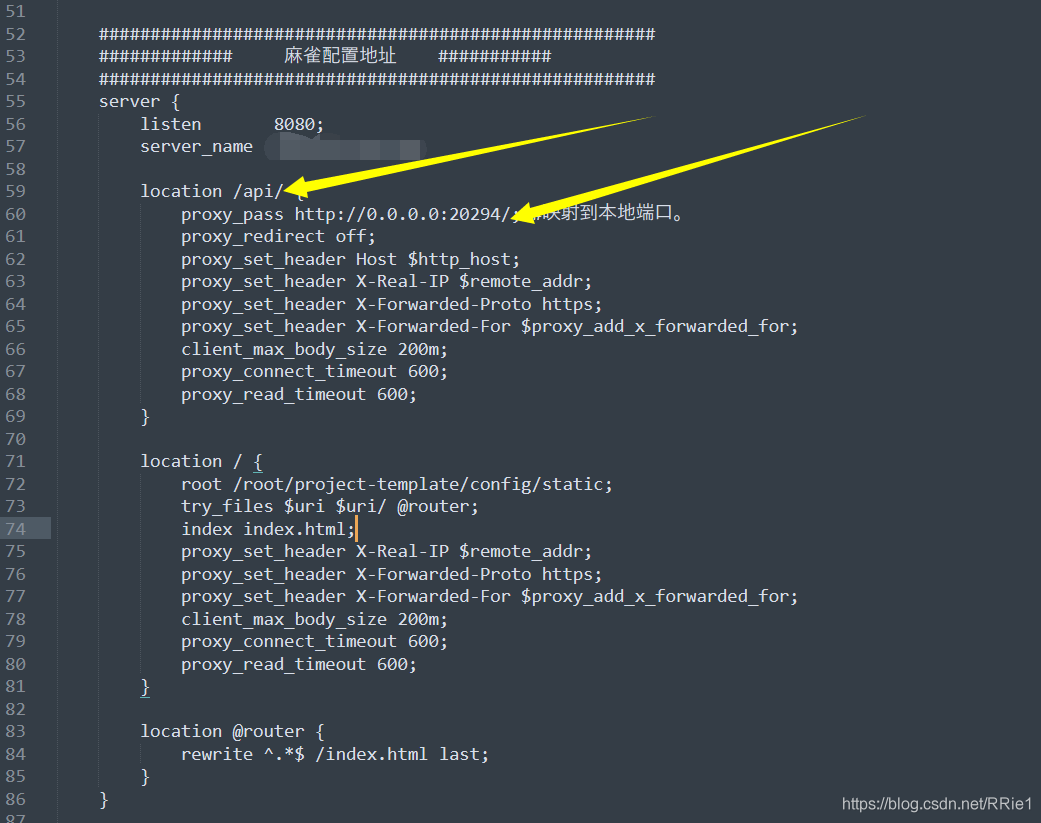
According to the suggestions of other blogs, I added a slash to this place in nginx configuration

after restarting the server, it still can’t work.

Complete solution

When I didn’t know what to do, I suddenly found that there were two nginx in my server ····
I was wondering if it was because there were two nginx, and the modified configuration file was not the nginx I started. So I replaced all nginx configuration files with my original configuration files, and then restarted. Still not

Worried about the two nginxs, I deleted all nginxs in the server. Delete steps (run the following steps in turn:

ps aux|grep nginx  #View nginx processes
kill -9 process number #Kill the nginx queried in the previous step (process number is in the second column)
find/-name nginx #Find the nginx file address
rm -rf xxx #Delete all nginx files

Finally, use weget to install the new nginx, and then install it according to the original installation steps. After modifying the configuration file, run curl to access the dynamic interface. All of a sudden, it’s OK!

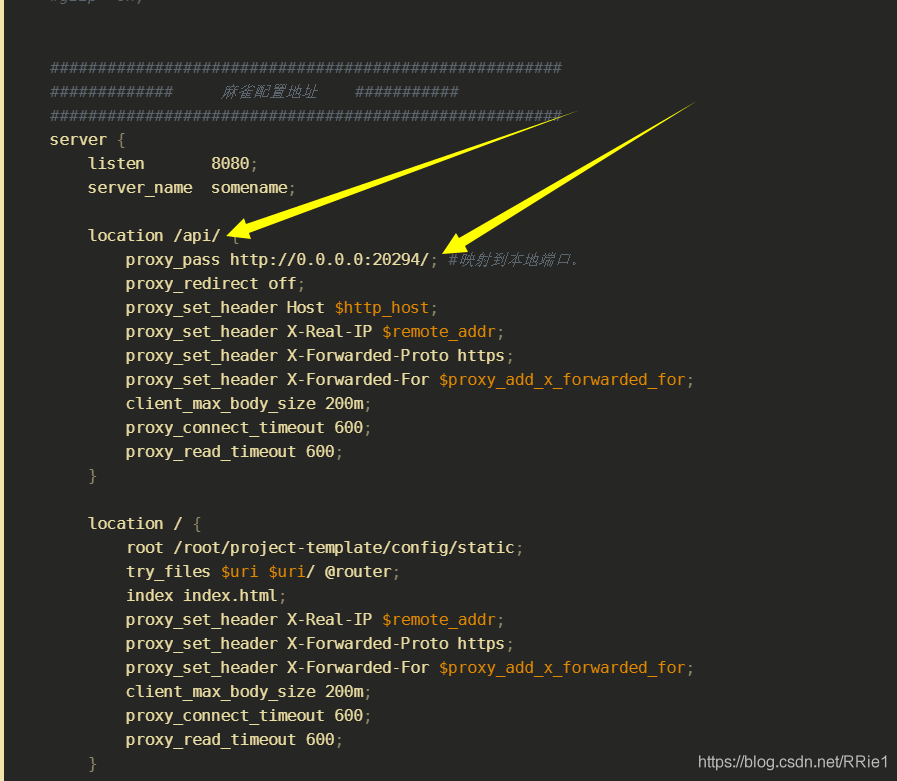
The following is my nginx configuration file:

user root;
#user  nobody;
worker_processes  4;

#error_log  logs/error.log;
#error_log  logs/error.log  notice;
#error_log  logs/error.log  info;

#pid        logs/nginx.pid;


events {
    worker_connections  1024;
}


http {
    include       mime.types;
    default_type  application/octet-stream;
    log_format main '$remote_addr - $remote_user [$time_local] "$request" '
                      '$status $body_bytes_sent "$http_referer" '
                      '"$http_user_agent" "$http_x_forwarded_for"';

    server_names_hash_bucket_size 128;
    client_header_buffer_size 32k;
    underscores_in_headers on;
    large_client_header_buffers 4 32k;
    client_max_body_size 50m;
    #log_format  main  '$remote_addr - $remote_user [$time_local] "$request" '
    #                  '$status $body_bytes_sent "$http_referer" '
    #                  '"$http_user_agent" "$http_x_forwarded_for"';

    #access_log  logs/access.log  main;

    sendfile        on;

    #keepalive_timeout  0;
    keepalive_timeout  65;
    tcp_nopush          on;
    fastcgi_connect_timeout 300;
    fastcgi_send_timeout    300;
    fastcgi_read_timeout    300;
    fastcgi_buffer_size     64k;
    fastcgi_buffers     4   64k;
    fastcgi_busy_buffers_size 128k;
    fastcgi_temp_file_write_size 256k;
    tcp_nodelay         on;

    #gzip  on;


    ######################################################
    #############     Sparrow configuration address    ###########
    ######################################################
    server {
        listen       8080;
        server_name  somename;

        location /api/ {
            proxy_pass http://0.0.0.0:20294/; #Mapping to the local port.
            proxy_redirect off;
            proxy_set_header Host $http_host;
            proxy_set_header X-Real-IP $remote_addr;
            proxy_set_header X-Forwarded-Proto https;
            proxy_set_header X-Forwarded-For $proxy_add_x_forwarded_for;
            client_max_body_size 200m;
            proxy_connect_timeout 600;
            proxy_read_timeout 600;
        }
        
        location/{
            root /root/project-template/config/static;
            try_files $uri $uri/ @router;
            index index.html;
            proxy_set_header X-Real-IP $remote_addr;
            proxy_set_header X-Forwarded-Proto https;
            proxy_set_header X-Forwarded-For $proxy_add_x_forwarded_for;
            client_max_body_size 200m;
            proxy_connect_timeout 600;
            proxy_read_timeout 600;
        }

        location @router {
            rewrite ^.*$ /index.html last;
        }
    }
}

note: when configuring the dynamic access API, remember to add a slash at the end

So far, the problem has been solved perfectly.

Git Error Resolution: errno:10054 Time out

fatal 1. OpenSSL SSL_read: Connection was reset, errno 10054

1) First check if the C:\Windows\System32\drivers\etc\hosts IP mapping relationship is correct (query IPAddress)

140.82.112.4 github.com
199.232.69.194 github.global.ssl.fastly.net
140.82.113.9 codeload.Github.com

If you want to modify the hosts file, you need to refresh DNS: ipconfig/flushdns

2) Connection error still reported:

$ git config --global http.sslVerify "false"

I refer to git to report errors , First of all, it was revised hosts File, but still not resolved, so it is recommended to give priority to try git config -- global http . sslVerify " false " ( Because it’s simple :))

fatal 2 . Failed to connect to github . com port 443 : Timed out

$ git config --global --unset http.proxy

fatal 3. you need to resolve your current index first

# Go back to before merge and switch branches again
$ git reset --merge

fatal 4. failed to push some refs to 'https://github.com/...

 # The remote library is not consistent with the local library caused by the prompt in hint to synchronize the remote library to the local library
$ git pull --rebase origin main

How to Solve Kafka Error: no leader

When sending messages to Kafka as producer , an error is reported

There is no leader for this topic-partition as we are in the middle of a leadership election

The specific reason is not very clear, but the solution issue has been found. According to the answer below issue , the following modifications have been made:

The original Kafka is deleted_ BROKER_ ID: 1 when starting docker compose , add -- no recreate at the end of the command. The official explanation is to ensure that the container is not recreated, so as to retain its name and ID

If you still can’t solve the problem after modifying the above configuration, delete the Kafka container, re run docker compose up -- no recreate , and check the #516

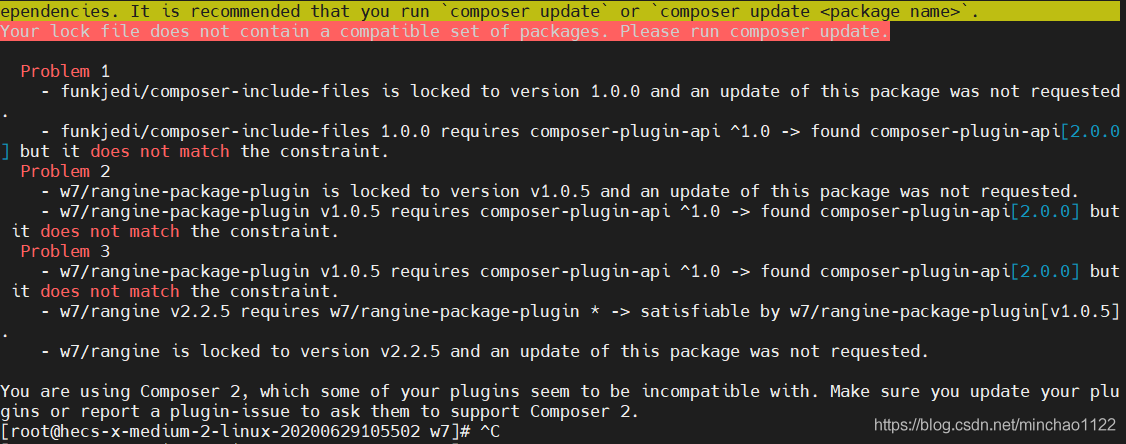
Error resolution in composer 2 install or update


Linux Version: CentOS 7.9,PHP 7.2
Error: You are using Composer 2, which some of your plugins seem to be incompatible with. Make sure you update your plugins or report a plugin-issue to ask them to support Composer 2.
Cause Version conflict
Solution.https://stackoverflow.com/questions/64597051/how-to-downgrade-or-install-a-specific-version-of-composer-on-windows
Run Command composer self-update --1 Rollback to v1

[Solved] Vue cli installation Fastclick Error

When I installed the fastsclick package into the vue-cli dependency today, it reported an error saying

$ npm install fastclick –save
npm ERR! code ENOTFOUND
npm ERR! errno ENOTFOUND
npm ERR! network request to https://registry.npm.taobao.org/fastclick failed, reason: getaddrinfo ENOTFOUND registry.npm.taobao.org
npm ERR! network This is a problem related to network connectivity.
npm ERR! network In most cases you are behind a proxy or have bad network settings.
npm ERR! network
npm ERR! network If you are behind a proxy, please make sure that the
npm ERR! network ‘proxy’ config is set properly. See: ‘npm help config’
npm ERR! A complete log of this run can be found in:
npm ERR! C:\Users\Administrator\AppData\Roaming\npm-cache_logs\2021-04-15T12_07_17_780Z-debug.log

Eventually switched to a different installation, typing in the command line.

cnpm install fastclick –save
Success