Author Archives: Robins

solve java.net.SocketException : Unrecognized Windows Sockets error: 0: JVM_ Bind

There was an error when starting Tomcat, and port 8080 was occupied. Three solutions
Error message: java.net.SocketException: Unrecognized Windows Sockets error: 0: JVM_Bind
. The solution
Method 1. Modify the configuration file Tomcat — conF –& GT; Server.xml modifies the port number
< The Connector port = “8080” protocol = “HTTP/1.1”
ConnectionTimeout = “20000”
The redirectPort = “8443”/& gt;
    
Method 2. Kill the process occupying the port

cmd–> Run the netstat -ano command to find the process occupying port 8080


Taskkill – pid/6038 f


Restart the tomcat

Method 3. Right-click on the taskbar and start task Manager — process — go to Javaw.exe — end the process — restart Tomcat

Alicloud CentOS 5 old version yum/ repomd.xml : [Errno 14] HTTP Error 404: Not Found

Too old version, many source 163 sohu ali cloud image has been deleted, so when using yum, it is not available, report 404 error. I found the following method.

使用centos-vault作为停止支持的CentOS的yum源


Just replace it with the source of Cenos-Vault.
Change all source host addresses in /etc/yum. Repos. D/cenos-base.repo file to http://vault.centos.org, and replace $releasever with the CentOS version used by the current system. 5.x final version 5.11 can be used. Note that all other alternate hosts need to be removed, as follows
[base]
name = CentOS – 5.11 – base
failovermethod = priority
baseurl=http://vault.centos.org/5.11/os/$basearch/
gpgcheck = 1
gpgkey=http://vault.centos.org/RPM-GPG-KEY-CentOS-5

# released updates

[updates] name = CentOS – 5.11 – updates
failovermethod = priority
baseurl=http://vault.centos.org/5.11/updates/$basearch/

gpgcheck = 1 gpgkey=http://vault.centos.org/RPM-GPG-KEY-CentOS-5

# additional packages that may be useful in
[extras]
name = CentOS – 5.11 – extras
failovermethod = priority

baseurl=http://vault.centos.org/5.11/extras/$basearch/ gpgcheck = 1 gpgkey=http://vault.centos.org/RPM-GPG-KEY-CentOS-5

# additional packages that extend functionality of existing Packages

[centosplus] name = CentOS – 5.11 – Plus
failovermethod = priority
baseurl=http://vault.centos.org/5.11/centosplus/$basearch/
gpgcheck = 1

enabled = 0 gpgkey=http://vault.centos.org/RPM-GPG-KEY-CentOS-5

# contrib – packages by Centos Users

[contrib] name = Centos – 5.11 – contrib
failovermethod = priority

baseurl=http://vault.centos.org/5.11/contrib/$basearch/ gpgcheck = 1 enabled = 0
gpgkey=http://vault.centos.org/RPM-GPG-KEY-CentOS-5

Then execute yum clean all & & Yum makecache will do.

About ora-00257: archiver error. Connect internal only, until free

Cause: OrA-00257 error (not enough space). By looking up the data, most of them say that it is caused by too many archived logs, which take up all the remaining space on the hard disk. This can be solved by simply deleting the logs or increasing the storage space.
Solutions:
1. SecureCRT log in to the server, switch user Oracle, and connect to Oracle
[root@userbeta~]# su – oracle
[oracle@userbeta~]$ sqlplus /nolog
SQL> connect /as sysdba
 
 
2. Check the use of Flash Recovery Area. It can be seen that ArchivelOG is already large, reaching 99.94
SQL> select * from V$FLASH_RECOVERY_AREA_USAGE;
 
 
3. Now clean up the archivelog archivelog and backup is recommended for production
Query the log directory location
show parameter recover;
 
4. Log out of SQLPLUS, log in with root, and delete the archive logs after backup
Enter a target address first; Create a new Oracle archive log backup directory
Mkdir Oracle archive log backup
 
 
Go to the archive log source directory (UPRR is the database instance name) :
cd /mnt/install/ora_11g/app/oracle/flash_recovery_area/UPRR/archivelog/
First go outside the Archivelog directory:
cd ..
Backup archivelog archive logs to the previously created oracle archivelog backup directory:
Cp-rf archivelog/MNT /oracle archivelog backup /
 
 
After waiting for the backup to complete, delete the archive logs that have been backed up
5. After the archive log is deleted, the control file must be maintained with RMAN, otherwise the space display will not be released
Log in to the server using Oracle user and enter RMAN maintenance:
rman target sys/pass
 
 
Check for some useless Archivelog
RMAN> crosscheck archivelog all;
Delete all Archivelog as of the previous day
RMAN> delete archivelog until time ‘sysdate-1’ ;
6. Query the use of Flash Recovery Area again:
Follow step 1 to enter the SQLPLUS environment, then use the following command to query the discovery, using only 0.66%, indicating that the archived logs have been cleared successfully!
SQL> select * from V$FLASH_RECOVERY_AREA_USAGE;

“Error: ` cout ‘was not declared in this scope”

code is:
#include <iostream>
int main(int argc, char *argv[])
{
    cout << “hello world” << endl;
}
when compile the erro info is below:
test@HuiT43 ~/sutdy $ g++ scat. cpp  -o scat
scat. cpp: In function `int main(int, char**)’:
scat. cpp:12: error: `cout’ was not declared in this scope
scat. cpp:12: error: `endl’ was not declared in this scope
the reason is :
This is becuase C++ 1998 requires cout and endl be called ‘std::cout’ and ‘std::endl’, or that a proper using directives such as ‘using namespace std;’ be used.
#include <iostream>
int main(int argc, char *argv[])
{
    std::cout << “hello world” << std::endl;
}
or
#include <iostream>
using namespace std;
int main(int argc, char *argv[])
{
     cout << “hello world” << endl;
}

VS2010 error: LINK : fatal error LNK1123: failure during conversion to COFF: file invalid or corrupt

After installing VS2012, an error occurred while using VS2010

LINK : fatal error LNK1123: failure during conversion to COFF: file invalid or corrupt

The solution is simple, as follows:

To summarize:
Either disable incremental linking, by going to

Project Properties 
   -> Configuration Properties 
       -> Linker (General) 
          -> Enable Incremental Linking -> "No (/INCREMENTAL:NO)"

or install VS2010 SP1.
VS2010 SP1 patch download address: http://www.microsoft.com/en-us/download/details.aspx?id=23691

Reference:
http://stackoverflow.com/questions/10888391/link-fatal-error-lnk1123-failure-during-conversion-to-coff-file-invalid-or-c

Error c2371: ‘xxx’: redefinition; different basic types solutions

http://blog.csdn.net/araecall/article/details/5583644
 
error C2371: ‘XXX’ : redefinition; Different basic types
define a structure, stored in a separate.h file, compile the error above, remove the #include “structure filename” from the.cpp file that instantiates the structure, and solve the problem.
later in a separate file and instantiate a such structure, the results and the above problems, structure of the object name is the same, in order to avoid the problems caused by this, and another. The CPP file renaming structure of the object, the problem was not solved, then the structure defined. H file, plus the “# pragma once”, compiled through.

fopen,fopen_ S, wfopen_ S and_ fsopen, _ The distinction of WFS open

In the process of C++ project, a function of opening and saving files needs to be implemented. After I write to the file tmp.dat, I want to write to the file for the second time. At this time, an error returning int error = 13 (Permission denied) occurs in both fopen_s and _wfopen_s.
Since the project is Unicode encoded, there is no way to use Fopen for file operations (fopen is available and Shared reads and writes are available as long as _CRT_SECURE_NO_WARNINGS is added to the precompile, which I don’t want to do). So all kinds of search, and look up MSDN. Here’s what it says on MSDN:
Files opened by fopen_s and _wfopen_s are not sharable. If you require that a file be sharable, use _fsopen, _wfsopen with the appropriate sharing mode constant (for example, _SH_DENYNO for read/write sharing).
Link: https://msdn.microsoft.com/zh-cn/library/z5hh6ee9 (v = versus 90). Aspx
That is, fopen_s and _Wfopen_s do not support file sharing. When you use fopen_s or _wfopen_s for read or write operations, you can only do one operation (i.e., you can only do one read or write operation). Note: If you use fopen_s or _wfopen_s once for a file in a different place, the file becomes unshared. If you read or write a file again, you may return an int error = 13 (EACCES (Permission denied). I just changed one place in the project, but it still doesn’t work the second time. I need to change all the places that involve reading and writing to _fsopen, _wfsopen.
FILE * FP = _wfsopen(tmpFile, _T(” WB “), _SH_DENYNO);

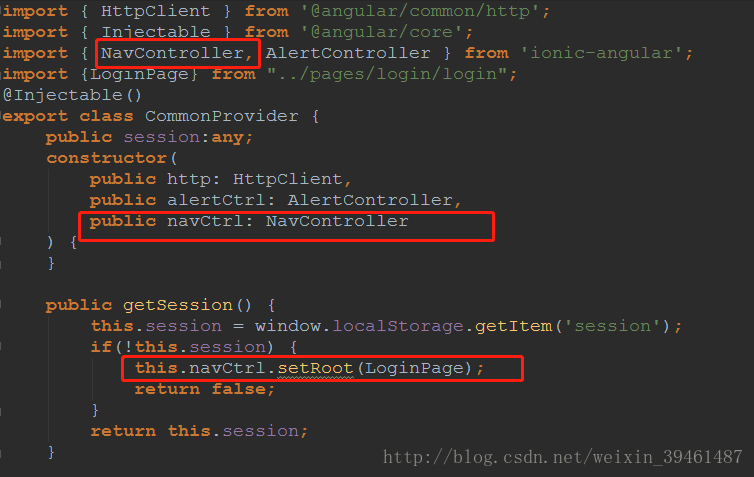
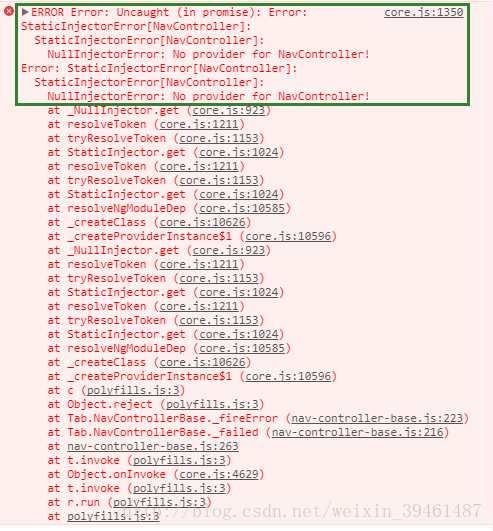
ionic Uncaught (in promise): Error: StaticInjectorError[NavController]

Error: Uncaught (in promise): Error: StaticInjectorError[NavController]
By default you can’t use navController or viewController or anything like that in a Controller or a service.
Code:


An easier solution,

import { HttpClient } from '@angular/common/http';
import { Injectable } from '@angular/core';
import { NavController, AlertController, App } from 'ionic-angular';
import {LoginPage} from "../pages/login/login";
@Injectable()
export class CommonProvider {

    public session:any;
    constructor(
        public http: HttpClient, 
        public alertCtrl: AlertController, 
        public appCtrl : App
    ) {}

    public getSession() {
        let activeNav: NavController = this.appCtrl.getActiveNav();
        this.session = window.localStorage.getItem('session');
        if(!this.session) {
            activeNav.setRoot(LoginPage);
            return false;
        }
        return this.session;
    }

Reference: https://www.cnblogs.com/wupeng88/p/8340947.html

Jython installation

Jython installation is a bit bumpy
Jython installation small bumpy background software configuration installation process encountered problems in the last episode

Jython installation is a bit bumpy
background
Since Jython is required to use MonkeyRunner, let’s take a look at the bumps in the Android process.
Software configuration
Operating system: Windows 7 64-bit
Java version: 1.8.3
Python version: 2.7.8
The installation process
To get started, go to Jython’s official website and download the latest version of Jython, which comes in a.JAR.
in CMD directly with java-jar + jar command to install
Problems encountered
After using the latest version of Jython installation, an Error was reported in CMD, indicating Error loading python27.dll (Error code 14001). The search engine searched and found the reason on stackoverflow. Jython2.7.1 does not support Windows 7. You can only download version 2.7.0 or lower. You found 2.7.0 here and downloaded the JAR package.
is installed directly in CMD with the java-jar + jar command, as before.
error was reported again this time. The error was reported as follows:

Error: Registry key 'Software\JavaSoft\Java Runtime Environment'\CurrentVersion'
has value '1.8', but '1.7' is required.
Error: could not find java.dll
Error: Could not find Java SE Runtime Environment.

This does not need the search engine to know is Java is too high, alas, have no way, have to change the environment variable of the system Java in the computer to 1.7.
thought this would be fine,
did not expect, after changing the Java version to reinstall the same prompt, I wonder. I read the Java version in CMD with java-version, 1.7. Why not?Have no way, have to turn to search engine again. [results] (https://stackoverflow.com/questions/29697543/registry-key-error-java-version-has-value-1-8-but-1-7-is-required) found the answer in this: the reason is that in the system path, Windows\System32 or Windows\SysWOW64 there are java.exe, javaw.exe, javaws.exe0 these files are still 1.8.3.
in this case, I guess the cache, although the environment variable has changed, but the path has not been changed.
The last
Finally, it is installed successfully. To check whether it is installed, you need to configure the environment variable. jython.exe· the path is in the /bin file of the installation path. After configuring it, just like Python, enter jython ‘in CMD directly and see if it enters jython.
episode
When the installation failed at the beginning, I went to the official installation guide on the official website. Jar –help java-jar jythn-installer -2.7.1.jar –help
I found that -help or -help is very useful, sometimes do not know what command, you can type this parameter in the back, see if it is useful. “Hee hee”

usage:
       java -jar jython-installer-2.7.0.jar [-c | -s | -A] [-d dir] [-t type] [-i
       part(s)] [-e part(s)] [-v] [-h | -?]

No option at all will start the interactive GUI installer, except:
Options respected in GUI mode are 'directory', which serve as default values
in the wizard.
In non-GUI mode the following options are available:
 -c,--console             console based installation (user interaction)
                          any other options will be ignored (except 'verbose')
 -s,--silent              silent installation (without user interaction)
 -A,--autotest            automatic stress tests for the installer
                          most of the other options are ignored
                          allowed additional options: 'verbose
 -d,--directory <dir>     target directory to install to
                          (required in silent mode,
                          used as default in GUI mode)
 -t,--type <type>         installation type
                          one of the following types is possible
                          (see also include/exclude parts):
                          - all: everything (including src)
                          - standard: core, mod, demo, doc, ensurepip
                          standard is the default
                          - minimum: core
                          - standalone: install a single, executable .jar,
                          containing all the modules
 -i,--include <part(s)>   finer control over parts to install
                          more than one of the following is possible:
                          - mod: library modules
                          - demo: demos and examples
                          - doc: documentation
                          - src: java source code
                          - ensurepip: install pip and setuptools
 -e,--exclude <part(s)>   finer control over parts not to install
                          more than one of the following is possible:
                          - mod: library modules
                          - demo: demos and examples
                          - doc: documentation
                          - src: java source code
                          - ensurepip: install pip and setuptools
                          (excludes override includes)
 -v,--verbose             print more output during the installation
                          (also valid in GUI and autotest mode)
 -h,--help                print this help (overrides any other options)
 -?                      print this help (overrides any other options)

example of a GUI installation:
        java -jar jython-installer-2.7.0.jar

example of a console installation:
        java -jar jython-installer-2.7.0.jar -c

example of a silent installation:
        java -jar jython-installer-2.7.0.jar -s -d targetDirectory

examples of a silent installation with more options:
        java -jar jython-installer-2.7.0.jar -s -d targetDirectory -t minimum -i src
        java -jar jython-installer-2.7.0.jar -s -d targetDirectory -t standard -e demo doc -i src

example of an autotest installation into temporary directories:
        java -jar jython-installer-2.7.0.jar -A
        (uses java.awt.Robot; make sure you do NOT touch mouse NOR keyboard
         after hitting enter/return!)

In the end, I deliberately installed it without a graphical interface, using -C to install it with the console, and found that there were more options to choose than the graphical interface, so I won’t expand it here.
be interested in yourself to try.
.. ld: symbol(s) not found for architecture x86_64 collect2: ld returned 1 exit status make[2]: ***

2019 Unicorn enterprise heavily recruited Python engineer standard & GT; > >

./configure –prefix=/usr/local/nginx –with-http_ssl_module –with-http_stub_status_module –add-module=/usr/local/ngx_devel_kit-0.3.0 –add-module=/usr/local/ lua-nginx-Module-0.10.6 – add – the module =/usr/local/echo – nginx – module – 0.60
– with – cc – opt = “-i/usr/local/Cellar/pcre/8.39/include” – with – ld – opt = “-l/usr/local/lib/Cellar/pcre/8.39”
 
 
The e problem that had puzzled us for two days was finally solved.
Increase these two parameters
– with – cc – opt = “-i/usr/local/Cellar/pcre/8.39/include” – with – ld – opt = “-l/usr/local/lib/Cellar/pcre/8.39”
 

Reproduced in: https://my.oschina.net/cooler1217/blog/736886

“Securityerror: error ා 2060: Security sandbox conflict: external interface caller XXX cannot access XXX”

Today, I updated my Flash Player plugin to version 10.0.42.34. Then it turns out that a DVF that was previously running locally is running today and throwing an exception. The prompt message is as follows:
SecurityError: Error # 2060: security sandbox conflict: the ExternalInterface caller file://D:/study/flex/service/bin/rainbowX.swf file://D:/study/flex/service/bin/rainbowX_Debug.html can be accessed.
at flash.external::ExternalInterface$/_initJS()
at flash.external::ExternalInterface$/addCallback()
at freeidea.rainbowX::Application()
According to the prompt of debugging information because calls the ExternalInterface. AddCallback method. I take a look at the help documentation, which describes how this method throws a security exception as follows:
trigger

Error — this container does not support incoming calls. Incoming calls are supported only in Internet Explorer for Windows and browsers that use the NPRuntime API, such as Mozilla 1.7.5 and later or Firefox 1.0 and later.
0 SecurityError 1 — ActionScript in the sandbox where you have no access has added a callback with the specified name; You cannot override the callback. To solve this problem, rewrite the ActionScript that originally called the addCallback() so that it also calls the security.allowdomain () .

SecurityError - contains the environment belongs to the calling code has no right to access security sandbox. To solve this problem, follow these steps:

    in the HTML page containing the SWF file, set the following parameters in the object tag of the file: < param name="" value="always" /> in the SWF file, add the following ActionScript: flash. System. Security. AllowDomain (sourceDomain)
    Looking at the help instructions above, I think it may be due to cross-domain access issues, as mentioned in the article author (Developer) Control that if SWF wants to communicate with HTML scripts, then the value of allowScriptAccess for the plug-in must be set to Always. And SWF to allow access to the domain. So I try to join in the SWF flash system. Security. AllowDomain (" * "); Then add < < < param name="allowScriptAccess" value="always" /> This sentence.
    but the problem is still unresolved. There's no other way to think about it. Later, I found that my DVF could be browsed in the output folder of Project (I built it with Flex), but once I moved to another directory, it was not ok. As a result, I looked up the data and saw the following article, which was called "Overview of Permission Control". This article mainly shows what the Flash Player security model looks like. Below I put up part of the content, interested friends can go to the Internet search.
    overview of permission control
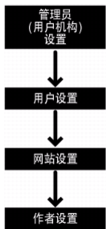
    Flash Player client runtime security model is a model designed around object resources such as SWF files, local data, and Internet urls. "Resource holders" means the parties that own or use these resources. Resource holders have control over their own resources (security Settings), and each resource has four holders. Flash Player USES a strict hierarchy of rights for these controls, as shown in the figure below:


    security control hierarchy


    the figure shows that if an administrator restricts access to a resource, no other holder can override the restriction.
    administrative user control
    The administrative user of the computer (the user logging in with administrative privileges) can apply Flash Player security Settings that affect all users of the computer. In a non-enterprise environment, such as a home computer, there is usually only one user, who also has administrative access. Even in an enterprise environment, a single user can have computer administration rights.
    There are two types of administrative user control:
    MMS. CFG file "global Flash Player trust" directory
    MMS. CFG file
    on Mac OS X, the MMS. CFG file is located in /Library/Application Support/Macromedia. On Microsoft Windows system, the file is located in the system directory of the Macromedia Flash Player folder (for example, in the default install Windows XP to C:/Windows/system32/macromed/Flash/MMS CFG).
    Flash Player will read its security Settings from this file when it starts, and then use these Settings to restrict the functionality.
    The MMS. CFG file includes Settings that the administrator USES to perform the following tasks:
    data loading - restricts reading of local SWF files, prohibits file downloading and uploading, and sets storage limits on permanent Shared objects. privacy controls - disable microphone and camera access, prohibit SWF files from playing windowless content, and prohibit SWF files from accessing permanently Shared objects in domains that do not match the URL displayed in the browser window. Flash Player updates - sets the time interval to check Flash Player updates, specifies the URL to use to check Flash Player updates, specifies the URL from which to download Flash Player updates, and completely disables automatic Flash Player updates. older file support - specifies whether earlier versions of SWF files should be placed in a trusted local sandbox. local file security - specifies whether a local file can be placed in a trusted local sandbox. full screen mode - disable full screen mode.
    SWF file can be by calling the "Capabilities. AvHardwareDisable and " Capabilities. LocalFileReadDisable property to access functionality disabled some of the information. However, most of the Settings in the MMS.cfg file cannot be queried through ActionScript.
    is to enforce application-independent security and privacy policies on the computer, and only the mms.cfg file can be modified by the system administrator. The MMS. CFG file cannot be used to install the application. While an installer running with administrative permissions can modify the contents of the MS.cfg file, Adobe considers such use a violation of the user's trust and advises the creator of the installer never to modify the MS.cfg file.
    global Flash Player trust directory
    The administrative user and installation application can register the specified local SWF file as trusted. These SWF files are assigned to trusted local sandboxes. They can interact with any other SWF file or load data from anywhere (remote or local). The file is specified as trusted in the global Flash Player trust directory, the same directory as the mms.cfg file, in the location (specific to the current user) as follows:
    The Windows: the system/Macromed/Flash/FlashPlayerTrust (for example, C:/Windows/system32/Macromed/Flash/FlashPlayerTrust) Mac: App support/Macromedia FlashPlayerTrust (for example,/Library/Application support/Macromedia/FlashPlayerTrust)
    The Flash Player trust directory can contain any number of text files, with each file listing the trusted path on one line. Each path can be a single SWF file, HTML file, or directory. Comment lines start with #. For example, a Flash Player trust profile with the following text indicates that trusted status is granted to all files in the specified directory and all subdirectories:

    # Trust files in the following directories:
    C:/Documents and Settings/All Users/Documents/SampleApp

    The path listed in the trust profile should always be the local path or the SMB network path. Any HTTP path in the trust profile will be ignored; Only local files can be trusted.
    to avoid conflicts, specify a filename for each trust profile that corresponds to the installed application, and use the.cfg file extension.
    because developers distribute locally running SWF files by installing the application, you can have the installation application add a configuration file to the global Flash Player trust directory, granting full access to the files to be distributed. The installation application must be run by a user with administrative rights. Unlike the MMS.cfg file, the global Flash Player Trust directory is included to enable the installation application to grant trust permissions. Both managing users and installing applications can specify trusted local applications using the Global Flash Player Trust directory.
    after reading this article, it turns out that the project in Flex actually adds the output file from the project to the local trust sandbox. The CFG documentation for Flex was also found in the local directory specified, which does include the output folders for each project. So I also tried to add the directory where the DVF was in to the local trust sandbox. The entire folder path string is written to a text file based on the CFG file format described in the article, and then saved as a CFG file. Put it in the system/Macromed/Flash/FlashPlayerTrust. Then run the DVF again, the error message is gone, and the problem is resolved.
    in retrospect, Flash Player is really getting stricter with security. The current version is so strict even for local runs (the version I used before was 9.0, so long as You set allowScriptAccess to always in HTML). Only a thorough understanding of Flash Player's security mechanisms can help us solve the problem better. However, I use above is the management of user control method to achieve, so it is the highest level of configuration, there may be relatively large security risks, you can also try to use the ordinary user control method to add trust. The article write here, hope to be helpful to everybody.