Category Archives: JavaScript

Vue Package Image Error: Syntax Error: Error: ‘**\node_modules\pngquant-bin\vendor\pngquant.exe‘

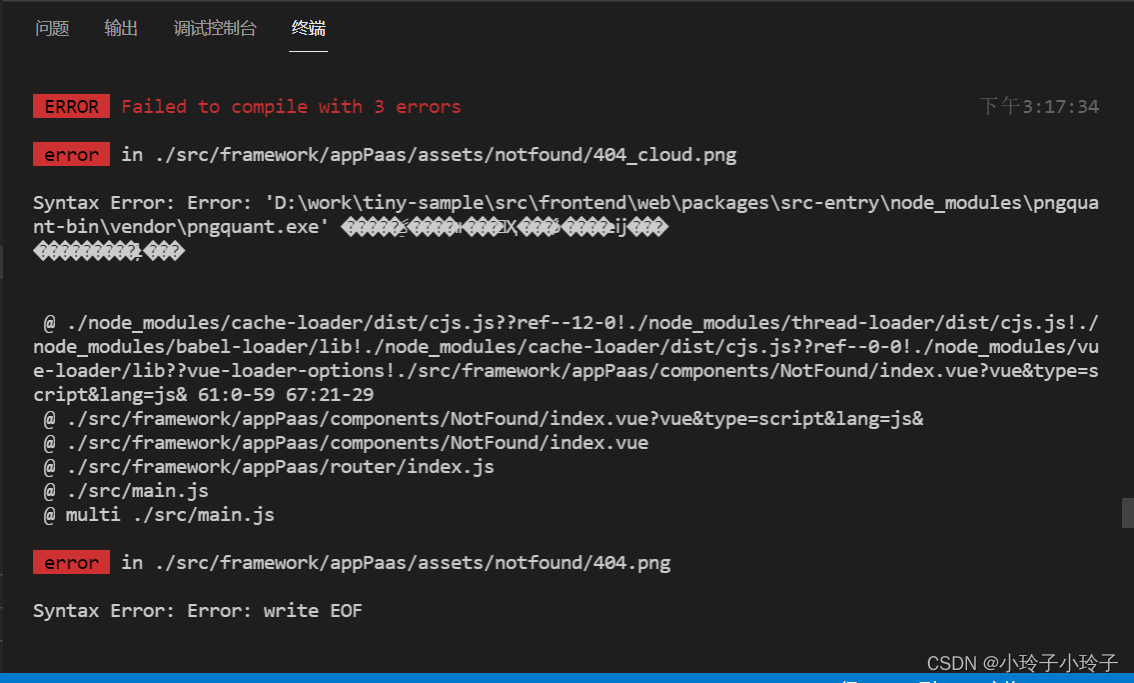
When packaging, an error is displayed at a picture path
Syntax Error: Error: ‘D:\work\tiny-sample\src\frontend\web\packages\src-entry\node_modules\pngquant-bin\vendor\pngquant.exe’

It can be seen that the package pngquant-bin reports an error, and the package is derived from the dependency of image-webpack-loader, so the root cause is image-webpack-loader.
Solution: delete the dependency image-webpack-loader, and then reinstall it. If it doesn’t work, try a few more times.

npm uninstall image-webpack-loader
npm install image-webpack-loader

If it still fails, set the image for NPM and repeat the above two steps

After Vue is packaged to the server, the static resource path reports an error

The error reporting path is:
http: domain name/CSS/XX css

In fact, it should be:
http: domain name/dist/CSS/XX/CSS

Method:
ensure that the value of publicpath is: publicpath: ‘. /’

ps:config.js or Vue-config.js file, according to the actual situation, if the editor cannot be found, search publicpath globally

[Solved] VUE eslint Error: Expected linebreaks to be ‘LF‘ but found ‘CRLF

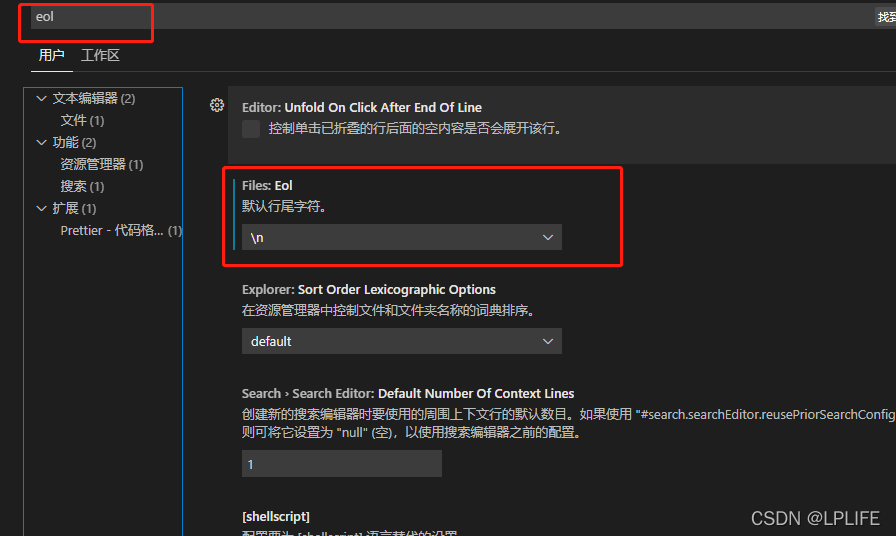
The reason for this: under Windows environment, GIT will automatically identify the current system environment when we pull the code. Change the original (Linux/Unix) line feed to the corresponding system. When we submit the code, it will be converted to the remote system environment (Linux/Unix), and then install eslint. LF is used by default, so this error will be reported

Line feed format in various environments
window: CRLF (\R \n or ^m \n)
MAC: Cr (\R or ^m)
linux/Unix: LF (\n)

Solution:

1. Manually cut the CRLF at the bottom of the vscode file code into LF, which can only make eslint not report errors for the time being. But in fact, when we pull down again, GIT will automatically convert all files to CRLF, and there will still be an error message

2. Rule configuration in eslint. Turn off line feed verification in the window environment and let it automatically convert CRLF to LF when submitting (it seems that we haven’t fundamentally solved this problem)

"linkbreak-style":["off","windows"]

3. When git pulls the code, let git pull according to the line feed (LF) of the remote code, and no longer convert the format according to the system. At the same time, configure the line feed character of vscode as LF. My approach is to configure the pull format of GIT, delete the whole local original warehouse, and then pull a code remotely again. This is OK. The command is as follows:

git config –global core. Autocrlf has three configurations (depending on the situation, I chose input)

True: automatically convert CRLF to LF when pushing, and CRLF when pulling (this configuration requires configuring eslint to turn off line break verification in window environment)

git config --global core.autocrlf true

Input: CRLF is automatically converted to LF when pushing, but LF is not automatically converted to CRLF when pulling (this configuration does not need to configure eslint, and the code format is consistent with that of the remote. I use this)

git config --global core.autocrlf input

False: no matter push or pull, the original file is what it is

git config --global core.autocrlf false

Other configurations:

1. Reject submission of files containing mixed line breaks

git config --global core.safecrlf true

2. Allow submission of files containing mixed line breaks

git config --global core.safecrlf true

3. Warn when submitting files containing mixed line breaks

git config --global core.safecrlf warn

vscode deployment:

[Solved] Node sass version 7.0.0 is incompatible with ^ 4.0.0 | ^ 5.0.0 | ^ 6.0.0

Today, when writing the Vue page, according to the tutorial, I want to install sass-loader and node-sass, but when running the project after installation, the following errors are reported:

Node Sass version 7.0.0 is incompatible with ^4.0.0 || ^5.0.0 || ^6.0.0

The solution is as follows

Stop using node-sass and replace it with sass.

If you want to use SCSS or sass in your application, you need to do this:

First uninstall the previously installed node-sass

yarn remove node-sass

If NPM is used, then

npm uninstall node-sass

Then install sass instead of node-sass

yarn add -D sass

perhaps

npm i -D sass

Then your SCSS/sass file will be compiled correctly.

Vue3 Error: [vue/no-multiple-template-root] The template root requires exactly one element

vue3.0 supports <template/></template> tag to delegate more than one root element
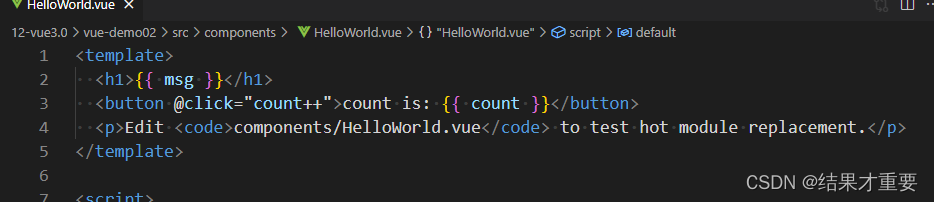
Building the project with the latest Vite, the code in the default app.vue is as follows:

The code can run normally, but the vscode gives an error prompt:

[vue/no-multiple-template-root]
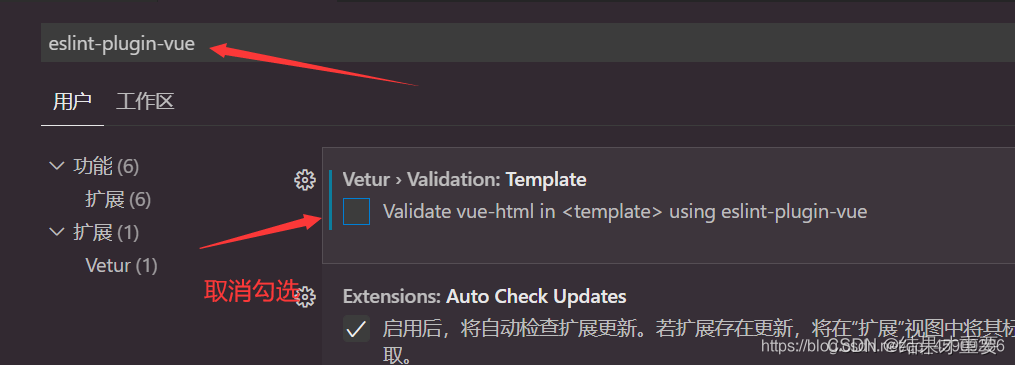
The template root requires exactly one element. eslint-plugin-vue

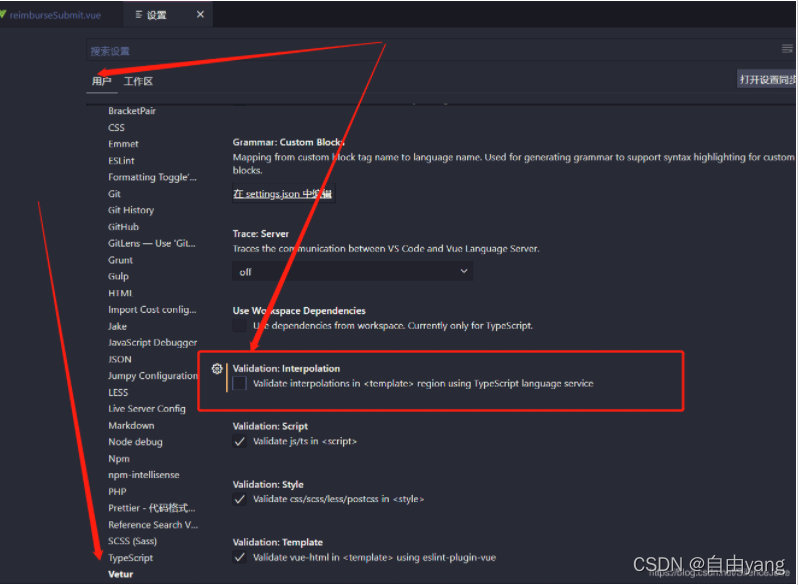
The reason is that the vetur plug-in has not been updated

The temporary solution is

Settings -> Search: eslint plugin Vue -> Uncheck the first (Vetur › Validation: Template )

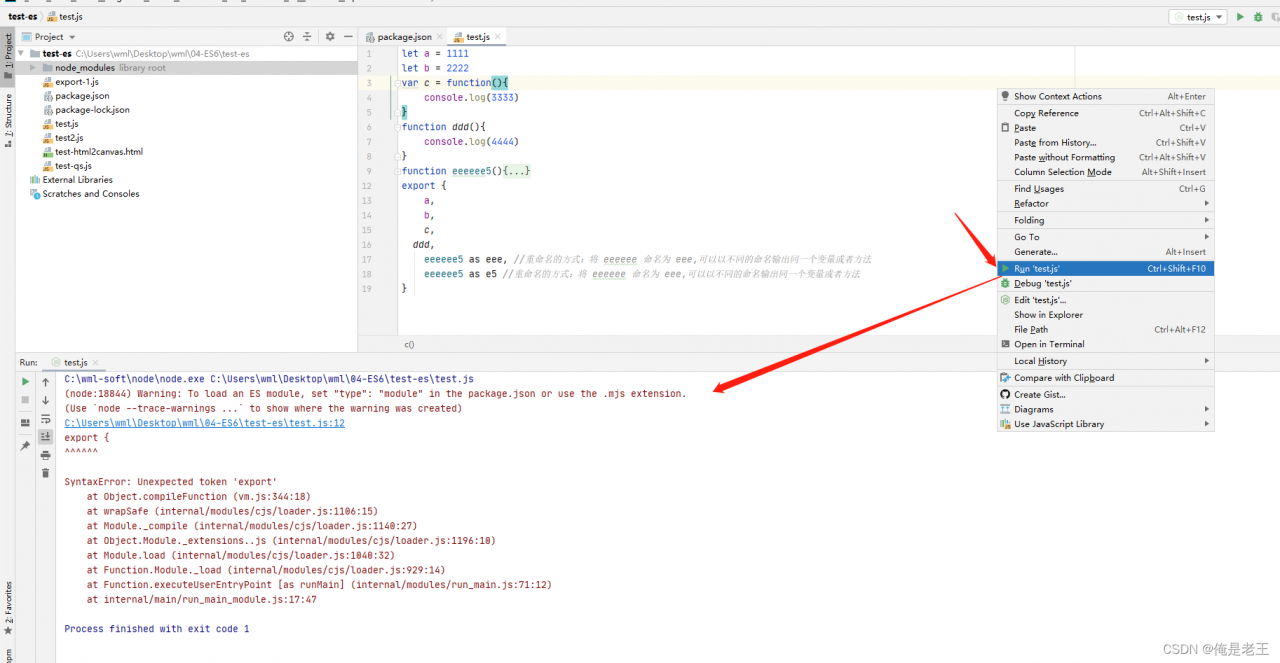
[Solved] Warning: To load an ES module, set “type“: “module“ in the package.json or use the .mjs extension

In the process of learning ES6, an error is reported when and running JavaScript files, which is reproduced in detail

1. Create a new file, add test es, and use idea to open the folder
2. Add package.json file: NPM init – y
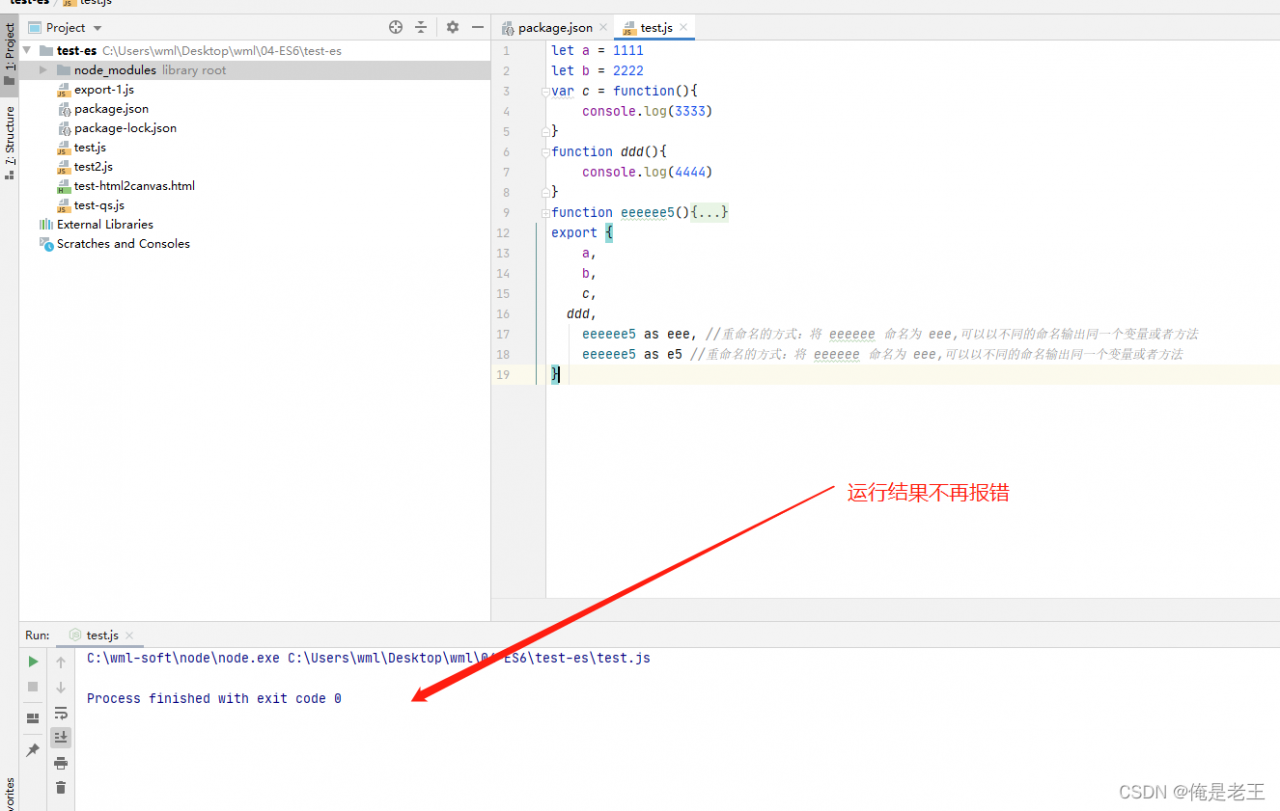
3. Create a new test.js file in the folder test-es, the contents of which are as follows

let a = 1111
let b = 2222
var c = function(){
	console.log(3333)
}
function ddd(){
	console.log(4444)
}
function eeeeee5(){
	console.log(555)
}
export {
	a,
	b,
 	c,
    ddd,
	eeeeee5 as eee, //The way to rename: name eeeeeeee as eee, you can output the same variable or method with different names
	eeeeee5 as e5 // rename the way: name eeeeee as eee, you can output the same variable or method with a different name
}

4. Right click and click Run ‘test.JS’, the error is reported as follows:

Solution:

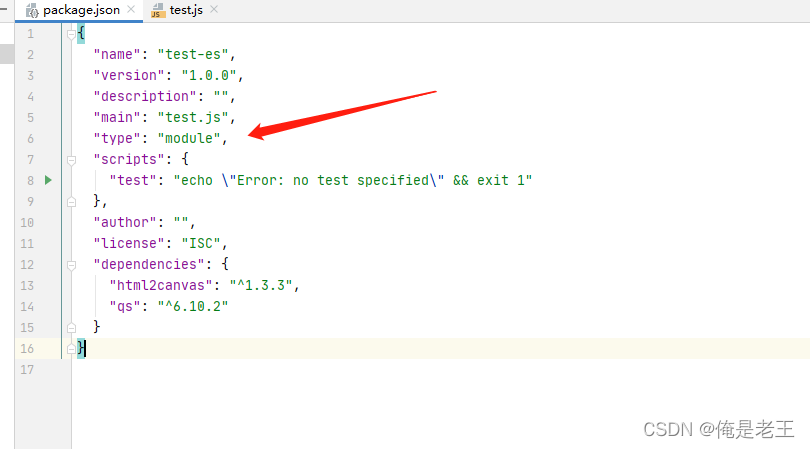
According to the error message, in package JSON add “type”: “module”, and then run test.JS file, no error will be reported

Vue Project Error: Error from chokidar [How to Solve]

The temporary solution is to enter the following command at the terminal, but this temporary change will not work after restarting the system.

echo fs.inotify.max_user_watches=524288 | sudo tee -a /etc/sysctl.conf && sudo sysctl -p

The reason for this is that the number of monitoring handles set by the Linux system is not enough, so you need to modify the limit.conf configuration file. vi Open /etc/security/limit.conf and then modify the number of monitoring handles.

*               soft    nofile         524288
*               hard    nofile         524288

: wq after saving and restarting, the problem is solved successfully.

[Solved] Vue Project startup error: no eslint configuration found

rimraf node_ Modules delete node_ modules

Delete package lock json

npm init -y

npm install eslint –save-dev

Add manually the following code is configured for the eslintrc.js  file. The rules can be configured by themselves

module.exports = {
    root: true,
    parserOptions: {
      parser: 'babel-eslint',
      sourceType: 'module'
    },
    env: {
      browser: true,
      node: true,
      es6: true,
    },
    extends: ['plugin:vue/recommended', 'eslint:recommended'],
  
    // add your custom rules here
    //it is base on https://github.com/vuejs/eslint-config-vue
    rules: {
      "vue/max-attributes-per-line": [2, {
        "singleline": 10,
        "multiline": {
          "max": 1,
          "allowFirstLine": false
        }
      }],
      "vue/singleline-html-element-content-newline": "off",
      "vue/multiline-html-element-content-newline":"off",
      "vue/name-property-casing": ["error", "PascalCase"],
      "vue/no-v-html": "off",
      'accessor-pairs': 2,
      'arrow-spacing': [2, {
        'before': true,
        'after': true
      }],
      'block-spacing': [2, 'always'],
      'brace-style': [2, '1tbs', {
        'allowSingleLine': true
      }],
      'camelcase': [0, {
        'properties': 'always'
      }],
      'comma-dangle': [2, 'never'],
      'comma-spacing': [2, {
        'before': false,
        'after': true
      }],
      'comma-style': [2, 'last'],
      'constructor-super': 2,
      'curly': [2, 'multi-line'],
      'dot-location': [2, 'property'],
      'eol-last': 2,
      'eqeqeq': ["error", "always", {"null": "ignore"}],
      'generator-star-spacing': [2, {
        'before': true,
        'after': true
      }],
      'handle-callback-err': [2, '^(err|error)$'],
      'indent': [2, 2, {
        'SwitchCase': 1
      }],
      'jsx-quotes': [2, 'prefer-single'],
      'key-spacing': [2, {
        'beforeColon': false,
        'afterColon': true
      }],
      'keyword-spacing': [2, {
        'before': true,
        'after': true
      }],
      'new-cap': [2, {
        'newIsCap': true,
        'capIsNew': false
      }],
      'new-parens': 2,
      'no-array-constructor': 2,
      'no-caller': 2,
      'no-console': 'off',
      'no-class-assign': 2,
      'no-cond-assign': 2,
      'no-const-assign': 2,
      'no-control-regex': 0,
      'no-delete-var': 2,
      'no-dupe-args': 2,
      'no-dupe-class-members': 2,
      'no-dupe-keys': 2,
      'no-duplicate-case': 2,
      'no-empty-character-class': 2,
      'no-empty-pattern': 2,
      'no-eval': 2,
      'no-ex-assign': 2,
      'no-extend-native': 2,
      'no-extra-bind': 2,
      'no-extra-boolean-cast': 2,
      'no-extra-parens': [2, 'functions'],
      'no-fallthrough': 2,
      'no-floating-decimal': 2,
      'no-func-assign': 2,
      'no-implied-eval': 2,
      'no-inner-declarations': [2, 'functions'],
      'no-invalid-regexp': 2,
      'no-irregular-whitespace': 2,
      'no-iterator': 2,
      'no-label-var': 2,
      'no-labels': [2, {
        'allowLoop': false,
        'allowSwitch': false
      }],
      'no-lone-blocks': 2,
      'no-mixed-spaces-and-tabs': 2,
      'no-multi-spaces': 2,
      'no-multi-str': 2,
      'no-multiple-empty-lines': [2, {
        'max': 1
      }],
      'no-native-reassign': 2,
      'no-negated-in-lhs': 2,
      'no-new-object': 2,
      'no-new-require': 2,
      'no-new-symbol': 2,
      'no-new-wrappers': 2,
      'no-obj-calls': 2,
      'no-octal': 2,
      'no-octal-escape': 2,
      'no-path-concat': 2,
      'no-proto': 2,
      'no-redeclare': 2,
      'no-regex-spaces': 2,
      'no-return-assign': [2, 'except-parens'],
      'no-self-assign': 2,
      'no-self-compare': 2,
      'no-sequences': 2,
      'no-shadow-restricted-names': 2,
      'no-spaced-func': 2,
      'no-sparse-arrays': 2,
      'no-this-before-super': 2,
      'no-throw-literal': 2,
      'no-trailing-spaces': 2,
      'no-undef': 2,
      'no-undef-init': 2,
      'no-unexpected-multiline': 2,
      'no-unmodified-loop-condition': 2,
      'no-unneeded-ternary': [2, {
        'defaultAssignment': false
      }],
      'no-unreachable': 2,
      'no-unsafe-finally': 2,
      'no-unused-vars': [2, {
        'vars': 'all',
        'args': 'none'
      }],
      'no-useless-call': 2,
      'no-useless-computed-key': 2,
      'no-useless-constructor': 2,
      'no-useless-escape': 0,
      'no-whitespace-before-property': 2,
      'no-with': 2,
      'one-var': [2, {
        'initialized': 'never'
      }],
      'operator-linebreak': [2, 'after', {
        'overrides': {
          '?': 'before',
          ':': 'before'
        }
      }],
      'padded-blocks': [2, 'never'],
      'quotes': [2, 'single', {
        'avoidEscape': true,
        'allowTemplateLiterals': true
      }],
      'semi': [2, 'never'],
      'semi-spacing': [2, {
        'before': false,
        'after': true
      }],
      'space-before-blocks': [2, 'always'],
      'space-before-function-paren': [2, 'never'],
      'space-in-parens': [2, 'never'],
      'space-infix-ops': 2,
      'space-unary-ops': [2, {
        'words': true,
        'nonwords': false
      }],
      'spaced-comment': [2, 'always', {
        'markers': ['global', 'globals', 'eslint', 'eslint-disable', '*package', '!', ',']
      }],
      'template-curly-spacing': [2, 'never'],
      'use-isnan': 2,
      'valid-typeof': 2,
      'wrap-iife': [2, 'any'],
      'yield-star-spacing': [2, 'both'],
      'yoda': [2, 'never'],
      'prefer-const': 2,
      'no-debugger': process.env.NODE_ENV === 'production' ?2 : 0,
      'object-curly-spacing': [2, 'always', {
        objectsInObjects: false
      }],
      'array-bracket-spacing': [2, 'never']
    },
    globals: {
      'AMap': false,
      'AMapUI': false,
      '__webpack_public_path__': true
    }
  }
  

[Solved] Error in v-on handler: “Error: please transfer a valid prop path to form item

Function Description:

Click “add” to add a line; Select a line and click Delete to delete it.

Question:

Click Delete to split only the model bound array to remove the array elements, and then click OK to validate the form and submit it normally; If you click Delete to split the array and directly call the function bound by the OK button to submit the form, the above error will be prompted during form verification and cannot be submitted normally. [Note: the code is not pasted completely, only the important part is pasted]

/*Delete*/     
delete(){
          this.form.params.splice(this.currentIndex, 1);
          this.currentIndex= this.form.params.length - 1;
          this.submitForm();
      }

/* Form Submission Method*/     
submitForm(){
      this.$refs["from"].validate((valid) => {
        if (valid) {
          update(this.from).then(response => {
            alert("Submit Successfully");
          });
        }
      })
}

reason:

In the delete method, the form is submitted after the splice. Because the change of the array has not been rendered, the submitted form is still before the splice, so an error is reported.

Solution:

Use promise().then() to put the call to the form submission in the then, so that it can be guaranteed to be submitted after rendering.

[Solved] npm link Error: error Error: EPERM: operation not permitted;The operation was rejected by your operating

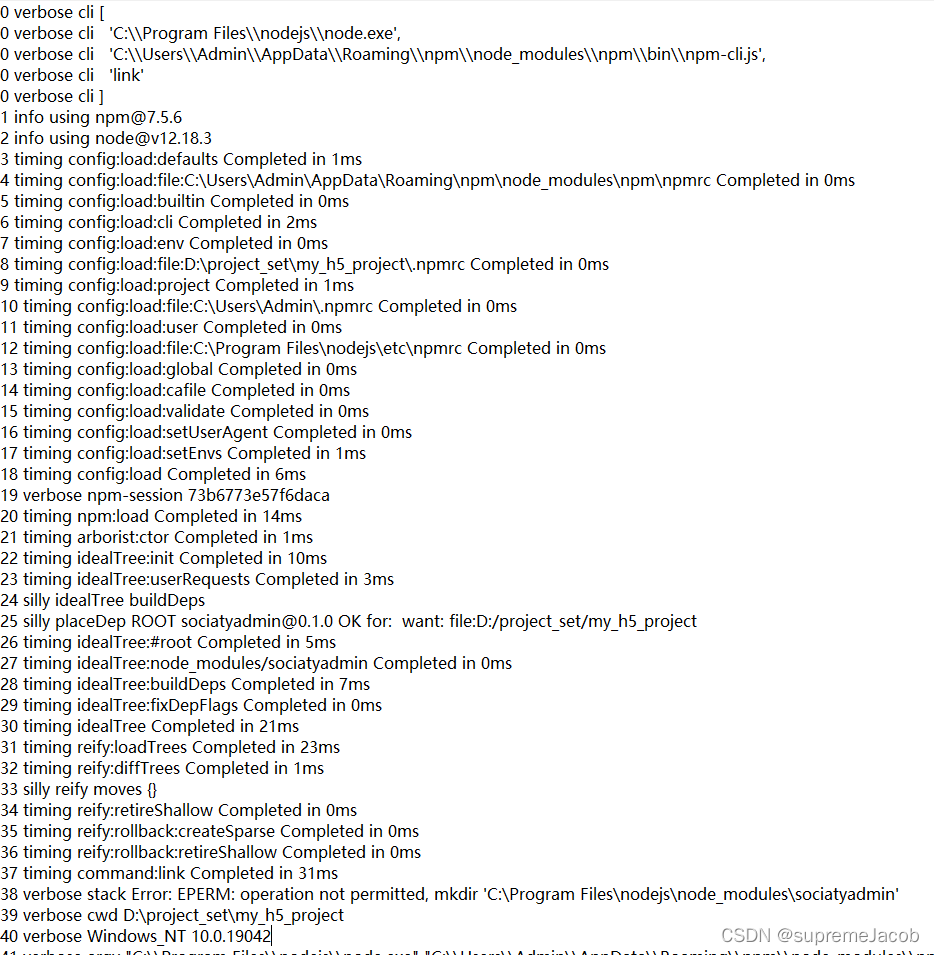
Error message:

Solution:

From the error message, the prompt is that the permission is insufficient to operate. All the files found on the Internet are to delete npmrc files, but there is no effect. Through exploration, we can solve it in two ways:
1. Run vscode as an administrator, and then run NPM link on the vscode terminal
2. Run CMD (command prompt) as an administrator, Go into your own module and run NPM link

it’s done