Category Archives: How to Fix

Chart.min.js:10 Failed to create chart: can’t acquire context from the given item

exception resolution chart.min.js :10 Failed to create Chart: can’t acquire context from the given item

      • this exception is a front-end exception

The exception

is a front-end exception

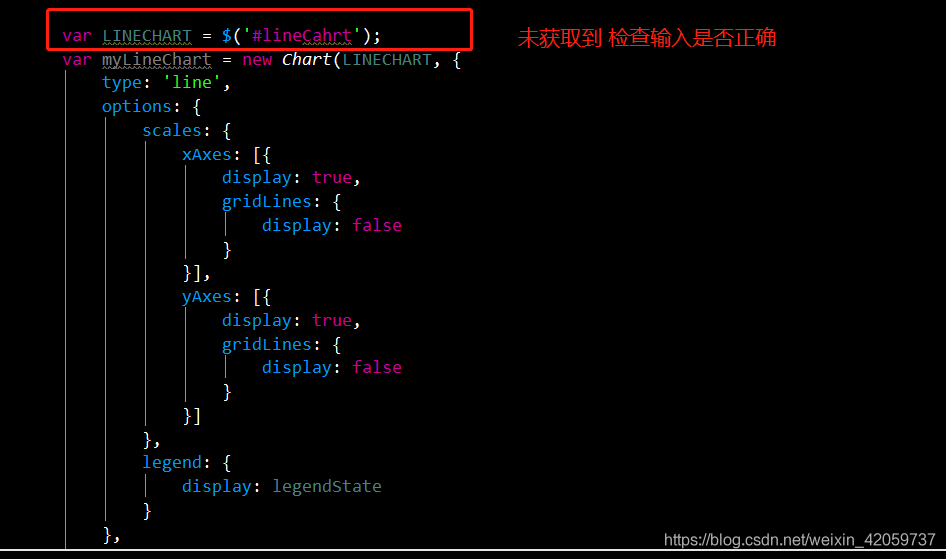
error in using chart. Js in initializing report
cause: error in obtaining dom without obtaining the specified dom or not giving a dom object to chart cannot initialize
reference link

Installing opencv and Linux Makefile:160 : recipe for target ‘all’ failed problem resolution

system used: MAC, remote server: Linux (UBuntu).

installing opencv to the server can accelerate the training speed and enhance the test function to a certain extent. Look up a few methods on the net all write too complex, oneself close test after feasible use the simplest language description record at this.

connect to the server with a terminal on the macbook and download opencv package from github:

git clone https://github.com/Itseez/opencv.git
git clone https://github.com/Itseez/opencv_contrib.git

download completed, opencv and opencv_contrib folders can be seen in your download directory, move opencv_contrib directory to opencv directory.

add the required dependency libraries:

sudo apt-get install build-essential
sudo apt-get install cmake git libgtk2.0-dev pkg-config libavcodec-dev libavformat-dev libswscale-dev
sudo apt-get install python-dev python-numpy libtbb2 libtbb-dev libjpeg-dev libpng-dev libtiff-dev libjasper-dev libdc1394-22-dev

done, use the CD command to enter the opencv directory, and then create a new folder:

mkdir build

goes into the build directory and starts compiling —

1. If your server has no anaconda pre-installed, execute:

cmake -D CMAKE_INSTALL_PREFIX=/usr/local -D CMAKE_BUILD_TYPE=Release -D OPENCV_EXTRA_MODULES_PATH=../opencv_contrib/modules ..

2. If you have anaconda on your server, there may be some conflicts. If you use the command above, a Makefile:160: recipe for target ‘all’ failed with an error. Just change it to:

cmake -D CMAKE_BUILD_TYPE=RELEASE -D CMAKE_INSTALL_PREFIX=/usr/local -D WITH_TBB=ON -D BUILD_SHARED_LIBS=OFF -D WITH_OPENMP=ON -D ENABLE_PRECOMPILED_HEADERS=OFF ..

is followed by:

make -j8

After

is compiled, execute:

sudo make install

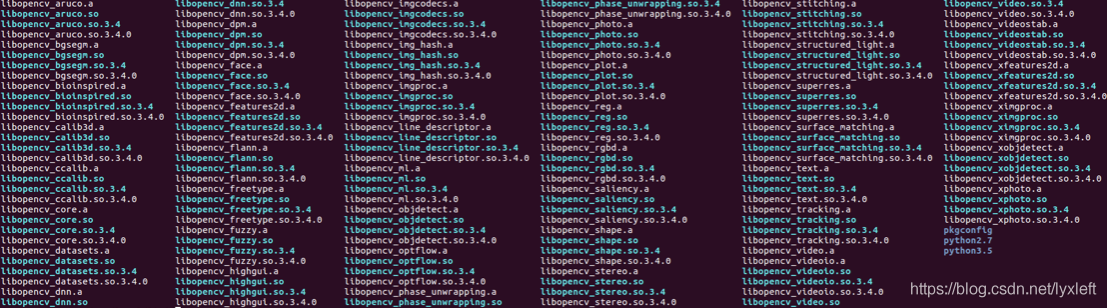
this way, we can use OPencv in Ubuntu for all languages. You can see the results of the opencv compilation under /usr/local/lib.

cd /usr/local/lib
ls

you can see that there is a large number of lib oepncv, on the stable!

MongoDB Error: Failed to start mongod.service: Unit mongod.service is not loaded properly

solution


– command line input below, open mongodb.service file
that is

 sudo vim /etc/systemd/system/mongodb.service

– paste and copy the following to the open file
or

[Unit]
Description=High-performance, schema-free document-oriented database
After=network.target

[Service]
User=mongodb
ExecStart=/usr/bin/mongod --quiet --config /etc/mongod.conf

[Install]
WantedBy=multi-user.target

Sudo service mongod stop
restart: sudo service mongod stop
restart: sudo service mongod restart

, however, I later found this problem again, at this point using the above boot command still does not work.
then run this startup command:
sudo systemctl start mongodb
problem solved

How to Fix adb_server_notify: ADB server connection failed

AVD startup emulator ‘AVD_for_5_4_FWVGA’

adb_server_notify: ADB server connection failed

Emulator:Listening to console connection on port 5554

emulator:Serial number of this emulator (for ADB): emulator-5554

RegGetValueW failed to connect on port 2.

Your emulator has expired, please update it by launching Android Studio:

-Launch Android Studio

-Select menu “Tools > Android Manager”.

-Click on the “SDK Tools” tab

-Check the “Android SDK Tools” checkbox

-Click “OK”

linux docker Error Failed to get D-Bus connection: Operation not permitted

creates the container with the centos7 image, inside which the systemctl startup service reports an error. For this error, we will analyze next!

# docker run -itd --name centos7 centos:7
# docker attach centos7
# yum install vsftpd
# systemctl start vsftpd
Failed to get D-Bus connection: Operation not permitted

cannot start the service, what happens?

can’t the container run the service!!

a:

Docker’s design concept is not to run background services in the container. The container itself is an independent main process on the host, which can also be indirectly understood as the application process running services in the container. The life cycle of a container revolves around the main process, so the correct way to use the container is to run the services inside in the foreground.

speaking of systemd, this suite has become the default service management for major Linux distributions (such as CentOS7, Ubuntu14+), replacing the traditional systemv-style service management. Systemd maintains the system server program, which requires privileges to access the Linux kernel. And the container is not a complete operating system, only a file system, and default boot is only ordinary users such permissions to access the Linux kernel, that is, no privileges, so naturally not use!

therefore, follow the container design principles and run a foreground service in a container!

, that’s how I want to run it, can’t I solve it?

answer: yes, run the container in privileged mode.

create container:

# docker run -d --name centos7 --privileged=true centos:7 /usr/sbin/init

into the container:

# docker exec -it centos7 /bin/bash

so you can start the service using systemctl.

Warning: failed to get default registry endpoint from daemon

Docker error

Warning: failed to get default registry endpoint from daemon (Cannot connect to the Docker daemon. Is the docker daemon running on this host?) .

operating system: CentOS7
execution command: docker info, docker search, docker pull
execution user: non-root, has sudo permission

guess error and execute user permission, use sudo docker info will also report error, but docker --version normal
execute sudo dockerd after CTRL +c interrupt, stop docker service and then restart, then use sudo docker info normal, No attempt to use root user directly is normal

停服启动命令
$ sudo systemctl stop docker.service
$ sudo systemctl start docker.service

不加sudo依然会报以下错误
被允许否认在试图连接到码头工人在unix守护进程插座:/// var /运行/码头工人。袜子:获取http://%2Fvar%2Frun%2Fdocker.sock/v1.38/info:拨打unix/var/run/docker.html。sock: connect:权限被拒绝

URLError: urlopen error [SSL: CERTIFICATE_VERIFY_FAILED] certificate verify failed (_ssl.c:833)

Python3 encountered this problem when downloading data, prompting urlError and SSL authentication failure. The accessed connection is HTTPS, so certificate validation is performed by default, and you can even cancel SSL validation

when HTTPS is loaded

 import ssl
  ssl._create_default_https_context = ssl._create_unverified_context

解决Failed to execute goal org.apache.maven.plugins:maven-compiler-plugin:3.7.0:compile

mvn clean package -Dmaven.test.skip=true

error thrown today when the project was packaged with the maven command :

Failed to execute goal org.apache.maven.plugins:maven-compiler-plugin:3.7.0:compile (default-compile) on project springbootdemo: Fatal error compiling: 无效的标记: -parameters -> [Help 1]

is easier to fix because the JDK version you need for your project is inconsistent with the JDK version you are currently using, because Java version is defined as 1.8 in my project’s pom. XML, but my actual idea for run project is 1.7

    <java.version>1.8</java.version>

solution: simply replace the current JDK version with the JDK required for your project

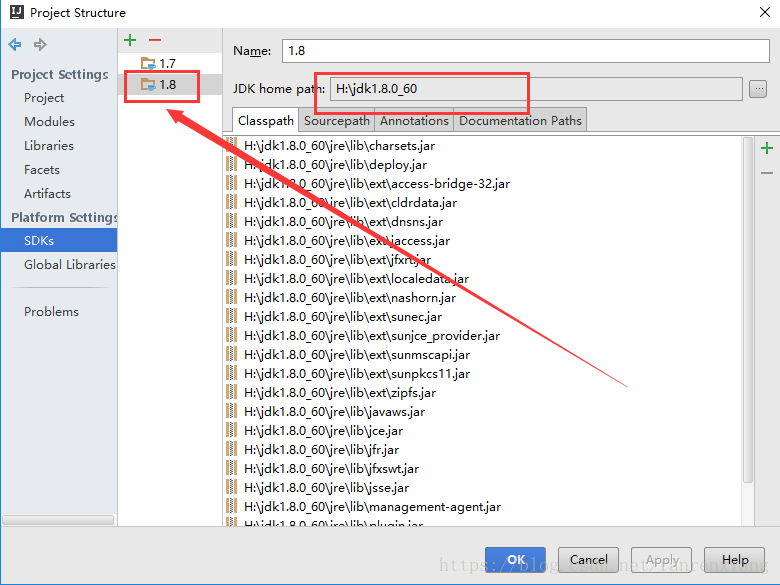
if you click on the package compiler in the maven window of intellij idea, enter the intellij idea JDK version by Ctrl+Alt+s into the Settings screen
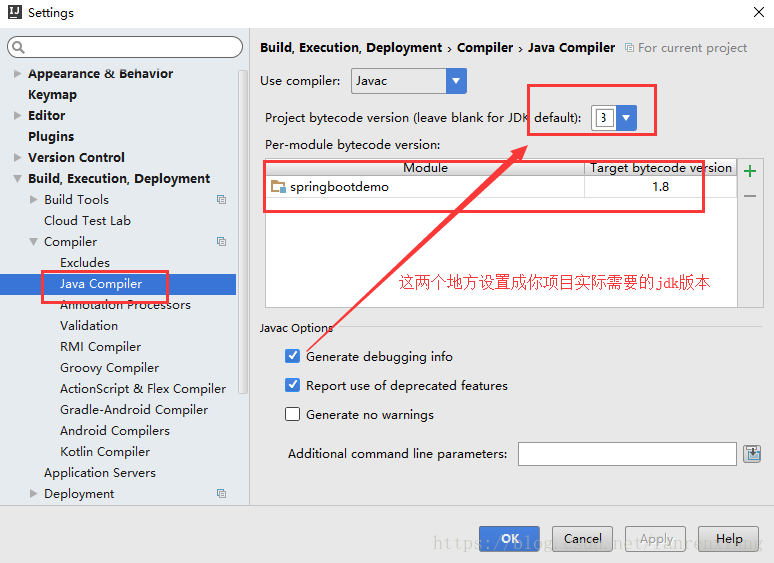
select the item, right click the F4 key, and set the item properties to enter
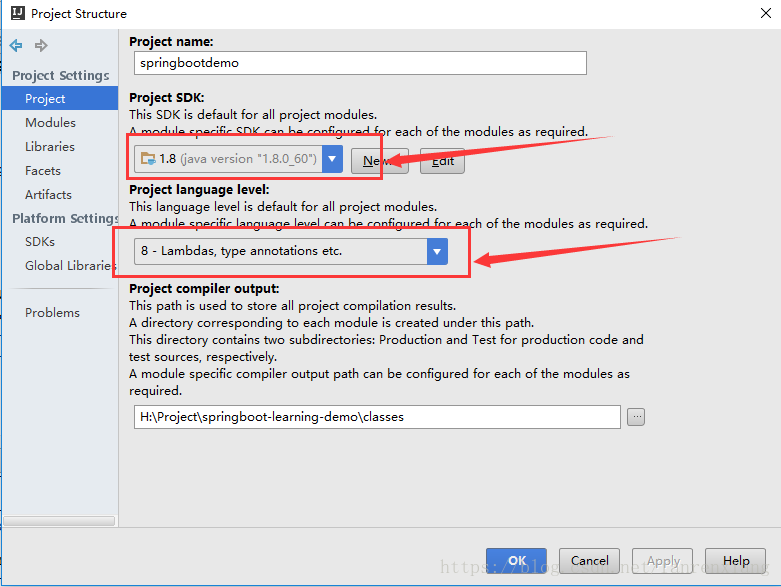
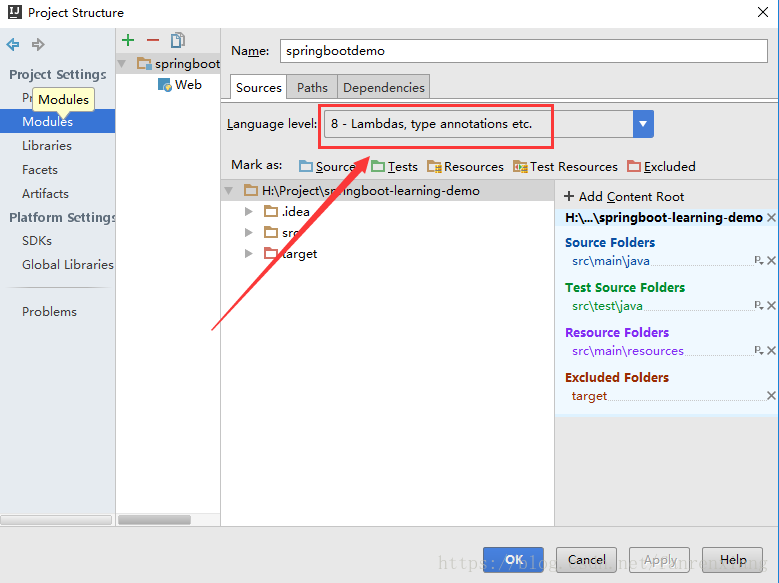
if you’re packing directly in Windows CMD with maven, you’ll need to switch your JDK environment. After the above setup, repackage and compile OK!

other conditions can also cause this error:

1. When you run a project with a command like java-jar ~.jar, you can also package the project with an error.

2. The configured dependency in your pom. XML file is not correct (it may be version, name, etc.), jar package does not come down, please carefully check whether there is an error in pom. XML, for example, if the dependency is not correct in idea, it can be directly seen in the maven project window.


extended reading: advanced customized timing tasks (including an administrative interface) using quartz

recommended reading: elastic search search engine actual combat demo:https://github.com/simonsfan/springboot-quartz-demo, branches: feature_es
[unity] when using unity hub, there is a problem of “failed to delete old unit installation file…” problem

error: “failed to delete old unity installation field. Maybe unity or some of its tools are still running”.

may actually be caused by insufficient permissions at installation time.

you can go to C:\Users\ \AppData\Local\Temp\unityhub- c187c6a0-6446-11e9-c3afd060978d to find the installation package downloaded by Unity Hub and install it with the administrator authority. The portion of the underlined path varies from person to person.