Category Archives: How to Fix

Git failed to authenticate

Git config –system –unset credential
Git config –global credential. Helper store
Git Config Credential. Helper Store (preferably this)
3, git pull pull code, will prompt for user name and password

Solved – problem cannot find module ‘webpack / bin / config yargs’

1. The question is:

module.js:538
    throw err;
    ^

Error: Cannot find module 'webpack/bin/config-yargs'
    at Function.Module._resolveFilename (module.js:536:15)
    at Function.Module._load (module.js:466:25)
    at Module.require (module.js:579:17)
    at require (internal/module.js:11:18)
    at Object.<anonymous> (D:\saic\dev\expressVue\node_modules\[email protected]@webpack-dev-server\bin\webpack-dev-server.js:54:1)
    at Module._compile (module.js:635:30)
    at Object.Module._extensions..js (module.js:646:10)
    at Module.load (module.js:554:32)
    at tryModuleLoad (module.js:497:12)
    at Function.Module._load (module.js:489:3)

 
Reason 2.
The above error occurs when webpack does not match the webpack-dev-server version. The specific version is as follows:
“Webpack” : “^ 4.35.0,”
“webpack – cli” : “^ 3.3.5”,
“webpack – dev – server” : “^ 2.11.5”
Webpack-dev-server should be used in pairs with Webpack, with versions 2.2.0 to 3.0.0 for 2.11.5 of Webpack.
Webpack is version 4.35.0 in this project, which is ahead of webpack-dev-server, so you should upgrade webpack-dev-server.
 
3. Solutions
3.1 Uninstall the old package and then upgrade

cnpm uninstall --save-dev webpack-dev-server

cnpm install --save-dev [email protected]

It is also possible to replace CNPM with NPM.
3.2 Modify package.json and then CNPM install or NPM install
The method for root 3.1 is essentially the same
 

Error: solution to the problem of cannot find module ‘webpack / bin / config yargs’

In terminal use of VSCode, using NPM run dev causes an error

Error: Cannot find module 'webpack/bin/config-yargs

It is possible that the webpack-dev-server version number is too low
The solution
Uninstall webpack-dev-server globally first

npm uninstall webpack-dev-server -g

Then install the latest version

npm install webpack-dev-server@latest

NPM run dev error: cannot find module ‘webpack cli / bin / config yargs‘

1- Open your package.json file

"devDependencies": {
    "webpack": "^5.2.0",
    "webpack-cli": "^4.1.0",
    "webpack-dev-server": "^3.11.0"
}

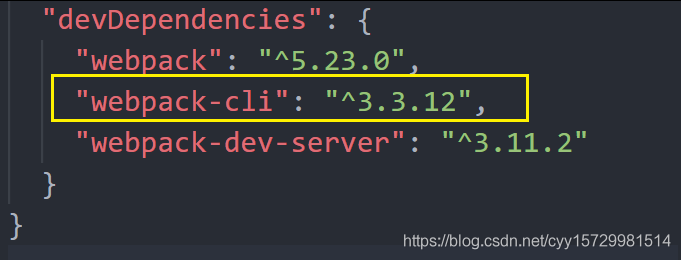
Webpack-cli: “^4.1.0”, which is version 4.*
2- Uninstall the current webpack-cli directive: NPM uninstall webpack-cli
3.* version directive: NPM install webpack-cli@3 -d

Just run NPM run dev!
 

Fatal error: Uncaught Error: Call to undefined function mysql_connect()

If this problem occurs, you can follow the following steps.
1. First of all, you should make sure that you are using the version of PHP. If it’s version 7.x, you should use mysqli_connect(), since mysqli_connect() has been dropped in version 7.x, or you can use PDO instead. The 5.x version of mysql_connect() and mysqli_connect() are both available.
2. If you don’t succeed in the first step, you can do the following:
Mysql> create extension=php_mysqli. DLL with extension=php_mysqli. DLL with extension=php_mysqli. DLL with extension=php_mysqli. DLL with extension=php_mysqli. DLL; ‘removed. Php_mysqli. DLL =php_mysqli. DLL = ‘; ‘and you find that there is no extension=php_mysql. DLL because it has been deprecated.)
(2) Then look for extension_dir = “ext”. ‘Remove it. 5.x is the same as 7.x.
(3) Then restart Apache.

Call to undefined function mysql_ Connect() solution summary

A:
Use the phpinfo() function in your PHP code to see PHP basics
Mysql_connect () has been deprecated since PHP5.0, and is deprecated in PHP7.0. Mysqli_connect () is used instead if PHP is 7.0 or higher
Method 2:
Missing MySQL module caused by PHP installation
Mysql> install mysql from CentOs
yum install php-mysql -y
If installed, report the following warning
Headers and client library minor version mismatch. Headers:
This is due to the higher version of MySQL, the lower version of the MySQL Client API
You can uninstall php-mysql first
yum remove php-mysql -y
then
yum install php-mysqlnd -y
Finally, restart Apache
systemctl restart httpd
Ubuntu install MySQL module:
Apt to get the install php5 – mysql
Sudo DPKG — reconfigure php5 – mysql
sudo /etc/init.d/mysql restart
sudo /etc/init.d/apache2 restart
Three:
If the first two methods fail, try opening the MySQL module extension in the php.ini configuration file
Php.ini = php.ini; Extension =” related MySQL module “; To get rid of
Then make sure that the dir of extension points to the directory where the extension resides
Windows is usually under Ext and CentOS is under /usr/lib64/php.modules
The above information can be found in the PHPINFO printed information
However, when I encountered this problem, I just needed to install the PHP-MySQL module, and I didn’t need to modify php.ini
My environment is Centos7 and PHP version is PHP5.4
 

Fatal error: Uncaught Error: Call to undefined function mysql_ Connect() problem solving

Fatal error: Uncaught error: Call to undefined function mysql_connect() : Fatal error: Uncaught error: Call to undefined function mysql_connect() when connecting to the database using PHP validation code. This is because the version of PHP you are using does not support the older version of join statement writing. The PHP version used in this study is PHP-7.4.2-NTS-Win32-VC15-x64, and the verification code is:
< ?PHP
the mysql_connect (‘ 127.0.0.1 ‘, ‘runner_db_user’, ‘runner_db_password’)
the OR die (” Could not connect to the database. ‘);
the mysql_select_db (‘ hfjq_race_info ‘);
echo “Connected!” ;
?>
After inquiry, this writing method is the previous version of 5. X, the following code is as follows:
< ?php
$con=mysqli_connect(“127.0.0.1”, “runner_db_user”, “hfjq_race_info”)
OR die(‘Could not connect to database.’);
echo “Connected!” ;
?>
You can connect to the database normally. If you have extension=mysqli, change the semicolon “;” before extension=mysqli. You can connect to the MySQL database normally if you remove it

Uncaught error: call to undefined function MySQL when building sqli lab environment with phpstudy_ Connect() error

The problem

Uncaught Error: Call to undefined function mysql_connect()

why
In PHP 5+, you can use both mysql_connect() and mysqli_conncet() instead of mysqli_conncet().
The solution
In the PHPStudy environment, you can downgrade the PHP version by selecting the PHP5 + version.
>
>

Web site – & gt; Management – & gt; PHP version. (You can choose to replace an older version of PHPStudy.)
If you want to use php7 without changing the code, you can use the admin ->; For PHP extensions, check the box before php_mysql.

Composer require — dev barryvdh / laravel ide helper error resolution

Your requirements could not be resolved to an installable set of packages.

  Problem 1
    - barryvdh/laravel-ide-helper[dev-master, v2.9.0] require illuminate/console ^8 -> found illuminate/console[v8.0.0, ..
., 8.x-dev] but it conflicts with another require.
    - barryvdh/laravel-ide-helper 2.9.x-dev is an alias of barryvdh/laravel-ide-helper dev-master and thus requires it to
be installed too.
    - Root composer.json requires barryvdh/laravel-ide-helper ^2.9 -> satisfiable by barryvdh/laravel-ide-helper[v2.9.0, 2
.9.x-dev (alias of dev-master)].


Installation failed, reverting ./composer.json and ./composer.lock to their original content.

Since PHP 8 is out, this support depends on the version, and I currently have Laravel 7 installed, so the default version of Laravel-id-helper is not supported, we will install the lower version

composer require --dev barryvdh/laravel-ide-helper 2.8

Python – annotate and uncomment multiline programs

The article directories
Python Comment and Uncomment multiline programs 1, Method 1 (recommended) 1, Comment 2, Uncomment 2, Method 2

Python annotation and uncomment multiline programs
In the program, sometimes you want to comment out the multi-line program, line by line comment is more troublesome, so can you comment more lines, yes, there are several methods:
1. Method 1 (recommended)
1, comments,
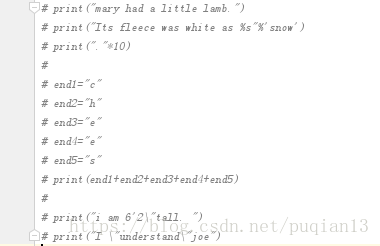
Select the paragraph you want to comment, press Ctrl +/, and the effect looks like this:

2. Uncomment
Click Ctrl +/ again to uncomment
Second, method 2
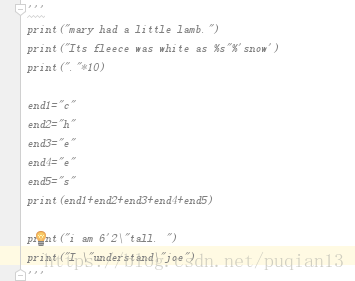
Enclose the entire paragraph in three double or multiple quotes, as shown in the figure

Nginx startup error: nginx: [error] open() “/ var / run / nginx/ nginx.pid The solution of “failed (2: no such file or directory)”

Question:
Nginx: [error] open() “/var/run/nginx/nginx.pid” failed (2: No such file or directory)
Cause of the problem:
The nginx.pid file cannot be found in /var/run/nginx/. There are two ways to do this:
The default directory is /var/run/nginx/.
The second way: Modify the nginx.conf file to specify the directory where the PID file resides. Let’s demonstrate the second way. As follows:
Solution:
(1) to CD/usr/local/nginx/conf/directory, edit the configuration file nginx. Conf.
#pid logs/nginx.pid; #pid logs/nginx.pid;

(3) the annotation, go out and amended as: pid/usr/local/nginx/logs/nginx pid;

Mkdir /usr/local/nginx/logs = ‘/usr/local/nginx/logs’
CD /usr/local/nginx/sbin/ CD /usr/local/nginx/sbin