Category Archives: How to Fix

Connect to the repository by using the database resource library!

Connect to the repository by using the database resource library!

The following is a screenshot of the overall error report

The following is a screenshot of the overall error report
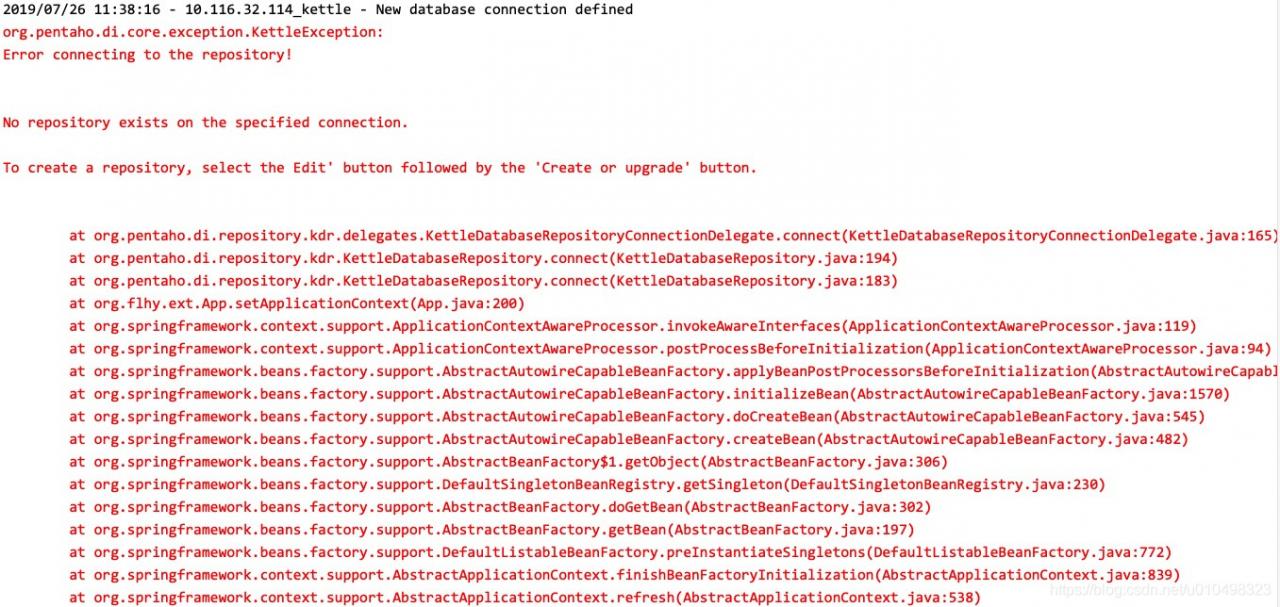
Since you can connect to the database locally, the first thing you think of after reporting this error is MySQL connector- java.jar Is 5.7.27 not supported?After replacing several jar packages, it’s fruitless…
Immediately added a few groups to ask, or fruitless…

In the end, I had no choice but to debug by myself… ing…
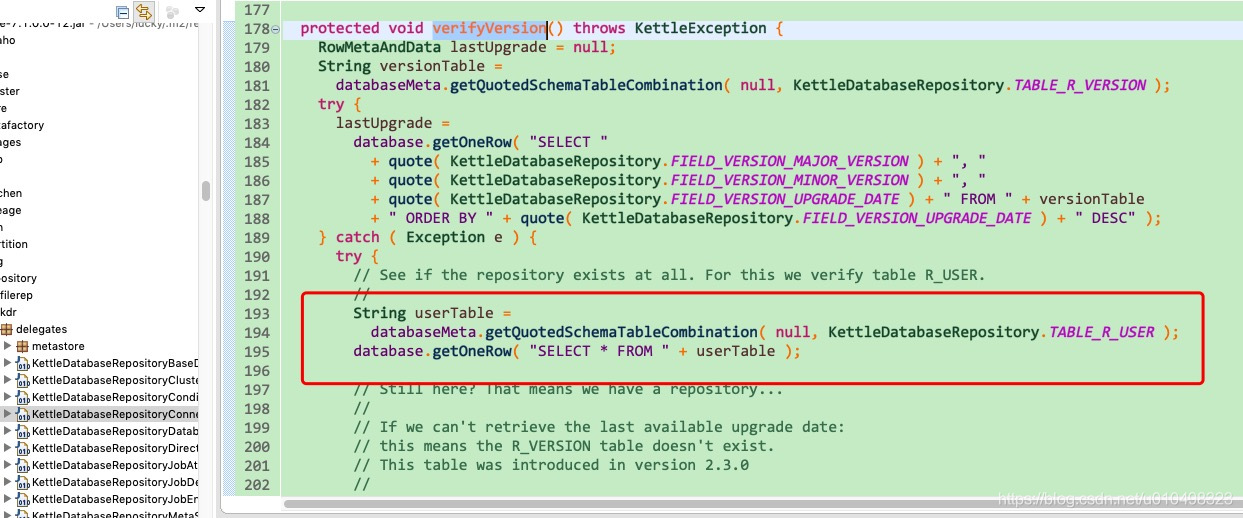
When debugging to this step, the exception appears. Then put its SQL into the tool to execute, and report an error that the table does not exist. Finally, it is found that the table name in the database is lowercase while the table name of the query statement is uppercase.
OK. Found the problem…

Solution: find [mysqld] and add a line below it: lower_ case_ table_ Names = 1, (1 means ignore case, 0 means resolve case). As shown in the figure below
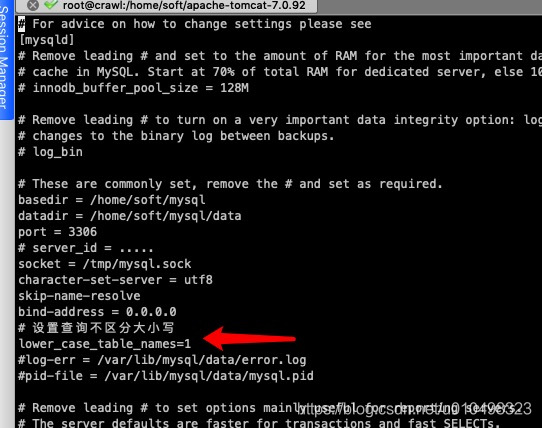
Restart mysql. That’s it. I’m afraid I’ll forget this pit.

Error creating bean with name ‘enablererediskeyspacenotificationsinitializer’

After the server is shut down, restart it, and start the web application log on it to print an error. Error creating bean with name ‘enablererediskeyspacenotificationsinitializer’ searches the Internet and finds that many of the answers are caused by the redis annotation related to springboot, and it is necessary to set redis.

But the problem is that this is not springboot, and there is no redis setting, because it was good before. After a long time, none of the reliable people suddenly thought about whether the problem lies in redis. Let’s take a look at the process of redis first,

ps -ef | grep Redis

Sure enough, redis didn’t start at all. First, open the redis service and see if it will change and if the error will change

Find the redis location
Find – name redis cli
(if redis or other services start, you can find the process number such as 12345, ll/proc/12345/CWD through PS – EF | grep XXXX to find the corresponding service location. )

Start the redis service
to the corresponding path to start the service
redis server /Redis conf
(note that the paths of redis server and redis conf are at the same level or not. )

Service start, web application process kill and restart, no error. So the reason for this error is related to whether the redis service is started or not.

Error after JDK reassembly: Error:opening registry key ‘Software/JavaSoft/JRE’

1、 Problems arising

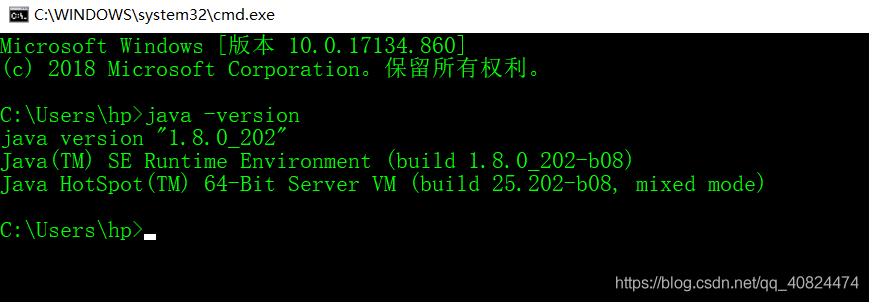
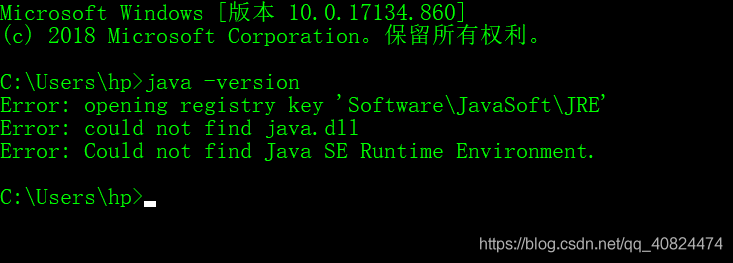
After the JDK is reinstalled, use Java – version to view it on the command line, and an error is reported Error:opening registry key ‘Software/JavaSoft/JRE’

The details are shown in the figure below:

Reason: the previous version of JDK was not unloaded completely

II. Solutions and steps

Step 1: uninstall the installed JDK (in the control panel)

(1) Windows + R, enter CMD, then enter control in the command line, press enter to open the control panel

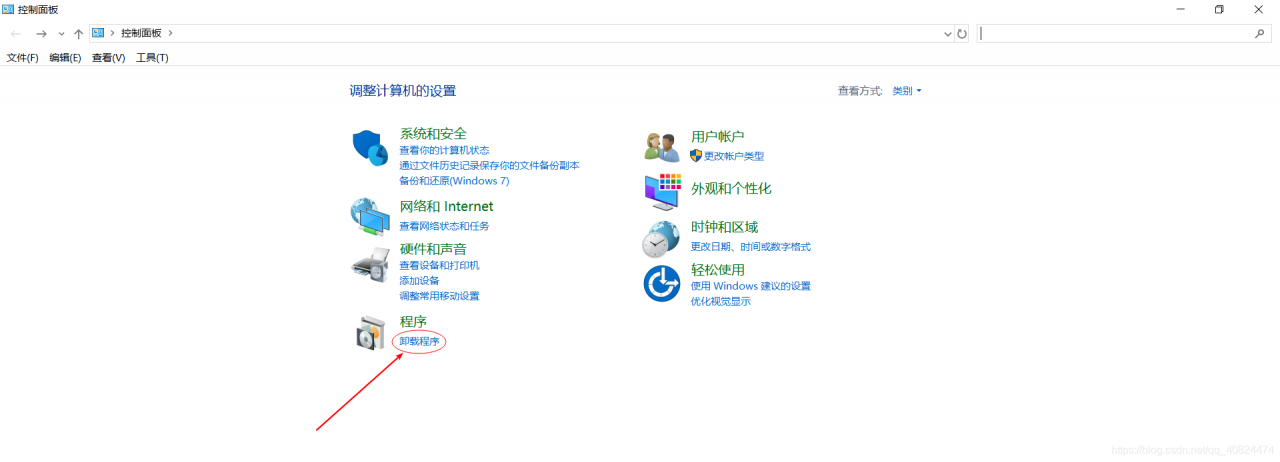
(2) Click “uninstall program” in the control panel

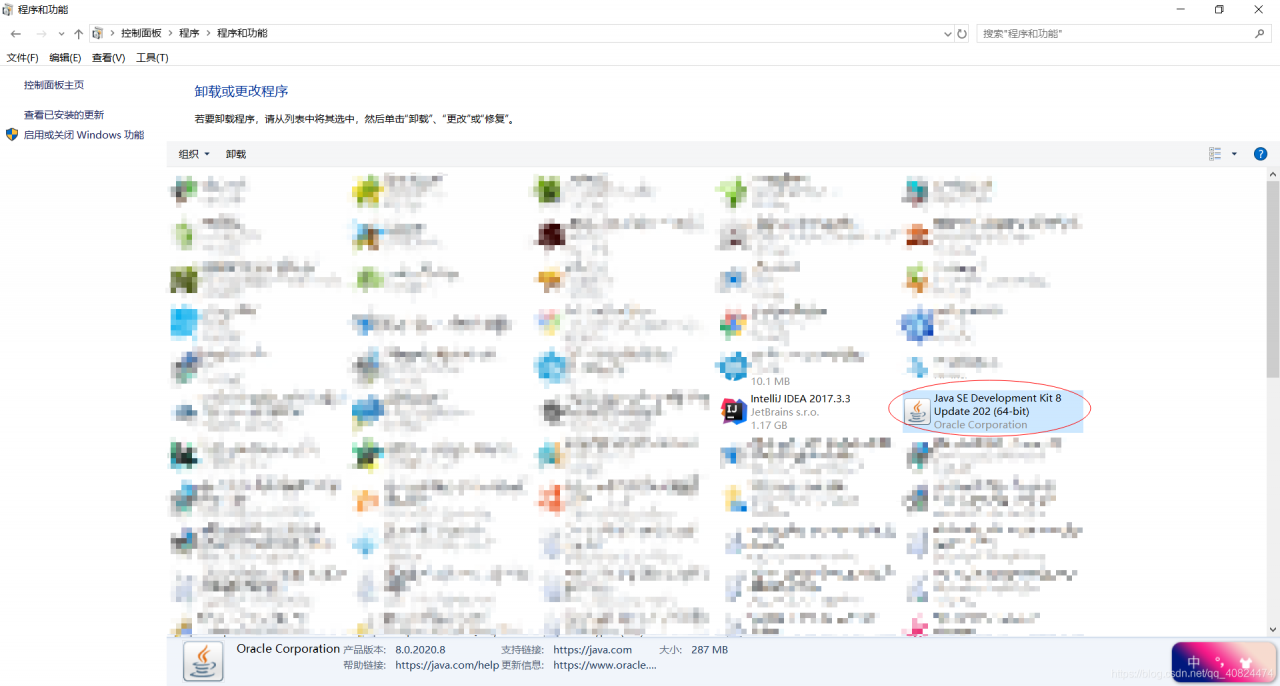
(3) Find the JDK you installed, right-click it and click uninstall

Step 2: delete all javasoft files and their subdirectories in the registry

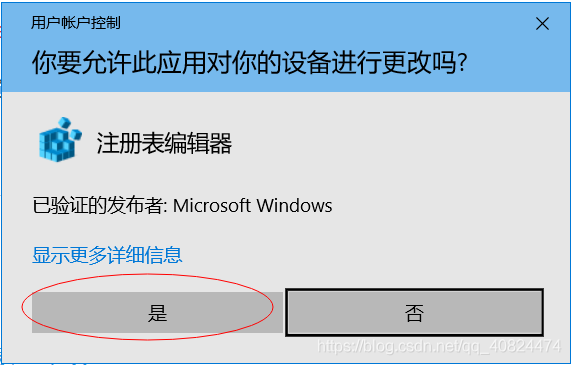
(1) Windows + R, enter regedit, and then click Yes to open the registry

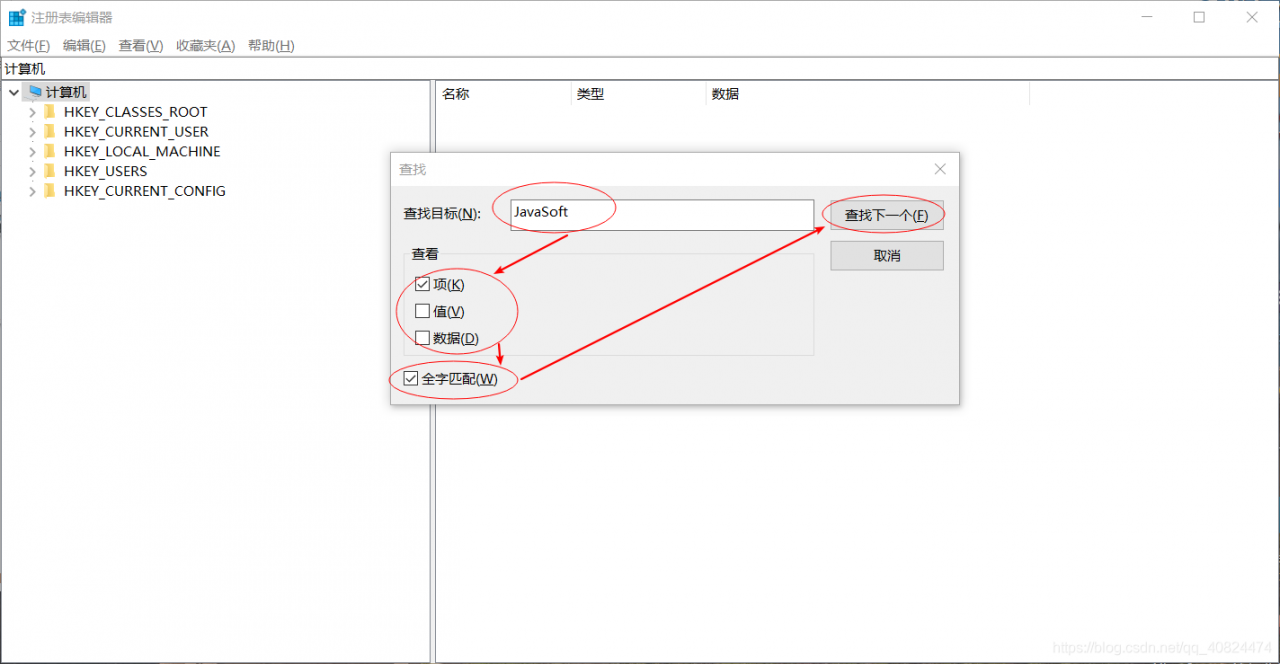
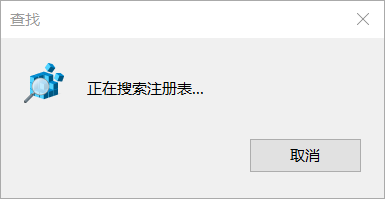
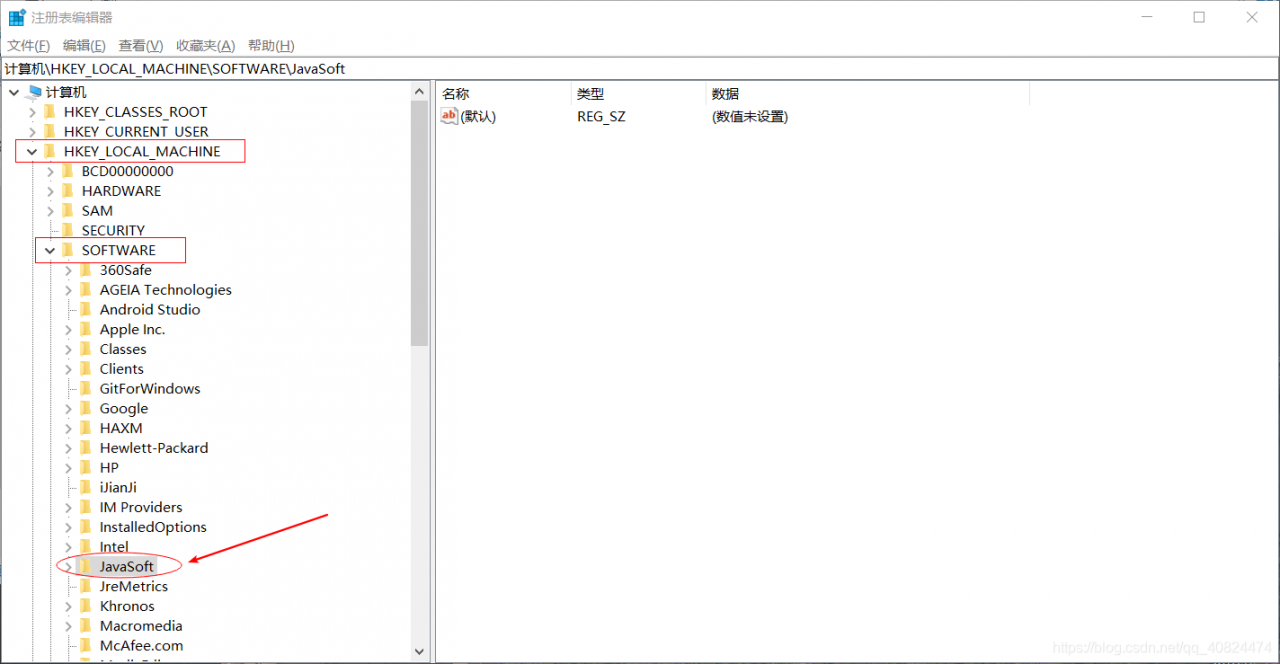
(2) In the registry, press Ctrl + F to start the search function, enter javasoft in the search box, as shown in the figure below, and then click “find next”

Waiting to find

After the search is completed, it will be highlighted in the tree menu on the left (if it is not found, it will be ignored)

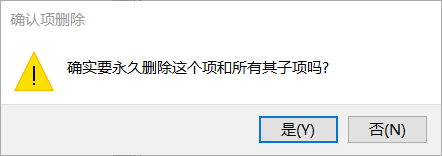
(3) Select the javasoft file, right-click, select the “delete” option in the pop-up menu, and click “yes” in the delete confirmation box

Step 3:

Add the java.exe , javaw.exe And javaws.exe The document was deleted

(you can search and delete it. If the file doesn’t exist, you don’t need to worry about it.)

Step 4: test whether JDK is completely unloaded successfully

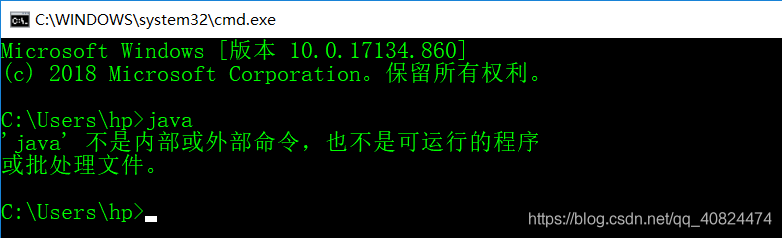
Windows + R key, enter CMD, enter Java in the command line, press enter key, as shown in the figure below, indicating that JDK has been completely unloaded successfully

3、 Re install JDK

JDK installation tutorial: JDK download installation and environment configuration

After installing JDK and configuring environment variables

Windows + R key, enter CMD, enter Java – version in the command line, the JDK version information as shown in the figure below will appear, indicating that the JDK installation and configuration is successful


Error: syntax error – unexpected token P in JSON at position 0

Error: syntax error – unexpected token P in JSON at position 0

Please check the error log carefully to see if the format of the data type from the front end to the back end is correct.

For example, the background needs data in JSON format, while the front-end data format is not in JSON format.

You can use: JSON.pase () and JSON.stringify ()

Perfectly solve the problem of NPM start error: cannot find module ‘XX’

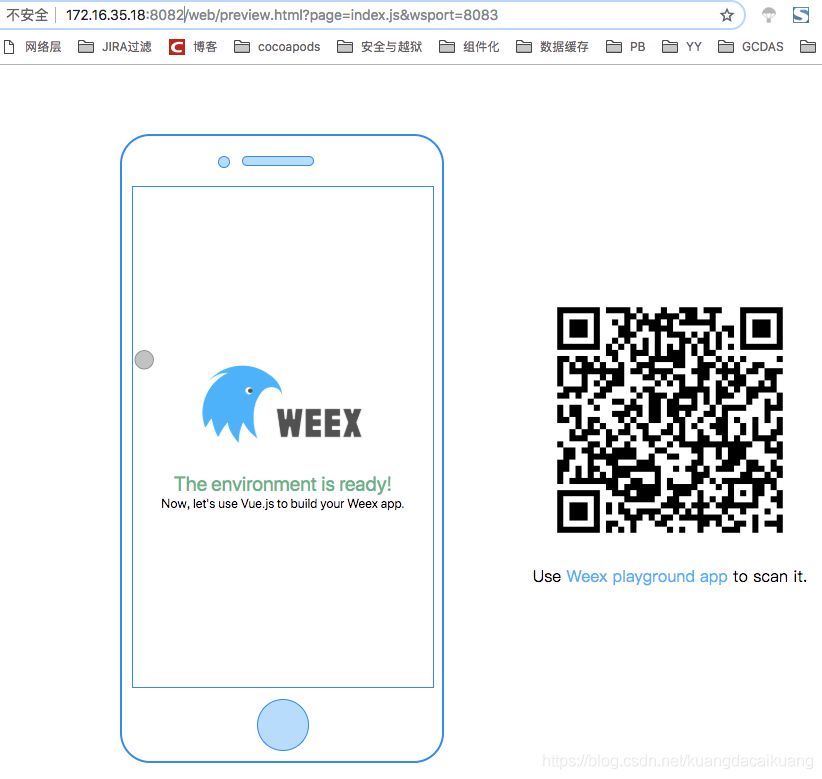
Problem: NPM start can’t start the local service when processing the weex project

however, using weex run IOS can start the IOS simulator, NPM start reports an error, and the lack of WS module leads to the failure to start the local service of localhost and the failure to debug the browser

Perfectly solve the problem of NPM start error: cannot find module 'XX'

when NPM is used to operate webpack, the problem of error: cannot find module 'XX' often occurs when NPM start is used. The main problem is that the module 'XX' is missing when nodejs is installed. Just manually install the module yourself when NPM start is used

npm install 'XX' --save

perhaps

npm install 'XX' --save-dev

After the installation is complete, execute NPM start again

effect

Idea: error running Name: command line is too long

Error in running idea task run

Error running ‘incrementall’: command line is too long. Short command line for incrementall

What command line is too long?I don’t quite understand the solution:
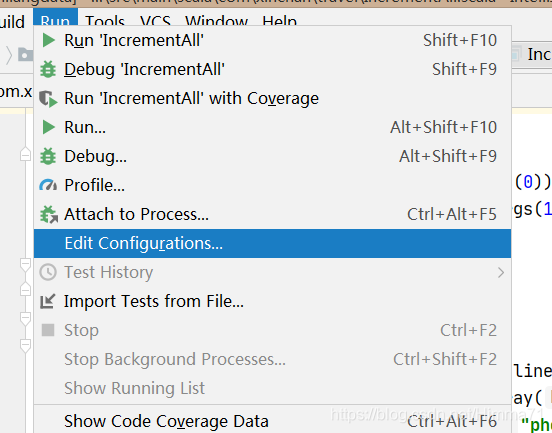
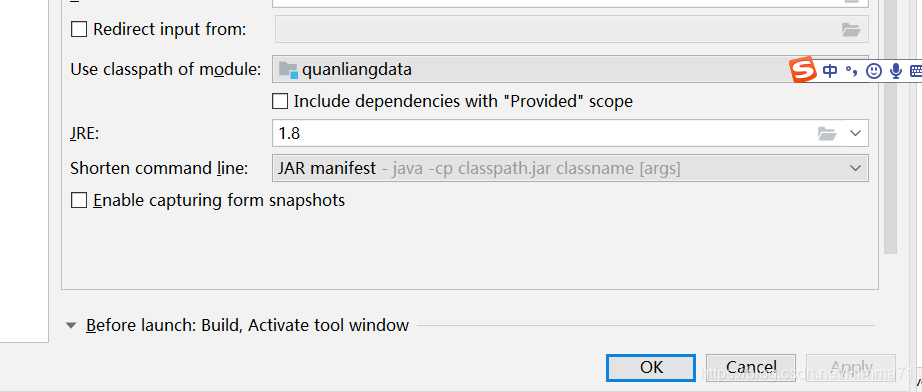
Run – & gt; edit configurations

select: jar manifest

click apply, and then return to OK
finally edit in the project interface,. Idea workspace.xml Add a line to the file
and you can test the code normally….

Error: ‘default’ is not exported by node_ modules/qs/lib/ index.js

Phenomenon: Recently, when using rollup to develop small JS plug-ins, an error was reported during packaging: error: ‘default’ is not exported by node_ modules/qs/lib/ index.js .

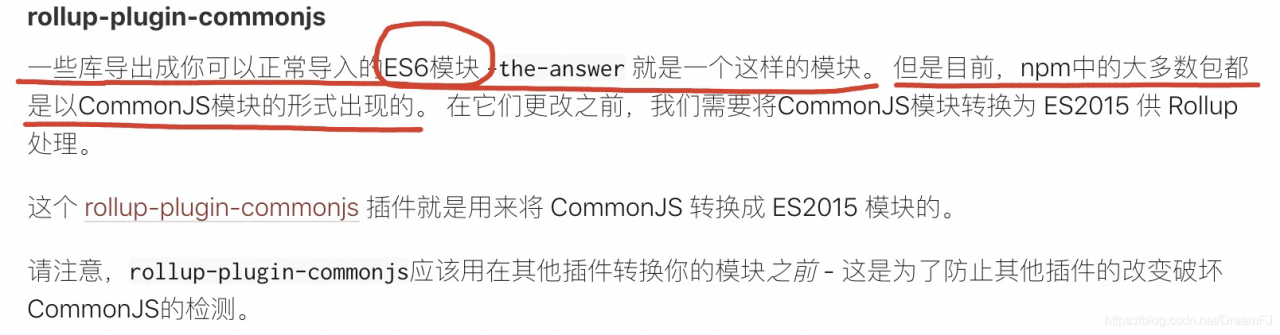
Reason: I use the QS package to format. After installing the QS dependency, I introduce the import QS from ‘QS’, but the package will report an error. Because QS is in the form of commonjs module, which is also mentioned in the official rollup document, as shown in the figure below, the rollup plugin commonjs plug-in should be introduced. Refer to the rollup plugin commonjs document https://github.com/rollup/rollup-plugin-commonjs

reference resources:

Rollup | resolve error report error: ‘__ moduleExports’ is not exported by xxxx

Rollup official document

Error: enoent: no such file or directory

Recently, using cnpm to install spritejs, I have been reporting this error all the time. I checked a lot on the Internet and found no problem.

Finally, try again and again. After setting cnpm again, it’s OK.

npm install -g cnpm --registry=https://registry.npm.taobao.org

After executing this, you will be prompted that many files have been updated. Just install spritejs again.

This shows that the previous version of cnpm may be too old, so there is a problem.

[error handling] when logging into MySQL with CentOS command, an error 1045 (28000) is reported

When logging into MySQL with CentOS command, error 1045 (28000): access denied for user is reported root@localhost (using password: no) error resolution

1. Disable MySQL service: #/etc/RC. D/init. D/mysqld stop

2. Input command: #/mysqld_ Safe — user = MySQL — skip grant tables — skip Networking & amp;

3. Log in to the database: # MySQL – U root MySQL

4. MySQL & gt; use MySQL; the results are as follows:

database changed 5. MySQL & gt; update user set password = password (‘newpassword ‘) where user’ =’newuser ‘; the results are as follows:

query OK, 3 rows affected (0.00 sec) rows matched: 3 changed: 3 warnings: 0

MySQL & gt; flush priorities;

the results are as follows:

query OK, 0 rows affected (0.00 sec)

MySQL & gt; quit

;/etc/RC. D/init. D/MySQL D restart

MySQL – u newuser – P

Enter password:newpassword


mysql> ≪ login successful & gt;

Spark SQL startup error: error creating transactional connection factory

1. Sparksql configuration

Put $hive_ HOME/conf/hive- site.xml Copy configuration file to $spark_ Home/conf directory.

Add $Hadoop_ HOME/etc/hadoop/hdfs- site.xml Copy configuration file to $spark_ Home/conf directory.

2. Run sparkql

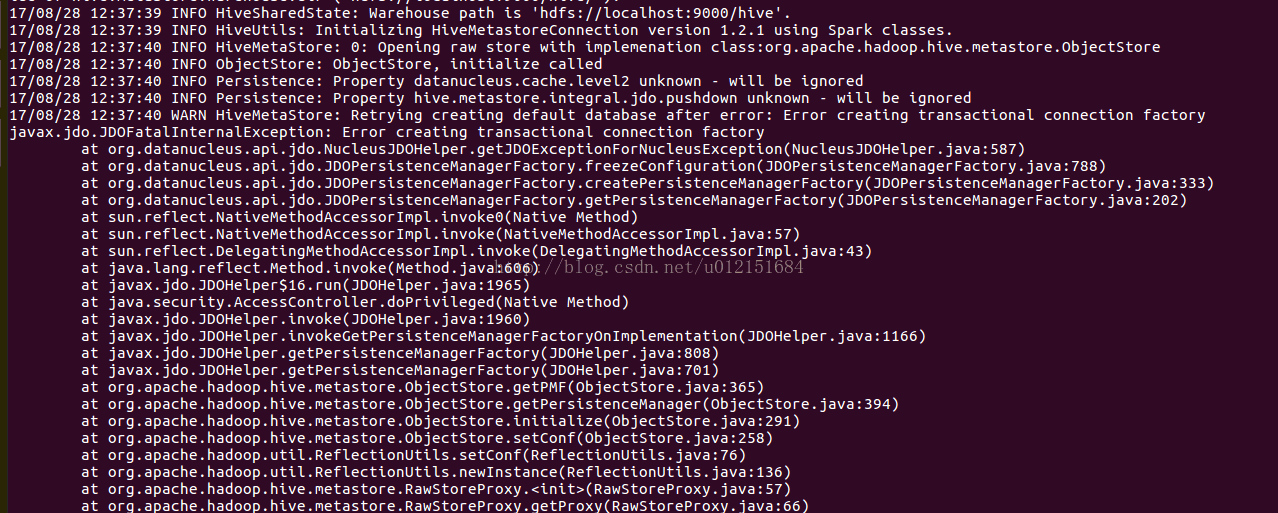
Run./bin/spark SQL under Cd/usr/local/spark to report error creating transactional connection factory


First of all, because the MySQL provided for hive is used as the metadata server, the corresponding jar package support is required. Looking at the detailed error output log, we find that the jar package lacking MySQL connector is indeed missing, so we need to specify the path of the MySQL jar package when starting sparkql as follows:

modify

./bin/spark SQL — driver class path/usr/local/hive/lib/mysql-connector-java-5.1.25. Jar can run normally

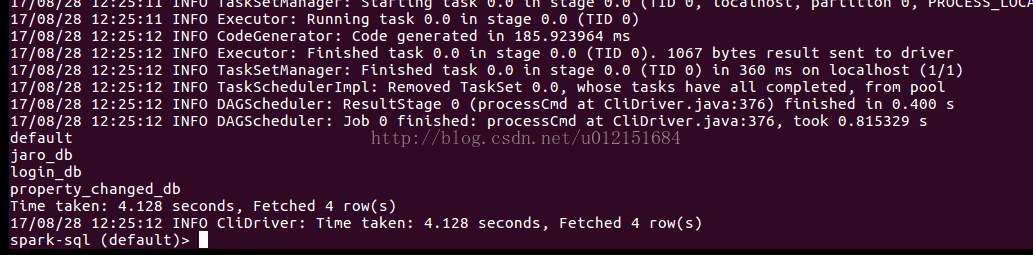
The output is as follows:

Android project error Error:found an Invalid color. Solution

Recently, I took an examination of an old project and found that I made a mistake in a new one Error:found an invalid color. 

How to click is useless, found that is. 9 picture error, no black line

If you see the black lines around you, just click and drag them with the mouse. In Android studio 3.0.1, you can rebuild them again

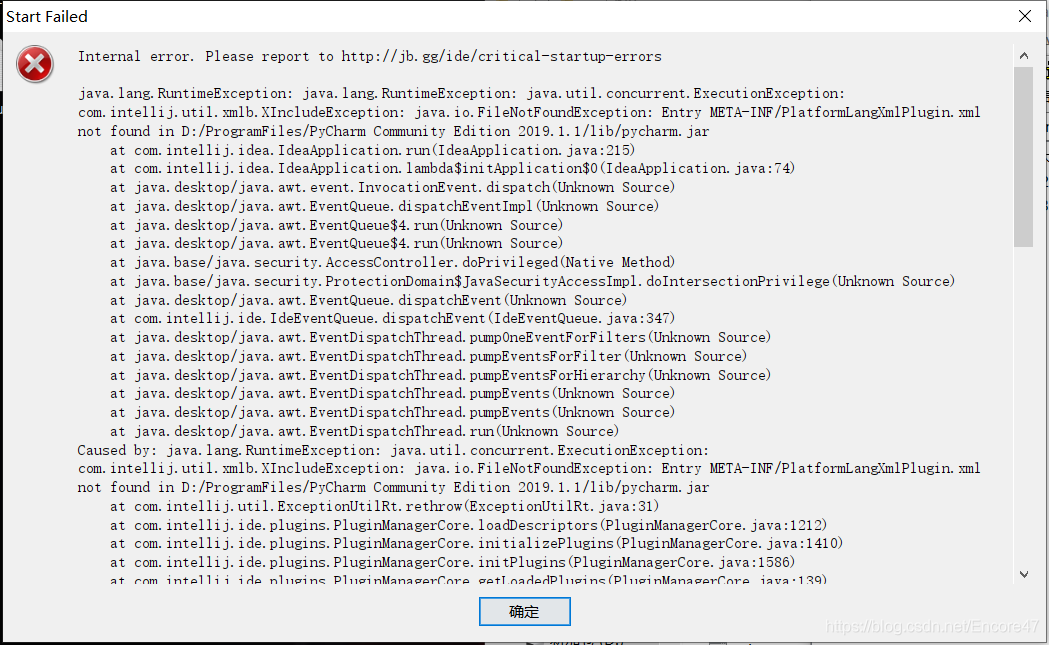
[solved] pychar starts to report internal error after updating version 2020.1

Problem description

Today, I have nothing to do to update pychar community 2020.1, and then start it up. I found that I directly reported an error

(I forgot to take a screenshot of the source network)

Cause of error

I don’t quite understand the details, but maybe it’s a plug-in conflict?

resolvent

Refer to the answer to this question
pcharm community: internal error

The issue is known https://youtrack.jetbrains.com/issue/IDEA-237012 , please upvote and feel free to leave comments.Right now, you could either downgrade to 2019.3.4 or start IDE with default settings by renaming/removing the configuration and plugins folders https://www.jetbrains.com/help/pycharm/directories-used-by-the-ide-to-store-settings-caches-plugins-and-logs.html

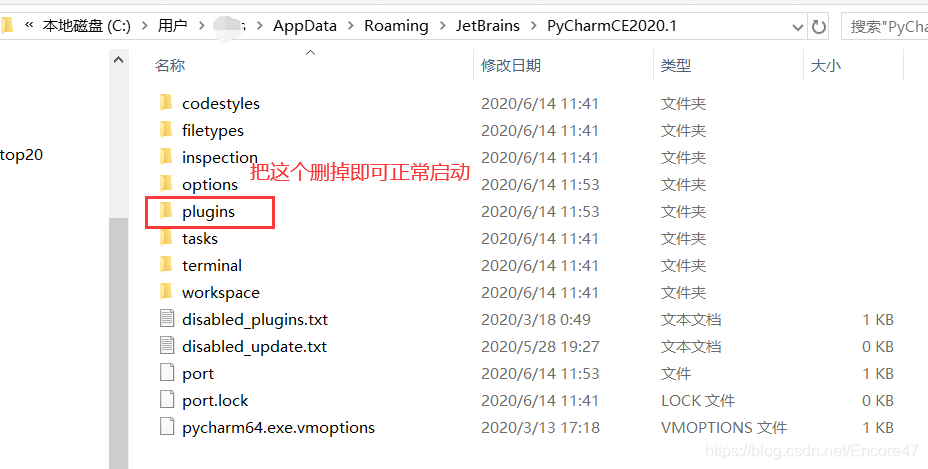
Just as he said, delete the plugin directory during installation and you can start it normally!!

The path of plugins directory
win10 system is as follows
syntax

%APPDATA%\JetBrains<product>\plugins

Example

C:\Users\JohnS\AppData\Roaming\JetBrains\PyCharm2020.1\plugins

In my computer, it is