Failed to connect to ourself

Today, when the management node of MySQL Cluster was restarted, it could not be started. After several attempts, there was still a problem. Check the log and the following error was reported.

2011-04-01 23:49:03 [MgmtSrvr] INFO     — Got initial configuration from ‘/usr/local/mysql/mysql-cluster/ config.ini ‘, will try to set it when all ndb_ mgmd(s

) started

2011-04-01 23:49:03 [MgmtSrvr] INFO     — Mgmt server state: nodeid 1 reserved for ip 192.168.100.32, m_ reserved_ nodes 1.

2011-04-01 23:49:03 [MgmtSrvr] INFO     — Node 1: Node 1 Connected

2011-04-01 23:49:03 [MgmtSrvr] INFO     — Id: 1, Command port: *:1186

2011-04-01 23:49:03 [MgmtSrvr] WARNING  — 1011 Unable to connect with connect string: nodeid=0, localhost:1186

2011-04-01 23:49:03 [MgmtSrvr] ERROR    — Failed to connect to ourself!

It’s strange that the server has been in normal use for several days. As soon as it was restarted today, there was a problem. I asked my colleagues what changes the server had made in the past two days. The answer is:

Changed the hosts file. Go up and see: found changed to:

127.0.0.1               localhost.localdomain openldap

So change to the default value

127.0.0.1               localhost.localdomain localhost

Restart, OK. business as usual!

Reproduced in: https://www.cnblogs.com/feihongwuhen/archive/2011/04/01/7170052.html

Solve the problem of failed to create the Java virtual machine when eclipse is opened

For the above reasons, the Java virtual machine can not be opened. It may be that the virtual memory of the Java virtual machine is set incorrectly. Open the eclipse decompression directory and open it eclipse.ini Documents.


The contents of the original document are as follows:

-startup

plugins/ org.eclipse.equinox .launcher_ 1.2.0.v20110502.jar

— launcher.library

plugins/ org.eclipse.equinox . launcher.win32 .win32.x86_ 1.1.100.v20110502

-product

org.eclipse.epp . package.jee.product

— launcher.defaultAction

openFile

— launcher.XXMaxPermSize

256M

-showsplash

org.eclipse.platform

— launcher.XXMaxPermSize

256m

— launcher.defaultAction

openFile

-vmargs

– Dosgi.requiredJavaVersion=1 .5

-Xms40m

-Xmx512m


Revised eclipse.ini The documents are as follows:

-startup

plugins/ org.eclipse.equinox .launcher_ 1.2.0.v20110502.jar

— launcher.library

plugins/ org.eclipse.equinox . launcher.win32 .win32.x86_ 1.1.100.v20110502

-product

org.eclipse.epp . package.jee.product

— launcher.defaultAction

openFile

— launcher.XXMaxPermSize

128M

-showsplash

org.eclipse.platform

— launcher.XXMaxPermSize

128m

— launcher.defaultAction

openFile

-vmargs

– Dosgi.requiredJavaVersion=1 .6

-Xms40m

-Xmx256m


Note: the red part is the modified part.

After saving, restart eclipse.


The solution of “failed to load ldlinux. C32” in Linux system

Using the U disk made by UltraISO to start, F12 key appears when USB starts

Failed to load ldlinux.c32
Boot failed: please change disks and press a key to continue

terms of settlement:

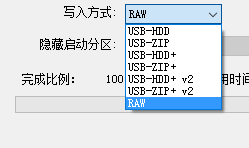
When UltraISO makes the boot disk, the write mode is changed to “raw”, and the system can start smoothly when it is installed.

reference material:

http://www.cnblogs.com/huadongw/p/6516637.html

Failed to clean project: Failed to delete

Failed to clean project: Failed to delete access_ Log. A log file

Before, when I started Tomcat plug-in to test whether Dubbo resource scheduling is normal in Maven distributed project construction, I encountered the following error

error message

[INFO] ------------------------------------------------------------------------
[ERROR] Failed to execute goal org.apache.maven.plugins:maven-clean-plugin:2.5:clean (default-clean) on project e3-manager-service: Failed to clean project: Failed to delete E:\ecplise18\qiu\e3demo\e3-manager\e3-manager-service\target\tomcat\logs\access_log.2018-06-08 -> [Help 1]
[ERROR] 
[ERROR] To see the full stack trace of the errors, re-run Maven with the -e switch.
[ERROR] Re-run Maven using the -X switch to enable full debug logging.
[ERROR] 

Cause of error

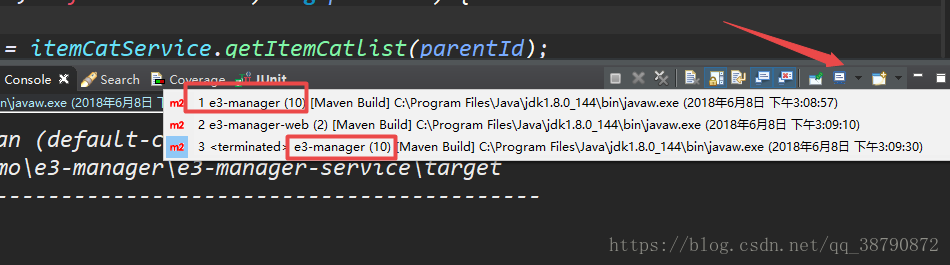
Because you’ve started the service before, just turn it off.

resolvent

Tns-03505: the ultimate solution to failed to resolve name

System environment: centos7

Oracle environment: 11g

Fault description: the server directly restarts after running data crash, and various errors are reported after restart,

Tns-03505: failed to resolve name,

The external PLSQL connection prompts ora-12170: TNS: connection timeout.

The specific solutions are as follows:

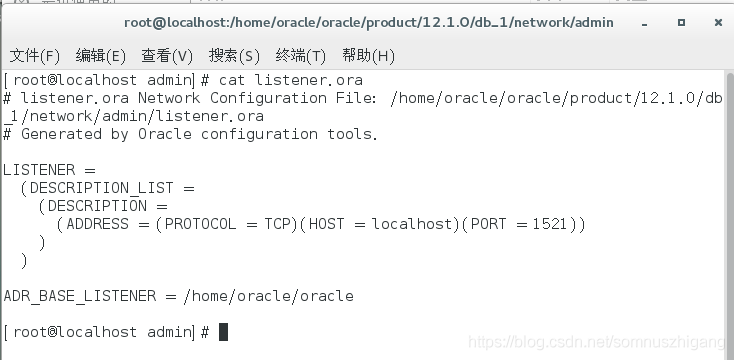
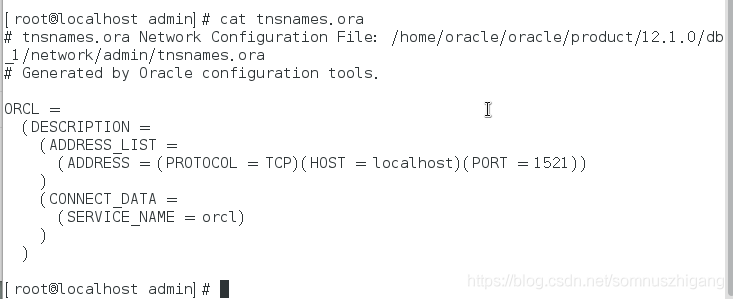
1. Check the file configuration information listener and tnsnames, and confirm that the following is correct. If the configuration of this file is wrong, the listening service will not be started normally.


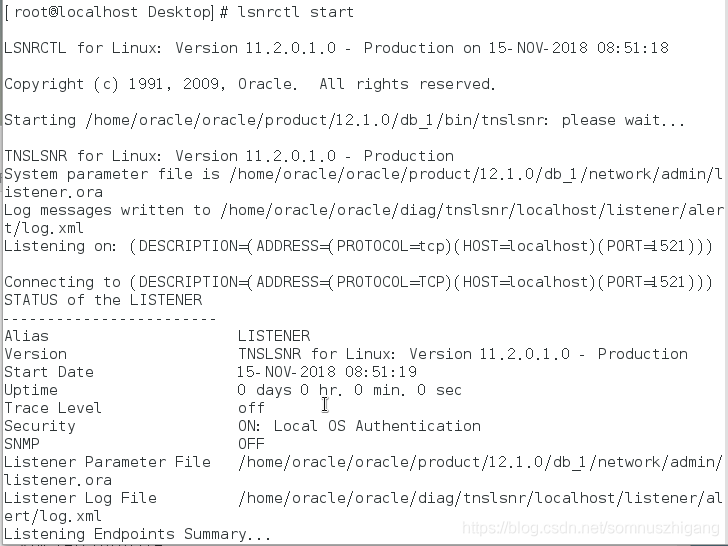
2. Start the monitoring service lsnrctl start and update the registration

Services Summary…
Service “orcl” has 1 instance(s).
  Instance “orcl”, status UNKNOWN, has 1 handler(s) for this service…
The command completed successfully
 

“Unknown” is prompted here. Registration update is required,

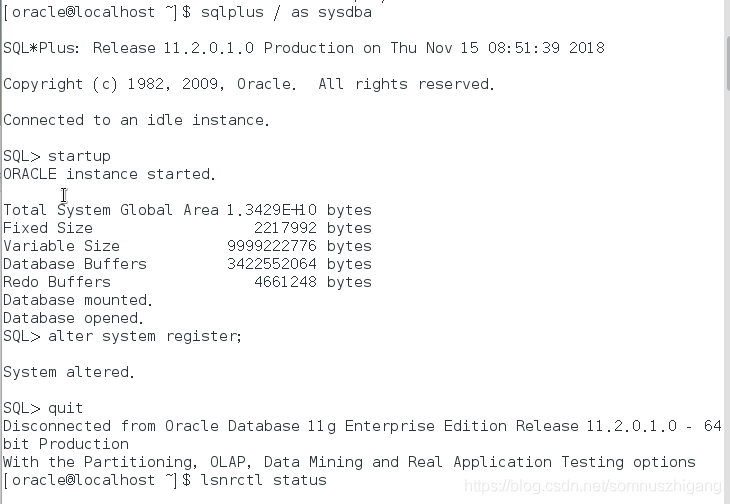
3. Open orcl service and update the registration

sqlplus/as sysdba

startup

alter system register;

quit

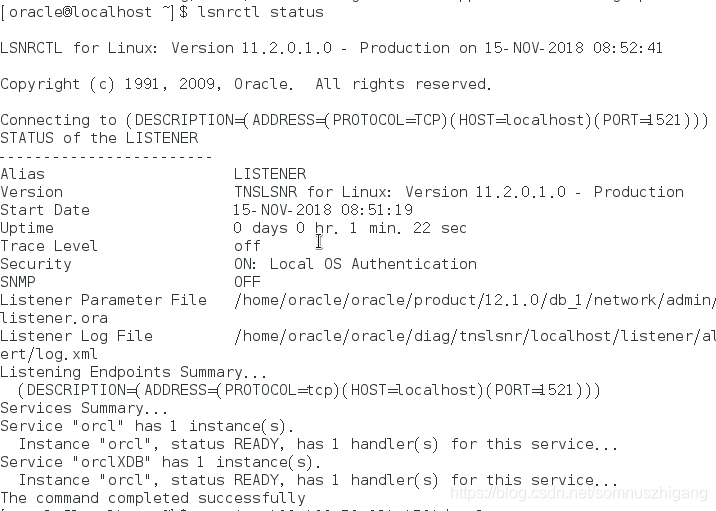
lsnrctl status

Service “orcl” has 1 instance(s).
  Instance “orcl”, status READY, has 1 handler(s) for this service…
Service “orclXDB” has 1 instance(s).
  Instance “orcl”, status READY, has 1 handler(s) for this service…
The command completed successfully

Confirm that the monitoring status is ready
then

4. Test results

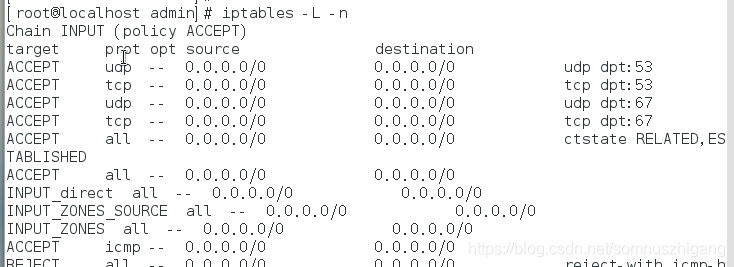
Tns-03505 failed to resolve name is displayed. After confirming that there is no problem in the previous steps, proceed to the last step to view the firewall and port information


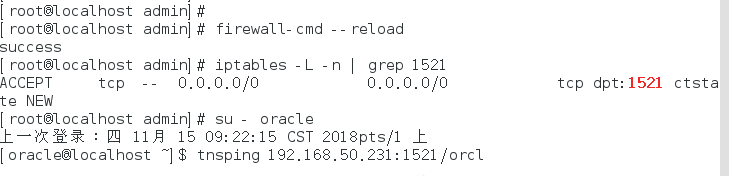
5. Check the firewall information, view the specific port information, and add the corresponding port. After confirming that the port is added, test again, and you can access it normally


Ccache: failed to create / home

Ccache: failed to create/home cause: the user name has been modified before, but the home directory of the original user name has not been modified, resulting in this problem.

Solution: use the command sudo GEDIT/etc/passwd to change the original user’s home directory name to the current user name

User name: X: uid: GID: remarks: home directory path: shell path

That is, modify the home directory path

Failed to resolve: com.github

Error after running someone else’s Demo:

Failed to resolve: com.github.yangjie10930:EpMedia:v0.8.2

Solutions:
1 in project build.gradle Join in

allprojects {
    repositories {
        jcenter()
        maven { url "https://jitpack.io" }
    }
}

Full version

buildscript {
    repositories {
        jcenter()
    }
    dependencies {
        classpath 'com.android.tools.build:gradle:2.3.3'

        // NOTE: Do not place your application dependencies here; they belong
        // in the individual module build.gradle files
    }
}

allprojects {
    repositories {
        jcenter()
        maven { url "https://jitpack.io" }
    }
}

task clean(type: Delete) {
    delete rootProject.buildDir
}

2 add in module

 compile ('com.github.yangjie10930:EpMedia:v0.8.2'){
        transitive = true
    }

Full version

apply plugin: 'com.android.application'

android {
    compileSdkVersion 25
    buildToolsVersion "25.0.0"
    defaultConfig {
        applicationId "com.joe.epmediademo"
        minSdkVersion 18
        targetSdkVersion 25
        versionCode 1
        versionName "1.0"
        testInstrumentationRunner "android.support.test.runner.AndroidJUnitRunner"
    }
    buildTypes {
        release {
            minifyEnabled false
            proguardFiles getDefaultProguardFile('proguard-android.txt'), 'proguard-rules.pro'
        }
    }


}

dependencies {
    compile fileTree(dir: 'libs', include: ['*.jar'])
    compile 'com.android.support:appcompat-v7:25.1.0'
    compile 'com.android.support:support-v4:25.1.0'
    compile 'com.android.support.constraint:constraint-layout:1.0.2'
    compile ('com.github.yangjie10930:EpMedia:v0.8.2'){
        transitive = true
    }
    testCompile 'junit:junit:4.12'
}

Failed to resolve: failed to resolve

Failed to resolve: failed to resolve*


Background: some time ago, I did a PDF reading function, but when I introduced the remote warehouse dependency package, Android studio always reported errors. Failed to resolve: * well, I don’t need to say much nonsense. I’ll post the process of my solution for the reference of workers.


Premise: delete gradle.properties Then file – & gt; setting – & gt; proxy (search) – & gt; noproxy.
1.
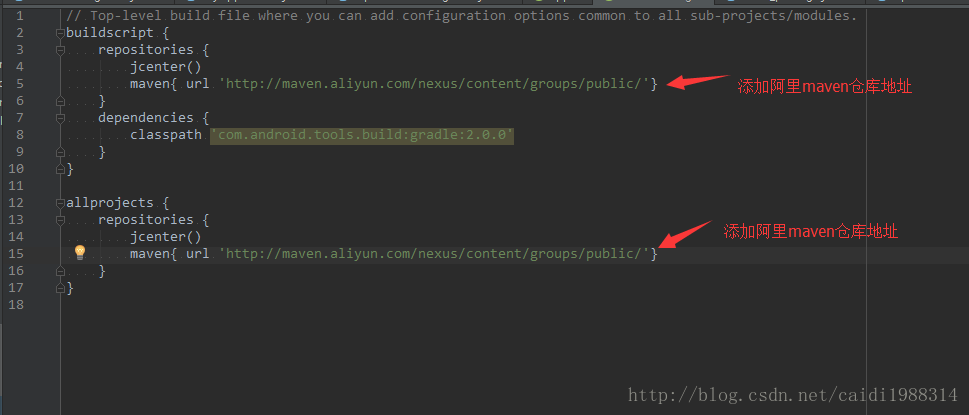
2. Add the address of Alibaba cloud Maven warehouse in Android studio. As shown in the following figure:

3.

Solve the problem of prompt “failed to sync branch” when using Git

When an empty git project is created and a large number of local files are copied in, and you want to do any git operation, you will be reported
as soon as possible

failed to sync this branch
You might need to open a shell and debug the state of this repo.

Maybe you’ll follow the instructions

debug xxx

But it doesn’t work

The actual reason is that there is no initialization

Do it in the current directory

git init

It’s OK

Android foundation error failed to install


Blog from: http://blog.csdn.net/liuxian13183 , reprint and indicate the source! All Rights Reserved ! 


Android error: Failed to install *.apk on device *: timeout

There are several common solutions to this problem

PS: Item 9 is most commonly used

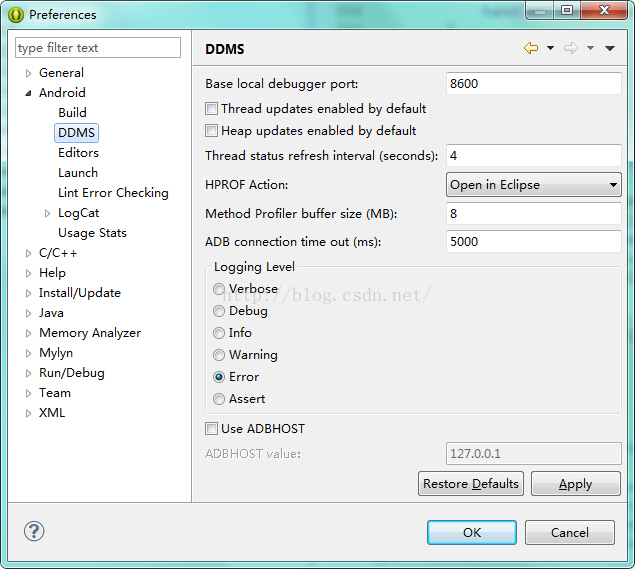
1. Set the DDMS of ADB from 5000 to 10000


2. ADB kill server ADB start server
3. Replace a new data cable
4. Restart the mobile phone
5. Do not plug the mobile phone with USB3.0 socket
6. Uninstall the application and reload it with eclipse
7. Modify the connection port between USB and computer in eclipse preferences


8. Restart the computer


9、netstat -a -n -o |findstr “5037” 

Enter the above command on the command line. In the windows task manager process, find PID 5037 but not adb.exe Yes, kill it. Common ones are tadb.exe , AndroidServer.exe Wait, and then restart eclipse

Or combine the above methods.


In addition, the solution is as follows:

You can configure the environment variables for the SDK at that time. Remember to configure both tools and platform tools!


The earlier problems of eclipse are mentioned above, but now we have switched to Android studio. Let’s talk about some problems about not installing eclipse

Time: August 9, 2017

Model: Hongmi 4x

Question: delete_ FAILED_ INTERNAL_ ERROR Error while Installing APKs

Solution process:

1. Check “install unknown source” in mobile phone settings security, the attempt is invalid

2. Find other applications enabled with port 5037, no

3. In the mobile developer settings, open “USB install”, the attempt is invalid

Solution:

1. In developer mode, turn off the “start MIUI optimization” – the reason may be that Xiaomi has intercepted the ADB installation command.

2. Shut down Android studio’s instantrun – the reason may be that Xiaomi doesn’t support the APK method of cutting instantrun

The ultimate solution.

1: Use the ADB command to connect the mobile phone and computer for development http://blog.csdn.net/xiabing082/article/details/54376461

Note: before using the ADB command, use the data cable to establish a connection between the computer and the mobile phone.

2: Using Android studio’s ADB WiFi plug-in, the mobile phone and the computer are in the same LAN. After connecting the computer for the first time, use the plug-in to connect the mobile phone, and select the option with IP (this is the virtual connection mode of the plug-in), so it has nothing to do with the local device. You can use it safely.