Category Archives: Python

Python Error: bash syntax error near unexpected token `newline’

Downloaded the code on Github and executed the following error locally:

Namely: bash: Syntax error near unexpected Token ‘newline’
The original code is

$ python pano.py <txtlists/files1.txt>

Solution: Angle brackets < > To remove, ‘< ‘and’ & gt; ‘is a special character that needs attention when typing at the command terminal.

Python synthesizes multiple pictures into one video

Reference python + opencv to save the picture as video – 2016 update,
code example is:

def imgs2video(imgs_dir, save_name):
    fps = 24
    fourcc = cv2.VideoWriter_fourcc(*'MJPG')
    video_writer = cv2.VideoWriter(save_name, fourcc, fps, (1920, 1080))
    # no glob, need number-index increasing
    imgs = glob.glob(os.path.join(imgs_dir, '*.png'))

    for i in range(len(imgs)):
        imgname = os.path.join(imgs_dir, 'core-{:02d}.png'.format(i))
        frame = cv2.imread(imgname)
        video_writer.write(frame)

    video_writer.release()

Reference python opencv VideoWriter: opencv:frame size mismatched video size,

    1. Error
"mMovieWriter.status: 3. Error: Cannot Save"

Because I already have a file with the same name, I can’t overwrite it, so just delete it and convert it.

      1. Warning:
OpenCV: Frame size does not match video size.
      1. warning:
WARNING: -finishWriting should not be called on the main thread.

pytorch: RuntimeError CUDA error device-side assert triggered

Training network error reporting: RuntimeError: cuda runtime error (710) : Device – side assert triggered the at/pytorch aten/SRC/THC/generic/THCTensorScatterGather cu: 380
the terminate called after throwing an instance of ‘c10: : Error’
I () : CUDA Error: device-side assert triggered (insert_events at /pytorch/c10/cuda/CUDACachingAllocator.cpp:569)
Reason: The label is out of line
Method: Input

CUDA_LAUNCH_BLOCKING=1 python train.py

An error generates specific information

/pytorch/aten/src/THC/THCTensorScatterGather.cu:188: void THCudaTensor_scatterFillKernel(TensorInfo<Real, IndexType>, TensorInfo<long, IndexType>, Real, int, IndexType) [with IndexType = unsigned int, Real = float, Dims = -1]: block: [72,0,0], thread: [32,0,0] Assertion `indexValue >= 0 && indexValue < tensor.sizes[dim]` failed.

Can be seen to be Assertion ‘indexValue & GT; = 0 & & indexValue < The predicate error is tensor. Sizes [dim], which means the label is more than zero or more than the total number and crosses the line. After debugging, I found that there was a setting that was larger than the preset total number of categories when the category was labeled. I modified this label, and the problem was solved.

How to Fix pandas.errors.ParserError Error tokenizing data C error Buffer overflow caught

When wrapped pandas, pd. Read_csv (r. ‘\ data \ data. The CSV, encoding = “utf-8”, the header = None,)
Error message: pandas. Errors. ParserError: Error tokenizing data. C Error: Buffer overflow caught – possible malformed input file.
I read some blog posts saying that adding the parameter error_bad_lines=False
but I tried and failed
I read another blog that it may be caused by modifying the suffix name of the file, I did change the suffix name of.xlsx to.cvs
, so you can change the suffix name back to.xlsx, use pd.read_excel() function to
or you can use excl to build a table, copy the data over, and then you save is to save to.csv file
And then there’s the coding problem, which you’ll see in my previous posts

Linux Fatal Python error: Py_Initialize Unable to get the locale encoding

Question.

python lx@lx-PC: ~ $
Can’t find a platform independent library & lt; prefix>
Platform Dependency Library Not Found& lt; exec_prefix>
Consider setting the dollar PYTHONHOME & lt; prefix> [: & lt; exec_prefix>]
python fatal error: Py_Initialize: cannot get region code
ModuleNotFoundError: No module is named “code”.

Similar problems:Commanded conda

The temporary solution is.

export PATH="/home/[your_name]/anaconda/bin:$PATH"

However, after the next restart, this problem will still occur, so we need acivate ~/.bash_profile

. ~/.bash_profile
#or
source ~/.bash_profile

That should get us there.

The first step is to find the Python directory

1. Default Python installation


Normally, Python comes pre-loaded with Linux, but at a lower level, for example, Python2.7.10 is pre-loaded with Ubuntu15.

Use the command: which Python to see the current Python installation path:
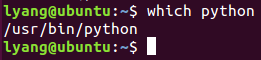
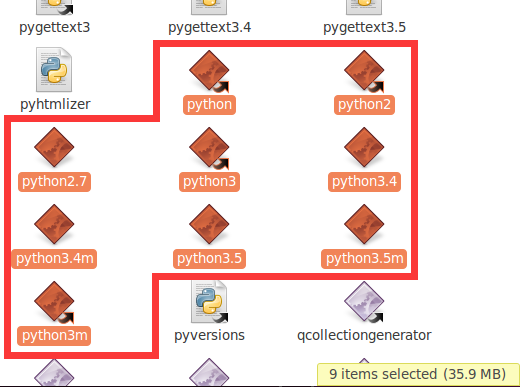
If you open the corresponding path, you can see that the python directory has these files, that is, the directory with similar files (Python, Python 2, Python 2.7) is the corresponding Python directory in your system:
If a version of Python3 is not explicitly required, the 2.7.10 version can be used instead.
It is explicitly required to use Python3 and then make changes.

One thing to note here is that python, Python 2, Python 3 exist in the figure above, which means that versions 2 and 3 are installed,

step 2:

Linux adds the command to PATH:
LinuxApacheBash
Simply put, PATH is a string variable for a set of paths. When you type a command that doesn’t have any paths, LINUX looks for that command in the PATH record. If there is, it will be executed, if there is no prompt command can not be found. For example, in the root directory/can enter the command ls, in the directory /usr can also enter ls, but in fact ls command is not in the two directories, when you enter ls command LINUX will go to /bin,/usr/bin,/sbin and other directories to find the command. PATH is the variable that defines the PATH strength such as /bin:/sbin:/usr/bin, where the colon is the separator between directories.
How to customize path:
if you new compiler installed an apache under/usr/local/apache, every time you want to start not to knock a string of characters (#/usr/local/apache/bin/apachectl start) to use it, but direct anywhere like ls direct input like this (# apachectl start) a brief command. In this case, you need to change the environment variable PATH, or to be more precise, add a value to PATH, /usr/local/apache/bin. There are three ways to add /usr/local/apache/bin to your PATH:
1, directly from the command line setup PATH
# PATH = $PATH:/usr/local/apache/bin
using this method, applies only to the current session, that is to say, whenever logout or cancellation of system, the PATH Settings will be failure.
2, set in the profile PATH
# vi/etc/profile
find export line, a new line below, content is: the export PATH = $PATH:/usr/local/apache/bin.
note: = no Spaces on either side of the equal sign. This is the best approach, and will not change unless you manually force the PATH value to change.
the change to PATH does not take effect immediately after you edit /etc/profile. If you want to take effect immediately, you can execute the # source profile command.
3, in the current user profile set PATH
# vi ~ /. Following the
modify the PATH line, the/usr/local/apache/bin added, such as: the PATH = $PATH: $HOME/bin:/usr/local/apache/bin.
# source ~/.bash_profile
for this change to take effect. Note: this method only works for the current user. The modification is invalid for other users.

When you find that the new path /usr/local/apache/bin is useless or not needed, you can delete your custom path in the /etc/profile or ~/.bash_profile previously modified.

Step 3:
Add the path to the.profile:
export PATH=”$PATH:/home/lx/anaconda3/bin”

$sudo gedit ~/.profile(or. Bashrc)

$sudo gedit ~/.profile(or. Bashrc)

$sudo gedit ~/.profile(or. Bashrc)
export PATH= “$PATH:your path1:your path2…”
save the file, log out and log in again, the variable takes effect.
variables added this way are only valid for the current user.
$sudo gedit /etc/profile

export PATH= “$PATH:your path1:your path2…”
after the file is edited and saved, restart the system and the variable takes effect.
variables added this way are valid for all users.
$sudo gedit /etc/environment
find the following PATH variable:
PATH=”<
$sudo gedit /etc/environment
PATH=”< . >”
modify the PATH variable by adding your own PATH, for example:
PATH=”< . > : your path1: your path2…”
paths are separated by colons. The file is also rebooted into effect, affecting all users.
note that you are not adding export PATH=… .

method 4: directly under the terminal input

$sudo export PATH=”$PATH:your path1:your path2…
variable takes effect immediately, but the Settings become invalid after the user logs out or the system restarts, suitable for temporary variable Settings. Note: modifications to methods 2 and 3 need to be made with care, especially through root, which can lead to some serious system errors if modified incorrectly. Therefore, I recommend using the first method. Also, embedded Linux development is best not done under root (unless you are already familiar with Linux!!). To avoid serious system errors due to improper operation.

the following is an error for the environment file changes lead to problems and solutions of example:

problem: because not careful in the/etc/environment in environment variables lead to cannot login
tip: don’t set in the/etc/environment export PATH that will lead to can not login system after restart
the solution:
enter command mode in the login interface Alt + CTRL +f1, if not root user need to type (root user is not allowed to be so verbous, gedit edit will not be displayed)
/usr/bin/sudo /usr/bin/vi /etc/environment
cursor move to export PATH** line, press d to delete the line twice;
input :wq save exit;
then type /sbin/reboot to restart the system (it may prompt you to need to boot, at this point direct power off)


Error in sitecustomize set PYTHONVERBOSE for traceback KeyError: ‘PYTHONPATH’

Error in sitecustomize; Set PYTHONVERBOSE for traceback: KeyError: ‘PYTHONPATH’
1. Background of the problem
Python2.7 comes with Mac, and python3.6 comes with your own Anaconda installation. After the opencv installation, the following prompts

after the following installation steps are prompted, open Spyder to run the program again or use python3 on the terminal will be prompted as the question error
Reason 2.
Sys. path adds the site-package of Python27. conflict
3. Solve
To “…/local/lib/python3.6/site-packages/ “under directory (directory only for people)
execute $vim homebrew. PTH
remove the path inside
4. Exit terminal/restart Spyder without error

About the solution of ERROR: Failed building wheel for dlib

Error reporting in some dependency libraries with dlib and Face_recognition installed

(face_recognition) C:\Users\FlynnLi>pip install dlib -i http://pypi.douban.com/simple --trusted-host pypi.douban.com
Looking in indexes: http://pypi.douban.com/simple
Collecting dlib
  Downloading http://pypi.doubanio.com/packages/63/92/05c3b98636661cb80d190a5a777dd94effcc14c0f6893222e5ca81e74fbc/dlib-19.19.0.tar.gz (3.2 MB)
     |████████████████████████████████| 3.2 MB 2.2 MB/s
Building wheels for collected packages: dlib
  Building wheel for dlib (setup.py) ... error
  ERROR: Command errored out with exit status 1:
   command: 'D:\Python\Virtual\face_recognition\Scripts\python.exe' -u -c 'import sys, setuptools, tokenize; sys.argv[0] = '"'"'C:\\Users\\FlynnLi\\AppData\\Local\\Temp\\pip-install-ywrf5o_o\\dlib\\setup.py'"'"'; __file__='"'"'C:\\Users\\FlynnLi\\AppData\\Local\\Temp\\pip-install-ywrf5o_o\\dlib\\setup.py'"'"';f=getattr(tokenize, '"'"'open'"'"', open)(__file__);code=f.read().replace('"'"'\r\n'"'"', '"'"'\n'"'"');f.close();exec(compile(code, __file__, '"'"'exec'"'"'))' bdist_wheel -d 'C:\Users\FlynnLi\AppData\Local\Temp\pip-wheel-4oqer9mq'
       cwd: C:\Users\FlynnLi\AppData\Local\Temp\pip-install-ywrf5o_o\dlib\
  Complete output (55 lines):
  running bdist_wheel
  running build
  running build_py
  package init file 'dlib\__init__.py' not found (or not a regular file)
  running build_ext
  Building extension for Python 3.7.5 (tags/v3.7.5:5c02a39a0b, Oct 15 2019, 00:11:34) [MSC v.1916 64 bit (AMD64)]
  Invoking CMake setup: 'cmake C:\Users\FlynnLi\AppData\Local\Temp\pip-install-ywrf5o_o\dlib\tools\python -DCMAKE_LIBRARY_OUTPUT_DIRECTORY=C:\Users\FlynnLi\AppData\Local\Temp\pip-install-ywrf5o_o\dlib\build\lib.win-amd64-3.7 -DPYTHON_EXECUTABLE=D:\Python\Virtual\face_recognition\Scripts\python.exe -DCMAKE_LIBRARY_OUTPUT_DIRECTORY_RELEASE=C:\Users\FlynnLi\AppData\Local\Temp\pip-install-ywrf5o_o\dlib\build\lib.win-amd64-3.7 -A x64'
  -- Building for: NMake Makefiles
  CMake Error at CMakeLists.txt:3 (project):
    Generator

      NMake Makefiles

    does not support platform specification, but platform

      x64

    was specified.


  CMake Error: CMAKE_C_COMPILER not set, after EnableLanguage
  CMake Error: CMAKE_CXX_COMPILER not set, after EnableLanguage
  -- Configuring incomplete, errors occurred!
  See also "C:/Users/FlynnLi/AppData/Local/Temp/pip-install-ywrf5o_o/dlib/build/temp.win-amd64-3.7/Release/CMakeFiles/CMakeOutput.log".
  Traceback (most recent call last):
    File "<string>", line 1, in <module>
    File "C:\Users\FlynnLi\AppData\Local\Temp\pip-install-ywrf5o_o\dlib\setup.py", line 261, in <module>
      'Topic :: Software Development',
    File "D:\Python\Virtual\face_recognition\lib\site-packages\setuptools\__init__.py", line 144, in setup
      return distutils.core.setup(**attrs)
    File "d:\python\lib\distutils\core.py", line 148, in setup
      dist.run_commands()
    File "d:\python\lib\distutils\dist.py", line 966, in run_commands
      self.run_command(cmd)
    File "d:\python\lib\distutils\dist.py", line 985, in run_command
      cmd_obj.run()
    File "D:\Python\Virtual\face_recognition\lib\site-packages\wheel\bdist_wheel.py", line 223, in run
      self.run_command('build')
    File "d:\python\lib\distutils\cmd.py", line 313, in run_command
      self.distribution.run_command(command)
    File "d:\python\lib\distutils\dist.py", line 985, in run_command
      cmd_obj.run()
    File "d:\python\lib\distutils\command\build.py", line 135, in run
      self.run_command(cmd_name)
    File "d:\python\lib\distutils\cmd.py", line 313, in run_command
      self.distribution.run_command(command)
    File "d:\python\lib\distutils\dist.py", line 985, in run_command
      cmd_obj.run()
    File "C:\Users\FlynnLi\AppData\Local\Temp\pip-install-ywrf5o_o\dlib\setup.py", line 135, in run
      self.build_extension(ext)
    File "C:\Users\FlynnLi\AppData\Local\Temp\pip-install-ywrf5o_o\dlib\setup.py", line 172, in build_extension
      subprocess.check_call(cmake_setup, cwd=build_folder)
    File "d:\python\lib\subprocess.py", line 363, in check_call
      raise CalledProcessError(retcode, cmd)
  subprocess.CalledProcessError: Command '['cmake', 'C:\\Users\\FlynnLi\\AppData\\Local\\Temp\\pip-install-ywrf5o_o\\dlib\\tools\\python', '-DCMAKE_LIBRARY_OUTPUT_DIRECTORY=C:\\Users\\FlynnLi\\AppData\\Local\\Temp\\pip-install-ywrf5o_o\\dlib\\build\\lib.win-amd64-3.7', '-DPYTHON_EXECUTABLE=D:\\Python\\Virtual\\face_recognition\\Scripts\\python.exe', '-DCMAKE_LIBRARY_OUTPUT_DIRECTORY_RELEASE=C:\\Users\\FlynnLi\\AppData\\Local\\Temp\\pip-install-ywrf5o_o\\dlib\\build\\lib.win-amd64-3.7', '-A', 'x64']' returned non-zero exit status 1.
  ----------------------------------------
  ERROR: Failed building wheel for dlib
  Running setup.py clean for dlib
Failed to build dlib
Installing collected packages: dlib
    Running setup.py install for dlib ... error
    ERROR: Command errored out with exit status 1:
     command: 'D:\Python\Virtual\face_recognition\Scripts\python.exe' -u -c 'import sys, setuptools, tokenize; sys.argv[0] = '"'"'C:\\Users\\FlynnLi\\AppData\\Local\\Temp\\pip-install-ywrf5o_o\\dlib\\setup.py'"'"'; __file__='"'"'C:\\Users\\FlynnLi\\AppData\\Local\\Temp\\pip-install-ywrf5o_o\\dlib\\setup.py'"'"';f=getattr(tokenize, '"'"'open'"'"', open)(__file__);code=f.read().replace('"'"'\r\n'"'"', '"'"'\n'"'"');f.close();exec(compile(code, __file__, '"'"'exec'"'"'))' install --record 'C:\Users\FlynnLi\AppData\Local\Temp\pip-record-vngiiz8h\install-record.txt' --single-version-externally-managed --compile --install-headers 'D:\Python\Virtual\face_recognition\include\site\python3.7\dlib'
         cwd: C:\Users\FlynnLi\AppData\Local\Temp\pip-install-ywrf5o_o\dlib\
    Complete output (57 lines):
    running install
    running build
    running build_py
    package init file 'dlib\__init__.py' not found (or not a regular file)
    running build_ext
    Building extension for Python 3.7.5 (tags/v3.7.5:5c02a39a0b, Oct 15 2019, 00:11:34) [MSC v.1916 64 bit (AMD64)]
    Invoking CMake setup: 'cmake C:\Users\FlynnLi\AppData\Local\Temp\pip-install-ywrf5o_o\dlib\tools\python -DCMAKE_LIBRARY_OUTPUT_DIRECTORY=C:\Users\FlynnLi\AppData\Local\Temp\pip-install-ywrf5o_o\dlib\build\lib.win-amd64-3.7 -DPYTHON_EXECUTABLE=D:\Python\Virtual\face_recognition\Scripts\python.exe -DCMAKE_LIBRARY_OUTPUT_DIRECTORY_RELEASE=C:\Users\FlynnLi\AppData\Local\Temp\pip-install-ywrf5o_o\dlib\build\lib.win-amd64-3.7 -A x64'
    -- Building for: NMake Makefiles
    CMake Error at CMakeLists.txt:3 (project):
      Generator

        NMake Makefiles

      does not support platform specification, but platform

        x64

      was specified.


    CMake Error: CMAKE_C_COMPILER not set, after EnableLanguage
    CMake Error: CMAKE_CXX_COMPILER not set, after EnableLanguage
    -- Configuring incomplete, errors occurred!
    See also "C:/Users/FlynnLi/AppData/Local/Temp/pip-install-ywrf5o_o/dlib/build/temp.win-amd64-3.7/Release/CMakeFiles/CMakeOutput.log".
    Traceback (most recent call last):
      File "<string>", line 1, in <module>
      File "C:\Users\FlynnLi\AppData\Local\Temp\pip-install-ywrf5o_o\dlib\setup.py", line 261, in <module>
        'Topic :: Software Development',
      File "D:\Python\Virtual\face_recognition\lib\site-packages\setuptools\__init__.py", line 144, in setup
        return distutils.core.setup(**attrs)
      File "d:\python\lib\distutils\core.py", line 148, in setup
        dist.run_commands()
      File "d:\python\lib\distutils\dist.py", line 966, in run_commands
        self.run_command(cmd)
      File "d:\python\lib\distutils\dist.py", line 985, in run_command
        cmd_obj.run()
      File "D:\Python\Virtual\face_recognition\lib\site-packages\setuptools\command\install.py", line 61, in run
        return orig.install.run(self)
      File "d:\python\lib\distutils\command\install.py", line 545, in run
        self.run_command('build')
      File "d:\python\lib\distutils\cmd.py", line 313, in run_command
        self.distribution.run_command(command)
      File "d:\python\lib\distutils\dist.py", line 985, in run_command
        cmd_obj.run()
      File "d:\python\lib\distutils\command\build.py", line 135, in run
        self.run_command(cmd_name)
      File "d:\python\lib\distutils\cmd.py", line 313, in run_command
        self.distribution.run_command(command)
      File "d:\python\lib\distutils\dist.py", line 985, in run_command
        cmd_obj.run()
      File "C:\Users\FlynnLi\AppData\Local\Temp\pip-install-ywrf5o_o\dlib\setup.py", line 135, in run
        self.build_extension(ext)
      File "C:\Users\FlynnLi\AppData\Local\Temp\pip-install-ywrf5o_o\dlib\setup.py", line 172, in build_extension
        subprocess.check_call(cmake_setup, cwd=build_folder)
      File "d:\python\lib\subprocess.py", line 363, in check_call
        raise CalledProcessError(retcode, cmd)
    subprocess.CalledProcessError: Command '['cmake', 'C:\\Users\\FlynnLi\\AppData\\Local\\Temp\\pip-install-ywrf5o_o\\dlib\\tools\\python', '-DCMAKE_LIBRARY_OUTPUT_DIRECTORY=C:\\Users\\FlynnLi\\AppData\\Local\\Temp\\pip-install-ywrf5o_o\\dlib\\build\\lib.win-amd64-3.7', '-DPYTHON_EXECUTABLE=D:\\Python\\Virtual\\face_recognition\\Scripts\\python.exe', '-DCMAKE_LIBRARY_OUTPUT_DIRECTORY_RELEASE=C:\\Users\\FlynnLi\\AppData\\Local\\Temp\\pip-install-ywrf5o_o\\dlib\\build\\lib.win-amd64-3.7', '-A', 'x64']' returned non-zero exit status 1.
    ----------------------------------------
ERROR: Command errored out with exit status 1: 'D:\Python\Virtual\face_recognition\Scripts\python.exe' -u -c 'import sys, setuptools, tokenize; sys.argv[0] = '"'"'C:\\Users\\FlynnLi\\AppData\\Local\\Temp\\pip-install-ywrf5o_o\\dlib\\setup.py'"'"'; __file__='"'"'C:\\Users\\FlynnLi\\AppData\\Local\\Temp\\pip-install-ywrf5o_o\\dlib\\setup.py'"'"';f=getattr(tokenize, '"'"'open'"'"', open)(__file__);code=f.read().replace('"'"'\r\n'"'"', '"'"'\n'"'"');f.close();exec(compile(code, __file__, '"'"'exec'"'"'))' install --record 'C:\Users\FlynnLi\AppData\Local\Temp\pip-record-vngiiz8h\install-record.txt' --single-version-externally-managed --compile --install-headers 'D:\Python\Virtual\face_recognition\include\site\python3.7\dlib' Check the logs for full command output.

Anaconda is downloaded according to the Suggestions on the Internet, conda is used to download, and the virtual environment is created before downloading

conda create -n face python=3.7 #Python3.7
activate face 

Installing Opencv has reported another error… Don’t recurse…

 D:\Anaconda\envs>conda install opencv-python
Collecting package metadata (current_repodata.json): done
Solving environment: failed with initial frozen solve. Retrying with flexible solve.
Collecting package metadata (repodata.json): done
Solving environment: failed with initial frozen solve. Retrying with flexible solve.

Actually, the name of the package under Python is OpencV-Python, and Anaconda is Opencv

conda install -c conda-forge opencv

Error reporting also occurred when installing the face_recognition library, and the solution is to use

pip install --no-dependencies face_recognition

And then I can introduce usage and write code normally.

python3 ssl.SSLError: [SSL: CERTIFICATE_VERIFY_FAILED] certificate verify failed (_ssl.c:833) Error

File “/Library/Frameworks/ Versions/3.6/lib/python3.6/urllib/request.py” on line 1318, do_open

encode_chunked = req.has_header(transmit encoded))

File “/Library/Frameworks/Python.framework/Versions/3.6/lib/python3.6/http/client.py” on line 1239 in request

self. _send_request(method, url, body, title, encode_chunked)

File “/Library/Frameworks/Python.framework/Versions/3.6/lib/python3.6/http/client.py” on line 1285 in _send_request

ego. endheaders(body,encode_chunked = encode_chunked)

File “/Library/Frameworks/ pythonframework /Versions/3.6/lib/python3.6/http/client.py” on line 1234 in endheaders

self. _send_output (message_body encode_chunked = encode_chunked)

File “/Library/Frameworks/ pythonframework /Versions/3.6/lib/python3.6/http/client.py” on line 1026 in _send_output

self.send(MSG)

File “/Library/Frameworks/Python.framework/Versions/3.6/lib/python3.6/http/client.py” on line 964 in send

self.connect ()

File “/Library/Frameworks/ pythonframework /Versions/3.6/lib/python3.6/http/client.py” on line 1400, in connect

server_hostname = server_hostname)

File “/Library/Frameworks/ Versions/3.6/lib/python3.6/ssl.py”, line 407, in wrap_socket

_context = self,_session = session)

File “/Library/Frameworks/Python.framework/Versions/3.6/lib/python3.6/ssl.py” on line 814 in rest of init__

self.do_handshake ()

File “/Library/Frameworks/ pythonframework /Versions/3.6/lib/python3.6/ssl.py” on line 1068 in do_handshake

self._sslobj.do_handshake ()

File “/Library/Frameworks/ pythonframework /Versions/3.6/lib/python3.6/ssl.py” on line 689 in do_handshake

self._sslobj.do_handshake ()

ssl. certificate validation failure (_ssl.c:833)
python2.7 upgrade to python3 requires ssl checksumming
So you need to introduce the module ssl
Imported ssl
In the urlopen
Context adds ssl._create_unverified_context ()
Just close the ssl check.
url = “https://www.baidu.com” context = ssl._create_unverified_context()get = urllib.request. urlopen(url, context = context).read()
print
However, this approach is not recommended, as it is better not to close the authentication

> from urllib import request
>>> url = 'https://www.baidu.com'
>>> with request.urlopen(url) as f:
...     data = f.read()
...     print(f.status)

This may not work
Unverify global
import ssl
ssl._create_default_https_context = ssl._create_unverified_context
Then use urllib.urlopen(‘ URL ‘)

[solved] Python: opencv: error: (- 215) size.width >0 && size.height >0 in function cv::imshow

when using cv2.imread(),
when this error occurs, please check the following information:
is spelling error
is this picture
is added suffix
is 0 absolute path 1
2 what system is this?Consider changing the single slash to and double slash . In general, a backslash
is already supported

image_data = cv2.imread('D:\\lab\\AgriculturalDisease_trainingset\\images\\00c5c908-fc25-4710-a109-db143da23112___RS_Erly.B 7778.JPG')

in Windows how to check the address is correct, especially in the loop
can be copied directly in the Windows window, to see if you can read and display the picture.
then checks the address of the program, prints it out, and compares whether the two are the same.

if you encounter Chinese name can’t read, please refer to this website: Chinese path error problem
simply, is to directly rewrite the cv2.imread function, replace it with another function cv_imread:

def cv_imread(filePath):
    cv_img=cv2.imdecode(np.fromfile(filePath,dtype=np.uint8),-1)
    return cv_img

# The main citation section is as follows: (img_path needs to be given by yourself)
image_data = cv_imread(img_path)

[Solved] Python Error: socket.gaierror : [errno 11004] getaddrinfo failed error

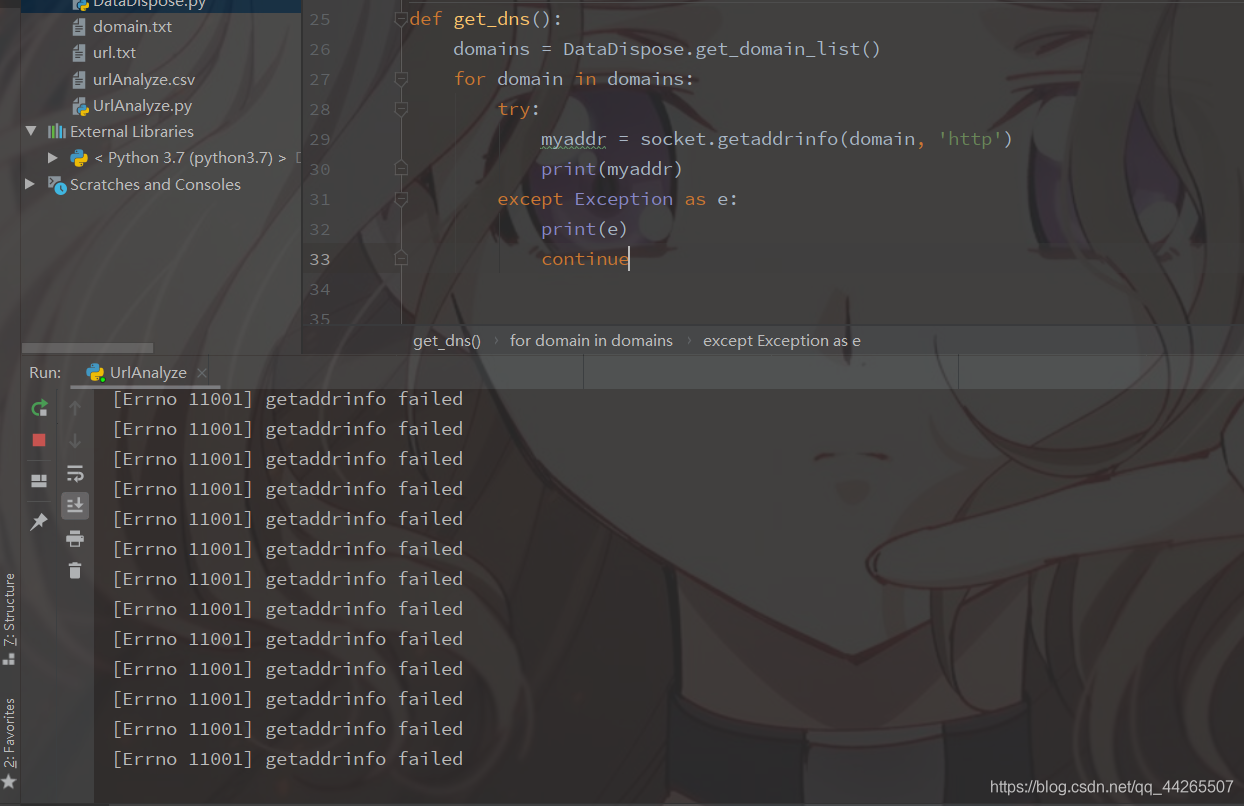
Because we are doing some web data set processing, we need to resolve the domain name and organize Ip, so we use
Socket.getaddrinfo.

First, read the domain name from the previously processed domain name dataset
Secondly, loop through them one by one
Do the exception handling

在这里插入图片描述

But the results are obviously not as good as they should be, but when you manually put a single domain name in and resolve it, there is no problem.

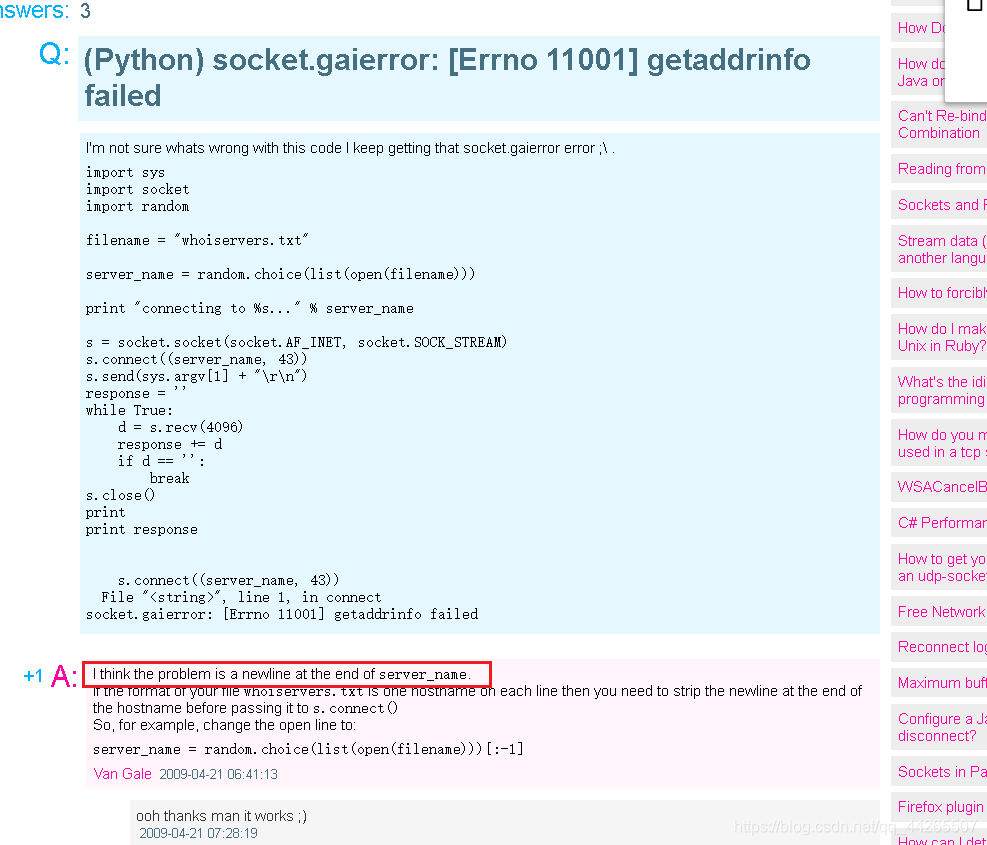
在这里插入图片描述

I think the problem is a newline at the end of server_name.

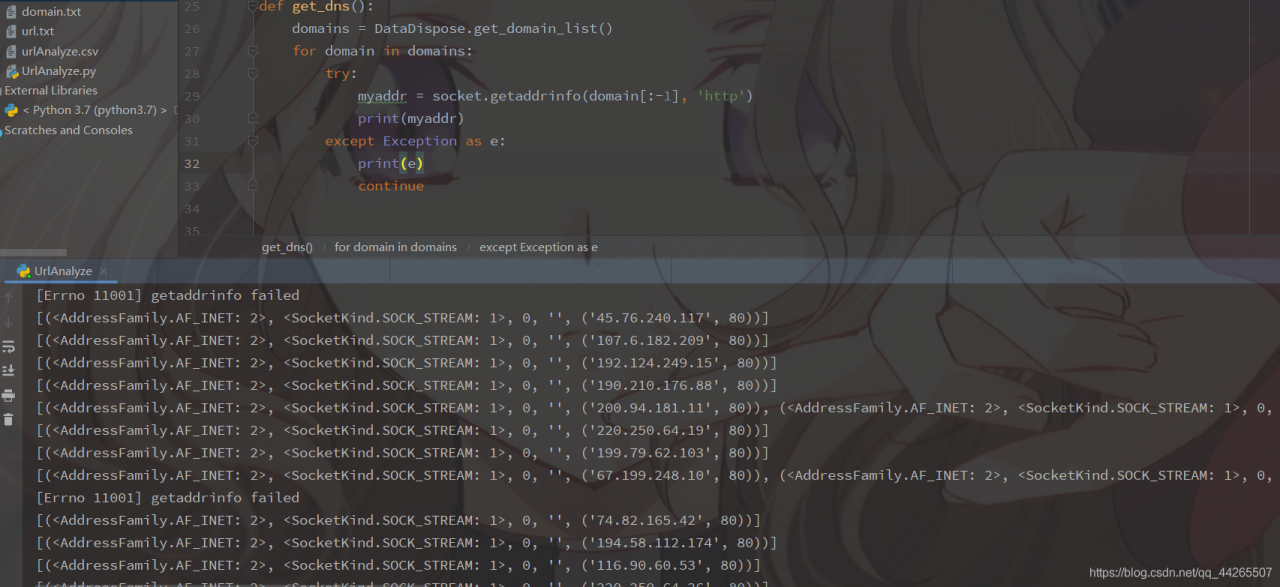
So I need to remove the ‘\n’
在这里插入图片描述

To explain, there are two ways to remove line breaks here.
Method 1: With .sprip(‘\n’)
Method 2: [:-1] (because the line break is always in the last character)
I hope this will help and solve the problem smoothly and instantly.

def get_dns():
    domains = DataDispose.get_domain_list()
    for domain in domains:
        try:
            myaddr = socket.getaddrinfo(domain[:-1], 'http')
            print(myaddr)
        except Exception as e:
            print(e)
            continue


No pyvenv.cfg File problem solution

How to Fix “no pyvenv.CFG file” Error

reason: maybe pyvenv. CFG was deleted by mistake


solution

1. Simple method: just pick it up from the trash

2. For other solutions

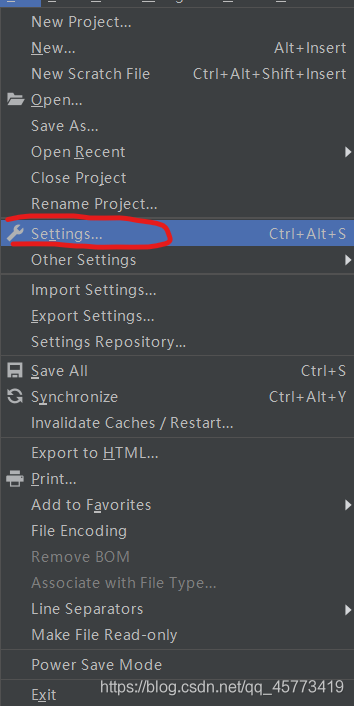
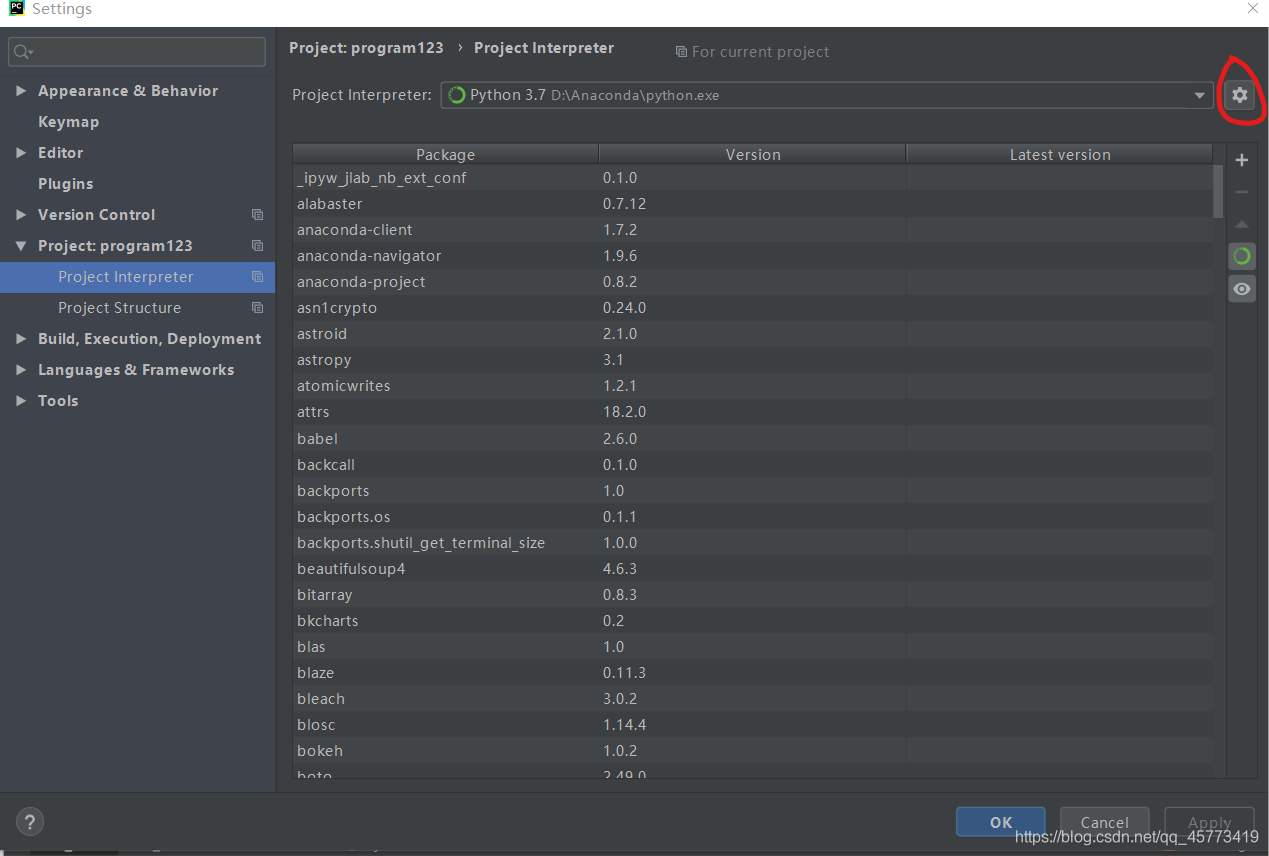
file setting

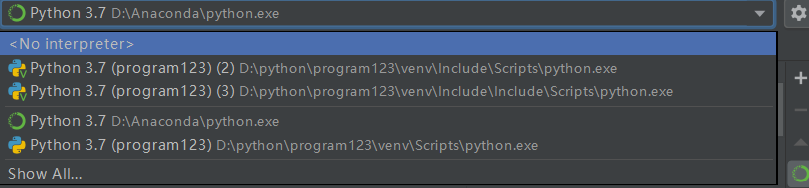
click on the pinion and then click Add…

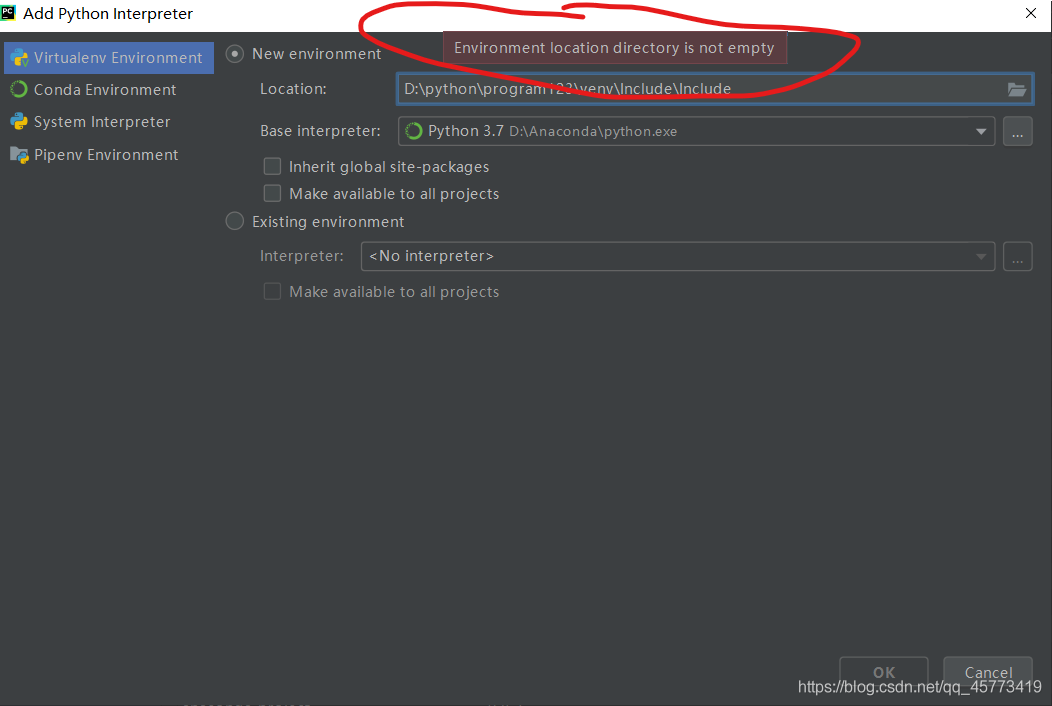
Just add the path to it
The path is always found near the previous file location

You will be alerted if you find a file error

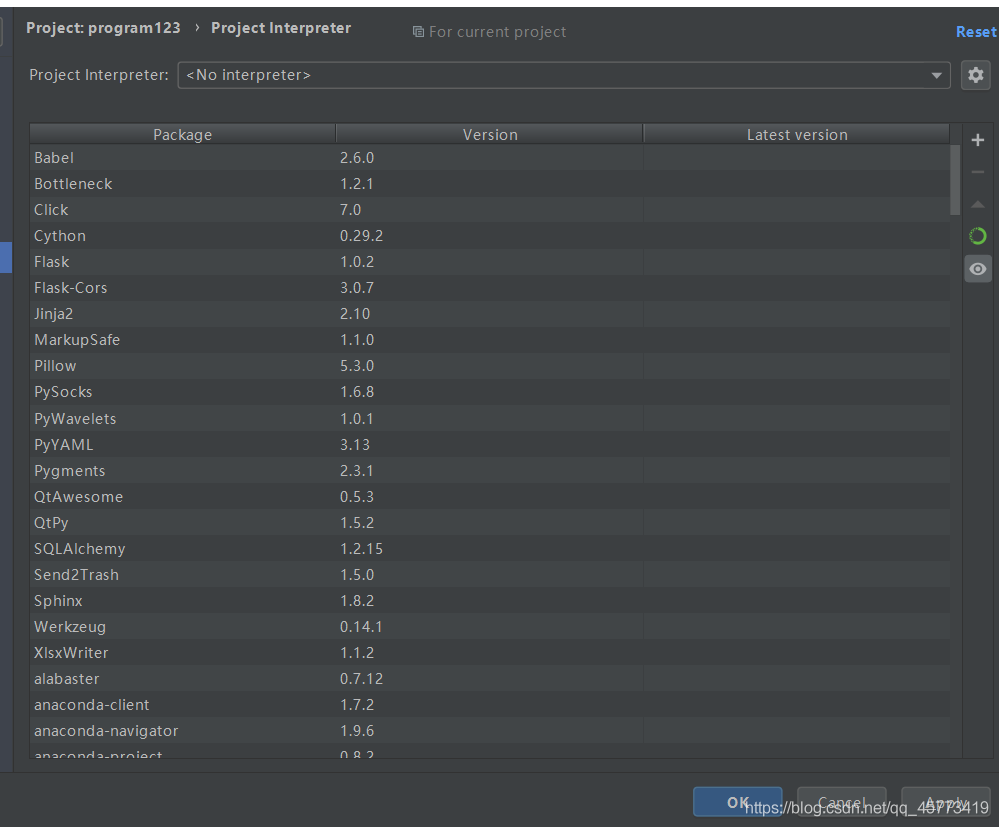
But if you complete the above steps, you will find that you download the third-party libraries are gone, there is a good way is to use the Andconda interpreter, how to use it? Just modify the base Interpreter and that’s it

and you’re ready to run

let me know if you have any questions.

Python 3 uses the relative path import module

directory structure

.
├ ─ ─ apt_root. Py
├ ─ ─ just set p y
├ ─ ─ mod/
└ ─ ─ test. Py
└ ─ ─ just set p y
└ ─ ─ sub/
└ ─ ─ test. Py
└ ─ ─ just set p y

task 1: import apt_root.py

from the parent directory in mod/test.py

task 2: import the sub/test.py

from the parent directory in mod/test.py

if

. Why does the title restrict the import of python3?

because all the peps you can find on the web are python2. Such as PEP328. But as far as I can see, python2 and python3 have different import rules.

absolute path is not good, why restrict to relative path import module?

refers to the module through the absolute path, which can easily cause a lot of work when the code structure is changed later, or when the file is renamed. Relative paths don’t have this problem


Analytical

one of the starting points of this article is that I found import is not easy, at least it caused a lot of confusion for me, so I share it here, hoping that the above two tasks can cover all the difficult cases. The first is the confusion of executing test.py in different ways, where the import is found to correspond to the module.

in the python form of test.py

in this case, python mod/test.py,

are executed in the root directory

or enter the mod subdirectory and execute python test.py with the same effect.

:

:

from . import apt_root
# 或者
from .. import apt_root
# 或者
from ..apt_root import *

I tested the successful way of writing:

import sys

sys.path.append(".")
import app_root

therefore, there should be one ‘.’ for the next level, and two ‘.’ for the next level. This means to add the previous directory to the search path.

in python-m test mode

, if my import is

import app_root

(as opposed to direct python xxx.py) runs in different directories and has different effects!

1: in the root directory: python-m mod. Test — run successfully

two: enter mod subdirectory first, then python -m test – run failure

if you want it to run successfully, it should look like this:

sys.path.append("..")
import app_root

(another confusing example) python-m XXX, to add the parent directory to the search path, use “..” , unlike python xxx.py, which USES “.” to represent the parent directory!

because python-m adds the path of the current command to sys.path. See python: The Python-m parameter?

therefore, in this method, it is necessary to combine the path of the current command running + the search path in the default sys.path + the newly added path in the code sys.path.append to determine whether the import can be successful.

summary

where it can be confusing:

1. Relative path cannot be used from.. To import XX, use sys.path.append(“..” )

2. Python-m XXX and python xx.py are different in the representation of the parent directory of import, the former USES two dots, the latter USES one;

3. The import search path in python-m XXX is related to the directory where the command is currently executing;

Python xxx.py is independent of the directory in which the command is currently executing


[welcome to follow my WeChat official number: artificial intelligence Beta]