1. Modify the file type
Vi finddir.sh enter: set ff If fileformat= DOS, change to Unix: : set FF = Unix execute save command: : WQ
2. Delete hidden characters
Open your SHELL script file with the command VI-b, and you will. It is found that there is an extra ^M at the end of each line of the script because MS-DOS and Windows are return + line feed to represent line feed. Therefore, Vim is used in Linux to view the code written in Windows with VC. The “^M” symbol at the end of the line represents the character.
To eliminate “^M” in Vim with the substitution function, type the following substitution command line: 1) vi-b setup.sh2) on the command edit line
< That is: press ESC and shift: colon >
Note: the “M” character on the command line above is not “” and” M “, but is generated by “Ctrl V” and “Ctrl M”. After this substitution, the save is ready to be executed.
Category Archives: Linux
How to Solve NPM Error: listen EADDRINUSE 127.0.0.1:8080
Error:Listening to EADDRINUSE 127.0.0.1:8080 on the server
. setupListenHandle [as _listen2] (net.js:1335:14)
at listenInCluster (net.js: 1381:12)
at GetAddrInfoReqWrapdoListen [as callback] (net.js:1509:7)
at GetAddrInfoReqWrap. onlookup [as oncomplete] (dn .js:61:10)
at :
at emitErrorNT (net.js:1362:8)
at process. _tickCallback (internal/process/next_tick.js:63:19)
npm ERR!
npm !’ cross-env NODE_ENV=development webpack-dev-server -open -inline -hot -port 8080 ‘
npm ERR!exit status 1
npm ERR!
npm error! Failed in development script.
npm ERR! This may not be a problem with npm. There may be additional log output above.
npm Error! The full log of this run can be found in the following file:
C:\Users\MX\AppData\Roaming\npm-cache\_logs\ 2018 – 07 – 24 – t09_07_38_445z debug. Logs
EADDRINUSE:The given address is already in use
Port is occupied
Solution.
sudo lsof -i :8088 // View port usage
sudo kill -9 47862 // kill the displayed PID
Docker Startup Error: standard_init_linux.go:211: exec user process caused “no such file or directory”
As shown in the question, start the Docker container according to the image built by yourself, exit directly, and check the error message in the container log without any other information. Internet search this problem, found that many people have encountered, the solution is also different, finally found an article. Inspired, my project is a Java project that builds a service running in the background with the ENTRYPOINT command starting the script docker-entrypoint.sh. My Docker-entrypoint. sh is edited under Windows, and the natural FileFormat is DOS. Here, it needs to be modified to Unix, and the modification method is also very simple. There is no need to operate under Linux.
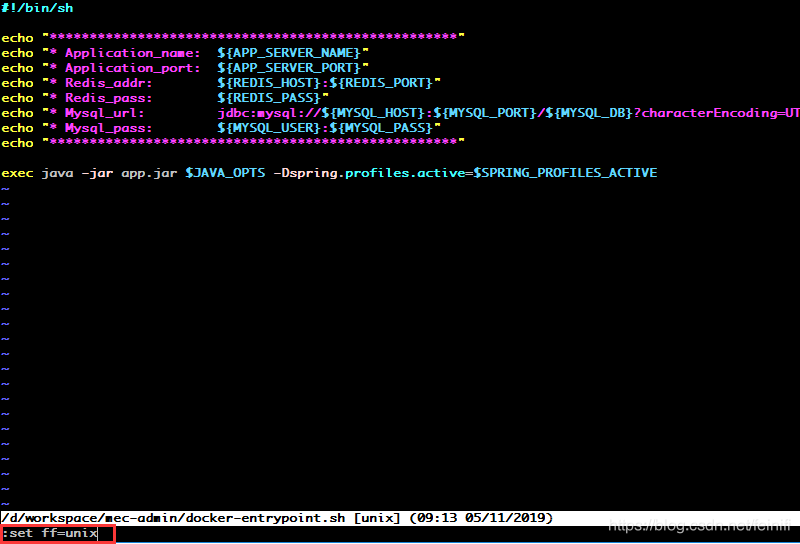
After the modification is completed, the image can be built again. If the new image is started, no error will be reported, which is usually difficult to detect. I hereby record it, hoping to help someone who has encountered this mistake.
After the modification is completed, the image can be built again. If the new image is started, no error will be reported, which is usually difficult to detect. I hereby record it, hoping to help someone who has encountered this mistake.
Fatal error: sys/cdefs.h: No such file or directory
Occurs at ubuntu16.04(64-bit machine) gcc-m32-o main mian.c

Solutions are as follows:
sudo apt-get purge libc6-dev
sudo apt-get install libc6-dev
sudo apt-get install libc6-dev-i386linux Ubuntu Error: No command ‘setenv‘ found
Linux Ubuntu error: no command ‘setenv’ found
Foreword solution
preface
sometimes the installed software commands are written based on CSH. If you use bash to use the software, you will report an error, such as “no command ‘setenv’ found”. At this time, you need to change the default bash of Ubuntu to CSH
resolvent
Linux Ubuntu changes the default bash to CSH by default
How to Solve Error: “Hdaudio hdaudioc0d2: unable to bind codec”
recently, after installing nidia drivers on the platform of Ubuntu 18.04, restart the computer, report the error “hdaudio hdaudioc0d2: unable to bind codec” on the command line, and the startup interface stays in the shell interface</ font>
note: there are many solutions to this problem on the Internet, but they don’t talk about the permission problem. The pro test can only save the modified grub file under the permission of root
resolvent
1. Enter super user root:
sudo -i
2. Enter grub file:
vim /etc/default/grub
3. Modify the following contents: before modification: </ font> </ font> 1
GRUB_CMDLINE_LINUX_DEFAULT="quiet splash nomodeset"
Modify:
GRUB_CMDLINE_LINUX_DEFAULT=""
4. Save the file: </ font> </ font>
ESC +:x
Git pull error: Your local changes to the following files would be overwritten by me
The following error occurs when using the git pull command
error: Your local changes to the following files would be overwritten by merge:
 How to Solve
git stash
git pull
git stash pop
error: Your local changes to the following files would be overwritten by merge:
How to Solvegit stash
git pull
git stash pop
Error: linker ` link. Exe ` not found | = note: the system cannot find the specified file.
Error: linker ` link. Exe ` not found | = note: the system cannot find the specified file. (os error 2)”
PS C:\Users\sun\Desktop\runoob-greeting> cd .\greeting
PS C:\Users\sun\Desktop\runoob-greeting\greeting> cargo build
Compiling greeting v0.1.0 (C:\Users\sun\Desktop\runoob-greeting\greeting)
error: linker link.exe not found|= note: The system could not find the specified file. (os error 2)
note: the msvc targets depend on the msvc linker but link.exe was not found
The problem occurs in the context of: Rust’s build tools and package management tools – Cargo
Solution.
Install Visual Studio 2019 build tools Visual Studio 2019 build tools or Microsoft Visual Studio. after downloading build tools, in Visual studio installer select only ” C++ build tools”, then select only “MSVC v142 – VS2019 C++ x64/x86 build tools”.
U-boot NFS download file error: loading: * * * error: File lookup fail solution
The reason for this error is:
the version of NFS used in uboot is V2, while the version of NFS used in Ubuntu is V3, V4 and above. As a result, uboot can no longer find files in the NFS server.
The solution is to make NFS in buntu compatible with v2. Modify the /etc/default/NFS kernel server file.
Open the file: sudo VIM/etc/default/NFS kernel server (note that sudo or root permissions are required), and modify it as follows:
# Number of servers to start up
RPCNFSDCOUNT=" -V 2 8"

# Runtime priority of server (see nice(1))
RPCNFSDPRIORITY=0

# Options for rpc.mountd.
# If you have a port-based firewall, you might want to set up
# a fixed port here using the --port option. For more information,
# see rpc.mountd(8) or http://wiki.debian.org/SecuringNFS
# To disable NFSv4 on the server, specify '--no-nfs-version 4' here
RPCMOUNTDOPTS="-V 2 --manage-gids"

# Do you want to start the svcgssd daemon?It is only required for Kerberos
# exports. Valid alternatives are "yes" and "no"; the default is "no".
NEED_SVCGSSD=""

# Options for rpc.svcgssd.
RPCSVCGSSDOPTS="--nfs-version 2,3,4 --debug --syslog"
Restart the NFS server. sudo service nfs-kernel-server restart
Github Clone Failed SSL_ERROR_SYSCALL in connection to github.com:443
Problem description
When using git to pull GitHub code, clone failed with the following error
fatal: unable to access 'https://github.com/xxx/xxx.git/': LibreSSL SSL_connect: SSL_ERROR_SYSCALL in connection to github.com:443
Causes
The proxy of HTTPS was set before
resolvent
Cancel the proxy for HTTPS and http
git config --global --unset http.proxy
git config --global --unset https.proxy
Finally, take a look at the global configuration of GIT
git config --global --list
Finally, try git clone . If it fails at the first time, you can re open a terminal for execution
Supplement
Git clone failed fatal: early EOF
This is because git does not have enough cache space. You can try to increase http. Postbuffer (by 500MB)
git config --global http.postBuffer 524288000
[Solved] paramiko.ssh_exception.SSHException: Error reading SSH protocol banner
Recently, SFTP upload and download should be configured in the project. After the environment is configured, the connection will report an error.
The error information is as follows:
paramiko.ssh_exception.SSHException: Error reading SSH protocol banner
Solution 1:
Set banner_ Timeout property value
You can change the transport.py under the paramiko Library in the site packages source file. The transport code is as follows:
 class Transport(threading.Thread, ClosingContextManager):
        self.banner_timeout = 15
        # how long (seconds) to wait for the handshake to finish after SSH
15 can be changed to 30
Solution 2:
Pay attention to check your host, port, username, password and other information, as well as upload or download directory path!
Linux Ubuntu ImportError: Libtk8.5.so: cannot open shared object file:No such file Install tkinter Library
Ubuntu resolves errors importerror: libtk8.5.so: cannot open shared object file:No such File to install Tkinter Library
terms of settlement
terms of settlement
at the beginning, I wanted to install with PIP3, but all of them made mistakes. It seems that PIP does not have this library?Then use </ font> instead
sudo apt-get update
sudo apt-get install python3-tk
done
note: if there is an error in the installation process, you can refer to my previous article to add image source processing – Linux Ubuntu modify image source