Category Archives: JavaScript

Vue3.X Attribute Inheritance error [How to Solve]

When writing Vue components, the following warnings are reported inexplicably:

[Vue warn]: Extraneous non-props attributes (border, style) were passed to component but could not be automatically inherited because component renders fragment or text root nodes.
at XXXX (Location of the component where the problem occurred)
at

Solution:
The border, style property was added to the custom component and the custom component did not bother to receive it internally, hence the warning.
So, either add the properties to be received inside the component. If it is in the third party library UI library, it is recommended to remove these attributes directly.

[Solved] JS Error: cannot set property xxx of undefined

case1

Error code

quizList[index] = currentQuiz;
quizList[index].learningItem = item;

Error content

Cannot read properties of undefined (reading 'learningItem')

Error reporting reason

currentQuiz object may be undefined, if you add the property learningItem to the undefined object quizList[index] dynamically, it will cause the error “cannot set property xxx of undefined”.

Solution:

quizList[index] = currentQuiz == undefined ?{} : currentQuiz;
quizList[index].learningItem = item;

Just judge whether the quizlist [index] is undefined


case2

Error code

quiz.finishedstudent.forEach(item => {
	if (item.score < 80) {
		errorNum++;
	}
})

Error content

Cannot read properties of undefined (reading 'forEach')

Solution:

if (quiz.finishedstudent != undefined) {
	quiz.finishedstudent.forEach(item => {
		if (item.score < 80) {
			errorNum++;
		}
	})
}

xxx is assigned a value but never used [How to Solve]

XXX is assigned a value but never used


Solution:

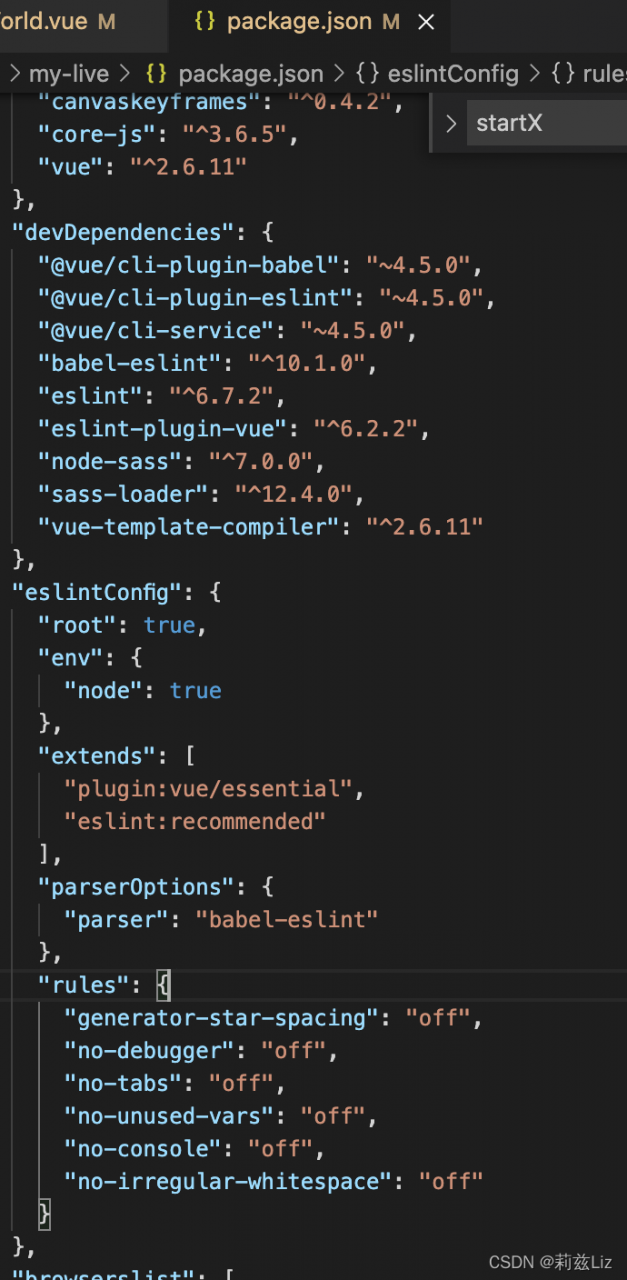
Find the path
package.json file -> devDependencies -> rules

Add the following code

	"rules": {
      "generator-star-spacing": "off",
      "no-debugger": "off",
      "no-tabs": "off",
      "no-unused-vars": "off",
      "no-console": "off",
      "no-irregular-whitespace": "off"
    }

The code is located in the page

it will be normal to open it again

npm ERR code ELIFECYCLE [How to Solve]

npm ERR! Code elifecycle solution

1. Problems

npm ERR! code ELIFECYCLE
npm ERR! errno 1
npm ERR! [email protected] build: webpack --config config/webpack. config. js
npm ERR! Exit status 1
npm ERR!
npm ERR! Failed at the [email protected] build script.

The reason for this is the webpack.config.js configuration error, which is actually a path configuration error. Some path configurations in webpack.config.js are configured according to the package.json file location, and some are configured according to the current file location, and people tend to get confused when configuring them.

2. Solutions
2.1 Solution 1
Fill in the correct path, this problem is often caused by the path configuration error. Refer to the following template, I will decipher the path configuration.

entry:’. /src/js/index.js’ // this path is based on the package.json file as the base file path (not the webpack.config.js file)

template in plugins: ‘src/index.html’ //this is also based on the package.json file as the base file path

and path:path.resolve(__dirname,’…/dist’) // is based on the webpack.config.js file path

const path=require(‘path’); // call the path in node.js
const HtmlWebpackPlugin = require(‘html-webpack-plugin’);
module.exports={undefined
entry:’. /src/js/index.js’, // the file to be packaged (this path is written according to the package.json location)
output:{undefined
filename:’bundle.js’, //the name of the package file
path:path.resolve(__dirname,’…/dist’) //specify the generated file directory (written by the current file location)
},
module: {undefined
rules: [
{undefined
test: /.css$/,
use: [ ‘style-loader’, ‘css-loader’ ]
}
]
},
plugins: [
new HtmlWebpackPlugin({undefined
template: ‘src/index.html’ //configure html template (by package.json location)
})
]
}

2.2 Solution 2
Direct reinstallation, but personally do not recommend, indeed some files reinstallation is possible to solve the problem, but sometimes reinstallation is very slow, which is annoying. Reinstallation steps are as follows.

(Do not delete package.json, delete package-lock.json)

npm cache clean --force
rm -rf node_modules
rm -rf package-lock.json
npm install
How to Fix Taro SwipeAction Not Working Issue

Invalid reason:

Because two attributes of the official document are not written, and we have not written them, it will not take effect
1 The maximum sliding distance of maxdistance slider is generally the number of buttons multiplied by the button width
2 Areawidth component width (if no reference causes the component occupancy width to be 0, the page will not be displayed)

be careful:

Here, the width in option must use PX, if you use rpx, there will be UI problems on different devices, maxDistance= the width length of two options, maxDistance is the type of number

Correct code:

<AtSwipeAction
  maxDistance={140} // Button width * number of buttons
  areaWidth={Taro.getSystemInfoSync().windowWidth * 1} //Dynamically get the width of different devices
  autoClose //click the button to close it automatically
  onClick={(option, btnIndex) => { }} //Click to cancel Triggered after deleting the button, one parameter is the currently clicked option item, the second parameter is the index of the button 0 1
  options={[
    {
      text: 'cancel',
      style: {
        justifyContent: 'center',
        width: '70px',
        padding: 0,
      }
    },
    {
      text: 'Delete',
      style: {
        justifyContent: 'center',
        width: '70px',
        padding: 0,
      }
    }
  ]}>
  <View>
    Content
  </View>
</AtSwipeAction>

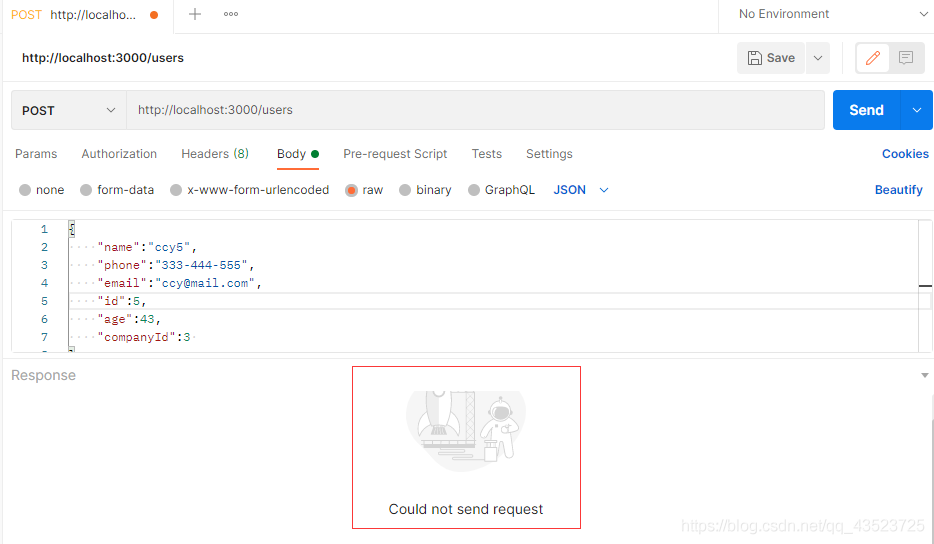
Postman Error: Could not send request [How to Solve]

Error reporting:

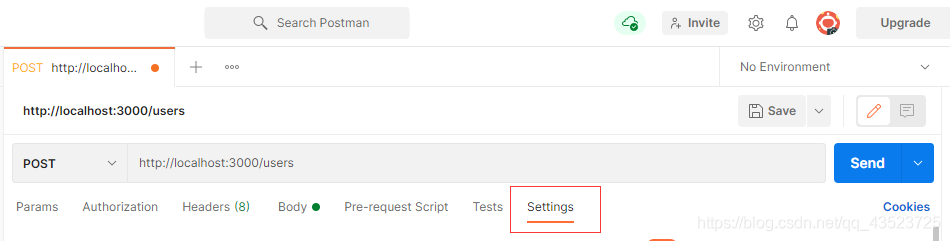
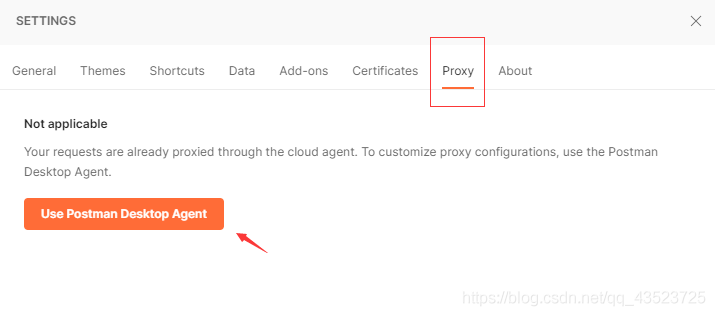
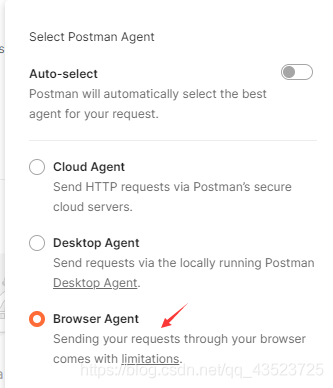
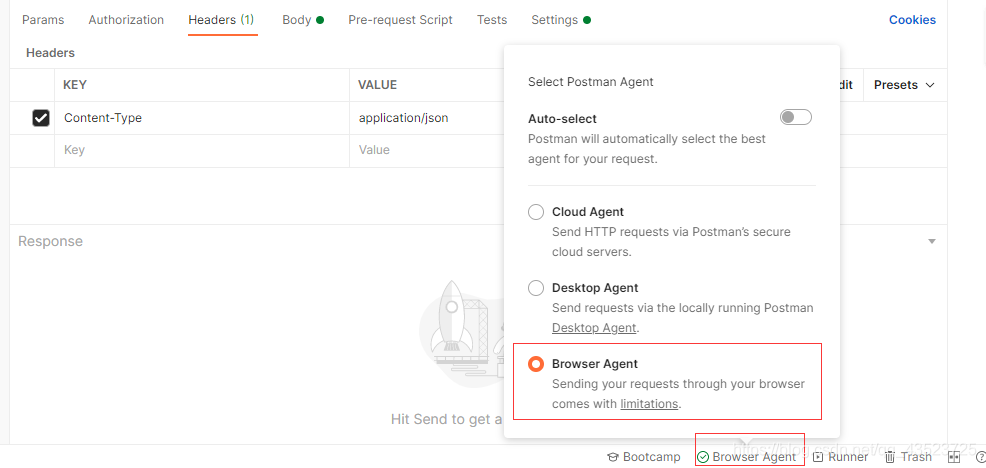
Solution: enable agent and select the available agent
setting – proxy – use postman desktop agent – Bowser agent


In addition:
if the selected agent is available, there will be a green tick about agent selection in the lower right corner. Here the Bowser agent is available:

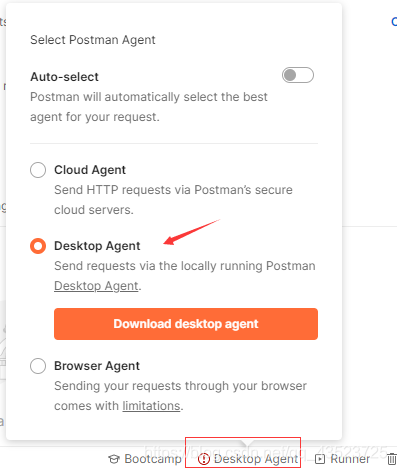
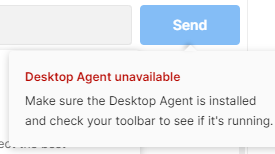
if the selected agent is not available, it will turn into a red exclamation mark and prompt at send that the agent is not available:
Desktop agent is not available here:

Vue3.0 error: Failed to resolve component el-form-item (el element to be unable to be displayed)

When importing the element ui, you need to introduce the corresponding component in element.js if you choose on-demand import.

import { ElForm } from 'element-plus'
import { ElButton } from 'element-plus'
import { ElFormItem } from 'element-plus'
import { ElInput } from 'element-plus'
import lang from 'element-plus/lib/locale/lang/zh-cn'
import locale from 'element-plus/lib/locale'

export default (app) => {
  locale.use(lang)
  app.use(ElButton)
  app.use(ElForm)
  app.use(ElFormItem)
  app.use(ElInput)
}

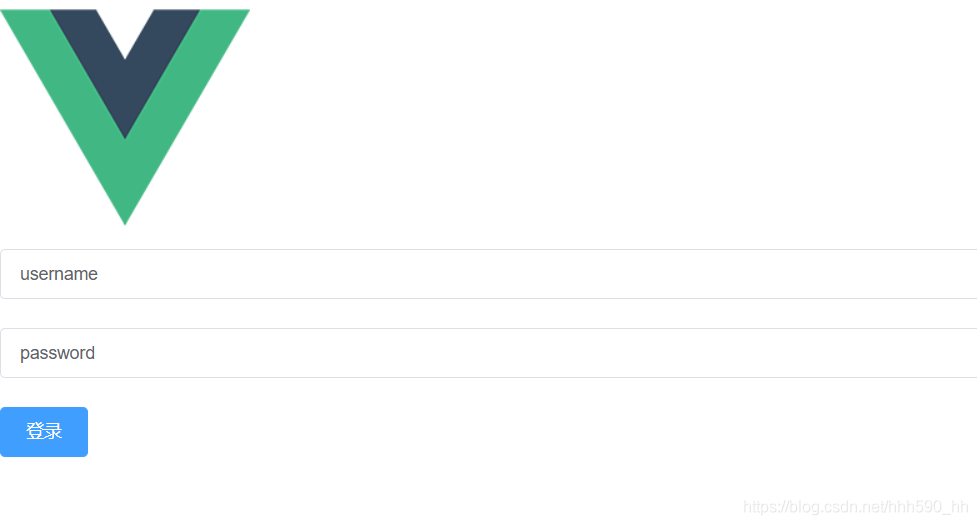
The page can be displayed normally

How to Solve Vue3 jweixin-module Error

Use in vue3:

var jweixin = require('jweixin-module');

It will be compiled with the error: require is not defined, there is no require module, change to import, because jweixin-module does not support export writing, so the introduction can not succeed.

Solution:
Use a third-party wrapper jdk: weixin-js-sdk

npm install weixin-js-sdk -S

import jweixin from 'weixin-js-sdk'

[Solved] vite package Error: globalThis is not defined

Problem:
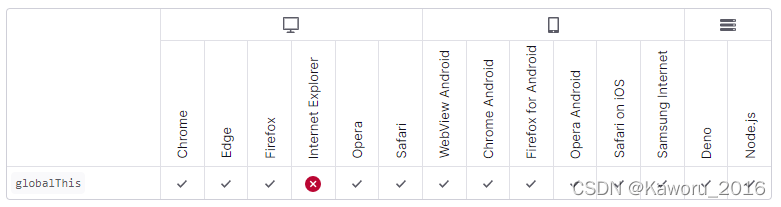
browser version 65
globalthis requires chrome 71 or above

vite + vue3.0 after the project is packaged, the browser prompts globalthis is not defined.

How to Solve:
Modify vite.config.js
Add plugin @vitejs/plugin-legacy

import legacy from '@vitejs/plugin-legacy'

export default defineConfig({
	plugins: [
		legacy({
			targets: ['Chrome 63'],
			additionalLegacyPolyfills: ['regenerator-runtime/runtime'],
			modernPolyfills: true
		})
	],
	build:{
   		target:'es2015'
	}
})

Just repack it

[Solved] Syntax Error: Error: Node Sass does not yet support your current environment:

Error Messages:

 ERROR  Failed to compile with 1 error                                               AM11:47:18
error  in ./src/assets/styles/fat.scss
Syntax Error: Error: Node Sass does not yet support your current environment: Windows 64-bit withFor more information on which environments are supported please see:
https://github.com/sass/node-sass/releases/tag/v4.14.1

@ ./src/assets/styles/fat.scss 4:14-291 15:3-20:5 16:22-299
@ ./src/main.js
@ multi ./node_modules/[email protected]@webpack-dev-server/client?http://192.168.30.251:80&sockPath=/sockjs-node (webpack)/hot/dev-server.js ./src/main.js

Solution:

 The node scss version does not match the current environment and needs to be uninstalled and reinstalled
Uninstall command: npm uninstall –save node-sass
Install command: npm install –save node-sass