Author Archives: Robins

[Solved] npm install sass@~1.32 sass-loader deepmerge -D Install Error

npm install sass@~1.32 sass-loader deepmerge -D install error:

PS E:\dome\automated-test-platform-vue2> npm install sass@~1.32 sass-loader deepmerge -D
npm ERR! code ERESOLVE
npm ERR! ERESOLVE unable to resolve dependency tree
npm ERR! 
npm ERR! While resolving: [email protected]
npm ERR! Found: [email protected]
npm ERR! node_modules/webpack
npm ERR!   dev webpack@"^3.6.0" from the root project
npm ERR!
npm ERR! peer webpack@"^5.0.0" from [email protected]
npm ERR! node_modules/sass-loader
npm ERR!   dev sass-loader@"*" from the root project
npm ERR!
npm ERR! Fix the upstream dependency conflict, or retry
npm ERR! this command with --force, or --legacy-peer-deps
npm ERR! to accept an incorrect (and potentially broken) dependency resolution.
npm ERR!
npm ERR! See C:\Users\shenyf\AppData\Local\npm-cache\eresolve-report.txt for a full report.

npm ERR! A complete log of this run can be found in:
npm ERR!     C:\Users\shenyf\AppData\Local\npm-cache\_logs\2022-01-13T03_11_17_119Z-debug.log

Solution:

PS E:\dome\automated-test-platform-vue2> npm install sass@~1.32 sass-loader@7 deepmerge -D

added 7 packages, and audited 1277 packages in 8s
63 packages are looking for funding
  run `npm fund` for details

86 vulnerabilities (2 low, 69 moderate, 15 high)

To address issues that do not require attention, run:
  npm audit fix

To address all issues (including breaking changes), run:
  npm audit fix --force

Run `npm audit` for details.
Springboot thymeleaf Error: Exception processing template “table/dynamic_table”: Error resolving template [common]…

1. Error reporting:

[THYMELEAF][http-nio-8080-exec-3] Exception processing template "table/dynamic_table": Error resolving template [common], template might not exist or might not be accessible by any of the configured Template Resolvers (template: "table/dynamic_table" - line 17, col 10)

2. Occurrence

An error is reported when thymeleaf introduces a public page

3. Reasons for error reporting

Original code:

<div th:replace="common :: #leftmenu"></div>

Error report caused by not adding a path

After modification:

<div th:replace="table/common :: #leftmenu"></div>

[Solved] original_keras_version = f.attrs[‘keras_version‘].decode(‘utf8‘)

windows system:
original_keras_version = f.attrs[‘keras_version’].decode(‘utf8’)
1. error:

load_weights_from_hdf5_group
    original_keras_version = f.attrs['keras_version'].decode('utf8')

AttributeError: 'str' object has no attribute 'decode'

2. Cause analysis

When installing tensorflow, the default installed h5py is 3.1.0, and an error is reported because the TF you installed does not support an excessively high version of h5py

3. Solutions

1. Uninstall h5py3 Version 1.0, installing h5py2.0 Version 10.0.2. Restart the compiler

pip install h5py==2.10.0

QT calls the API of ffmpeg error [How to Solve]

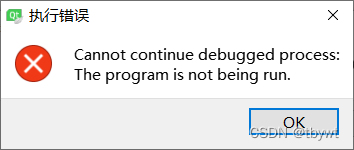
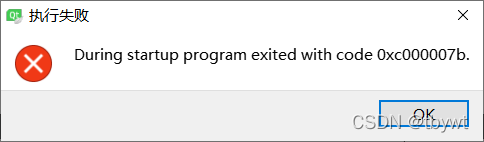
QT calls the API of ffmpeg, and the error is as follows:

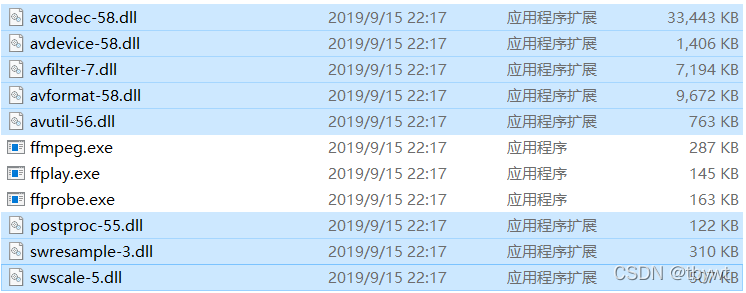
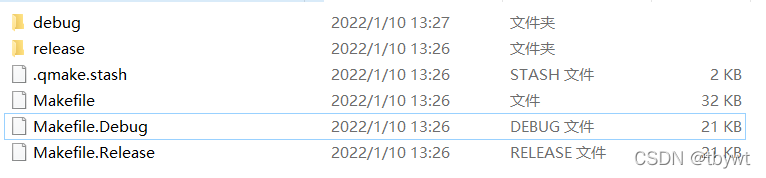
These two errors are caused by the lack of dynamic libraries in the running directory,

Dynamic library:

Program running Directory:

Directly copy all DLLs to the running directory.

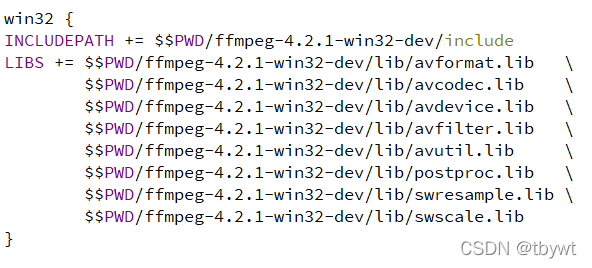
QT calls ffmpeg API with the following configuration:

1. This document

Put in the project directory

2. Import and store files and header files

3. Add corresponding header file

4. Copy a dynamic library in the running directory

[Solved] VMware Workstation Unrecoverable error: (vcpu-0) vcpu-0:VERIFY vmcore/vmm/main/cpui

When I installed VMware Workstation and found that Ubantu can not start with an error:

VMware Workstation Unrecoverable error: (vcpu-0) vcpu-0:VERIFY vmcore/vmm/main/cpui


Solution:

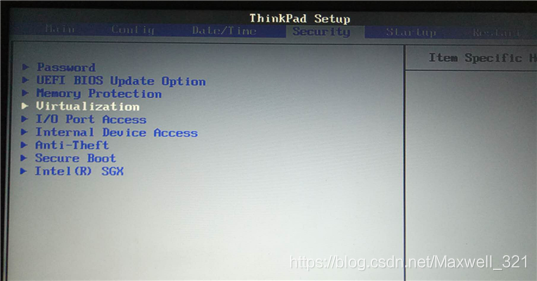
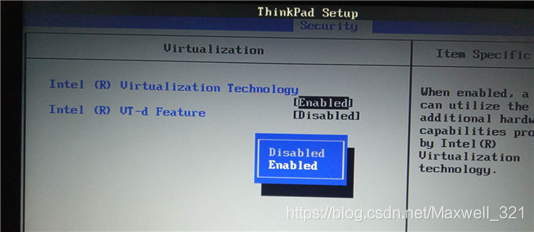
Find Intel virtual technology in the bos, set it to enabled, save and reboot, and the virtual machine opens normally.

在这里插入图片描述

在这里插入图片描述

How to Fix Install VMware Tools Grayed out Issues 2022

1. Error Description:

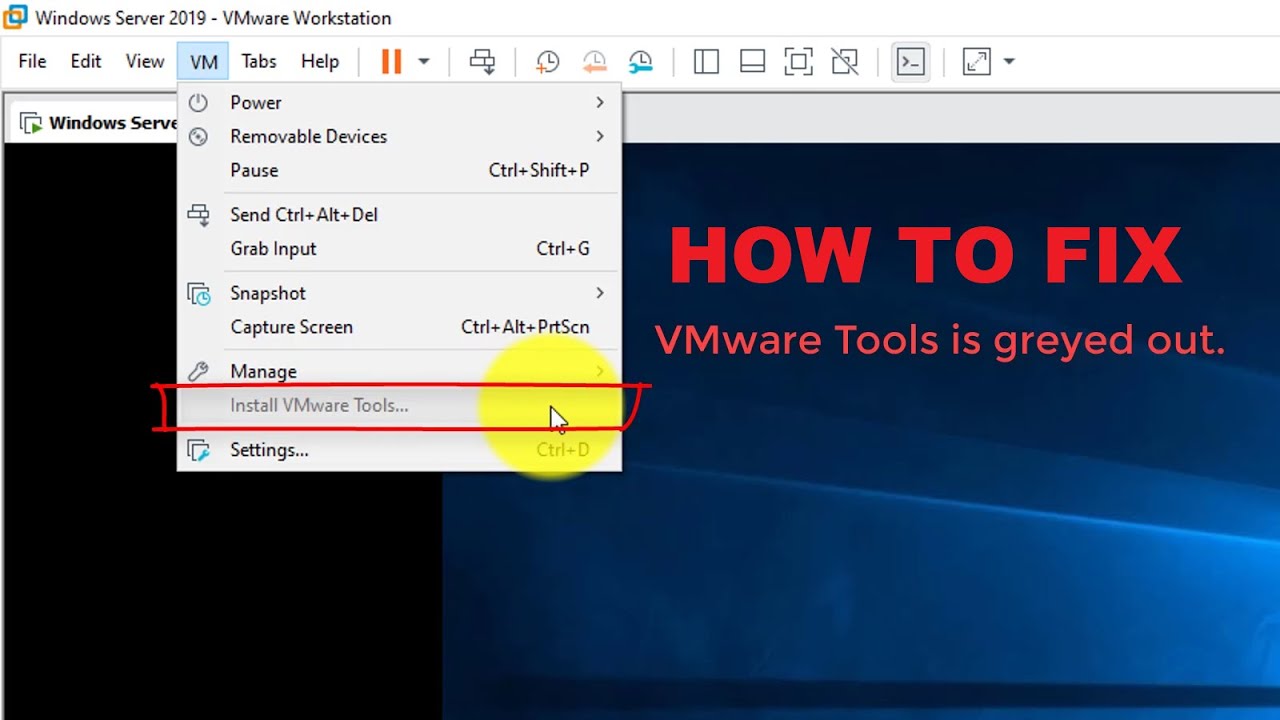
The “Install VMware Tools” in VMware Workstation is grayed out and cannot be clicked to install.

How to install VMware tools if the option is grayed out in VMware  Workstation - YouTube


2. Solution

Although VMware Tools is grayed out, there is a linux.iso in the VMware download package, which is what we need, as follows.
1. Mount the image file
Open VMware, click Virtual Machine>>Settings>>CD/DVD, then select “Use ISO image file” in the “Connection” on the right, then select the linux.iso file in the VMware directory, select it. After that, click OK.

2. Connect the CD-ROM file
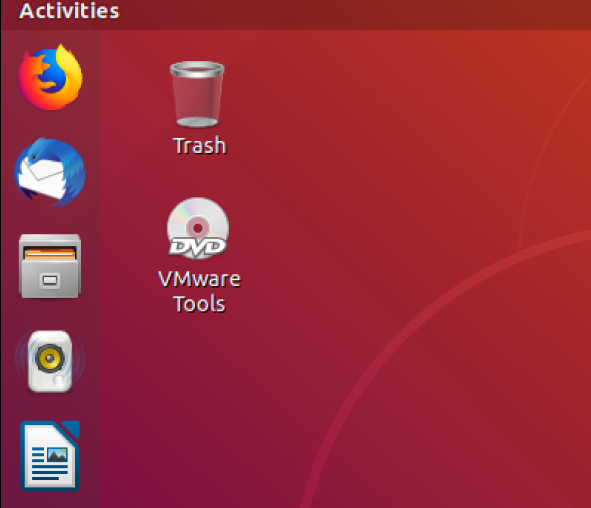
After completing the previous step, open the virtual machine, there is a “CD/DVD” icon in the bottom right corner of the virtual machine, click on it and select “Connect”, you will see a CD file on the desktop after successful connection. The screenshot is as follows.

3. Decompress and install
Open the CD file, there is a file named VMwareTools…. .tar.gz, move this archive to the directory where you want to extract it (e.g. /home/Documents/VMTools), then click on the archive, right-click and select “extract here” to extract it to the current directory.

Open a terminal, go to the unpacked folder, then go to the vmware-tools-distrib directory and type sudo . /vmware-install.pl and enter, followed by yes and enter again.

4. Restart the virtual machine
After doing the above, you will need to reboot the virtual machine. Here you can test if the installation is successful by copying a file locally and pasting it in the virtual machine, if it is successful then VMware Tools is successfully installed.