Author Archives: Robins

Pandas memory error

Problem description
I will use pandas to process data, which is known to all children’s shoes related to data processing. Read in from CSV file with a pd.read_csv, and then play as you like. Recently, when I was doing data preprocessing, I encountered a headache. Every time the program was executed to pd. Read_csv is always reported to memory error. Finally all kinds of search stackoverflow, finally find the crux:
Replace Python with X64
Yes, it’s as simple as that!
Attached to the
As anyone who has ever used Pandas knows, it is impossible to install Pandas in WIN without any trouble. With all kinds of dependence and the disgusting network in China, it may not be so easy to change Python into X64. Please don’t be impatient, and here comes the magic device:
Please use Anaconda, select an X64, download and install it directly, graphically, install the python X64 version with a full set of data analysis package, of course, there is a Python X64 version with ipython and other tools, not malicious, and even strongly recommend the first time you install Python directly to use this.
The end

Error: ADB prompts device unauthorized

Question:
> > > Adb Devices, prompt:
Error: the device UNAUTHORIZED. Please check the Confirmation dialog on your device.
Solutions:
1. Restart ADB service — ADB Kill – Server and START
Results: the fail
2. I am a Huawei mobile phone. When the phone is connected to the PC, there is no window allowing debugging
To put the phone in developer mode, click on a bar in the “about the phone” section and turn on the allow debug switch

0

Error code is 2502 / 2503 when installing MSI format installation package under win10 or win8

An error was reported when installing SVN (MSI format) under Win10:

The installer has encountered an unexpected error installing this package.this may indicate a problem with package.the error code is 2502.

The installer has encountered an unexpected error installing this package.this may indicate a problem with package.the error code is 2503.

finally found that usually in win8 or win10 under the installation of msi format package may appear when the error.

this is the permission problem of the system, the solution is as follows:
1. Combine the keys win+x and select “command prompt (administrator)”

2, run command: msiexec /package “install package path”

Using curl to generate gnutls_ Handshake() failed: error in the pull function or gnutls recv error: error in the pull function

The problem
System: Ubuntu 16.04 LTS (amd64)

sudo apt-get install git
sudo apt-get install curl

Then you want to download the REPo tool:

mkdir ~/bin
PATH=~/bin:$PATH
curl https://storage.googleapis.com/git-repo-downloads/repo > ~/bin/repo
chmod a+x ~/bin/repo

In the execution of curl https://storage.googleapis.com/git-repo-downloads/repo & gt; makes it possible for gnutls_handshake() to fail: Error in the pull function Failed to connect to storage.googleapis.com port 443: Connection refused.
(One download was successful, the rest were unsuccessful)
To solve
sudo apt-get install libcurl4-openssl-dev
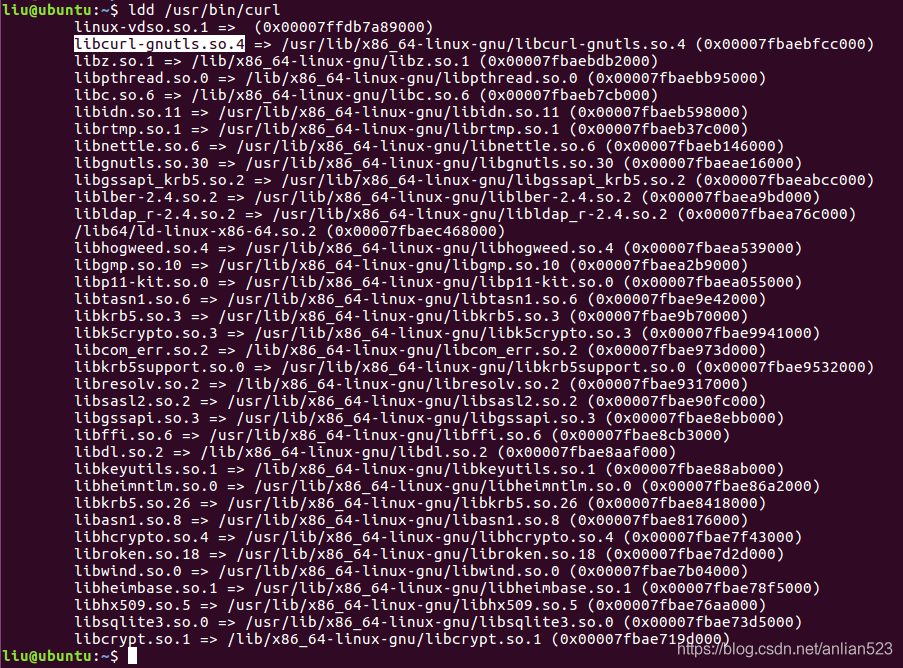
libcurl4-gnutls-dev These two bags are in conflict with each other, who will take off the other one first?Curl has libcurl4-gnutls-dev, which is the default, but we need libcurl4-openssl-dev, because it’s more useful and has better HTTPS support.

Oracle EM certificate error SSL_ error_ weak_ server_ cert_ Key

Solutions:

Use the following certutil command in client CMD:

certutil -setreg chain\EnableWeakSignatureFlags 8

screen appears:

C:\Users\Administrator> 8 certutil – setreg chain \ EnableWeakSignatureFlags

\ Software \ Microsoft \ Cryptography \ OID EncodingType0 \ CertDllCreateCertificateChainEngine \ Config \ EnableWeakSignatureFlags:
the new values: EnableWeakSignatureFlags REG_DWORD = 8 CertUtil: -setreg command completed successfully.
The CertSvc service may need to be restarted for the changes to take effect.

then open EM with IE to

related search: WINDOWS certificate management CERTUTIL
Error launching Android Studio

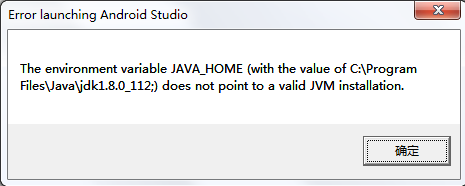
Just after updating The JDK to version 1.8, I found that Studio could not start, and The error “The environment variable JAVA_HOME does not point to an valid JVM installation” appeared. See The following figure for details:

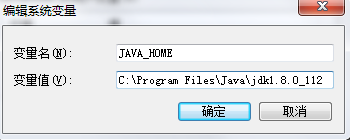
Solution: 1, click on the desktop computer, right-click the properties. ; 2. On the left, select “Advanced System Settings”, environment variables, and configure your JAVA_HOME without a semicolon

This will enable You to launch Android Studio.

Solution for error 7 in lineage OS brush

The test model, the Nexus 6P

    brush steps
    Power key + volume button to enter rec mode to choose the wipe can be removed, in addition to the internal storage (installation package on the inside) wipe after success, return to the interface select install select flash in the install package directly open the brush if ERROR7 mistakes, returned to the main interface, select the mount, cancel and then began to brush in front of the system) can generally in just after entering the rec interface, click the mount interface, will find that in front of the system not check the number, In other words, there is no mounted system, but when you enter mount again after sanqing, you will find that the system is mounted, cancel the check sign in front of the system, and then go to install to remove the error 7

How to share a process among multiple apks

By default, all components in the same application run in the same process, and most applications do, too. However, if we want to control that a particular component belongs to a process, we can configure it in the manifest file.
In the manifest entry for each component element (activity, service, receiver, provider), a “android:process” property is supported, which allows you to specify the process that a component is running. You can set this property so that each component runs in its own process, or you can have only certain components share a process. We want to be able to set the “Android: Process” property so that components in different applications, which share the same Linux user ID and have the same certificate, run in the same process.
< application> The element also has an “Android: Process” attribute that can be set to a default value that applies to all components.
When the amount of available memory is low and some processes that interact with the user in real time need memory, Android can terminate a process at any time. Components running in the terminated process are destroyed, but a second process is started when the components are needed to work again.
In deciding which processes to terminate, The Android system weighs their importance to the user. For example, it makes more sense to terminate a process running invisible activities than a process running visible ones. Whether or not to terminate a process depends on the state of the components that are running in the process.
If two activities cannot be placed in the same application, they can be forced to run in the same process by setting the following properties in their manifest, thus taking full advantage of the Shared resources within the process and reducing the memory footprint:
Java code:
(1) Set the same User Id:
2.< manifest android:sharedUserId=”aaa.bbb”
3. (2) The called activity sets the following properties:
4.< activity android:multiprocess=”true”
Or 5.
6.< activity android:process=”com.cienet.test”
For 3D OpenGL program, after modifying the above attributes, the memory footprint of the called activity will be significantly reduced, such as: 30MB-& gt; 2 MB.
You can do the following test: How do you share a process
Java code:
1. Join Android :sharedUserId=” AAA. BBB “no
2.android:process=”com.cienet.test”
3.07-12 15:42:34. 781: the ERROR/Dean (7615) : Binder. The getCallingPid (7615)
4.07-12 15:42:34. 785: the ERROR/Dean (7615) : runningappprocessinfo. Pid: 7615 runningappprocessinfo processNamecom. Cienet. Testa
5.07-12 15:42:34. 785: the ERROR/Dean (7615) : pkgname: 7615: com. Cienet. Testa
6.
7.
8.07-12 15:42:24. 722: the ERROR/Dean (7602) : Binder. The getCallingPid (7602)
9.07-12 15:42:24. 726: the ERROR/Dean (7602) : runningappprocessinfo. Pid: 7602 runningappprocessinfo processNamecom. Cienet. Testb
10.07-12 15:42:24. 726: the ERROR/Dean (7602) : pkgname: 7602: com. Cienet. Testb
11.
12. Add Android :process=”com.cienet.test” to B
13.
14.07-12 15:46:41. 933: the ERROR/Dean (7738) : Binder. The getCallingPid (7738)
15.07-12 15:46:41. 937: the ERROR/Dean (7738) : runningappprocessinfo. Pid: 7738 runningappprocessinfo processNamecom. Cienet. Test
16.07-12 15:46:41. 937: the ERROR/Dean (7738) : pkgname: 7738: com. Cienet. Testb
17.
18.07-12 15:47:13. 246: the ERROR/Dean (7761) : Binder. The getCallingPid (7761)
19.07-12 15:47:13. 246: the ERROR/Dean (7761) : runningappprocessinfo. Pid: 7761 runningappprocessinfo processNamecom. Cienet. Testa
20.07-12 15:47:13. 250: the ERROR/Dean (7761) : pkgname: 7761: com. Cienet. Testa
21.
22. Add Android :process=”com.cienet.test” to A
23.
24.07-12 15:50:24. 988: the ERROR/Dean (7878) : getApplicationInfo: publicSourceDir/data/app/com. Cienet. Testa – 1. The apk
25.07-12 15:50:24. 988: the ERROR/Dean (7878) : getApplicationInfo: descriptionRes0
26.07-12 15:50:24. 988: the ERROR/Dean (7878) : Binder. The getCallingPid (7878)
27.07-12 15:50:24. 992: the ERROR/Dean (7878) : runningappprocessinfo. Pid: 7878 runningappprocessinfo processNamecom. Cienet. Test
28.07-12 15:50:24. 992: the ERROR/Dean (7878) : pkgname: 7878: com. Cienet. Testa
29.
30.
31.07-12 15:50:46. 964: the ERROR/Dean (7878) : getApplicationInfo: publicSourceDir/data/app/com. Cienet. Testb – 1. The apk
32.07-12 15:50:46. 964: the ERROR/Dean (7878) : getApplicationInfo: descriptionRes0
33.07-12 15:50:46. 964: the ERROR/Dean (7878) : Binder. The getCallingPid (7878)
34.07-12 15:50:46. 968: the ERROR/Dean (7878) : runningappprocessinfo. Pid: 7878 runningappprocessinfo processNamecom. Cienet. Test
35.07-12 15:50:46. 972: the ERROR/Dean (7878) : pkgname: 7878: com. Cienet. Testa
36.
37.
38. Remove the android: sharedUserId = “aaa. BBB”
39.07-12 15:52:29. 574: the ERROR/Dean (7967) : getApplicationInfo: publicSourceDir/data/app/com. Cienet. Testb – 2. Apk
40.07-12 15:52:29. 578: the ERROR/Dean (7967) : getApplicationInfo: descriptionRes0
41.07-12 15:52:29. 578: the ERROR/Dean (7967) : Binder. The getCallingPid (7967)
42.07-12 15:52:29. 578: the ERROR/Dean (7967) : runningappprocessinfo. Pid: 7967 runningappprocessinfo processNamecom. Cienet. Test
43.07-12 15:52:29. 578: the ERROR/Dean (7967) : pkgname: 7967: com. Cienet. Testb
44.
45.
46.07-12 15:53:06. 730: the ERROR/Dean (7990) : getApplicationInfo: publicSourceDir/data/app/com. Cienet. Testa – 2. Apk
47.07-12 15:53:06. 730: the ERROR/Dean (7990) : getApplicationInfo: descriptionRes0
48.07-12 15:53:06. 730: the ERROR/Dean (7990) : Binder. The getCallingPid (7990)
49.07-12 15:53:06. 734: the ERROR/Dean (7990) : runningappprocessinfo. Pid: 7990 runningappprocessinfo processNamecom. Cienet. Test
50.07-12 15:53:06. 734: the ERROR/Dean (7990) : pkgname: 7990: com. Cienet. Testa
As shown above that APK Shared process requires two conditions (1) to set the same User Id:
(2) The called activity sets the following properties:
< activity android:multiprocess=”true”
or
< activity android:process=”com.cienet.test”

ERROR 1010 (HY000): Error dropping database (can’t rmdir ‘./myapp’, errno: 39)

ERROR 1010 (HY000): Error dropping database (can’t rmdir ‘./ahte’, errno: 39)
Because the cold backup did not close the database before, the data file was corrupted and the data could not be qufied
Delete database prompt ~
Since it is known that the file is corrupt, the database cannot recognize it, so we go to the corresponding directory to delete the entity file
cd /data/mysql/mysql3318/data/ahte
rm -f *

Winscp failed to upload the file to the server, indicating permission denied with return code 3

Problem specification
When I am working on a project, the Permission Denied prompt will appear when I upload a file to the Linux server using WinSCP, with an error return code of 3. The error figure is as follows:
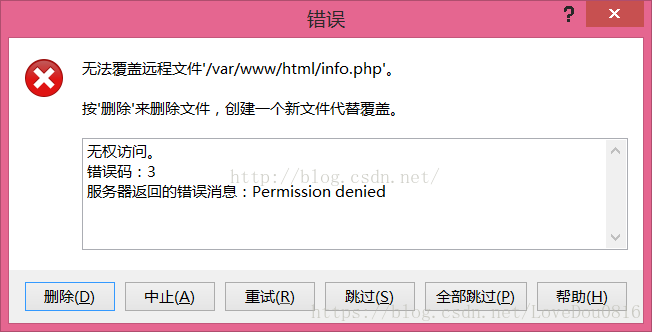
As you can see from the above error, the file upload failed because of insufficient permissions, because we connected to the server as a normal user, so the solution is to connect to the server as root user, so you have the right to upload files, so how to connect to the server as root user?Let’s take a look!
The solution
1. Check the path of SFTP service on your server
On the server using the command: cat/etc/SSH/sshd_config | grep SFTP
my server output: Subsystem SFTP/usr/libexec/openssh/SFTP server. –
2. Set the connection in winSCP
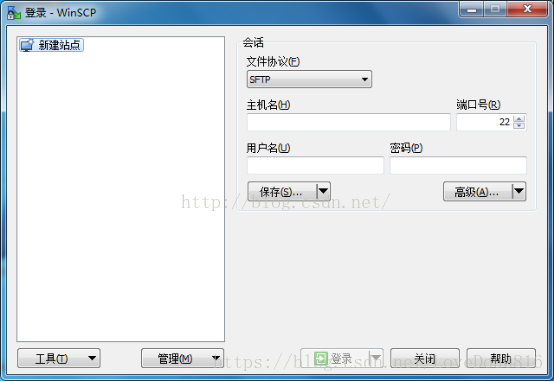
Set up your host name, port, user name and password. If you log in with a key instead of a password, you do not need to fill in the password. Then click Advanced and click SFTP, and the following interface will appear:
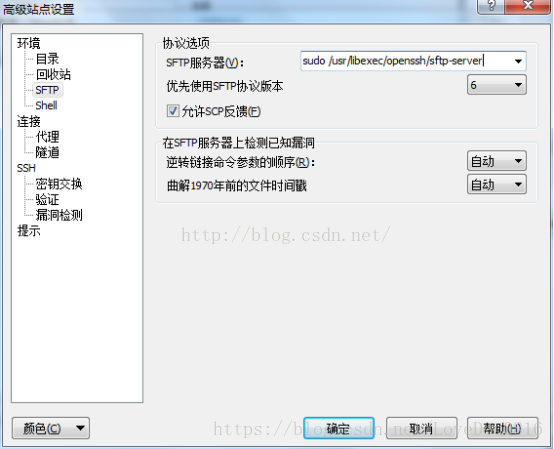
Pictured above Settings SFTP, only need to fill in the SFTP server with sudo/usr/libexec/openssh/SFTP server, sudo the back of the class capacity is the first step we by running the cat/etc/SSH/sshd_config | grep SFTP SFTP service path. After filling in the SFTP server, click shell and the following interface appears:
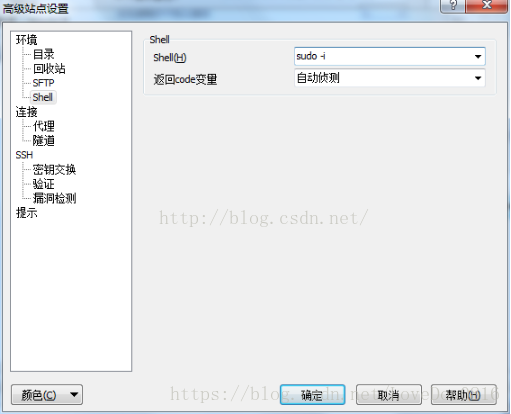
As shown in the figure above, you can set the shell by filling in sudo-I in the shell. If you are using the key to log in, then you need to click the verification under SSH, and the following interface appears:
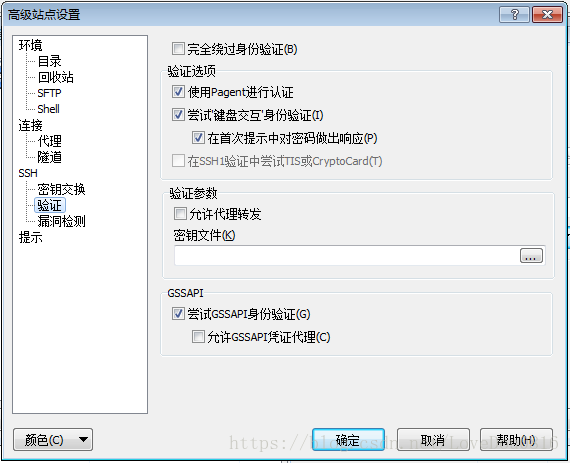
Then select the key file. Click OK, click log in and connect to the server. At this point, we connect to the server as root. At this point, we can upload files normally.

[flash] error: “necessary system components are not working properly, please repair Adobe Flash Player” and error ා 2046

Problem description: internal network application loading flash page error: “necessary system components cannot run normally, please fix Adobe flash Player”
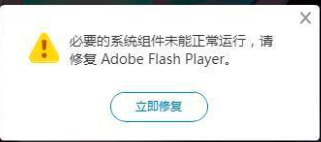
solution:
1. Necessary system components are not working properly. Please fix Adobe Flash Player
1. According to the reference in the first article,
“the problem is that the Flash Helper Service process fails to start properly, or the software Flash Helper service.exe is uninstalled.”
Flash Helper Service process is the Flash version of a Service, a rogue advertising, security software will be a shielding
“, if it exists, that process is not smooth start, following
1, open the “run” window, can quickly tap the Windows + r key, and then input services. MSC click ok
2, Service in the pop-up window, 3. Click “Flash Helper Service”, click “Flash Helper Service”, select properties, in the general page, change the startup type to “auto”, and then click “apply”, “ok”
4. Select “Flash Helper Service”, click “start”, and then reopen the browser after the startup.
2, if it does not exist, you can install the FlashRepairTool, the repair software is very simple to use, just download and double-click to open the scan problem, after which it will install Flash Helper service.exe, and then you can repeat the next step one, the problem can be solved!”

by comparison found that normal access computer flash13.0.0.199 version, the latest version is 32, uninstall 32 version, install 13 version of the problem solved.
flash13.0.0.199 forIE (IE8 under Windows 7 64) version download link
Second, the error# 2046
After installing version 13 of the 4 internal networks, one of them reported error#2046. After checking the 2 and 3 reference, it said that the time value was wrong and it was enough to modify the system time. However, it was found that the machine time was correct. The first time you clear the browser cache, it doesn’t seem to work, and then you check everything except passwords. A few other topologies are clicked and the problem is solved.
summary: the necessary system components did not work properly, please fix Adobe Flash Player: external network environment look up Flash Helper Service, internal network directly use Flash Player version 13
error#2046: first see if there is a problem with the system time, no problem clear the cache, multiple attempts.
Adobe Flash Player
1. Necessary system components are not working properly please fix Adobe Flash Player
2. 3. Failed to open FLASH (SWF), prompt Error #2046 solution summary