Tag Archives: Operation and maintenance

Mac Docker pull Error: Error response from daemon: Get https://xx.xx.xx.xx/v2/: Service Unavailable

Execute docker pull xx.xx.xx.xx/xx/xx to download the image of the private library. The errors are as follows:

Error response from daemon: Get https://xx.xx.xx.xx/v2/: Service Unavailable

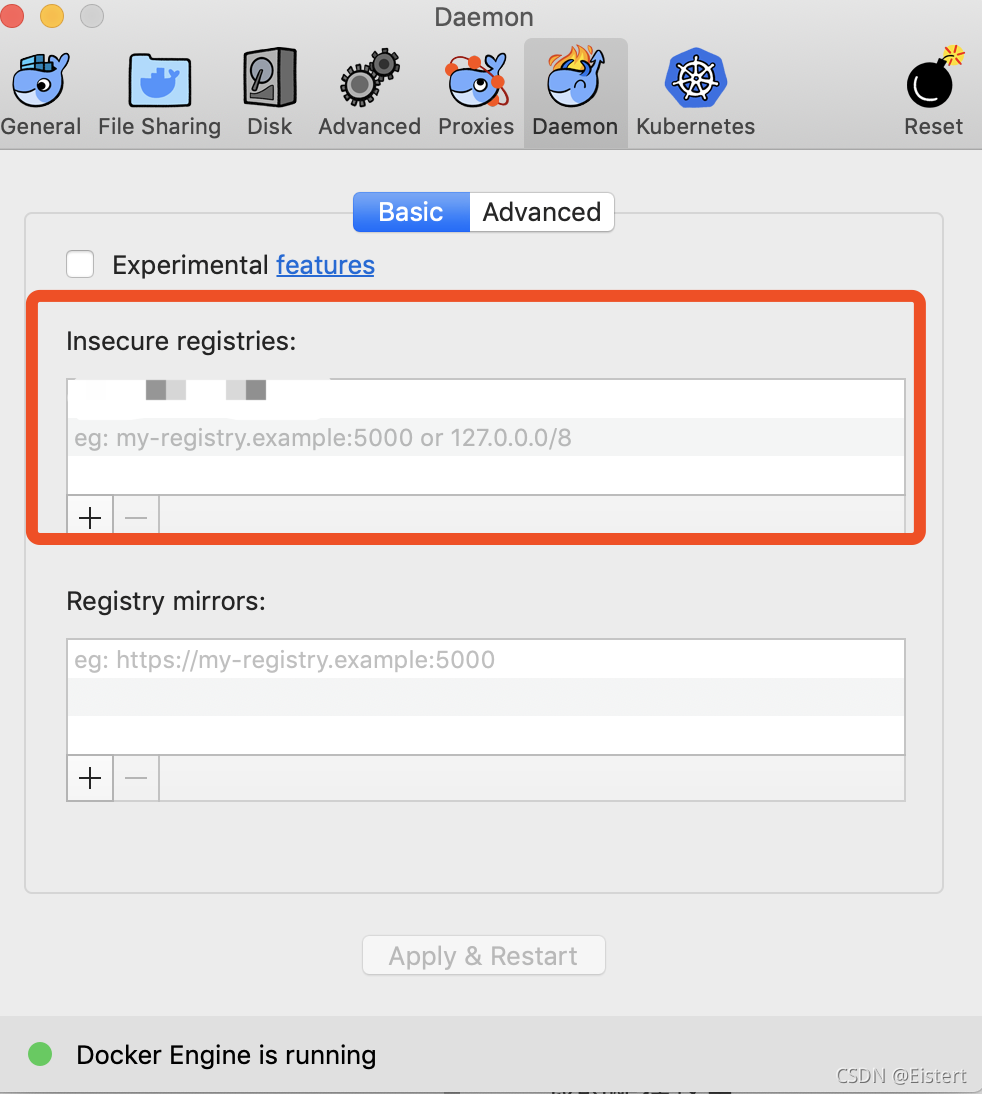
The reason is that docker supports HTTPS protocol by default, while the private library is HTTP protocol.

Mac desktop can be in preferences – & gt; Configure the following code in docker engine. Xx.xx.xx.xx is the address of your private library.

{
    "insecure-registries":[
        "xx.xx.xx.xx"
    ]
}

CentOS system, modify/etc/docker/daemon.json, and add the following code.

{
    "insecure-registries":[
        "xx.xx.xx.xx"
    ]
}

Add here
[How to Modify] etcd-server-8-12: ERROR (spawn error)

My problem is here

 vi etcd-server-startup.sh

#This is wrong

[program:etcd-server-7-12]
command=/opt/etcd/etcd-server-startup.sh              ; the program (relative uses PATH, can take args)
numprocs=1                                            ; number of processes copies to start (def 1)
directory=/opt/etcd                                   ; directory to cwd to before exec (def no cwd)
autostart=true                                        ; start at supervisord start (default: true)
autorestart=true                                      ; retstart at unexpected quit (default: true)
startsecs=30                                          ; number of secs prog must stay running (def. 1)
startretries=3                                        ; max # of serial start failures (default 3)
exitcodes=0,2                                         ; 'expected' exit codes for process (default 0,2)
stopsignal=QUIT                                       ; signal used to kill process (default TERM)
stopwaitsecs=10                                       ; max num secs to wait b4 SIGKILL (default 10)
user=etcd                                             ; setuid to this UNIX account to run the program
redirect_stderr=true                                  ; redirect proc stderr to stdout (default false)
stdout_logfile=/data/logs/etcd-server/etcd.stdout.log ; stdout log path, NONE for none; default AUTO
stdout_logfile_maxbytes=64MB                          ; max # logfile bytes b4 rotation (default 50MB)
stdout_logfile_backups=5                              ; # of stdout logfile backups (default 10)
stdout_capture_maxbytes=1MB                           ; number of bytes in 'capturemode' (default 0)
stdout_events_enabled=false                           ; emit events on stdout writes (default false)


#Right
```bash
#!/bin/sh
./etcd --name etcd-server-8-12 \
    --data-dir /data/etcd/etcd-server \
    --listen-peer-urls https://192.168.118.12:2380 \
    --listen-client-urls https://192.168.118.12:2379,http://127.0.0.1:2379 \
    --quota-backend-bytes 8000000000 \
    --initial-advertise-peer-urls https://192.168.118.12:2380 \
    --advertise-client-urls https://192.168.118.12:2379,http://127.0.0.1:2379 \
    --initial-cluster  etcd-server-8-12=https://192.168.118.12:2380,etcd-server-8-21=https://192.168.118.21:2380,etcd-server-8-22=https://192.168.22:2380 \
    --ca-file ./certs/ca.pem \
    --cert-file ./certs/etcd-peer.pem \
    --key-file ./certs/etcd-peer-key.pem \
    --client-cert-auth  \
    --trusted-ca-file ./certs/ca.pem \
    --peer-ca-file ./certs/ca.pem \
    --peer-cert-file ./certs/etcd-peer.pem \
    --peer-key-file ./certs/etcd-peer-key.pem \
    --peer-client-cert-auth \
    --peer-trusted-ca-file ./certs/ca.pem \
    --log-output stdout
~                                                                                                                             
~                                                     

Etcd start stop command

 ~]# supervisorctl start etcd-server-7-12
 ~]# supervisorctl stop etcd-server-7-12
 ~]# supervisorctl restart etcd-server-7-12
 ~]# supervisorctl status etcd-server-7-12

[Solved] Linux: downloading arXiv papers using WGet: error 403: forbidden

Use command

wget https://arxiv.org/pdf/The_papers_you_need_to_download.pdf

from vengeance.”

Resolution arxiv.org (arxiv.org)…128.84.21.199
Connecting to arxiv.org (arxiv.org)|128.84.21.199|:443… Available403 Forbidden
2021-10-22 13:57:11 ERROR 403: Forbidden

The solution is:

Modified:

wget -U NoSuchBrowser/1.0 https://arxiv.org/pdf/The_papers_you_need_to_download.pdf

You can download it successfully

rsync error: error allocating core memory buffers

1、 Problem description

When using Rsync file transfer, the same two servers transfer the same file. One succeeds and the other reports the following error. It is obvious that there is insufficient memory

[root@sss085080 ~]# rsync -atvu /alauda/new/* /alauda/data/
sending incremental file list
ERROR: out of memory in flist_expand [sender]
rsync error: error allocating core memory buffers (code 22) at util2.c(106) [sender=3.1.2]
ERROR: out of memory in flist_expand [receiver]
rsync error: error allocating core memory buffers (code 22) at util2.c(106) [receiver=3.1.2]

2、 Process analysis

Successful server

  Failed server

  3、 Solution

It can be seen from the above server parameters that the successful server has enabled swap. If the memory is insufficient, swap will be used. However, if the failed server is not enabled, exceptions will be thrown directly when the memory is insufficient. Therefore, in this case, the two solutions are available

1. Turn on swap
2. Expand the memory of the machine

Linux system service command error: Failed to allocate directory watch: Too many open files

In the Linux system, an error is reported through the service or systemctl command

    Failed to allocate directory watch: Too many open files

The solution is as follows

vim /etc/sysctl.conf
	fs.inotify.max_user_instances=512
	fs.inotify.max_user_watches=262144

Add the above two lines
to execute

sysctl -p 

Syactl – a view all current system parameters

CDH operation and maintenance: child node cloudera SCM agent starts Error

1.Startup Error:
./cloudera-scm-agent start
Error Screenshot:

2.Delete or backup to other corresponding pid files according to the error report
find/-name cloudera-scm-agent.pid
mv cloudera-scm-agent.pid cloudera-scm-agent.pid20211019
or rm -rf cloudera-scm-agent.pid
3.restart cloudera-scm-agent
./cloudera-scm-agent start
Done!

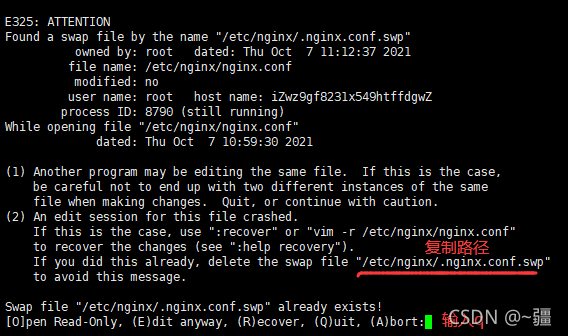
Nginx Error: Swap file “/etc/nginx/.nginx.conf.swp“ already exists

The error information is as follows:

reason

In the process of writing, unexpected power failure, link failure, SSH client abnormal shutdown, etc. the server backed up the write operation, but did not write to the real file.

Editing a file with VIM is actually copying a temporary file and mapping it to memory for you to edit,   Editing is a temporary file,   Save the temporary file to the original file only after executing: W, and delete the temporary file only after executing: Q.

Each time you start editing, you will retrieve whether this file already exists as a temporary file,   If someone asks how to deal with it, the above situation will appear.

Workaround – delete temporary files

Select the temporary file path and right-click copy.

Enter Q again to exit

Delete temporary files. Execute the following command:

rm -rf /etc/nginx/.nginx.conf.swp

The installation of ThinkPHP reported an error. Could not find package topthink / think with stability stable

Install ThinkPHP and execute the command

composer create-project topthink/think tp5 --prefer-dist

report errors

 [InvalidArgumentException]
Could not find package topthink/think with stability stable.

resolvent:

    delete the previous image

    composer config -g --unset repos.packagist
    
      run the install ThinkPHP command

      composer create-project topthink/think tp5 --prefer-dist
      

      success!!!

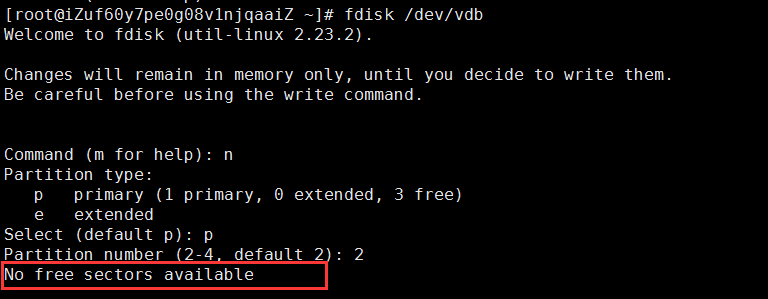
Error when creating partitions in Linux: no free sectors available solution

When creating a partition with Linux, an error is reported:

no free sectors available

Chinese translation

No free partitions available

reason:

No free sectors available: your disk space is insufficient and there is no extra space for you to allocate; Sometimes, using various translation tools is not necessarily accurate; Everyone can understand vernacular;

The Linux partition also needs space. If you don’t even have excess disk space, of course, you can’t divide the partition;

Combined with the above figure:

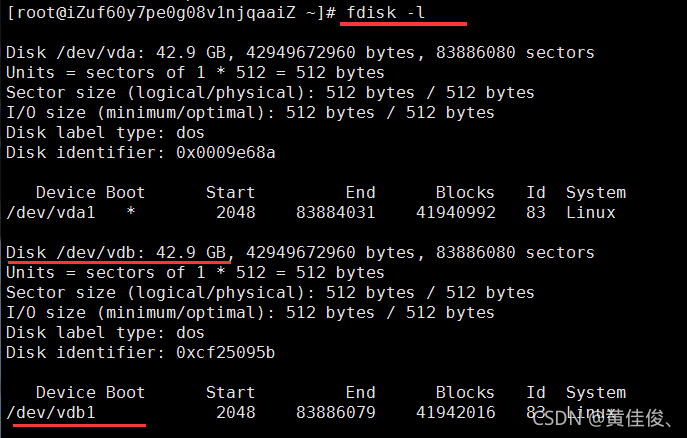
Let’s take a look at all the information on the disk; With command:

fdisk -l

As a result, it is found that VDB already has a partition, which is/dev/vdb1; It happens to be the size of the whole disk, because we can’t partition again; As shown below:

  Therefore, we need to delete the partition first and then re partition it! The entire command is as follows:

fdisk /dev/vdb

d

(select the partition number. Bloggers only have one partition on this disk, and do not need to select. For multiple partitions, you need to select the partition number; if you do not understand the partition number of the disk)

MAC: How to modify the docker container error [screen is terminating]

Run in MAC:

cd /Users/xq/Library/Containers/com.docker.docker/Data/vms/0
screen tty

The following message appears: [screen is terminating]

resolvent

Step 1: pull the secondary image

Direct run command:

docker run -it --privileged --pid=host justincormack/nsenter1

This command will pull down an image: justincommack/nsenter1 latest c81481184b1b 3 years ago 101kb

After pulling, the image will be entered

Step 2: position the container

Run in the command line of the container corresponding to this image:

cd /var/lib/docker/containers

This is all the containers. The file name is the corresponding ID

Step 3: modify the container’s file

First, check the docker ID to be modified. You can use it on the command line: docker PS - a , and then use it on the command line of justincormack/nsenter1:

cd The Container ID you want to change/

Here you can modify the container file, and the modified results will be applied to the docker container.

How to Solve Nginx 413 Error (request entity too large)

Solve the error of Nginx 413 (request entity too large)

Error reporting reason:
the request body is too large. The default upload file size in the nginx configuration file is 1m. You need to modify the upload file size configuration in the configuration file
in the Nginx directory,
find the conf folder,
open the Nginx.conf file
add the following code to HTTP {…}

http{
    
    #upload the file size
    client_max_body_size 1024m;
    
}

After modifying the configuration file, restart Nginx
Restart command: Nginx – s reload