Tag Archives: java

Es error mapper of different type, current_ Type “text” solution

Error:

Caused by: java.lang.IllegalArgumentException: mapper [personName] of different type, current_type [text], merged_type [keyword]
Error creating bean with name ‘ownerOpenRecordRepository’:
If you don’t have experience with Elasticsearch, you may not know how to do it, so this article will start from scratch to solve the problem!

The first step, with our programmer’s instinct, is that the field type changes, that type changes how to do?
If in the development environment: you can access ES through the Web management terminal Kibana, you can directly delete the index that reported the error. The Internet said that it needs to be rebuilt, but in fact, it does not need to be deleted, because it is not in the production environment. It is created automatically when the project starts the instantiation. The specific operation steps are as follows;
1. First find the specific index that reported the error (the index in ES can be understood as the database), then how to find it?
The answer, of course, is to look at the log. ES will normally report an error when SpringBoot is started to connect. In the day
When we instantiate a Bean, we get an error in a Repository or something like a ×××Repository. That’s it.
2, through the address

http://118.31.60.110/###-kibana/app/kibana#/dev_tools/console?_g=()

Access the web side of ES to delete, 118.31.60.110 is the public network IP of the server where ES is located, if there is ngIx, then this IP is the IP address of ngIx, ###-kibana is also the configured item in Nginx. After successful connection, it is shown in the figure below:
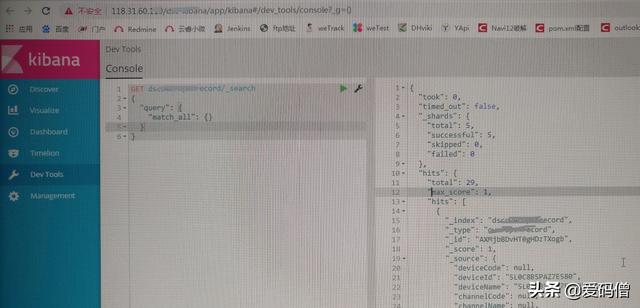


Delete index
Send a RESTful style HTTP request to the Console for the delete operation, as shown below

DELETE  ds##record/_search

DS# # Record is the index name. If the method is not found, write DS# # Record directly. Then click on the right side of the path similar to the playback button can be deleted successfully
4. No error was reported when starting
If you are in production, you need to export the index, then delete and rebuild it, and finally import it again. The basic pattern is the same.
””Device not found” error causes and Solutions

This is a common error you may encounter when using SQLite in Android development.
See this in conjunction with my other article, “ADB is not an internal or external command, nor is it an executable application.”
Executing ADB shell under CMD. It is likely that your ADB version is low. (You can view your version of ADB with the adb version command.)
Here’s how to solve this problem.
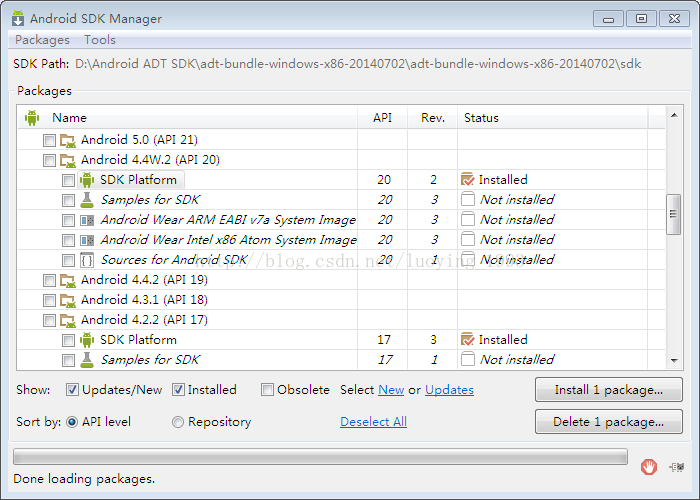
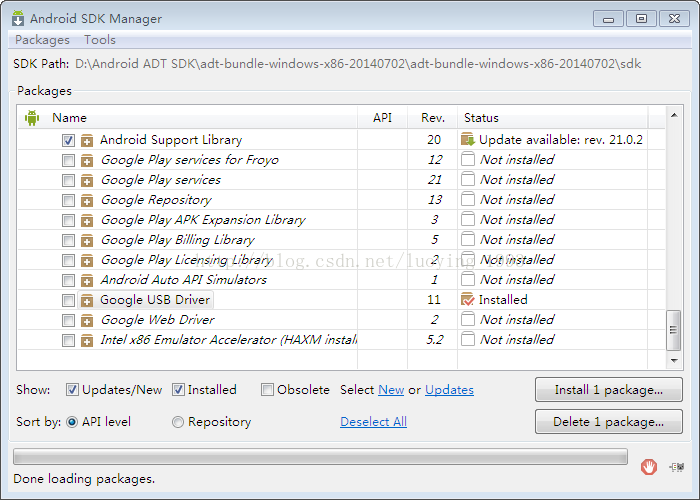
Open the Android SDK Manager in Eclipse, upgrade the SDK Platform, and download the Google USB Driver. As shown in the figure below:


At this point, the problem is solved by executing adb.exe again.

Solution of server startup timeout in eclipse

Eclipse Server boot timeout solution
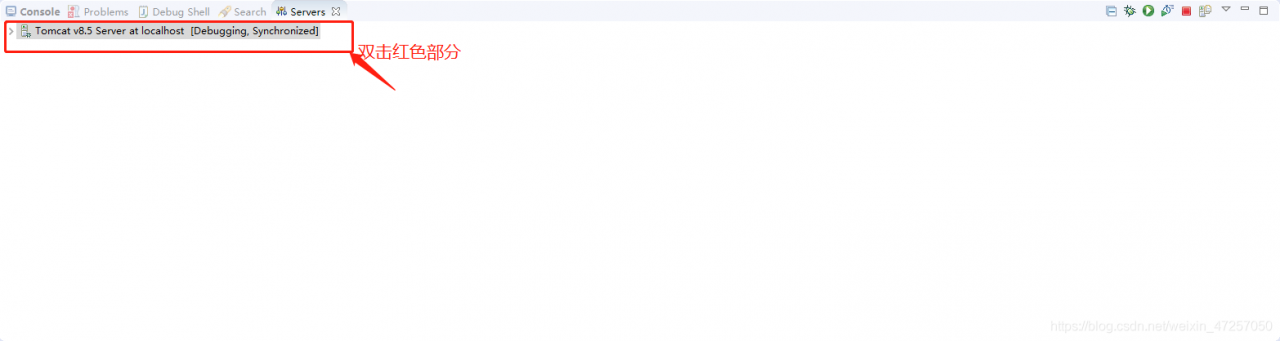
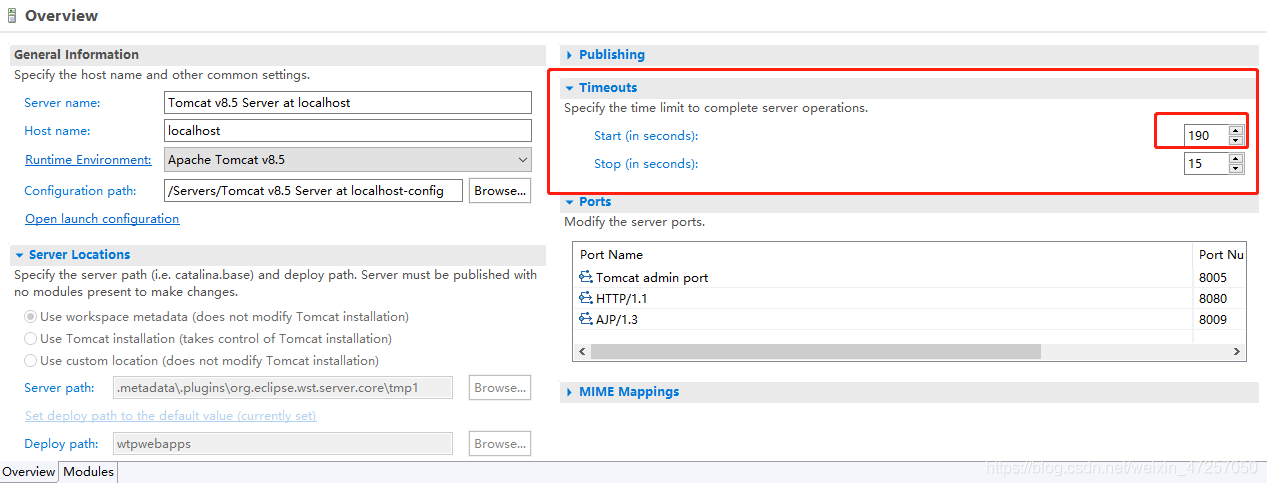
Server Tomcat V8.5 at localhost was unable to start within 45 seconds. If the Server requires more time, try increasing the timeout in the Server editor. Server Tomcat V8.5 at localhost was unable to start within 45 seconds
Solution:

    double-click the server
    find Timeouts – start, set up the server startup time restart the server is ok
    Welcome to scan the code and follow our QQ group or log in bilibili. Follow Bing Cola and share and communicate with us about front-end, back-end and big data development

The MySQL service suddenly hangs up with the error message can’t connect to MySQL server on ‘localhost’ (10061)

ERROR 2003 (HY000): Can’t connect to MySQL server on ‘localhost’ (10061)


>
> Services.msc (open service) –>; Find MySQL in the services list –>; Right-click MySQL and click Start
However, sometimes you have installed MySQL, but there is no MySQL in the service list. What can you do?

(1) Open CMD (run C:\Windows\System32\cmd.exe as an administrator),
(2) Use CD to change the directory to bin directory of MySQL Server 5.6;
C:\Program Files\MySQL\MySQL Server 5.6\bin> mysqld.exe -install
(4) When there is Service successfully installed, it means that MySQL Service successfully installed.
At this point, the MySQL service is already present in the computer service.
Matters needing attention
The CMD command opens and runs under the bin directory where MySQL is installed:
> > > Mysqld –install (“mysqld”, not “mysql”)

Install/Remove of the Service Denied

open CMD and run it as an administrator.
When: Service successfully installed. Indicates that the service is installed successfully.

com.alibaba.fastjson .JSONException: For input string: “3000-01-01” or “9999-12-31”

FastJSON Parser exception after 2999 time range

Exception in thread "main" com.alibaba.fastjson.JSONException: For input string: "9999-12-31 00:00:00.000+0000"
    at com.alibaba.fastjson.parser.DefaultJSONParser.parseObject(DefaultJSONParser.java:665)
    at com.alibaba.fastjson.JSON.parseObject(JSON.java:365)
    at com.alibaba.fastjson.JSON.parseObject(JSON.java:269)
    at com.alibaba.fastjson.JSON.parseObject(JSON.java:488)
    at com.xxx.xxx.main(StpBpmVariableSetter.java:146)
Caused by: java.lang.NumberFormatException: For input string: "9999-12-31 00:00:00.000+0000"

FastJSON is known to be fixed in version 1.2.49, and can be fixed with an upgrade

<dependency>
    <groupId>com.alibaba</groupId>
    <artifactId>fastjson</artifactId>
    <version>1.2.49</version>
</dependency>


Solve the problem that data cannot be input in idea console

IDEA console cannot be entered
If you are using IDEA and you find that you cannot input from the console while testing with JUnit, you need to make the following changes to make the configuration successful
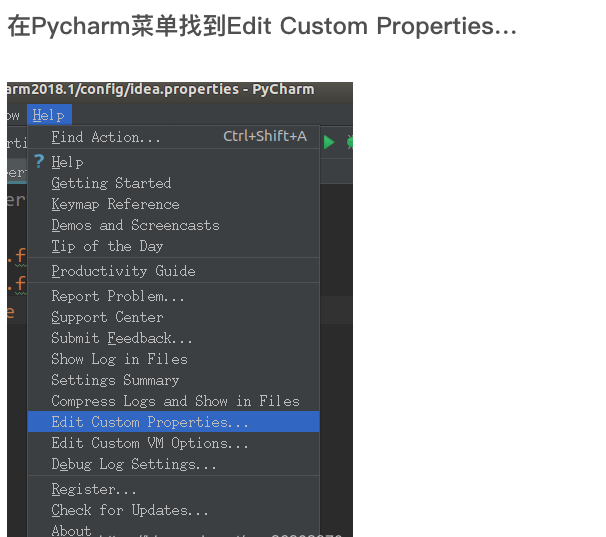
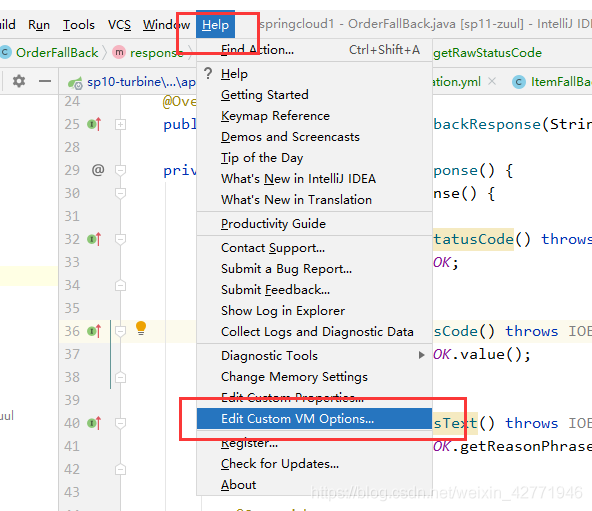
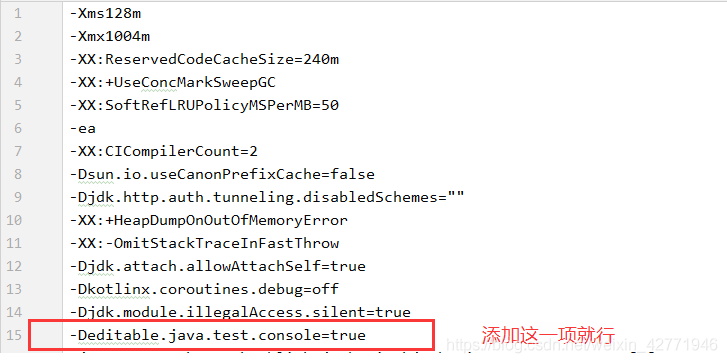
Step 1: Help –Edit Constom VM Options…

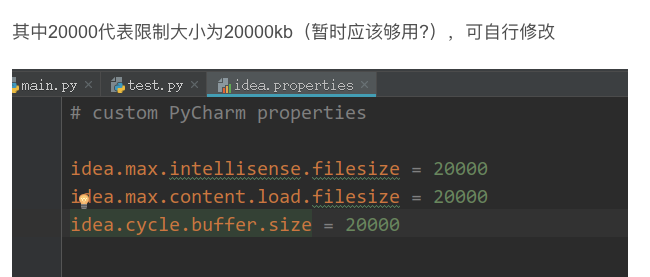
Step 2: open the configuration, add – Deditable. Java. Test. The console = true

If the configuration is successful, restart IDEA and the problem will be solved