[Solved] Error: Node Sass does not yet support your current environment

2022-06-13-node-saas error

System environment

  • node -v v16.15.0
  • node-gyp -v v3.8.0
  • System Darwin 21.3.0

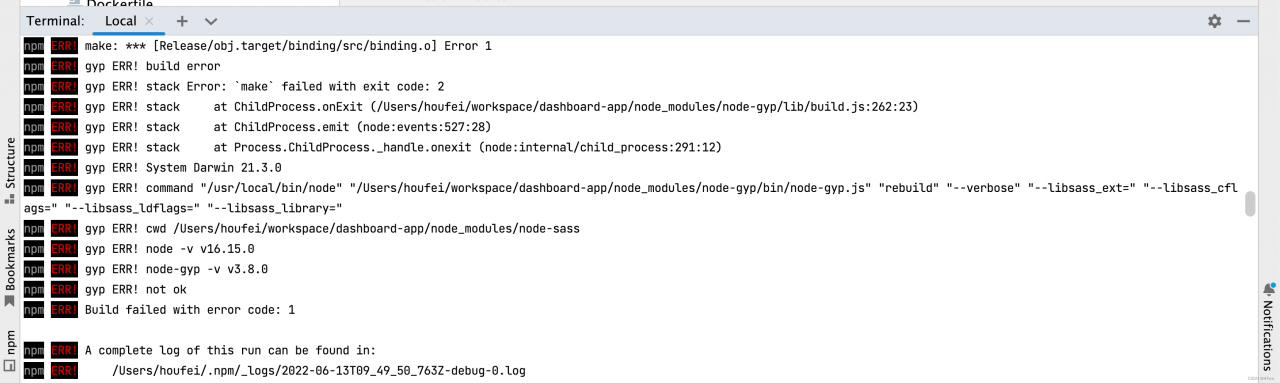
Screenshot of error reporting

The local code execution npm install depends on the installation items. The console displays an error message. The screenshot of the error message is as follows:

Error reporting solution

The project relies on “node-sass”: “^4.12.0”. Replace node-sass with sass

  • implementnode uninstall node-sass
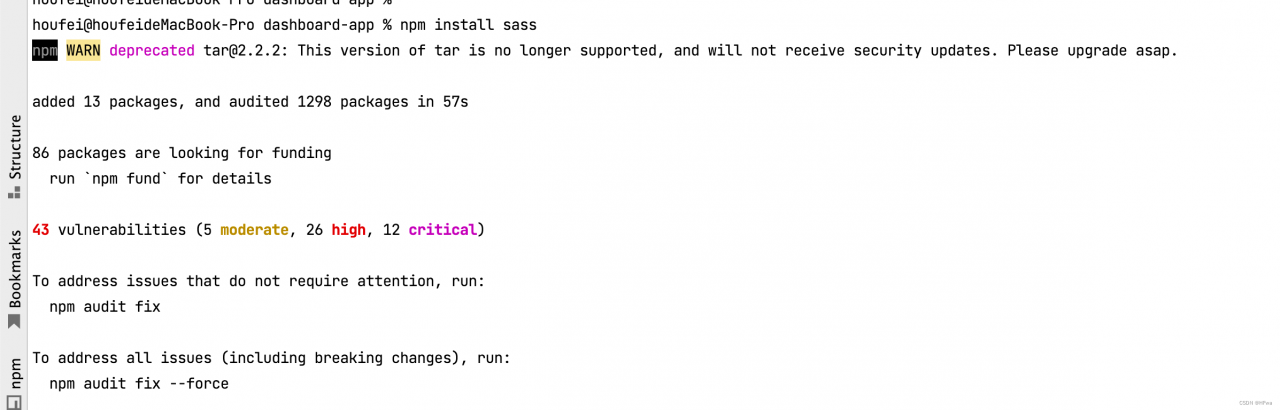
  • Execute node install sass, the installation is successful. The screenshot is as follows:

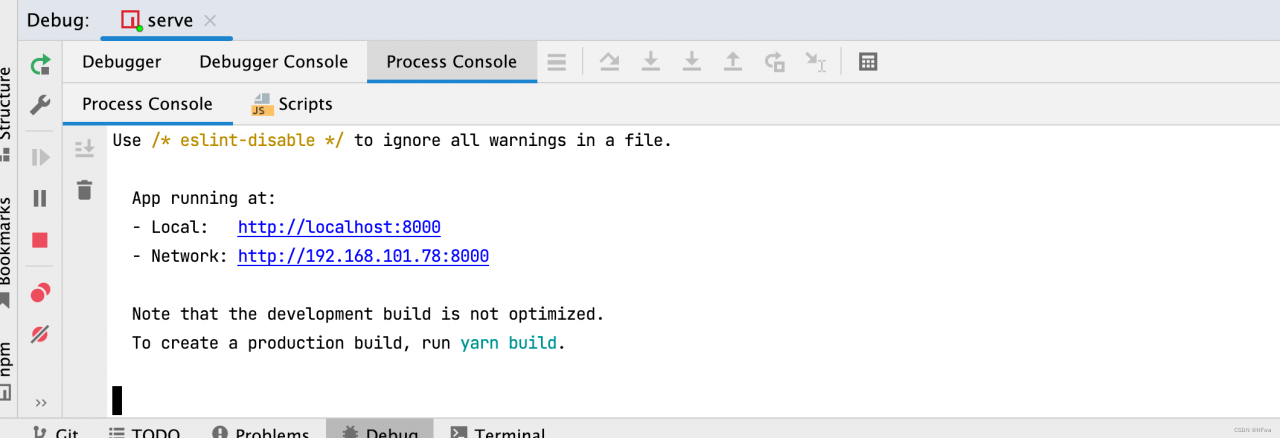
The project can be started normally, and the interface is as follows:

Error report analysis:

  • The node version is 16.15.0, the system environment is the macOS m1 version, and node-sass has not yet been adapted, so the resulting
  • Replace node-sass with sass

Reference:

https://stackoverflow.com/questions/68095626/node-sass-with-apple-m1-big-sur-and-arm64

[Solved] Crypto-JS Failed to Decrypt Error: Uncaught Error: Malformed UTF-8 data

java encrypt js decrypt, an error is reported: Uncaught Error: Malformed UTF-8 data

public static String encrypt(String strToEncrypt, SecretKey secretKey) {
    try {
      Cipher cipher = Cipher.getInstance("AES/ECB/PKCS7PADDING");
      cipher.init(Cipher.ENCRYPT_MODE, secretKey);
      encryptedString = new String(Base64.encodeBase64String(cipher.doFinal(strToEncrypt.getBytes())));
    } catch (Exception e) {
      System.out.println("Error while encrypting: " + e.toString());
    }

    return encryptedString;
  }

JS:

decrypt(secret_key,code) {
        return CryptoJS.AES.decrypt(code, this.parse(secret_key), {
          mode: CryptoJS.mode.ECB,
          padding: CryptoJS.pad.Pkcs7
        }).toString(CryptoJS.enc.Utf8);
      }

The reason is that the string has a newline character, Base64 generates a newline, change to NO_WRAP

 Base64.encodeBase64String(hashPassword,Base64.NO_WRAP)

Recommended Read: https://stackoverflow.com/questions/21852889/remove-r-and-n-from-aes-encrypted-string


[Solved] selenium.common.exceptions.WebDriverException: Message: unknown error: DevToolsActivePort file doesn

Error Messages: selenium.common.exceptions.WebDriverException: Message: unknown error: DevToolsActivePort file doesn’t exist

Traceback (most recent call last):
  File "/opt/Vcert/myVcert/vul.py", line 2, in <module>
    from selenium import webdriver
ImportError: No module named selenium
Traceback (most recent call last):
  File "/opt/Vcert/myVcert/vul.py", line 228, in <module>
    main()
  File "/opt/Vcert/myVcert/vul.py", line 44, in main
    browser = my_browser()
  File "/opt/Vcert/myVcert/vul.py", line 31, in my_browser
    browser = webdriver.Chrome(executable_path='/opt/bin/chromedriver', chrome_options=chrome_options)
  File "/opt/py3/lib64/python3.6/site-packages/selenium/webdriver/chrome/webdriver.py", line 81, in __init__
    desired_capabilities=desired_capabilities)
  File "/opt/py3/lib64/python3.6/site-packages/selenium/webdriver/remote/webdriver.py", line 157, in __init__
    self.start_session(capabilities, browser_profile)
  File "/opt/py3/lib64/python3.6/site-packages/selenium/webdriver/remote/webdriver.py", line 252, in start_session
    response = self.execute(Command.NEW_SESSION, parameters)
  File "/opt/py3/lib64/python3.6/site-packages/selenium/webdriver/remote/webdriver.py", line 321, in execute
    self.error_handler.check_response(response)
  File "/opt/py3/lib64/python3.6/site-packages/selenium/webdriver/remote/errorhandler.py", line 242, in check_response
    raise exception_class(message, screen, stacktrace)
selenium.common.exceptions.WebDriverException: Message: unknown error: DevToolsActivePort file doesn't exist


Solution:
1. Kill chromedriver, kill webdriver, kill chrome.
2. Add browser.close() after each browser.

[Solved] error TS1086: An accessor cannot be declared in an ambient context

error TS1086: An accessor cannot be declared in an ambient context

Error ts1086 error resolution

After the NPM package is installed, an error is reported when running the project.

The error information is as follows

ERROR in node_modules/xxx/xxx/xxxx.d.ts(15,9): error TS1086: An accessor cannot be declared in an ambient context.

Solution:

Modify tsconfig.json file

{
  "compilerOptions": {
    "skipLibCheck": true
  }
}

Flutter & Dart every() Method Example

Flutter & Dart: every() method example

A few examples of using the every() method ( Iterable class) in Dart (and Flutter) . The purpose of this method is to check whether each element of a given iteration satisfies one or more conditions (using a test function):

bool every(
   bool test(
     E element
   )
)

1. Check that each number in the list is divisible by 3 :

void main() {
  var myList = [0, 3, 6, 9, 18, 21, 81, 120];
  bool result1 = myList.every((element){
    if(element %3 ==0){
      return true;
    } else {
      return false; 
    }
  }); 
  
  // expectation: true
  print(result1); 
}

output:

true

2. Check that each name in the list contains the “m” character :

void main() {
  var names = ['Obama', 'Trump', 'Biden', 'Pompeo']; 
  bool hasM = names.every((element) {
     if(element.contains('m')) return true;
     return false;
  });
  
  print(hasM);
}

output:

false

You can find more details about every() method in the official documentation.

Flutter & Dart Enumeration Example

Flutter & Dart: Enumeration Example

This article will show you how to use enums (also known as enums or enum types) in Dart and Flutter.

Overview

An enumeration in Dart is a set of symbolic names (members) bound to a unique constant value. In an enumeration, members can be compared by identity, and the enumeration itself can be iterated over.

An enumeration can be declared using the enum keyword:

enum Aniaml {dog, cat, chicken, dragon}

Each value of the enumeration has an index. The index of the first value is 0.

You can retrieve all values ​​of an enumeration using the values ​​constant:

print(Aniaml.values);
// [Aniaml.dog, Aniaml.cat, Aniaml.chicken, Aniaml.dragon]

a complete example

coding:

// Declare enum
enum Gender {
  Male,
  Female
}// Make a class
class Person {
  final String name;
  final int age;
  final Gender gender;
  
  Person(this.name, this.age, this.gender); 
}// Create an instance
final personA = Person("John Doe", 40, Gender.Male);void main(){
  if(personA.gender == Gender.Male){
    print("Hello gentleman!");
  } else {
    print("Hello lady!");
  }
}

output:

Hello gentleman!

Flutter & Dart: Check if a date is between two other dates

To check if a date is between two other dates in Flutter and Dart, you can use the isBefore( ) and isAfter() methods of the DateTime class .

example

import 'package:flutter/foundation.dart';
​
DateTime dateA = DateTime(1900, 9, 14);
DateTime dateB = DateTime(2000, 10, 15);
​
DateTime dateC = DateTime(1984, 12, 20);
DateTime dateD = DateTime.now();void main() {
  if (dateA.isBefore(dateC) && dateB.isAfter(dateC)) {
    debugPrint("dateC is between dateA and dateB");
  } else {
    debugPrint("dateC isn't between dateA and dateC");
  }if (dateA.isBefore(dateD) && dateB.isAfter(dateD)) {
    debugPrint("dateD is between dateA and dateB");
  } else {
    debugPrint("dateD isn't between dateA and dateC");
  }
}

output:

dateC is between dateA and dateB
dateD isn't between dateA and dateC

You can find more information about DateTime class in the official documentation.

Flutter & Dart Regular Expression Examples

Flutter & Dart: Regular Expression Examples

Example 1: Email Verification

coding:

void main() {
  RegExp exp = new RegExp(
      r"^[a-zA-Z0-9.!#$%&'*+/=?^_`{|}~-]+@[a-zA-Z0-9-]+(?:\.[a-zA-Z0-9-]+)*$",
      caseSensitive: false);// Try it
  String email1 = "[email protected]";
  String email2 = "test@gmail";
  String email3 = "test#gmail.com";if (exp.hasMatch(email1)) {
    print("Email1 OK");
  }if (exp.hasMatch(email2)) {
    print("Email2 OK");
  }if (exp.hasMatch(email3)) {
    print("Email3 OK");
  }
}

output:

Email1 OK
Email2 OK

Example 2: IP address verification

coding:

void main() {
  RegExp ipExp = new RegExp(r"^(?!0)(?!.*\.$)((1?\d?\d|25[0-5]|2[0-4]\d)(\.|$)){4}$", caseSensitive: false, multiLine: false);
  
  // Try it
  // Expectation: true
  if(ipExp.hasMatch('192.168.1.2')){
    print('192.168.1.2 is valid'); 
  }
  
  // Expectation: false
  if(ipExp.hasMatch('192.168.111111.55555')){
    print('192.168.111111.55555 is valid');
  }
}

output:

192.168.1.2 is valid

Example 3: URL Validation

coding:

void main() {
  RegExp urlExp = RegExp(r"(http|ftp|https)://[\w-]+(\.[\w-]+)+([\w.,@?^=%&amp;:/~+#-]*[\w@?^=%&amp;/~+#-])?");
  
  String url1 = "https://www.kindacode.com/cat/mobile/flutter/"; // valid
  
  String url2 = "https://kindacode/cat/mobile/flutter/"; // invalid
  
  if(urlExp.hasMatch(url1)) {
    print('Url1 looks good!');
  }
  
  if(urlExp.hasMatch(url2)) {
    print("Url2 looks good!");
  }
}

output:

Url1 looks good!

Example 4: Domain Validation

void main() {
  RegExp  domainExp = RegExp(r"^[a-z0-9]+([\-\.]{1}[a-z0-9]+)*\.[a-z]{2,6}$");
  
  String domain1 = "www.kindacode.com"; // valid
  String domain2 = "www.amazon.co.uk"; // valid
  String domain3 = "hello world!"; // invalid
  
  if(domainExp.hasMatch(domain1)){
    print('domain1 is valid');
  }
  
  if(domainExp.hasMatch(domain2)){
    print('domain2 is valid');
  }
  
  if(domainExp.hasMatch(domain3)){
    print('domain3 is valid');
  }
}

output:

domain1 is valid
domain2 is valid

Flutter & Dart: Conditionally remove elements from a list

To remove elements from a list based on one or more conditions, you can use the built-in removeWhere() method.

example

Suppose we have a list of products and the task is to remove all products with a price higher than 100:

// Define how a product looks like
class Product {
  final double id;
  final String name;
  final double price;
  Product(this.id, this.name, this.price);
}

void main() {
  // Generate the product list
  List<Product> products = [
    Product(1, "Product A", 50),
    Product(2, "Product B", 101),
    Product(3, "Product C", 200),
    Product(4, "Product D", 90),
    Product(5, "Product E", 400),
    Product(6, "Product F", 777)
  ];

  // remove products whose prices are more than 100
  products.removeWhere((product) => product.price > 100);

  // Print the result
  print("Product(s) whose prices are less than 100:");
  for (var product in products) {
    print(product.name);
  }
}

output:

Product(s) whose prices are less than 100:
Product A
Product D

Reference : removeWhere method (dart.dev).

Summarize

We’ve gone through some examples of using regular expressions in Dart that can be very useful in many common use cases. If you want to learn more about Dart and Flutter, you can follow me.

How to Use Annotations in Flutter & Dart

How to use annotations in Flutter & Dart

This is a concise article on Flutter and Dart annotations.

Single Line Comments (Format Comments)

Just put two slash symbols at the beginning of the line you want to comment out.

// This is a comment
print('abc');

Multi-line comments (block comments)

syntax:

/* ... */

This method is often used to comment out a piece of code like this:

/*
class HomeScreen extends StatelessWidget {
  @override
  Widget build(BuildContext context) {
    return Scaffold(
      appBar: AppBar(
        title: Text('Kindacode.com'),
      ),
      body: Center(),
    );
  }
}
*/

Documentation comments

Using DOC comments allows the dartdoc library to automatically generate documentation for your code based on the content of your comments.

example:

/// Deletes the file at [path].
/// Throws an [IOError] if the file could not be found. 

Use hotkeys in Visual Studio Code

If you’re using Visual Studio Code, you can use keyboard shortcuts to comment out a line or block of code. Just select the line you want to comment with your mouse and press the following key combination:

  • If you are using Windows, press Ctrl + K then Ctrl + C

  • If you’re on a Mac, press Command + K then Command + C

To uncomment a block of code, select it with the mouse, then use the following key combinations:

  • Ctrl + K then Ctrl + U if you are on Windows

  • If you’re on a Mac, Command + K then Command + U

You can also switch by pressing Ctrl + / (Windows), Command + / (Mac).

How to encode/decode JSON in Flutter

shorthand

This article will show you how to encode/decode JSON in Flutter. The steps you need to follow are:

1. Import the dart:convert library:

import 'dart:convert';

2. Use:

  • json.encode() or jsonEncode() for encoding.

  • json.decode() or jsonDecode() for decoding.

example

Example 1: JSON encoding

import 'dart:convert';void main() {
  final products = [
    {'id': 1, 'name': 'Product #1'},
    {'id': 2, 'name': 'Product #2'}
  ];print(json.encode(products));
}

output:

[{"id":1,"name":"Product #1"},{"id":2,"name":"Product #2"}]

Example 2: JSON decoding

import 'dart:convert';
import 'package:flutter/foundation.dart';void main() {
  const String responseData =
      '[{"id":1,"name":"Product #1"},{"id":2,"name":"Product #2"}]';
​
  final products = json.decode(responseData);if (kDebugMode) {
    // Print the type of "products"
    print(products.runtimeType);// Print the name of the second product in the list
    print(products[1]['name']);
  }
}

output:

List<dynamic>
Product #2

Hope this helps you.

hive: How to Process Data (Delete, View, Query, and etc)

Operation command

Data preprocessing: Eliminate any fields in the data with null values

INSERT OVERWRITE TABLE result01
    select * from salary
    where userid is not null and dept_id is not null and salarys is not null

Eliminate values ​​other than 0-100 in the identity field

INSERT OVERWRITE TABLE result
    SELECT * FROM hittable
    WHERE identity between 0 and 100 ;

View total

select count(*) from item;

Query the total number of rows for the first product (Item01) that offers beer or wine

select count(*) as num from item where item='Beer' or item01 = 'Wine';

Query the ranking of the best-selling products in the first-purchased products (item01)

select item01,count(item01) as num from item 
group by item01 
order by num desc;

Query the probability of milk appearing in each row to buy offerings

select b.num/a.num as rate from(
select count(*) num from item) a,
(select count(*) num from item
where item01=='Milk' 
or item02=='Milk' 
or item02=='Milk'
or item03=='Milk'
or item04=='Milk') b ;

Linux Traceroute Command Examples

In some cases, one wants to know the route the connection follows. Routes here refer to the IP addresses of all forwarding entities (eg, intermediate routers).

While there is no guarantee that all packets of a connection are routed the same, they are usually the same. This routing related information is very handy when debugging network related issues.

The traceroute utility prints out the complete route to a specific destination. In this article, we’ll discuss how traceroute works and see some practical examples.

How does Traceroute work?

Before we start with an example, let’s first understand the concept of how traceroute works.

The Traceroute utility uses the TTL field in the IP header for its operation. For those unfamiliar with the TTL field, this field describes how many hops a particular packet will take to travel across the network.

So this effectively outlines the life cycle of a packet on the network. This field is usually set to 32 or 64. Every time a packet is saved on an intermediate router, it decrements the TTL value by 1. When a router finds a TTL value of 1 in a received packet, the packet is not forwarded, but discarded.

After dropping the packet, the router sends a “timed out” ICMP error message back to the source of the packet. The ICMP packets sent back contain the IP address of the router.

So now it’s easy to understand that traceroute works by sending packets with a TTL value that starts at 1 and increments by 1 each time. Every time a router receives a packet, it checks the TTL field, and if the TTL field is 1, it drops the packet and sends an ICMP error packet containing its IP address, which is what traceroute requires. Therefore, traceroute gradually gets the IPs of all routers between the source and the destination.

You should also be aware of the IP header fields we discussed a while ago .

Traceroute example

1. How to run traceroute?

$ traceroute <server-name>

The server-name above is the target name or IP address. For example, traceroute is used to find the network path from my machine to google.com:

$ traceroute google.com
traceroute to google.com (74.125.236.132), 30 hops max, 60 byte packets
1  220.224.141.129 (220.224.141.129)  89.174 ms  89.094 ms  89.054 ms
2  115.255.239.65 (115.255.239.65)  109.037 ms  108.994 ms  108.963 ms
3  124.124.251.245 (124.124.251.245)  108.937 ms  121.322 ms  121.300 ms
4  * 115.255.239.45 (115.255.239.45)  113.754 ms  113.692 ms
5  72.14.212.118 (72.14.212.118)  123.585 ms  123.558 ms  123.527 ms
6  72.14.232.202 (72.14.232.202)  123.499 ms  123.475 ms  143.523 ms
7  216.239.48.179 (216.239.48.179)  143.503 ms  95.106 ms  95.026 ms
8  bom03s02-in-f4.1e100.net (74.125.236.132)  94.980 ms  104.989 ms  104.954 ms

Each line provides details of interaction with each router encountered. So we see that traceroute not only gives the IP address of the intermediate router, but also the three round-trip times for that particular router, because the traceroute command fires three packets for each router.

“*” field in output

Sometimes “*” may be encountered instead of a value in the output. This means that the required fields cannot be obtained. The reason could be anything from a failed reverse DNS lookup, to the packet not reaching the destination router, to the packet being lost on the way back. So we see that there could be many reasons, but for all these types of cases, the traceroute utility provides a * in the output.

2. Disable IP address and hostname mapping

Traceroute provides an option to disable the mapping of IP addresses to hostnames (traceroute attempts). The option to do this is ‘-n’. The following example illustrates this:

$ traceroute google.com -n
traceroute to google.com (173.194.36.7), 30 hops max, 60 byte packets
1  220.224.141.129  109.352 ms  109.280 ms  109.248 ms
2  115.255.239.65  131.633 ms  131.598 ms  131.573 ms
3  124.124.251.245  131.554 ms  131.529 ms  131.502 ms
4  115.255.239.45  131.478 ms  131.464 ms  199.741 ms
5  72.14.212.118  199.674 ms  199.637 ms  199.603 ms
6  209.85.241.52  199.578 ms  199.549 ms  209.838 ms
7  209.85.241.187  199.488 ms  177.264 ms  177.196 ms
8  173.194.36.7  177.159 ms  187.463 ms  187.434 ms

So we see that the hostname is not shown in the output.

3. Configure the response waiting time

You can also configure how long the traceroute utility waits after issuing a probe. This can be done with the “-w” option it provides. The -w option requires a value that the utility will wait as the response time. In this example, the wait time is 0.1 seconds, and the traceroute utility cannot wait for any response, it prints all *.

$ traceroute google.com -w 0.1
traceroute to google.com (74.125.236.101), 30 hops max, 60 byte packets
1  * * *
2  * * *
3  * * *
..
26  * * *
27  * * *
28  * * *
29  * * *
30  * * *

So we see that traceroute tries 30 attempts (max hop attempts) and then gives up because it didn’t receive an ICMP packet in 0.1 seconds.

4. Configure the number of queries per hop

As mentioned earlier, the traceroute utility sends 3 packets per hop to provide 3 round-trip times. This default value of 3 is configurable with option “-q”. This option requires an integer, which is set to the new value of probes per hop.

$ traceroute google.com -q 5
traceroute to google.com (173.194.36.46), 30 hops max, 60 byte packets
1  220.224.141.129 (220.224.141.129)  91.579 ms  91.497 ms  91.458 ms  91.422 ms  91.385 ms
2  115.255.239.65 (115.255.239.65)  91.356 ms  91.325 ms  98.868 ms  98.848 ms  98.829 ms
3  124.124.251.245 (124.124.251.245)  94.581 ms  107.083 ms  107.044 ms  107.017 ms  106.981 ms
4  115.255.239.45 (115.255.239.45)  106.948 ms  106.918 ms  144.432 ms  144.412 ms  144.392 ms
5  72.14.212.118 (72.14.212.118)  115.565 ms  115.485 ms  115.446 ms  115.408 ms  115.381 ms
6  72.14.232.202 (72.14.232.202)  115.351 ms  87.232 ms  117.157 ms  117.123 ms  117.049 ms
7  209.85.241.189 (209.85.241.189)  126.998 ms  126.973 ms  126.950 ms  126.929 ms  126.912 ms
8  bom04s02-in-f14.1e100.net (173.194.36.46)  126.889 ms  95.526 ms  95.450 ms  95.418 ms  105.392 ms

So we see that after configuring the number of probes to 5, the output starts showing 5 round trip times per hop.

5. Configure the starting TTL value

The Traceroute utility is flexible enough to accept the TTL value at which the user wants to start the utility. By default, it has a value of 1, which means it starts at the first router in the path, but using the “-f” option (expect a new value for TTL) can set a new value for the TTL field. For example, I tried normal traceroute operation and then traceroute with different TTL values.

$ traceroute google.com
traceroute to google.com (74.125.236.132), 30 hops max, 60 byte packets
1  220.224.141.129 (220.224.141.129)  89.181 ms  101.540 ms  101.503 ms
2  115.255.239.65 (115.255.239.65)  101.468 ms  101.431 ms  101.324 ms
3  124.124.251.245 (124.124.251.245)  121.373 ms  121.350 ms  158.694 ms
4  115.255.239.45 (115.255.239.45)  101.223 ms  141.135 ms  123.932 ms
5  72.14.212.118 (72.14.212.118)  123.867 ms  123.832 ms  123.802 ms
6  72.14.232.202 (72.14.232.202)  123.773 ms  123.742 ms  587.812 ms
7  216.239.48.179 (216.239.48.179)  587.723 ms  587.681 ms  587.642 ms
8  bom03s02-in-f4.1e100.net (74.125.236.132)  577.548 ms  577.524 ms  587.512 ms

$ traceroute google.com -f 8
traceroute to google.com (74.125.236.129), 30 hops max, 60 byte packets
8  bom03s02-in-f1.1e100.net (74.125.236.129)  96.961 ms  96.886 ms  96.849 ms

So we see that after using the -f option with a value of 8, only the last (8th) line of the previous output is displayed.
File class details (get the file name, size, path, create, etc.)

Overview

java.io.FileClasses are abstract representations of file and directory pathnames, and are mainly used for operations such as file and directory creation, search, and deletion.

Construction method

  • public File(String pathname): Creates a new File instance by converting the given pathname string to an abstract pathname.
  • public File(String parent, String child): Creates a new File instance from the parent pathname string and child pathname string .
  • public File(File parent, String child): Creates a new File instance from the parent abstract pathname and child pathname strings .
  • The construction example, the code is as follows:
// File path name
String pathname = "D:\\aaa.txt";
File file1 = new File(pathname); 

// File path name
String pathname2 = "D:\\aaa\\bbb.txt";
File file2 = new File(pathname2); 

// By parent path and child path string
 String parent = "d:\\aaa";
 String child = "bbb.txt";
 File file3 = new File(parent, child);

// By parent File object and child path string
File parentDir = new File("d:\\aaa");
String child = "bbb.txt";
File file4 = new File(parentDir, child);

💡Tips:

  1. A File object represents a file or directory that actually exists on the hard disk.
  2. Regardless of whether there is a file or directory in the path, it does not affect the creation of the File object.

Common method

How to get features

  • public String getAbsolutePath(): Returns the absolute pathname string of this File.
  • public String getPath(): Convert this File to a pathname string.
  • public String getName()  : Returns the name of the file or directory represented by this File.
  • public long length()  : Returns the length of the file represented by this File.
    Method demonstration, the code is as follows:
public class FileGet {
    public static void main(String[] args) {
        File f = new File("d:/aaa/bbb.java");     
        System.out.println("Absolute path to the file:"+f.getAbsolutePath());
        System.out.println("File construction path:"+f.getPath());
        System.out.println("File name: "+f.getName()); 
        System.out.println("File length: "+f.length()+"bytes");

        File f2 = new File("d:/aaa");     
        System.out.println("Absolute path to directory:"+f2.getAbsolutePath());
        System.out.println("Directory construction path:"+f2.getPath());
        System.out.println("Catalog Name:"+f2.getName());
        System.out.println("Directory length:"+f2.length());
    }
}

Output results.
File absolute path :d:\aaa\bbb. java
File construction path :d:\aaa\bbb. java
File name :bbb. java
File length :636 bytes

Directory absolute path :d:\aaa
Directory construction path :d:\aaa
Directory name :aaa
Directory length:4096

Description in the API: length(), which indicates the length of the file. But the File object represents a directory, the return value is unspecified.

Absolute and relative paths

  • Absolute path : The path starting from the drive letter, this is a complete path.
  • Relative path : The path relative to the project directory, this is a convenient path and is often used in development.
public class FilePath {
    public static void main(String[] args) {
      	//The bbb.java file under the D drive
        File f = new File("D:\\bbb.java");
        System.out.println(f.getAbsolutePath());
      	
		// The bbb.java file under the project
        File f2 = new File("bbb.java");
        System.out.println(f2.getAbsolutePath());
    }
}
Output results.
D:\bbb.java
D:\idea_project_test4\bbb.java

How to judge function

  • public boolean exists(): Whether the file or directory represented by this File actually exists.
  • public boolean isDirectory(): Whether this File represents a directory.
  • public boolean isFile(): Whether this File represents a file or not.

Method demonstration, the code is as follows:

public class FileIs {
    public static void main(String[] args) {
        File f = new File("d:\\aaa\\bbb.java");
        File f2 = new File("d:\\aaa");
        System.out.println("d:\\aaa\\bbb.java Does it exist:"+f.exists());
        System.out.println("d:\\aaa Does it exist:"+f2.exists());
      	// Determine if it is a file or a directory
        System.out.println("d:\\aaa file?:"+f2.isFile());
        System.out.println("d:\\aaa Catalog?:"+f2.isDirectory());
    }
}
Outcome:
d:\aaa\bbb.java Does it exist:true
d:\aaa Does it exist:true
d:\aaa file?:false
d:\aaa Catalog?:true

How to create a delete function

  • public boolean createNewFile(): Creates a new empty file if and only if a file with that name does not already exist.
  • public boolean delete(): Deletes the file or directory represented by this File.
  • public boolean mkdir(): Creates the directory represented by this File.
  • public boolean mkdirs(): Creates the directory represented by this File, including any required but non-existing parent directories.

Method demonstration, the code is as follows:

public class FileCreateDelete {
    public static void main(String[] args) throws IOException {
        File f = new File("aaa.txt");
        System.out.println("Does it exist:"+f.exists()); // false
        System.out.println("Whether to create:"+f.createNewFile()); // true
        System.out.println("Does it exist:"+f.exists()); // true
		
      	File f2= new File("newDir");	
        System.out.println("Does it exist:"+f2.exists());// false
        System.out.println("Whether to create:"+f2.mkdir());	// true
        System.out.println("Does it exist:"+f2.exists());// true

      	File f3= new File("newDira\\newDirb");
        System.out.println(f3.mkdir());// false
        File f4= new File("newDira\\newDirb");
        System.out.println(f4.mkdirs());// true
      
       	System.out.println(f.delete());// true
      
        System.out.println(f2.delete());// true
        System.out.println(f4.delete());// false
    }
}

💡Description in API: delete method, if this File represents a directory, the directory must be empty to delete.

directory traversal

  • public String[] list(): Returns a String array representing all subfiles or directories in the File directory.
  • public File[] listFiles(): Returns a File array, representing all subfiles or directories in the File directory.
public class FileFor {
    public static void main(String[] args) {
        File dir = new File("d:\\java_code");
      
      	//Get the names of the files and folders in the current directory.
		String[] names = dir.list();
		for(String name : names){
			System.out.println(name);
		}
        //Get the file and folder objects in the current directory, as long as you get the file object, then you can get more information
        File[] files = dir.listFiles();
        for (File file : files) {
            System.out.println(file);
        }
    }
}

💡Tips:
The File object that calls the listFiles method must represent the actual directory, otherwise it returns null and cannot be traversed.