Category Archives: Linux

ls: cannot access /com: Host is down

Fault description

[root@client1 home]# ls /
ls: cannot access /com: Host is down


Cause of the failure
There is a folder in your current directory that is a network folder, and this folder points to a folder on a remote host on the network.
And when you use ls now, the remote host has been shut down, this will happen.

Solution
umount /com
comment /etc/fstab about the content of /com

Solution of device eth0 does not see to be present, delaying initialization. Error in network card under Linux

Today, when I was practicing under Linux, I saw two network cards under the ifconfig command, one is the l0 network card, and the other is eth1. At the beginning, it was l0 and eth0. I don’t know how it became eth1, so I became obsessive-compulsive and deleted all network card configurations. As a result, when I restarted the network service, it was a tragedy…

First of all, let’s talk about the reason why my network card changed from eth0 to eth1: it was due to the previous operation error, and I didn’t know this before, so I followed the online tutorial. As a result, I configured eth0 to eht0, and the system couldn’t find it. Later, due to the configuration failure, I configured it once, and the result became eth1. Until today, I found this error…

Because I couldn’t change eth0, I saw that there was a tutorial on the Internet, but it didn’t work.. (I don’t know why.) so I deleted all the network card configuration with one hand. The steps are as follows:

First, stop the network service

1./etc/sysconfig/network scripts directory, delete the network card configuration that you want to delete. I want to delete eth1, so RM – RF ifcfg-eth1, and so on

2./etc/sysconfig/Networking/devices directory, delete all files, simple and easy

3./etc/sysconfig/Networking/profiles/default directory, delete all files related to eth1

After starting the network service, there should be only one l0 network card left, and the service is stopped

Write network card configuration file

1./etc/sysconfig/network scripts directory, write the configuration file with VI, here I name it ifcfg-eth0 (my eth0 is finally coming back)

The configuration is as follows:

DEVICE=eth0
ONBOOT=yes
IPADDR=172.168.0.108
BOOTBROTO=none
NETMASK=255.255.255.0
PREFIX=24

Here is a simple write a few configuration, complete configuration I can not remember, there is no need to remember. I found a more complete configuration on the Internet, you can have a look

DEVICE=eth0 #Indicates the device name
NM_CONTROLLED=yes #network mamager's parameter, effective in real time, no need to reboot
ONBOOT=yes #Set to yes to enable network connection automatically on power on
IPADDR=192.168.21.129 #IP address
BOOTPROTO=none # set to none to disable DHCP, set to static to enable static IP address, set to dhcp to enable DHCP service
NETMASK=255.255.255.0 #subnet mask
DNS1=8.8.8.8 #the first dns server
TYPE=Ethernet #Network type is: Ethernet
GATEWAY=192.168.21.2 #set gateway
DNS2=8.8.4.4 #second dns server
IPV6INIT=no #Disable IPV6
USERCTL=no #Whether to allow non-root user to control the device, set to no, can only be changed by root user
HWADDR=00:0C:29:2C:E1:0F #Mac address of the NIC
PREFIX=24
DEFROUTE=yes
IPV4_FAILURE_FATAL=yes
NAME="System eth0" #Define the device name


After I started the network service, I reported the error of device eth0 does not see to be present, delaying initialization. After searching on the Internet, I found that it was caused by the MAC address mismatch. There are two solutions

1. 70 persistent in/etc/udev/rules. D directory- net.rules File, open, modify the MAC address inside, and ifcfg-eth0 can be the same

2. Delete/etc/udev/rules.d/70-persistent directly- net.rules File, then restart, simple and crude

After restart, we will find that the network service can start normally, and the current network card is l0 and eth0



How to Solve Error: Driver “kvm2“ not found

This error occurred in the environment of Ubuntu 16.04. According to the official KVM installation mode, starting minicube still reported an error

curl -LO https://storage.googleapis.com/minikube/releases/v0.30.0/docker-machine-driver-kvm2
chmod +x docker-machine-driver-kvm2
sudo mv docker-machine-driver-kvm2 /usr/local/bin/

As above, after installing docker-machine-driver-kvm2 (note that the version should not be too new)

Nginx realizes the same background service for portal and business

The first stage: modify the initial path access in the framework

The default access address was modified. Because I was not familiar with the configuration of the framework at that time, and there was no architecture related documentation, the attempt failed. Although the modification is completed, you can directly access the home page of the portal according to the domain name, but the back-end business can’t be accessed normally. I doubt that I have changed something. If you are familiar with ruoyi architecture and have completed this modification method, please give me more advice.

The second stage: using nginx to separate the front and back of the portal

The portal page of the website uses static HTML pages, and then the data request is implemented through Ajax. Configure two domain names to resolve to the server where the service is located, the first level domain name to access the portal related functions, and the second level domain name to access the background management page. Two schemes are prepared. One is to simply use HTML and Ajax. First, nginx forwards the request to the HTML page according to the domain name, and then uses Ajax to get the data from the background when the page is initialized. The second is to use Vue, which is actually an optimization on the first one. Through the loop contained in Vue and other tags, it is easy to load and echo the data, but When the page is loaded, the unresolved Vue variables will be displayed first. The experience is very poor, so this method is abandoned. I think the efficiency and page rendering experience of the first method will be very poor, so in the case of other implementation methods, I will not consider this method for the moment. In fact, these two methods can achieve basic requirements such as data loading.

The third stage: directly using the page of the original project

At the beginning, I didn’t think of this method, but later when I modified the second method, I suddenly thought that according to the previous project experience, I can do redirection jump in nginx, so I began to try this way. The basic idea is: configure two servers in nginx to monitor port 80, and judge which server to enter according to the domain name. When the access is a first-class domain name, judge the website related business, that is, judge whether the URL contains only the domain name. If it contains only the domain name, then redirect the request to the path of the portal home page. For other requests, handle them normally .

No more nonsense. Go directly to nginx configuration

server {
	listen 80;
	server_name ywgl.*****.com;
	index index.html;
	set $ht_server 127.0.0.1:8080;
	
	location /{
		proxy_pass_header Server;
		proxy_set_header Host $http_host;
		proxy_set_header X-Real-IP $remote_addr;
		proxy_set_header X-Scheme $scheme;
		proxy_pass http://$ht_server;

	}
  
}
server {
	listen 80;
	server_name www.******.com;
	index index.html;
	set $mh_server 127.0.0.1:8888;


	location /{
		
		proxy_pass_header Server;
		proxy_set_header Host $http_host;
		proxy_set_header X-Real-IP $remote_addr;
		proxy_set_header X-Scheme $scheme;
		
		if ($request_uri ~* "^/$") {
			rewrite ^/(.*)$ http://www.******.com/home/index?; # Preventing multiple redirects
		}
		proxy_pass http://$mh_server ;
	}


}

explain:

$request_ Uri ~ * “^/$” this condition is to determine whether the access request is www. * * *. Com, not www. * * *. COM/*/*, because even if the access request is www. * * *. Com, nginx will send a $request_ What URI gets will still contain a ‘/’.

Finally, if you have any ideas, welcome to exchange.

Linux: Configure Network address through Netplan

Permanent address: Linux | configure network address through netplan 🙃)

Problem description

In Ubuntu 18.04, the default network configuration tool is netplan, and SYSTEMd networkd is used as the back-end configuration tool.

This note will record how to use netplan to configure network address in Ubuntu 18.04 and how to deal with common problems.

Solution

For more usage methods, refer to the documentation of netplan | backend aggressive network configuration in yaml.

Static address binding

# Add Configuration
cat > /etc/netplan/01-static.yaml <<EOF
network:
  version: 2
  renderer: networkd
  ethernets:
    enp3s0:
      addresses:
        - 10.10.10.2/24
      gateway4: 10.10.10.1
      nameservers:
        search: [mydomain, otherdomain]
        addresses: [10.10.10.1, 1.1.1.1]
EOF

# Application Configuration
netplan apply

Dynamic allocation (DHCP)

# Add Configuration
cat > /etc/netplan/01-static.yaml <<EOF
network:
    version: 2
    renderer: networkd
    ethernets:
        enp3s0:
            dhcp4: true
EOF

# Application Configuration
netplan apply

“21442;” 32771;”29486;

Network plan `124Backend-agnostic network configuration in YAML

Solve the problem of 404 Not Found error in nginx accessing dynamic interface

Problem description

We design a set of recruitment back transfer system, and use ant design Vue and jfinal framework at the front and back end respectively. You want to deploy the project to the server, but external access always reports 404 not found

Solutions

The error is: the dynamic interface can not be found, but I don’t know whether there is a problem in the project or after nginx agent.
Therefore, it is necessary to test the interface of the project itself and the interface after nginx proxy.

First, test the interface in the project

Enter the command: curl on the Ubuntu side http://localhost :port/xxx/xxx

Here my interface is. curl http://localhost:20294/sys/login

Results of operation:

It shows that there is no problem with the interface in my project.

Test the interface after nginx proxy again

Then input the command in Ubuntu

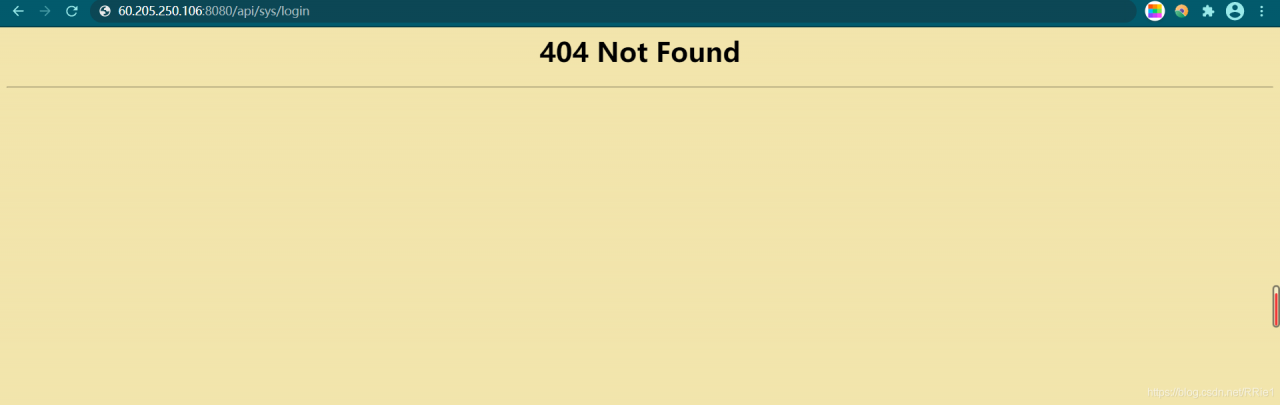
curl http://localhost:8080/api/user/login

Running result:

the prompt here is that the interface cannot be found, which indicates that the problem lies in the proxy server nginx, so we need to modify the configuration file of nginx.

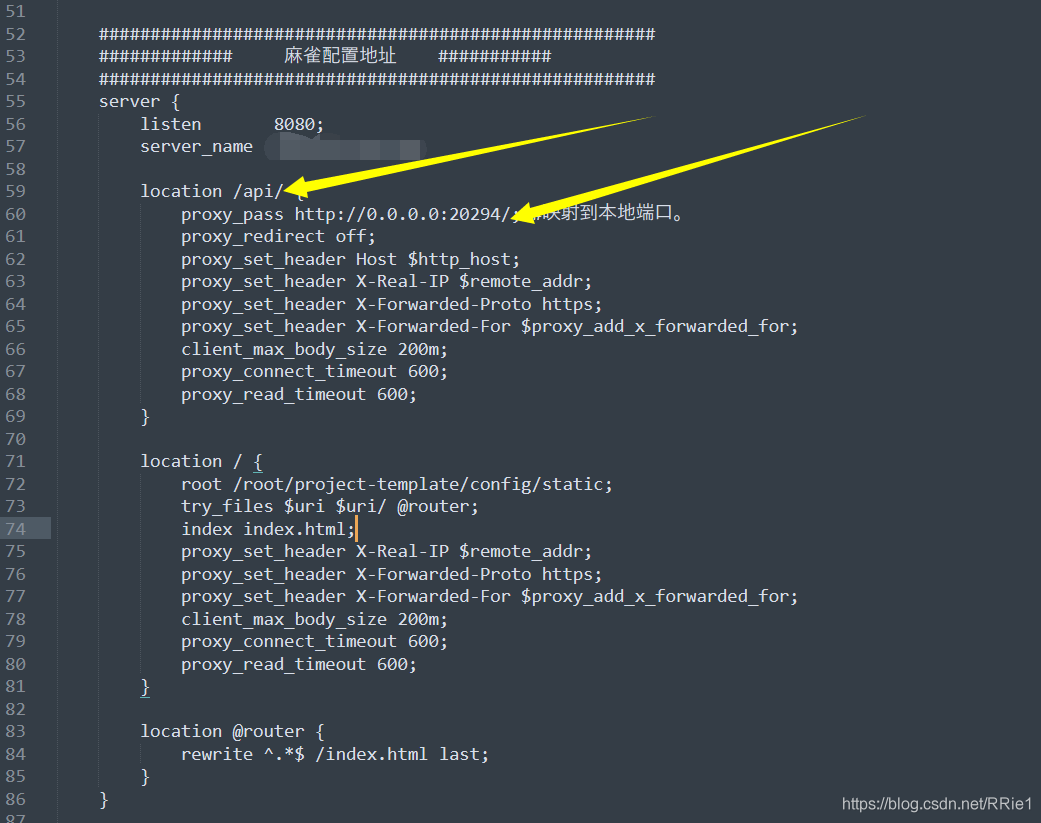
According to the suggestions of other blogs, I added a slash to this place in nginx configuration

after restarting the server, it still can’t work.

Complete solution

When I didn’t know what to do, I suddenly found that there were two nginx in my server ····
I was wondering if it was because there were two nginx, and the modified configuration file was not the nginx I started. So I replaced all nginx configuration files with my original configuration files, and then restarted. Still not

Worried about the two nginxs, I deleted all nginxs in the server. Delete steps (run the following steps in turn:

ps aux|grep nginx  #View nginx processes
kill -9 process number #Kill the nginx queried in the previous step (process number is in the second column)
find/-name nginx #Find the nginx file address
rm -rf xxx #Delete all nginx files

Finally, use weget to install the new nginx, and then install it according to the original installation steps. After modifying the configuration file, run curl to access the dynamic interface. All of a sudden, it’s OK!

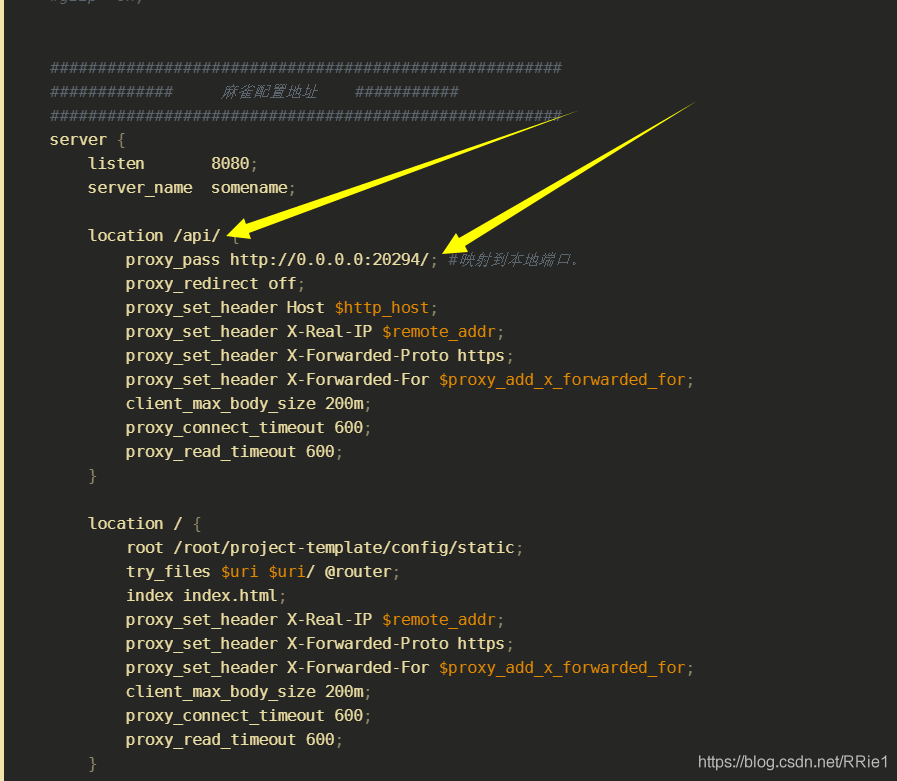
The following is my nginx configuration file:

user root;
#user  nobody;
worker_processes  4;

#error_log  logs/error.log;
#error_log  logs/error.log  notice;
#error_log  logs/error.log  info;

#pid        logs/nginx.pid;


events {
    worker_connections  1024;
}


http {
    include       mime.types;
    default_type  application/octet-stream;
    log_format main '$remote_addr - $remote_user [$time_local] "$request" '
                      '$status $body_bytes_sent "$http_referer" '
                      '"$http_user_agent" "$http_x_forwarded_for"';

    server_names_hash_bucket_size 128;
    client_header_buffer_size 32k;
    underscores_in_headers on;
    large_client_header_buffers 4 32k;
    client_max_body_size 50m;
    #log_format  main  '$remote_addr - $remote_user [$time_local] "$request" '
    #                  '$status $body_bytes_sent "$http_referer" '
    #                  '"$http_user_agent" "$http_x_forwarded_for"';

    #access_log  logs/access.log  main;

    sendfile        on;

    #keepalive_timeout  0;
    keepalive_timeout  65;
    tcp_nopush          on;
    fastcgi_connect_timeout 300;
    fastcgi_send_timeout    300;
    fastcgi_read_timeout    300;
    fastcgi_buffer_size     64k;
    fastcgi_buffers     4   64k;
    fastcgi_busy_buffers_size 128k;
    fastcgi_temp_file_write_size 256k;
    tcp_nodelay         on;

    #gzip  on;


    ######################################################
    #############     Sparrow configuration address    ###########
    ######################################################
    server {
        listen       8080;
        server_name  somename;

        location /api/ {
            proxy_pass http://0.0.0.0:20294/; #Mapping to the local port.
            proxy_redirect off;
            proxy_set_header Host $http_host;
            proxy_set_header X-Real-IP $remote_addr;
            proxy_set_header X-Forwarded-Proto https;
            proxy_set_header X-Forwarded-For $proxy_add_x_forwarded_for;
            client_max_body_size 200m;
            proxy_connect_timeout 600;
            proxy_read_timeout 600;
        }
        
        location/{
            root /root/project-template/config/static;
            try_files $uri $uri/ @router;
            index index.html;
            proxy_set_header X-Real-IP $remote_addr;
            proxy_set_header X-Forwarded-Proto https;
            proxy_set_header X-Forwarded-For $proxy_add_x_forwarded_for;
            client_max_body_size 200m;
            proxy_connect_timeout 600;
            proxy_read_timeout 600;
        }

        location @router {
            rewrite ^.*$ /index.html last;
        }
    }
}

note: when configuring the dynamic access API, remember to add a slash at the end

So far, the problem has been solved perfectly.

Git Error Resolution: errno:10054 Time out

fatal 1. OpenSSL SSL_read: Connection was reset, errno 10054

1) First check if the C:\Windows\System32\drivers\etc\hosts IP mapping relationship is correct (query IPAddress)

140.82.112.4 github.com
199.232.69.194 github.global.ssl.fastly.net
140.82.113.9 codeload.Github.com

If you want to modify the hosts file, you need to refresh DNS: ipconfig/flushdns

2) Connection error still reported:

$ git config --global http.sslVerify "false"

I refer to git to report errors , First of all, it was revised hosts File, but still not resolved, so it is recommended to give priority to try git config -- global http . sslVerify " false " ( Because it’s simple :))

fatal 2 . Failed to connect to github . com port 443 : Timed out

$ git config --global --unset http.proxy

fatal 3. you need to resolve your current index first

# Go back to before merge and switch branches again
$ git reset --merge

fatal 4. failed to push some refs to 'https://github.com/...

 # The remote library is not consistent with the local library caused by the prompt in hint to synchronize the remote library to the local library
$ git pull --rebase origin main

Error resolution in composer 2 install or update


Linux Version: CentOS 7.9,PHP 7.2
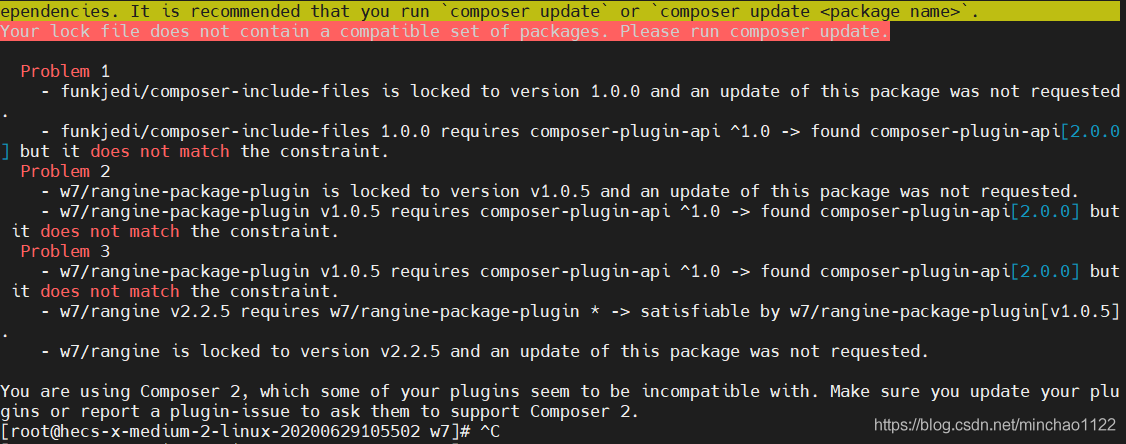
Error: You are using Composer 2, which some of your plugins seem to be incompatible with. Make sure you update your plugins or report a plugin-issue to ask them to support Composer 2.
Cause Version conflict
Solution.https://stackoverflow.com/questions/64597051/how-to-downgrade-or-install-a-specific-version-of-composer-on-windows
Run Command composer self-update --1 Rollback to v1

Solutions to errors in installing xunsearch engine in centos8.0

When I need to apply full-text search engine to some small projects, I prefer to use xunsu because it is convenient to deploy and easy to call. Today, when I install xunsu for the customer’s deployment system, I reported an error (rarely encountered an error). I spent some time looking up the information, finally solved it, and shared my experience

The first reason is positioning. I have installed xunsu on at least five or six CentOS hosts, and the previous installation has been completed smoothly. Therefore, it should be because there is something wrong with xunsu itself, which is more likely related to the running environment. After a look, this machine is currently installed with CentOS 8.0, and the systems I installed before are all 7. X, so it is most likely related to the operating system It has something to do with the version of the system.

The information in the installation interface is as follows:

bufferevent_openssl.c:237:2: note: (near initialization for 'methods_bufferevent')
bufferevent_openssl.c:228:19: error: storage size of 'methods_bufferevent' isn't known
 static BIO_METHOD methods_bufferevent = {
                   ^~~~~~~~~~~~~~~~~~~
make[2]: *** [Makefile:793: bufferevent_openssl.lo] Error 1
make[2]: Leaving directory '/usr/local/src/xunsearch-full-1.4.14/libevent-2.0.21-stable'
make[1]: *** [Makefile:857: install-recursive] Error 1
make[1]: Leaving directory '/usr/local/src/xunsearch-full-1.4.14/libevent-2.0.21-stable'
make: *** [Makefile:1182: install] Error 2

It seems that there should be an error in the compilation process, which is more difficult. Because this is the code written in C, I can’t directly change its source code, so I can only start from what causes the compilation error. After various queries, I found that a netizen once encountered this problem. The following is the content quoted from this netizen:

The cause of this problem and the solution ideas are as follows.
The reason is that libevent 2.0.x requires openssl < 1.1.0
Several common Linux distributions have upgraded their openssl systems to 1.1.0+
That is, libevent 2.1.x+ is required
And libevent 2.1.x has changed the header file... If you do not change the system openssl version.
Then you can manually download a libevent-2.1.11-stable.tar.gz
convert to bz compressed format (libevent-2.1.11-stable.tar.bz2)
Put it into packages, remembering to delete the original libevent

I didn’t refer to him for the following specific steps, because the xunsu version I used is different from his, and the specific solution is different from his, so let’s continue with my solution process: First of all, download the 2.1. X version of libevent installation package. You can search libevent directly, and then download it on the official website. Most of the time, the official link is on GitHub. If you download it with WGet directly on Linux system, it’s a bit slow. In this case, you can download it on our own browser first, and then upload it through winscp, which is faster. The version I downloaded is libevent2.1.12. The download link is: https://github.com/libevent/libevent/releases/download/release-2.1.12-stable/libevent-2.1.12-stable.tar.gz

After downloading, upload it to the server and put it in the xunsearch directory. My directory is/usr/local/SRC /, then decompress the file and recompress it into bz2 format. The reference code is as follows:

//Unpack libevent first (in order to compress it into the desired format)
tar -zxvf libevent-2.1.12-stable.tar.gz
//compress to bz2 format, which is the format supported by the XunSuo installer
tar -cjf libevent-2.1.12-stable.tar.bz2 libevent-2.1.12-stable
// copy to the packages folder under xunsearch
cp libevent-2.1.12-stable.tar.bz2 xunsearch-full-1.4.15/packages/
// go to the package installation directory and remove the libevent package that comes with it (xunsearch1.4.15 comes with 2.0.X)
cd xunsearch-full-1.4.15/packages/
rm -f libevent-2.0.X
//return to the previous folder (i.e. the root directory of the Xunsearch installation package), then execute setup.sh and you're done.
// XunSoo will automatically check for the libevent package in the installer file, if it doesn't find it, it will report an error, if it finds it, it will automatically unpack and compile it.
cd ..
./setup.sh

Then the installation process is happily completed