Category Archives: JavaScript

[Solved] Syntax Error: Error: Node Sass does not yet support your current environment: Windows 64-bit with

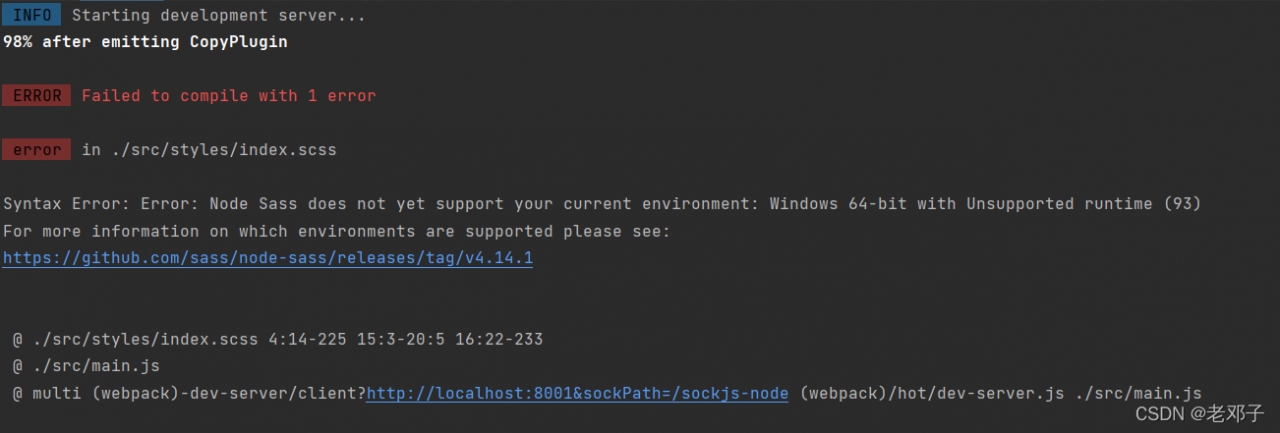
Syntax error: error: node sass does not yet support your current environment: Windows 64 bit with unsupported runtime (93)

Detailed error reporting is shown in the figure:

reason:

Node-sass does not support high versions of node.
my version is 16.14.2

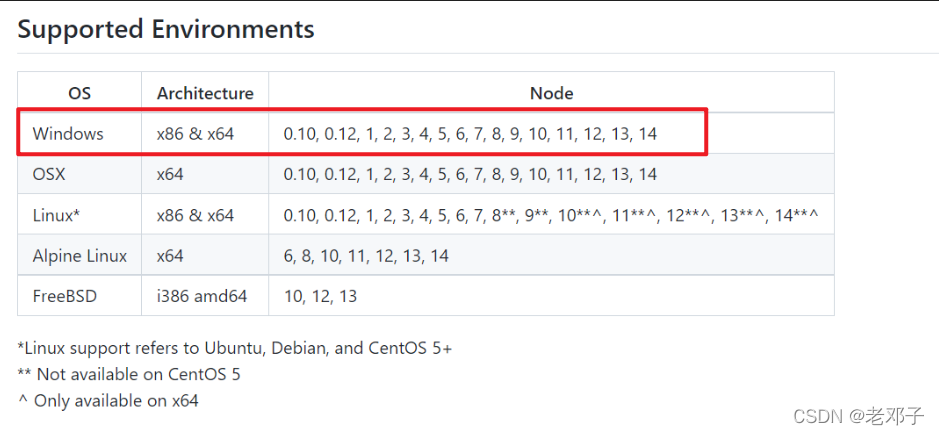
and the node-sass version supports as shown in the figure:

windows only supports 14 versions at most.

Solution:

    1. reinstall node version 14.
    1. Use NVM for node version management and change the node version to 14.

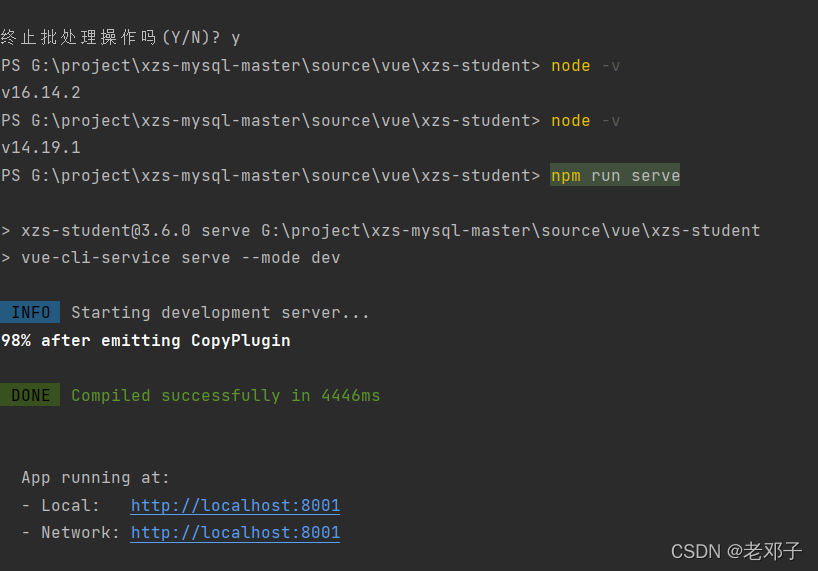
effect

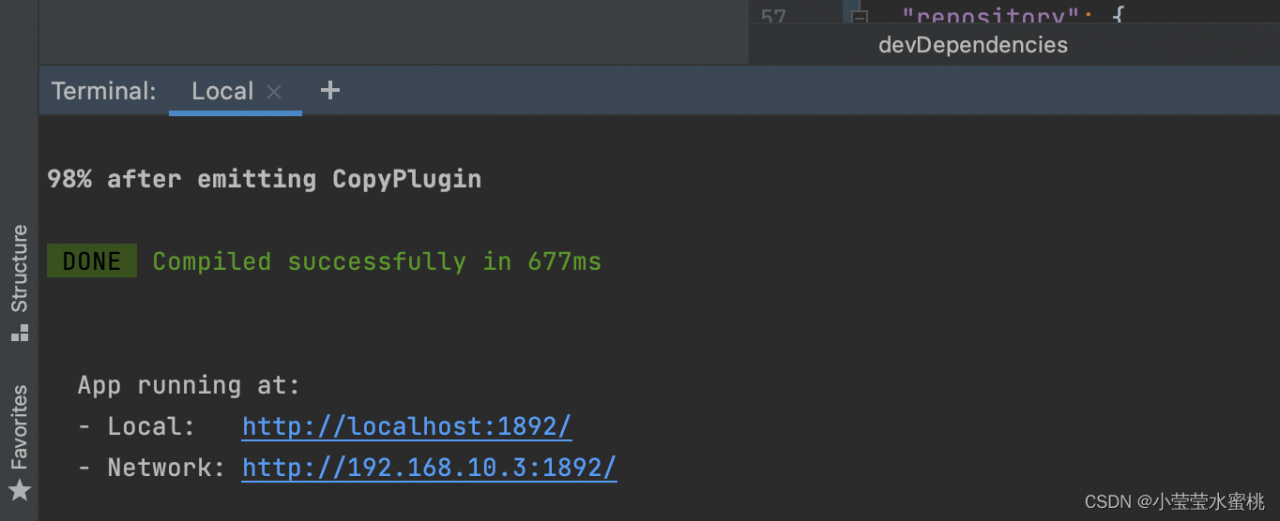
As shown in the figure, after changing to version 14.19.1, it starts normally

[Solved] Syntax Error: Error: No ESLint configuration found & TypeError: eslint.CLIEngine is not a constructor

Here we will show you how to solve the two common error:

  1. Syntax Error: Error: No ESLint configuration found.
  2. Syntax Error: TypeError: eslint.CLIEngine is not a constructor


Solution:

Error 1: Syntax Error: Error: No ESLint configuration found.

Method 1:
1 Global install eslint: npm i eslint -g
2 Generate configuration file: eslint –init
3 Set according to your own project requirements:

√ How would you like to use ESLint?· problems
√ What type of modules does your project use?· esm
√ Which framework does your project use?· vue
√ Does your project use TypeScript?· No/Yes
√ Where does your code run?· browser
√ What format do you want your config file to be in?· JavaScript
The config that you've selected requires the following dependencies:

eslint-plugin-vue@latest
?Would you like to install them now with npm?» Yes

Method 2:
1 Install eslint in the project: npm install eslint –save-dev
2 Build profile: ./node_modules/.bin/eslint –init
3. After successful initialization, a will be generated a .eslintrc.js file in the project root directory, file content:

module.exports = {
    "env": {
        "browser": true,
        "es2021": true
    },
    "extends": [
        "eslint:recommended",
        "plugin:vue/essential"
    ],
    "parserOptions": {
        "ecmaVersion": 12,
        "sourceType": "module"
    },
    "plugins": [
        "vue"
    ],
    "rules": {
    }
};

Error 2: Syntax Error: TypeError: eslint. CLIEngine is not a constructor

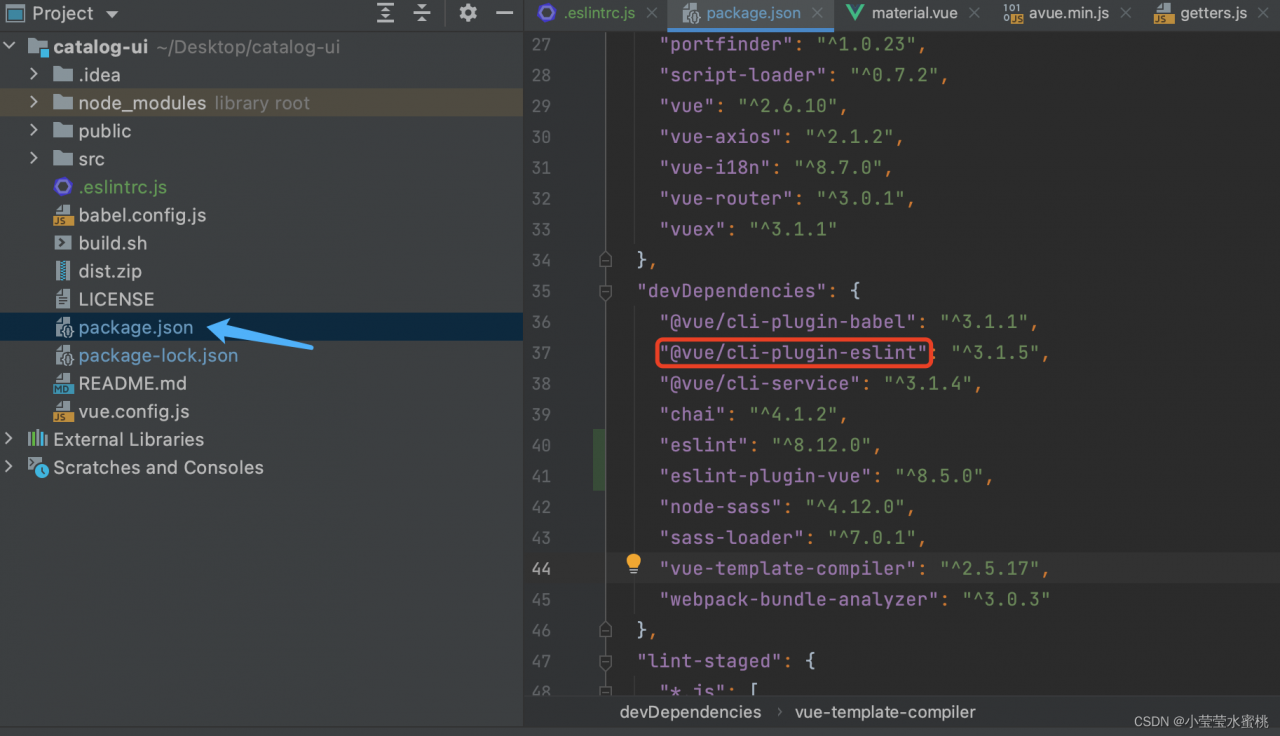
Solution: open package JSON delete and re run the following code (stop the project and re NPM run serve)

after deletion, the eslint syntax verification of the project will become invalid and can run successfully (NPM run serve needs to be re run)

[vue/no-multiple-template-root] The template root requires exactly one element.

Project scenario:

March 2022 intellectual property module migration component


Problem description

Black screen and error report:

[vue/no-multiple-template-root] The template root requires exactly one element.

Cause analysis:

Only one root node is allowed in the template


Solution:

Add a div tag to the template and add all components to the div tag.

[Solved] Front end error: Unknown custom element

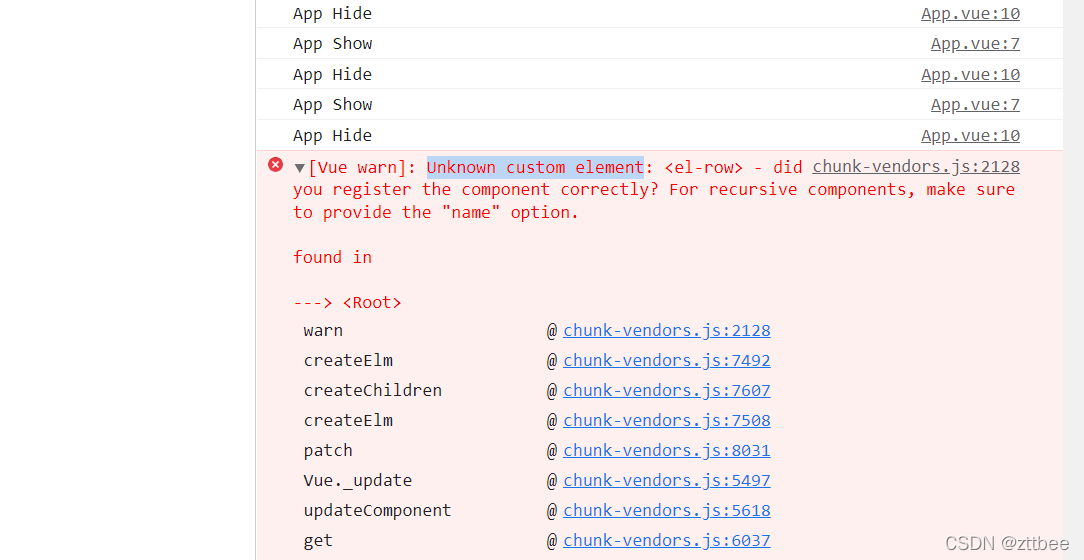
report errors

chunk-vendors.js:2128 [Vue warn]: Unknown custom element: - did you register the component correctly? For recursive components, make sure to provide the “name” option. - did you register the component correctly?For recursive components, make sure to provide the "name" option


reason

el component not registered

Solution:

1. Download elementUI

npm i element-ui -S

2. Import

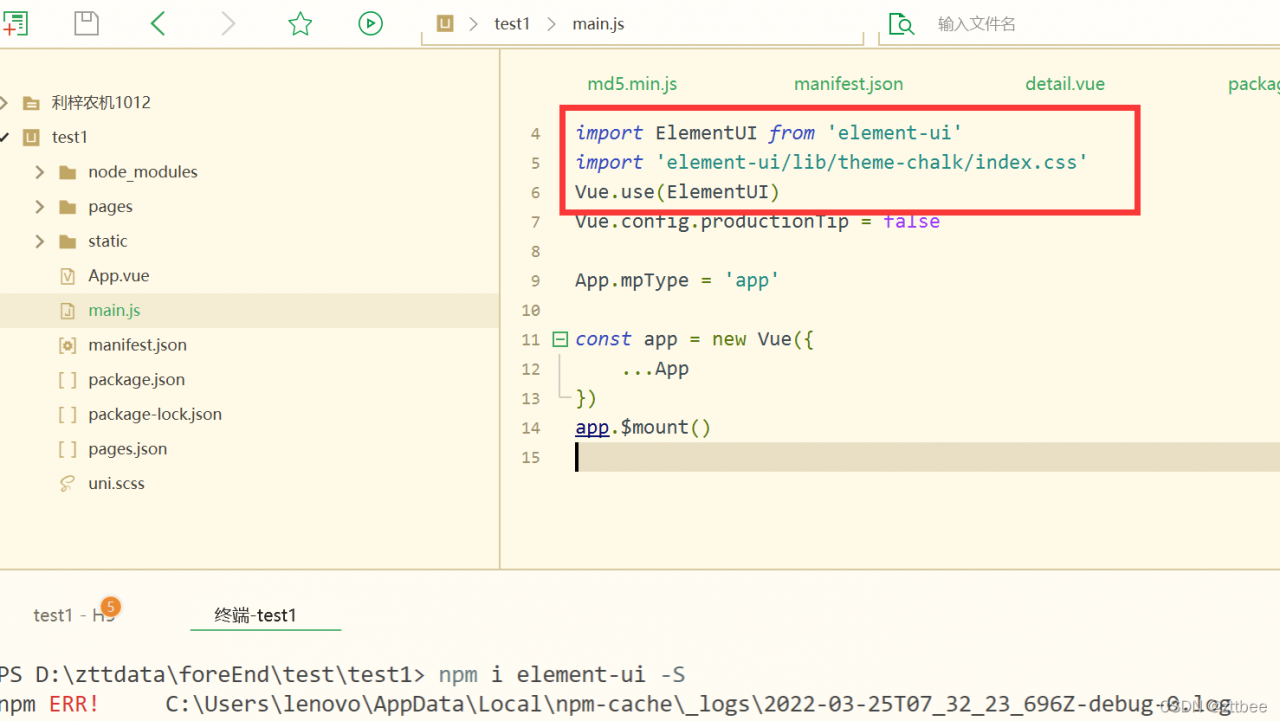
Add the following three lines  in main.js:

import ElementUI from 'element-ui';
import 'element-ui/lib/theme-chalk/index.css';
Vue.use(ElementUI);

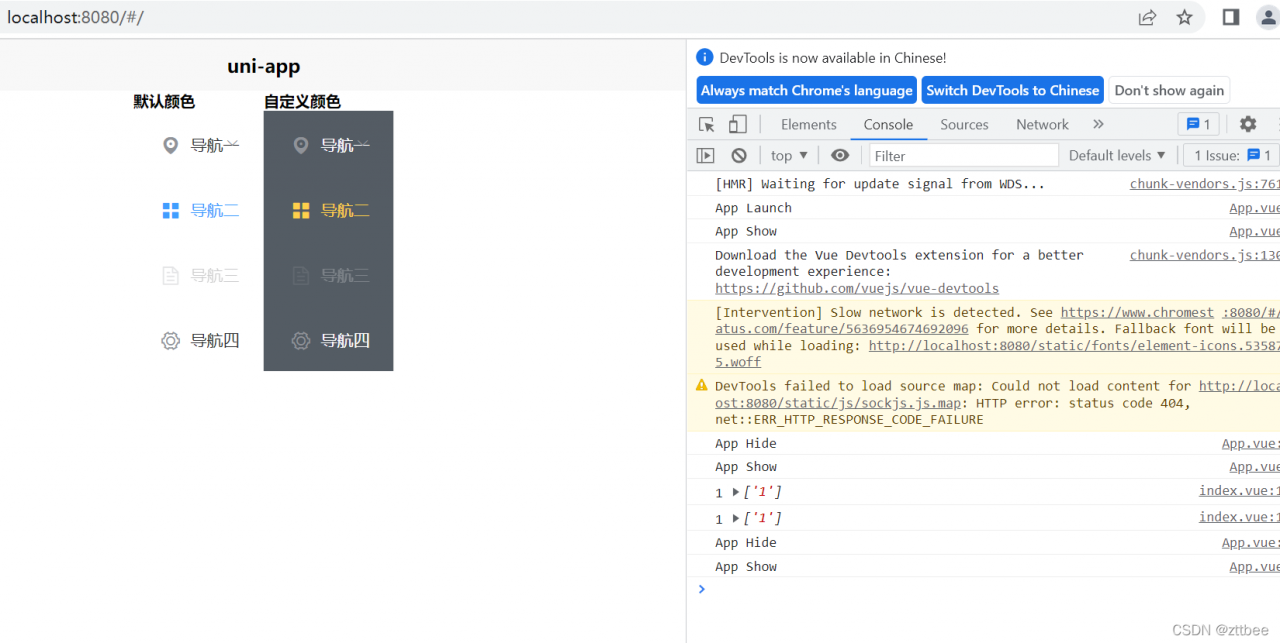
Done!

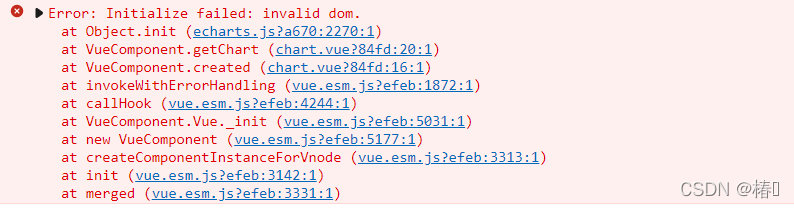
[Solved] Vue echarts Error: Initialize failed: invalid dom.

Error reporting reason

DOM has not been mounted yet, echarts.init() has already started execution

resolvent

1. Don’t use created, use mounted. Created just creates an instance at this time, but the template hasn’t been mounted yet

created:Called before the template is rendered into html, i.e. usually initialize some property values and then render into view.
mounted: called after the template is rendered into html, usually after initializing the page and then doing some required operations on the html dom nodes

That is to say, the created() method is called before the page is loaded, and DOM is not loaded yet. So use mounted when DOM is changed, and use created when DOM is not changed

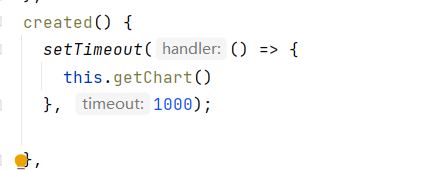
2. Use setTimeout to delay loading

eslint Error: Delete `␍` [How to Solve]

reason

Due to the end of line style configuration, endoofline configuration has the following four options:
lf – line feed only (\n), which is common in Linux, MacOS and git repos
CRLF – carriage return + line feed character (\r \n), and windows
CR – carriage return character only (\r), Rarely use
auto – keep the existing end of the line (the mixed values in a file are standardized by looking at the content used after the first line)


Solution:

Configure endOfLine: ‘auto’ in prettier.config.js:

module.exports = {
  semi: false, // unterminated semicolon
  singleQuote: true, // single quotes
  quoteProps: 'as-needed',
  trailingComma: 'none', // final comma
  
 // The point is that this one should be configured as auto
  endOfLine: 'auto'
}

vue.config.js build Package UglifyJsPlugin to clear console and print console.log Error: `warnings` is not a supported option

We want to log out all the printing functions. It is certainly unrealistic to log out one by one. It is a waste of energy and time, and there will be omissions

Here we implement it with the help of uglifyjs-webpack-plugin

install

cnpm i uglifyjs-webpack-plugin --save-dev

vue.config.js

// vue.config.js

const UglifyJsPlugin = require('uglifyjs-webpack-plugin')

module.exports = {
...
configureWebpack: config => {
    if (process.env.NODE_ENV == 'production') {
    
      config.mode = 'production'
      config.optimization.minimizer = [
        new UglifyJsPlugin({
          uglifyOptions: {
			output: {
				comments: false
			},
			// deleteconsole debugger
			compress: {     
				warnings: false,	//	error
				drop_console: true, // console
				drop_debugger: false,
				pure_funcs: ['console.log']// 移除console
			}
          }
        })
      ]
    } else {
      config.mode = 'development'
    }
   }


...

}

warnings is not a supported option

Here is a knowledge point. Warnings will report errors.

Some UglifyJsPlugin versions do not support setting the warnings parameter in the compress of the uglifyOptions object, but directly set warnings as a property in the uglifyOptions object.

If an error is reported. Then write warnings as the uglifyOptions attribute in the following way

// vue.config.js

const UglifyJsPlugin = require('uglifyjs-webpack-plugin')

module.exports = {
...
configureWebpack: config => {
    if (process.env.NODE_ENV == 'production') {
    
      config.mode = 'production'
      config.optimization.minimizer = [
        new UglifyJsPlugin({
          uglifyOptions: {
			output: {
				comments: false
			},
			// delete console debugger
			compress: {     
				drop_console: true, // console
				drop_debugger: false,
				pure_funcs: ['console.log']// remove console
			}, 
			warnings: false,	//	error
          }
        })
      ]
    } else {
      config.mode = 'development'
    }
   }


...

}

[Solved] npm Install vuex Error: npm ERR! code ERESOLVE

Question

The following error is reported when NPM install vuex — save is used on the command line

npm ERR! code ERESOLVE
npm ERR! ERESOLVE unable to resolve dependency tree
npm ERR! 
npm ERR! While resolving: [email protected]
npm ERR! Found: [email protected]
npm ERR! node_modules/vue
npm ERR!   vue@"^2.5.2" from the root project
npm ERR! 
npm ERR! Could not resolve dependency:
npm ERR! peer vue@"^3.0.2" from [email protected]
npm ERR! node_modules/vuex
npm ERR!   vuex@"*" from the root project
npm ERR! 
npm ERR! Fix the upstream dependency conflict, or retry
npm ERR! this command with --force, or --legacy-peer-deps
npm ERR! to accept an incorrect (and potentially broken) dependency resolution.
npm ERR! 
npm ERR! See C:\Users\admin\AppData\Local\npm-cache\eresolve-report.txt for a full repor
t.

This problem occurs because the version of NPM is too high

Solution:

Install the specified version of vuex
view the installable version of vuex

C:\Users\admin>npm view vuex versions --json
[
  "0.1.0",
  "0.2.0",
  "0.3.0",
  "0.4.0",
  "0.4.1",
  "0.4.2",
  "0.5.0",
  "0.5.1",
  "0.6.1",
  "0.6.2",
  "0.6.3",
  "0.7.0",
  "0.7.1",
  "0.8.0",
  "0.8.1",
  "0.8.2",
  "1.0.0-rc",
  "1.0.0-rc.2",
  "1.0.0",
  "1.0.1",
  "2.0.0-rc.1",
  "2.0.0-rc.3",
  "2.0.0-rc.4",
  "2.0.0-rc.5",
  "2.0.0-rc.6",
  "2.0.0",
  "2.1.0",
  "2.1.1",
  "2.1.2",
  "2.1.3",
  "2.2.0",
  "2.2.1",
  "2.3.0",
  "2.3.1",
  "2.4.0",
  "2.4.1",
  "2.5.0",
  "3.0.0",
  "3.0.1",
  "3.1.0",
  "3.1.1",
  "3.1.2",
  "3.1.3",
  "3.2.0",
  "3.3.0",
  "3.4.0",
  "3.5.0",
  "3.5.1",
  "3.6.0",
  "3.6.1",
  "3.6.2",
  "4.0.0-alpha.1",
  "4.0.0-beta.1",
  "4.0.0-beta.2",
  "4.0.0-beta.3",
  "4.0.0-beta.4",
  "4.0.0-rc.1",
  "4.0.0-rc.2",
  "4.0.0",
  "4.0.1",
  "4.0.2"
]

Install the specified version of vuex

npm install [email protected] --save