Category Archives: How to Fix

Spring data JAP SQL error:17059 SQL State:99999

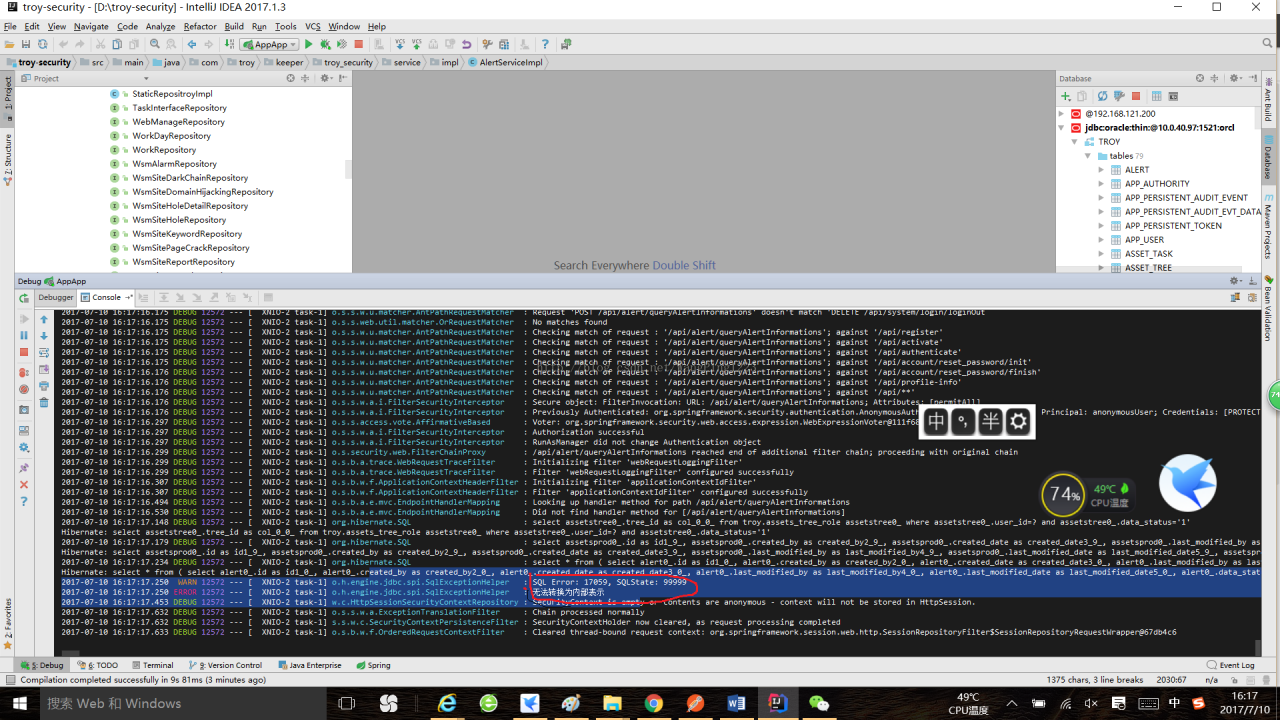
Error phenomenon: Startup times are wrong and cannot be converted to an internal representation, as shown in the figure below.

Reason: The error is that the Hibernate configuration file cannot be converted into information for the corresponding table in the database.
In general, Hibernate field attributes are wrongly written, String type is written as long, number type is written as String and so on, causing the database content cannot be converted to Java class.

Corresponding method: Check that the database table field and the entity class attribute types are the same

Unsupported operation types unsupported operation data types

Fatal error: Unsupported operand types
It means:
Fatal error: Unsupported operation data type
The reason is that data that does not conform to the data type is passed to some function. This is especially true if you pass an array to a function that takes a number as an argument.
 
That’s what I just ran into.
 
Put an array ([0] = & gt; 123456), I was going to pass 123456.
 

Error code:10053

Symptoms:
Action.c(16): Error : socket0 – Software caused connection abort. Error code : 10053.


normal C/S communication process is :
Server Listen–>

Server Listen–> Client Connect–> Server Accept –> Client Send –> Server Recv–> Client Close –> Server Close
if you do not take the initiative to Close the connection and direct to withdraw from the Client end, Server end service thread will cause a 10053 error (this kind of error usually effect is not too big), and if in the process of the communication Server first initiative to Close the connection, the Client end can also cause a 10053 error

the situation of the bad network is usually refers to the latter, the Client thought the Server off (the actual network broken), so I cried. “10053

Recently, when I used LoadRunner to conduct the performance test of Winsock protocol, the WebServer tested was JBoss, and 10053 errors often occurred. The phenomenon was as follows: after I created the connection with lrs_create_socket, when the number of requests for this socket connection reached 100, the connection was not available, and it had to be closed before creating again. LoadRunner causes Connection abort. Error code: 10053. LoadRunner causes Connection abort.
After much exploration, it was finally found that the error was due to the configuration of the HTTP 1.1 KeepAlive parameter in Apach HTTPServer. From my test results of several different Webservers, it can be seen that JBoss and Tomcat made errors when a Socket connection made 100 requests, while other Web servers, such as IIS and WebLogic, did not have this problem.
several related parameters are described below: KeepAlive, KeepAliveTimeout, and MaxKeepAliveRequests.
KeepAlive Directive
Description: Enables HTTP persistent connections
Syntax: KeepAlive On|Off
Default: KeepAlive On
Context: server config, virtual host
Status: The Core
Module: the Core
In HTTP 1.0, a connection can only transfer one HTTP request, while the KeepAlive parameter is used to support the one connection, multiple transfers feature of HTTP 1.1, so that multiple HTTP requests can be passed in one connection. Although only newer browsers support this feature, this option is enabled anyway.
The keep-alive extension to HTTP/1.0 and The Persistent Connection feature of HTTP/1.1 provide long-lived HTTP sessions which allow multiple requests to be sent over The same TCP Connection.In some The Keep Alive Extension to HTTP/1.0 and The Persistent Connection feature of 1.1 provide long-lived HTTP sessions which allow multiple requests to be sent over The same TCP Connection.In some cases this has been shown to result in an almost 50% speedup in latency times for HTML documents with many images. To enable Keep-Alive connections, set KeepAlive On.
For HTTP/1.0 clients, keep-alive Connections will only be used if they are specifically required by a client. In addition, A keep-alive connection with an HTTP/1.0 client can only be used when the length of the content is known in advance. This implies that dynamic content such as CGI output, SSI Pages, And server-generated Directory listings will generally not use keep-alive Connections to HTTP/1.0 clients.for HTTP/1.1 clients, persistent connections are the default unless otherwise specified. If the client requests it, chunked encoding will be used in order to send content of unknown length over persistent connections.
— — — — — — — — — — — — — — — — — — — — — —
KeepAliveTimeout Directive
Description: Amount of time the server will wait for subsequent requests on a persistent connection
Syntax: KeepAliveTimeout
Default: KeepAliveTimeout 15
Context: server config, virtual host
Status: Core
Module: Core
KeepAliveTimeout tests the time between multiple request transfers in a single connection. If the server has completed one request but has not received the next request from the client, the server disconnects after the interval exceeds the value set by this parameter.
The number of seconds Apache will wait for a subsequent request before closing the connection. Once a request has been received, the timeout value specified by the Timeout directive applies.
Setting KeepAliveTimeout to a high value may cause performance problems in heavily loaded servers. The higher the timeout, the more server processes will be kept occupied waiting on connections with idle clients.
— — — — — — — — — — — — — — — — — — — — — —
MaxKeepAliveRequests Directive
Description: Number of requests allowed on a persistent connection
Syntax: MaxKeepAliveRequests Number
Default: MaxKeepAliveRequests 100
Context: Virtual host
Status: Core
Module: Core
MaxKeepAliveRequests is the maximum number of HTTP requests that can be made with a single connection. Setting its value to 0 will support an unlimited number of transfer requests within a single connection. In fact, no client requests too many pages in a single connection, and usually the connection is completed before this limit is reached.
The MaxKeepAliveRequests directive limits the number of requests allowed per connection when KeepAlive is on. If it is set to 0, unlimited requests will be allowed. We recommend that this setting be kept to a high value for maximum server performance.
For example:MaxKeepAliveRequests 500
Finally, although this problem was caused by the parameter configuration of HTTPServer, only LoadRunner would have had this problem, and if Rational Robot had implemented the same functionality, it would not have had this problem, presumably due to the testing tool’s implementation strategy for Socket connections.
Python’s direct method for solving linear equations (5) — square root method for solving linear equations

The square root method solves systems of linear equations

import numpy as np


def pingfagenfa(a):
    n = a.shape[0]
    g = np.mat(np.zeros((n, n), dtype=float))
    g[0, 0] = np.sqrt(a[0, 0])
    g[1:, 0] = a[1:, 0]/g[0, 0]
    for j in range(1, n-1):
        g[j, j] = np.sqrt((a[j, j] - np.sum(np.multiply(g[j, 0:j], g[j, 0:j]))))
        for i in range(j+1, n):
            g[i, j] = (a[i, j] - np.sum(np.multiply(g[i, 0:j], g[j, 0:j])))/g[j, j]
    g[n-1, n-1] = np.sqrt((a[n-1, n-1] - np.sum(np.multiply(g[n-1, 0:n-1], g[n-1, 0:n-1]))))
    return g


if __name__ == "__main__":
    a = np.mat([[9, 18, 9, -27],
                [18, 45, 0, -45],
                [9, 0, 126, 9],
                [-27, -45, 9, 135]], dtype=float)
    print('G:')
    G = pingfagenfa(a)
    print(G)

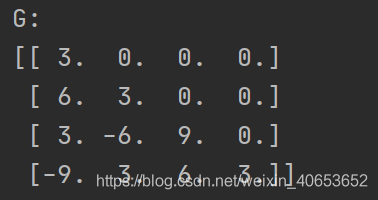
The solution results are shown in the figure below:

column
Python is the direct method of solving linear equations (1) — – gaussian elimination
Python the direct method of solving linear equations (2) — – gaussian column main element elimination
Python the direct method of solving linear equations (3) — – column if primary element gauss – when elimination
Python the direct method of solving linear equations (4) — – LU decomposition of the matrix
Python the direct method of solving linear equations (5) — –
square root method to solve linear equations Python direct method for solving systems of linear equations (6) — chase method for solving tridiagonal equations
Python direct method for solving systems of linear equations (7) — givens transformation based QR decomposition
Python direct method for solving systems of linear equations (8) — haushalde transformation based QR decomposition

CMD input Java error could not create the Java virtual machine

CMD input JAVA error Could not create the JAVA Virtual Machine, solution
Write this post today, I hope that the students who encounter the following similar problems can refer to my solution to solve quickly, rather than spend a long time like me to explore!
Error message (part 1)
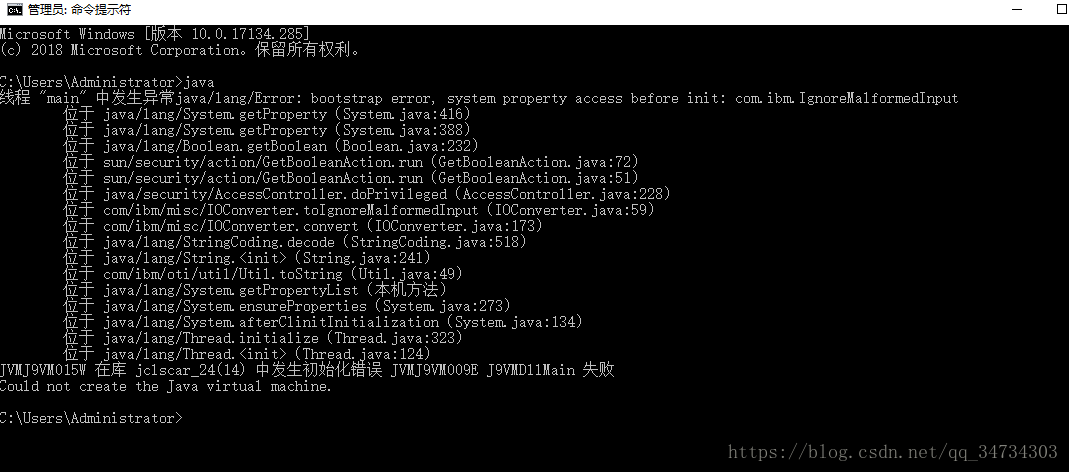
JAVA– CMD input JAVA error prompt: Could not create the JAVA Virtual Machine.

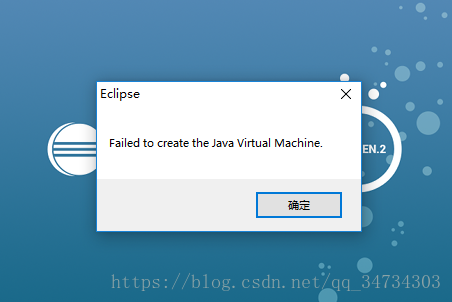
Eclipse — Open error: Fail to create the Java Virtual Machine.

Cause analysis,
because the path path has a Chinese directory or Chinese punctuation, causing Java and eclipse traversal path error. If I type path in CMD, I get something like this :
my error is because path =; D: \ development \ Java \ jdk1.8.0 _151; %JRE_HOME%\ jRE \bin %JRE_HOME%\ jRE \bin %JRE_HOME%\jre\bin %JRE_HOME%\jre\bin %JRE_HOME%\jre\bin

Error message (below)
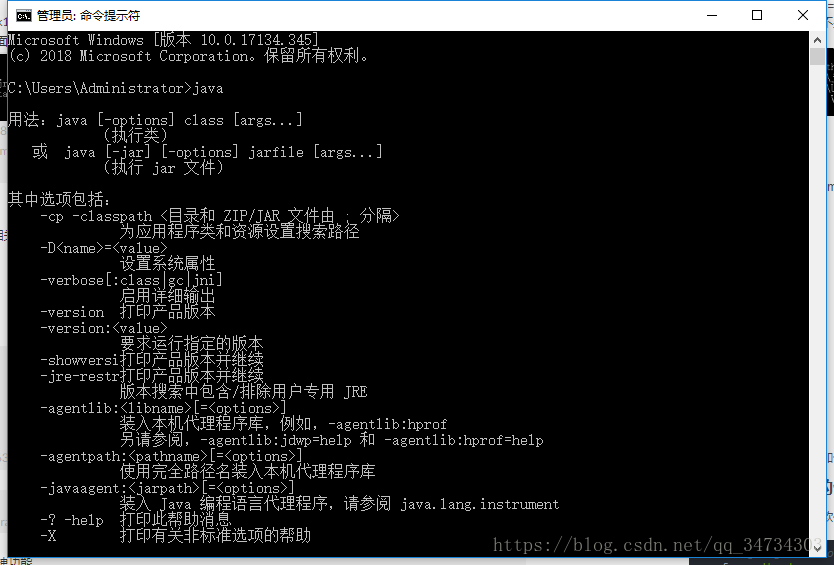
After the above error is fixed, enter Java in CMD again, the relevant information will appear, as follows:


Version 1.6.0 of the JVM is not suitable for the this product.version :1.8 or greater is required
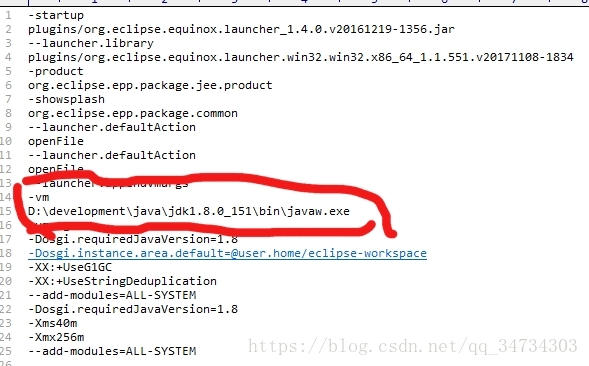
The current version of the JDK is too low, and Eclipse requires a higher version. The key point is that the version 1.8 is installed on my computer. How can this error still be found?After searching, I have to go to the path of CONFIGURING JDK in Ecipse.ini to find it.
-vm
D:\Program Files\Java\jre1.8.0_121\bin\javaw.exe// add these two lines (of course, the specific address shall be subject to their own address)

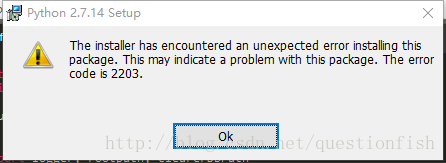
Notes: Windows Python installation and removal error 2203 / 2502 / 2503

Error description
The installer has encounted an unexcepted error install this package. This may indicate a problem with this package. The error code is 2203/2503/2503.

The official definition of
2203 Database: [2]. Cannot open database file. System error [3].
2502 Called InstallFinalize when no install in progress.
2503 Called RunScript when not marked in progress.
Probable cause
Folder to be operated does not exist (2203)\ Insufficient permissions (2502, 2503)
The specific reason
C:\Windows\TEMP folder C:\Windows\TEMP file due to my careless operation of the temporary file, it became C:\Windows\TEMP file, the operation method of the folder could not be applied to the file.
To solve

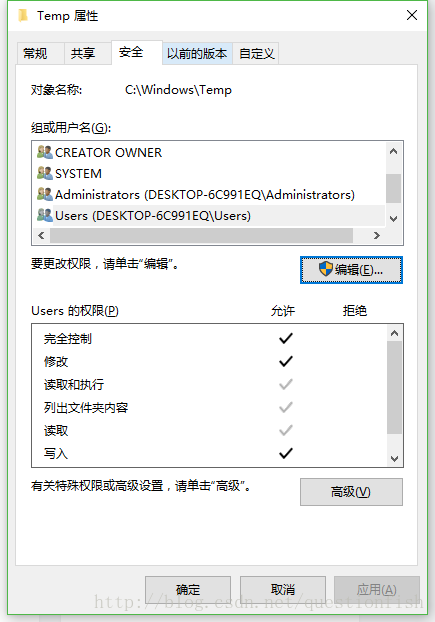
    delete the C:\Windows\Temp file and create the C:\Windows\Temp folder. Modify User User permissions to operate on the folder, add modify and write permissions.

reference

    Windows Installer Error Code Listhttp://blog.csdn.net/netsec_steven/article/details/52637088

Error installing network file system: Mount error 20 = not a directory

After upgrading to Fedora 9, I found it impossible to mount the Samba Shared file system as before.

when I use the following command:

$mount-t cifs //192.168.1.2/ Samba/MNT/Samba-o Username =test,password=test

mount samba share file gets the following error:

mount error 20 = Not a directory

Refer to the mount.cifs(8) manual page (e.g.man mount.cifs)

a Google search revealed that the problem could be due to the cifs file system not being compatible with older samba Shared servers, so either upgrading the samba server program or restricting the cifs would be required to fix the problem. According to the online advice, you can use:

$echo 0 > /proc/fs/cifs/LinuxExtensionsEnabled

modifies the cifs option to disable cifs extensions, and then mount is no problem.

but it was a bit cumbersome to do this every time I restarted, so I changed my system startup script so that I could put these mounts into my fstab and let the system mount automatically every time it was started. The methods are as follows:

modify /etc/init.d/netfs to add a line like the + sign in start as follows:

Case “$1” in the start)

+/sbin/modprobe cifs & amp; & echo 0 > /proc/fs/cifs/LinuxExtensionsEnabled

first execute “/sbin/modprobecifs” to load the cifs module, otherwise the file we want to modify LinuxExtensionsEnabled may not exist yet, and the modification will fail. Since rc*.d/S**netfs at different boot levels are linked to /etc/init.d/netfs, this change takes effect for all boot levels. Of course, if your system is not such a link, it is the same to modify the corresponding file.

there will be no problem installing the samba Shared file system after the restart.

Another installation will pop up when Windows installs the application inprogress.you must complete that installation before continu

I installed node and Mongodb in Windows7 at the same time. Another installation inprogress. You must complete that installation before continu.  
Article type wants to change to translate, but I do not know how to say with this website, here to consult to everybody great god!
The original: https://support.techsmith.com/hc/en-us/articles/203730938-Snagit-Windows-Error-1500-1618-Another-installation-is-in-progress-You-must-complete-that-installation-before-before-proceeding-with-this-inst all
Snagit (Windows) : Errors 1500, 1618: Another installation is in progress. You must complete the installation before you can proceed with the installation
Last Update:
June 13, 2019 18:27
 
The problem
While installing the software, I received an error message indicating that another installation was in progress.
solution
Restart the computer, and then try to install Snagit again. If you still receive an error, do the following:
Windows 10 or Windows 8

    press CTRL + ALT + DEL and open task manager. Click on the bottom left corner for more details. On the Processes TAB, click to select Windows Installer under Background Processes. Click the end task button. Install Snagit again.

Windows 7

    press CTRL + ALT + DEL and open task manager. On the Processes TAB, right-click msiexec.exe, and then select End Process to install Snagit again.

Geforce experience appears something went wrong error code 0x0003 error code solution

Go to the official website to download the latest version of the graphics card driver, custom installation can choose to perform clean installation to solve most of the problems. If not, please try to fix LSP and check whether Nvidia related services have been started in the service. If not, please start manually.
If you cannot log in or the login screen is black after startup, please close the firewall and ensure that the Nvidia service is running.

JSP exception message invalid TLD file

Today is going to start a core business system for a long time, after downloading the launch access JSP has been reporting this error

Java error: Message Invalid TLD File: see JSP 2.2 Specification section 7.3.1 for more details

After struggling for an hour, I found it after reading the error message in the document.

The JSP tag class file. TLD file cannot be placed under the Web-info classes,lib,tags file, while the old project’S TLD tag is just placed under the tags directory, so it will go straight to GG. The current solution is to move the TLD tag to another legitimate folder, and you can read the above mentioned documents if you are interested.