Category Archives: How to Fix

Configuring OpenGL with win 10 + CodeBlocks

Download Windows environment GLUT, website is: http://pan.baidu.com/s/1qXEUHR2 password: tr2h

Unpack the downloaded package, and you will get three files (Glut.h, Glut32.dll, LibGlut32.a).

C: IDE\ Codeblocks \MinGW\include\GL; C: IDE\ Codeblocks \MinGW\include\GL
(2) Put the unpacked libGlut32.a in the folder where the static library is located C:\IDE\CodeBlocks\MinGW\lib.
(3) Put the unpacked glut32.dll into the system32 folder under the operating system directory. (The typical location is: C:\ WindowsSystem32, this is for 32-bit operating systems. If you are installing a 64-bit operating system, you should place GLUT32.dll in the C:\ WindowsSyswow64 folder under the operating system directory.)

Example:
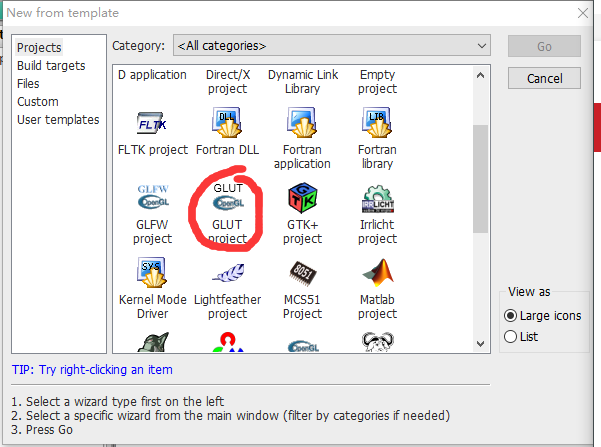
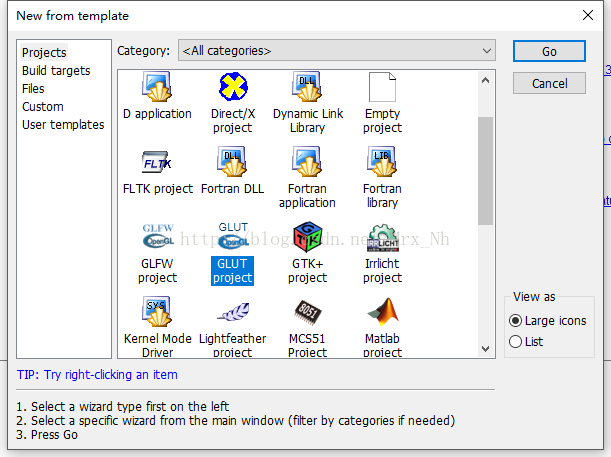
(1) Create a GLUT project


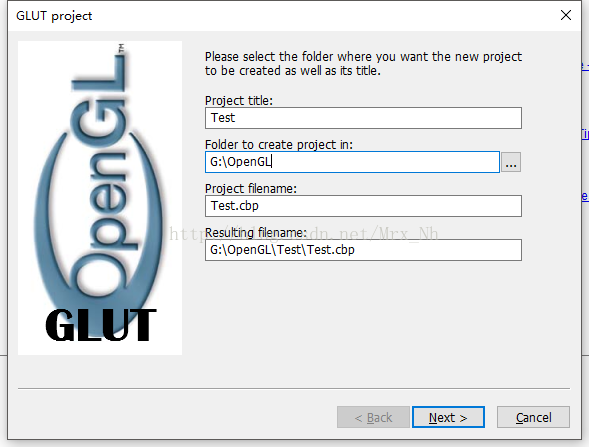
(2) Select the project path


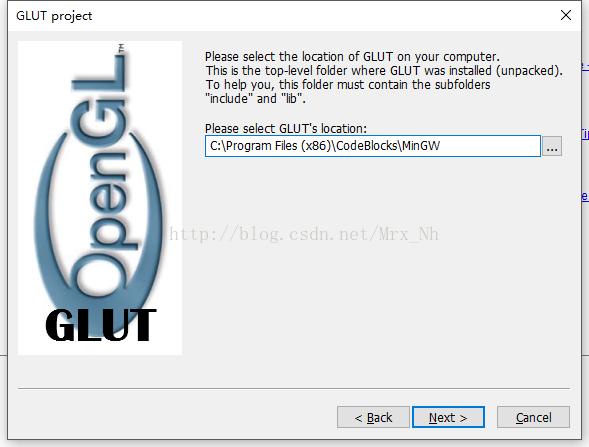
(3) Select the path of GLUT, that is, under the MinGW directory of CodeblCoks

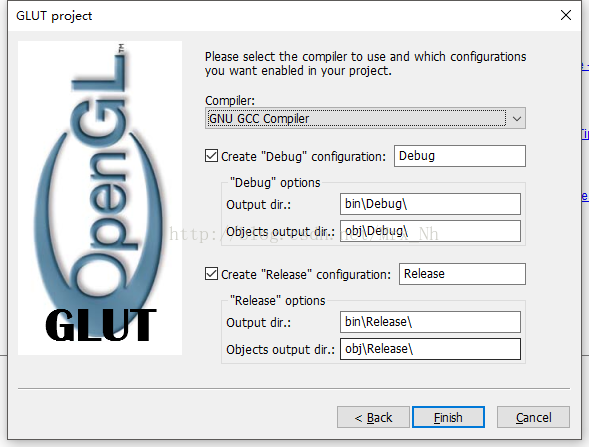
(4) Finish directly


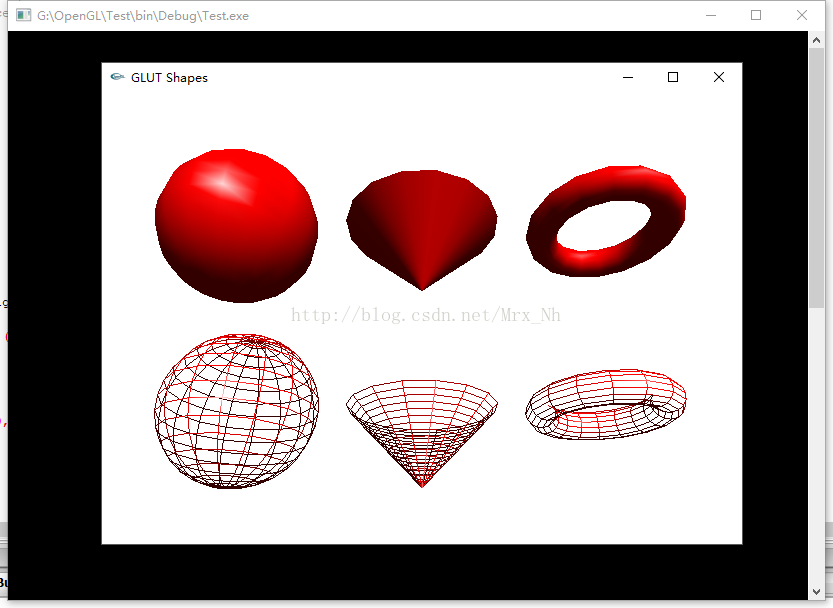
(5) The operating results are as follows


Using the third party OpenGL in codeblock

Configuring OpenGL with VS is of course quick and smooth, but I prefer to write small programs with lightweight Codeblock, and as a novice to Codeblock, it took me a long time to figure it out

Codeblock already has some OpenGL header files and.a library files, but they are not comprehensive and GLUT is missing. So I downloaded the “full version” that someone else had cobbled together to use. The configuration steps are as follows:

(1) Unpack OpenGL into a folder, which usually contains an include folder containing header files and a lib folder containing lib files, or simply mix the header files and lib files into a folder.

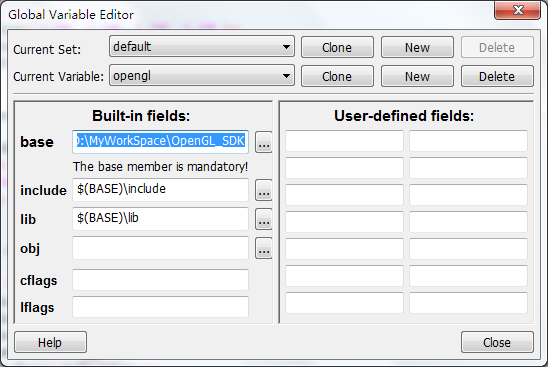
(2) Open Codeblock and click Settings->; Open a dialog box, click New on the second line, enter the name of the variable you like, mine is OpenGL, press OK, then in the left side of the base column to fill in the directory where OpenGL is located, mine is D:\MyWorkSpace\ openGL_sdk, in the include column and lib column to fill in as follows. In short, provide the directory where the header and lib files are located. If all the files are mixed together, the three paths can be the same. Finally, click Close.

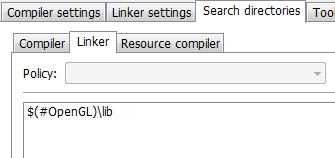
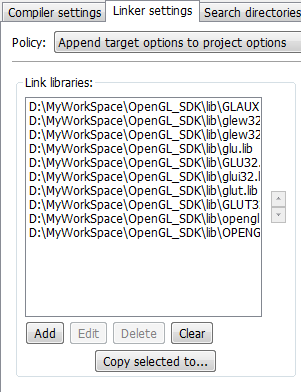
(3) If you want only one Project to be able to detect OpenGL’s directory, then click Project-> on the existing Project; Build Option; If you want all projects to be able to detect the OpenGL directory, click Settings->; Complier. Then go to the Search Directories TAB and Add a $(#OpenGL)\include column in the Comier TAB below, and a $(#OpenGL)\lib column in the Linker TAB next to it. Go to the Linker Settings TAB above, press Add below to Add all the lib files in the OpenGL directory (the number of files may not be the same as mine, NO matter), and then press “OK” or “No” in the dialog box that pops up. Finally press OK.

(4) Compiling and linking. At this point, if there are no problems, congratulations, the configuration is complete. However, maybe some people like me are suffering from a problem, compiler error, something like:

        
Filename reference to ‘__ ‘

Error messages in this format are usually caused by a failure to link the LIB file, so at first I thought the MINGW compiler could not use LIB, but only A files, so I went back to the MINGW utility and tried to convert LIB to A files, but it didn’t work and generated a DLL. And even weirder on my roommate’s machine, it generates obj. It didn’t seem to happen to anyone else on the Internet, so I didn’t find a solution for it for a long time, so I decided to ditch it. After a long search, I finally found two articles that said,
Undefined reference”
The question:

http://www.mingw.org/wiki/HOWTO_Use_Mark_J_Kilgards_OpenGL_Utility_Toolkit_GLUT_with_MinGW

http://blog.csdn.net/huys03/article/details/2260949

       
My in containing the include OpenGL precompiled instruction before increase # define _STDCALL_SUPPORTED success, maybe others’ not yet, in order to insurance, you can write:

#define _STDCALL_SUPPORTED
#define _M_IX86
#define GLUT_DISABLE_ATEXIT_HACK

Remember to put it in front of the header file code that contains OpenGL. You can remove the warning by adding the following code in the previous position:

#define GLUT_NO_WARNING_DISABLE

I hope you found this article useful.

Configure glut in Ubuntu and implement basic OpenGL experiment on CodeBlocks platform

1. First, install GLUT. I selected “Download FreeGLUT” to install the command procedure:
http://freeglut.sourceforge.net/docs/install.php
$sudo apt-get install libxi-dev: error: X11/extensions/ xinput. h: No such file or directory
//after the installation, my computer inside the/usr/local/include/lib folder and set up some reference libraries and header files, etc

2. Configure Codeblocks:
Open Codeblocks, select the GLUT project, select New, enter the project name, and you will be prompted to specify the installation path for GLUT. You can specify it directly to /usr/ (I specified /usr/local/). If both of the above files are present, you should be able to set up the project without any problems.
in the end, one more thing, is to compile time there will be a mistake about Xxf86vm. Right-click on the project to open the project properties window and see the “Project Settings” TAB. Click on the “project ‘s build
Options “, then click on the “Linker Settings” TAB and delete the reference to xxf86VM to compile correctly.
3. Another easy way (just use Vim directly)
1). Install build-essential sudo apt-get Install build-essential // Install autotool
2). Install OpenGL sudo apt-get Install FreeGLUT 3-dev //
3). Use the command: : GCC simple.c-lGlut-o Simple at compile time
Where simple.c can use:

/*
 * GLUT Shapes Demo
 *
 * Written by Nigel Stewart November 2003
 *
 * This program is test harness for the sphere, cone
 * and torus shapes in GLUT.
 *
 * Spinning wireframe and smooth shaded shapes are
 * displayed until the ESC or q key is pressed.  The
 * number of geometry stacks and slices can be adjusted
 * using the + and - keys.
 */

#ifdef __APPLE__
#include <GLUT/glut.h>
#else
#include <GL/glut.h>
#endif

#include <stdlib.h>

static int slices = 16;
static int stacks = 16;

/* GLUT callback Handlers */

static void resize(int width, int height)
{
    const float ar = (float) width/(float) height;

    glViewport(0, 0, width, height);
    glMatrixMode(GL_PROJECTION);
    glLoadIdentity();
    glFrustum(-ar, ar, -1.0, 1.0, 2.0, 100.0);

    glMatrixMode(GL_MODELVIEW);
    glLoadIdentity() ;
}

static void display(void)
{
    const double t = glutGet(GLUT_ELAPSED_TIME)/1000.0;
    const double a = t*90.0;

    glClear(GL_COLOR_BUFFER_BIT | GL_DEPTH_BUFFER_BIT);
    glColor3d(1,0,0);

    glPushMatrix();
        glTranslated(-2.4,1.2,-6);
        glRotated(60,1,0,0);
        glRotated(a,0,0,1);
        glutSolidSphere(1,slices,stacks);
    glPopMatrix();

    glPushMatrix();
        glTranslated(0,1.2,-6);
        glRotated(60,1,0,0);
        glRotated(a,0,0,1);
        glutSolidCone(1,1,slices,stacks);
    glPopMatrix();

    glPushMatrix();
        glTranslated(2.4,1.2,-6);
        glRotated(60,1,0,0);
        glRotated(a,0,0,1);
        glutSolidTorus(0.2,0.8,slices,stacks);
    glPopMatrix();

    glPushMatrix();
        glTranslated(-2.4,-1.2,-6);
        glRotated(60,1,0,0);
        glRotated(a,0,0,1);
        glutWireSphere(1,slices,stacks);
    glPopMatrix();

    glPushMatrix();
        glTranslated(0,-1.2,-6);
        glRotated(60,1,0,0);
        glRotated(a,0,0,1);
        glutWireCone(1,1,slices,stacks);
    glPopMatrix();

    glPushMatrix();
        glTranslated(2.4,-1.2,-6);
        glRotated(60,1,0,0);
        glRotated(a,0,0,1);
        glutWireTorus(0.2,0.8,slices,stacks);
    glPopMatrix();

    glutSwapBuffers();
}


static void key(unsigned char key, int x, int y)
{
    switch (key)
    {
        case 27 :
        case 'q':
            exit(0);
            break;

        case '+':
            slices++;
            stacks++;
            break;

        case '-':
            if (slices>3 && stacks>3)
            {
                slices--;
                stacks--;
            }
            break;
    }

    glutPostRedisplay();
}

static void idle(void)
{
    glutPostRedisplay();
}

const GLfloat light_ambient[]  = { 0.0f, 0.0f, 0.0f, 1.0f };
const GLfloat light_diffuse[]  = { 1.0f, 1.0f, 1.0f, 1.0f };
const GLfloat light_specular[] = { 1.0f, 1.0f, 1.0f, 1.0f };
const GLfloat light_position[] = { 2.0f, 5.0f, 5.0f, 0.0f };

const GLfloat mat_ambient[]    = { 0.7f, 0.7f, 0.7f, 1.0f };
const GLfloat mat_diffuse[]    = { 0.8f, 0.8f, 0.8f, 1.0f };
const GLfloat mat_specular[]   = { 1.0f, 1.0f, 1.0f, 1.0f };
const GLfloat high_shininess[] = { 100.0f };

/* Program entry point */

int main(int argc, char *argv[])
{
    glutInit(&argc, argv);
    glutInitWindowSize(640,480);
    glutInitWindowPosition(10,10);
    glutInitDisplayMode(GLUT_RGB | GLUT_DOUBLE | GLUT_DEPTH);

    glutCreateWindow("GLUT Shapes");

    glutReshapeFunc(resize);
    glutDisplayFunc(display);
    glutKeyboardFunc(key);
    glutIdleFunc(idle);

    glClearColor(1,1,1,1);
    glEnable(GL_CULL_FACE);
    glCullFace(GL_BACK);

    glEnable(GL_DEPTH_TEST);
    glDepthFunc(GL_LESS);

    glEnable(GL_LIGHT0);
    glEnable(GL_NORMALIZE);
    glEnable(GL_COLOR_MATERIAL);
    glEnable(GL_LIGHTING);

    glLightfv(GL_LIGHT0, GL_AMBIENT,  light_ambient);
    glLightfv(GL_LIGHT0, GL_DIFFUSE,  light_diffuse);
    glLightfv(GL_LIGHT0, GL_SPECULAR, light_specular);
    glLightfv(GL_LIGHT0, GL_POSITION, light_position);

    glMaterialfv(GL_FRONT, GL_AMBIENT,   mat_ambient);
    glMaterialfv(GL_FRONT, GL_DIFFUSE,   mat_diffuse);
    glMaterialfv(GL_FRONT, GL_SPECULAR,  mat_specular);
    glMaterialfv(GL_FRONT, GL_SHININESS, high_shininess);

    glutMainLoop();

    return EXIT_SUCCESS;
}

To complete.

CodeBlocks OpenGL configuration process

Codeblocks OpenGL configuration process
Configuring blog recommendations
There are many online configuration tutorial, I think this blog is better: https://blog.csdn.net/qq_41594445/article/details/102965475
because there are codeblocks & amp; OpenGL configuration file download address, and are free!
I made a lot of pit steps in configuring Codeblock + OpenGL, so note it here to prevent others from falling into the pit.
Pit to step on: Codeblock version issues
Don’t go to the website to download the latest Codeblock! .
Because we usually download codeblocks -XX. XX (version number)mingw-setup version of the codeblocks program, it comes with mingw! So if you download the latest version of Codeblocks, the MinGW version will also be the latest.
This affects the later “can not find-lglut32 “spooky error that occurs when a GLUT item is created in Codeblocks. The “can not find-lxxxx “problem is caused by missing lib files. The “can not find” error can not find the “can not find” error in the “can not find” error in the “can not find” error.
I have looked for many tutorials on Baidu and Google, but there is no solution to this problem.
then, I carefully looked at the codeblocks error message when build the GLUT project, found codeblocks build log output in the process of looking for “glut32. Lib”, in which there is a display compiler has reached glut32..lib file location, but ignored the file, shown as “skipping” incompatible XXX, checked the found that this is because the library file version and platform version without corresponding problems!
Then, I uninstalled the latest version of Codeblocks, installed the old version of Codeblocks, followed the tutorial above, and it worked!
lesson

    >

      >

        >

          >

            >

              >

                > It’s hard at first, hold on a little longer (I’m too bad, I’ve been doing it all afternoon.) If not, just switch platforms. VS seems easy to configure (but it takes up a lot of space).

              Hope everyone can install smoothly ~

OpenGL configuration under CodeBlocks in Ubuntu


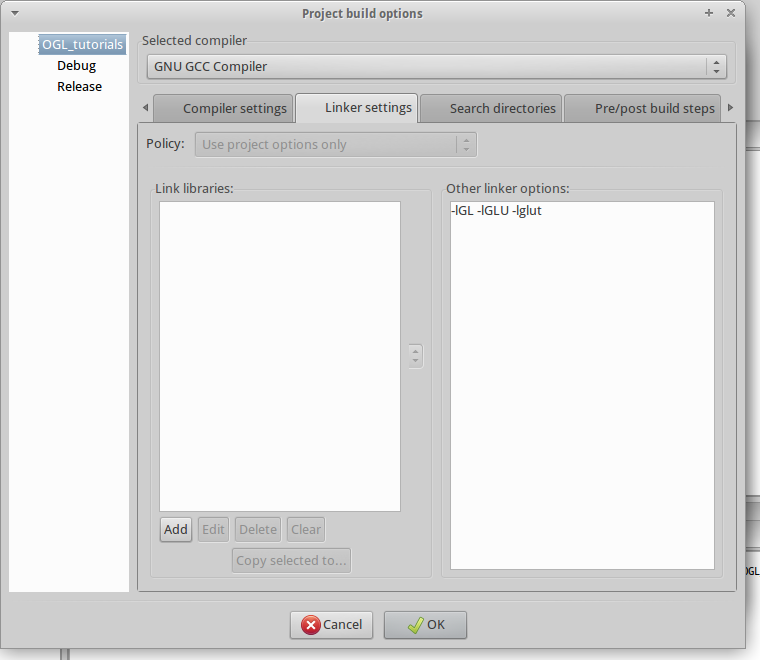
OpenGL configuration in Codeblocks requires only one step:

Project -> “Proproties” are added to the picture below

-lGL -lGLU -lglut

Compile and run successfully.

Please leave me a message if you have any questions.


Reference: http://lazyfoo.net/tutorials/OpenGL/01_hello_opengl/linux/codeblocks/index.php

Configuration of OpenGL under CodeBlocks and solutions to problems encountered

The configuration process: https://blog.csdn.net/sophiale07/article/details/44965875
Undefined reference to ‘_XX OpenGL function name ‘.
Solution:
Add before include precompile directives that include OpenGL

 #define _STDCALL_SUPPORTED

 
If it still doesn’t work, add

#define _M_IX86  
#define GLUT_DISABLE_ATEXIT_HACK  

There may also be warnings, which can be removed by the following code:

#define GLUT_NO_WARNING_DISABLE

Modify the compilation and Makefile methods for undefined reference errors.
https://blog.csdn.net/huys03/article/details/2260949

Configure OpenGL in CodeBlocks

There are many online tutorials, but some are easy to use and some are not.
There are two broad categories. One is that you don’t have to manually add libraries after you’ve configured them, but a New GLUT Project is needed to create a New Project instead of the usual Console Application. This category can refer to this document: https://wenku.baidu.com/view/7396dc8783d049649b66588c.html
Another type of configuration method, when configured, will be a New normal Console Application, but you will need to manually add the OpenGL library.
I chose the second category because I found that the console could not be tuned out of the configuration method of the first category, so I could not see the output of the console. Debug is very inconvenient, so I haven’t found a solution yet.
General reference is http://www.yalewoo.com/opengl_notes_2_use_opengl_in_codeblocks.html, but is not identical also, built after the project need to add one more libraries.

Steps:
Glut. h goes into the MinGW\include\GL directory of the compiler. .
glut32 lib in MinGW \ lib directory
glut32. The DLL into the C: \ Windows \ System in

Open the codeblocks create the console program, and then in the project to build the options – would add three static link library glut32 Settings. The lib, libopengl32. A, as well as libglu32. A, their paths in the lib folder of the compiler.

Summary of problems encountered by CodeBlocks + OpenGL

1. Explore the installation software, configure OpenGL, the key is where the several files of GLU are placed, and how to set up the link library for the new project.
2. Try to run the code for the class
#include< #include< iostream> and # include< stdio.h> #include < #include < GL/gl.h> And # include & lt; GL/glut.h> needs to replace include < GL/ogl.h> . Not familiar with OpenGL header files.
3. Summary of Mistakes:
1.error:assignment of read-only variable 'S_width'
2.error:initializer element is not constant
The initializer element is not constant error occurred during compilation. Problem: The value of a global variable cannot be determined at compile time, but must be determined at execution time (compile principle). That is, the global variable should be declared outside the function, and the assignment should be done inside the function. Solution: Declare the variable name externally and assign the value inside the function.
3. The codeblocks warning: ignoring # pragma comment {- Wunknown - pragmas}
Problem: see online is the way mingw use MSVC will issued a warning: ignoring # pragma comment - Wunknown - pragmas reason is that, under the GCC with # pragma comment (lib, "ws2_32") equivalent prepared statements. Solution: Toolbar -->; The Project - & gt; Build Options, select Linker Settings, and Add the statically linked library files you need
opengl32.lib/ code>
ned reference to OpenGL
> Look at the net summary reasons have a lot of, I did not put the library link.
5. Use Codeblocks to create header files. You can refer to this article
https://blog.csdn.net/qq_40741513/article/details/80858910 click File> > New> > Build target> > Files> > C/C++header > > go
Go to codeblocks, file->; So addfile, add the.h file that you created.
uses "" when including header files, for example: "header.h". Because & lt; > "" is used to include the compiler's own header files, "" is used to include your own header files.
#ifndef header.h
define header.h...
#define header.h...
#endif prevents duplication of definitions, or if you do not use the header multiple times. "Header. H" is generally the upper case name of the HEADER file
6. There is exit was not declared in this scope , undefined reference to WinMain @ 16 'collect2. Exe: error: ld returned 1 exit these problems
Try to experiment the code on the net, after debugging in the computer run, feel very happy.
learning
Codeblocks DLL is what folder (https://blog.csdn.net/kld1412/article/details/51628424) codeblocks CPB is what files. .cbp(Codeblocks Project) Codeblocks Project OpenGL Profile Resources Download This is all but integral enough (https://download.csdn.net/download/blink31/4376444) in AutoCAD and interactive environment modelling and so on3dmax, users can use the mouse drag form on a computer screen to do 3 d any degrees of freedom of rotation, the user can observe the form the geometry characteristics of the different sides. This user-friendly technology is ---- Trackball technology.
Example problem record:
1. Drawing the classroom globes:

F:\test\earth\src\earth.cpp|84|error: no matching function for call to 'std::basic_ifstream<wchar_t>::basic_ifstream(const wchar_t*&)'|

To be solved
2 Code::Blocks : undefined reference to xxxxxx@4'
Reason: lack of lib library. Solution: Add a lib library.
3. about console file stdafx.h. refer to this blog post
The solution is to copy this stack of code into your new "stdafx.h", and then
Just put it in the same directory as your source files.
initializer element is not constant itializer element is not constant. Change to #define using the method described here, but error 2 appears above. No solution has been found to the problem.
5. The use of glaux
Learning Resources:
1.OpenGL simulation of solar system running
2.OpenGL drawing rotating teapot
. Use OpenGL to do a clock animation
4. Use OpenGL to achieve a bouncing ball
Learning website
https://learnopengl-cn.github.io/

Configuring OpenGL in Code:: blocks

Configuring OpenGL in Codeblocks is slightly different than configuring OpenGL in VC, VS, and requires slightly different library files. This article takes CB13 as an example. (Old and new versions are common, but it is best to use mingw tools, GCC/GDB, etc., other compiled kernels are not tested)
First, download the library files (downloaded at the bottom of the article, uploaded to the 100 cloud, if the link fails, you can reply or email me to continue the upload), including Glut. h, Glut32.dll, LibGlut32.a.

    Put the glut32. h file under the MinGw\include\GL directory and the glut32. DLL file under the C:\Windows\ system32 directory (for 64-bit operating systems, put the file under the C:\Windows\SysWOW64 directory) and the libglut32.a file under the MinGw\lib\ directory
(From the blog of CSDN WWWISKEY)
And then you set up the project, and notice that you set up the project for GLUT

The next step, when I get here,

Path selection:

Different installation paths and different systems may vary, but choose the MinGW folder under the CodeBlocks installation path.
Then proceed, when it is time to select the Project name and save the path, the path must not be in Chinese, and it is better not to be on the desktop (sometimes can not compile, CB common fault). Once established, you can open the Main.cpp sample program in the Projects TAB of the Management sidebar on the left.
Not yet, select the top column Project->; Build Options, click the Debug TAB on the left, the Linker Setting TAB on the right, and click Add below.

File select this:

* Note: Do not mix libglu32.a with libglut32.a.
Open, “Keep Relative Path”, “No”, OK all the way, then F9 can run the program.
Also, if you don’t need ifdef in the sample program, you can simply do this:

If you want to use this library in the future, just include GL/ Glut.h.
The result should be this:

The main difference with VC and VS is that the library file is libglut32.a instead of other.lib files, so all we need to do is convert glut32.lib to libglut32.a. There is a program on SourceForge that can do this, but I can’t find it now, so just download it.
Relevant documents please go to my personal page: http://alanzjl.sinaapp.com/2015/02/opengl_in_codeblocks/
Or: http://download.csdn.net/detail/alanzjl/8463847 to download

Installation and use of OpenGL based on CodeBlocks

1. The main process, in my collection. You can find the original blog directly.
2. Attention:
A libbgi.a file is also downloaded. It is installed under C: Program Files (x86)\CodeBlocks\MinGW\lib. Download Address:
http://www.3673.com/file/280472.html
Second:
Put the glut32.h file under the MinGw\include\GL directory
Put the glut32.dll file under the C:\Windows\ system32 directory (for a 64-bit operating system, put the file under the C:\Windows\SysWOW64 directory)
t the libglut32.a under the MinGw\lib\ directory
T> are the three full lines of the author. I just installed the second file in the wrong path and caused a lot of errors.
In addition: want to test your results immediately, here are some examples of application: https://blog.csdn.net/Halsey_/article/details/79684493

Ubuntu: CodeBlocks compile OpenGL super Dictionary (5th Edition) instance

This article is written by XHZ1234 (Xu Hongzhi), reprint please indicate the source.
http://blog.csdn.net/xhz1234/article/details/38349623
Recently in the OpenGL super bible fifth edition, the system for Ubuntu, want to pass the Codeblocks running instance of the book, encountered many problems, have been solved, now share operation steps are as follows:

1. Establish a basic compilation environment
sudo apt-getinstall build-essential
 
2. Install OpenGL Library
sudo apt-getinstall libgl1-mesa-dev

Install OpenGL Utilities
sudo apt-getinstall libglu1-mesa-dev

4. Install OpenGL Utility Toolkit
sudo apt-get installfreeglut3-dev

5. Install the Codeblocks

Install the Code::Blocks IDE in the Ubuntu Software Center

6. Create a new Codeblocks project
New Console Application Project –>; Select C++ Language, such as the project name HelloWorld

7. Include OpenGL/ GLUT related link libraries
Project a Build Options a linkerSettings
Add file: libgl. so libGlut.so libGlut.so
[1 ~ 7 steps can refer to blog http://blog.csdn.net/jarvischu/article/details/8226938, step 6 must establish the Console application and is a c + + language]

8. Download freeglutAndGLTools
The address is: http://download.csdn.net/detail/xhz1234/7707213,
. Will download GLToolsandFreeglut. Tar. Xz decompression freeglut – server and GLTools, these two files in the directory and copy the HelloWorld directory to the new project.

9. Add the example code
In the case of SphereWorld4 in the OpenGL Superbib (Version 5), copy the contents of SphereWorld4.cpp to main.cpp in the new project (or you can remove main.cpp and copy SphereWorld4.cpp directly to the HelloWorld project), and then Codeblocks adds these files.

10. The modified SphereWorld4. CPP
The code is shown in red:

// SphereWorld.cpp
// OpenGL SuperBible
// New and improved (performance) sphere world
// Program by Richard S. Wright Jr.

// SphereWorld.cpp
// OpenGL SuperBible
// New and improved (performance) sphere world
// Program by Richard S. Wright Jr.

<span style="color:#FF0000;">#include "./GLTools/include/GL/glew.h"
#include "./GLTools/include/GLTools.h"
#include "./GLTools/include/GLShaderManager.h"
#include "./GLTools/include/GLFrustum.h"
#include "./GLTools/include/GLBatch.h"
#include "./GLTools/include/GLMatrixStack.h"
#include "./GLTools/include/GLGeometryTransform.h"
#include "./GLTools/include/GLTools.h"
#include "./GLTools/include/StopWatch.h"
</span>
#include <math.h>
#include <stdio.h>

#ifdef __APPLE__
#include <glut/glut.h>
#else
#define FREEGLUT_STATIC
#include <GL/glut.h>
#endif

#define NUM_SPHERES 50
GLFrame spheres[NUM_SPHERES];


GLShaderManager		shaderManager;			// Shader Manager
GLMatrixStack		modelViewMatrix;		// Modelview Matrix
GLMatrixStack		projectionMatrix;		// Projection Matrix
GLFrustum			viewFrustum;			// View Frustum
GLGeometryTransform	transformPipeline;		// Geometry Transform Pipeline

GLTriangleBatch		torusBatch;
GLBatch				floorBatch;
GLTriangleBatch     sphereBatch;
GLFrame             cameraFrame;

//
// This function does any needed initialization on the rendering
// context.
void SetupRC()
    {
	// Initialze Shader Manager
	shaderManager.InitializeStockShaders();

	glEnable(GL_DEPTH_TEST);

	glClearColor(0.0f, 0.0f, 0.0f, 1.0f);

	// This makes a torus
	gltMakeTorus(torusBatch, 0.4f, 0.15f, 30, 30);

    // This make a sphere
    gltMakeSphere(sphereBatch, 0.1f, 26, 13);

	floorBatch.Begin(GL_LINES, 324);
    for(GLfloat x = -20.0; x <= 20.0f; x+= 0.5) {
        floorBatch.Vertex3f(x, -0.55f, 20.0f);
        floorBatch.Vertex3f(x, -0.55f, -20.0f);

        floorBatch.Vertex3f(20.0f, -0.55f, x);
        floorBatch.Vertex3f(-20.0f, -0.55f, x);
        }
    floorBatch.End();

    // Randomly place the spheres
    for(int i = 0; i < NUM_SPHERES; i++) {
        GLfloat x = ((GLfloat)((rand() % 400) - 200) * 0.1f);
        GLfloat z = ((GLfloat)((rand() % 400) - 200) * 0.1f);
        spheres[i].SetOrigin(x, 0.0f, z);
        }
    }


///
// Screen changes size or is initialized
void ChangeSize(int nWidth, int nHeight)
    {
	glViewport(0, 0, nWidth, nHeight);

    // Create the projection matrix, and load it on the projection matrix stack
	viewFrustum.SetPerspective(35.0f, float(nWidth)/float(nHeight), 1.0f, 100.0f);
	projectionMatrix.LoadMatrix(viewFrustum.GetProjectionMatrix());

    // Set the transformation pipeline to use the two matrix stacks
	transformPipeline.SetMatrixStacks(modelViewMatrix, projectionMatrix);
    }


// Called to draw scene
void RenderScene(void)
	{
    // Color values
    static GLfloat vFloorColor[] = { 0.0f, 1.0f, 0.0f, 1.0f};
    static GLfloat vTorusColor[] = { 1.0f, 0.0f, 0.0f, 1.0f };
    static GLfloat vSphereColor[] = { 0.0f, 0.0f, 1.0f, 1.0f };

    // Time Based animation
	static CStopWatch	rotTimer;
	float yRot = rotTimer.GetElapsedSeconds() * 60.0f;

	// Clear the color and depth buffers
	glClear(GL_COLOR_BUFFER_BIT | GL_DEPTH_BUFFER_BIT);


    // Save the current modelview matrix (the identity matrix)
	modelViewMatrix.PushMatrix();

    M3DMatrix44f mCamera;
    cameraFrame.GetCameraMatrix(mCamera);
    modelViewMatrix.PushMatrix(mCamera);

    // Transform the light position into eye coordinates
    M3DVector4f vLightPos = { 0.0f, 10.0f, 5.0f, 1.0f };
    M3DVector4f vLightEyePos;
    m3dTransformVector4(vLightEyePos, vLightPos, mCamera);

	// Draw the ground
	shaderManager.UseStockShader(GLT_SHADER_FLAT,
								 transformPipeline.GetModelViewProjectionMatrix(),
								 vFloorColor);
	floorBatch.Draw();

    for(int i = 0; i < NUM_SPHERES; i++) {
        modelViewMatrix.PushMatrix();
        modelViewMatrix.MultMatrix(spheres[i]);
        shaderManager.UseStockShader(GLT_SHADER_POINT_LIGHT_DIFF, transformPipeline.GetModelViewMatrix(),
                                transformPipeline.GetProjectionMatrix(), vLightEyePos, vSphereColor);
        sphereBatch.Draw();
        modelViewMatrix.PopMatrix();
        }

    // Draw the spinning Torus
    modelViewMatrix.Translate(0.0f, 0.0f, -2.5f);

    // Save the Translation
    modelViewMatrix.PushMatrix();

        // Apply a rotation and draw the torus
        modelViewMatrix.Rotate(yRot, 0.0f, 1.0f, 0.0f);
        shaderManager.UseStockShader(GLT_SHADER_POINT_LIGHT_DIFF, transformPipeline.GetModelViewMatrix(),
                                     transformPipeline.GetProjectionMatrix(), vLightEyePos, vTorusColor);
        torusBatch.Draw();
    modelViewMatrix.PopMatrix(); // "Erase" the Rotation from before

    // Apply another rotation, followed by a translation, then draw the sphere
    modelViewMatrix.Rotate(yRot * -2.0f, 0.0f, 1.0f, 0.0f);
    modelViewMatrix.Translate(0.8f, 0.0f, 0.0f);
    shaderManager.UseStockShader(GLT_SHADER_POINT_LIGHT_DIFF, transformPipeline.GetModelViewMatrix(),
                                transformPipeline.GetProjectionMatrix(), vLightEyePos, vSphereColor);
    sphereBatch.Draw();

	// Restore the previous modleview matrix (the identity matrix)
	modelViewMatrix.PopMatrix();
    modelViewMatrix.PopMatrix();
    // Do the buffer Swap
    glutSwapBuffers();

    // Tell GLUT to do it again
    glutPostRedisplay();
    }


// Respond to arrow keys by moving the camera frame of reference
void SpecialKeys(int key, int x, int y)
    {
	float linear = 0.1f;
	float angular = float(m3dDegToRad(5.0f));

	if(key == GLUT_KEY_UP)
		cameraFrame.MoveForward(linear);

	if(key == GLUT_KEY_DOWN)
		cameraFrame.MoveForward(-linear);

	if(key == GLUT_KEY_LEFT)
		cameraFrame.RotateWorld(angular, 0.0f, 1.0f, 0.0f);

	if(key == GLUT_KEY_RIGHT)
		cameraFrame.RotateWorld(-angular, 0.0f, 1.0f, 0.0f);
    }

int main(int argc, char* argv[])
    {
	gltSetWorkingDirectory(argv[0]);

    glutInit(&argc, argv);
    glutInitDisplayMode(GLUT_DOUBLE | GLUT_RGB | GLUT_DEPTH);
    glutInitWindowSize(800,600);

    glutCreateWindow("OpenGL SphereWorld");

    glutSpecialFunc(SpecialKeys);
    glutReshapeFunc(ChangeSize);
    glutDisplayFunc(RenderScene);

    GLenum err = glewInit();
    if (GLEW_OK != err) {
        fprintf(stderr, "GLEW Error: %s\n", glewGetErrorString(err));
        return 1;
        }


    SetupRC();
    glutMainLoop();
    return 0;
    }

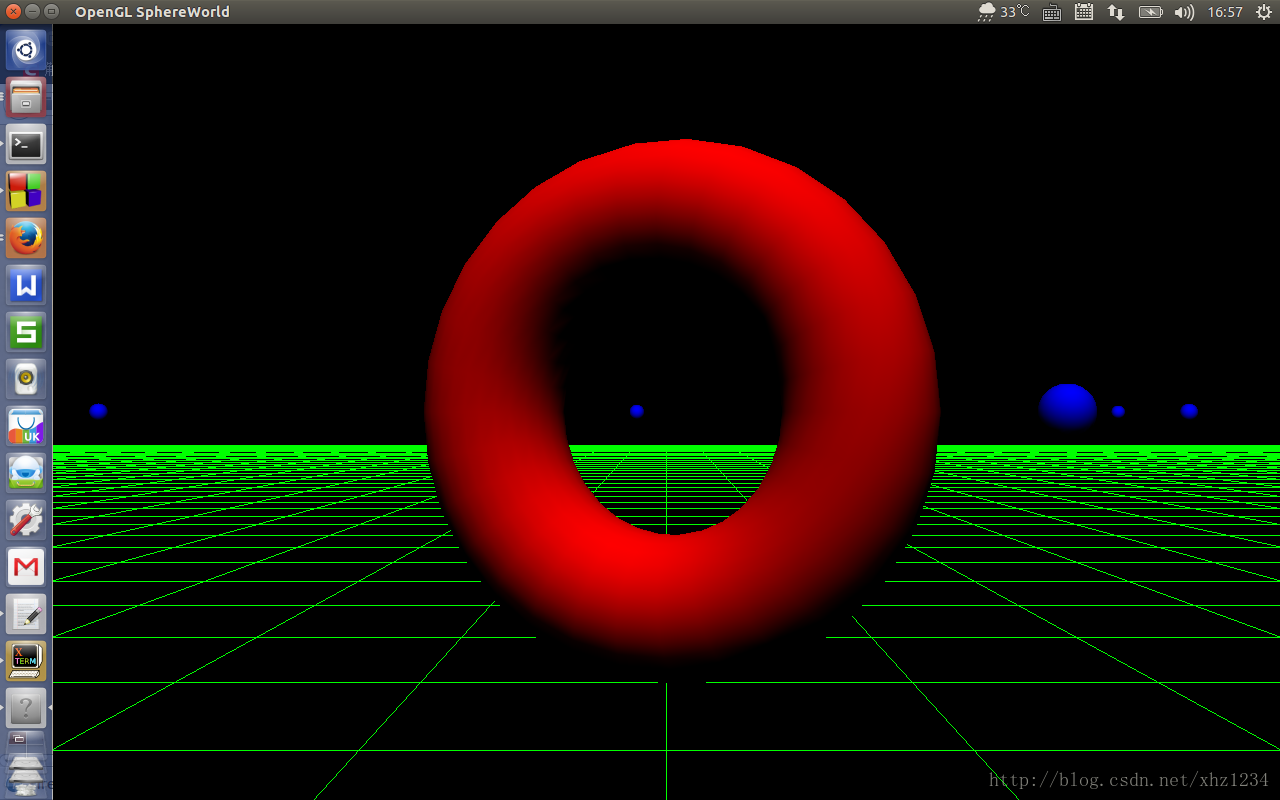
11. Compile and run as follows:


End of text!
Add:
1) OpenGL super bible code download address: http://www.starstonesoftware.com/files/
Code that uses Super Bibliodek directly will not compile at Codeblocks. The above steps will work fine.
2) During compilation, there are many alarms, which fall into two categories:
2-1)

||=== Build: Debug in TestForLove2 (compiler: GNU GCC Compiler) ===|
/home/xhz/Program/TestForLove2/GLTools/src/GLTools.cpp||In function ‘GLbyte* gltReadBMPBits(const char*, int*, int*)’:|
/home/xhz/Program/TestForLove2/GLTools/src/GLTools.cpp|1062|warning: converting ‘false’ to pointer type ‘GLbyte* {aka signed char*}’ [-Wconversion-null]|
/home/xhz/Program/TestForLove2/GLTools/src/GLTools.cpp|1074|warning: converting ‘false’ to pointer type ‘GLbyte* {aka signed char*}’ [-Wconversion-null]|
||=== Build finished: 0 error(s), 2 warning(s) (0 minute(s), 3 second(s)) ===|

Change false to NULL in the corresponding location of gltools.cpp

2-2)

||=== Build: Debug in TestForLove2 (compiler: GNU GCC Compiler) ===|
/home/xhz/Program/TestForLove2/GLTools/src/../include/GLBatch.h||In constructor ‘GLBatch::GLBatch()’:|
/home/xhz/Program/TestForLove2/GLTools/src/../include/GLBatch.h|127|warning: ‘GLBatch::nNumTextureUnits’ will be initialized after [-Wreorder]|
/home/xhz/Program/TestForLove2/GLTools/src/../include/GLBatch.h|126|warning:   ‘GLuint GLBatch::nNumVerts’ [-Wreorder]|
/home/xhz/Program/TestForLove2/GLTools/src/GLBatch.cpp|57|warning:   when initialized here [-Wreorder]|
/home/xhz/Program/TestForLove2/GLTools/src/../include/GLBatch.h|135|warning: ‘GLBatch::pTexCoords’ will be initialized after [-Wreorder]|
/home/xhz/Program/TestForLove2/GLTools/src/../include/GLBatch.h|119|warning:   ‘GLuint GLBatch::uiVertexArray’ [-Wreorder]|
/home/xhz/Program/TestForLove2/GLTools/src/GLBatch.cpp|57|warning:   when initialized here [-Wreorder]|
/home/xhz/Program/TestForLove2/GLTools/src/../include/GLBatch.h|129|warning: ‘GLBatch::bBatchDone’ will be initialized after [-Wreorder]|
/home/xhz/Program/TestForLove2/GLTools/src/../include/GLBatch.h|125|warning:   ‘GLuint GLBatch::nVertsBuilding’ [-Wreorder]|
/home/xhz/Program/TestForLove2/GLTools/src/GLBatch.cpp|57|warning:   when initialized here [-Wreorder]|
/home/xhz/Program/TestForLove2/GLTools/src/../include/GLBatch.h|125|warning: ‘GLBatch::nVertsBuilding’ will be initialized after [-Wreorder]|
/home/xhz/Program/TestForLove2/GLTools/src/../include/GLBatch.h|122|warning:   ‘GLuint* GLBatch::uiTextureCoordArray’ [-Wreorder]|
/home/xhz/Program/TestForLove2/GLTools/src/GLBatch.cpp|57|warning:   when initialized here [-Wreorder]|
||=== Build finished: 0 error(s), 12 warning(s) (0 minute(s), 4 second(s)) ===|

The reason for the warning is

constructor variables are initialized in a different order than the member variable is defined in class GLBatch

The order of member variables in the GLBatch definition in the code is as follows:

class GLBatch : public GLBatchBase
{
          ...
    protected:
	GLenum		primitiveType;		// What am I drawing....
        
	GLuint		uiVertexArray;
	GLuint      uiNormalArray;
	GLuint		uiColorArray;
	GLuint		*uiTextureCoordArray;
	GLuint		vertexArrayObject;
        
        GLuint nVertsBuilding;			// Building up vertexes counter (immediate mode emulator)
        GLuint nNumVerts;				// Number of verticies in this batch
        GLuint nNumTextureUnits;		// Number of texture coordinate sets
		
        bool	bBatchDone;				// Batch has been built
 
	
	M3DVector3f *pVerts;
	M3DVector3f *pNormals;
	M3DVector4f *pColors;
	M3DVector2f **pTexCoords;
	
};

and in the class initializer list defined as follows:

GLBatch::GLBatch(void): nNumTextureUnits(0), nNumVerts(0), pVerts(NULL), pNormals(NULL), pColors(NULL), pTexCoords(NULL), uiVertexArray(0),
	uiNormalArray(0), uiColorArray(0), vertexArrayObject(0), bBatchDone(false), nVertsBuilding(0), uiTextureCoordArray(NULL)

in order to eliminate the above alarm, only the two order is unified, I will be the order of the member variables in a GLBatch made changes.

With the above changes are synchronized to the freeglutAndGLTools, address is: http://download.csdn.net/detail/xhz1234/7707213 compressed package in the corresponding files.
CodeBlocks configuring OpenGL

Download Windows environment GLUT, link: https://pan.baidu.com/s/1U43rth8-9W6AcP2zG3GFRw password: i2zu
Glut.h, Glut32.dll, LibGlut32.a, MSVCR70.dll

The following directory is mine, the specific operation pay attention to their own installation directory

1. Put Glut. h in F:\Program Files\ Codeblocks \ MingW \ Include \GL
2. Put libglut32.a in F:\Program Files\CodeBlocks\MinGW\lib
3. Place glut32. DLL in C:\Windows\System32 for 32-bit OS and C:\Windows\ Syswow64 for 64-bit OS
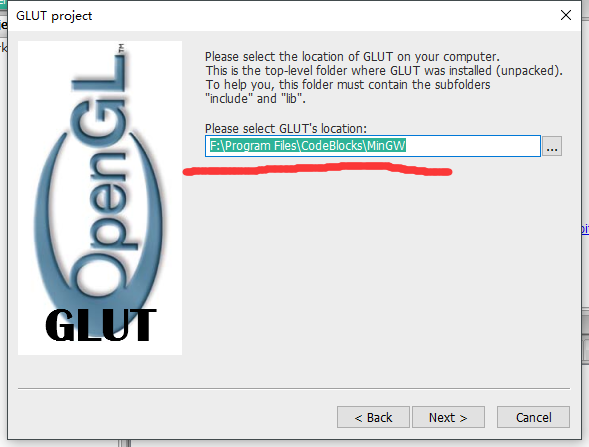
Then create a GLUT project

Then specify the GLUT location (this is just my location, notice your installation directory).

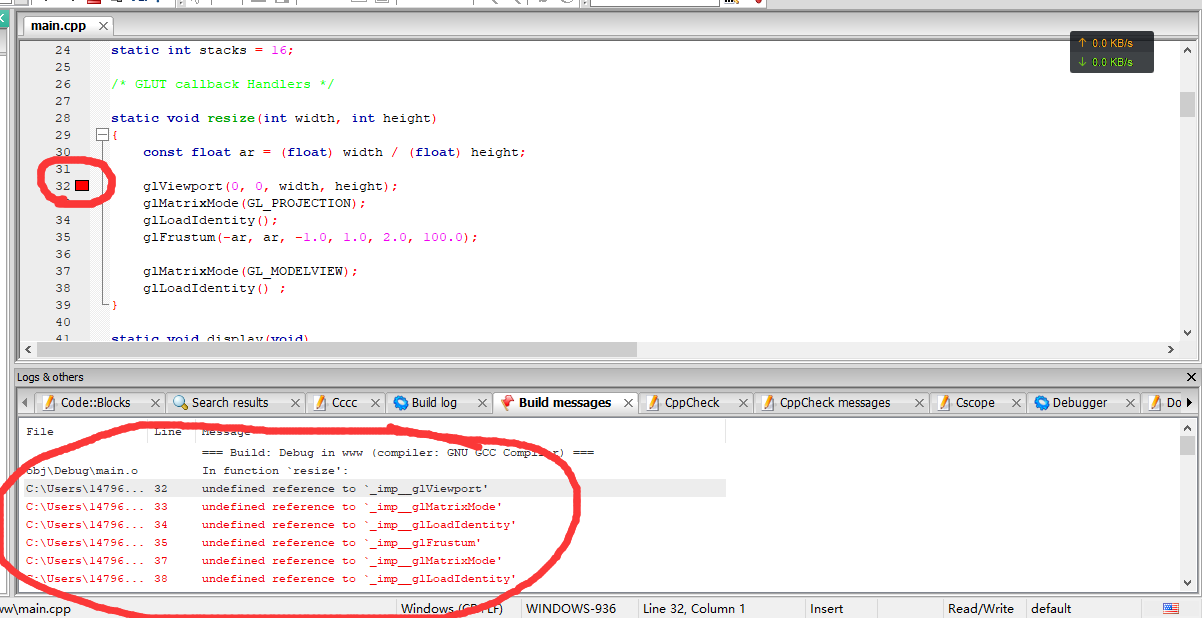
Online other people’s tutorials tutorials may be so far, but I have the following problems

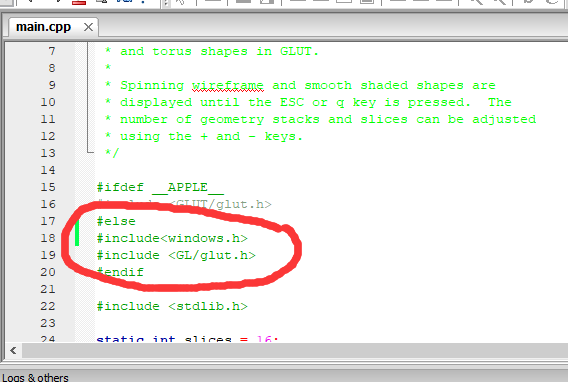
You should start the code with a #include< windows.h> OK, but it looks like it’s going to be above the sentence GLUT


The last problem is an error that says “because msvcr70.dll……….. cannot be found” C:\Windows\System32 or C:\Windows\SysWOW64. These two directories should be the difference between 32-bit and 64-bit systems